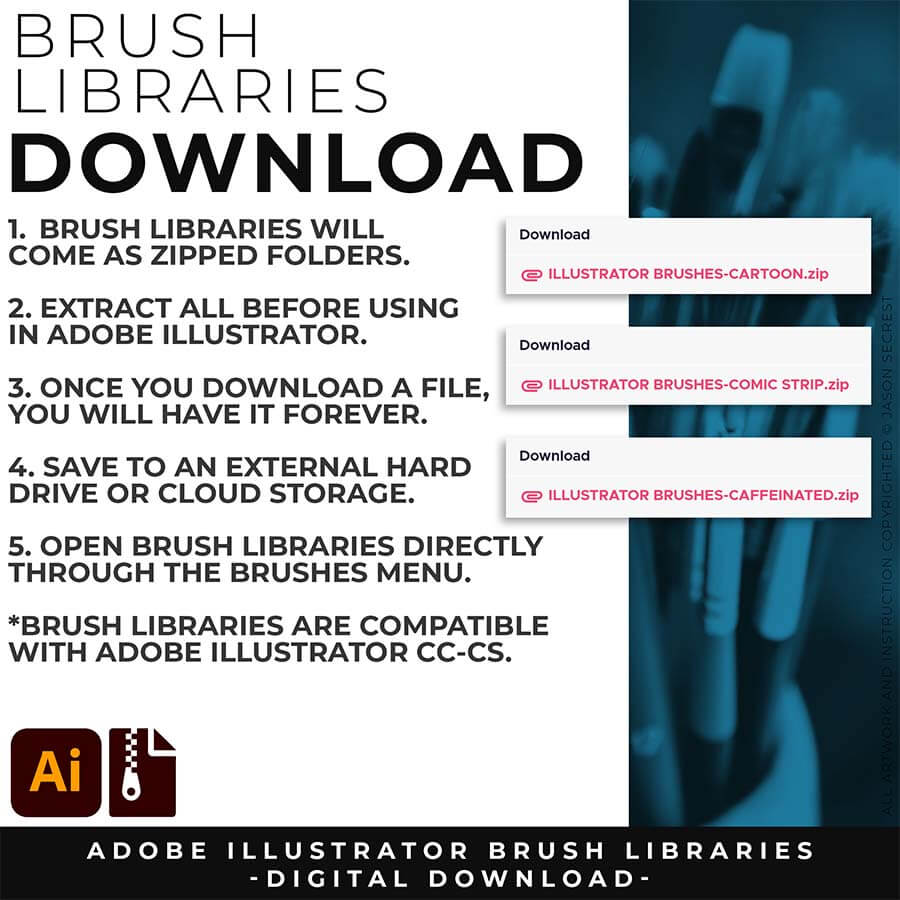
DIGITAL DOWNLOADS: Many of you are jumping over from YouTube looking to download our Adobe Illustrator Brushes and Textures Folders. Digital Downloads will come as Zipped Folders through Teachable. Once you have downloaded and extracted the folders, digital downloads are ready to be used. No Install is required.
PROMPT PACKS: Creative System with Digital Downloads and AI Prompts that work together to speed up your workflow. Access our Creative System Library of Prompts through Teachable. Our Creative System is in a Subscription Model to include Updates. New Prompts and Updates are added on a Weekly - Monthly Basis.
RESOURCE GUIDES: Full-Length Learning Modules include Workflow Guides, Directions, and Action Steps. Start with our Resource Guides inside of Teachable to understand how to apply resources in Adobe Illustrator. New Creative Memberships and Programs launched on May 15, 2026.
TUTORIALS: Our Adobe Illustrator Tutorials will focus on the core areas of your workflow: building, editing, and coloring. LEARNING TARGET (1): Understand the Building Tools and Options. LEARNING TARGET (2): Understand Line Variation along with Live and Expanded Editing Tools. LEARNING TARGET (3): Understand Color, Values, and Gradients using Advanced Coloring Techniques.
DIGITAL DOWNLOADS: Many of you are jumping over from YouTube looking to download our Adobe Illustrator Brushes and Resource Folders. Digital Downloads will come through our friends at Teachable. Download Adobe Illustrator Brush Libraries, Comic Halftones, T-Shirt Textures, or Resource Bundle.
RESOURCE GUIDES: Digital Downloads will come as Zipped Folders. Once you have downloaded and extracted the Resource Folders, they are ready to be used in Adobe Illustrator. Start with our Resource Guides, Illustrator Tutorials, or YouTube Playlists to understand how to apply resources in Adobe Illustrator.
DOWNLOAD BRUSHES: Many of you are jumping over from YouTube looking to download our Adobe Illustrator Brushes. Digital Downloads will come to you as Zipped Folders. Cartoon Brushes include our Updated Cartoon and Cartoon 2 Brushes Libraries.
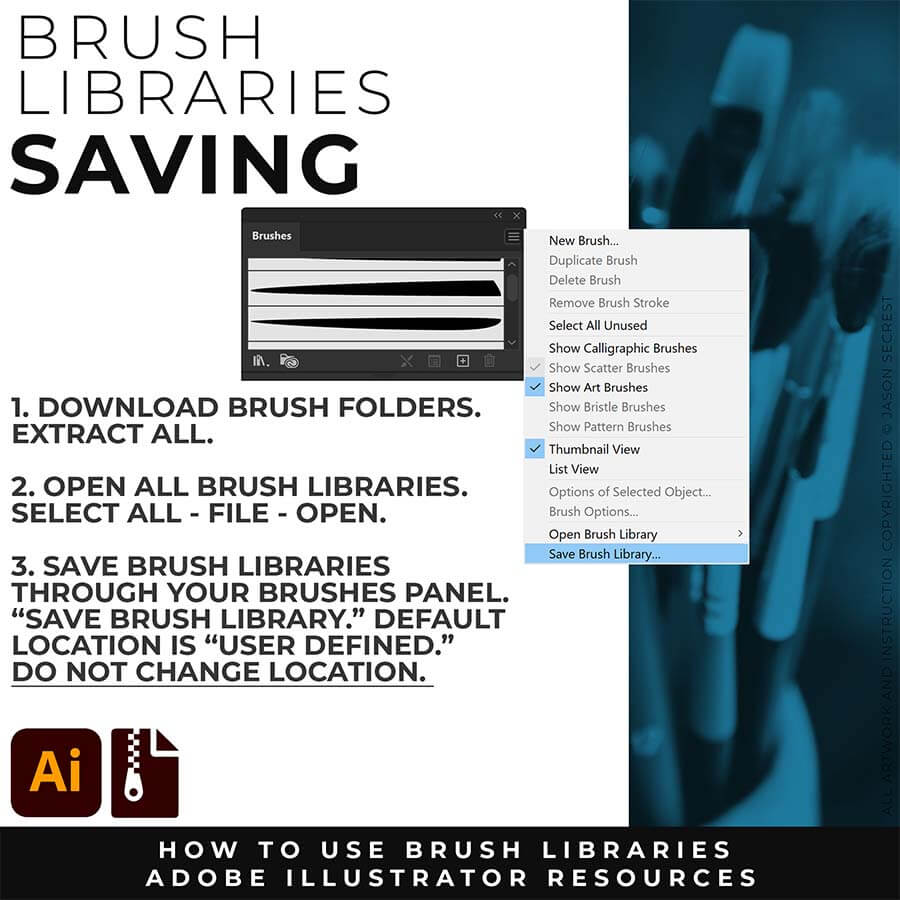
SAVE LIBRARIES: Once you have downloaded and extracted the Brush Folders, I recommend Saving Brush Libraries to your "User Defined" by clicking Save Brush Library in the Brushes Menu. Start with our Resource Guides to save, apply, and edit Brushes in Adobe Illustrator.
OPEN BRUSHES: Adobe Illustrator Brushes have been organized into Brush Libraries for easy application and to maintain consistency with your Line Variation. You can Open Brush Libraries through the “User Defined” or “Other Library” Options in the Brushes Panel in Adobe Illustrator.
Image
DOWNLOAD BRUSHES. Many of you are jumping over from YouTube looking to download our (Updated) Adobe Illustrator Brush Libraries to follow along or use with your own vector artwork. Brush Libraries include our 70 Cartoon, 100 Comic Strip, and 50 Vintage Mascot Brushes.
Image
RESOURCE GUIDES. Digital Downloads will come as a Zipped Folder on Teachable. I recommend Saving "Updated" Brush Libraries to your "User Defined" by clicking Save Brush Library in the Brushes Menu. Follow along with our Resource Guides to save, apply, and edit Brushes in Adobe Illustrator.
Image
FOLLOW ALONG. Our Tutorials will go through how to apply Resources within a Workflow. Follow along with our 100 Tutorials Playlist on YouTube or 50 Step by Steps on the Website. Tutorials will focus on Building Tools, Applying Brushes, Editing Options, and Basic Coloring Techniques.
Cartoon Brushes for Adobe Illustrator

WHAT IS NEW: Most people get stuck at one of two spots — they have a sketch, but can't build and ink it cleanly in Adobe Illustrator. This combo fixes both ends: sixteen AI prompts turn your rough sketch into clean, professional cartoon linework, formatted for Midjourney, Gemini, ChatGPT Images, Kittl, and Canva — then the actual 70-brush library lets you finish and edit it by hand in Illustrator. Sketch rough, ink like a pro.

mascot brush set
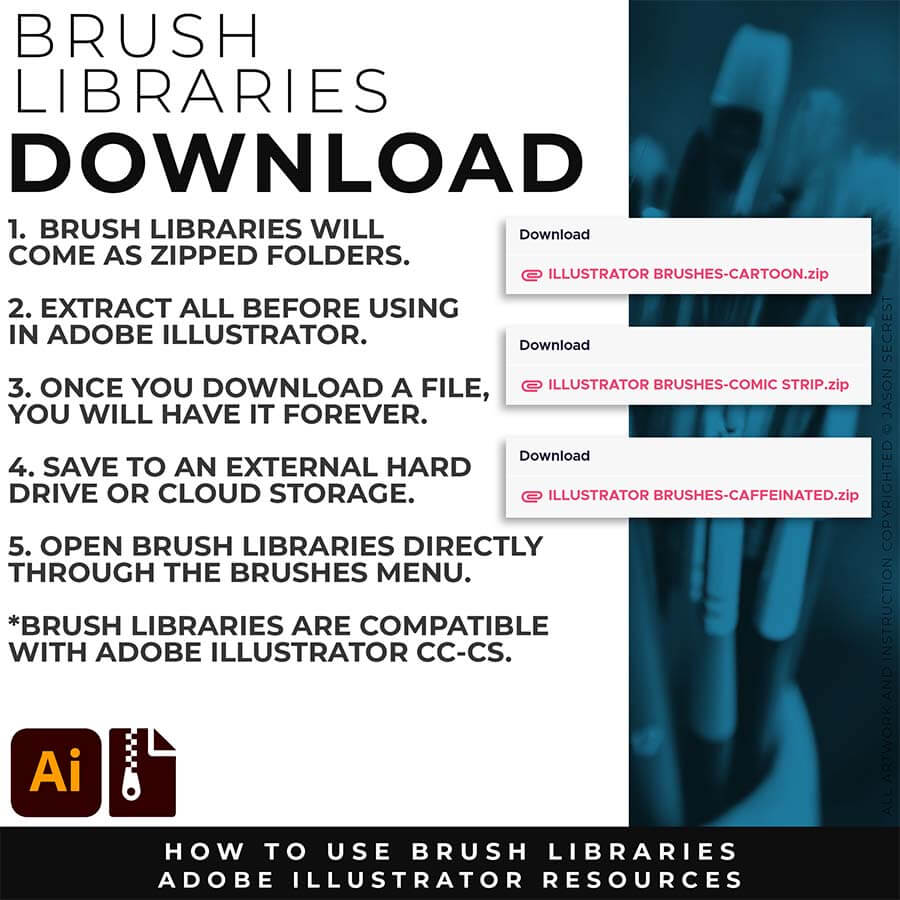
DOWNLOAD BRUSHES: Brush Libraries will come to you as Zipped Folders. Once you have downloaded and extracted the folders, Brushes are ready to be used in Adobe Illustrator. Brush Libraries are compatible with Adobe Illustrator CC through CS. Mac or PC.
comic strip brush set
BRUSHES GUIDE: Once you download a file, you will have it forever. Save all files to an external hard drive or cloud-based storage. Start with our Beginner and Resource Guides to understand how to save, apply, and edit in Adobe Illustrator.
Cartoon Brushes for Adobe Illustrator

WHAT IS NEW: Most people get stuck at one of two spots — they have a sketch, but can't build or ink it cleanly in Adobe Illustrator. This combo fixes both ends. This combo fixes both ends: sixteen AI prompts turn your rough sketch into clean, professional cartoon linework, formatted for Midjourney, Gemini, ChatGPT Images, Kittl, and Canva — then the actual 70-brush library lets you finish and edit it by hand in Illustrator. Sketch rough, ink like a pro.

Cartoon Brushes for Adobe Illustrator
WHO IS THIS FOR: Mascot designers, logo designers, cartoon illustrators, and apparel designers working in Adobe Illustrator who want professional line quality without drawing every stroke from scratch.
Cartoon Brushes for Adobe Illustrator
HOW TO USE BRUSHES: No install is necessary - open directly through the Brushes Panel in Adobe Illustrator. Open the Brushes Panel, select a Brush Library, and click the brush to apply to a selected path. Expand when you're ready to edit.
Cartoon Brushes for Adobe Illustrator
WHAT THIS HELPS YOU DO: Professional cartoon illustration has a line quality that comes from tapered strokes, weight variation at the start and end of each path, and a slightly organic feel that signals the work was made by someone with a practiced hand.
cartoon brush set

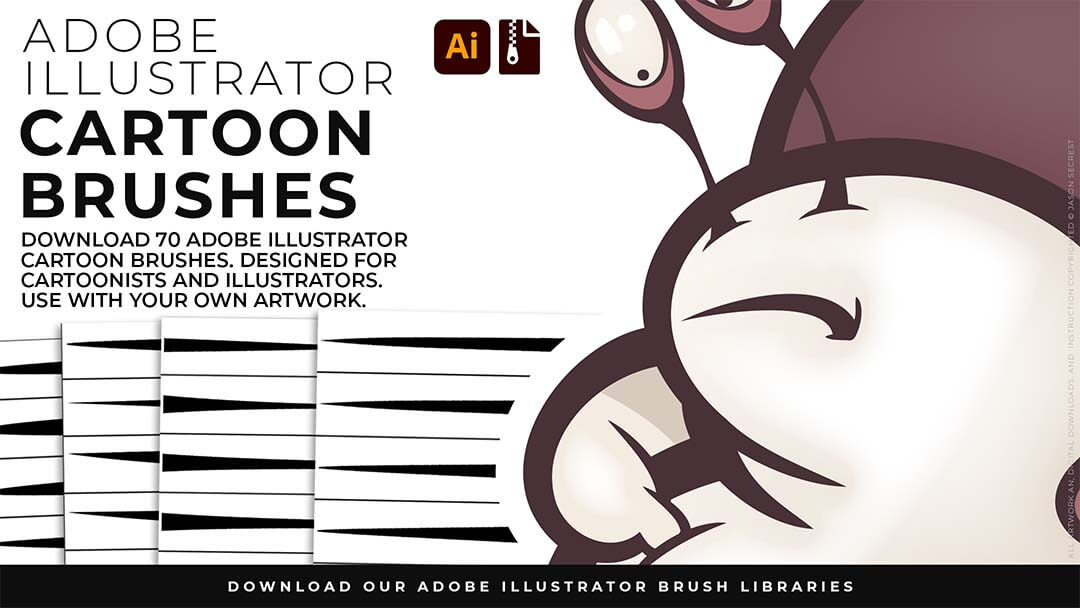
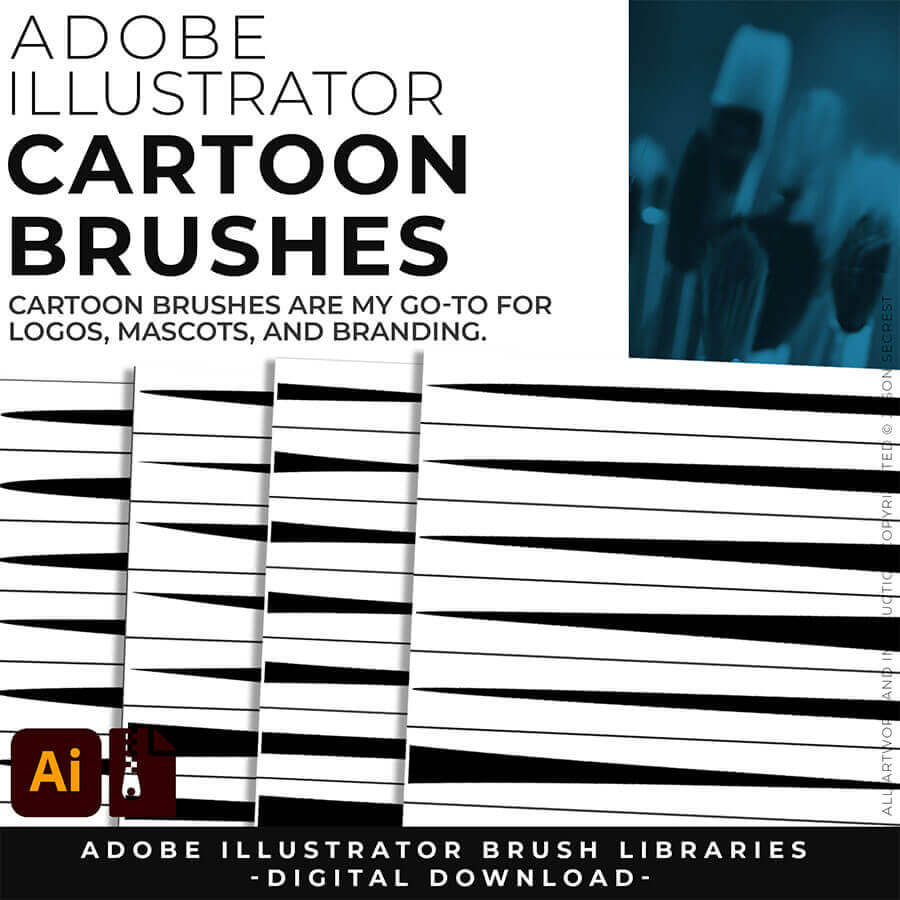
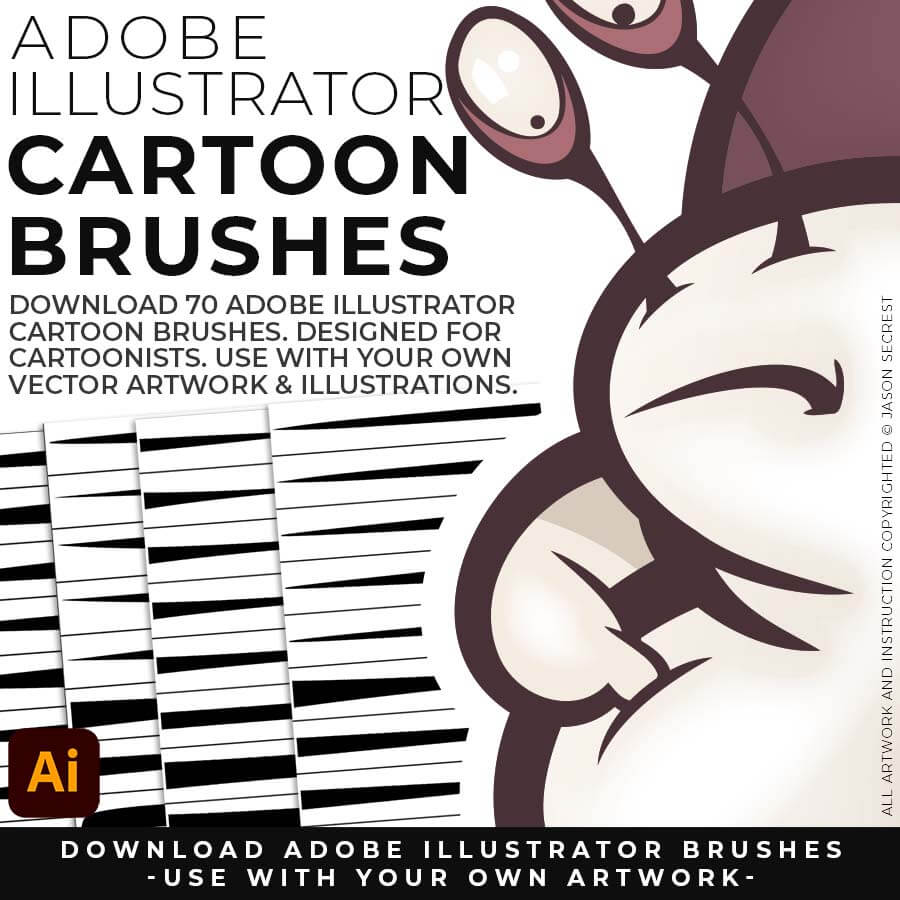
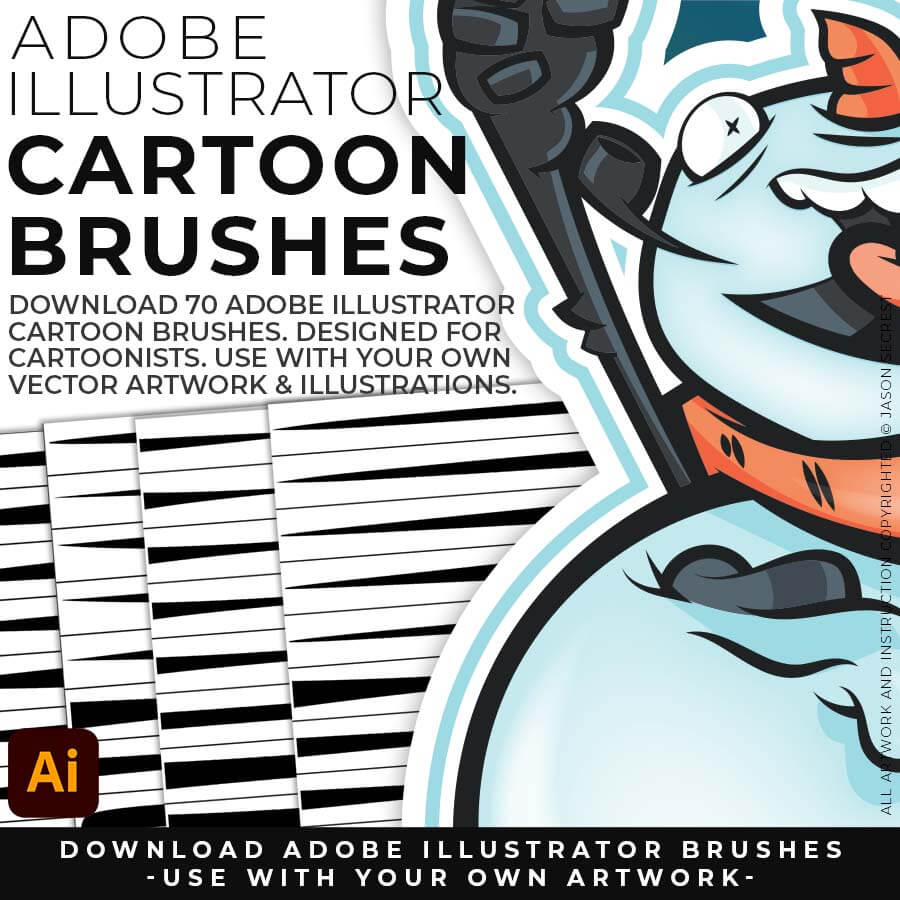
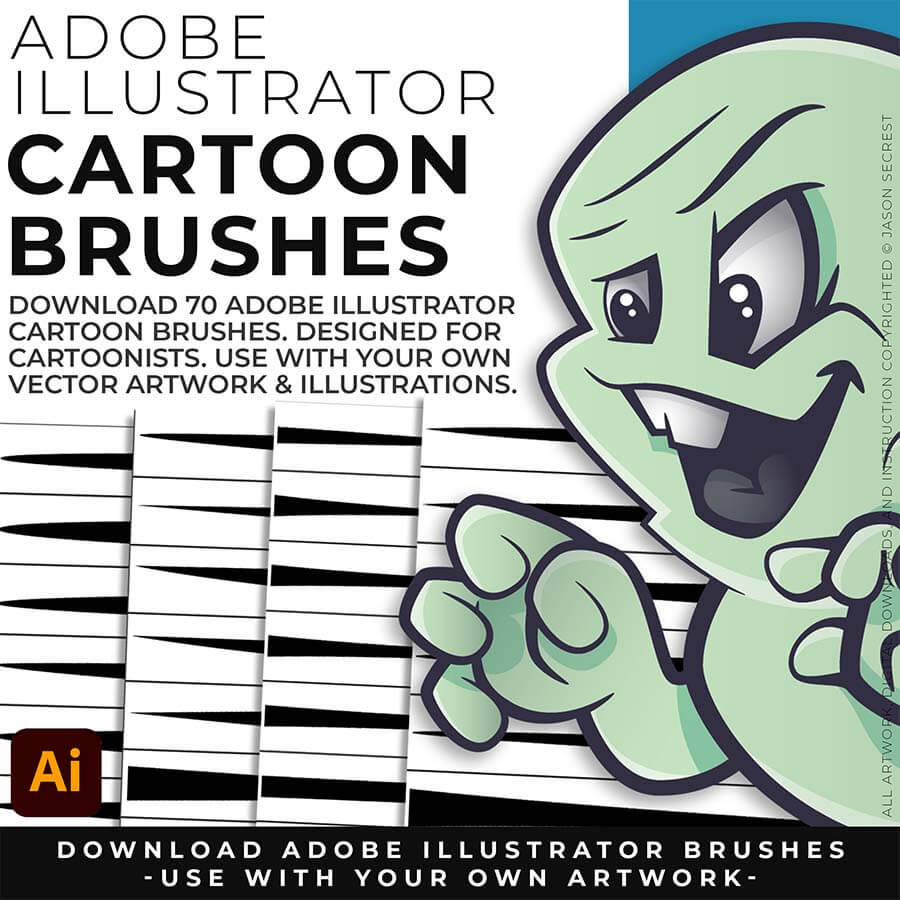
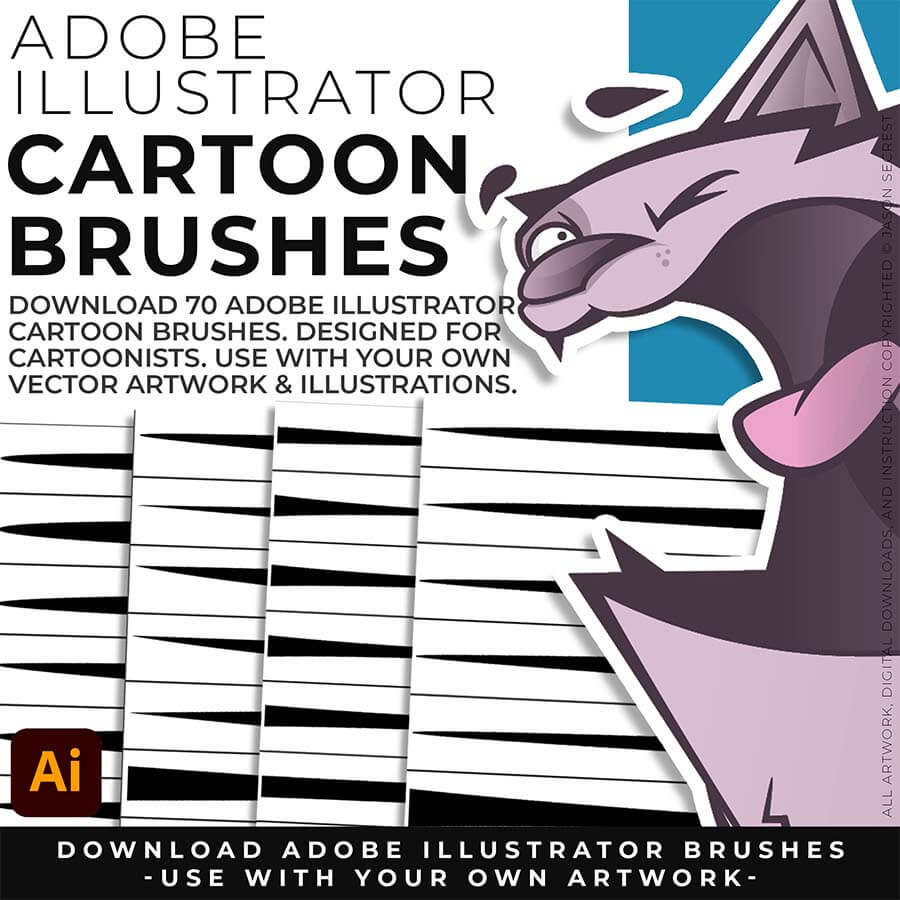
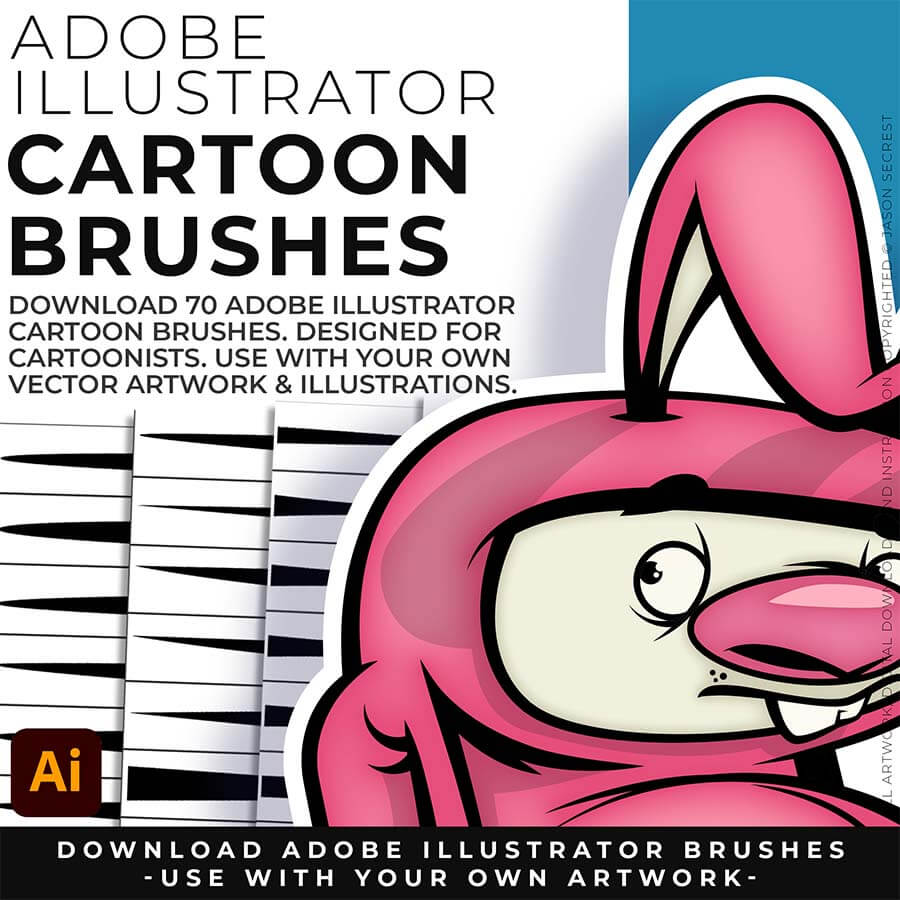
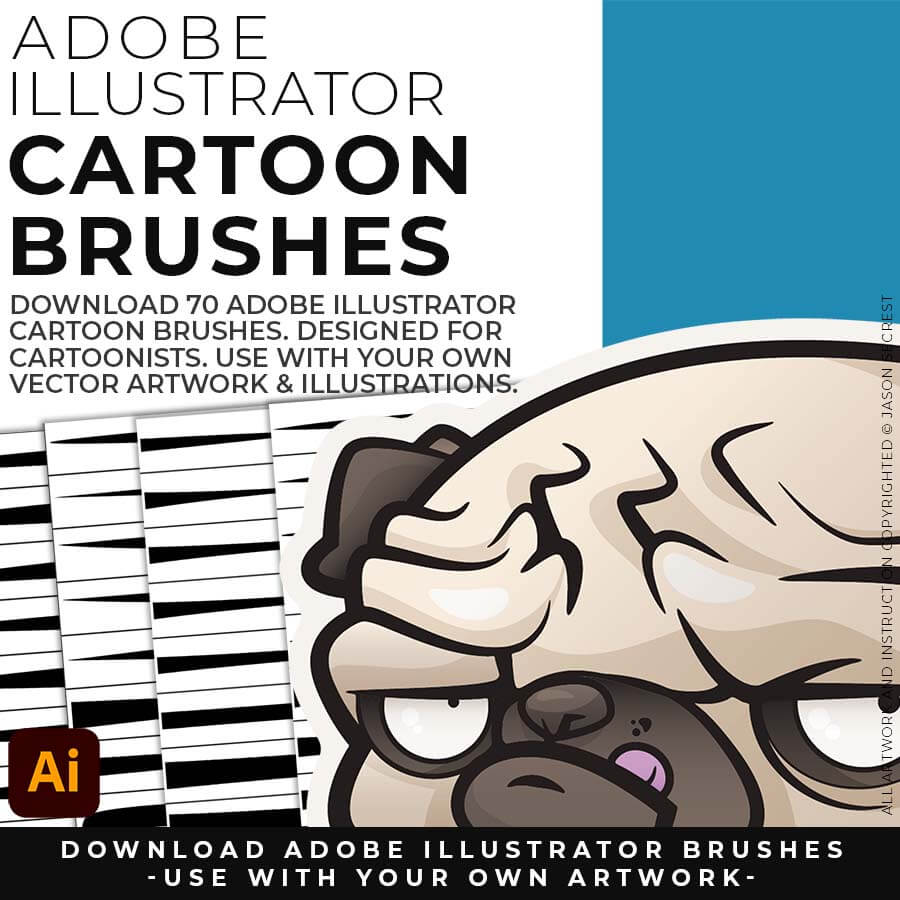
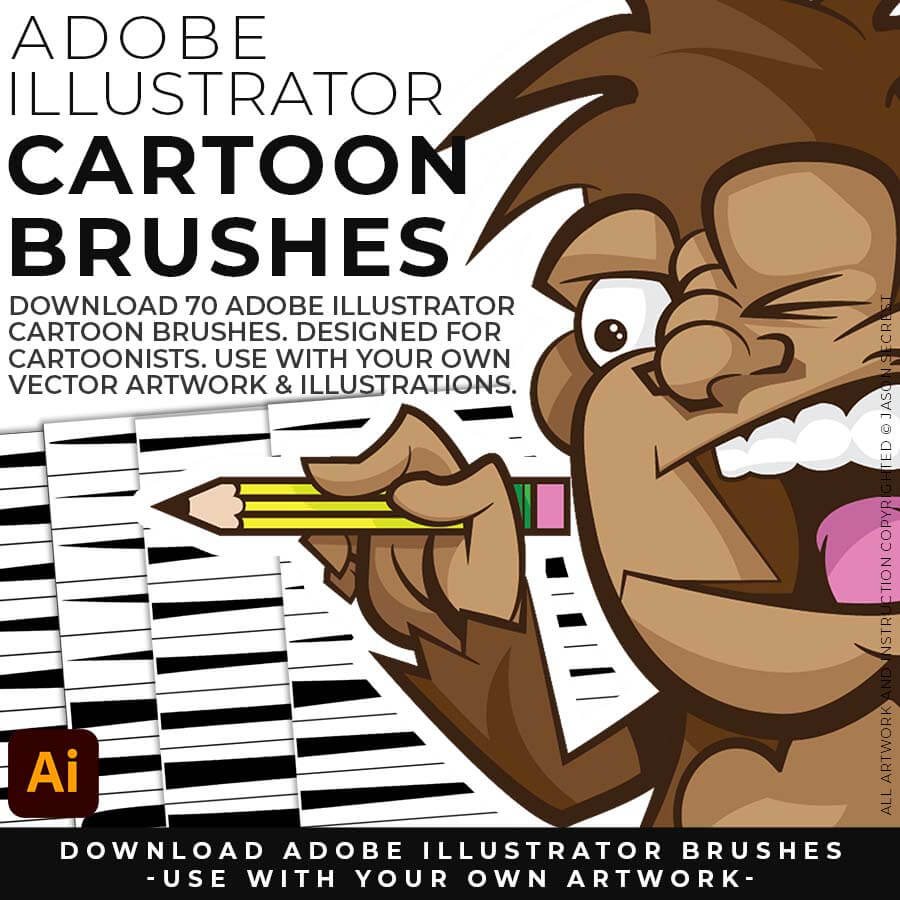
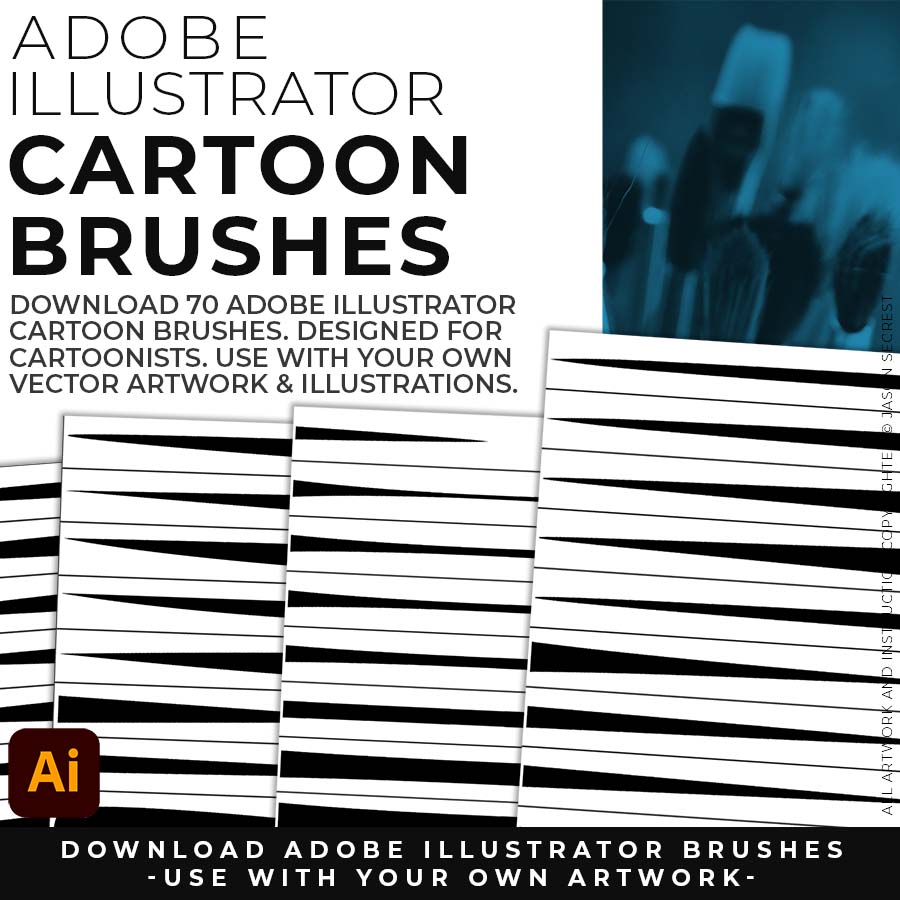
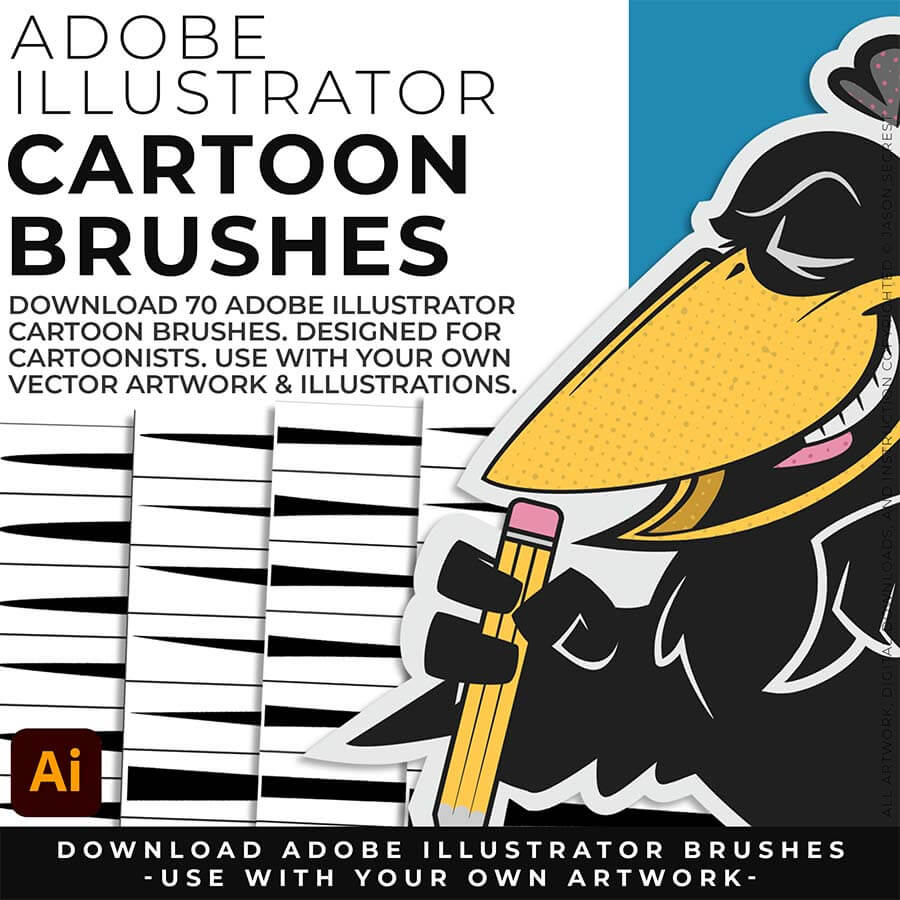
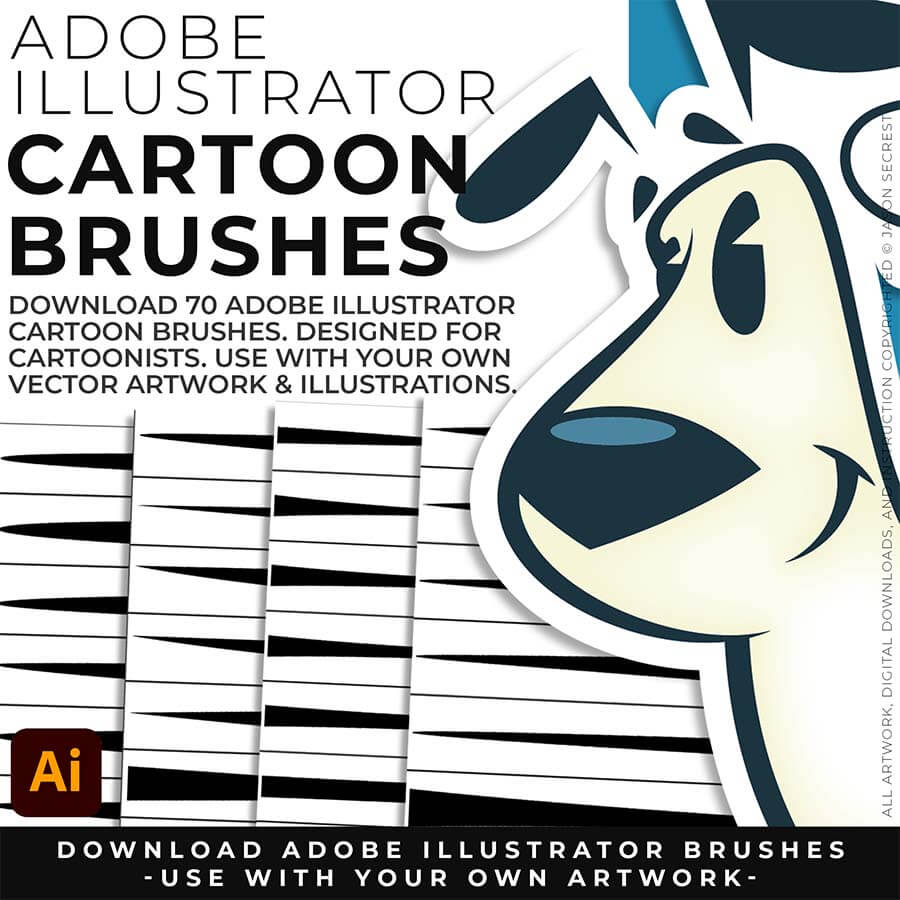
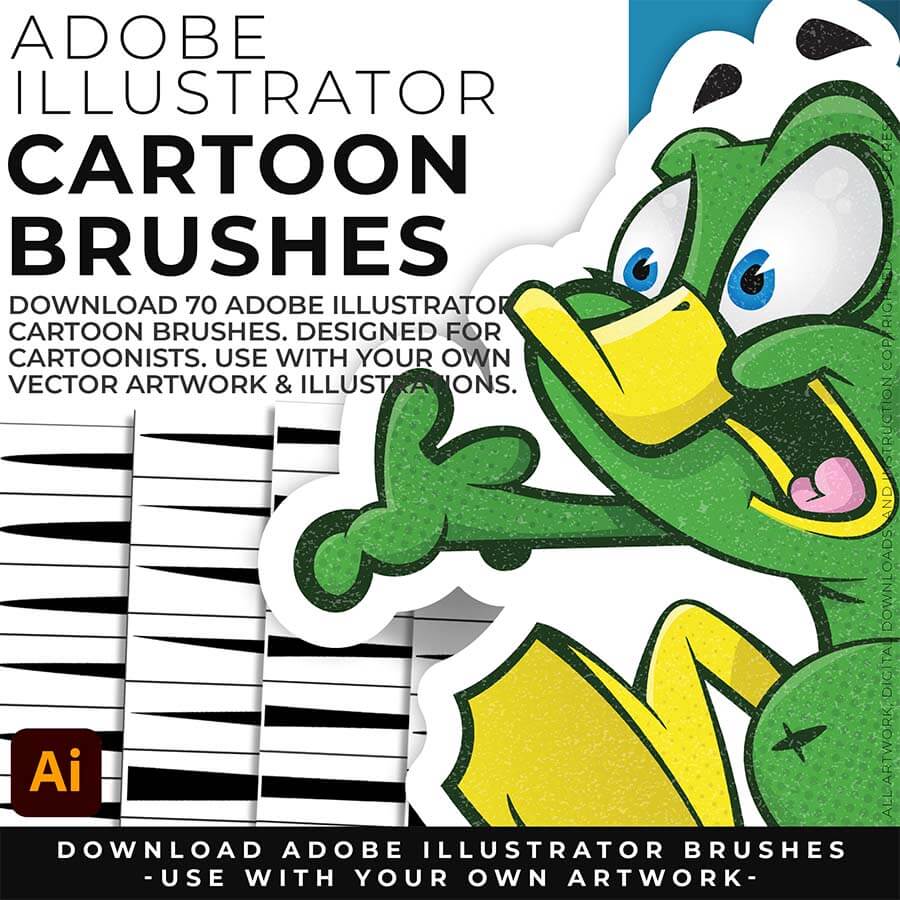
70 CARTOON BRUSHES: 70 Adobe Illustrator Cartoon Brushes are my go-to brushes for Professional Logos, Cartoons, Mascots, and Branding. Use Cartoon Illustrator Brushes with the Pen, Pencil or Paint Brush Tools to Apply different Line Variation to your Vector Artwork. 70 Cartoon Brushes includes Updated Cartoon, Cartoon 2, and Original Cartoon Brush Libraries. DIGITAL DOWNLOAD: CARTOON BRUSHES

comic strip brush set
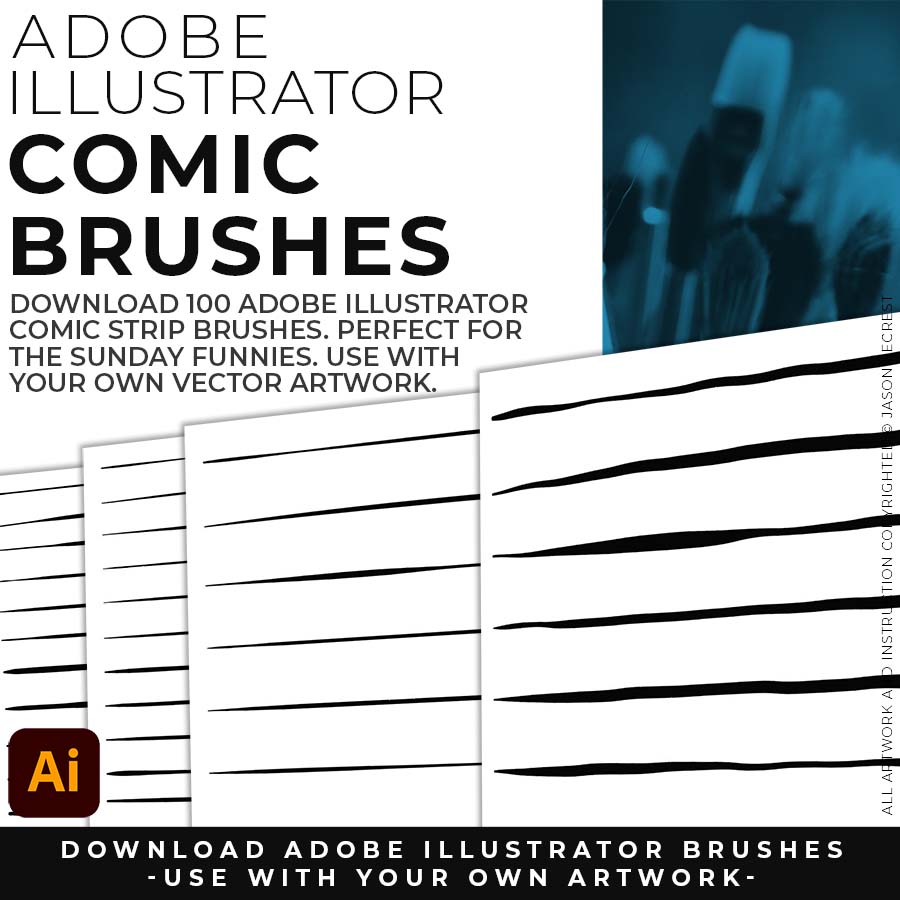
100 COMIC STRIP BRUSHES: 100 Hand Painted + Comic Strip Brushes to get a lived in feel back into your Vector Art. Comic Strips and Hand Painted are painted based on some of my favorite artists and cartoonists. These brushes are designed to look ready for the Sunday Paper. 100 Comic Strip Brushes includes Updated Comic Strip, Hand-Painted, Paintbrush, and Fine Liner Brush Libraries. DIGITAL DOWNLOAD: COMIC BRUSHES
mascot brush set

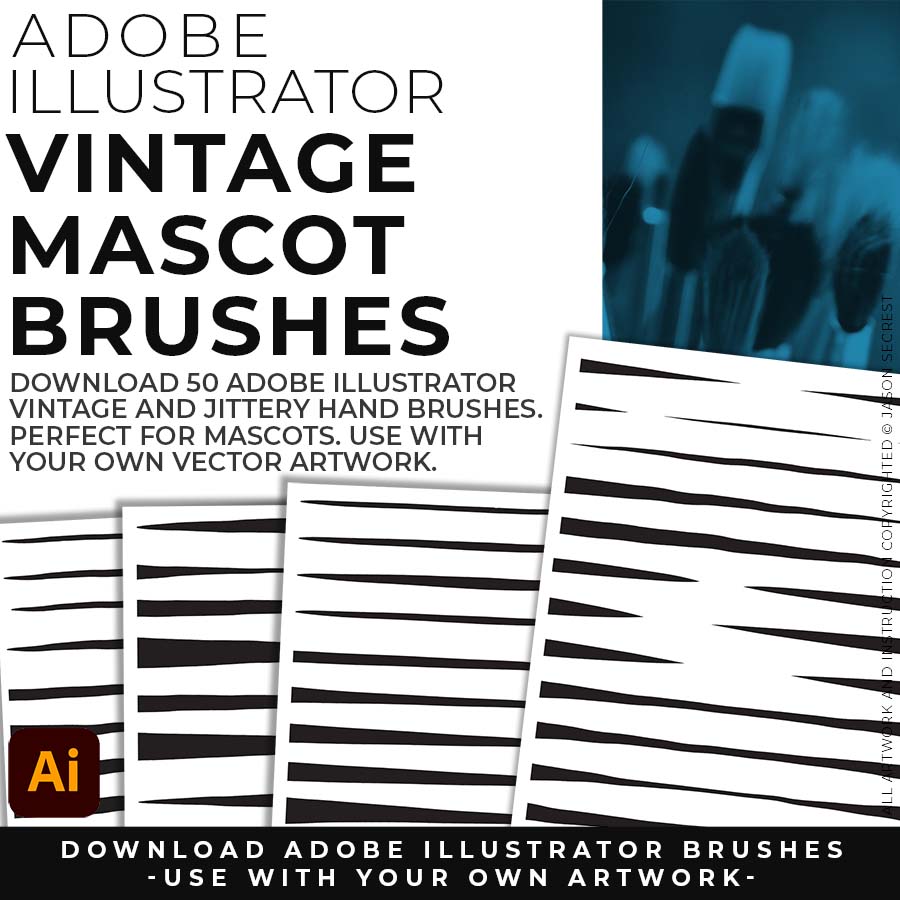
50 MASCOT BRUSHES: 50 Jittery Hand, Caffeinated Cartoonist + Rough Ink Brushes to Mimic Paper Bleed and Caffeine. Designed to be a little less stiff with your vector art. Use these Brush Libraries to get more of a distressed look or ink bleed back in your own Vector Artwork. 50 Mascot Brushes includes Updated Caffeinated Cartoonist, Rough Ink, and Jittery Hand Brush Libraries. DIGITAL DOWNLOAD: MASCOT BRUSHES

Image
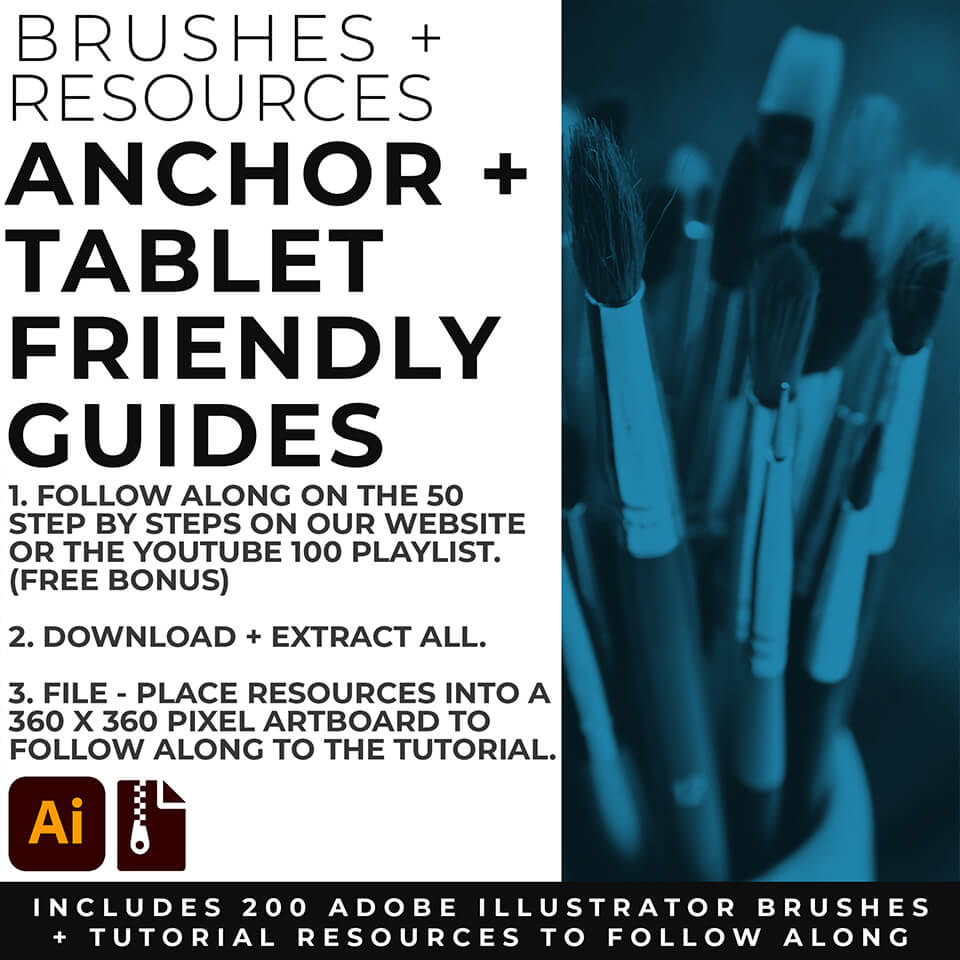
Free Bonus: I have included the  Anchor Point and Tablet Friendly Guides (as a Free Bonus) to Follow Along with the 50 Step by Steps on the Website or the 100 Beginner Tutorials Playlist on YouTube to Learn the Basics of Building, Applying Brushes, Editing, and Coloring in Adobe Illustrator. Follow Along with the Tutorials or use the Brushes with Your Own Artwork.

OPENING BRUSHES

HOW TO USE

how to open brushes
DOWNLOADING BRUSHES: Brush Libraries will come to you as a Zipped Folder. Extract All before using in Adobe Illustrator. No Install is required. Just open the Brush Libraries directly through the Brushes Panel in Aodbe Illustrator.
Cartoon Brushes for Adobe Illustrator
SAVING BRUSHES: Open All of the Brushes Libraries in Adobe Illustrator. (File - Open). Have your Brushes Panel Open. Under Window - Brushes. Click on Each Illustrator Document and Open the Brushes Menu in the Brushes Panel. Scroll down to Click on Save Brush Library. Default Location = User Defined.
Cartoon Brushes for Adobe Illustrator
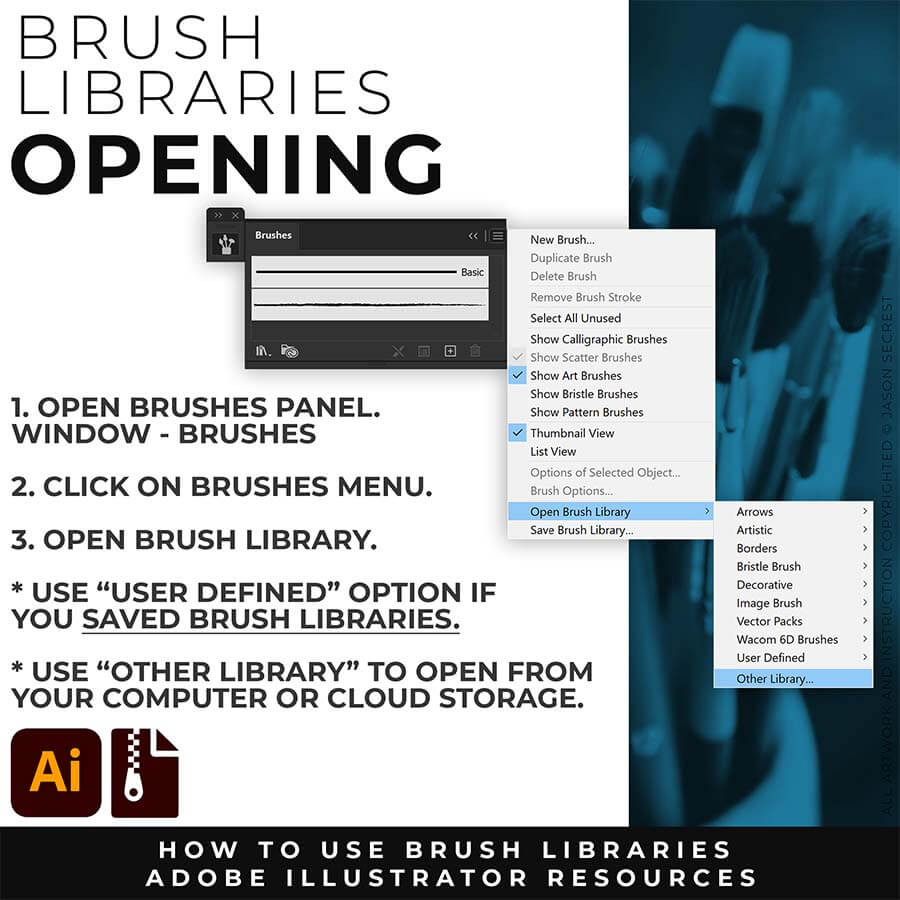
OPENING BRUSHES: Under Window - Select Brushes. In the Brushes Menu, drop-down to Open Brush Library. Hover over it and select "Other Library." A Normal Open Dialogue Box will appear to select and open any Brush Library.
Most people get stuck at one of two spots — they have a sketch, but can't build or ink it cleanly in Adobe Illustrator. This combo fixes both ends.
Attach your rough sketch to get clean, inked linework back from the prompts, then open the file in Illustrator and polish it with the matching brush set.
Everything you need is right here. Apply the prompts to your sketch and move directly to editing.
After creating your Vector (or Image Trace), use Smoothing, Path Simplify, or Expanded Editing Techniques.
DOWNLOAD CARTOON BRUSHES

download cartoon brushes
— Add professional cartoon line quality to any path in Illustrator without drawing every stroke from scratch
download cartoon brushes
— Work across three brush sets with distinct characters: Updated Cartoon for logos and mascots, Cartoon 2 for bolder character work, Original for maximum line consistency
download cartoon brushes
— Apply the Width Tool taper technique that professional mascot designers use on every project
EDITING BRUSHES

Our 200 Adobe Illustrator Brushes will come to you as a Zipped Folder on Teachable. Download and Extract the Brushes Folder before using in Adobe Illustrator. Use our Quick Use Method (no install) or Save your Brush Libraries to User Defined. Saving Brush Libraries to User Defined only takes 1-5 Minutes.
how to save brushes
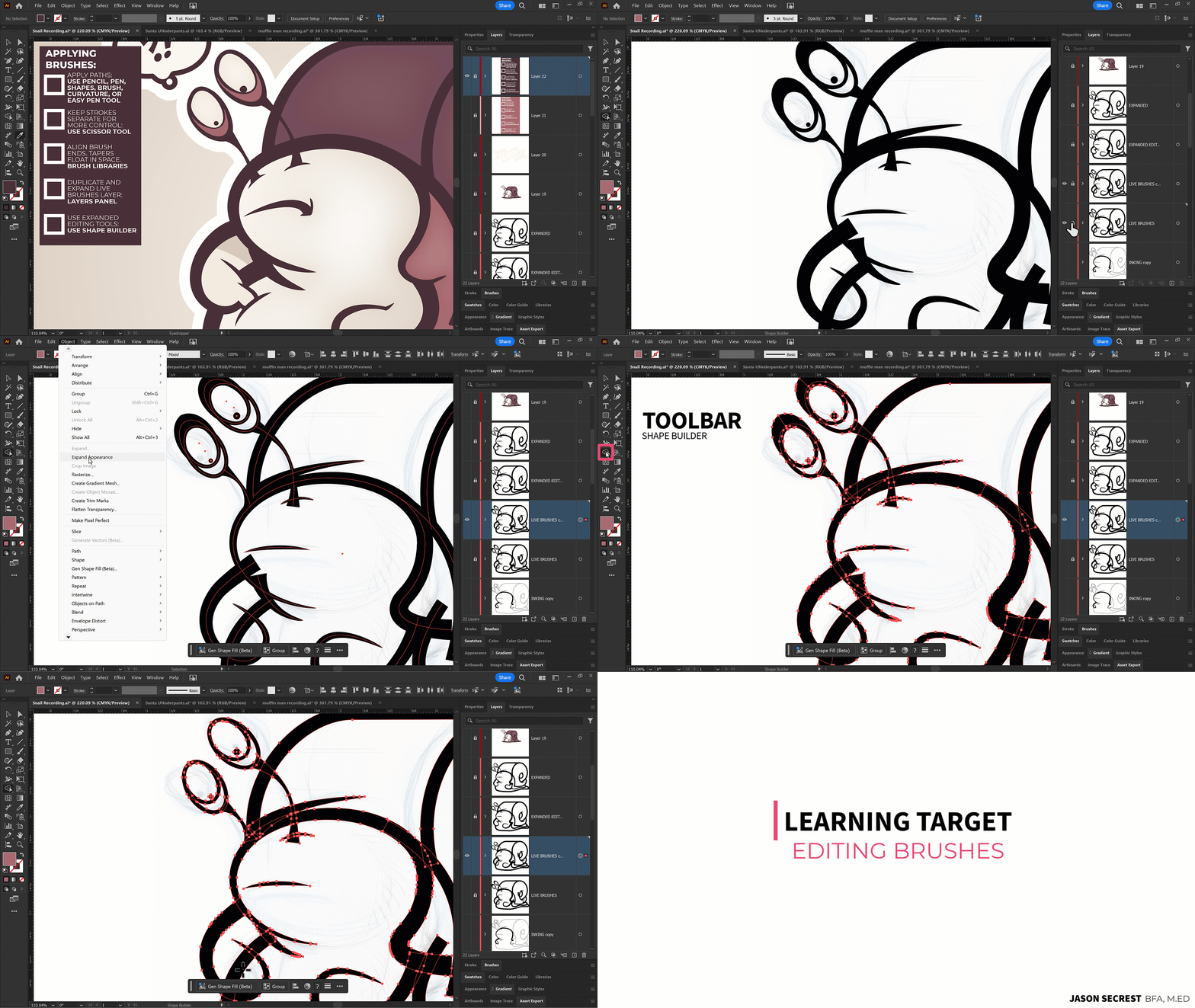
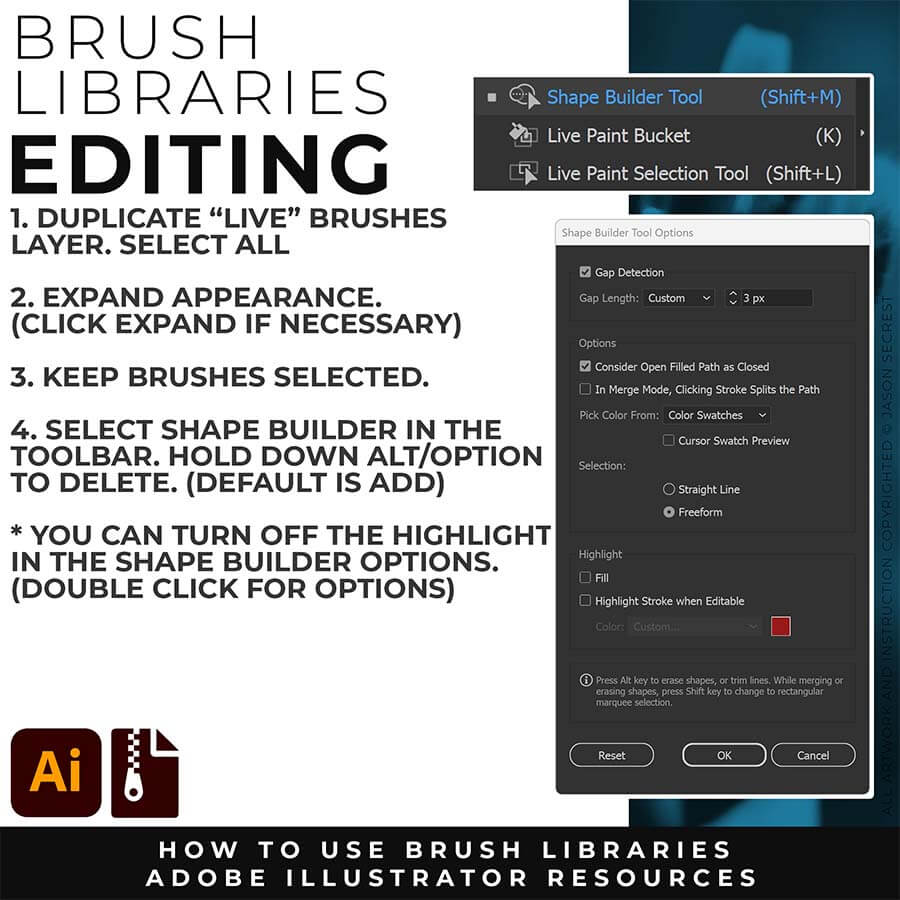
VARIATION + EDITING: Shape Builder is a tool that can be used to give an alternative to the Eraser Tool while Editing. In order to use Shape Builder, you will need to Expand the Brush Layer. Select All - Expand (or Expand Appearance + Expand). I recommend duplicating the Brushes Layer to preserve a Live Brush Layer for future edits. Once the Brushes are Expanded, Select All and click on the Shape Builder Tool. Hold down Alt/Option to Delete.

APPLYING BRUSHES

HOW TO USE

Cartoon Brushes for Adobe Illustrator
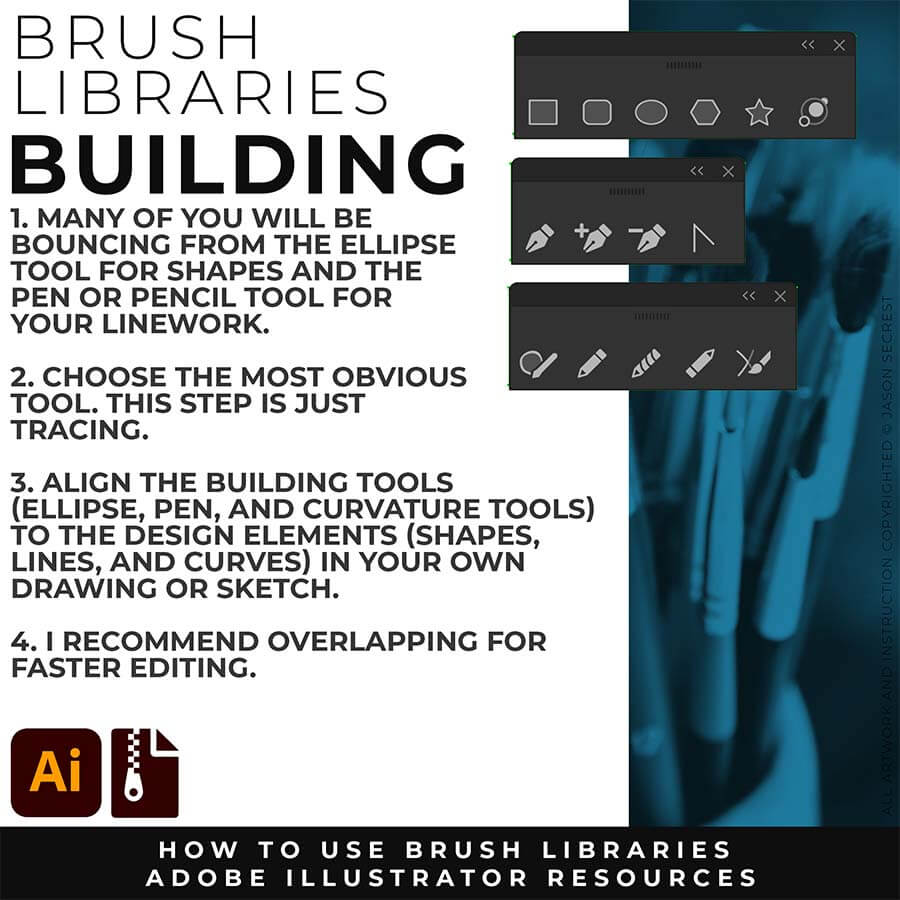
PRIMARY BUILDING: Many of you will use Shape, Pencil, and Pen Tools as your Primary Building Tools. Understand the Building Tools and Options in Adobe Illustrator. Align the Building Tools (Ellipse, Pen, and Curvature Tools) to the Design Elements (Shapes, Lines, and Curves) in your own drawing or sketch.
Cartoon Brushes for Adobe Illustrator
EXPANDED EDITING: To use Shape Builder, you must Duplicate and Expand the Brush Layer. Select All - Expand (Expand Appearance). I recommend duplicating the Brushes Layer to preserve a Live Brush Layer for future edits. Go long with your initial paths to create a larger target for editing with Shape Builder.
how to open brushes
EDITING BRUSHES: Shape Builder is a tool that can be used to give an alternative to the Eraser Tool while Editing. In order to use Shape Builder, you will need to Expand the Brush Layer. Select All - Expand (or Expand Appearance + Expand). I recommend duplicating the Brushes Layer to preserve a Live Brush Layer for future edits. Once the Brushes are Expanded, Select All and click on the Shape Builder Tool. Hold down Alt/Option to Delete.

SKETCH TO BRUSHES

download cartoon brushes
Most people get stuck at one of two spots — they have a sketch, but can't build or ink it cleanly in Adobe Illustrator. This combo fixes both ends.
download cartoon brushes
Attach your rough sketch to get clean, inked linework back from the prompts, then open the file in Illustrator and polish it with the matching brush set.
download cartoon brushes
Everything you need is right here. Apply the prompts to your sketch and move directly to editing.
Downloads and Prompts live inside full course format resource guides through Teachable.
Copy the ready-made prompt - One click — no prompt-writing needed.
Paste into your AI tool - Generate the result in seconds.
Subscription Model -Updates Included - 365-day access includes every update to the pack.
ADOBE ILLUSTRATOR

SKETCH TO CARTOON

SKETCH TO CARTOON

ENROLL IN BRUSHES
SUBSCRIPTION MODEL - INCLUDES UPDATES
ADOBE ILLUSTRATOR

CARTOON BRUSHES

DOWNLOAD BRUSHES
20% OFF (SAVE $15)

CARTOON BRUSHES

DOWNLOAD BRUSHES
20% OFF (SAVE $15)
I appreciate your videos. I have been an illustrator user for years and have my own ways of doing things. It's great to see other ways of using tools and learning tricks I didn't know were available! It's also good to see you doing the same thing as me in other instances, confirming I'm on the right track!Andy Zenz
Awesome tutorial! I don't think I've picked up something so easily from someone who knows what they are doing. I managed to draw my first vector art and it was a joy! Great work keep it up!blitz145
Thank you loads! Compared to other tutorials, yours are just really well-explained and easy-to-follow. Can totally see that you've got a passion for what you're doing and that's just wonderful! 🙂 Keep it up, you're doing an amazing job. Yulia Kachurova
Love your video thanks so much. you blow Lynda.com out of the water!!!!Steve Yensel
Brilliant video. So much great info packed in here. I'm just getting started drawing cartoons with my Wacom tablet, and this was a huge help. Thumbs up and thanks!Dorian Staten
Wow Thanks Jason...was really struggling with making images with basic shapes. Your tutorial is helping me out!!Kishor Rajani
thanks a lot you are really one of my favorites, I like the steps you give us, and I'm so thankful for that effort you do for helping us :)Wessam Lotfi
Keep up the good work Jason. I’ve been doing Lynda.com tutorials for a few months now and I got more out of your videos than what I’ve received at Lynda. Keep it up and Thank You!!bobby jacobs • 1 year ago
These tutorials are amazing. Just started using illustrator and really glad I found your channel. The only videos that explain everything step by stepAida Stan
You are definitely one of the best teachers I've found dealing with start to finish creative process. Great work!!!Jasen Fisher
Thank you so much man, I loved the way you explain this, I spent days looking for a good tutorial vid, thanks a lot, gonna keep watching your videos!!!Karel Marccenaro
Awesome tutorial! I don't think I've picked up something so easily from someone who knows what they are doing. I managed to draw my first vector art and it was a joy! Great work keep it up!blitz145
Thank you loads! Compared to other tutorials, yours are just really well-explained and easy-to-follow. Can totally see that you've got a passion for what you're doing and that's just wonderful! 🙂 Keep it up, you're doing an amazing job. Yulia Kachurova
Love your video thanks so much. you blow Lynda.com out of the water!!!!Steve Yensel
Brilliant video. So much great info packed in here. I'm just getting started drawing cartoons with my Wacom tablet, and this was a huge help. Thumbs up and thanks!Dorian Staten
Keep up the good work Jason. I’ve been doing Lynda.com tutorials for a few months now and I got more out of your videos than what I’ve received at Lynda. Keep it up and Thank You!!bobby jacobs • 1 year ago
These tutorials are amazing. Just started using illustrator and really glad I found your channel. The only videos that explain everything step by stepAida Stan
You are definitely one of the best teachers I've found dealing with start to finish creative process. Great work!!!Jasen Fisher