BEGINNER: The major decision you'll need to make is your starting point and build mode. First, determine whether you have drawings and sketches ready to use, or if you will be starting from stock photos. We are looking to align the starting point, build mode, and export size.
INTERMEDIATE: The purpose of our Beginner Guides is to provide an overview of a workflow, allowing you to see the steps in sequence. These are designed to assist you as you go through our Free Tools and Workflow Guides. Clarifying these details will simplify your learning process in Adobe Illustrator.
ADVANCED: Pay attention to the Sequence of Events, Resources, and Tool Options as it relates to building a "Workflow." As you create your artwork, outline the steps in your workflow. Start with an initial workflow, then look to streamline or add AI components.
PEN TOOL WORKFLOW: If you are frustrated with the Pen Tool, a simple tip is to break down the process into 2 Steps. The first step is to just apply... PEN TOOL WORKFLOW
BEGINNER GUIDES: The major decision you'll need to make is your starting point and build mode. First, determine whether you have drawings and sketches ready to use, or if you will be starting from stock photos. We are looking to align the starting point, build mode, and export size. → BEGINNER GUIDE / BEGINNER GUIDE 1 / BEGINNER GUIDE 2
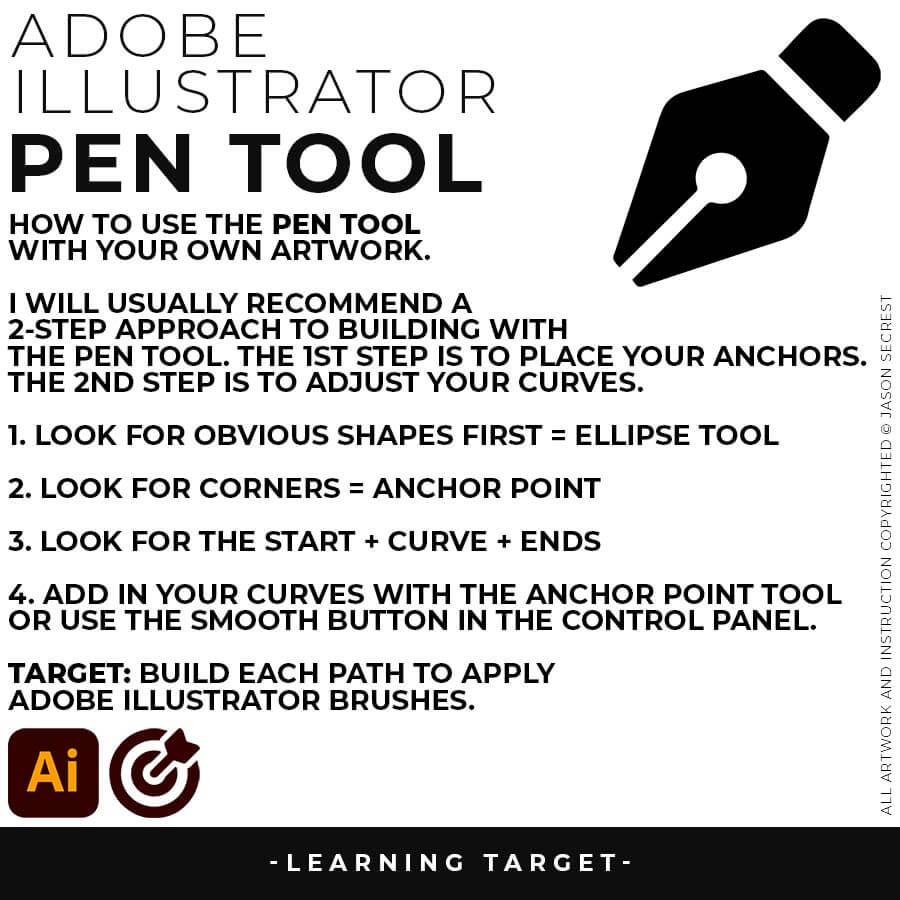
PEN TOOL: If you are frustrated with the Pen Tool, a simple tip is to break down the process into 2 Steps. The first step is to just apply Anchor Points to the start-curve-end of a line or path. The second step is to adjust the Curves with the Anchor Point Tool or Smooth Curve Button in the Control Panel.
LIVE EDITING: While you are building in Adobe Illustrator, you can use the “Live” Editing Tools to Cut and Edit Paths. Some of the basic tools will be the Scissor Tool, Path Eraser, or Shape Builder. I do recommend going long with your initial Paths.
COLOR SWATCHES: Use Color Swatches from your Library or save them from Adobe Color as an .ASE File. Open Swatch Library from the “Other Library” Option. Most Color Themes will use Hues as the Base Color. We will be using Live Paint to create our Basic Fills or Flat Color Layer.
SHAPE-BASED WORKFLOW: A good place to start if you are new to Adobe Illustrator is our Beginner Guide (Shapes). We will be going through... SHAPE-BASED WORKFLOW
BEGINNER GUIDES: The major decision you'll need to make is your starting point and build mode. First, determine whether you have drawings and sketches ready to use, or if you will be starting from stock photos. We are looking to align the starting point, build mode, and export size. → BEGINNER GUIDE 3 / BEGINNER GUIDE 4 / BEGINNER GUIDE 6
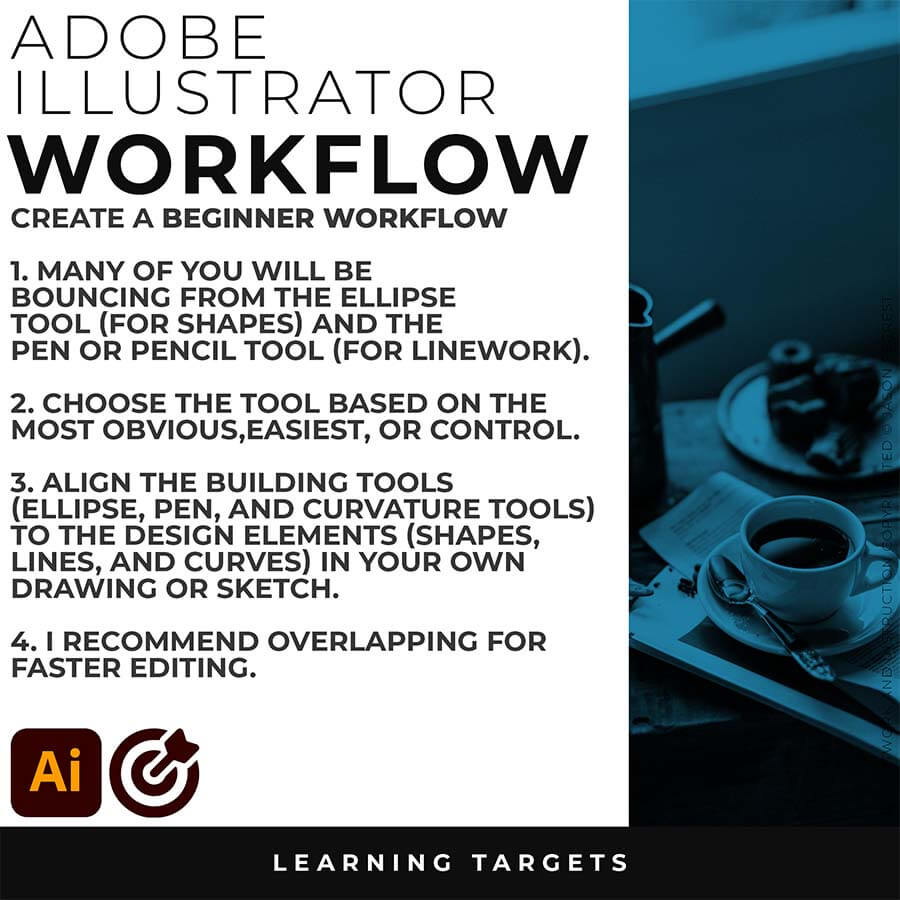
ELLIPSE TOOL: A good place to start if you are new to Adobe Illustrator is our Beginner Guide (Shapes). We will be going through Building with Shapes, Align Panel, Pathfinder, and Basic Color Fills. There are Beginner Guides for the Pen Tool and Tablet if you are new to the website or Adobe Illustrator.
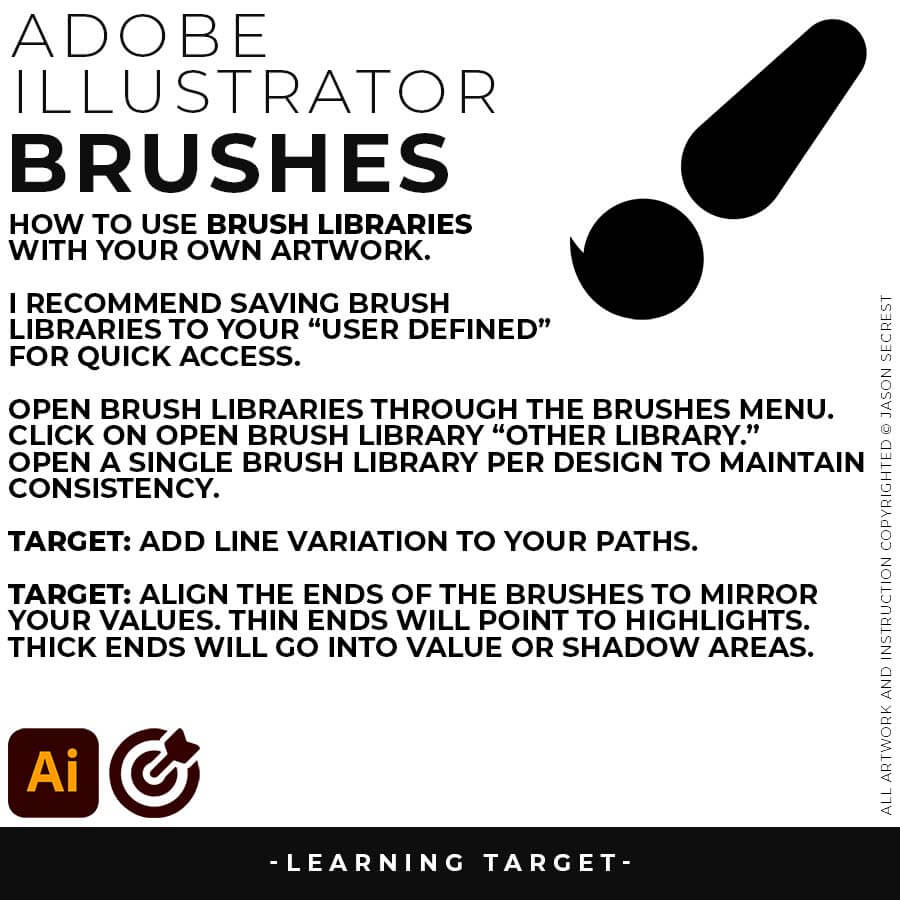
VARIATION: Many of you will be applying our Brush Libraries. To Open Brushes, open the Brushes Panel. Click on Open Brush Library. Scroll down to “Other Library.” Select one of the Brush Libraries to apply. If you saved Brushes, you can Open from “User Defined.”
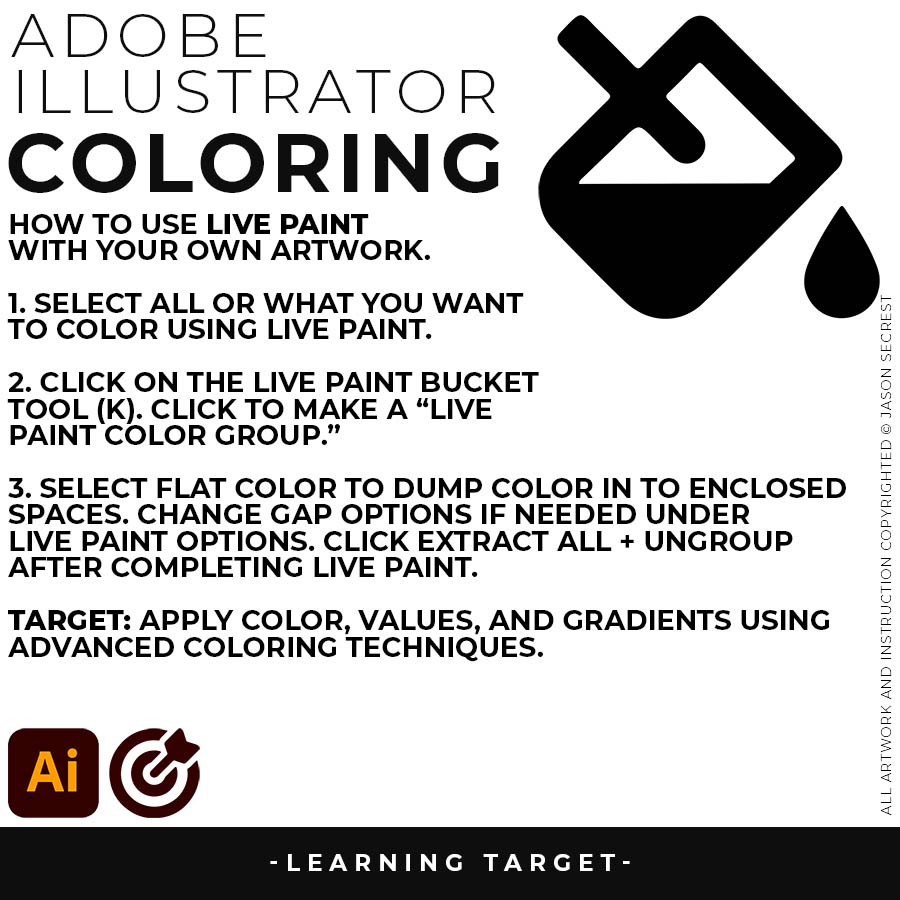
LIVE PAINT: Coloring will be extremely easy using Live Paint Bucket. The goal of Live Paint is to create Shapes that we can color using Fills. Once you have completed the Live Paint Group, it is important to Expand and Upgroup. We will leverage these shapes for our Values and Gradients.
PENCIL TOOL WORKFLOW: Many of you are looking to use your Tablet with Adobe Illustrator. I am going to recommend breaking down your... PENCIL TOOL WORKFLOW
BEGINNER GUIDES: The major decision you'll need to make is your starting point and build mode. First, determine whether you have drawings and sketches ready to use, or if you will be starting from stock photos. We are looking to align the starting point, build mode, and export size. → BEGINNER GUIDE 7 / BEGINNER GUIDE 9 / BEGINNER GUIDE 10
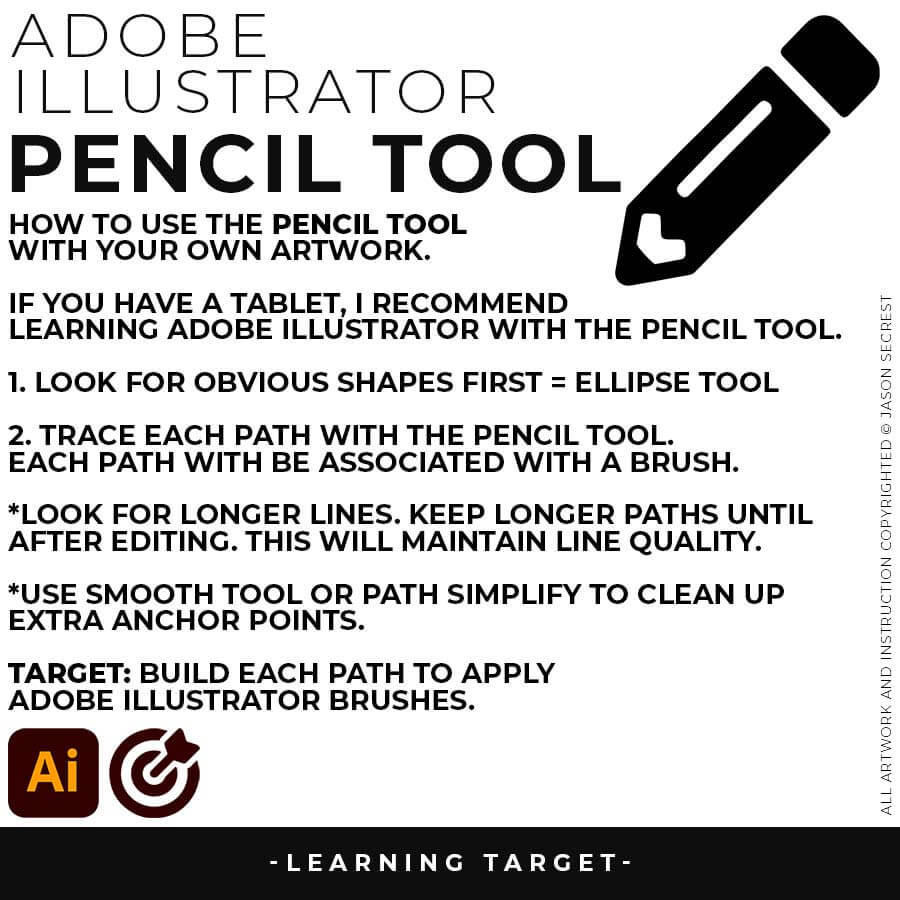
PENCIL TOOL: Many of you are looking to use your Tablet with Adobe Illustrator. I am going to recommend breaking down your current tablet workflow into multiple steps. I do see a lot of mistakes when people try to combine too many steps all at once with their new tablets.
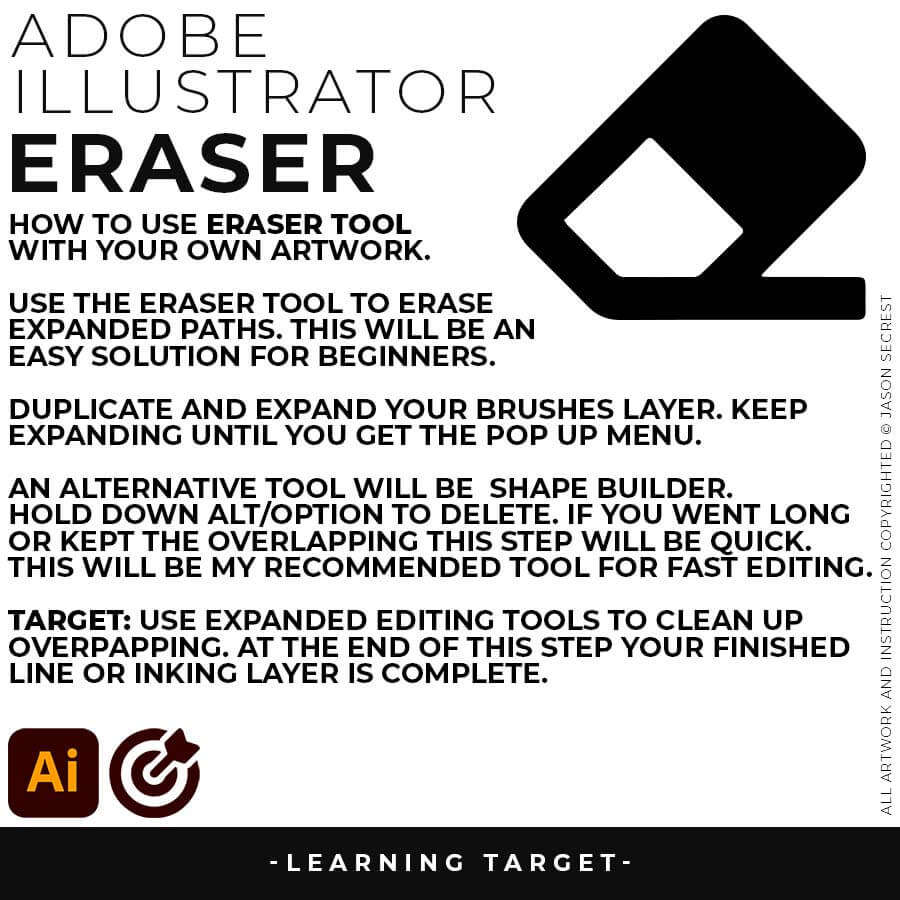
EXPANDED EDITING: After completing the Line Variation, I will recommend keeping the “Live” Layer from future Editing. Duplicate and Lock Out. We will be Expanding this New Layer to use with Shape Builder for Fast Editing. Hold down Alt/Option while Editing.
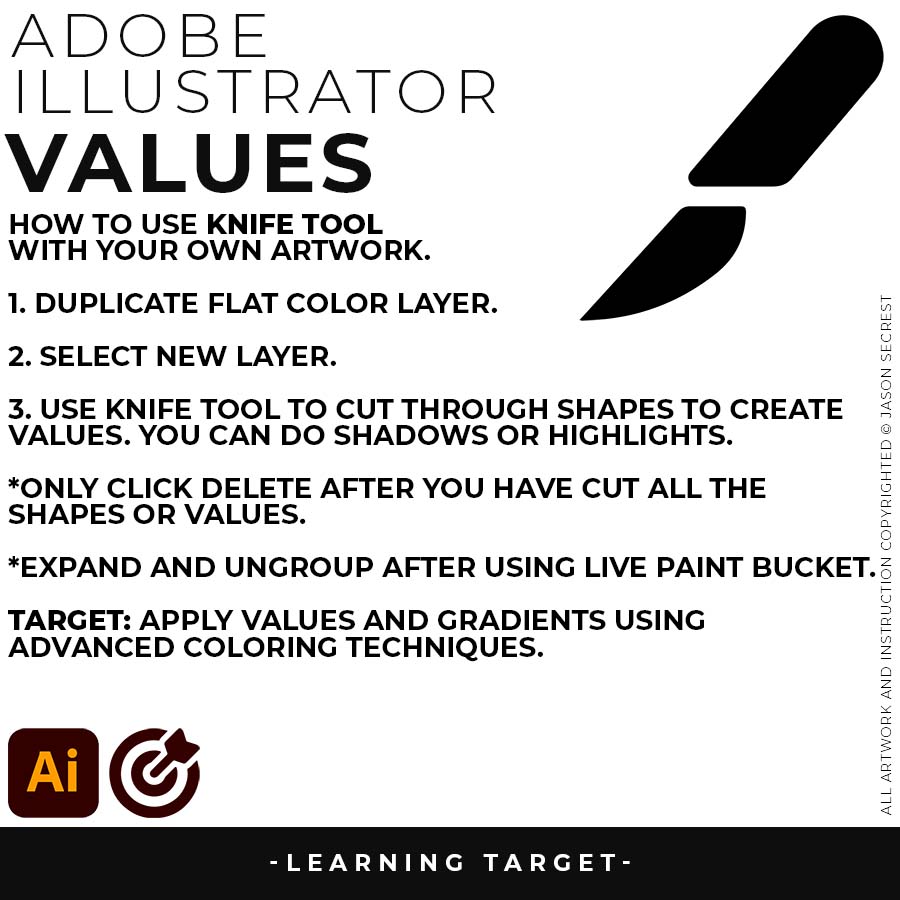
KNIFE TOOL: After using Live Paint, Expand and Ungroup. Use a Duplicated Flat Color Layer for your Value Layers. The Knife Tool will cut Shapes. I recommend cutting out all of the shapes first before deleting them. You can use this technique for Highlights, Shadows, or Cast Shadows.