Adobe Illustrator Tutorial – Ugly Sweater Holiday Sloth
HOW TO MAKE A HOLIDAY SLOTH UGLY CHRISTMAS SWEATER PATTERN IN ADOBE ILLUSTRATOR
The Holiday Sloth is part of our Holiday Challenge and Ugly Sweater Advent Calendar Series, where you build a seamless ugly Christmas sweater pattern in Adobe Illustrator. You'll set up your artboard, build with the Pen Tool, color it with Live Paint, and turn it into a repeat pattern swatch for prints, wrapping paper, or all-over print products. (1) Pick a Primary Building Tool that matches your own artwork or is easiest for you (Pen, Pencil, or Shape Tools). I recommend the Ellipse or Pen Tool for repeat patterns. (2) If you are new, pay attention to the order of the steps; that order is your workflow. Our printable workflow guides are on the Beginner Workflows page. (3) Printable checklists for getting started, Pen Tool tips, and repeat patterns are placed throughout. (4) Each step pairs with one of our free design tools.
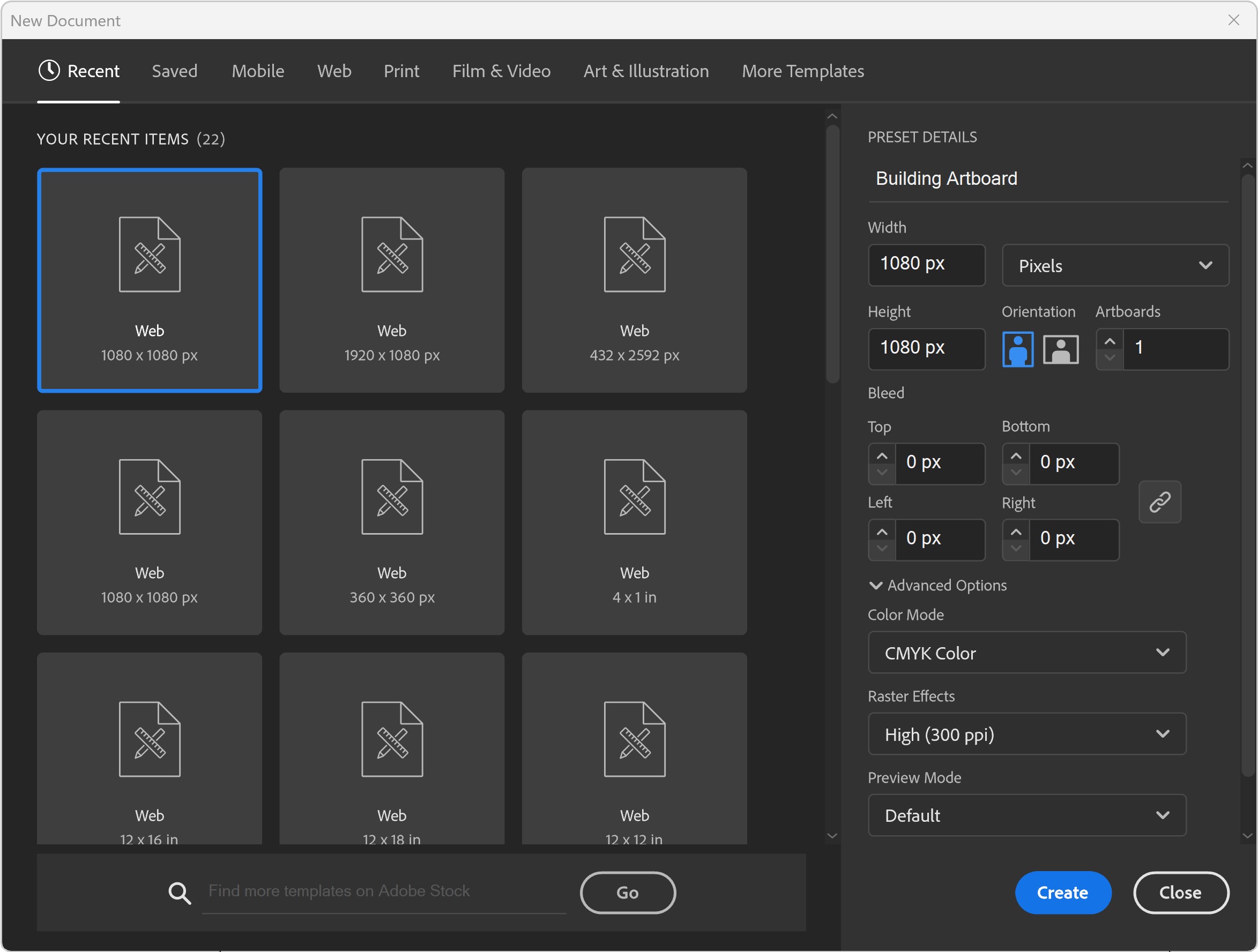
"BUILDING" ARTBOARD: I will recommend a (1080px by 1080px, 300PPI, RGB) as your Initial Artboard Size. The Initial Artboard Size can be changed at any point without ruining your own artwork. Use the Properties Panel to Scale Artwork and Artboards. LEARNING TARGET (1): Create a "Building Template" that includes Artboard Size, Resource Type, and Template Layers. LEARNING TARGET (2): Pick a "Building" Artboard Size you can use for your own Artwork and Social Media Postings. → ARTBOARD SIZE FINDER
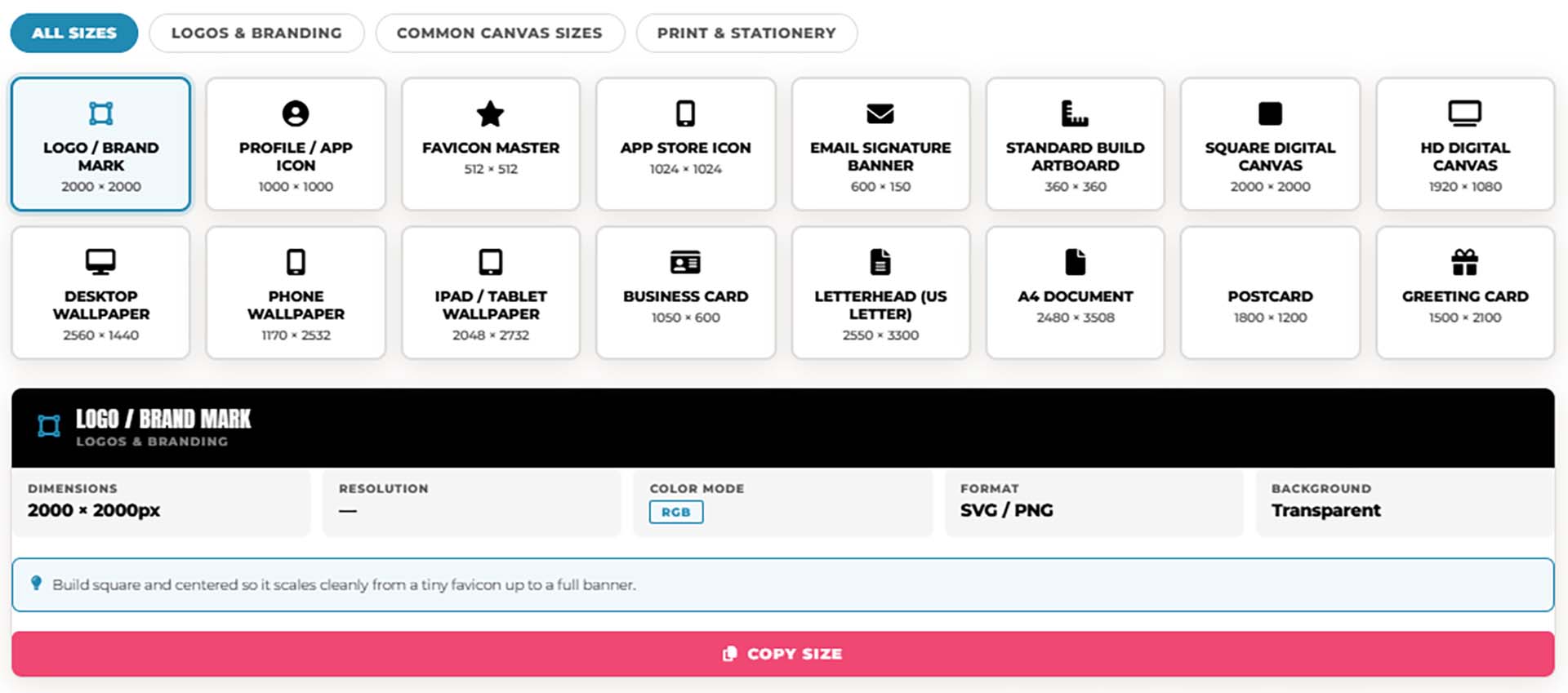
ARTBOARD SIZE FINDER: Not sure what size to set up your artboard before you start designing? Tap a card below to see the exact pixel dimensions, color mode, and resolution for logos, brand marks, profile icons, and common digital canvas sizes — so you're set up correctly in Adobe Illustrator before you draw a single line.
→ ARTBOARD SIZE FINDER
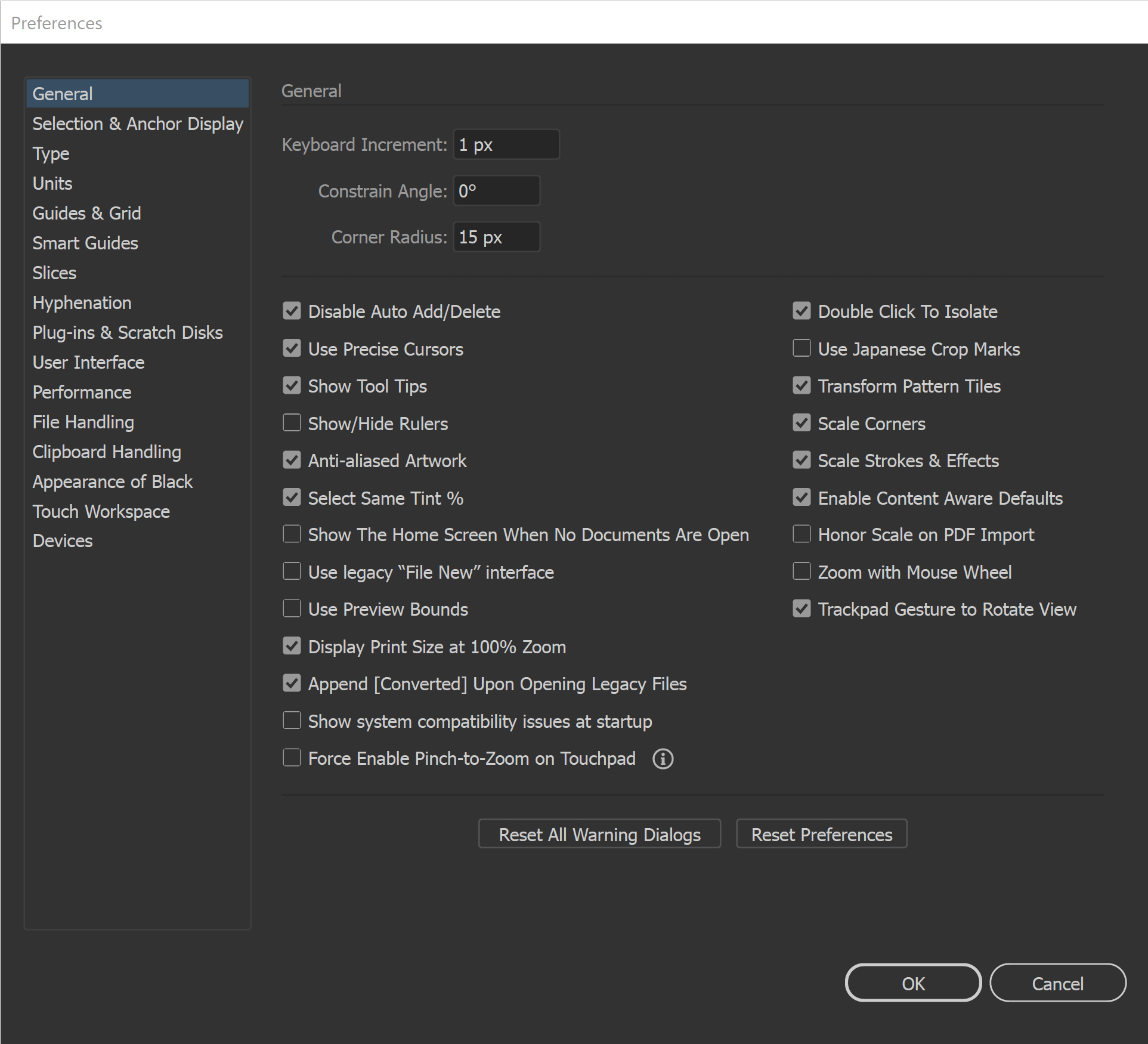
GENERAL PREFERENCES: All of our initial preferences are designed to gain more control over what you are clicking on. The more you can zoom in and see your anchors and handles the better. You can adjust the size of your Anchors and Handles under Selection and Anchor Display. Under your General Settings, make sure that Disable Auto Add/Delete is Selected.
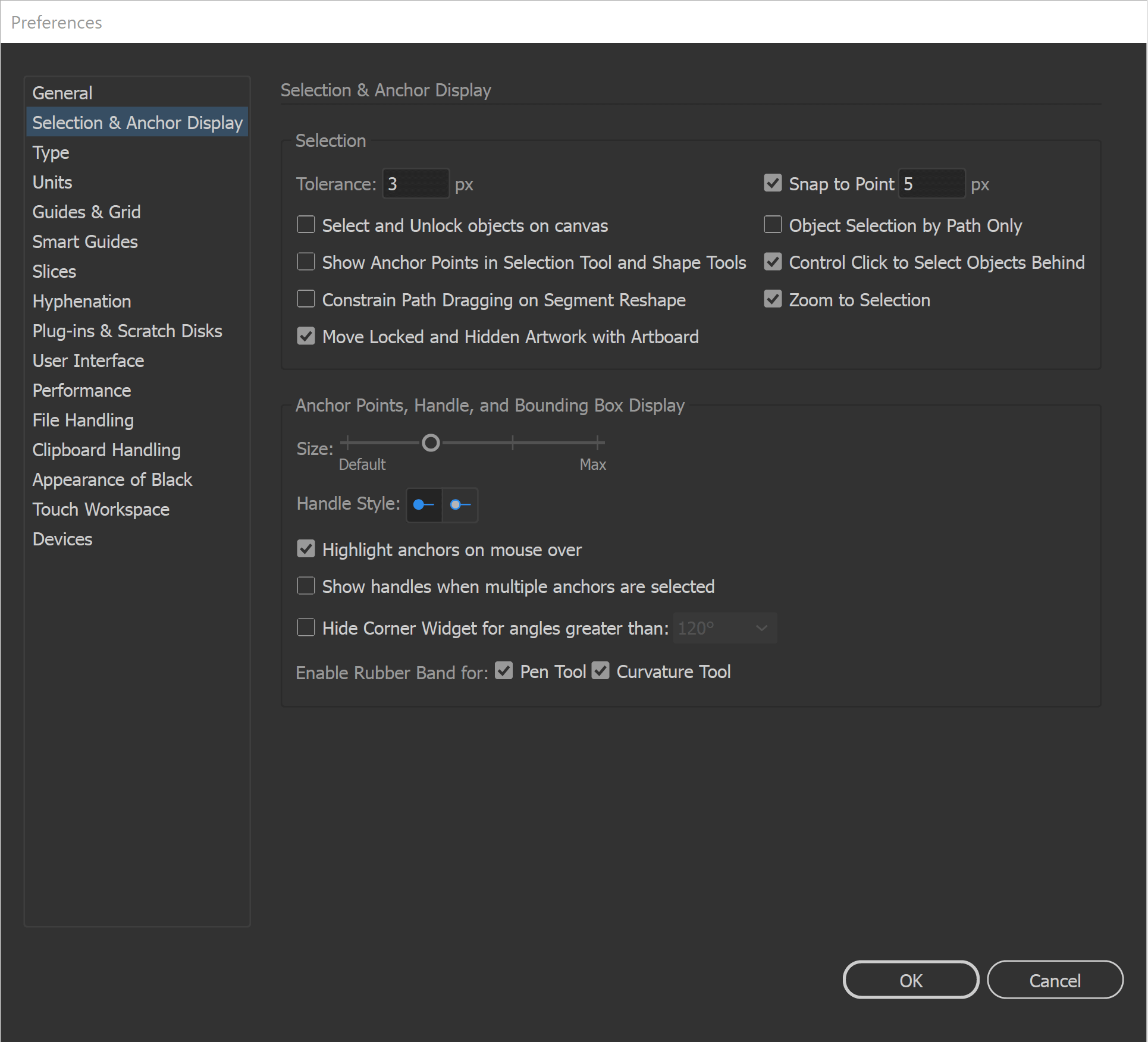
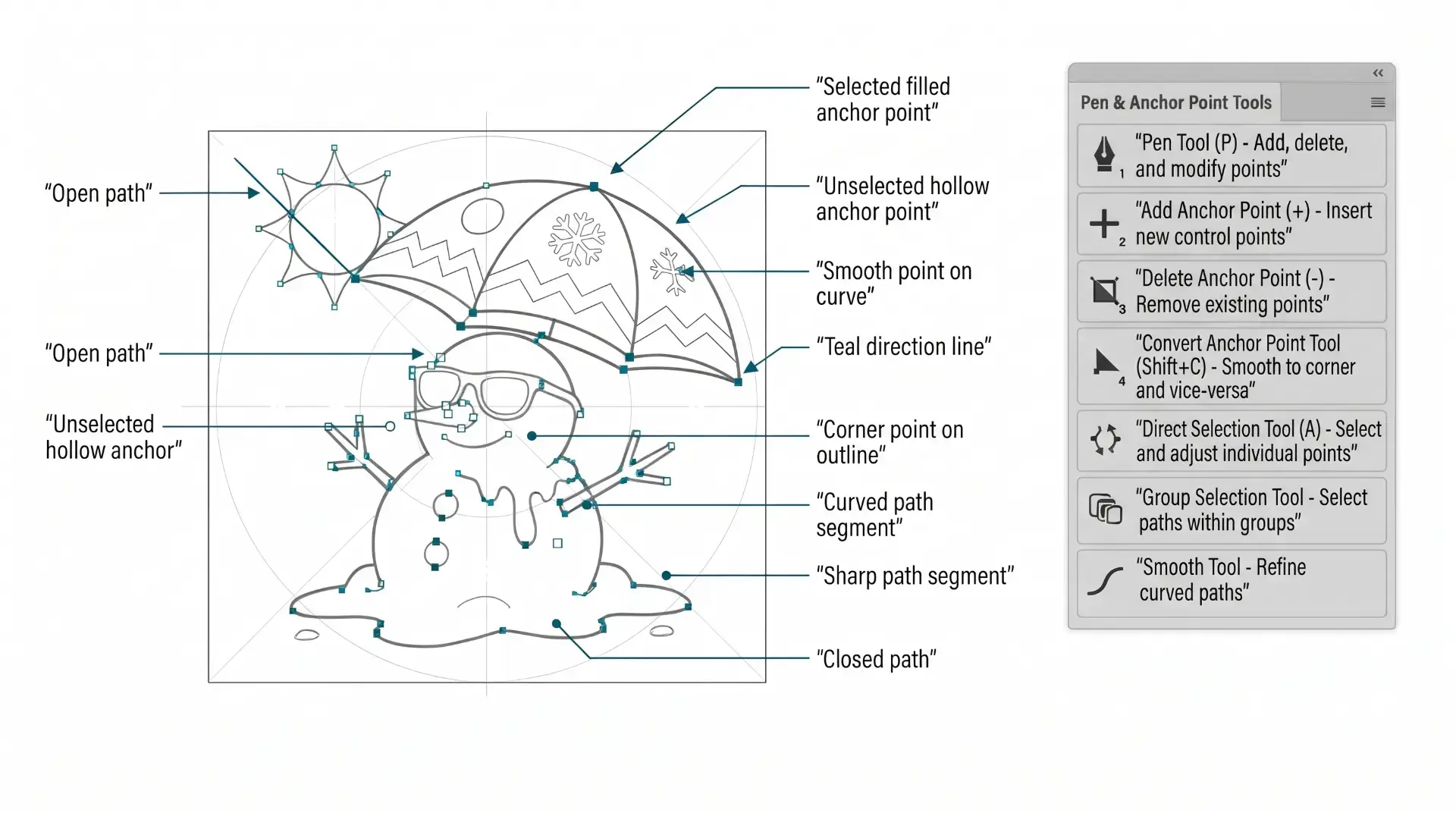
SELECTION TOOLS: The Direct Selection Tool can grab and adjust the Anchors, Handles, and Paths. It is worth having your Smart Guides Path Labels Turned On so you know what the tool is selecting before dragging. The Selection Tool will move and select objects. I like using the Bounding Box for my Transform Tools, Turn On under View. I recommend this for Quick Scaling.
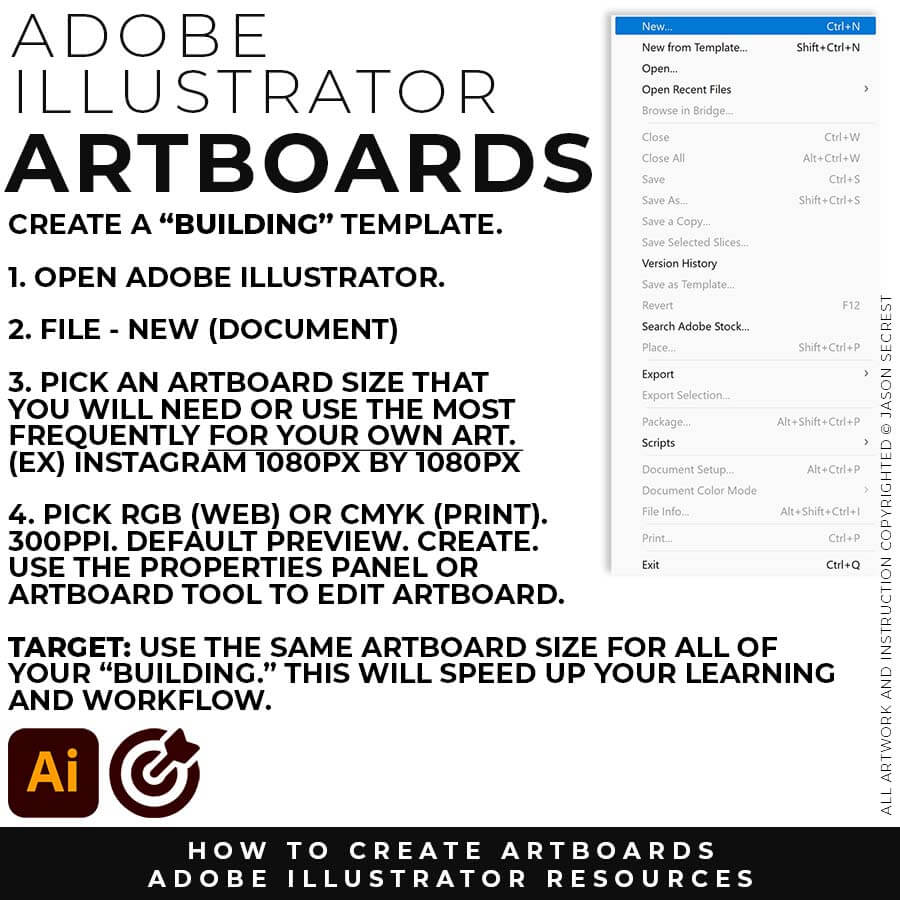
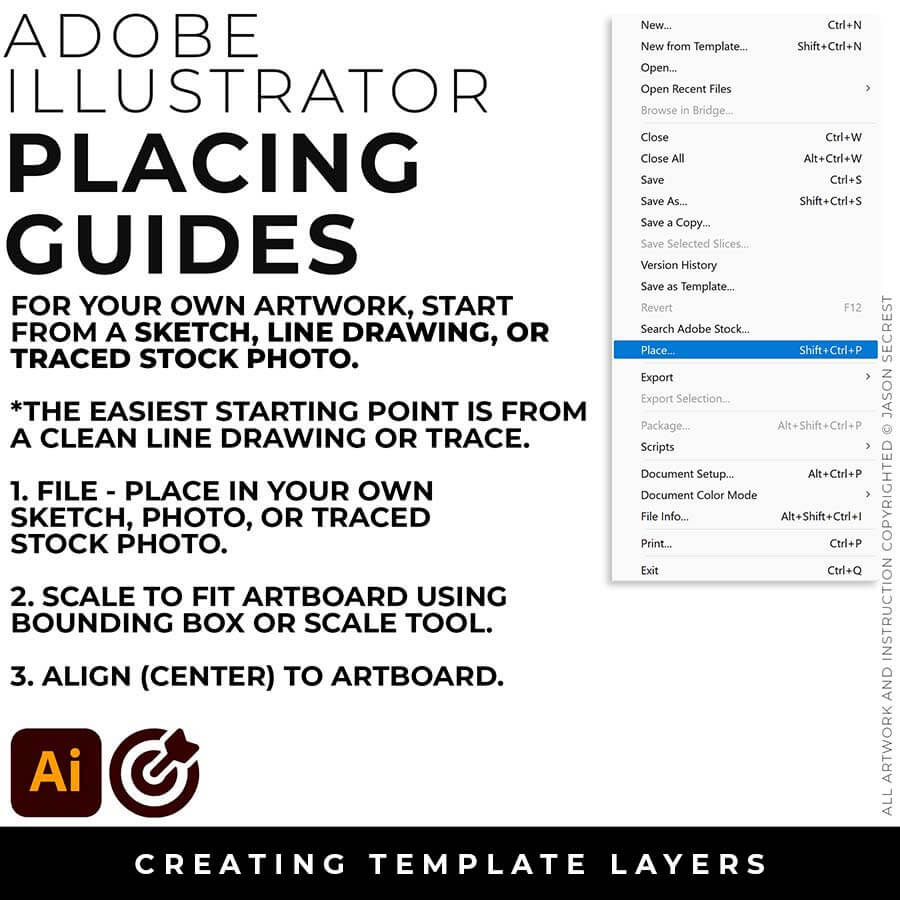
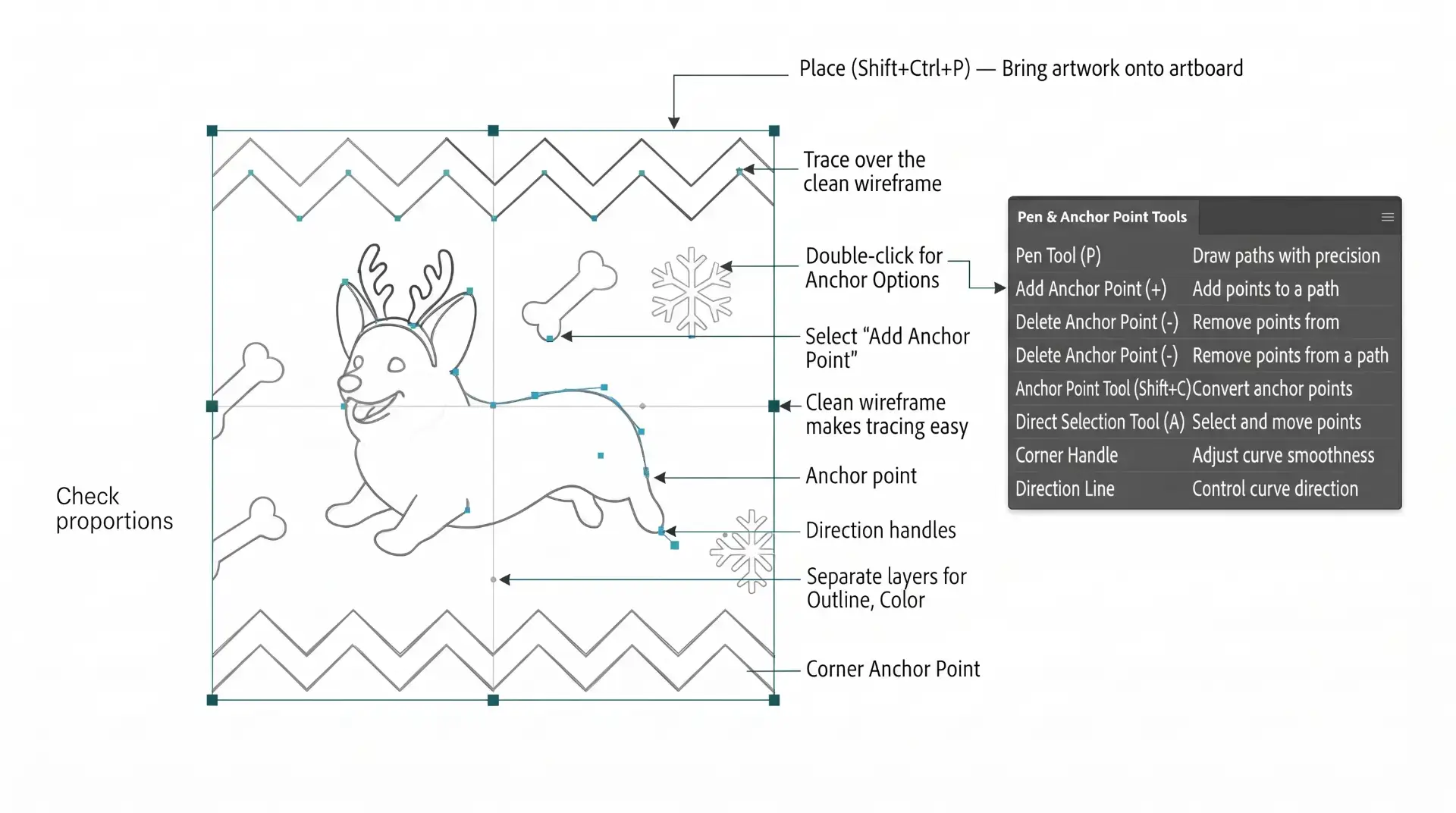
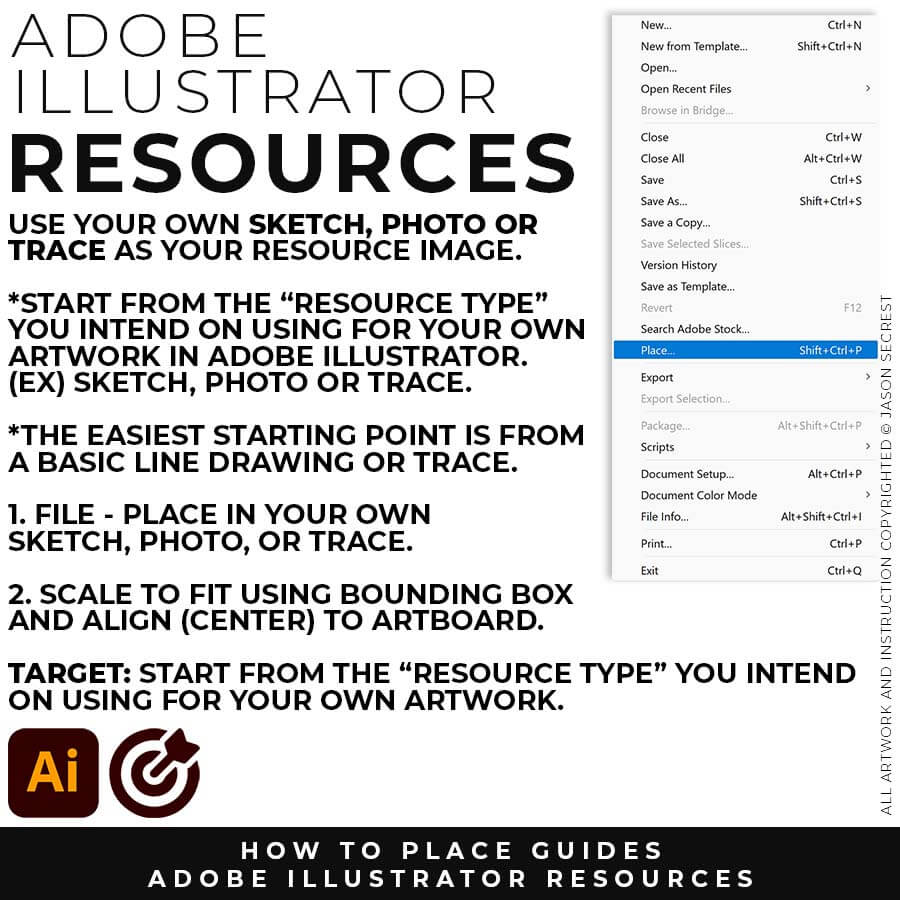
FILE - PLACE: File -Place in your own Drawing, Sketch, or Traced Stock Photo. I recommend starting from a Clean Line Drawing or a simple Traced Stock Photo for your artwork and designs.
SCALE TO FIT: You can modify the size of the artwork using the Bounding Box or Scale Tool. Scale to Fit Artbaord. Align the your Artwork to the center of the Artbaord using the Align Panel.
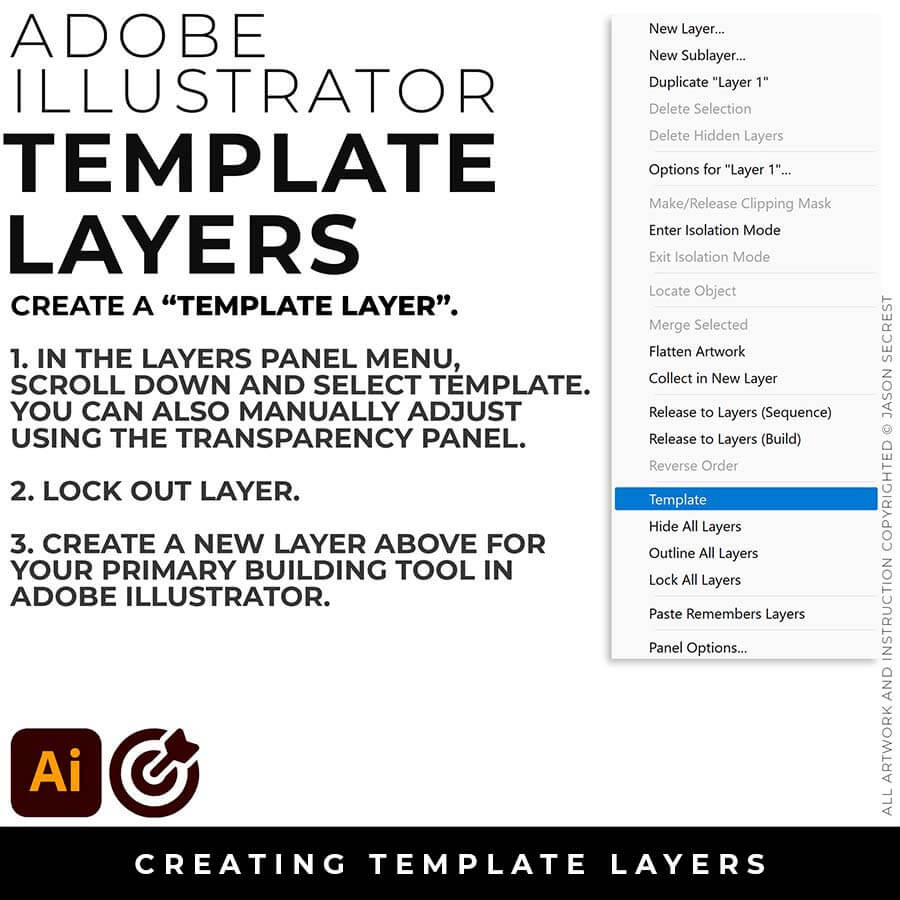
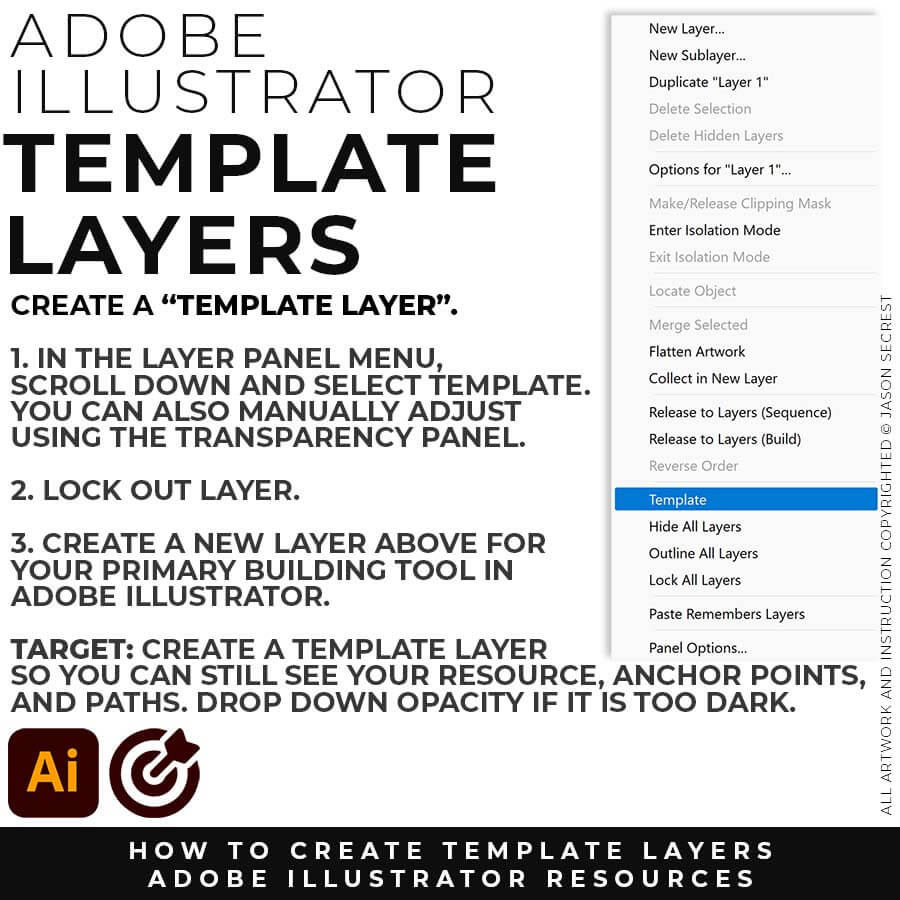
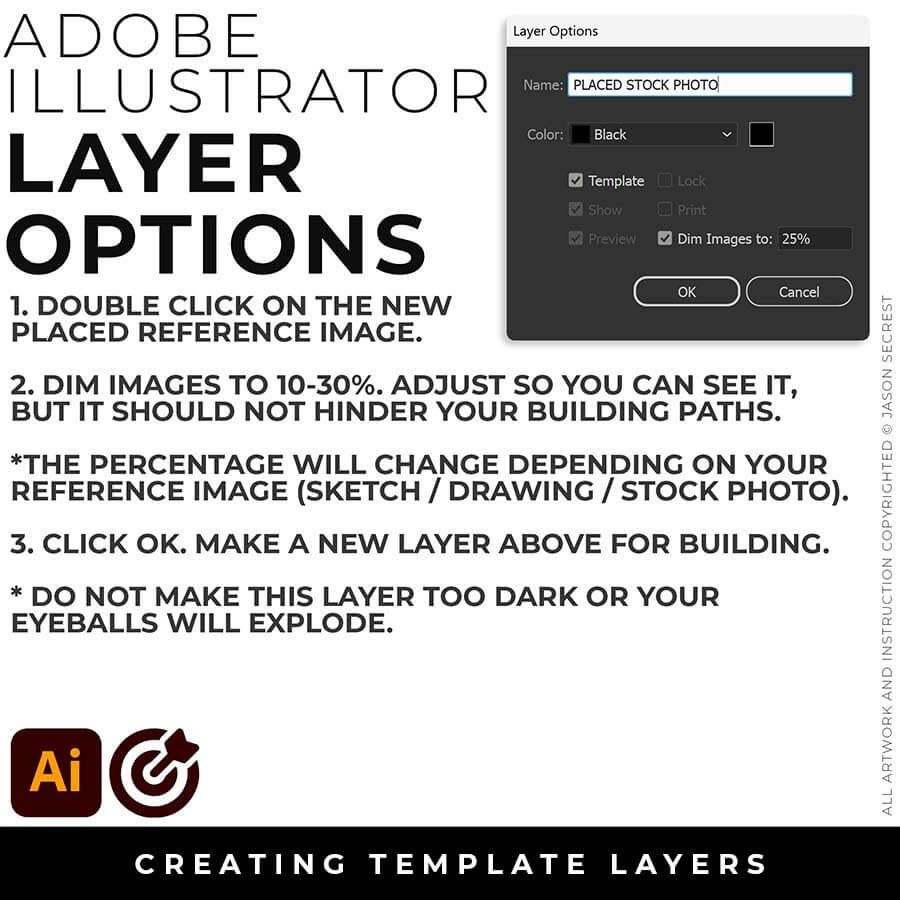
TEMPLATE LAYER: In the Layers Panel, drop down in the menu for Template (50%) or double click on the layer for properties (Dim 10-30%). Lock Layer. Create a New Layer above for Building.
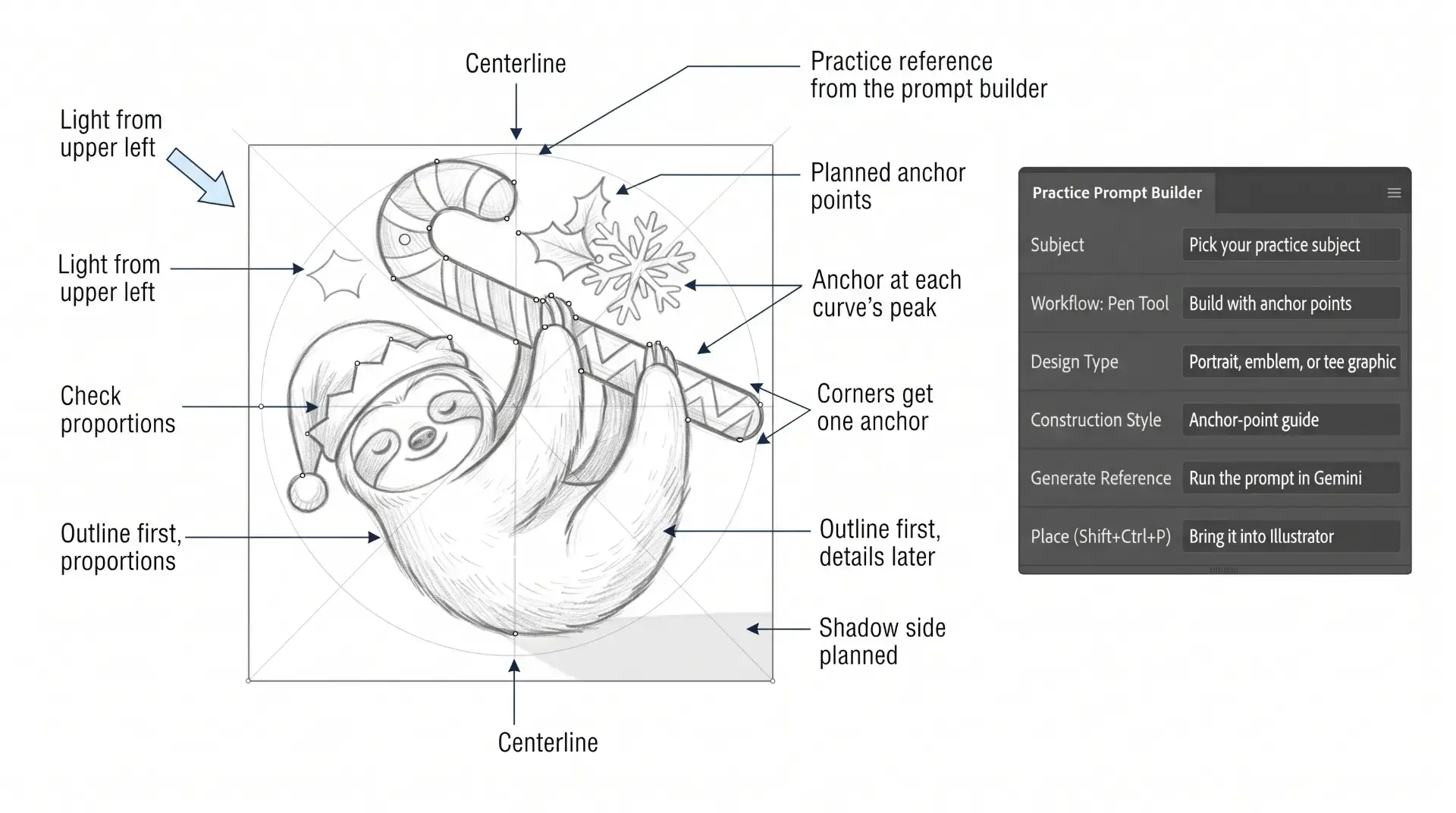
PRACTICE BUILDER SETTINGS
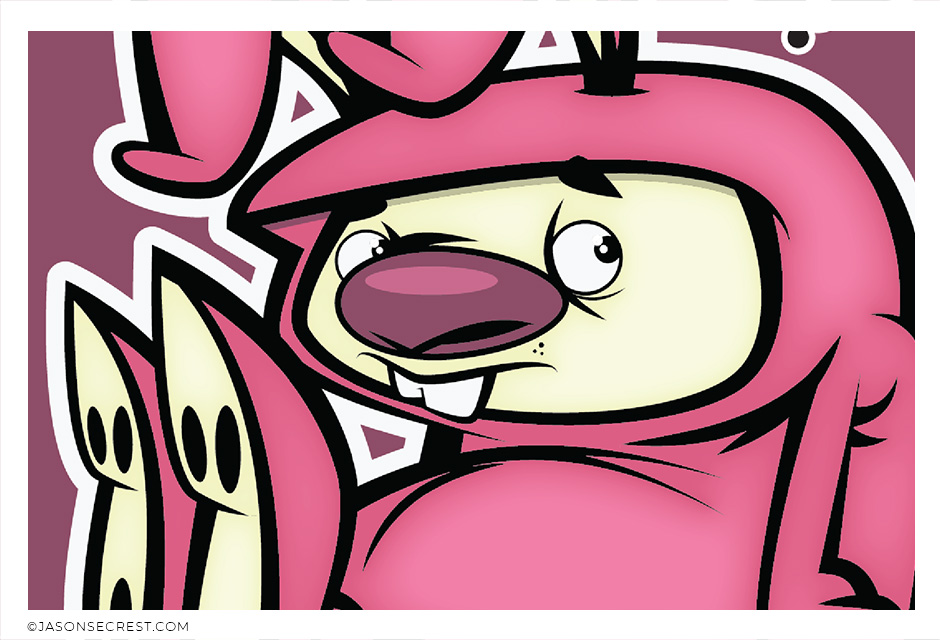
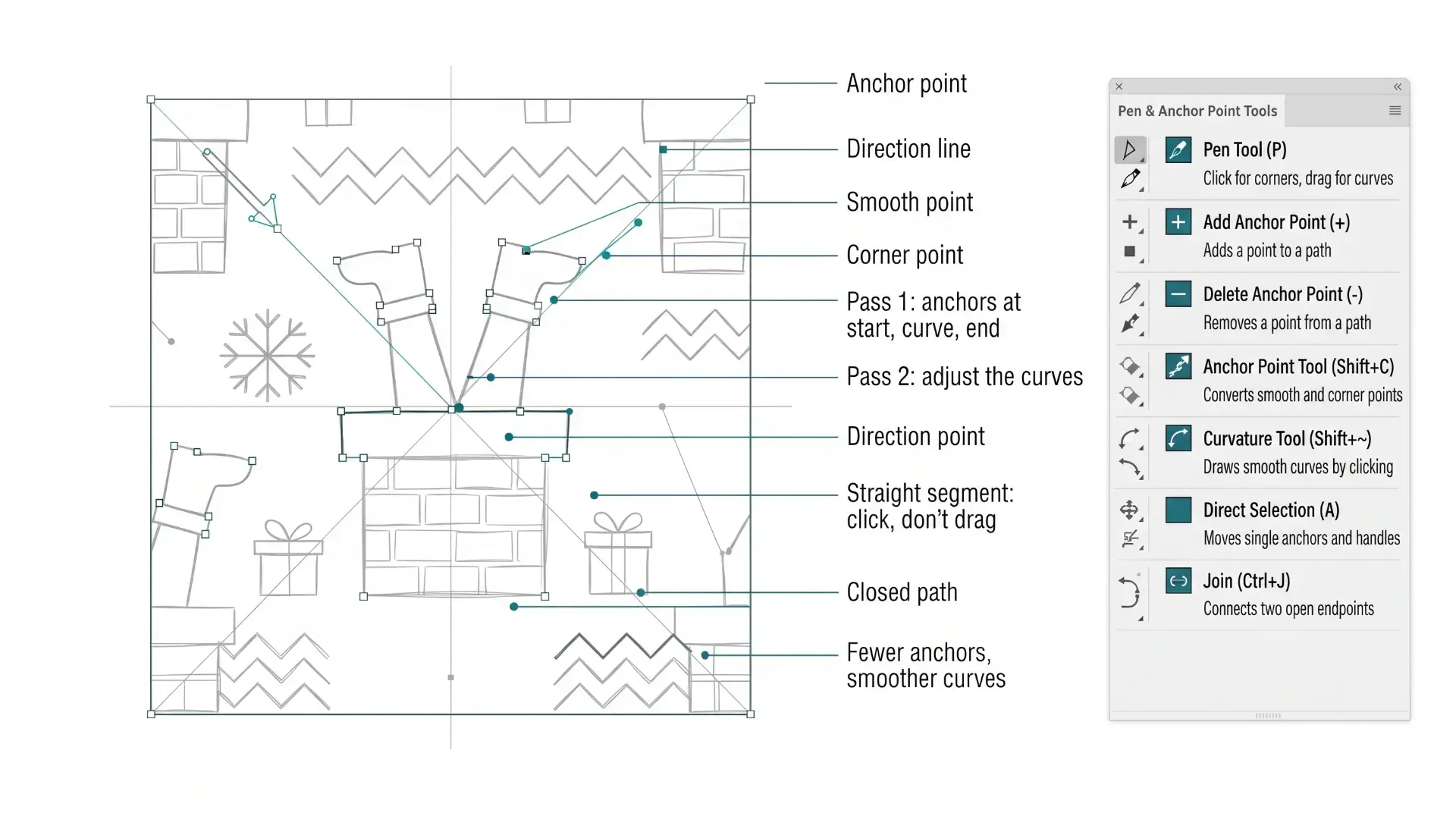
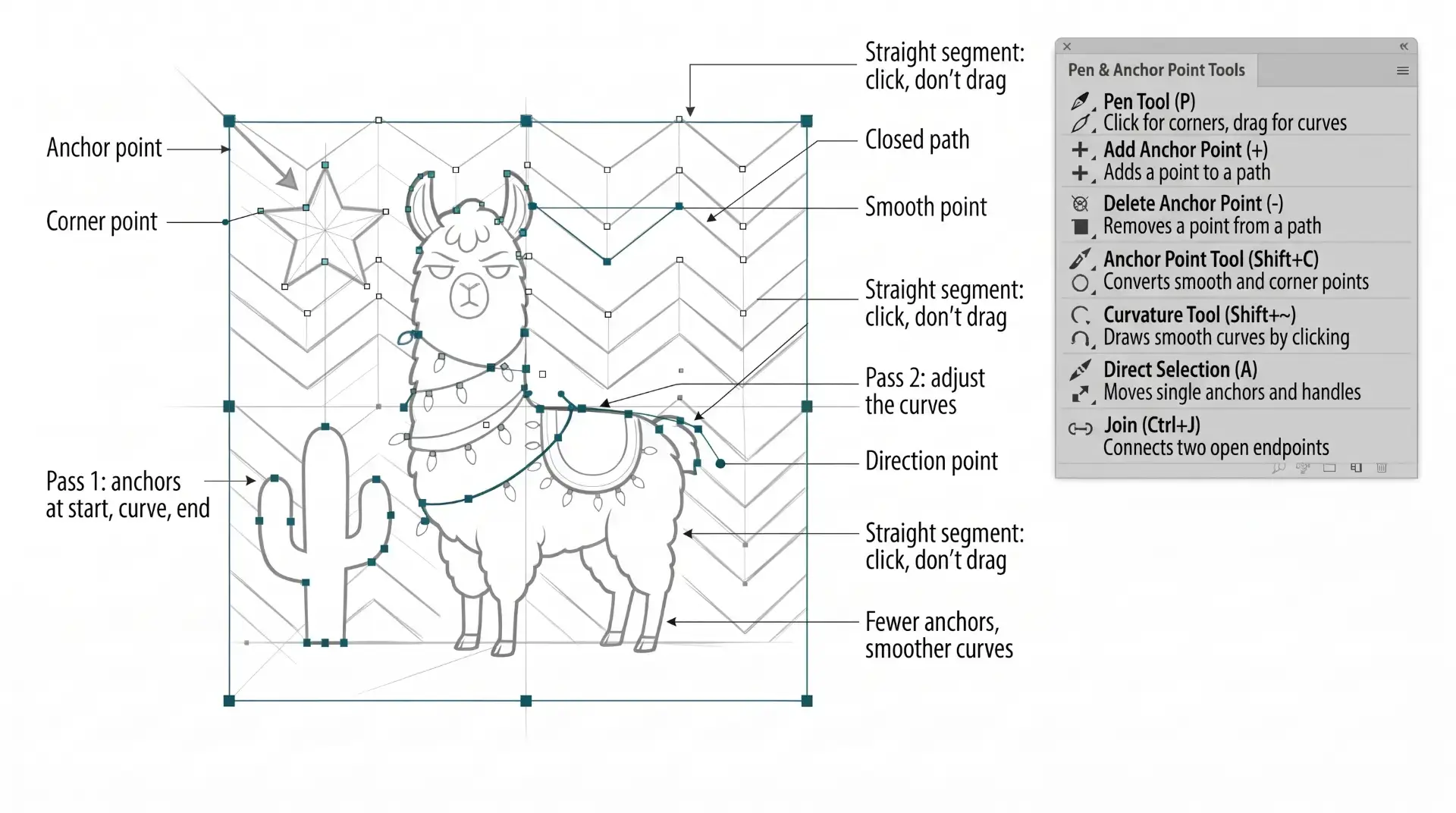
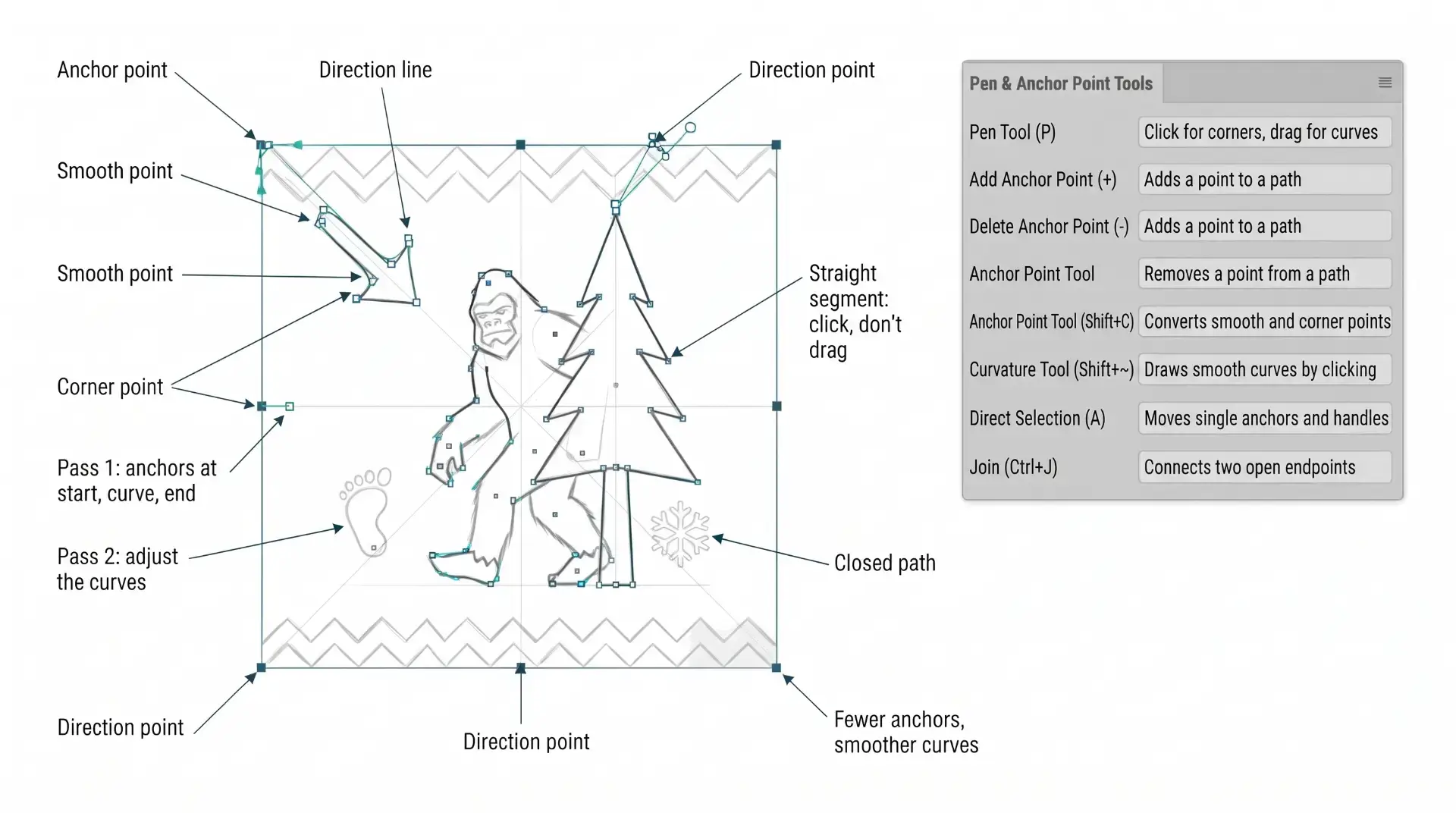
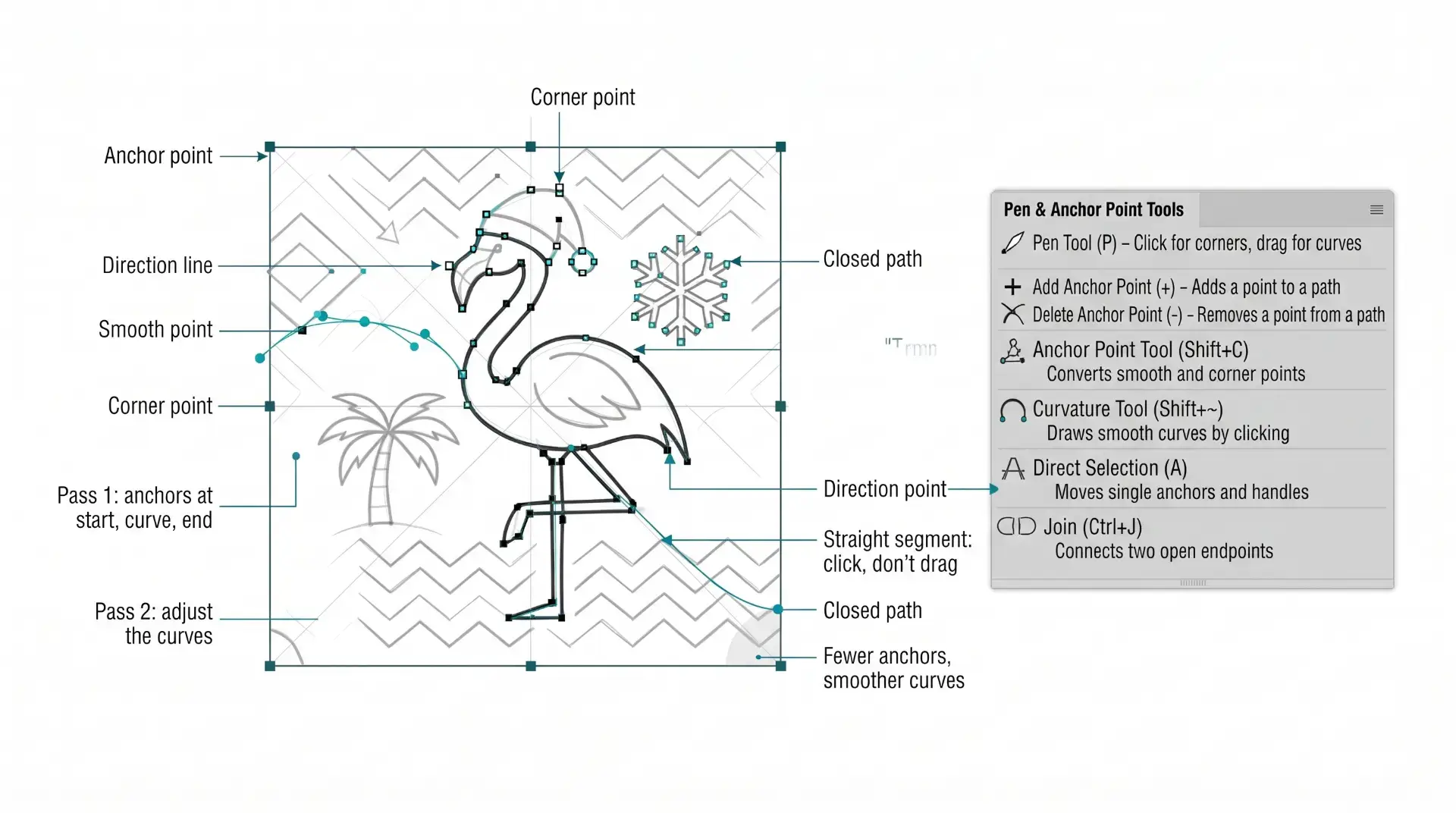
Use these to make your reference image. → PRACTICE EXERCISE PROMPTS Workflow: Pen Tool What you're building: Repeat Pattern Difficulty: Beginner Presentation: Anchor Point Guide Subject (paste into the builder - what are you drawing): sloth in an elf hat hanging from a candy cane
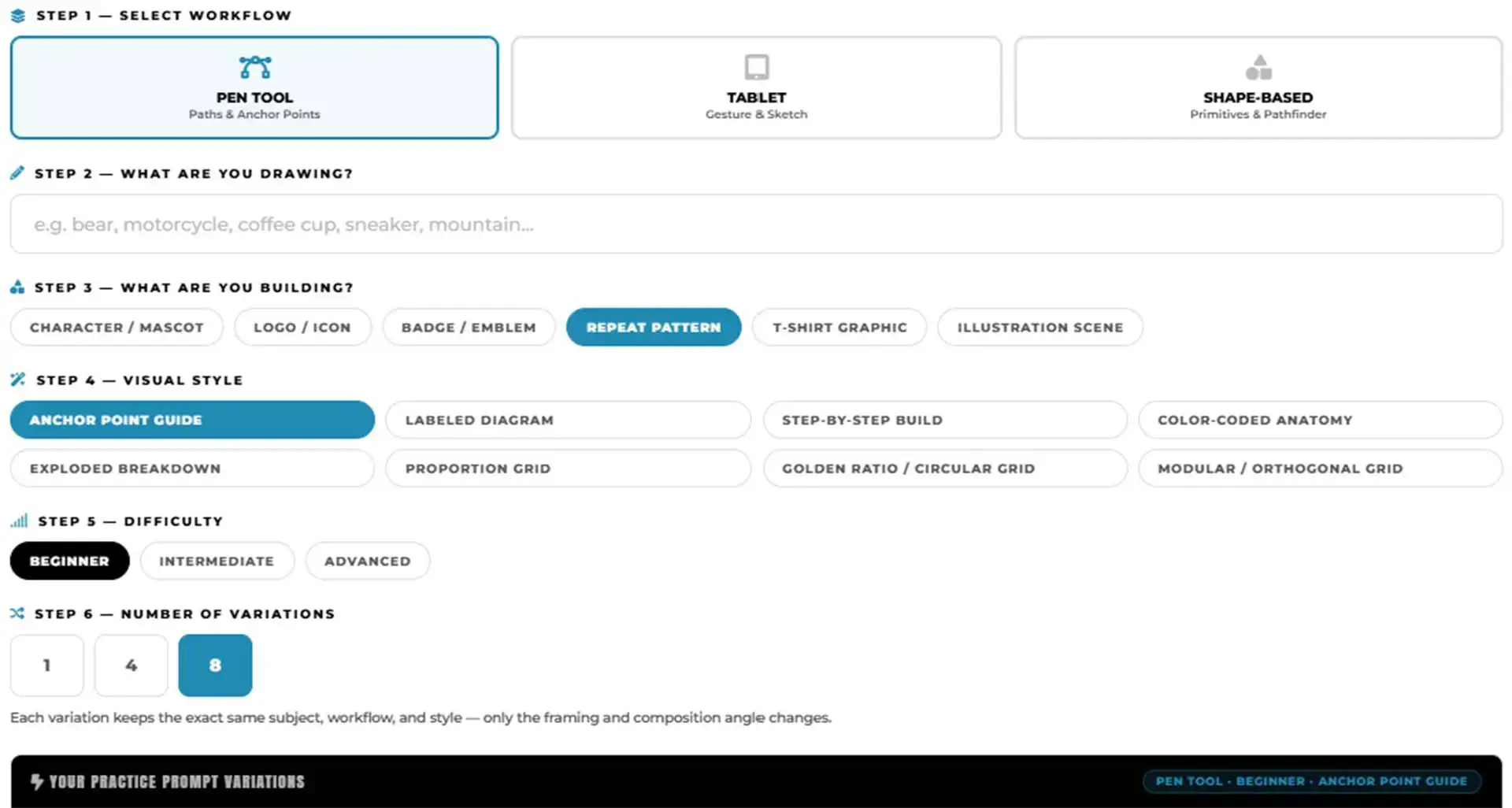
HOW THE PRACTICE EXERCISE BUILDER WORKS
Select your workflow, type in your subject, and this tool assembles a detailed AI image generation prompt designed specifically for Adobe Illustrator practice exercises — not a finished design, but a clear work-in-progress reference image you can draw from. Choose Repeat Patterns and Anchor Point Guide options across three difficulty levels. → PRACTICE EXERCISE PROMPTS
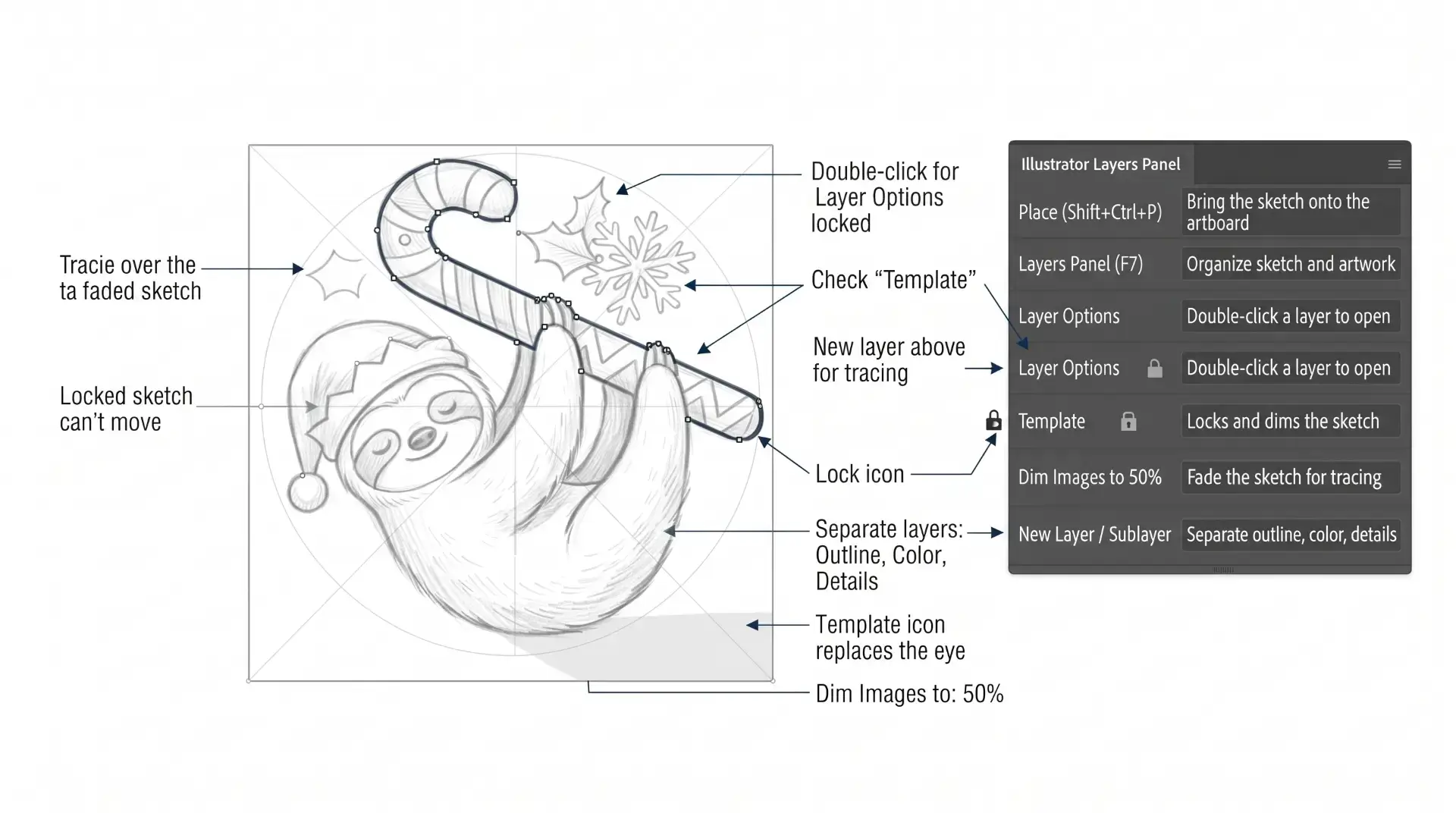
TEMPLATE LAYER: Every project starts with a reference image on a template layer. This is not optional — a blank artboard is not a starting point. The template layer holds your dimmed reference at the bottom of the stack. Your build layer sits above it. This structure is the same for every single project you ever build.
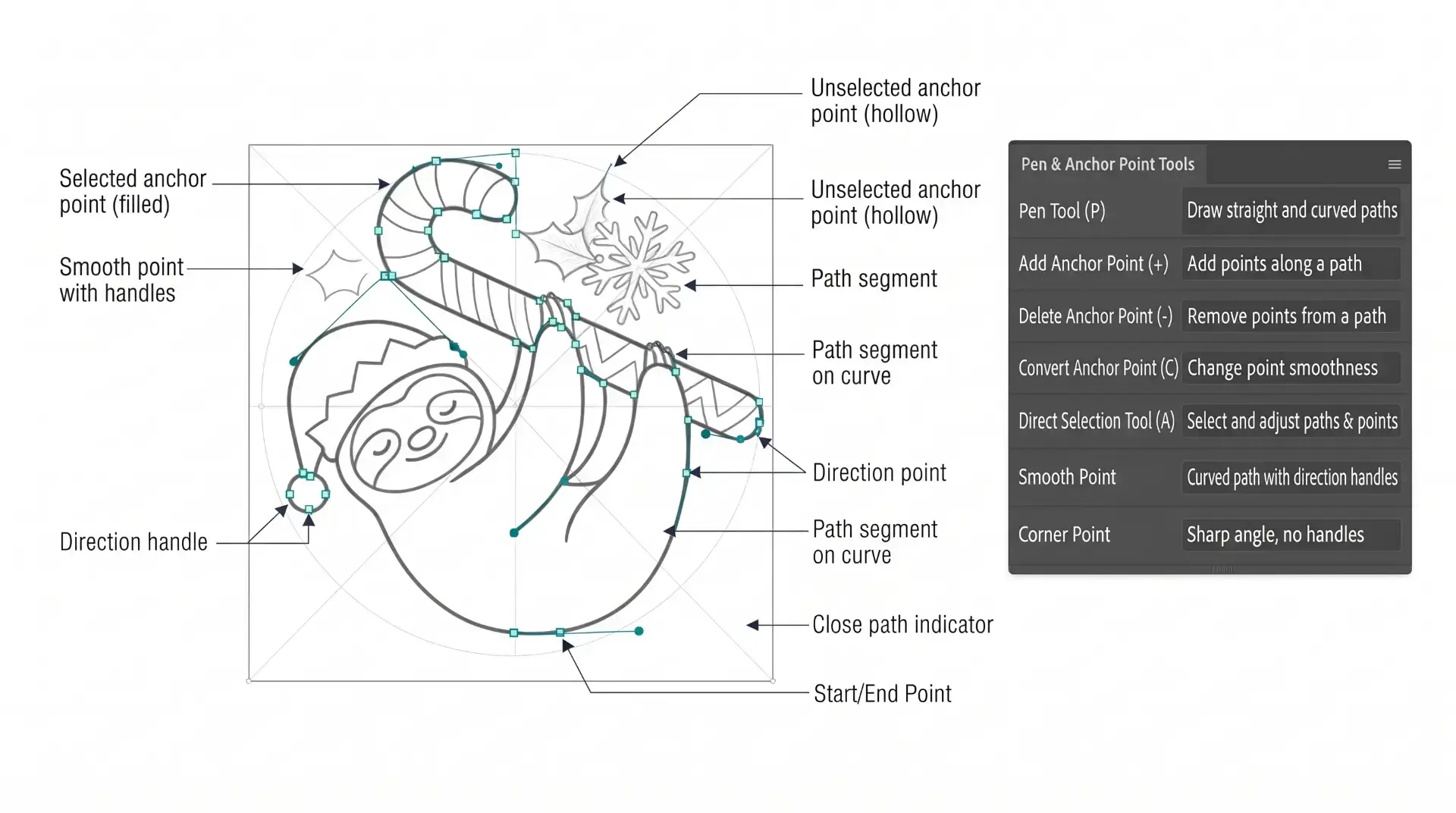
PRIMARY BUILDING: Many of you will be using Shape, Pencil, and Pen Tools as your Primary Building Tools. Focus on the most obvious solution first. If it appears as a line, use the pencil or pen tools to trace it. If it resembles a shape, utilize the shape or ellipse tool. Do not overcomplicate the initial building step.
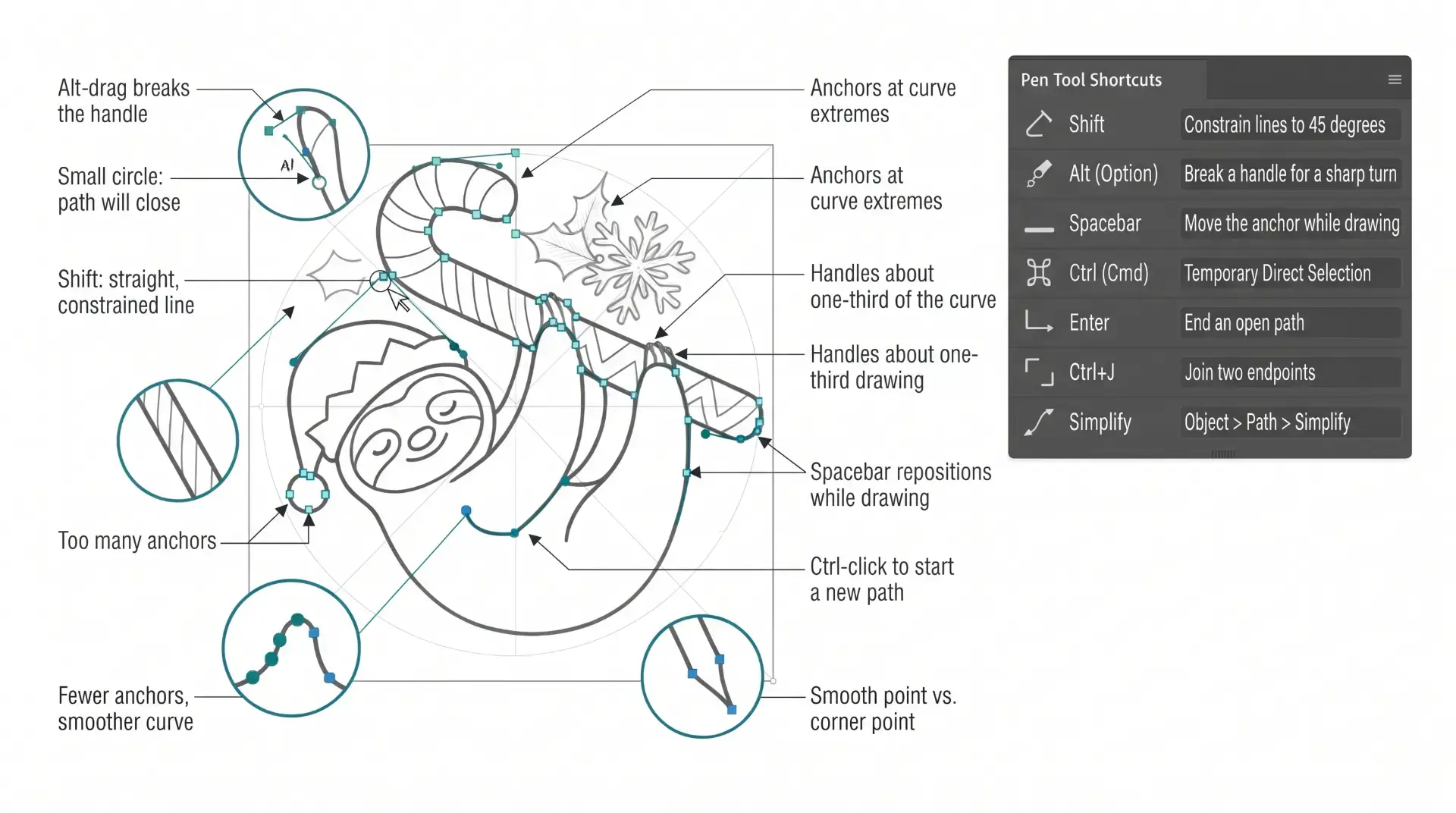
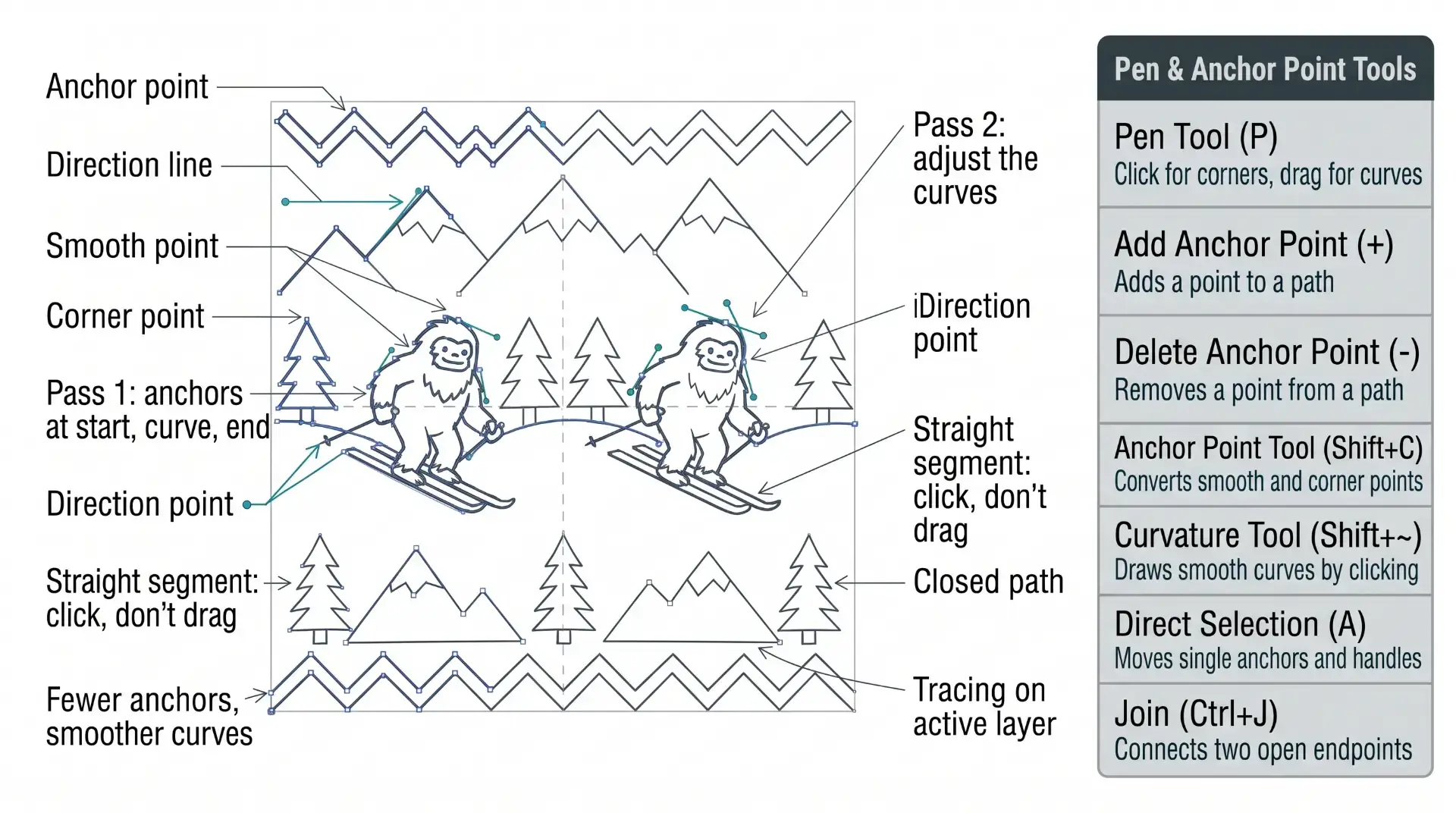
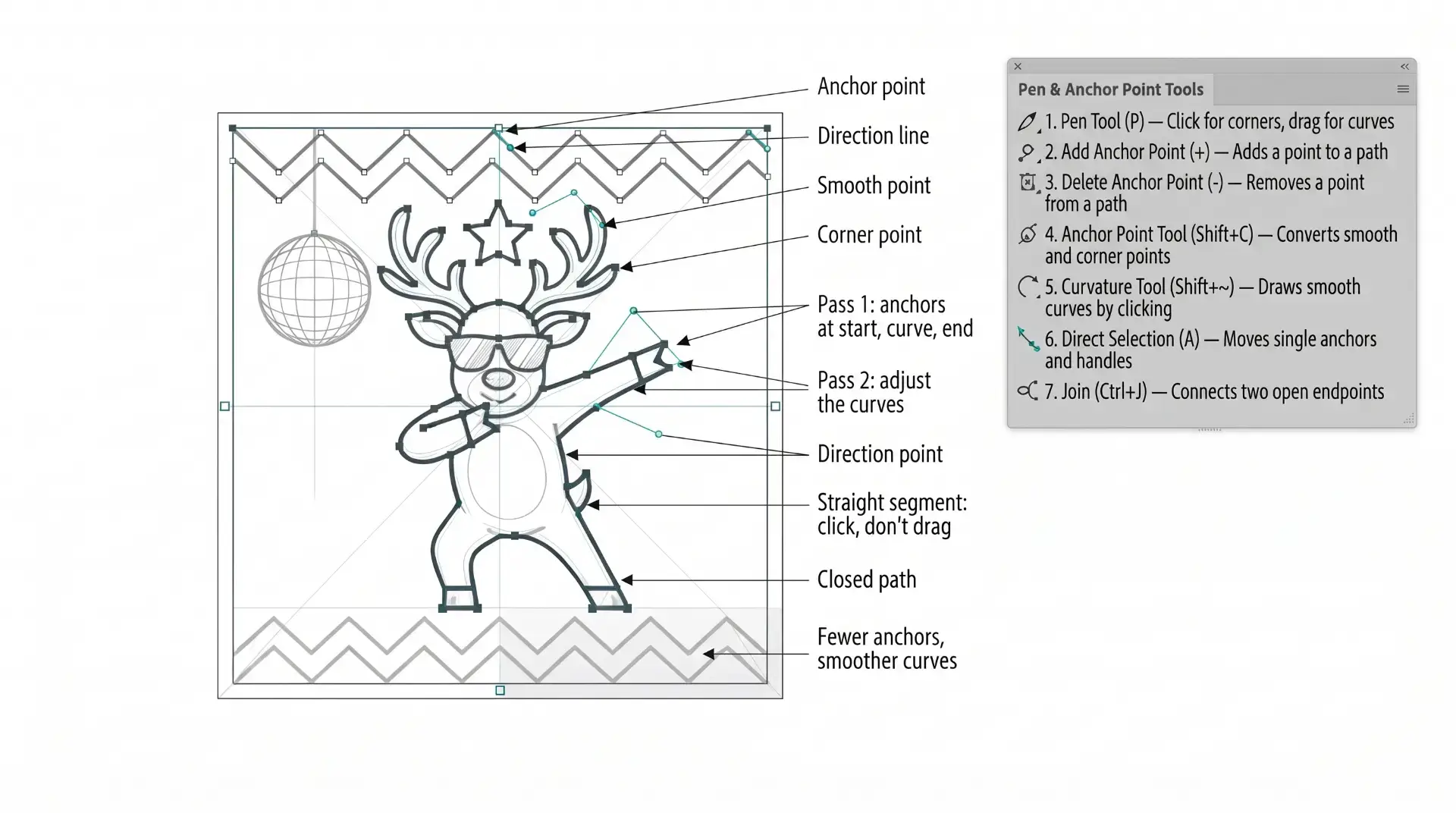
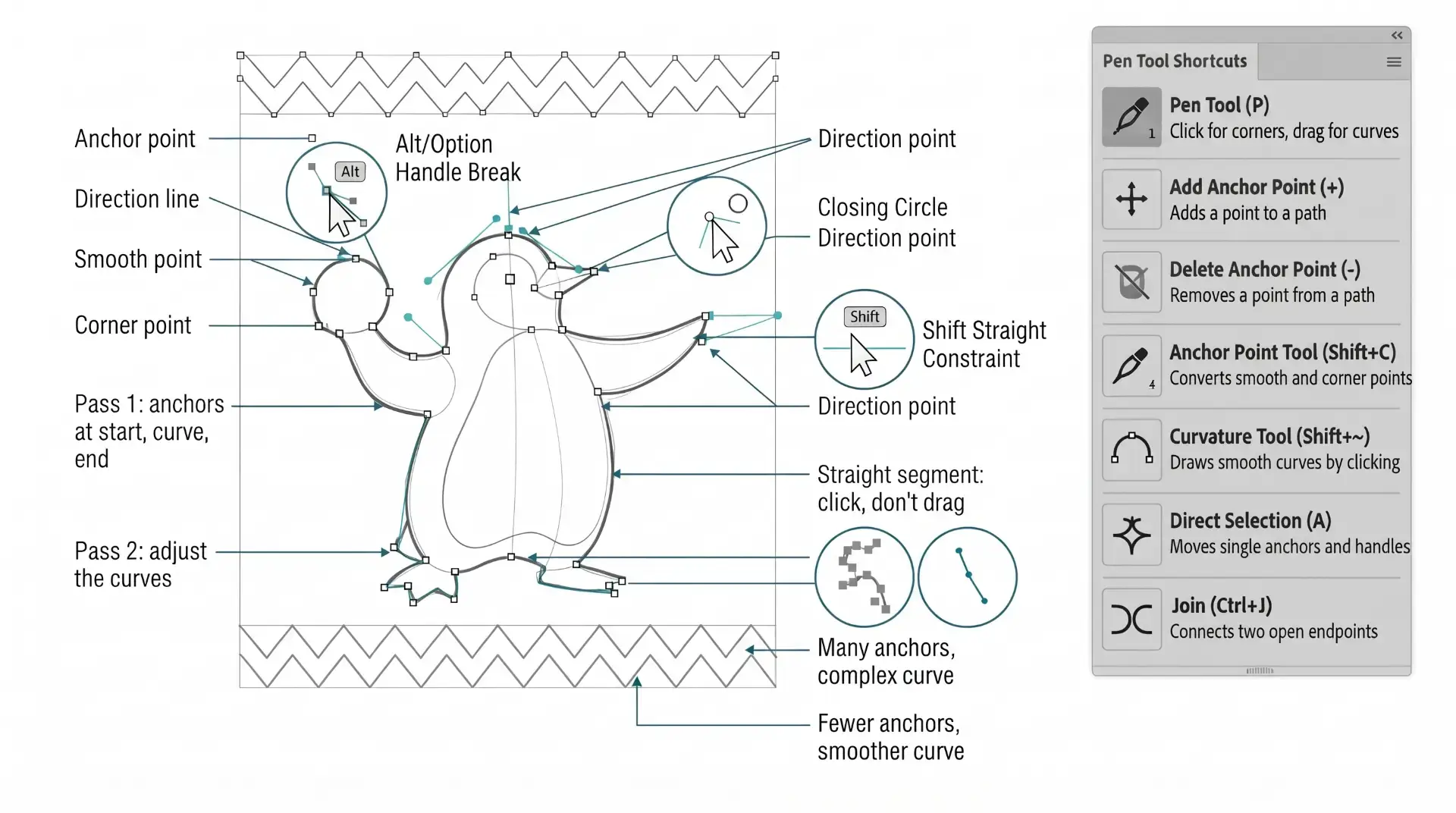
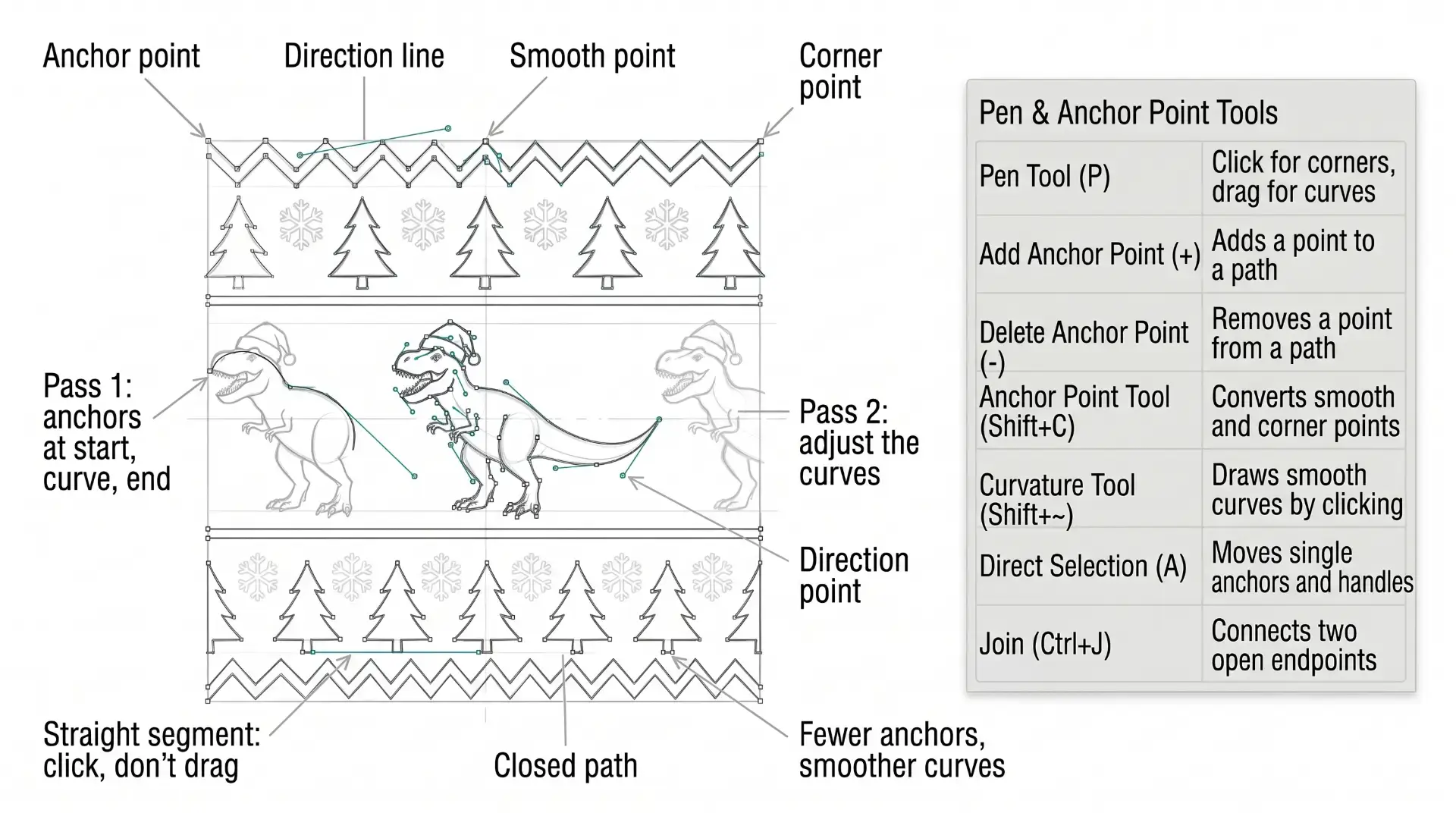
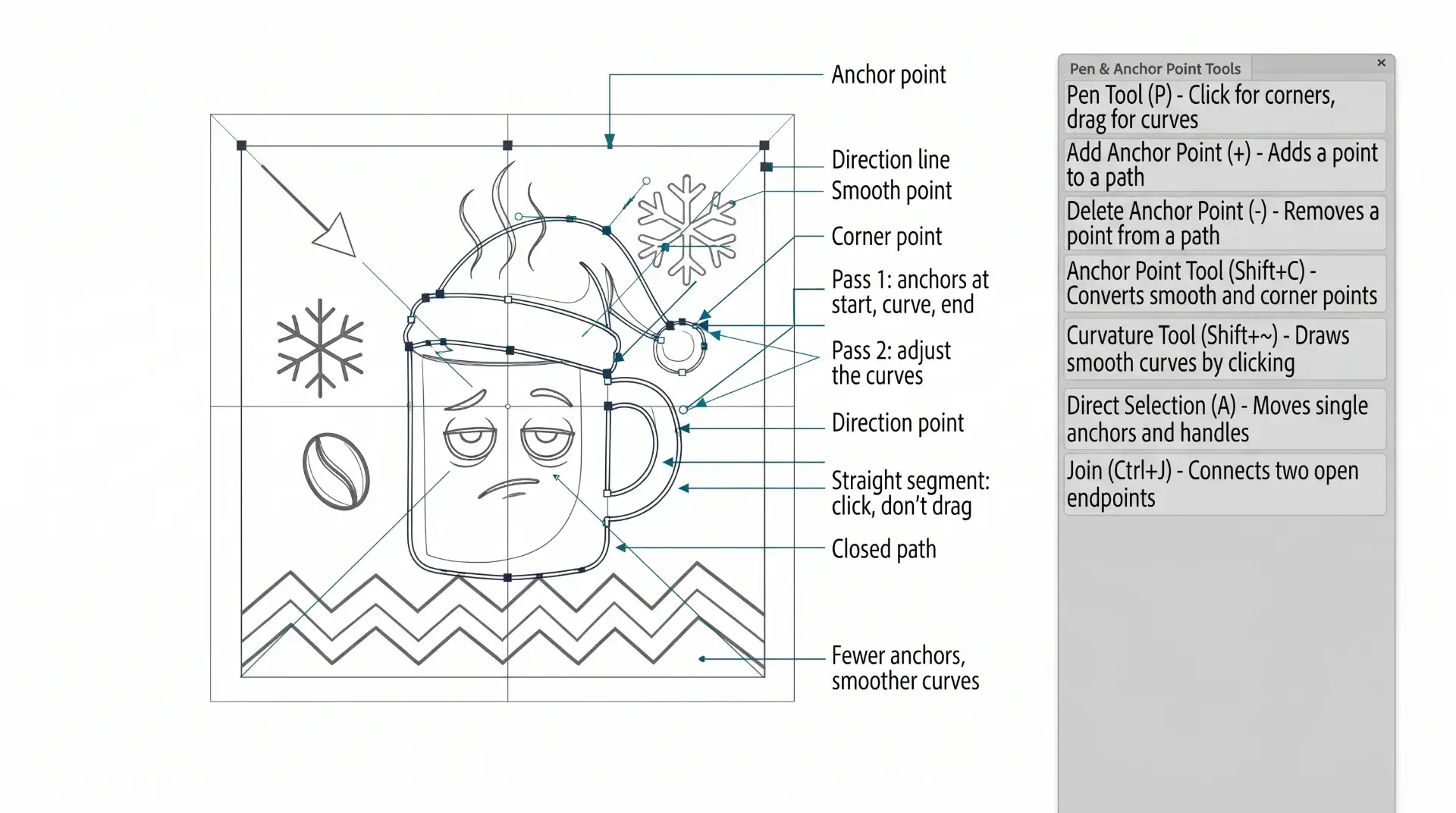
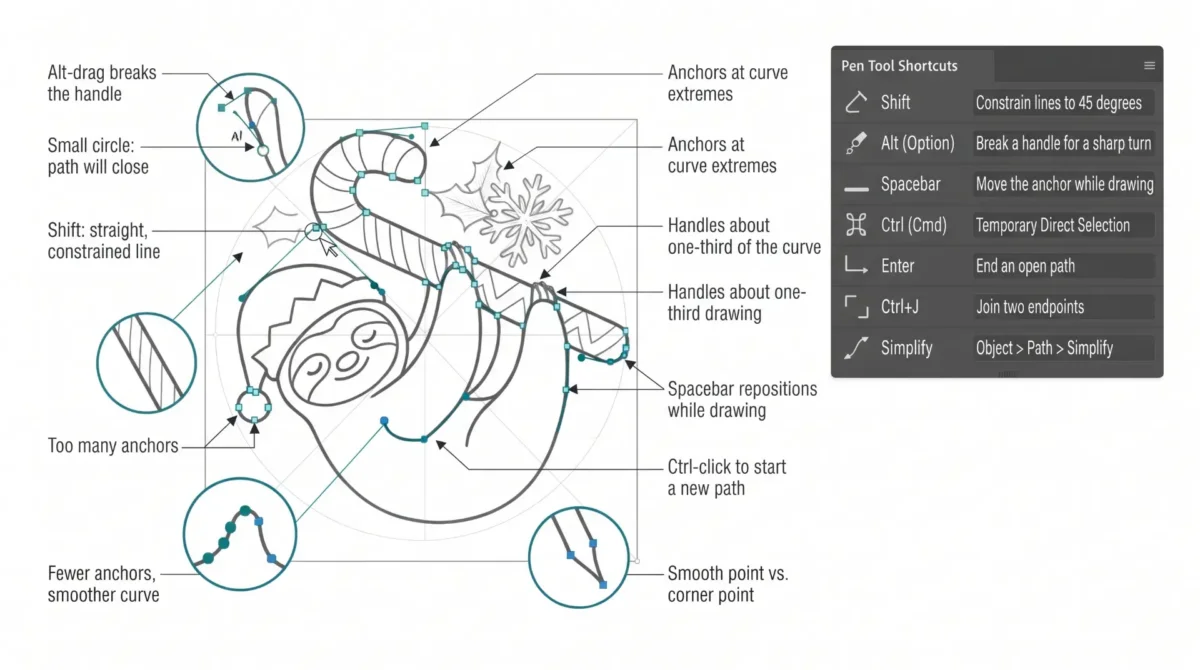
PLACE ANCHORS AT PEAKS AND VALLEYS
Look at your template layer sketch underneath. Identify every place where the direction of a curve CHANGES — the highest point of a curve (peak), the lowest point (valley), and any sharp corners. Click at each of these points only. Do not place anchors in the middle of a smooth curve area — handles will take care of that in the next pass. Rule: fewer anchors = smoother curves. Aim for the minimum number of anchors that define the shape.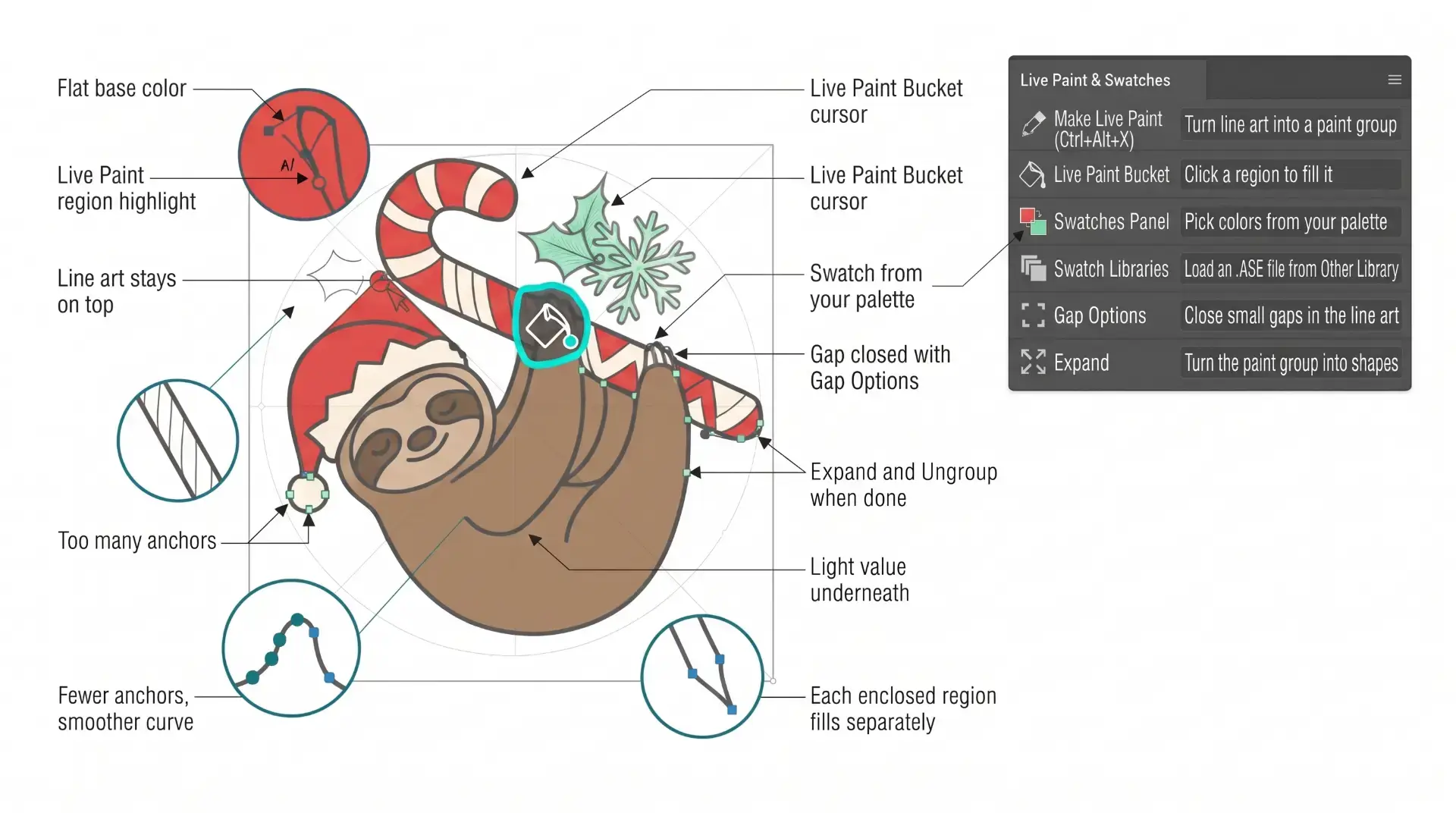
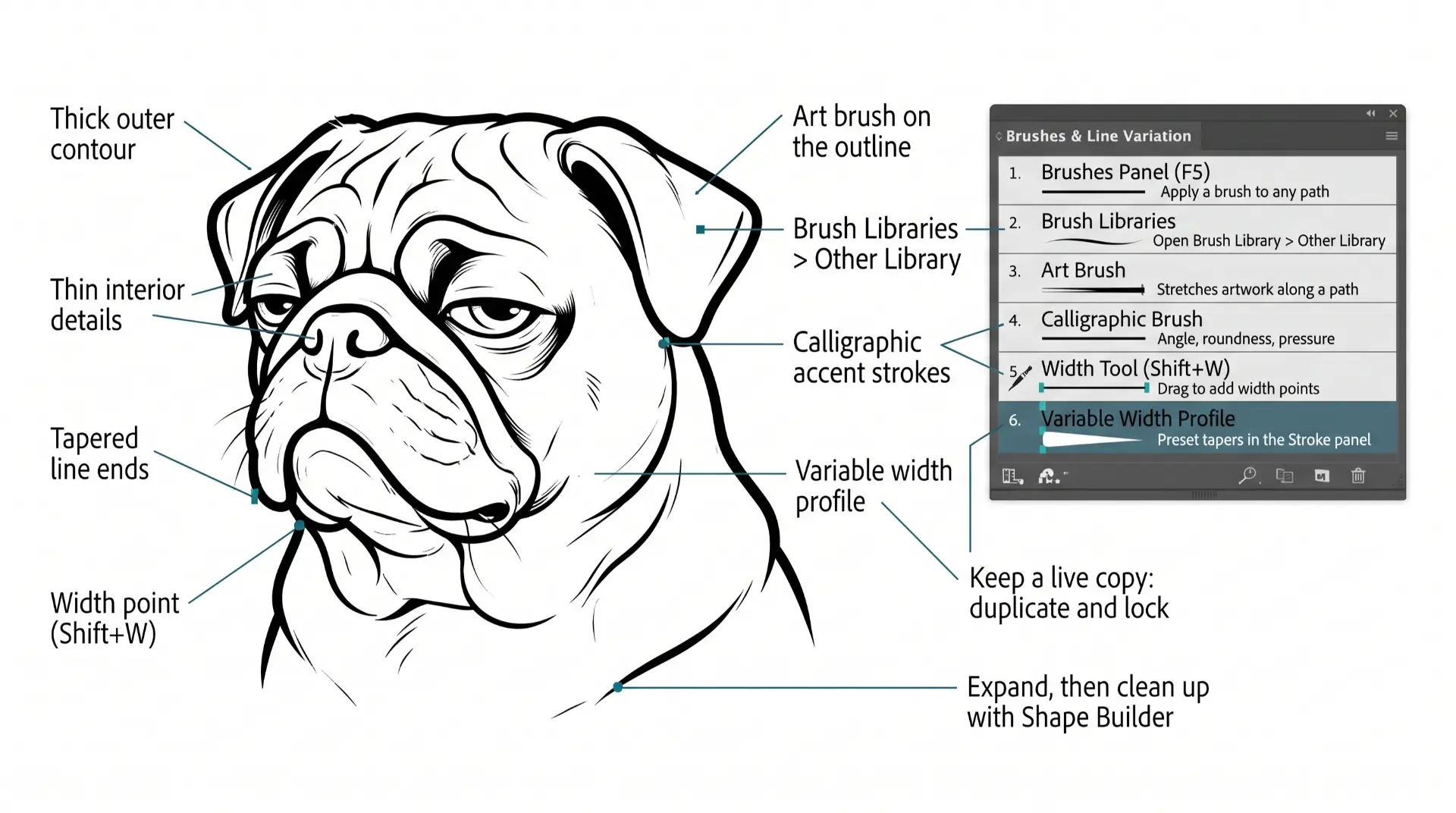
LIVE PAINT BUCKET: As I color my artwork, notice I am using Live Paint to create my Basic Fills or Flat Color Layer. Select what you want to color. Object - Live Paint - Make. Click to dump color just like in Adobe Photoshop with the Live Paint Bucket Tool. Remember to expand and ungroup when you have completed the coloring step. BEGINNER: Understand how to apply Flat Color using Live Paint Bucket. ADVANCED: For your own artwork, duplicate your Flat Color Layer for Value and Gradient Steps. Separate your Final Line by using the Magic Wand Tool to select your Edited and Expanded Brushes Layer.
COLOR SWATCHES: Use Color Swatches from your Library or save them from Adobe Color as an .ASE File. Open Swatch Library from the “Other Library” Option. Most Color Themes will use Hues as the Base Color. We will be using Live Paint to create our Basic Fills or Flat Color Layer.
LIVE PAINT: Coloring will be extremely easy using Live Paint Bucket. The goal of Live Paint is to create Shapes that we can color using Fills. Once you have completed the Live Paint Group, it is important to Expand and Upgroup. We will leverage these shapes for our Values and Gradients.
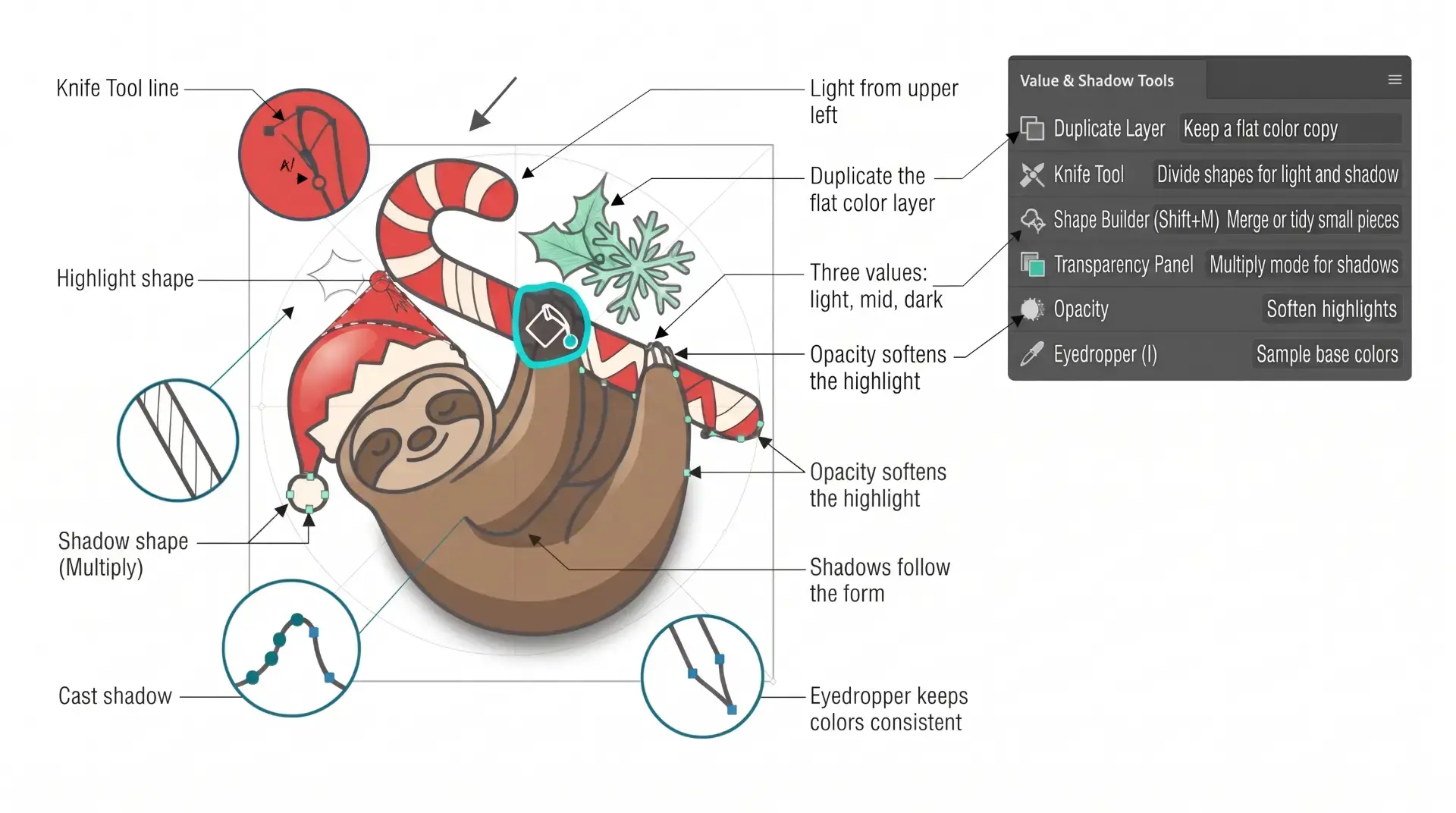
KNIFE TOOL: After using Live Paint, Expand and Ungroup. Use a Duplicated Flat Color Layer for your Value Layers. The Knife Tool will cut Shapes. I recommend cutting out all of the shapes first before deleting them. You can use this technique for Highlights, Shadows, or Cast Shadows.
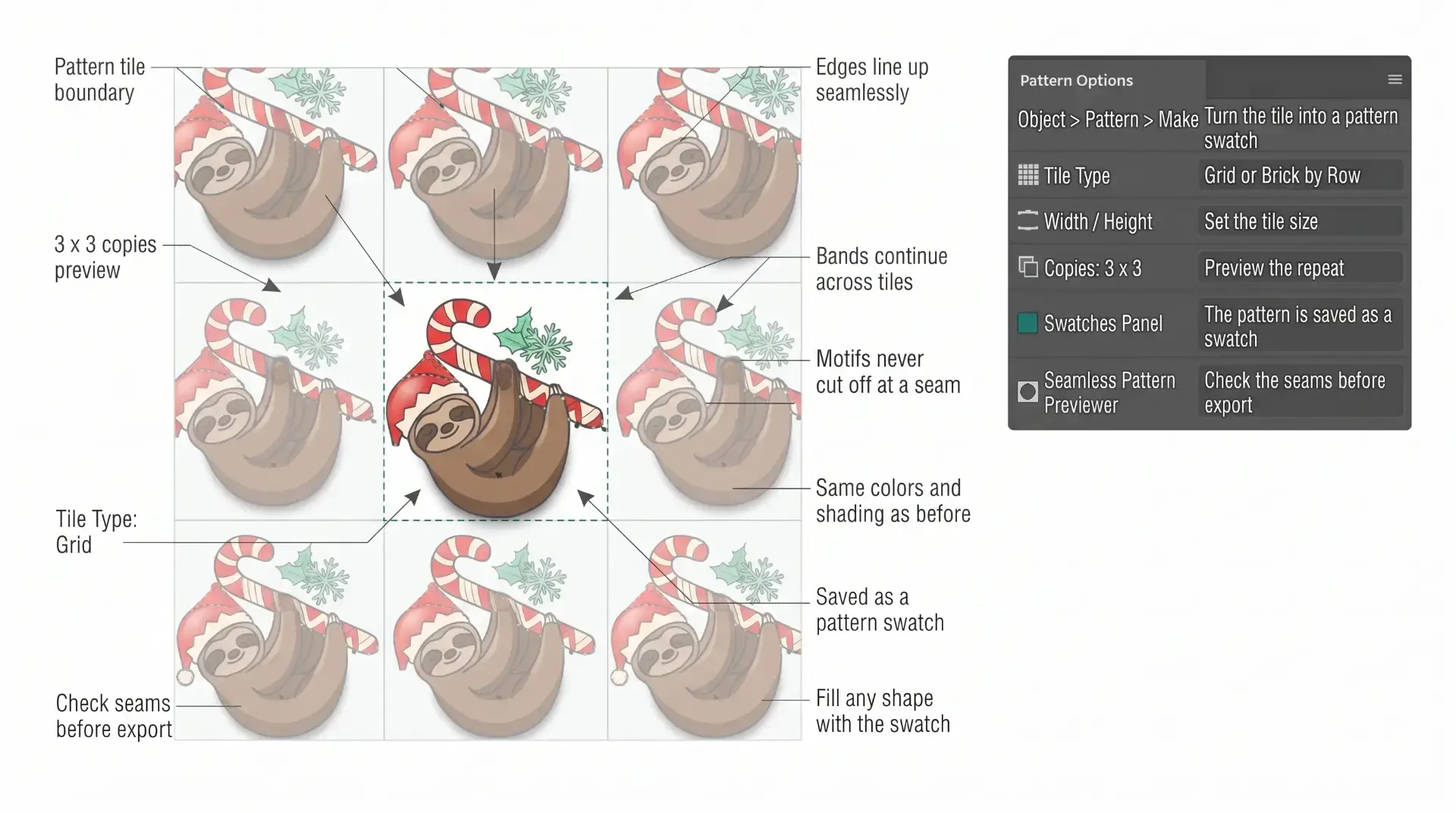
MAKE WITH PATTERN OPTIONS
Select your finished artwork and border bands, then choose Object > Pattern > Make. The built-in Pattern Options panel shows the repeat live and handles the matching edges for you. Set Tile Type to Grid for straight rows, or Brick by Row to offset every other row like a knitted motif. Adjust Width and Height so the zigzag bands meet at the tile edges, and set Copies to 3 x 3 to check the repeat. Click Done and the pattern is saved to your Swatches Panel, ready to fill any shape.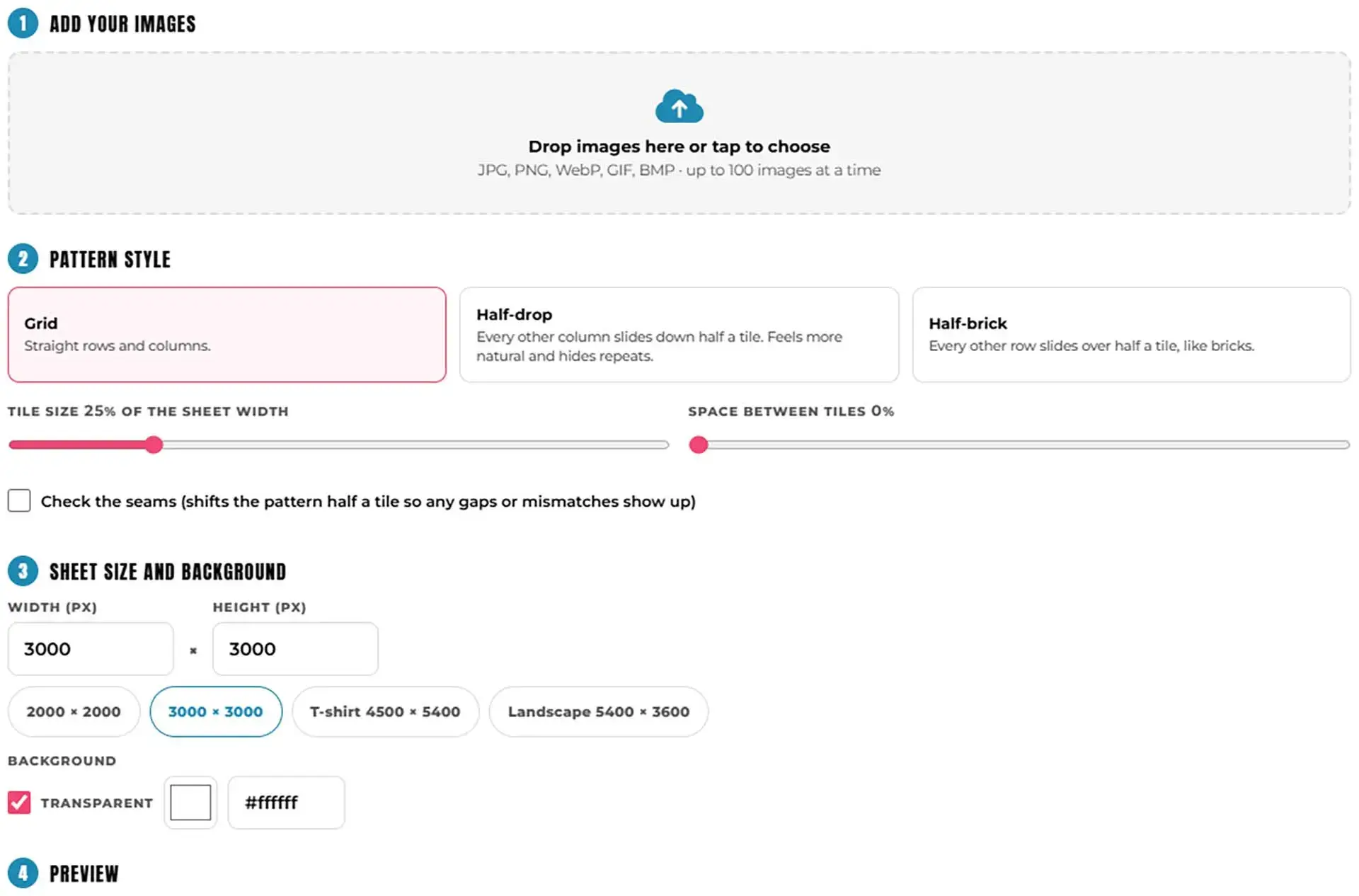
PREVIEW WITH SEAMLESS PATTERN PREVIEWER
See exactly how your design repeats before you send it to print. Choose a grid, half-drop or half-brick layout, turn on the seam check to spot gaps and mismatches, then download a full-size pattern sheet as a PNG. It runs entirely in your browser, so your artwork is never uploaded. PATTERN PREVIEWER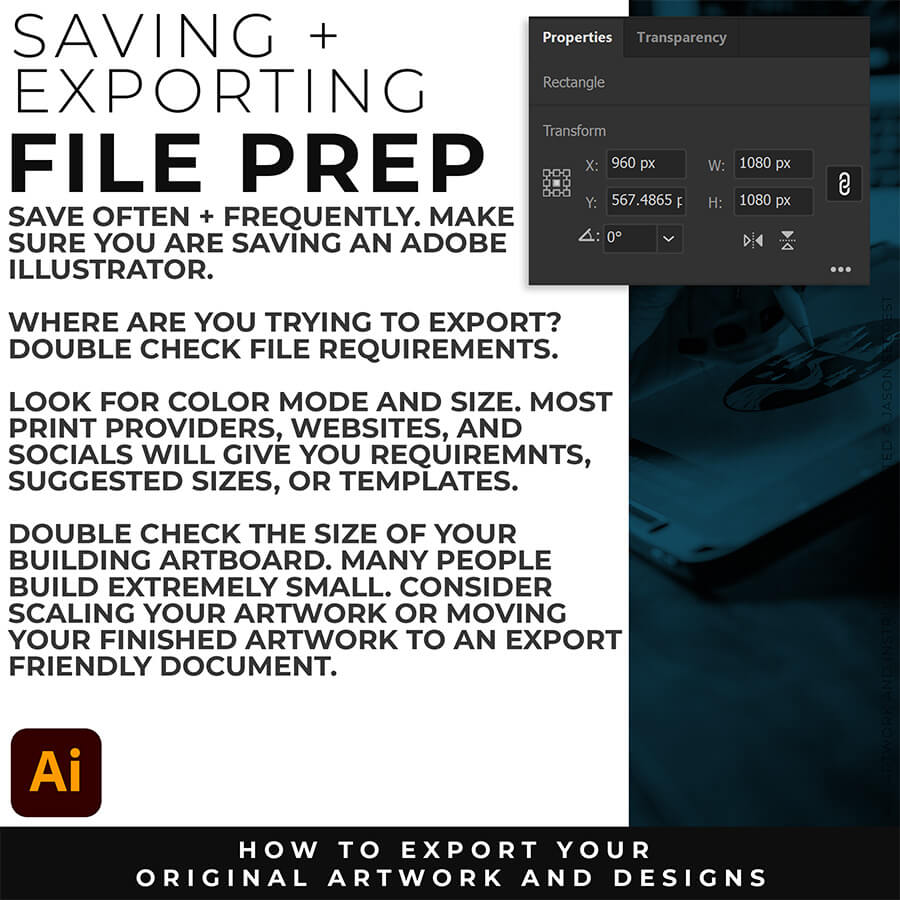
FILE PREP: An exported PNG looks blurry when the document is saved at a low resolution or when the anti-aliasing drops processing frames. To fix blurry PNG exports, verify that your export resolution is set to 300 PPI. Additionally, change the anti-aliasing option from "Type Optimized" to Art Optimized. This instructs Adobe Illustrator to prioritize smooth line work and vector curves rather than prioritizing text rendering.
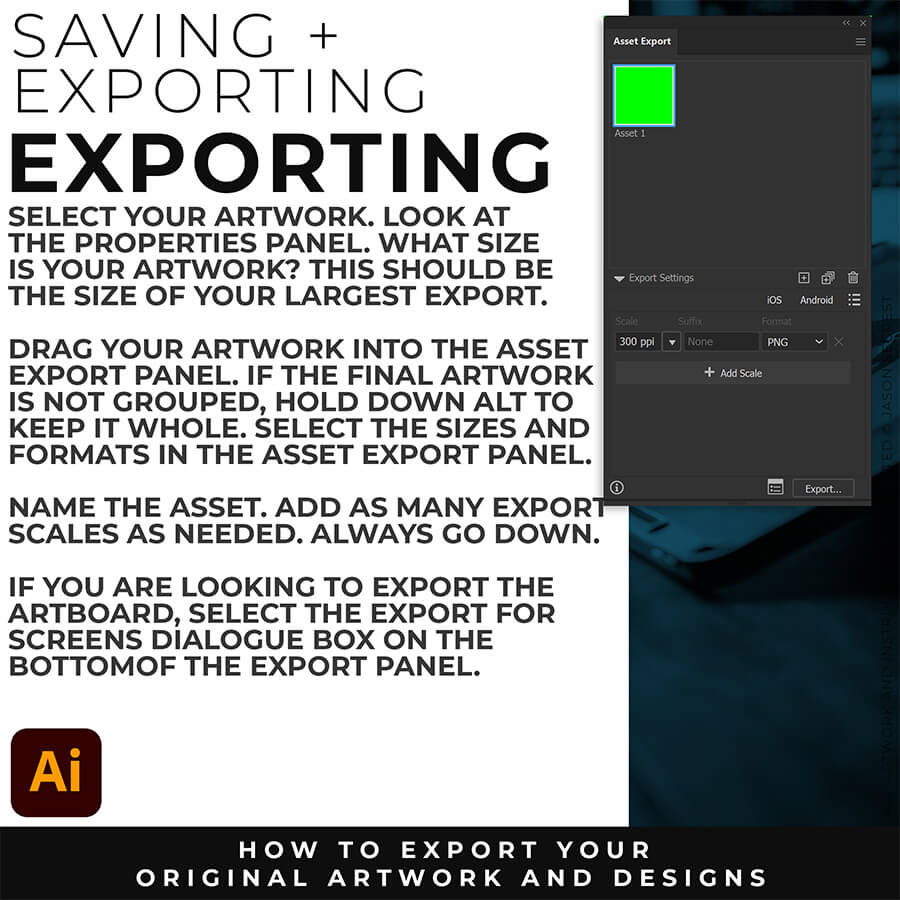
EXPORTING: The best export settings for a high-quality PNG are found by navigating to File > Export > Export for Screens. Set the format to PNG, choose a scale multiplier of 2x or 300 ppi for high-resolution displays, and ensure the anti-aliasing setting is explicitly set to Art Optimized (Supersampling). This combination guarantees that crisp vector outlines remain perfectly smooth when converted into a raster image file.