BEGINNER: The major decision you'll need to make is your starting point and build mode. First, determine whether you have drawings and sketches ready to use, or if you will be starting from stock photos. We are looking to align the starting point, build mode, and export size.
INTERMEDIATE: The purpose of our Beginner Guides is to provide an overview of a workflow, allowing you to see the steps in sequence. These are designed to assist you as you go through our Free Tools and Workflow Guides. Clarifying these details will simplify your learning process in Adobe Illustrator.
ADVANCED: Pay attention to the Sequence of Events, Resources, and Tool Options as it relates to building a "Workflow." As you create your artwork, outline the steps in your workflow. Start with an initial workflow, then look to streamline or add AI components.
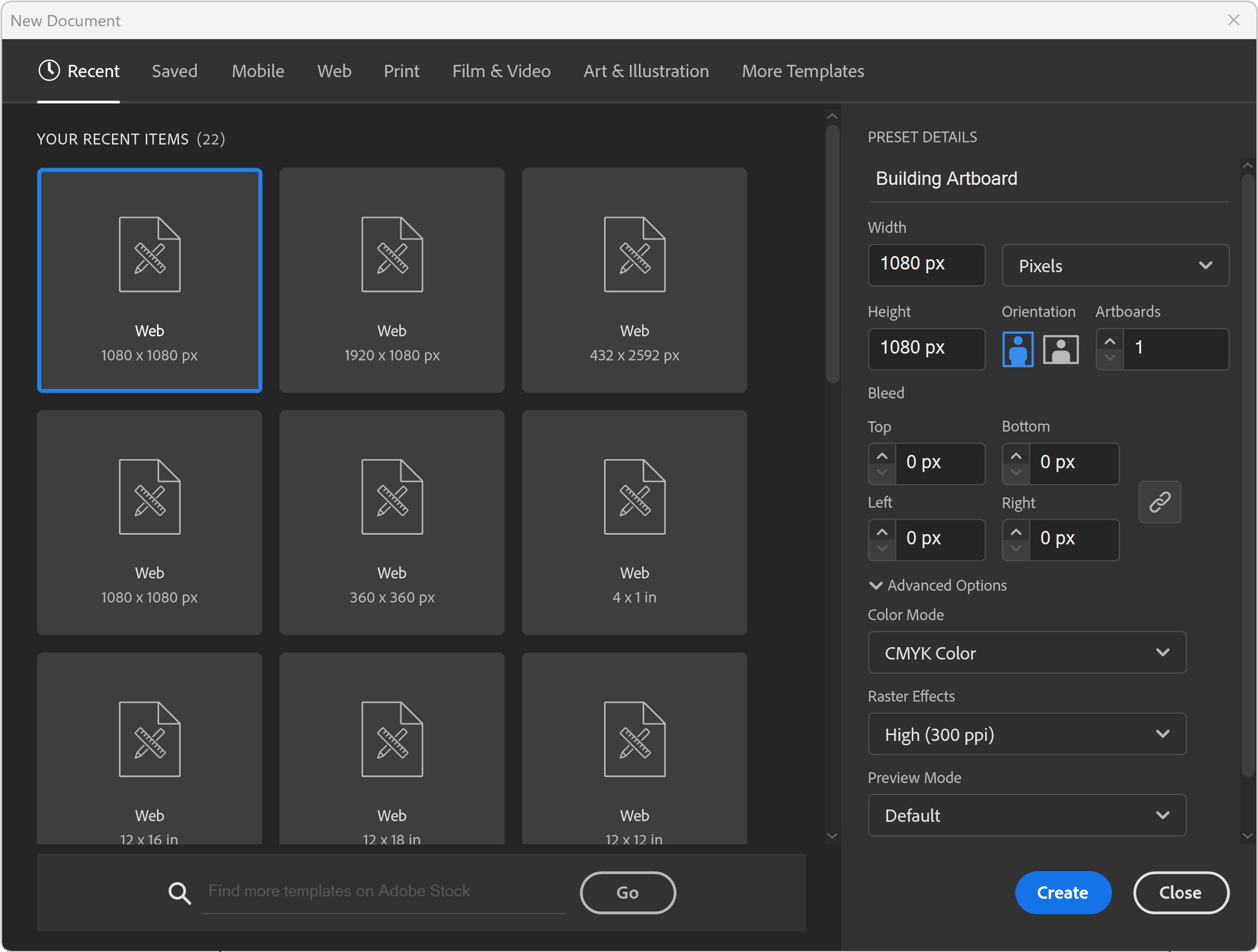
ARTBOARDS: I will recommend a (1080px by 1080px, 300PPI, RGB) as your Initial or Base Artboard Size. The Initial Artboard Size can be changed at any point without ruining your own artwork. Use the Properties Panel to Scale Artwork and Artboards. ACTION STEP: Create a "Building Template" that includes Artboard Size, Resource Images, and Template Layers. For your own artwork, pick a "Building" Artboard Size you can use for your Website and Social Media Postings. Most sites use a 1080px as its base size to modify for Landscape, Square, or Portrait. → ARTBOARD SIZE FINDER / SOCIAL MEDIA SIZE FINDER / POD SIZE FINDER
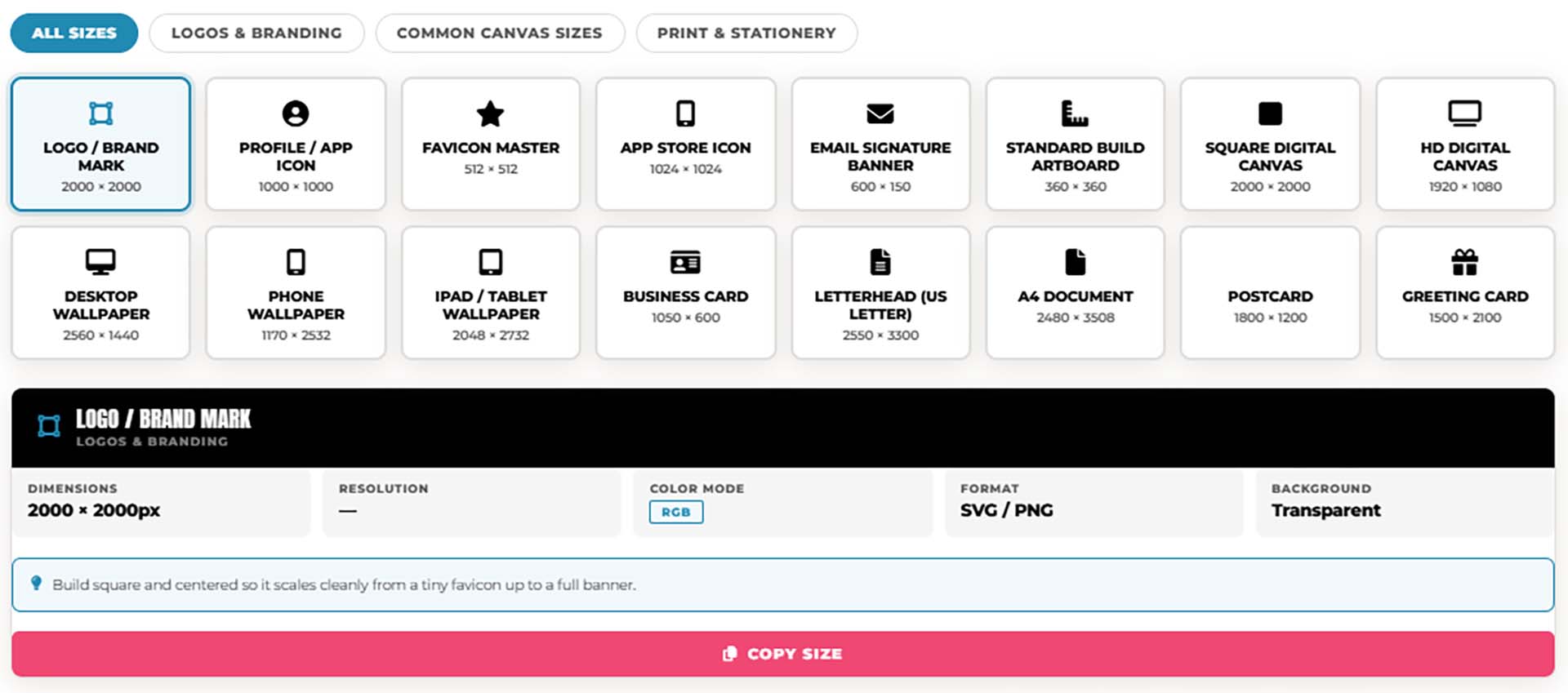
ARTBOARD SIZE FINDER: Not sure what size to set up your artboard before you start designing? Tap a card below to see the exact pixel dimensions, color mode, and resolution for logos, brand marks, profile icons, and common digital canvas sizes — so you're set up correctly in Adobe Illustrator before you draw a single line.
→ ARTBOARD SIZE FINDER
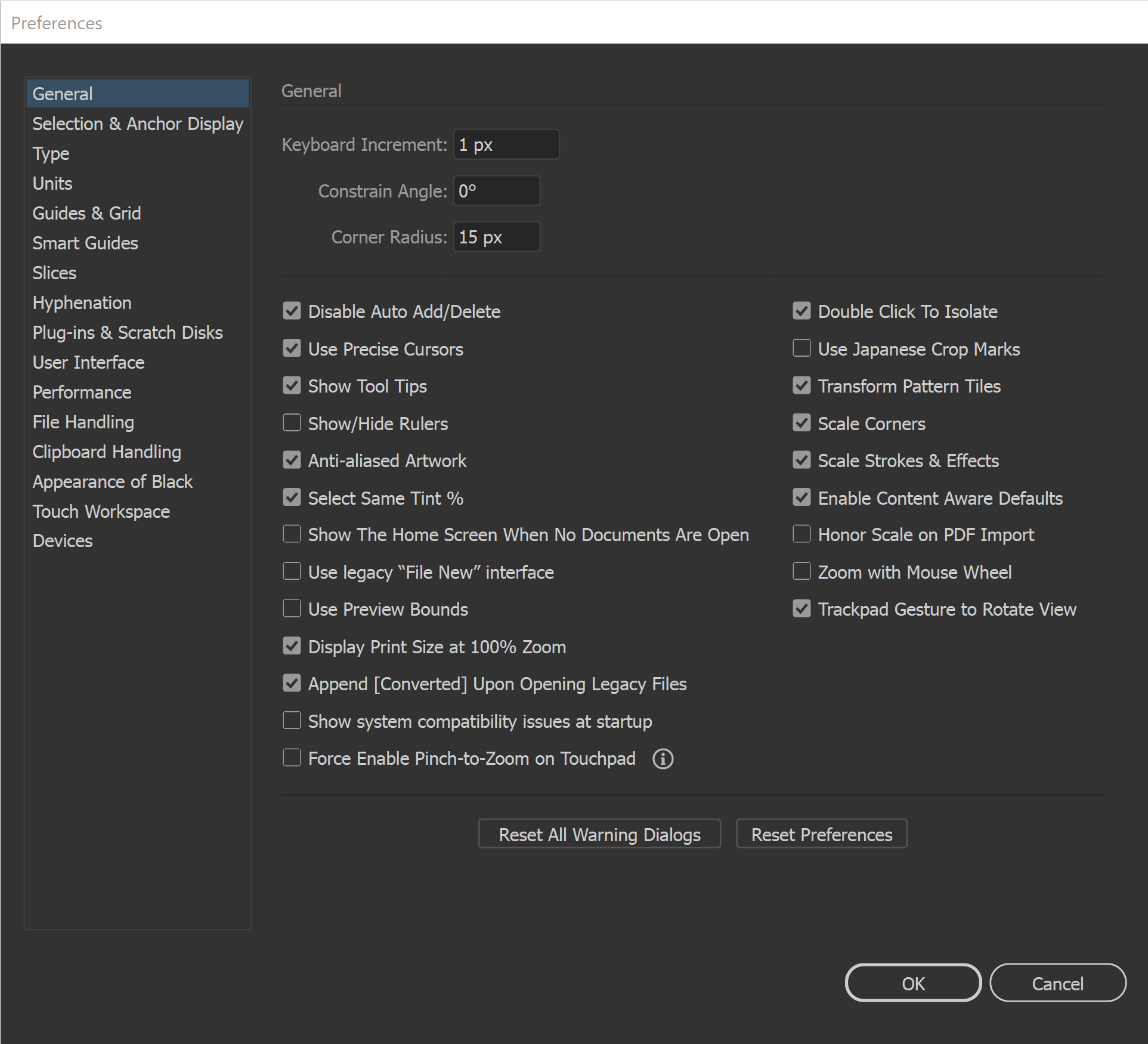
GENERAL PREFERENCES: All of our initial preferences are designed to gain more control over what you are clicking on. The more you can zoom in and see your anchors and handles the better. You can adjust the size of your Anchors and Handles under Selection and Anchor Display. Under your General Settings, make sure that Disable Auto Add/Delete is Selected.
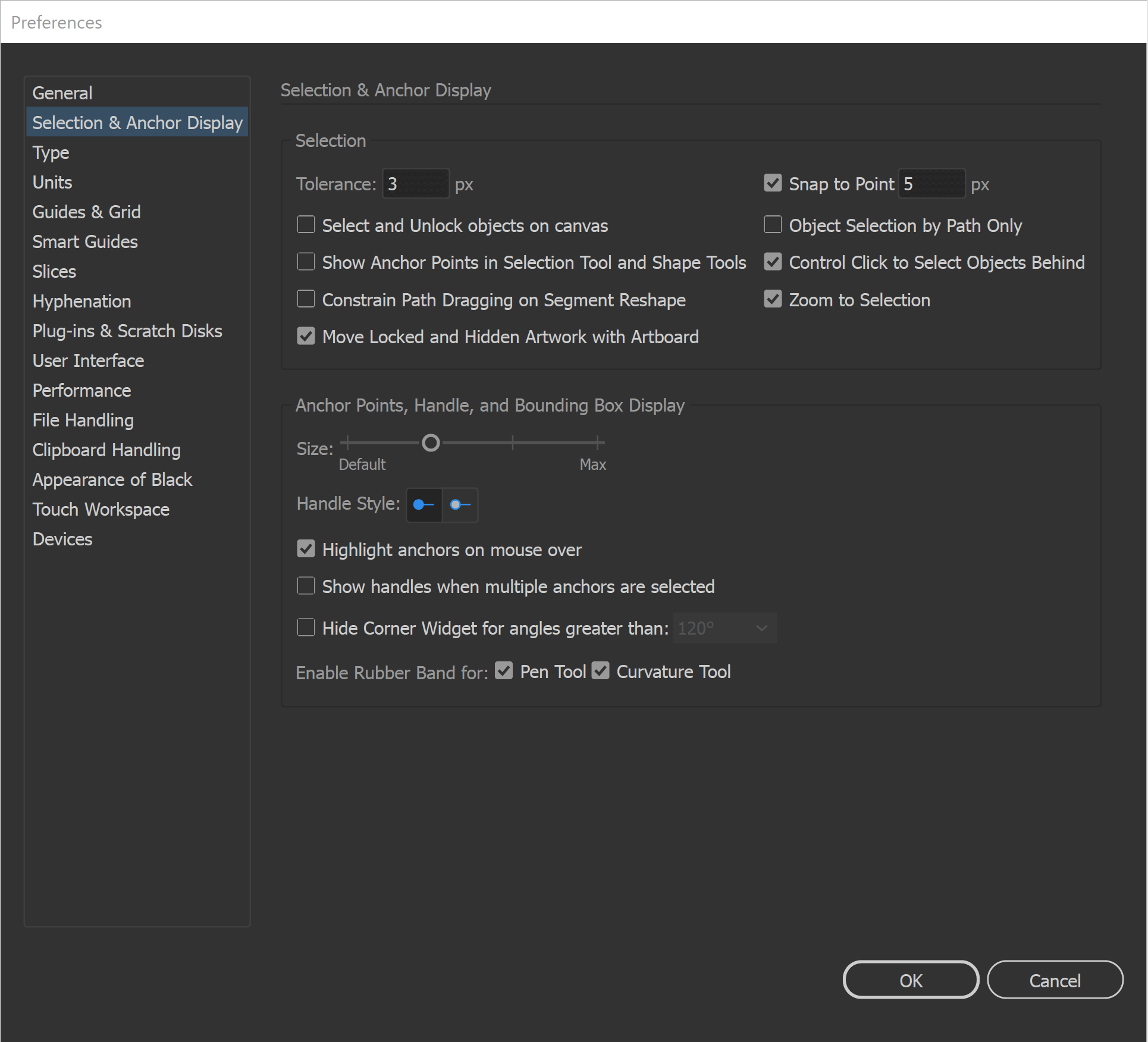
SELECTION TOOLS: The Direct Selection Tool can grab and adjust the Anchors, Handles, and Paths. It is worth having your Smart Guides Path Labels Turned On so you know what the tool is selecting before dragging. The Selection Tool will move and select objects. I like using the Bounding Box for my Transform Tools, Turn On under View. I recommend this for Quick Scaling.
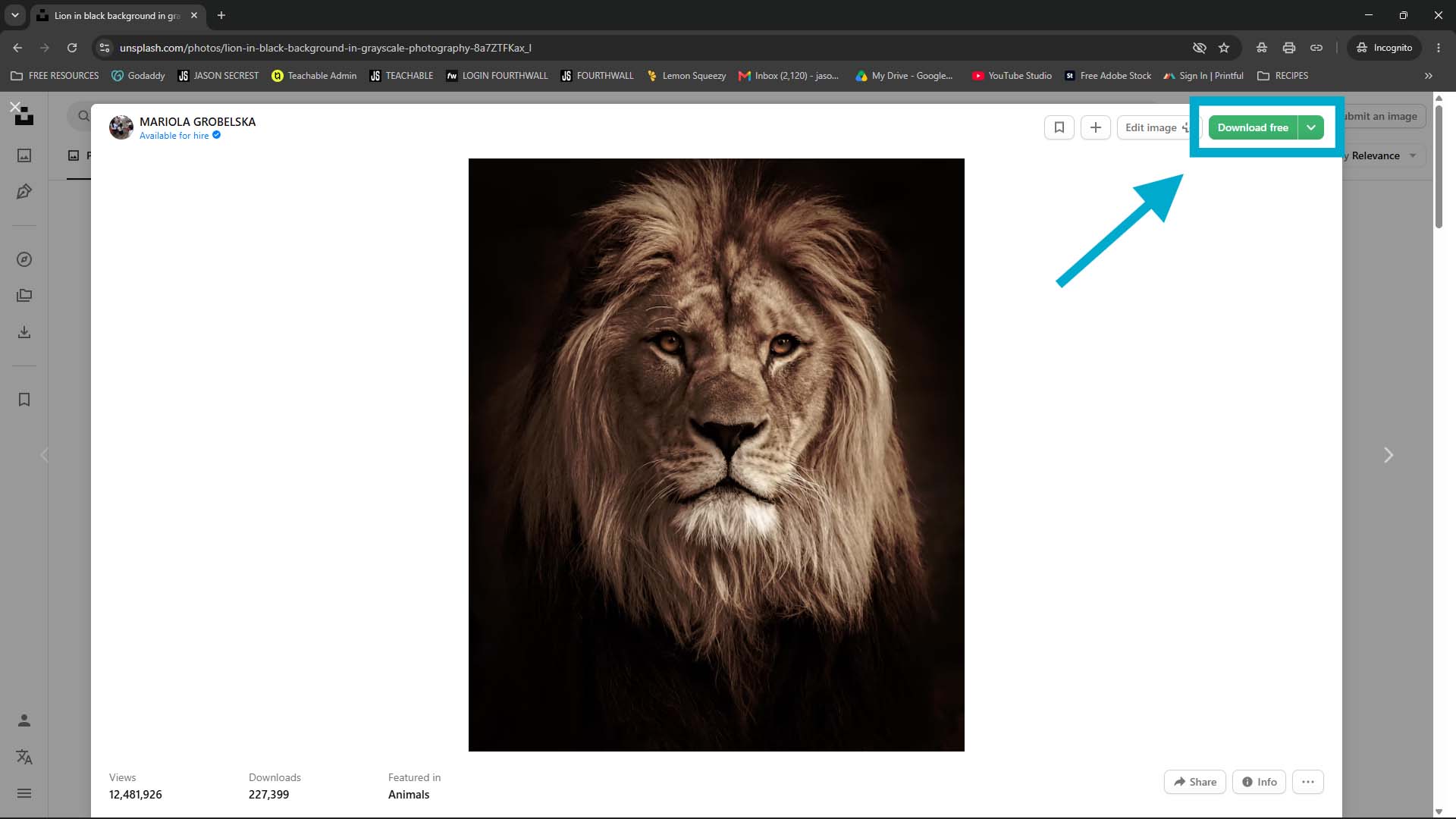
FREE RESOURCES: For your artwork and designs, I have created a printable checklist to help you find free resources online. This will be a good starting lists for stock photos, colors, and fonts. Before you open Illustrator for the first time, everything on this checklist should be done as it relates to Free Resource Setup. These are one-time setup steps — complete them now and your workflow will be faster and less interrupted from the very first session.
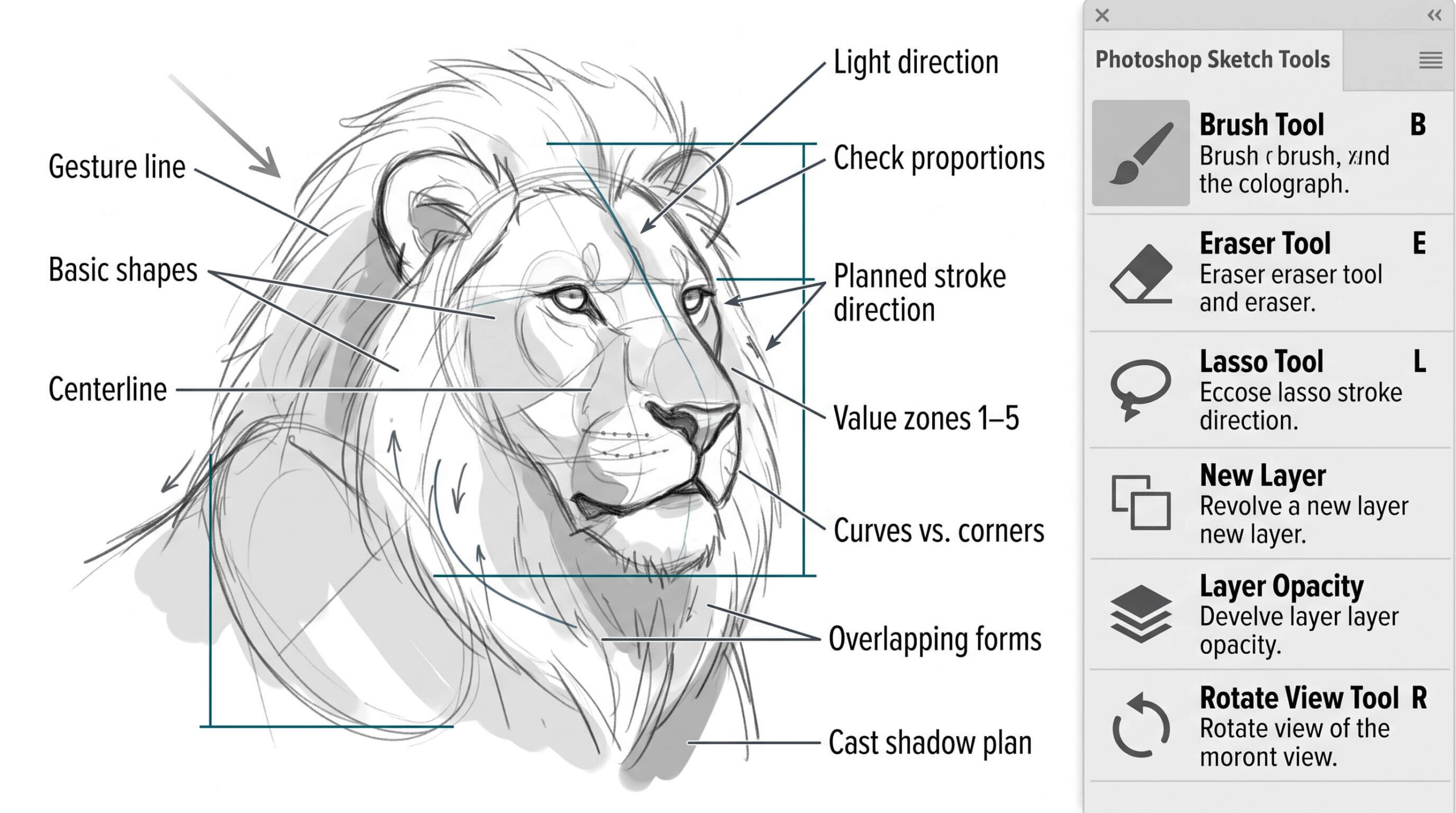
PREPPING YOUR SKETCH: For your own artwork and designs, use a clean scan or photo of your sketch matters more than a perfect drawing. Even lighting, with no shadows or glare across the paper, and real contrast between your pencil lines and the paper make a genuine difference in how accurately the AI reads your linework. Photographing with your phone instead of scanning is fine — just shoot straight-on rather than at an angle, and crop out everything except the actual drawing before you attach it. A rough, loose sketch works fine, since the AI is built to clean it up, not judge your draftsmanship—but a sketch it can't see clearly will produce a result that drifts from what you actually drew.
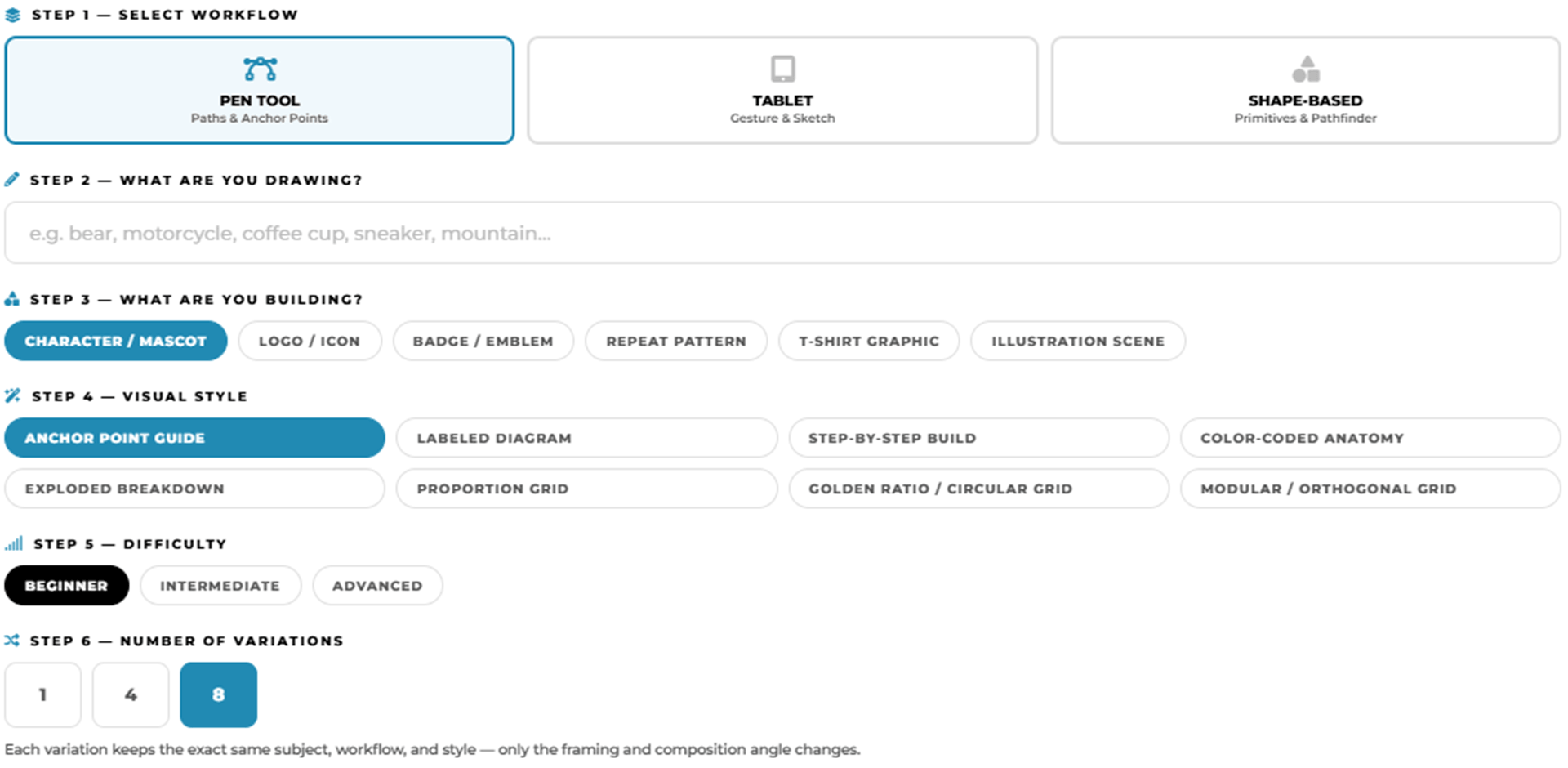
ANCHOR POINT GUIDES: Select your workflow, type in your subject, and this tool assembles a detailed AI image generation prompt designed specifically for Adobe Illustrator practice exercises — Choose from anchor point guides, tablet sketch construction diagrams, and shape-based Pathfinder breakdowns, across three difficulty levels. → PRACTICE EXERCISE PROMPT BUILDER
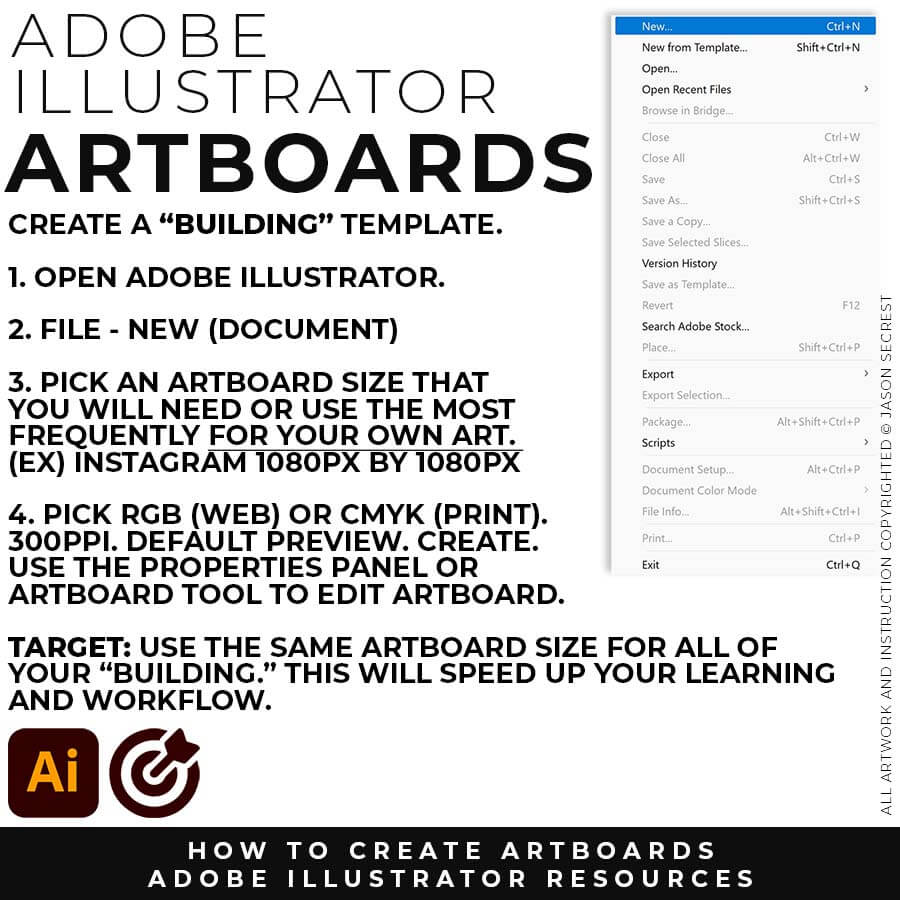
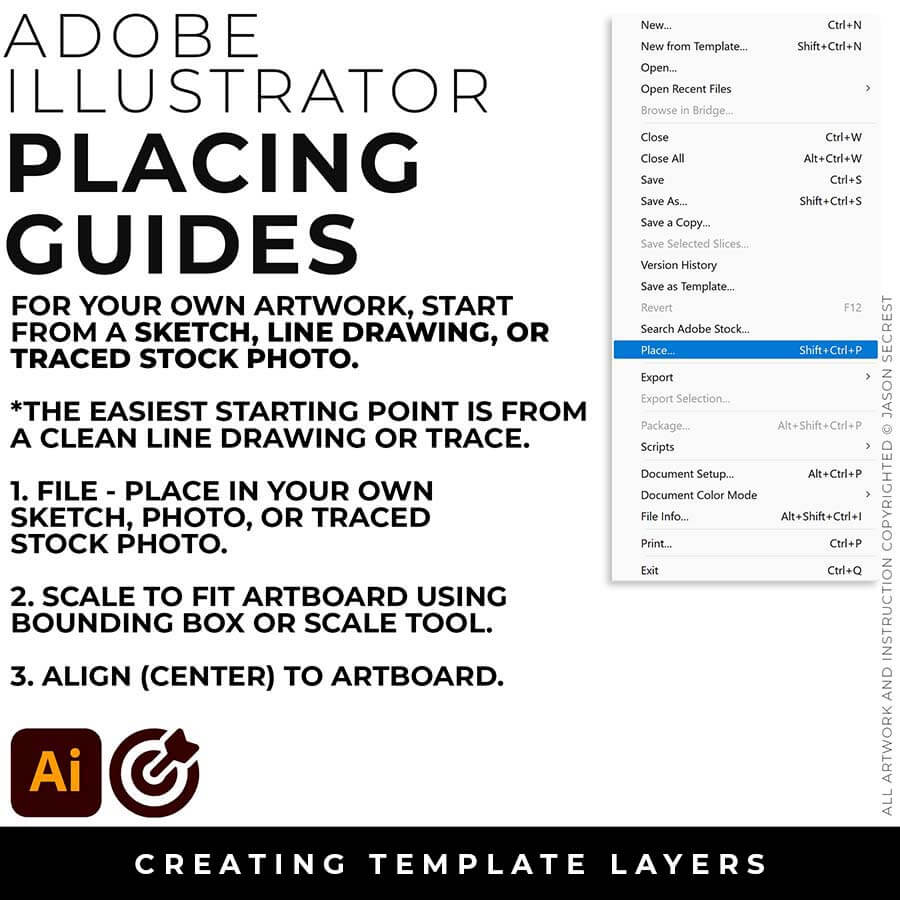
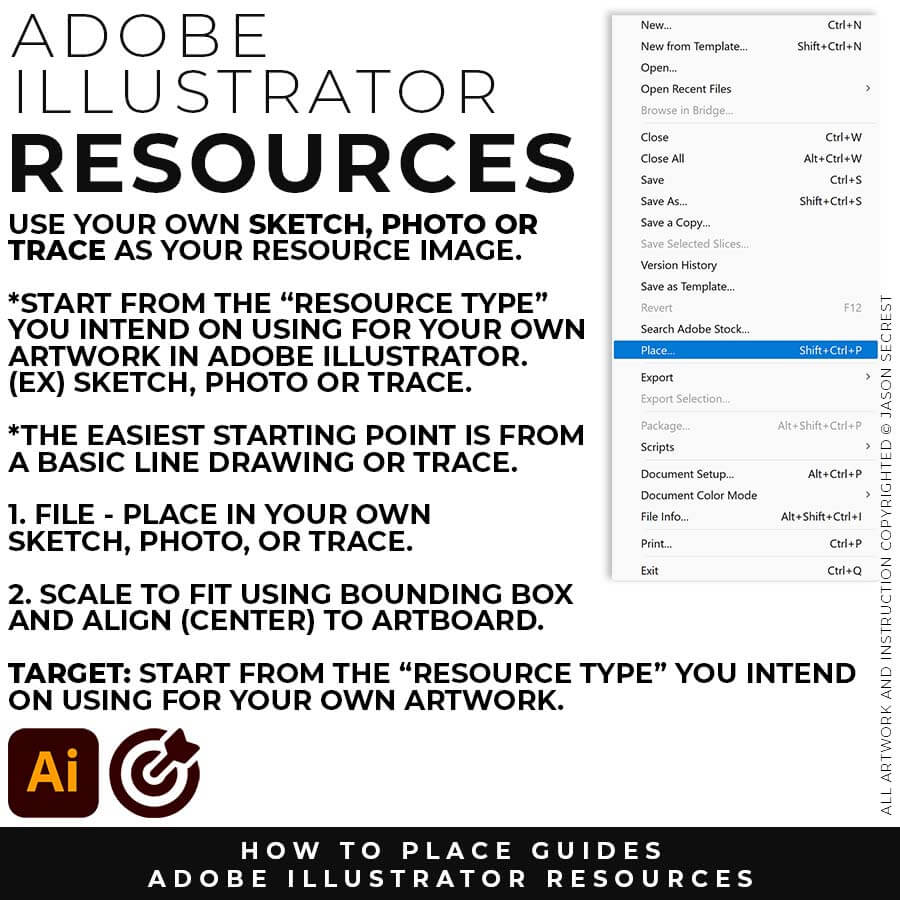
FILE - PLACE: File -Place in your own Drawing, Sketch, or Traced Stock Photo. I recommend starting from a Clean Line Drawing or a simple Traced Stock Photo for your artwork and designs.
SCALE TO FIT: You can modify the size of the artwork using the Bounding Box or Scale Tool. Scale to Fit Artbaord. Align the your Artwork to the center of the Artbaord using the Align Panel.
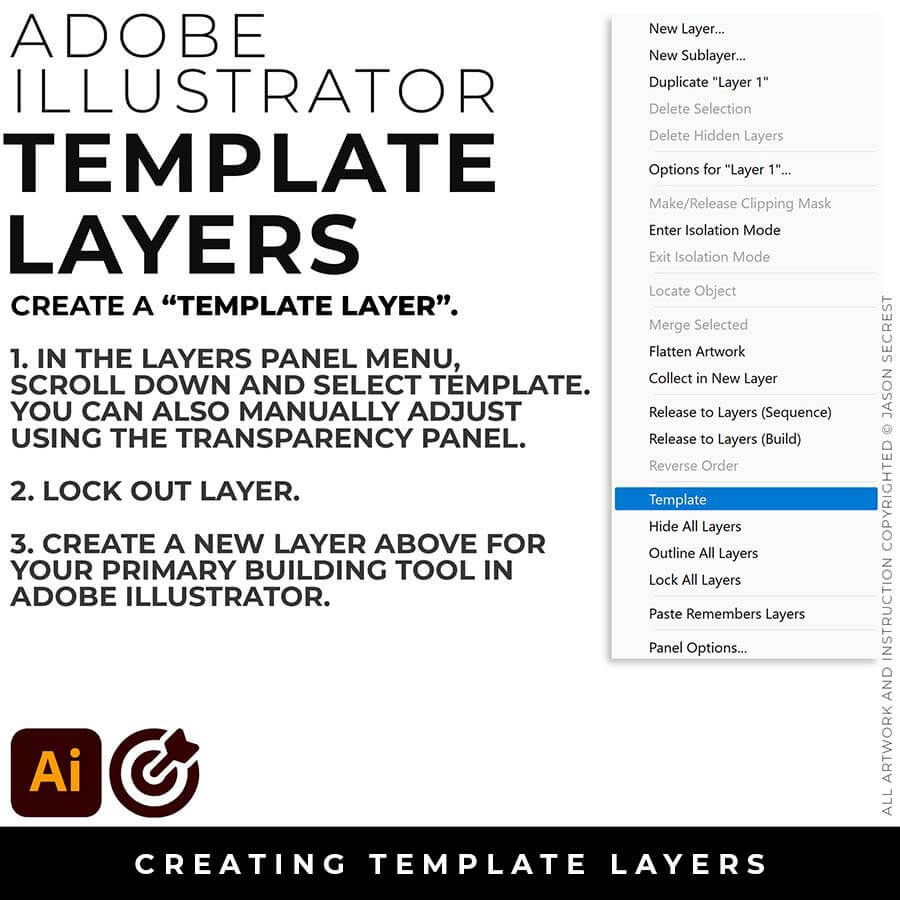
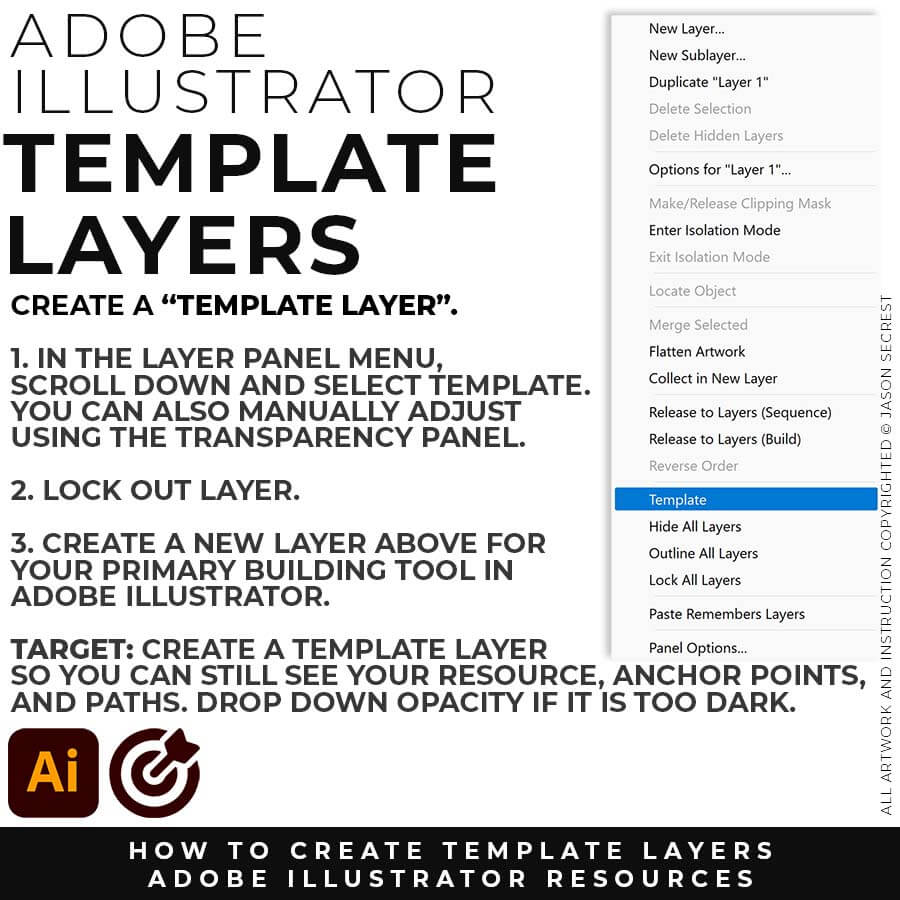
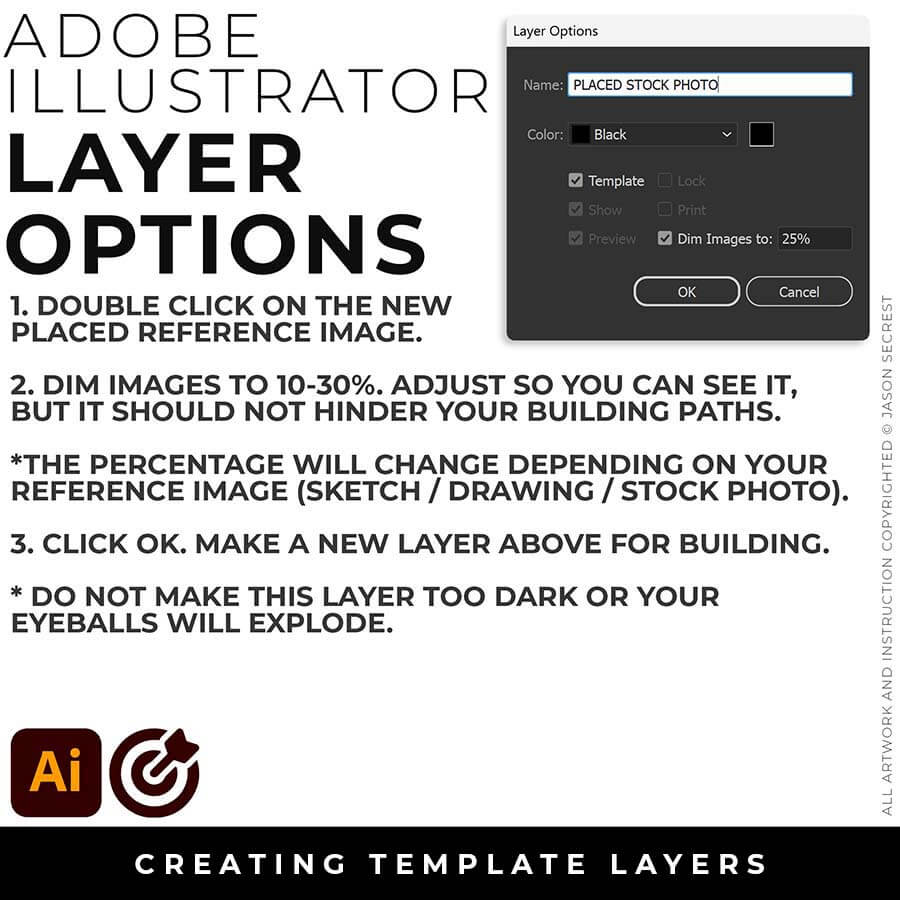
TEMPLATE LAYER: In the Layers Panel, drop down in the menu for Template (50%) or double click on the layer for properties (Dim 10-30%). Lock Layer. Create a New Layer above for Building.
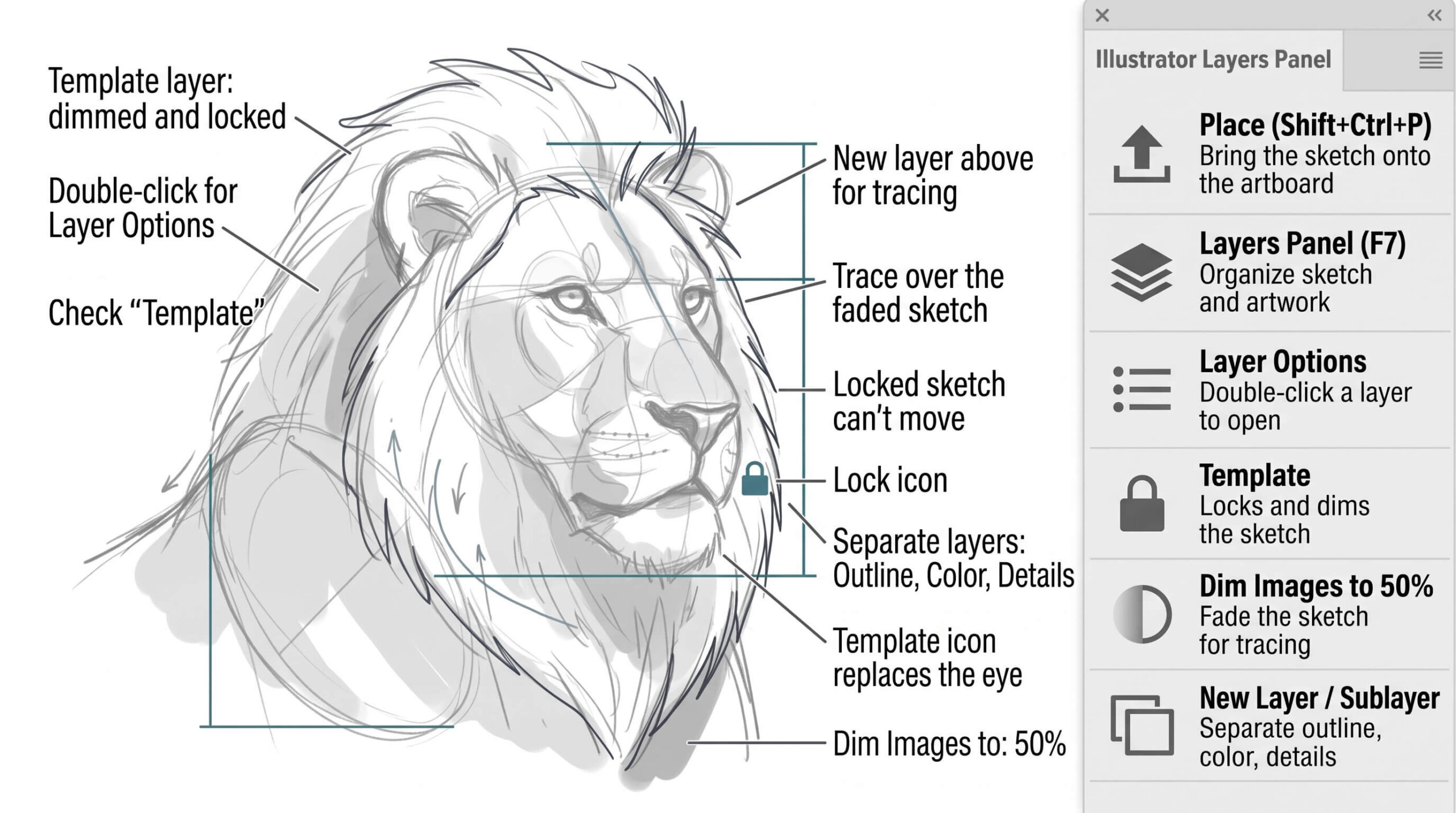
TEMPLATE LAYERS: File - Place in your sketch or anchor point guide. Keep Selected. Move to the Layers Menu and select template. Create a new layer above for building. TIP: For your own artwork, if your artwork is too dark - you can manually adjust the layers using the Opacity/Trasparency Panel and lock the layer.
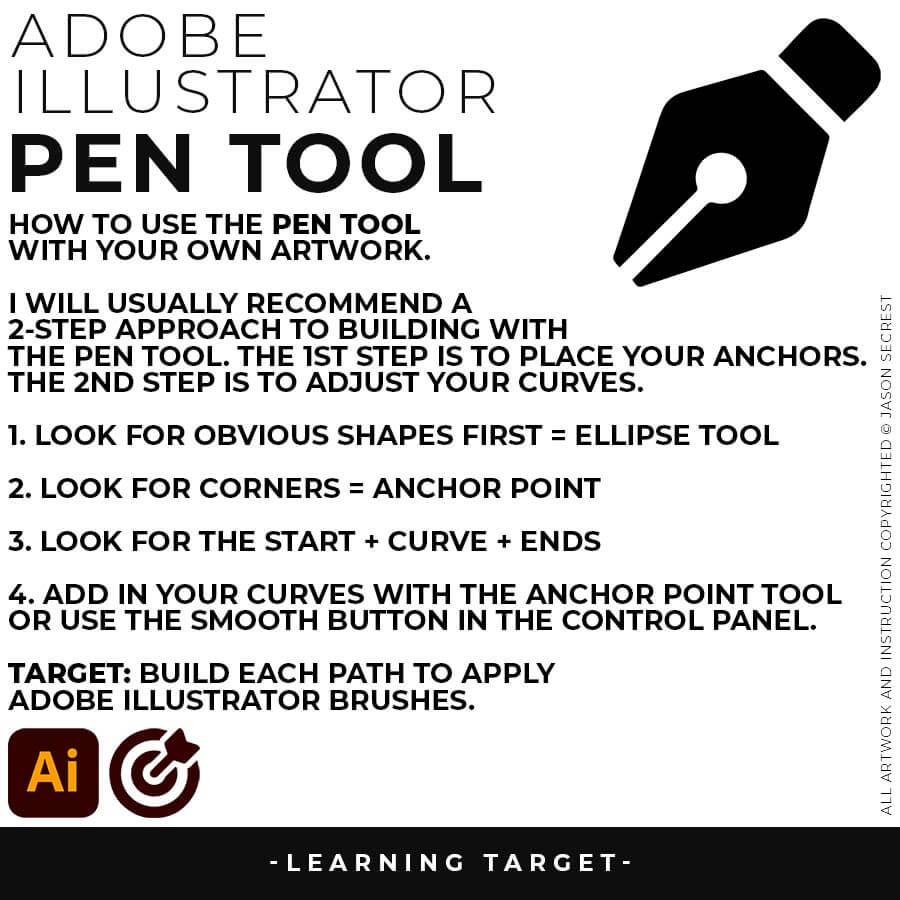
PEN TOOL: If you are frustrated with the Pen Tool, a simple tip is to break down the process into 2 Steps. The first step is to just apply Anchor Points to the start-curve-end of a line or path. The second step is to adjust the Curves with the Anchor Point Tool or Smooth Curve Button in the Control Panel.
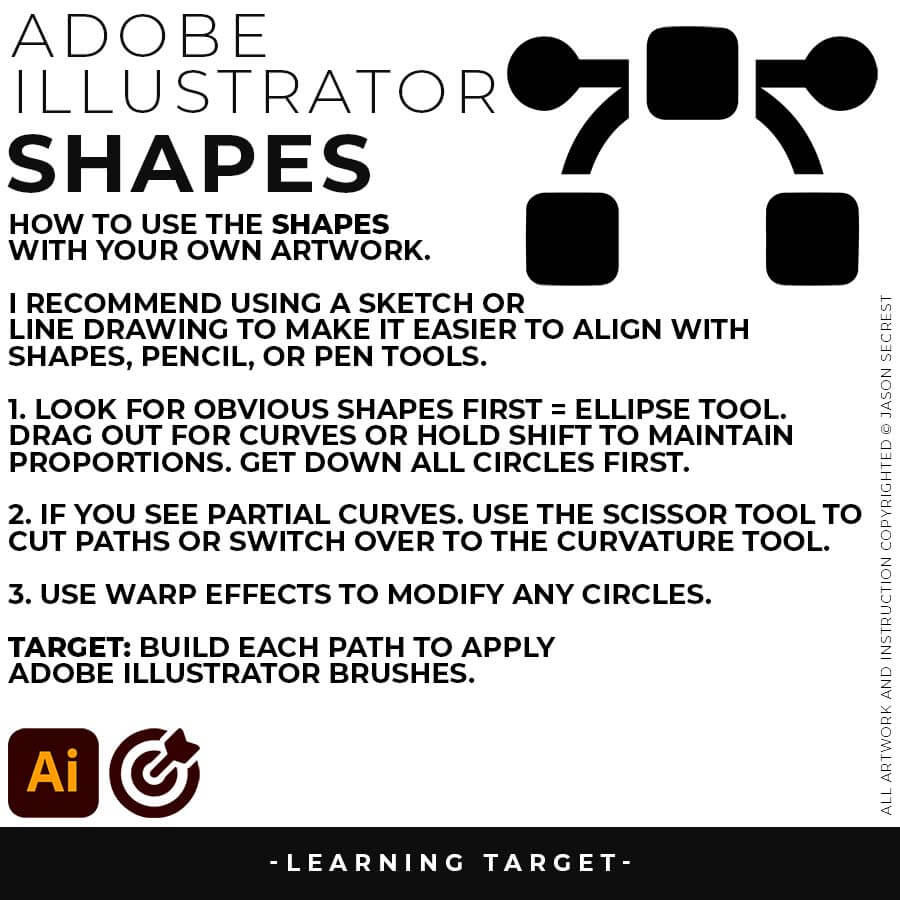
ELLIPSE TOOL: A good place to start if you are new to Adobe Illustrator is our Beginner Guide (Shapes). We will be going through Building with Shapes, Align Panel, Pathfinder, and Basic Color Fills. There are Beginner Guides for the Pen Tool and Tablet if you are new to the website or Adobe Illustrator.
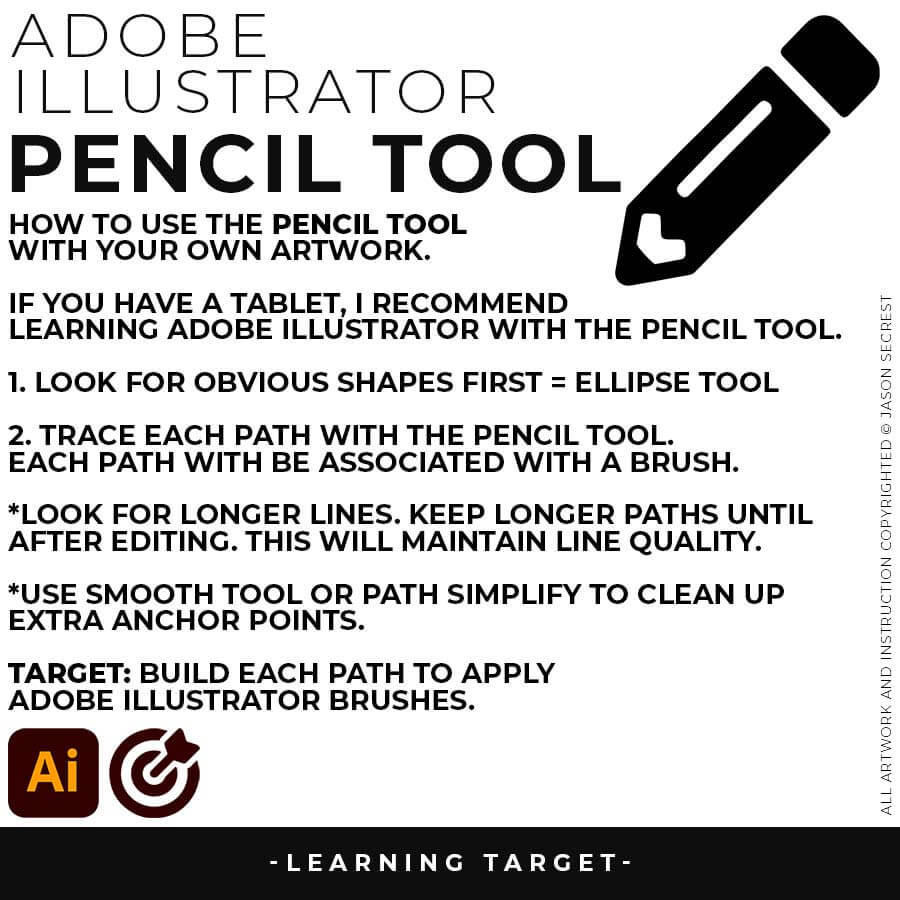
PENCIL TOOL: Many of you are looking to use your Tablet with Adobe Illustrator. I am going to recommend breaking down your current tablet workflow into multiple steps. I do see a lot of mistakes when people try to combine too many steps all at once with their new tablets.
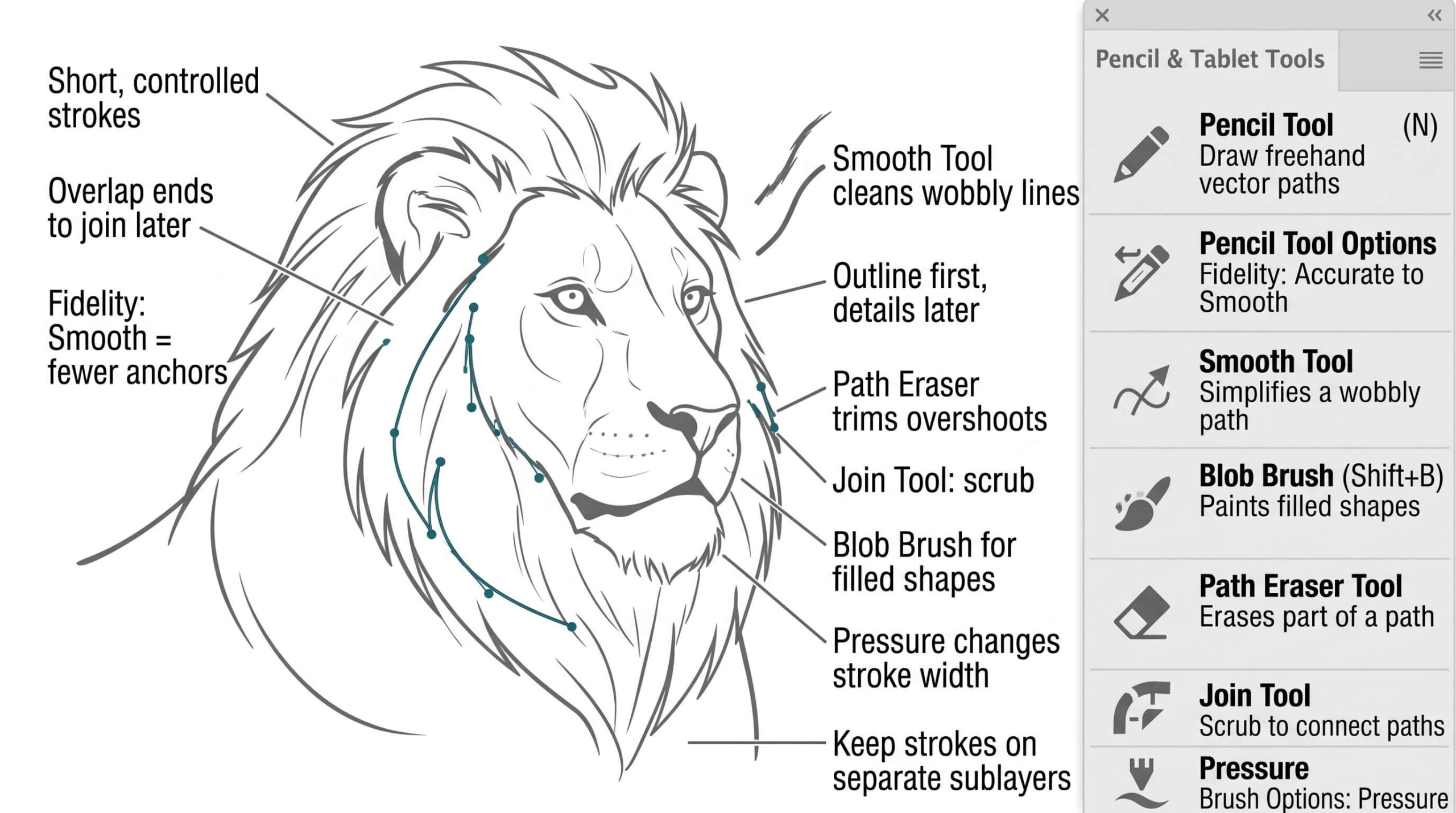
PRIMARY BUILDING: Many of you will be using Shape, Pencil, and Pen Tools as your Primary Building Tools. Focus on the most obvious solution first. If it appears as a line, use the pencil or pen tools to trace it. If it resembles a shape, utilize the shape or ellipse tool. Do not overcomplicate the initial building step.
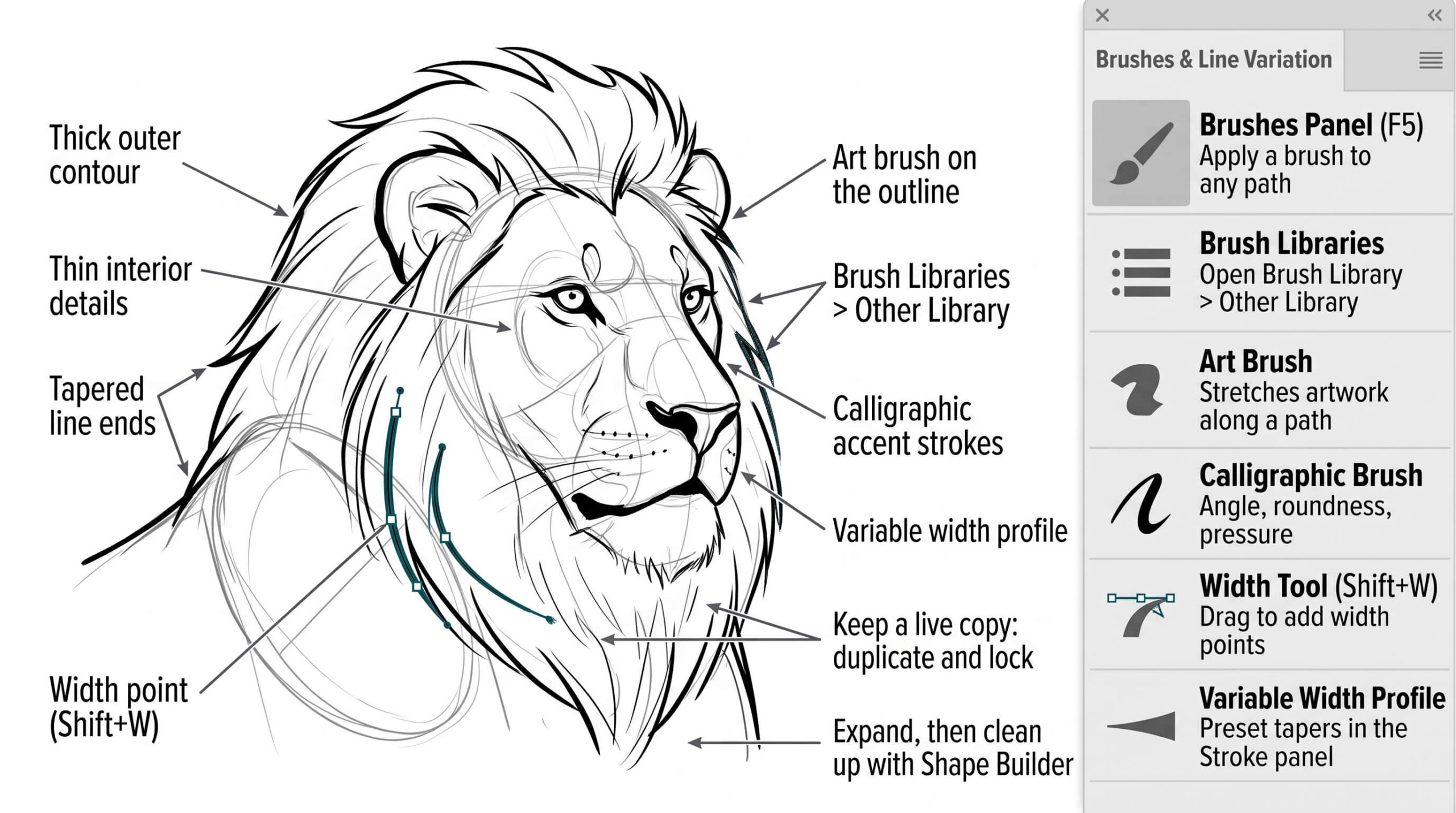
BRUSH LIBRARIES: Many of you are jumping over from YouTube looking to download our Adobe Illustrator Brush Libraries. Once you have downloaded and extracted the folders, Brushes are ready to be used in Adobe Illustrator. Download Brush Libraries and Sketch-to-Brushes Prompt Packs trhough Teachable. → CARTOON / COMIC STRIP / MASCOT
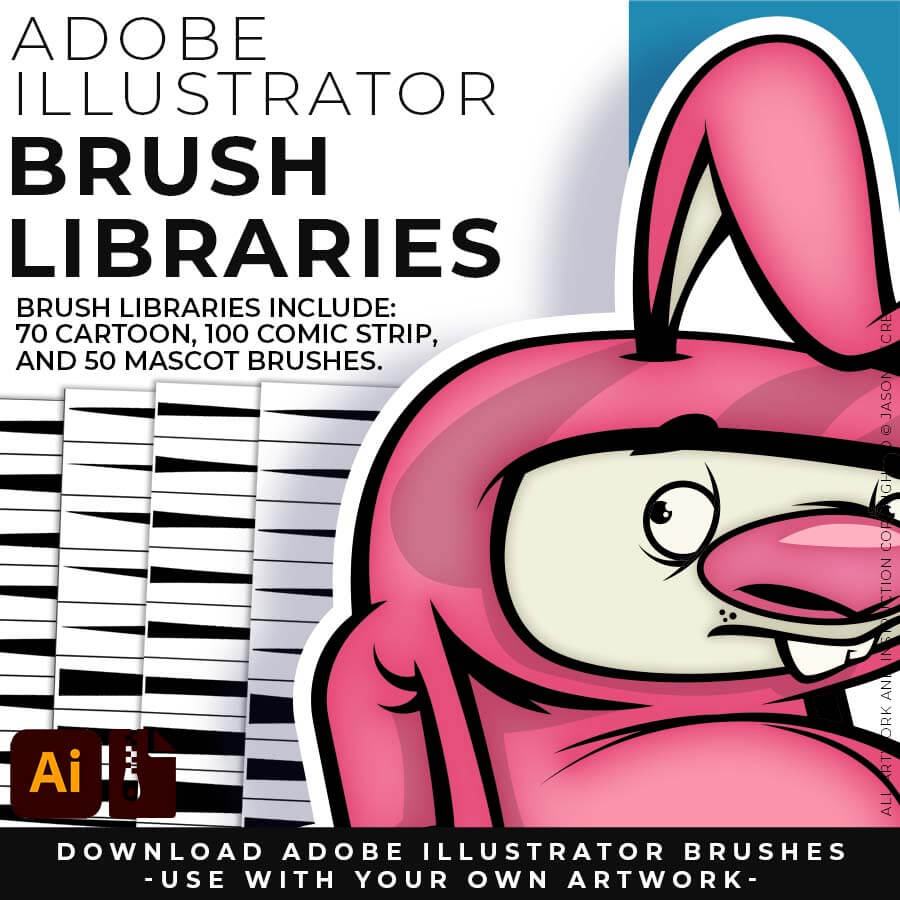
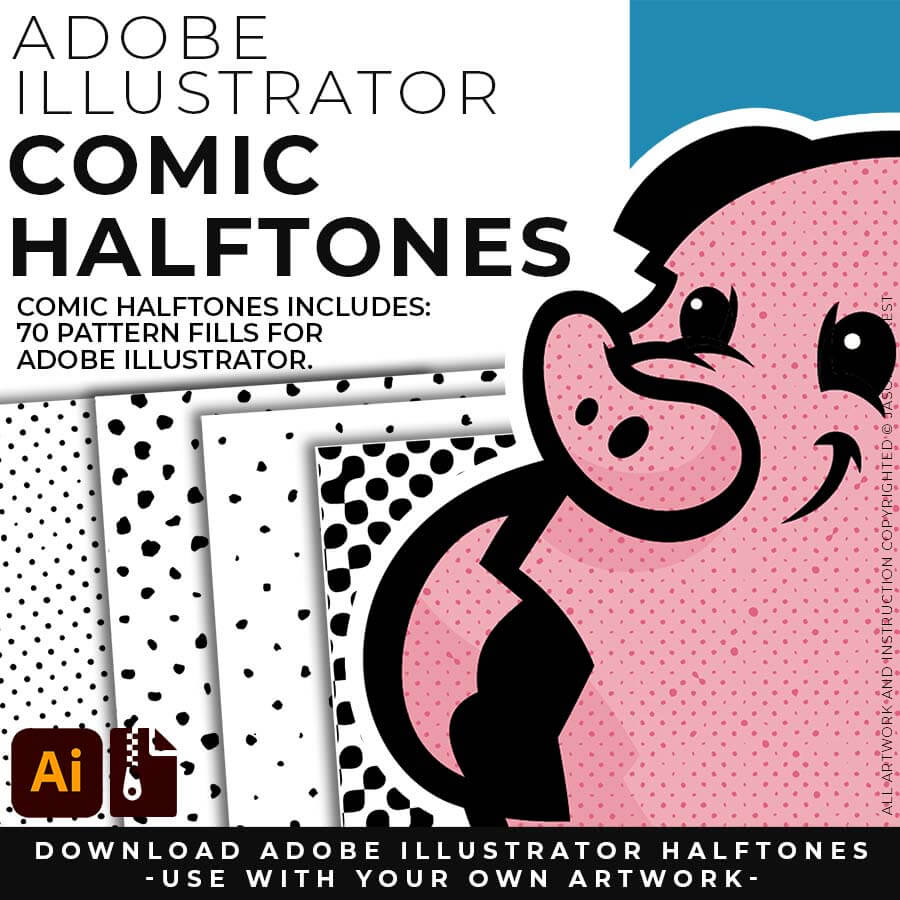
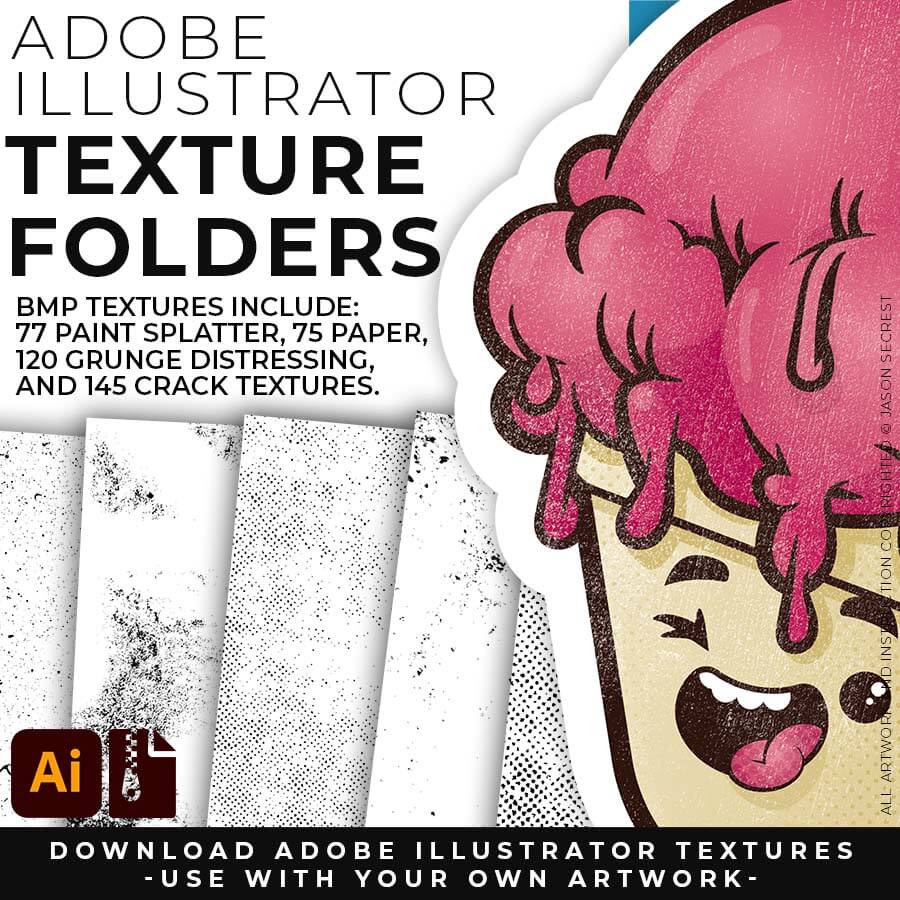
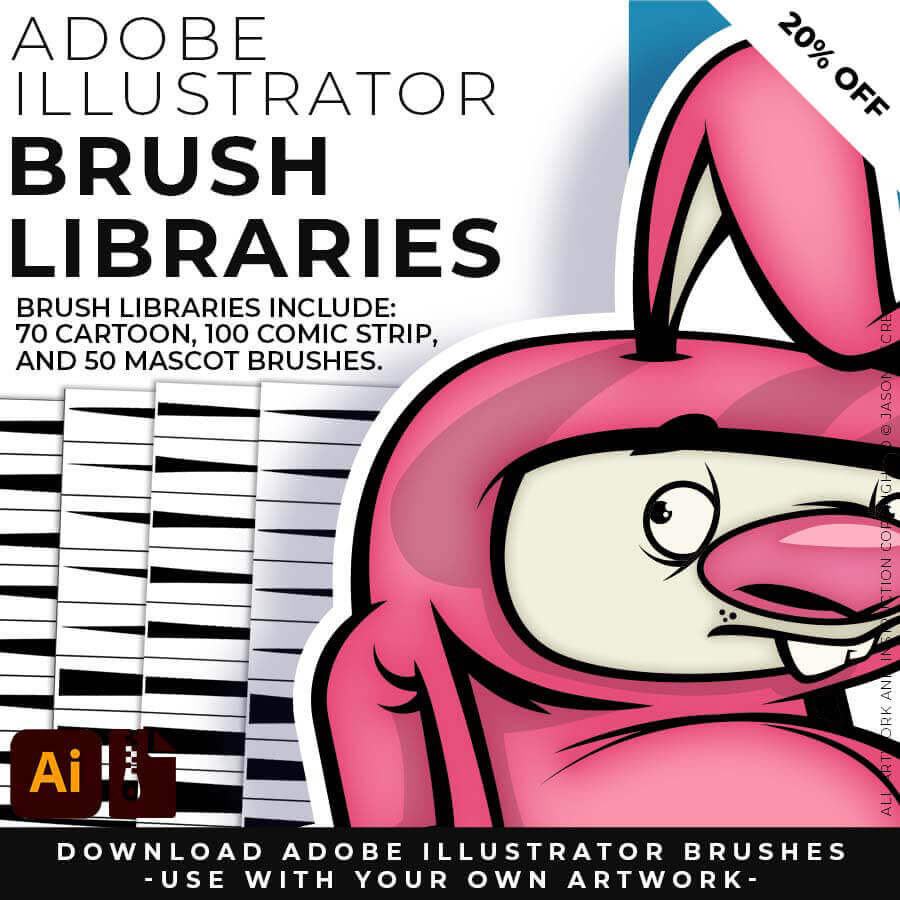
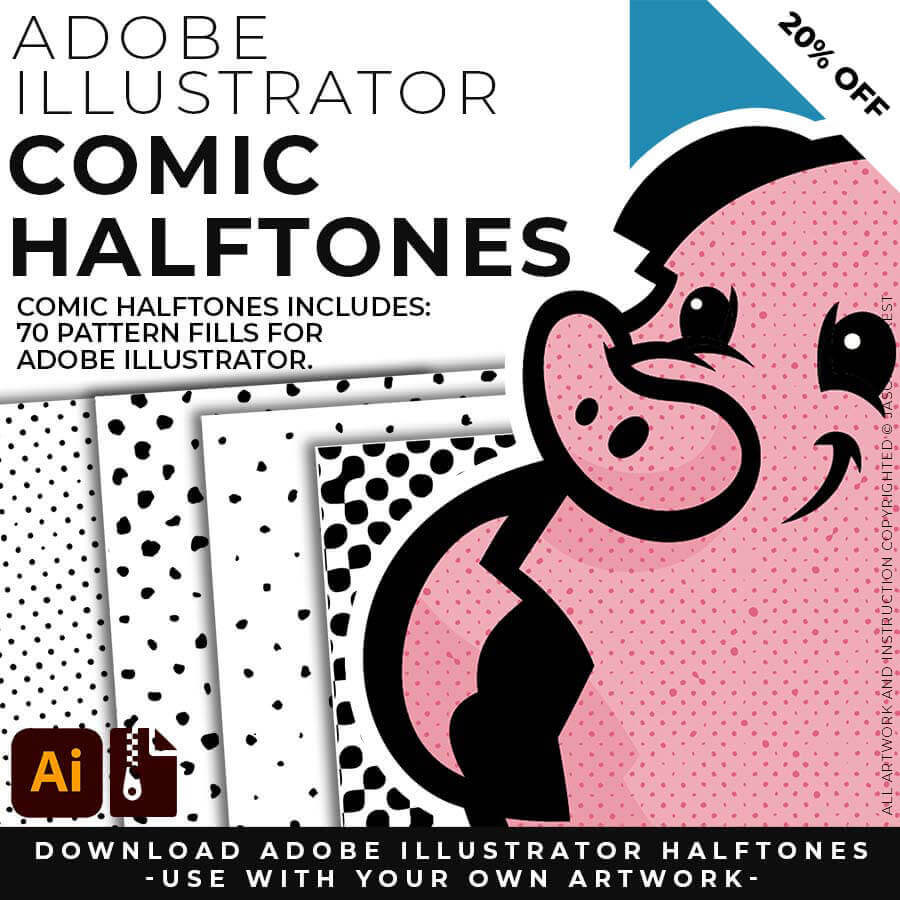
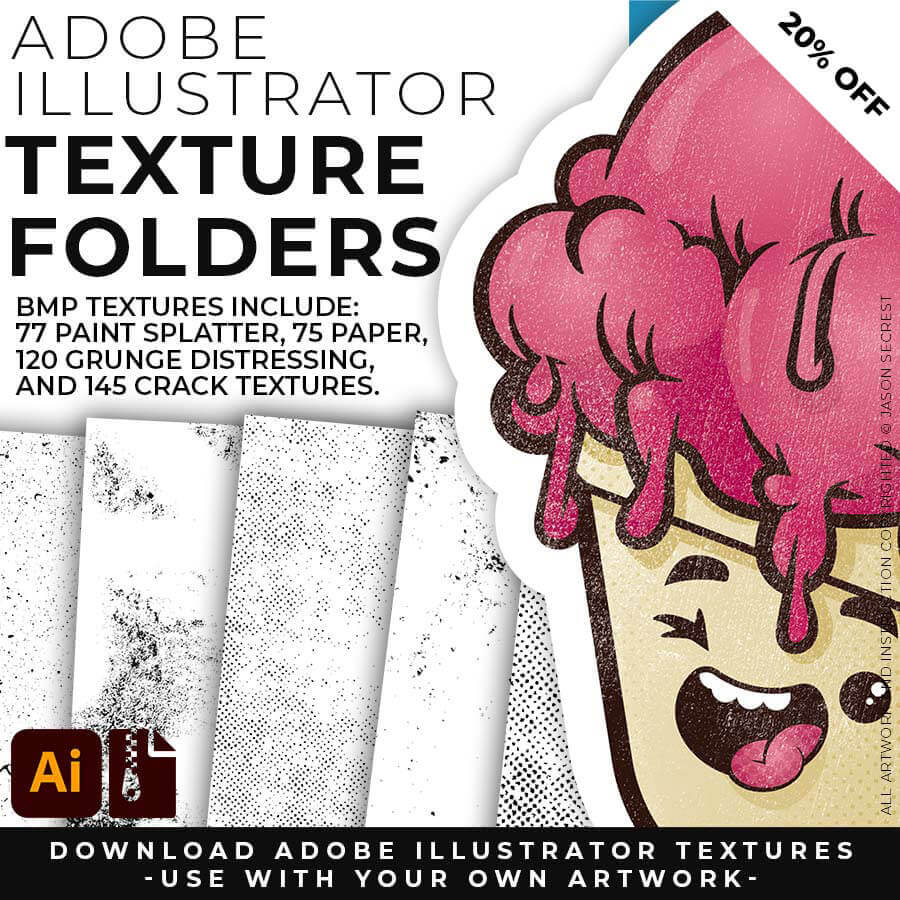
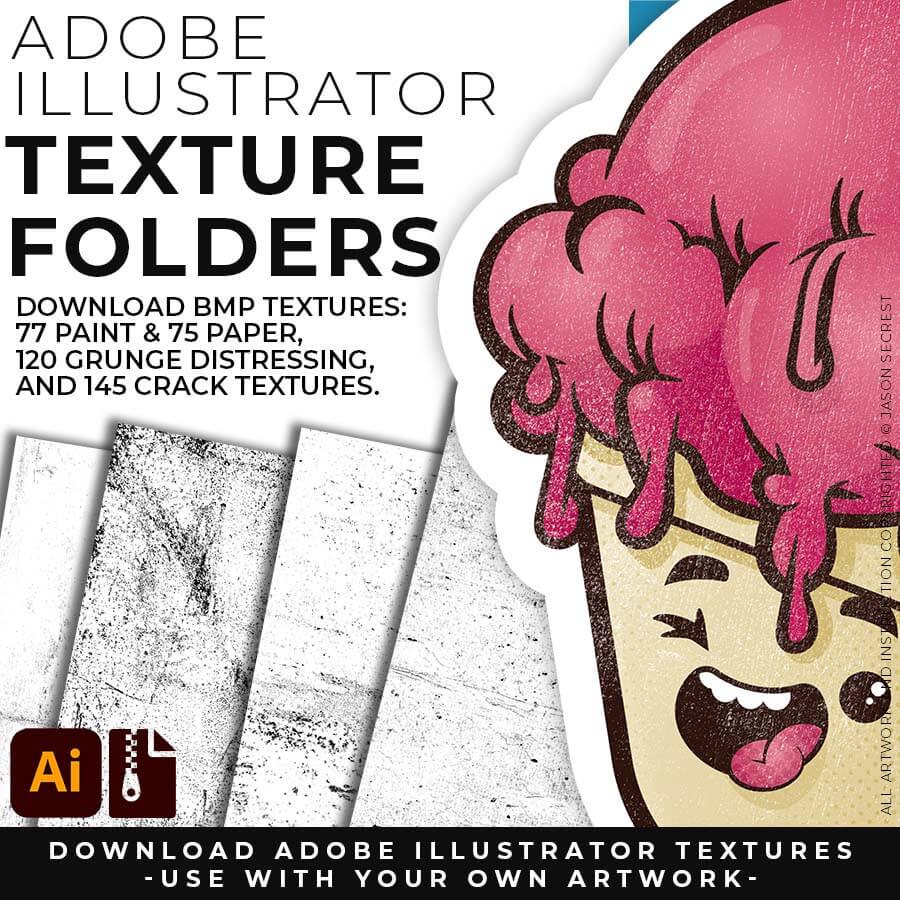
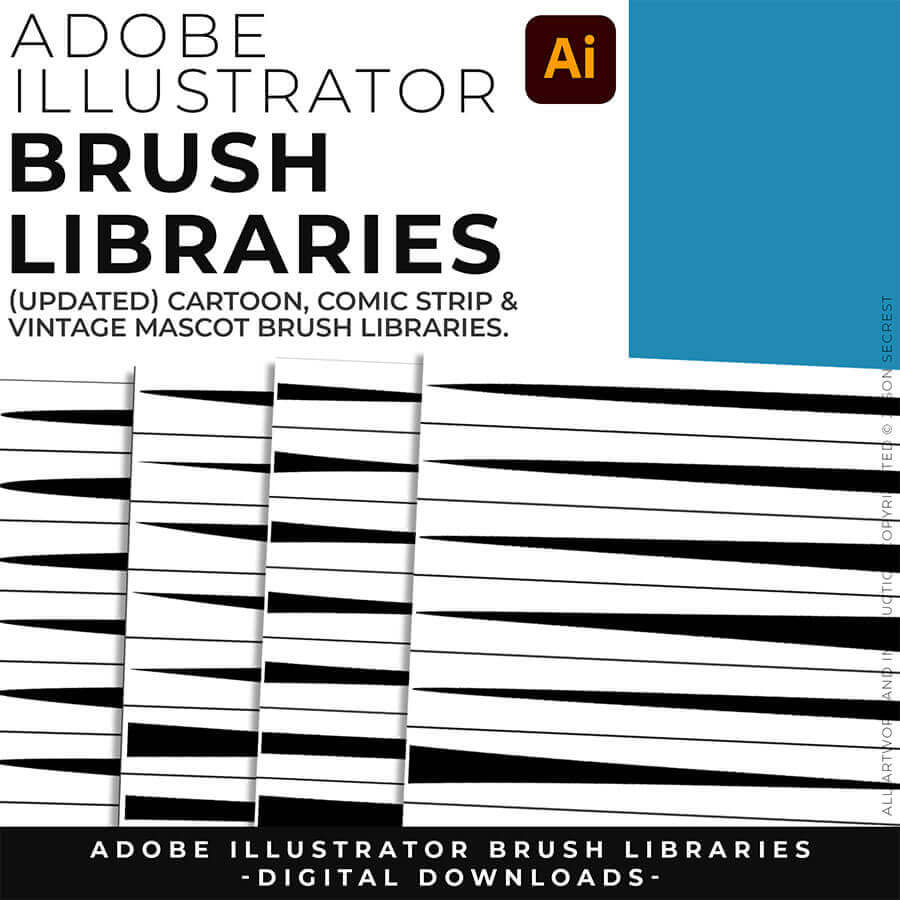
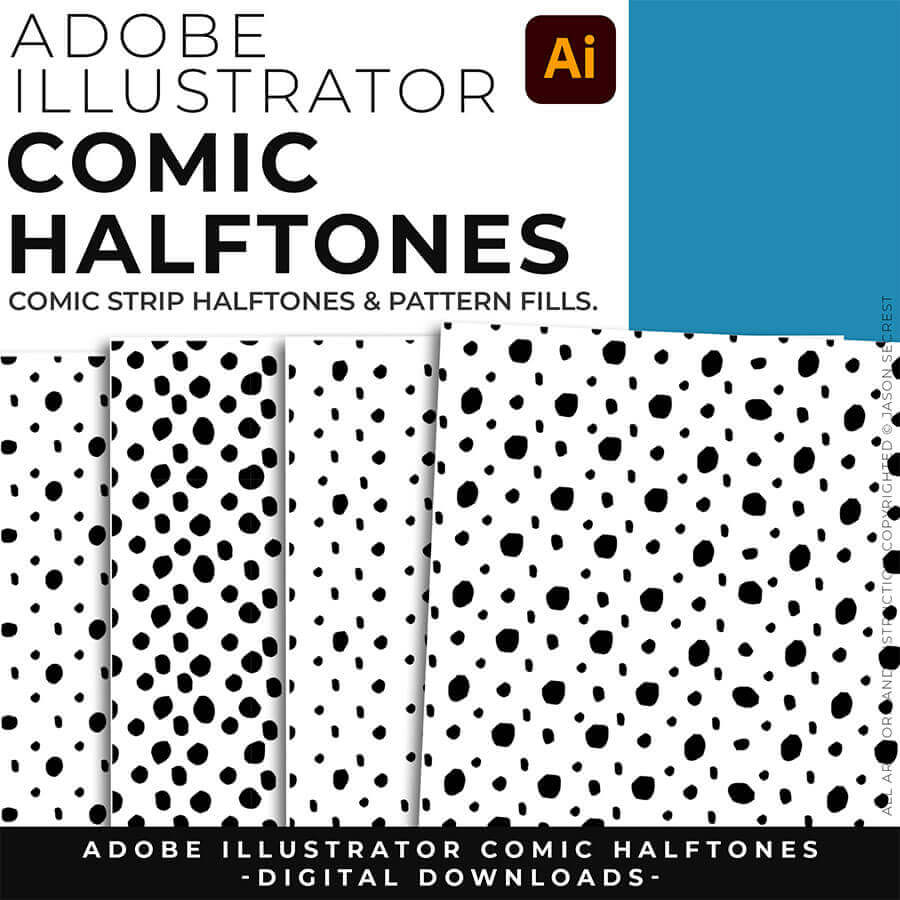
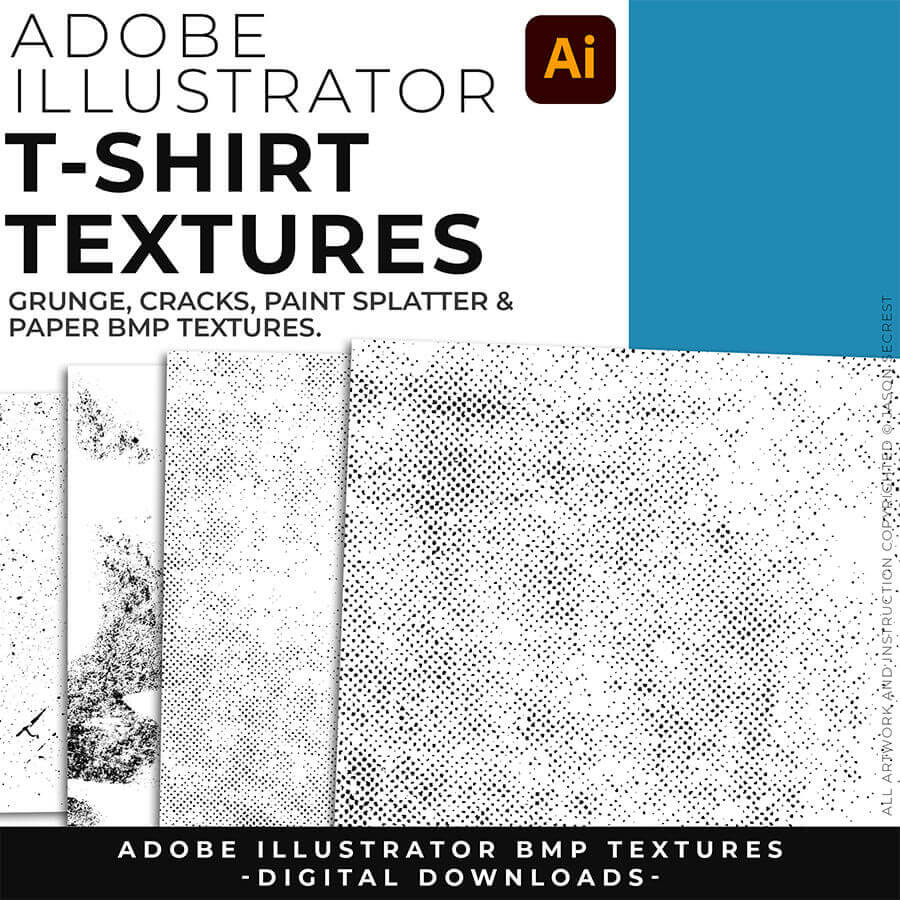
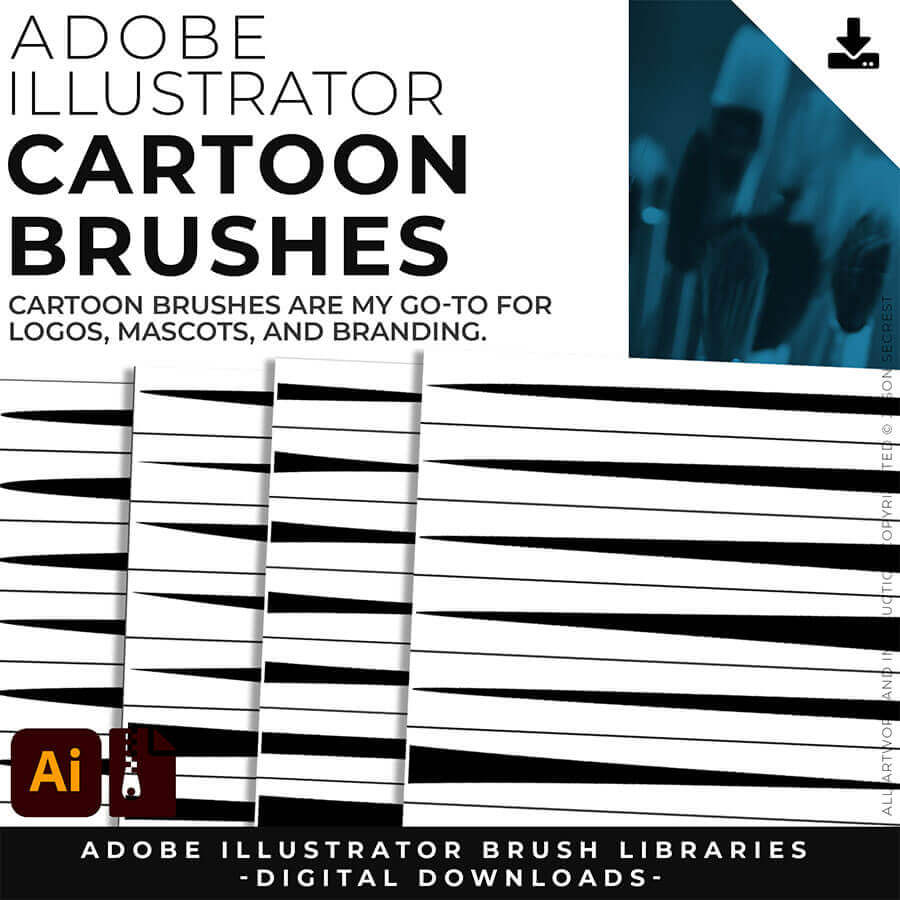
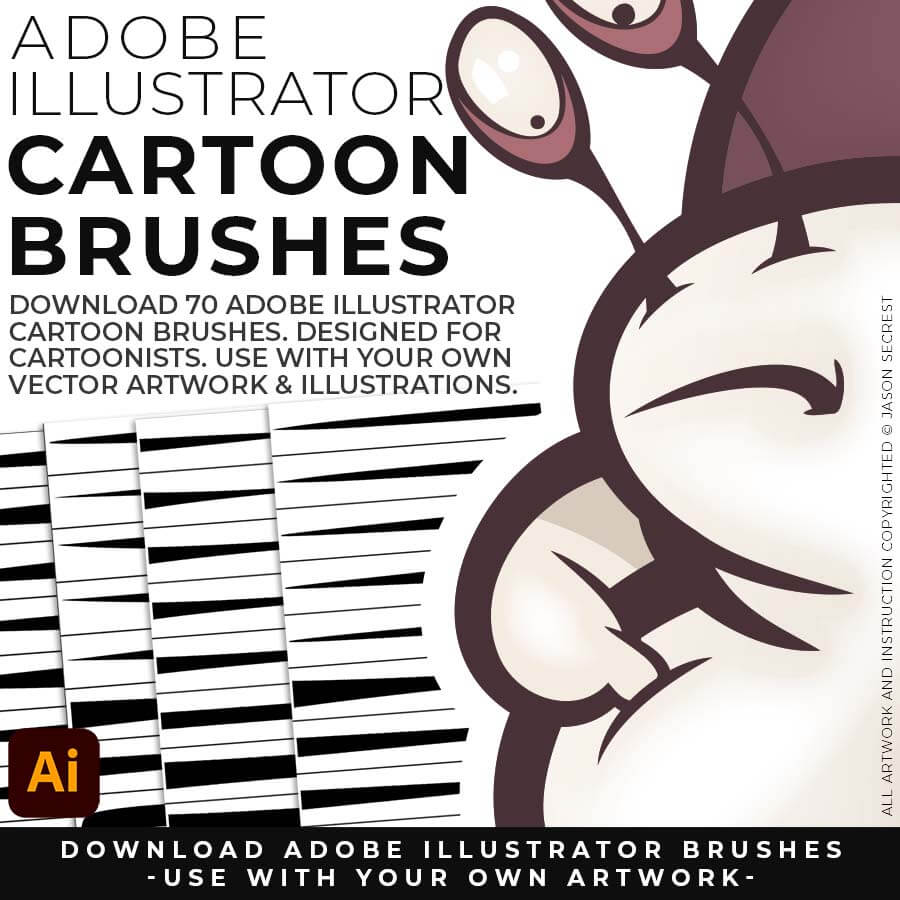
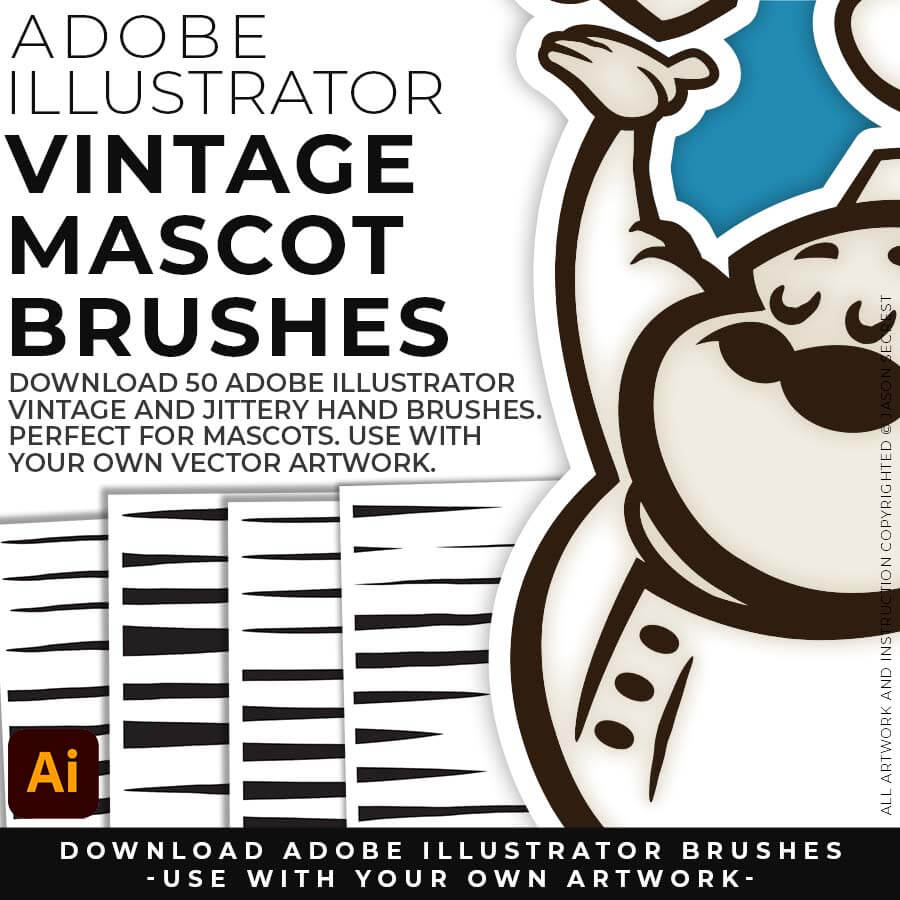
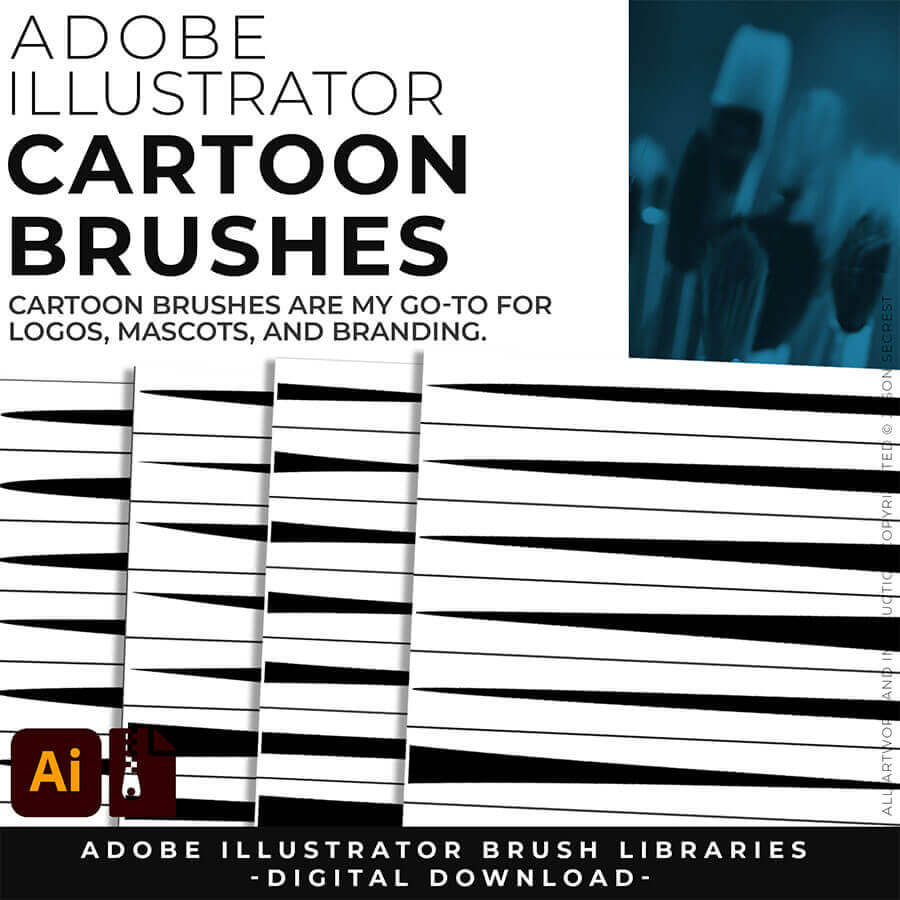
CARTOON BRUSHES: Most people get stuck at one of two spots — they have a sketch, but can't build and ink it cleanly in Adobe Illustrator. This combo fixes both ends: sixteen AI prompts turn your rough sketch into clean, professional cartoon linework, formatted for Midjourney, Gemini, ChatGPT Images, Kittl, and Canva — then the actual 70-brush library lets you finish and edit it by hand in Illustrator.
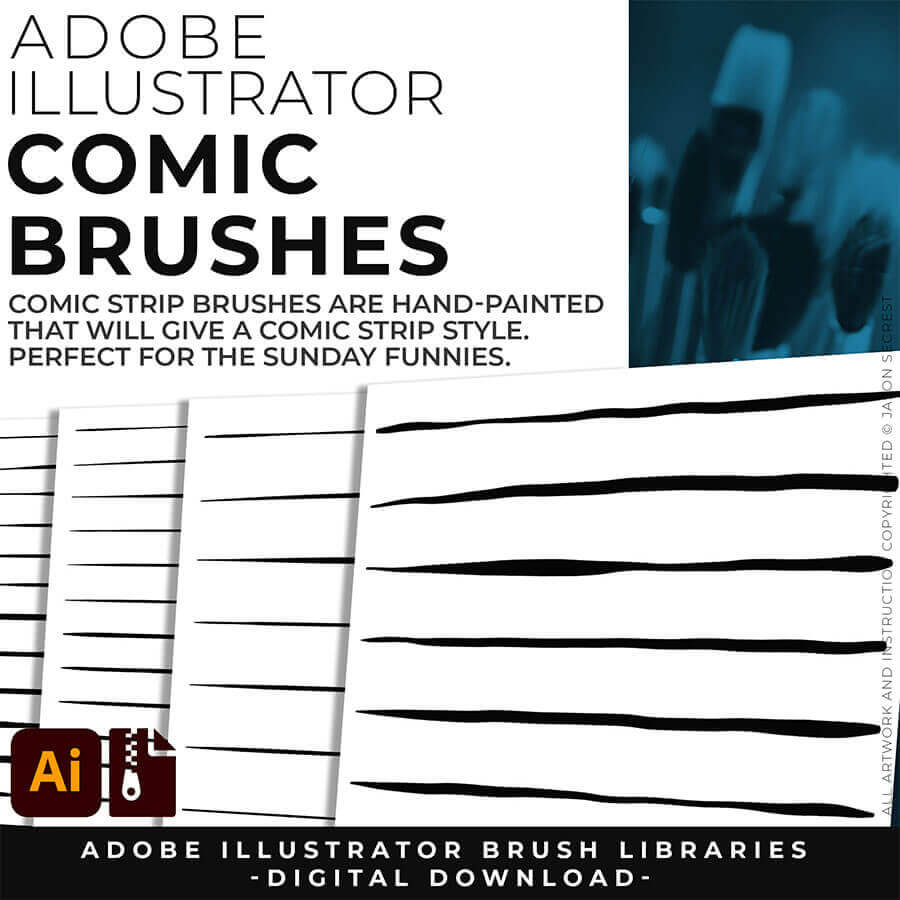
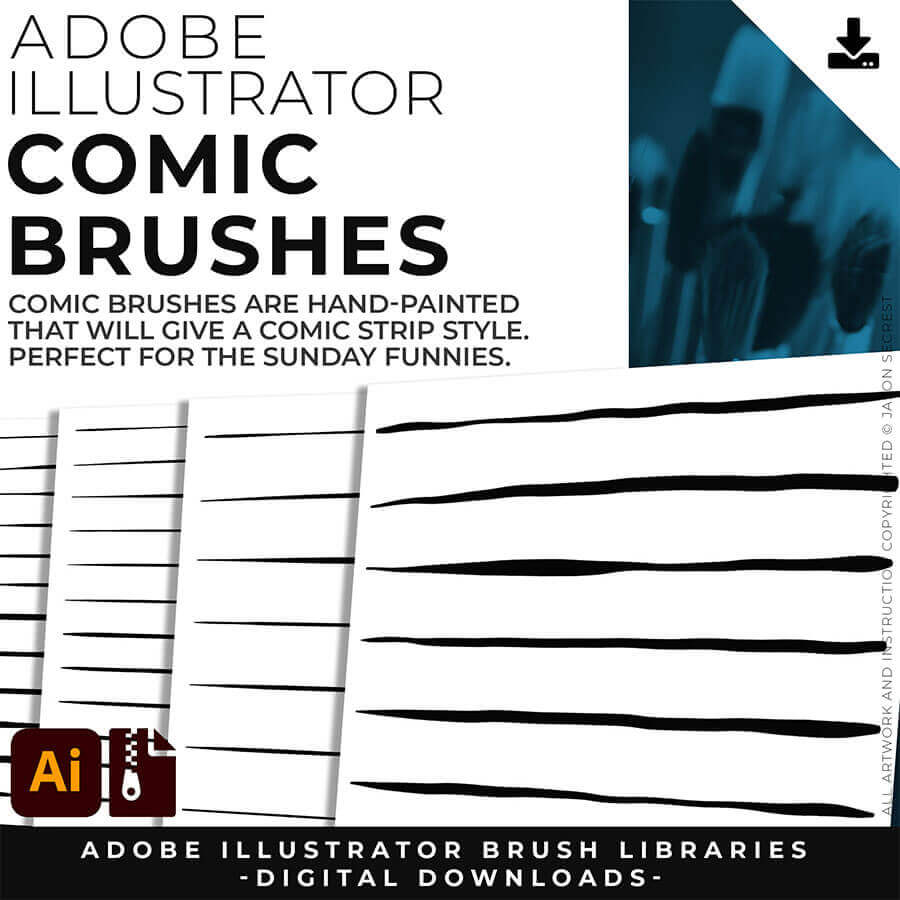
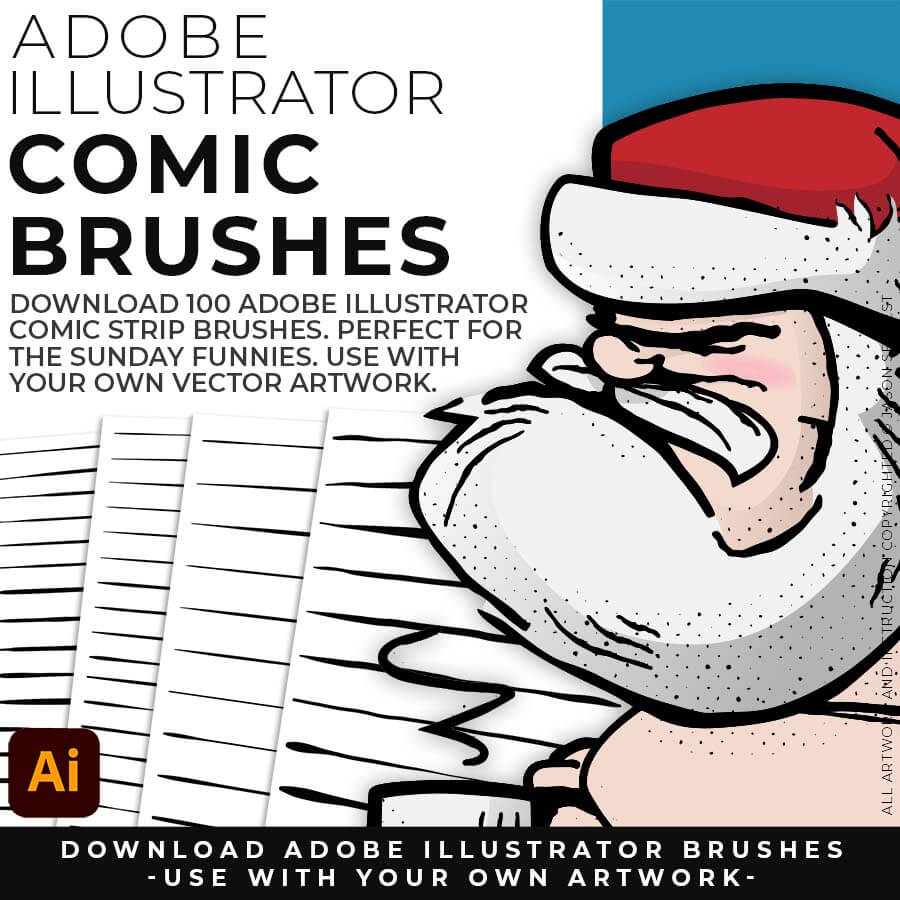
COMIC STRIP BRUSHES: Real comic art has that bold-outline-to-fine-detail depth, and it takes forever to learn by hand. This pack gets you there faster: sixteen AI prompts built around that exact classic hierarchy, formatted for Midjourney, Gemini, ChatGPT Images, Kittl, and Canva, plus the 100-brush download to polish the final linework in Illustrator yourself. AI gets you 90% there, your hand gets you the last 10.
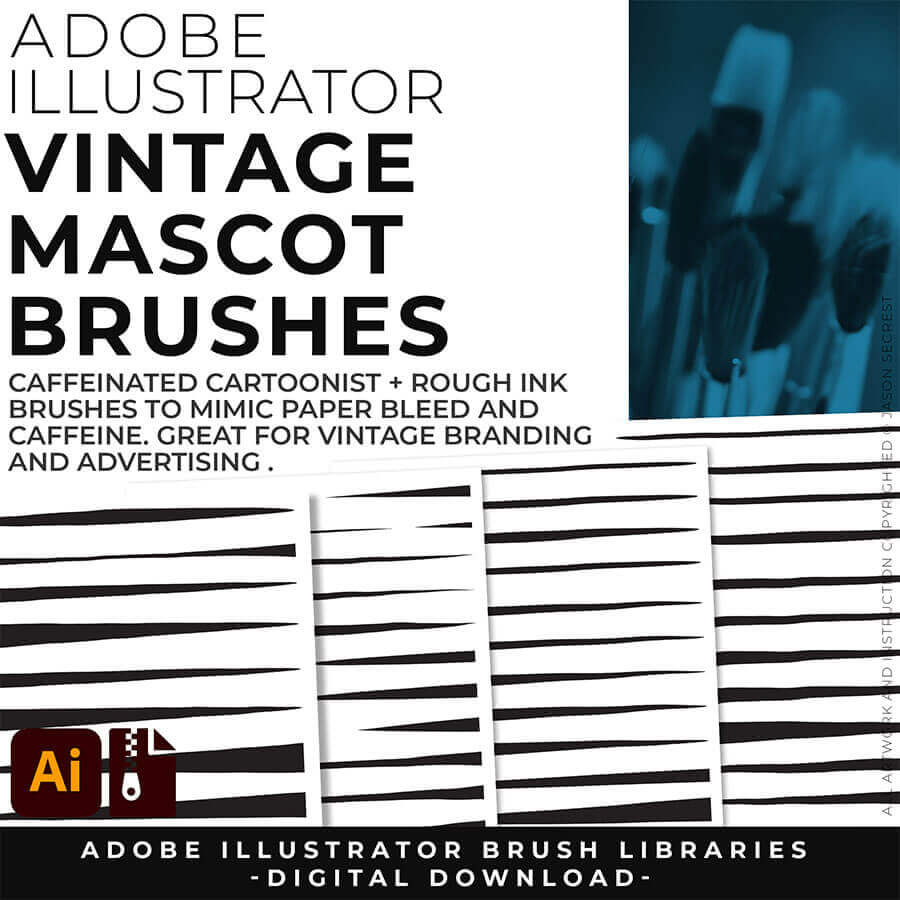
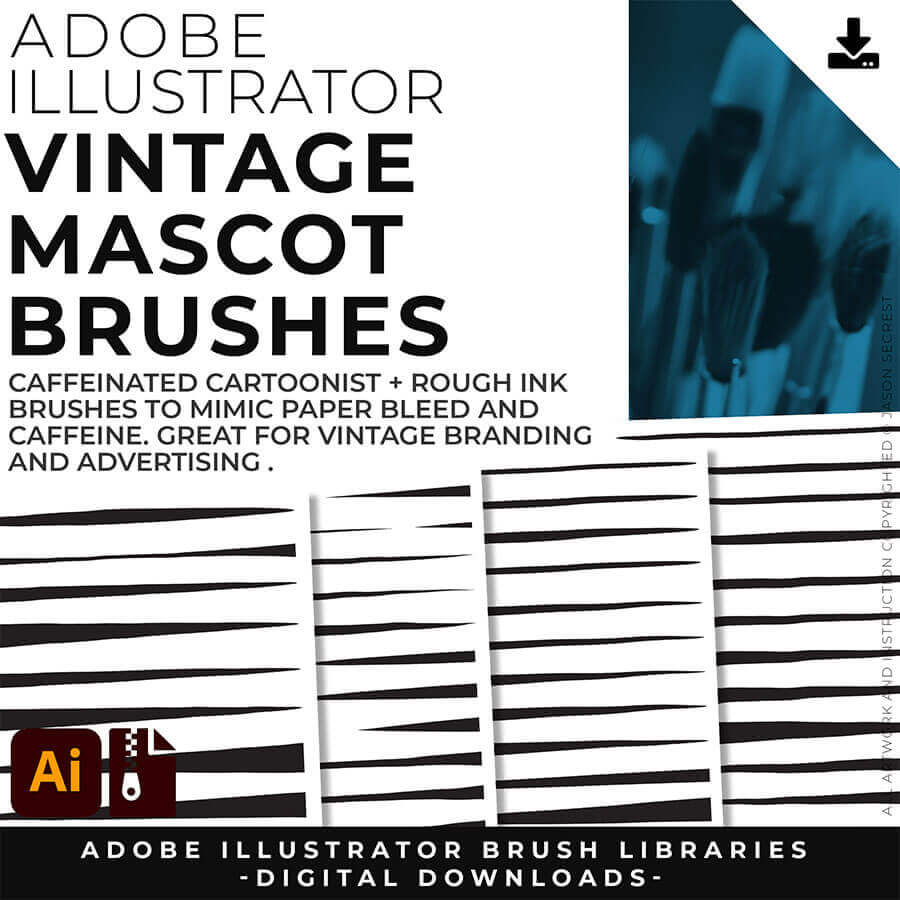
MASCOT BRUSHES: Mascot work has to hit hard on a T-shirt, not just look good on a screen. Sixteen AI prompts give you that bold, hand-inked mascot energy straight from a rough sketch, formatted for Midjourney, Gemini, ChatGPT Images, Kittl, and Canva, and the matching 50-brush download lets you finish it by hand in Illustrator so it's print-ready. Sketch rough, finish with real brushes.
Downloads and Prompts live inside full course format resource guides through Teachable.
Copy the ready-made prompt - One click — no prompt-writing needed.
Paste into your AI tool - Generate the result in seconds.
Subscription Model -Updates Included - 365-day access includes every update to the pack.
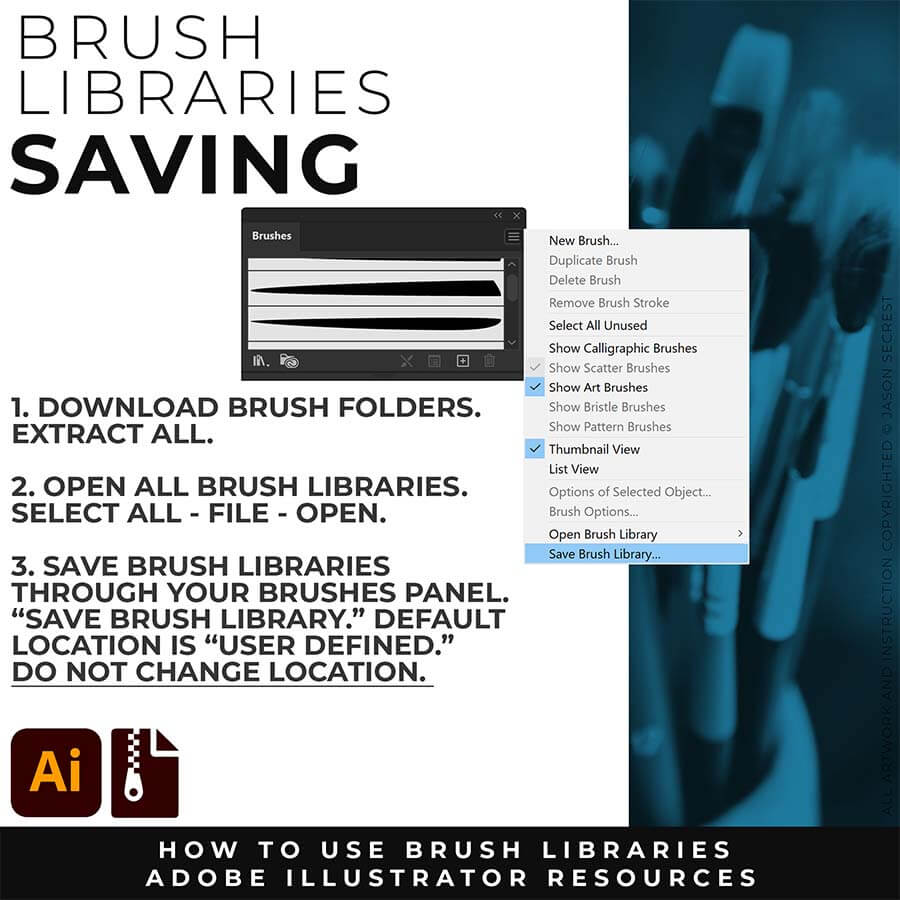
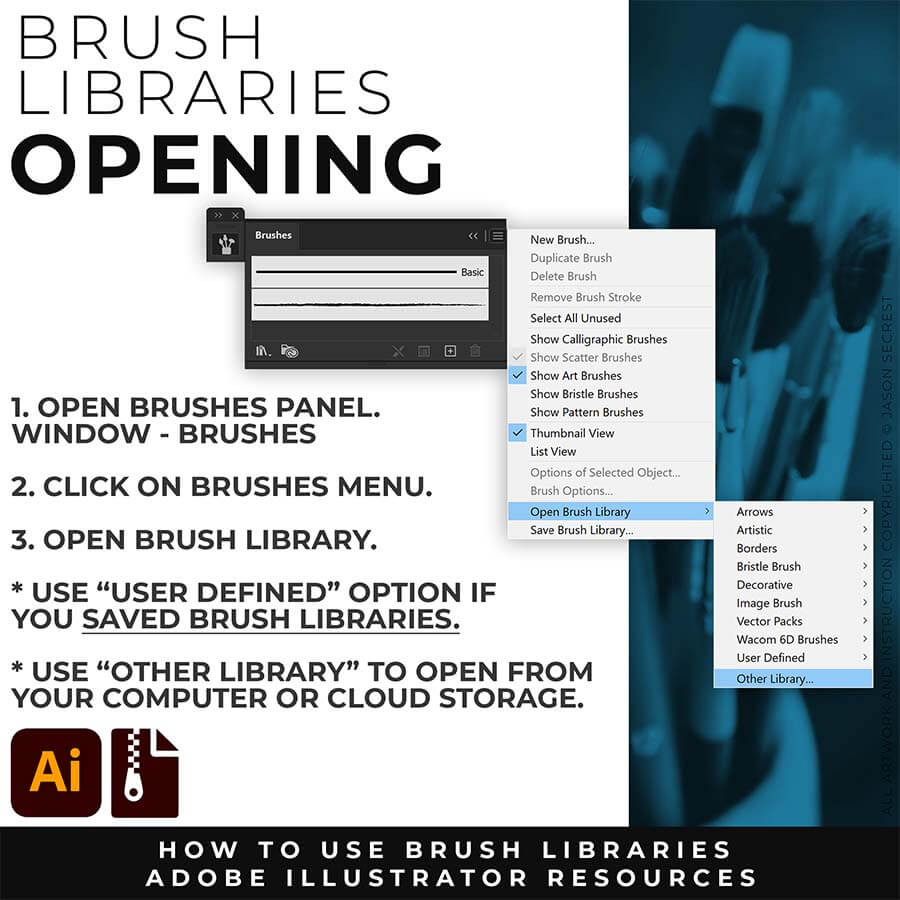
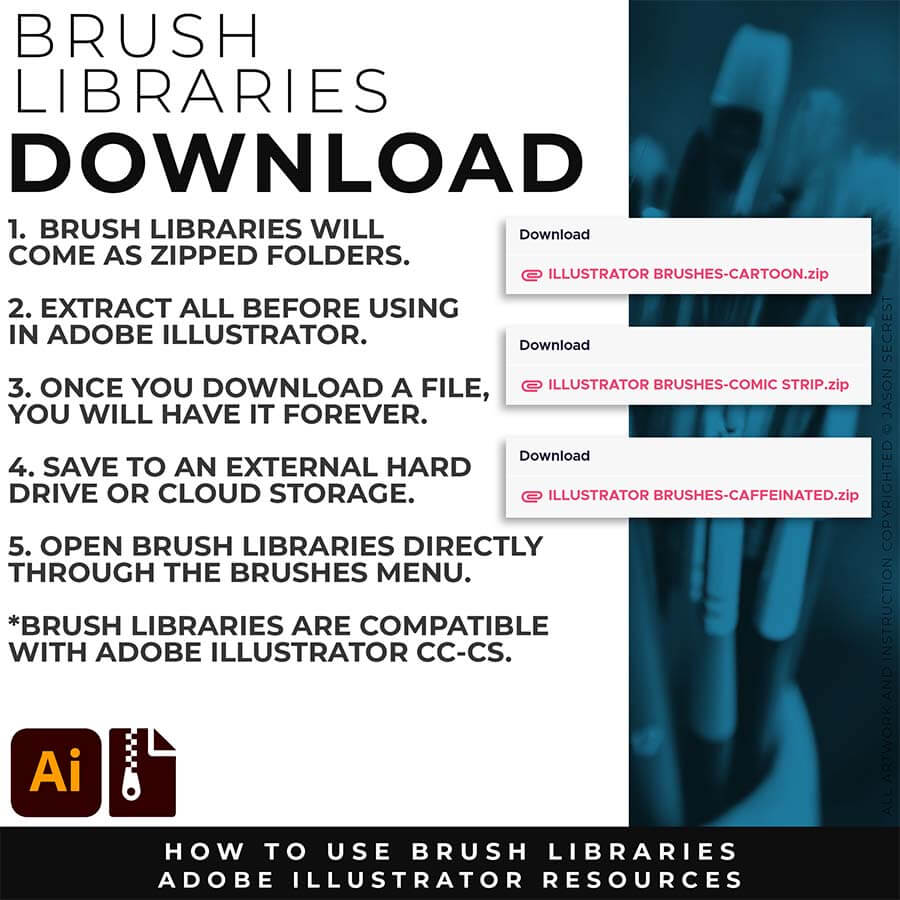
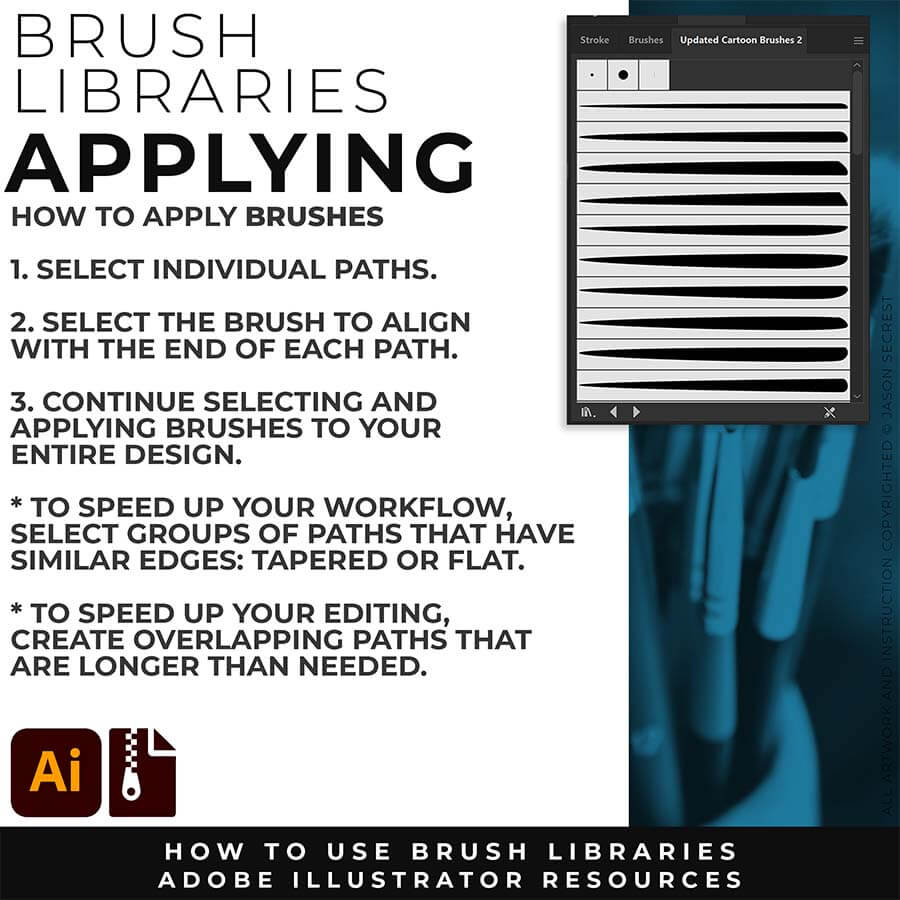
PRIMARY PROMPTING: Instead of manually aligning Building Tools to your sketch's Shapes, Lines, and Curves, let AI generate your starting point. Attach your rough sketch, copy the prompt for your style, and the AI handles the inking — clean, professional linework aligned to your original drawing, ready to bring into Illustrator for tracing and finishing.
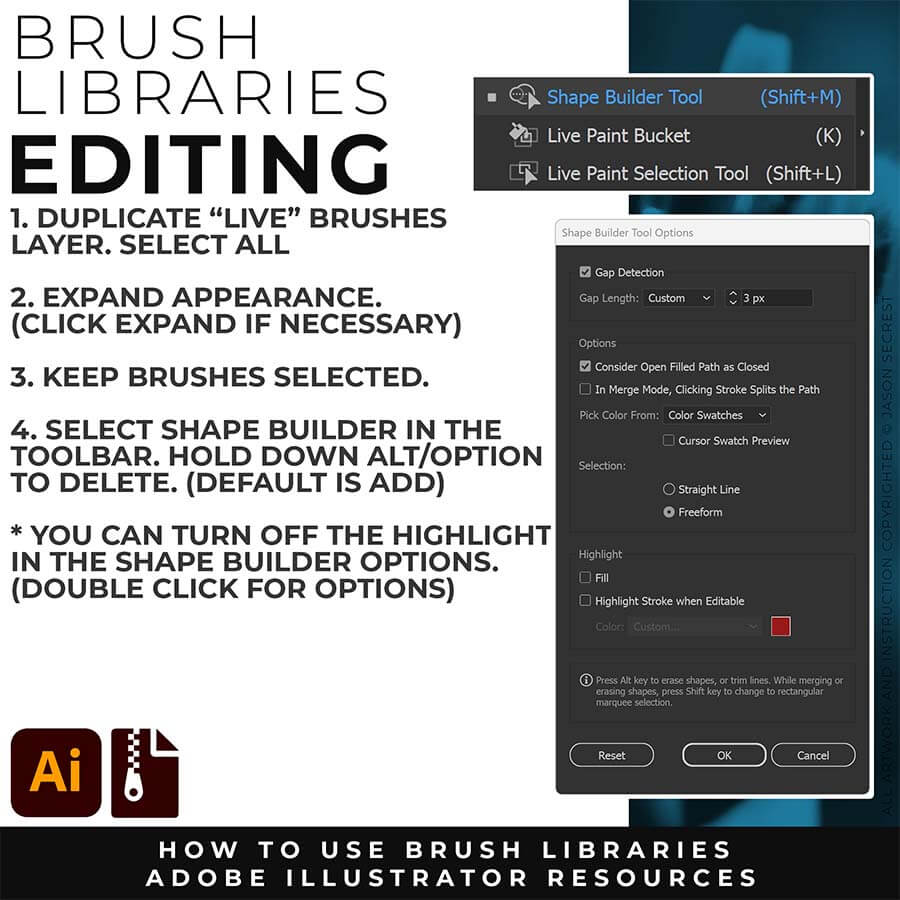
PATH SIMPLIFY: Whichever AI Prompt Pack or Concept to Vector option you used, the vector conversion likely placed more anchor points than you actually need — this is normal, not a mistake on your end. Before you move into coloring, select your paths and run Object > Path > Simplify. This reduces the anchor point count while preserving the shape of your line, using the Curve Precision and Angle Threshold sliders to control how aggressive the cleanup is.
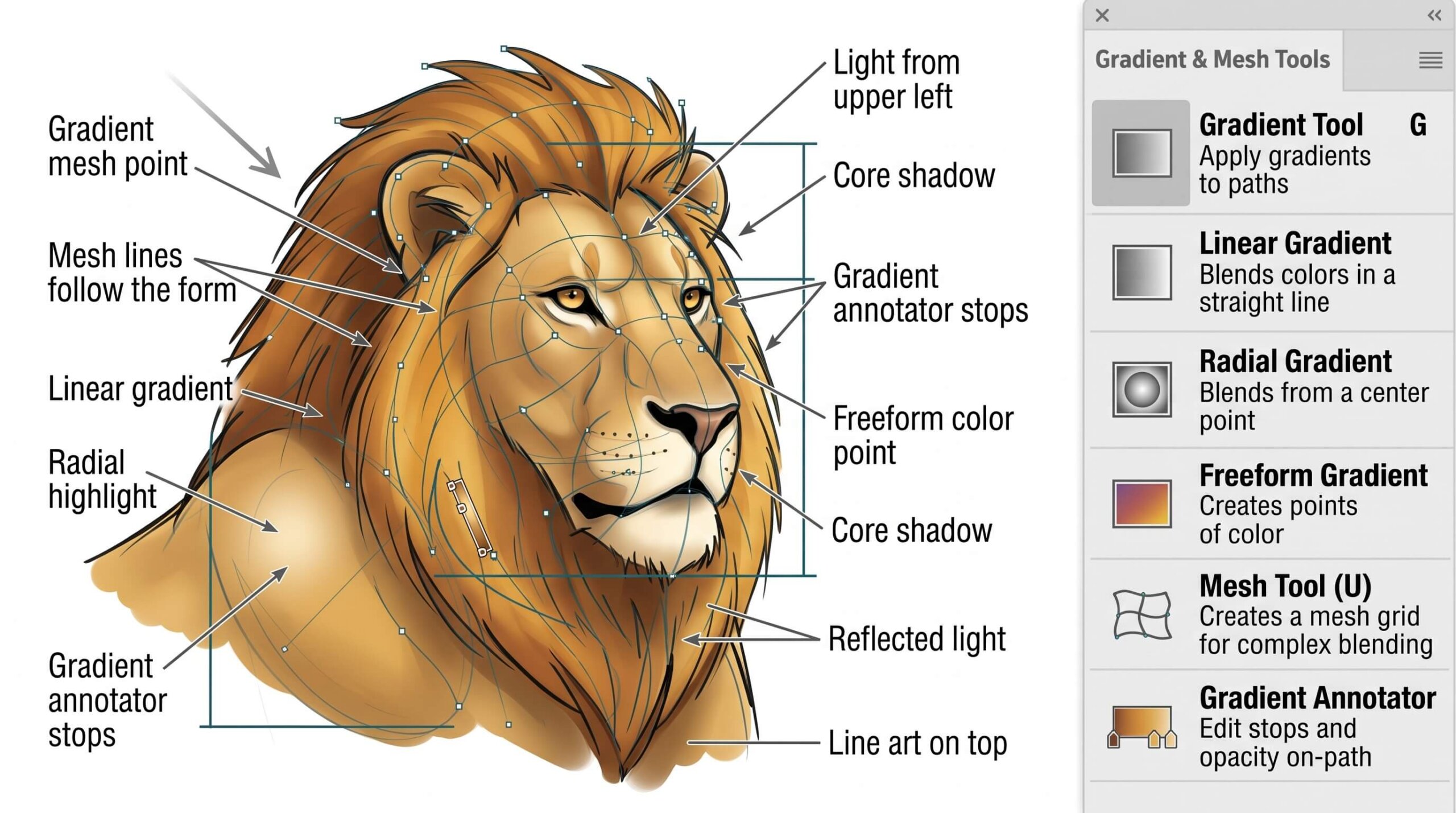
LIVE PAINT BUCKET: As I color my artwork, notice I am using Live Paint to create my Basic Fills or Flat Color Layer. Select what you want to color. Object - Live Paint - Make. Click to dump color just like in Adobe Photoshop with the Live Paint Bucket Tool. Remember to expand and ungroup when you have completed the coloring step. BEGINNER: Understand how to apply Flat Color using Live Paint Bucket. ADVANCED: For your own artwork, duplicate your Flat Color Layer for Value and Gradient Steps. Separate your Final Line by using the Magic Wand Tool to select your Edited and Expanded Brushes Layer.
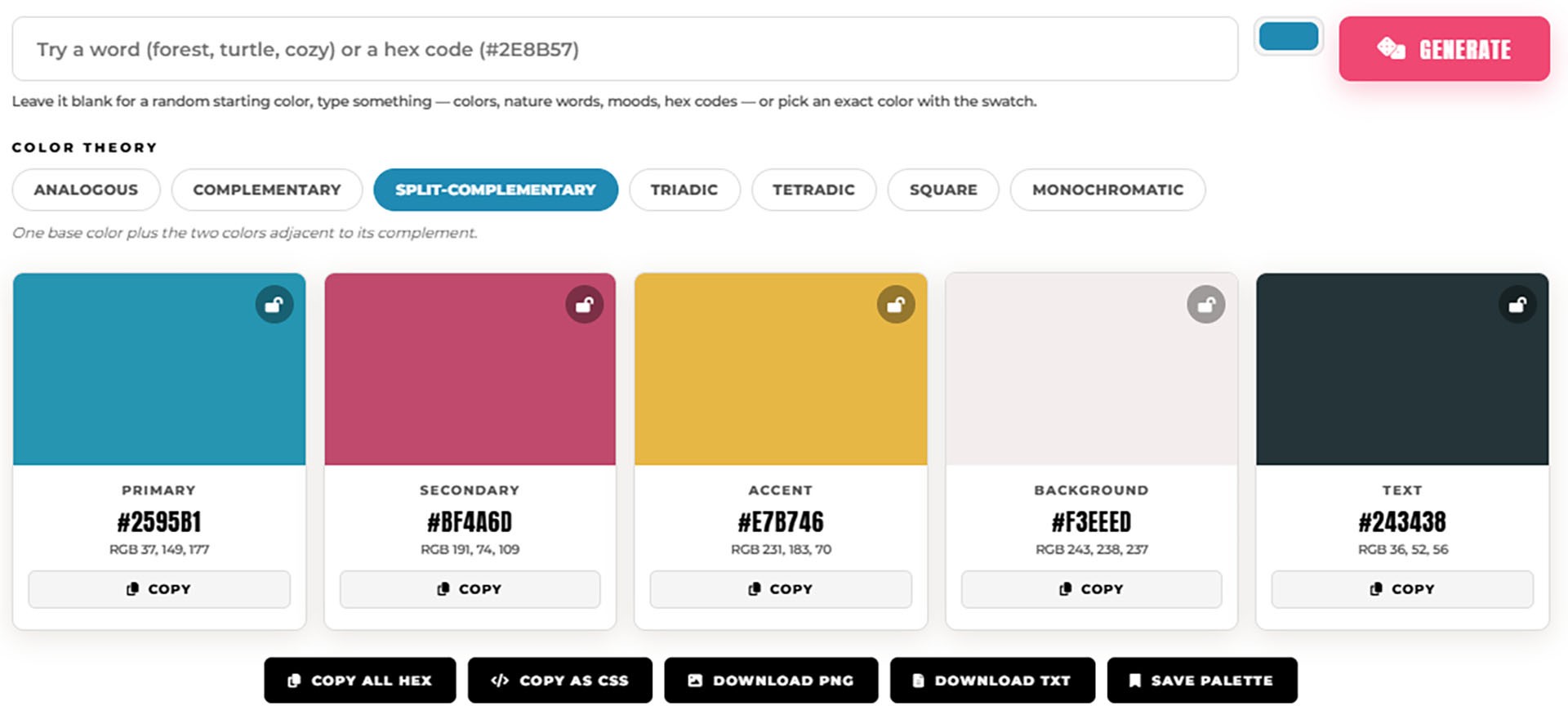
COLOR PALETTE GENERATOR: Pick a starting color — type a word like "forest" or "cozy," paste a hex code, or use the color picker — and get a complete 5-color palette built on real color theory. Switch between analogous, complementary, triadic, and four other harmony rules, lock the colors you want to keep, and export as CSS, PNG, or plain hex codes. Built for t-shirt designers, POD sellers, and anyone picking colors for a new brand. → COLOR PALETTE GENERATOR
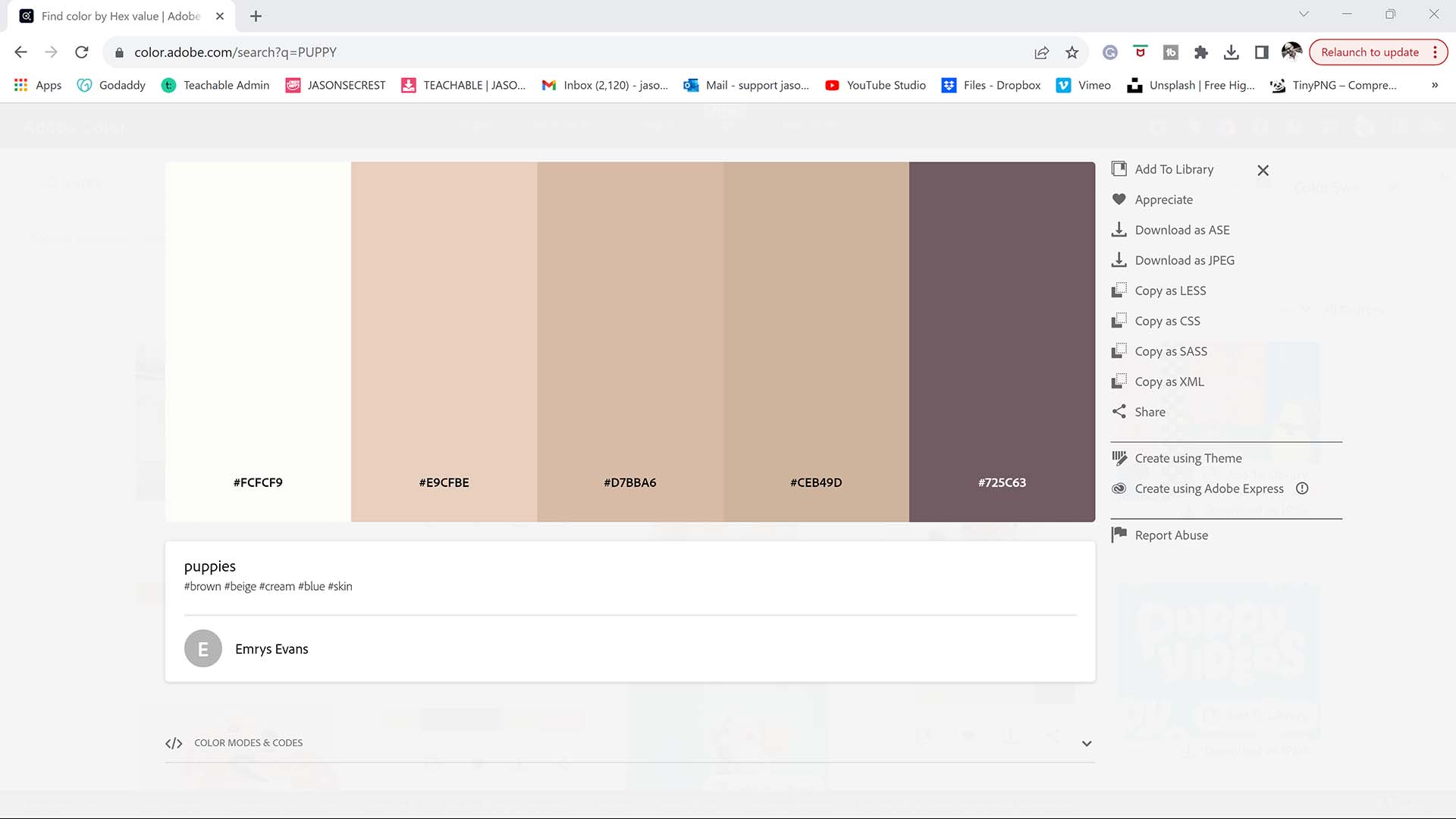
SAVING + OPENING: If you have a CC Account, simply click Add to Library from Adobe Color. If you don't have a CC Account, download Color Swatches from Adobe Color as an ASE File. Open Swatch Libraries from the “Other Library” Option. If you added to your Library (CC). Open from the Library Panel. LEARNING TARGET (1): Save or Download Free Color Swatches for your own artwork and designs. LEARNING TARGET (2): Open through the Swatches Panel or Library.
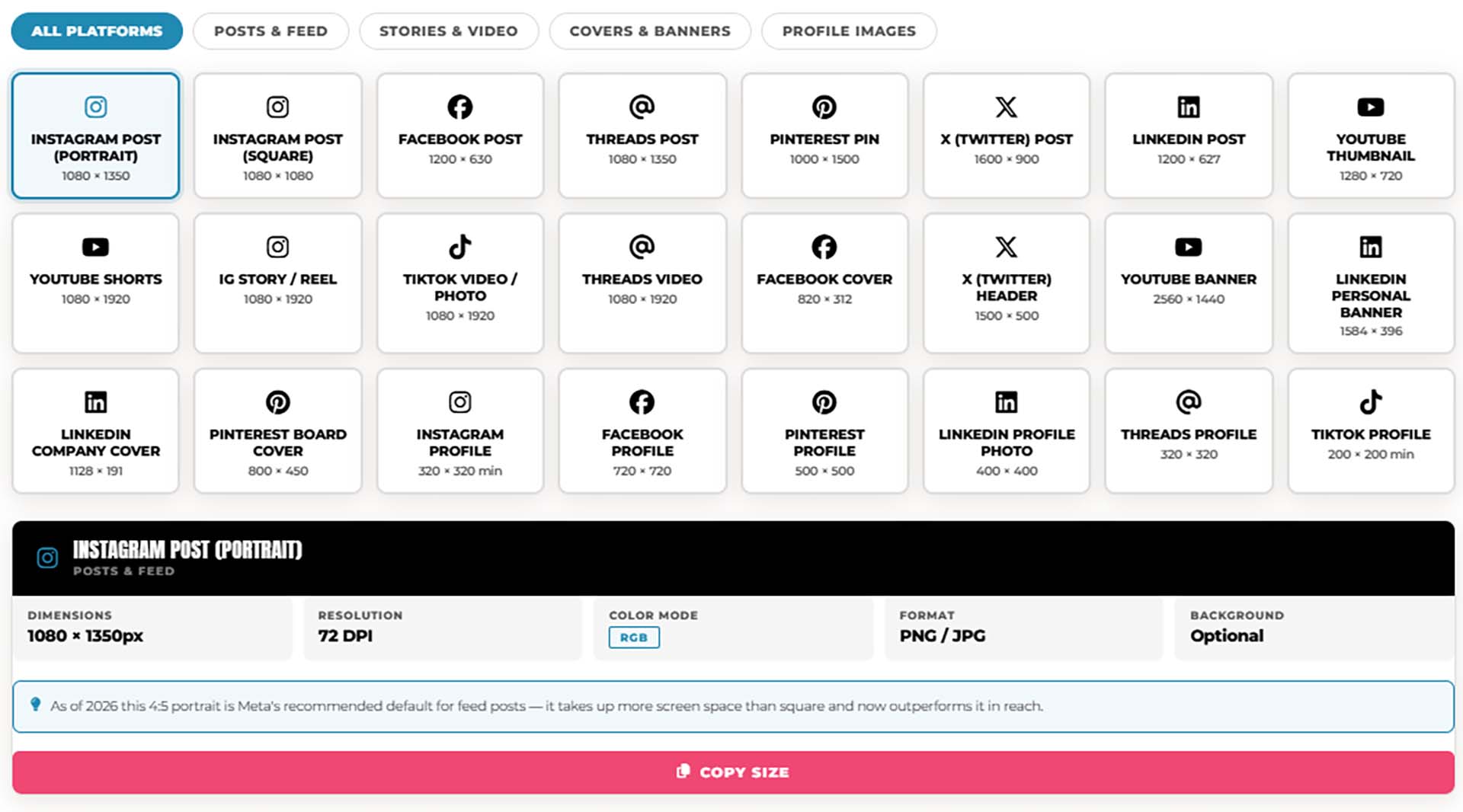
SOCIAL MEDIA SIZE GUIDE: The exact pixel dimensions for every major social platform — feed posts, stories, covers, banners, and profile images. Tap any platform below to see its full specs: dimensions, resolution, color mode, file format, and a quick tip on what to watch for before you design. Covers Instagram, TikTok, YouTube, Facebook, Pinterest, LinkedIn, and X (Twitter). → SOCIAL MEDIA SIZE GUIDE
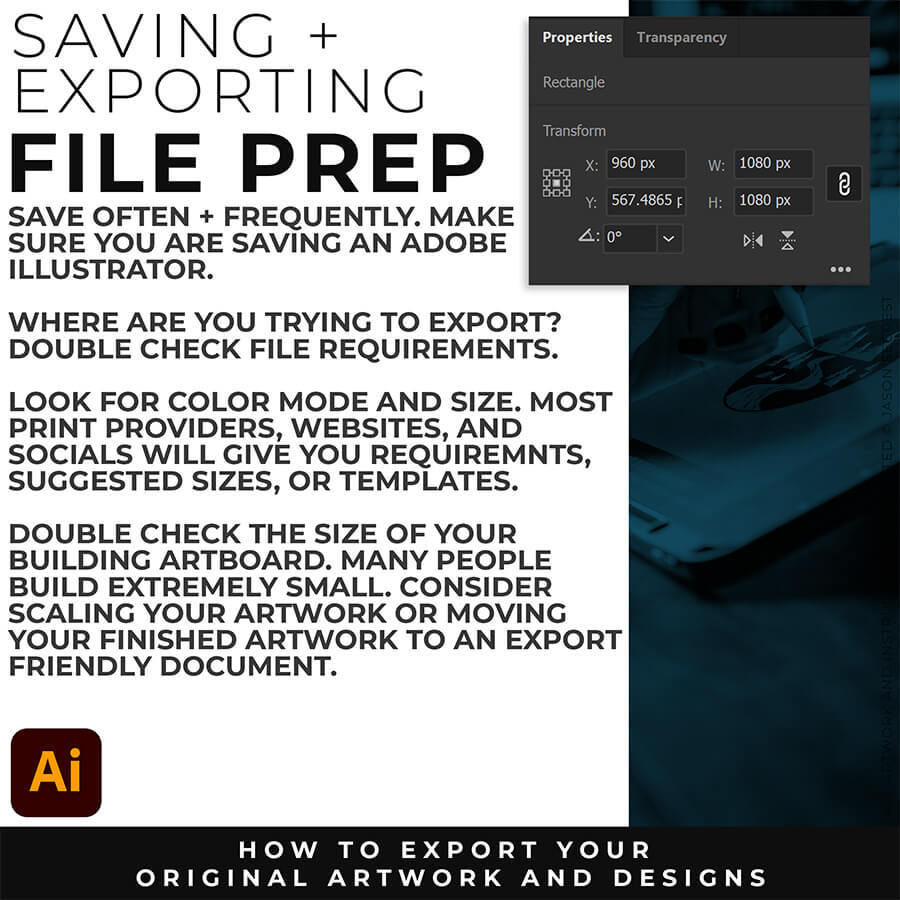
FILE PREP: An exported PNG looks blurry when the document is saved at a low resolution or when the anti-aliasing drops processing frames. To fix blurry PNG exports, verify that your export resolution is set to 300 PPI. Additionally, change the anti-aliasing option from "Type Optimized" to Art Optimized. This instructs Adobe Illustrator to prioritize smooth line work and vector curves rather than prioritizing text rendering.
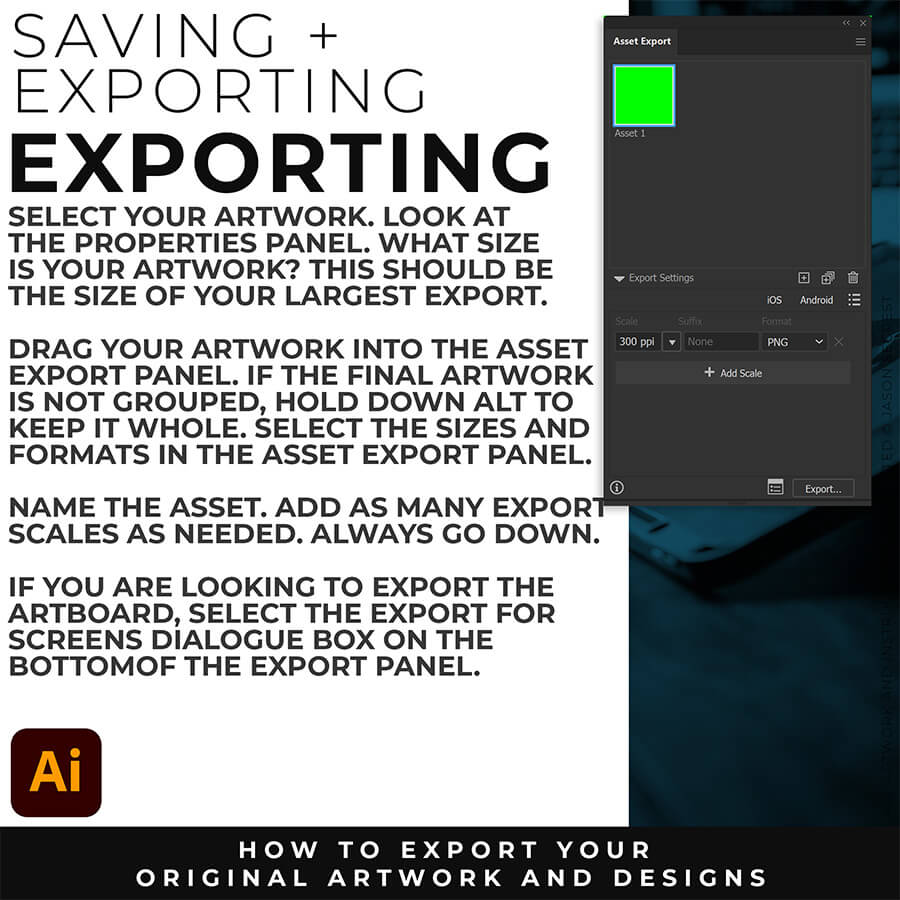
EXPORTING: The best export settings for a high-quality PNG are found by navigating to File > Export > Export for Screens. Set the format to PNG, choose a scale multiplier of 2x or 300 ppi for high-resolution displays, and ensure the anti-aliasing setting is explicitly set to Art Optimized (Supersampling). This combination guarantees that crisp vector outlines remain perfectly smooth when converted into a raster image file.