Free Design Tools
FREE RESOURCES
I have created a series of free design tools for you to use with your own artwork and designs. These tools are 100% Free to use - no account or login is required. Free tools are designed to support both the front-end and back-end aspects of your workflows. Save the Free Resources page as well as the individual tool pages inside your Free Resources Folder in your Browser. For those of you looking for "Tutorial Resources," I recommend the Practice Prompt Builder and the Color Palette Generator. PRINTABLE CHECKLISTS: As you advance through the tutorials, they are structured in a workflow format to follow along using your own artwork. I have included printable checklists and workflows on the tutorial pages.
STARTING POINT: There are a series of tools to help you in the start of your workflow. We have Artboard, Social, and POD Size Finder Tools to help you quickly find the size and format you need. Find the size and format tools that align with your file-export requirements.
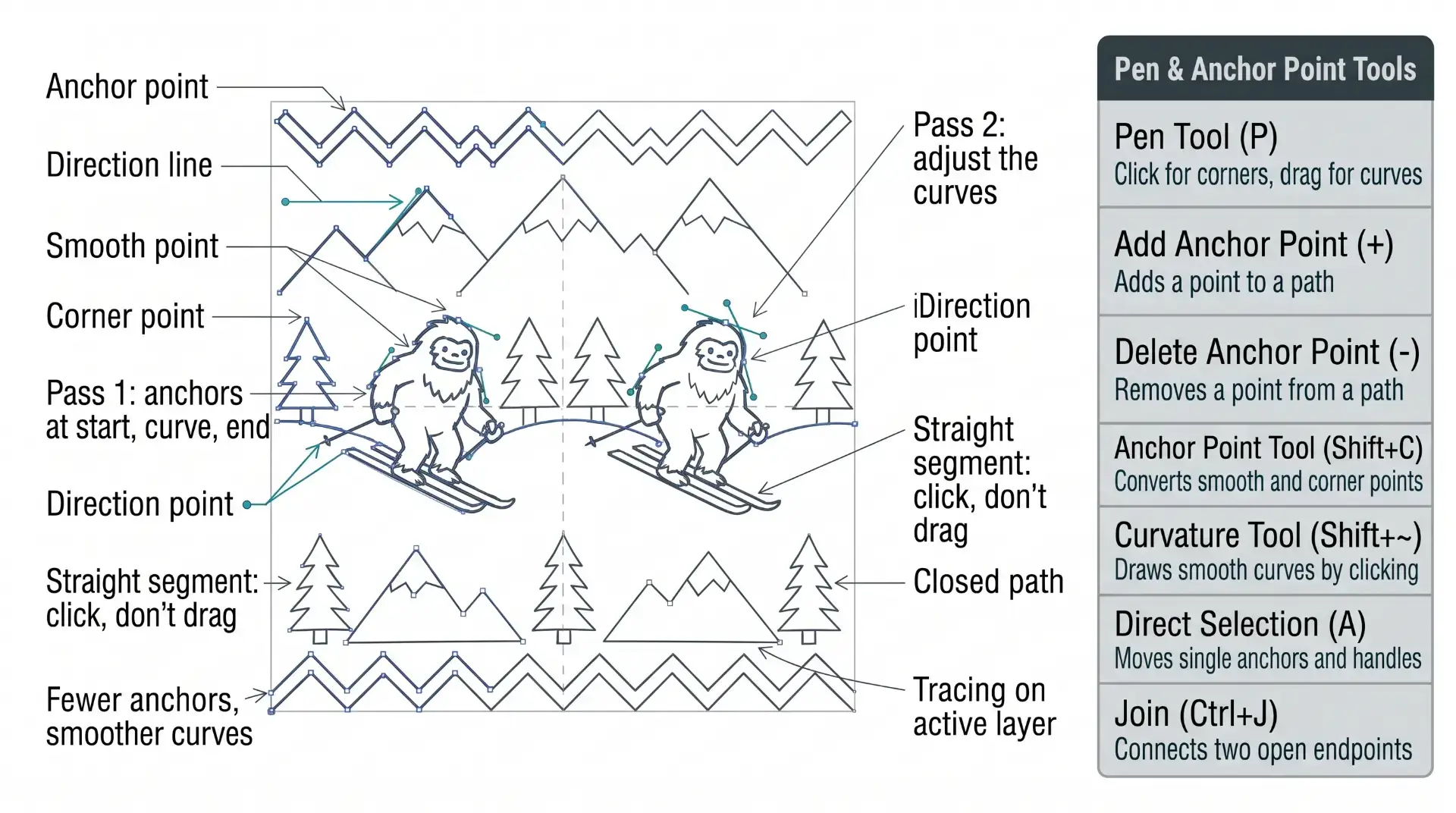
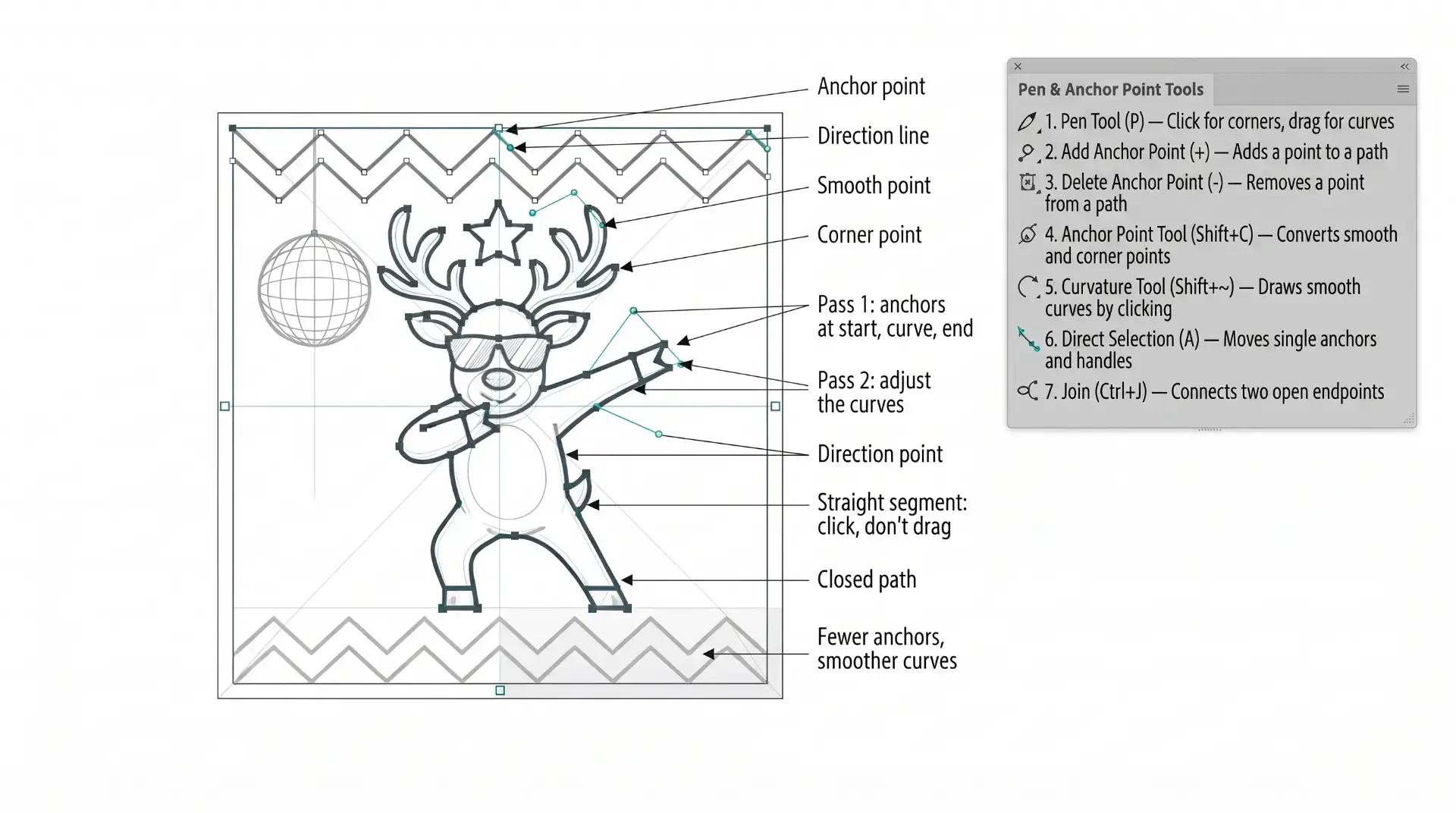
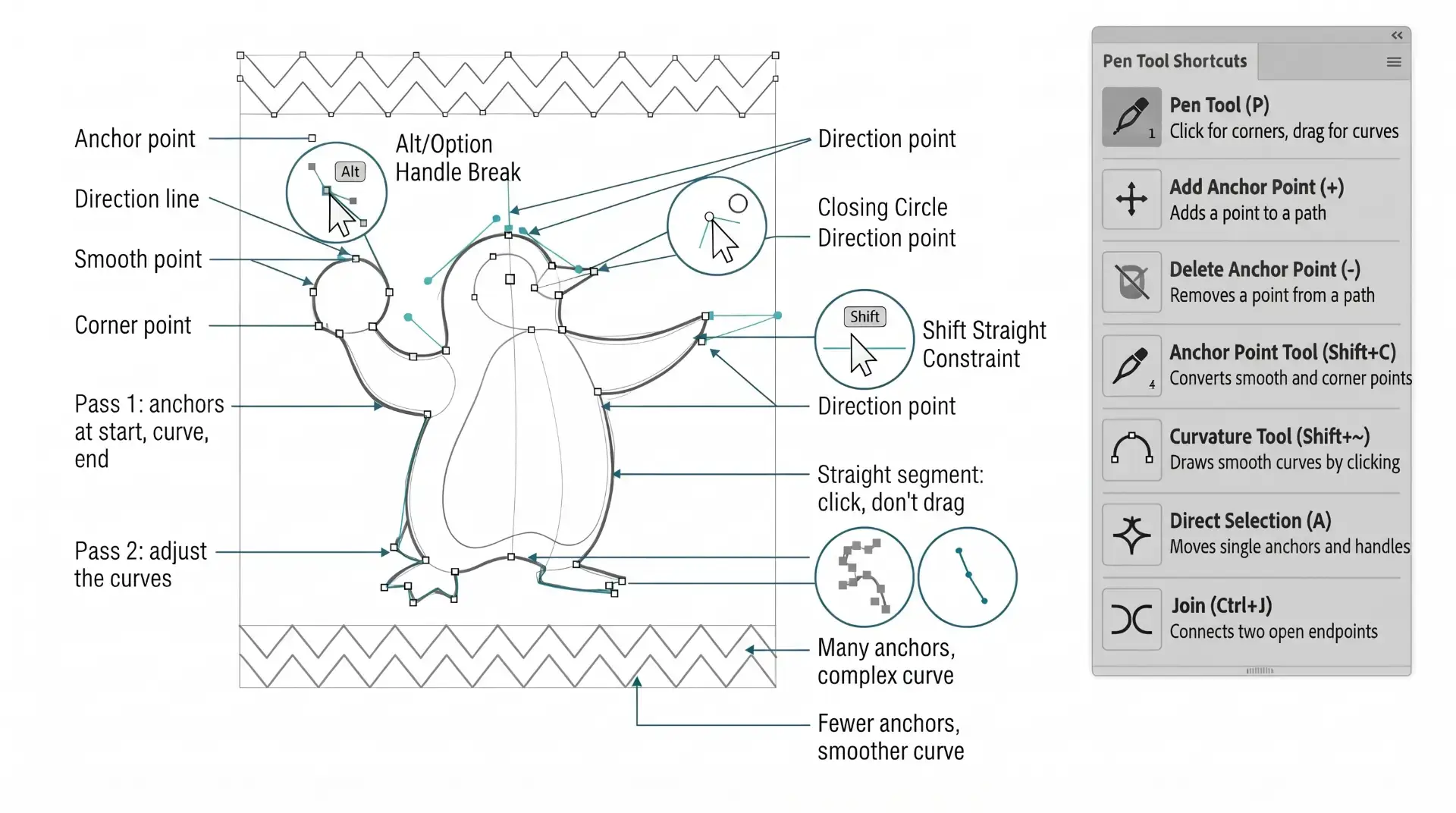
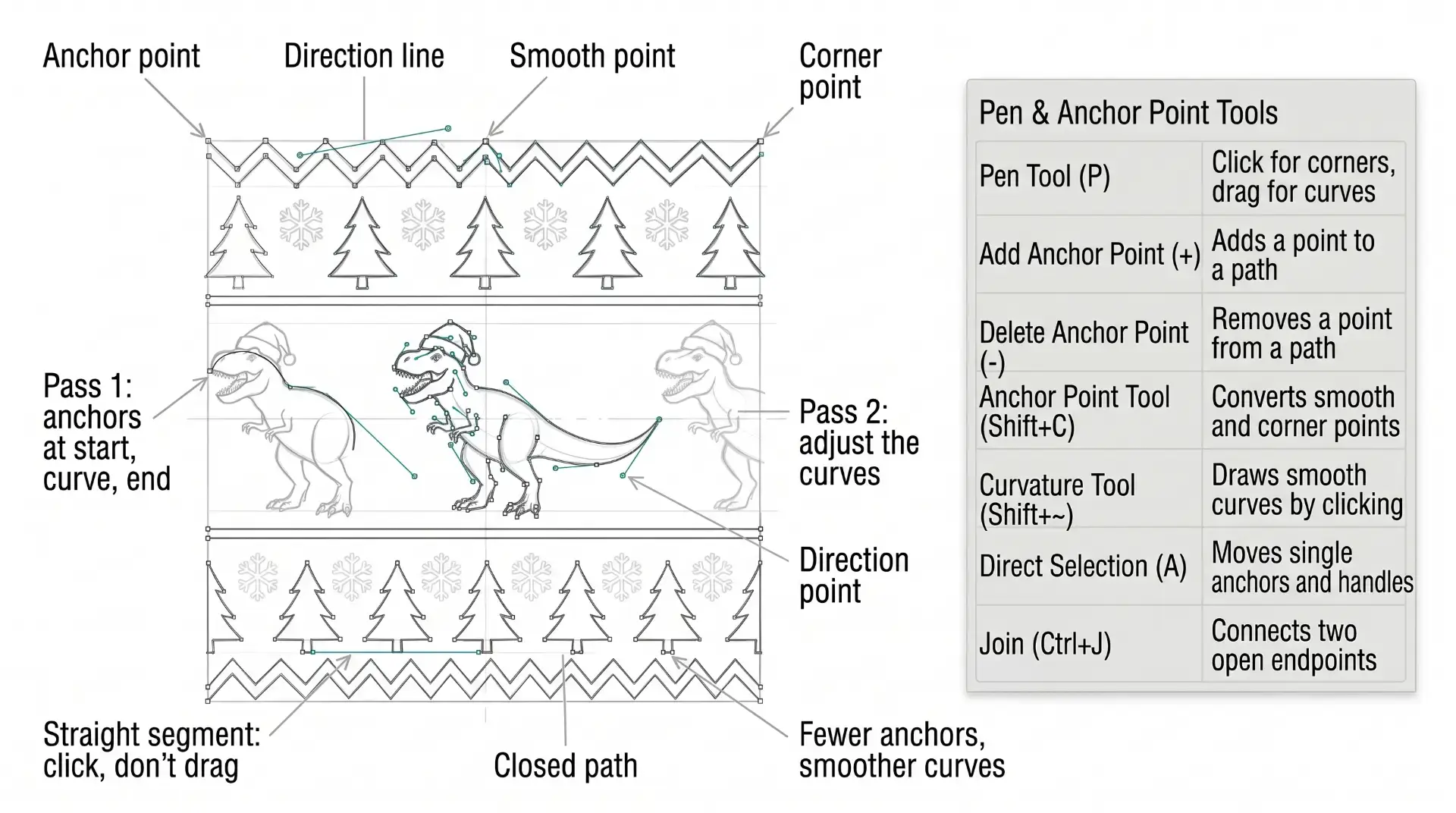
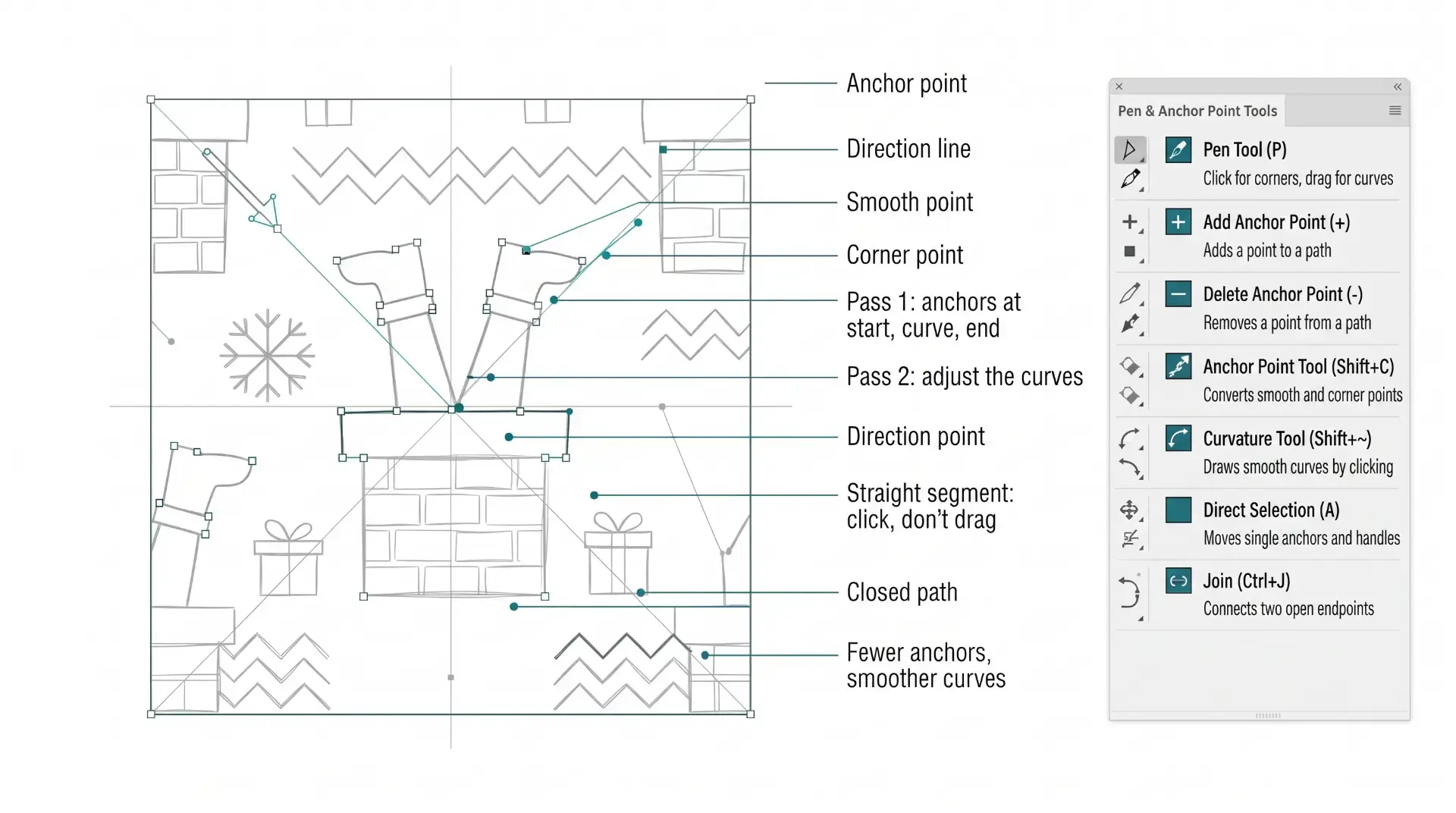
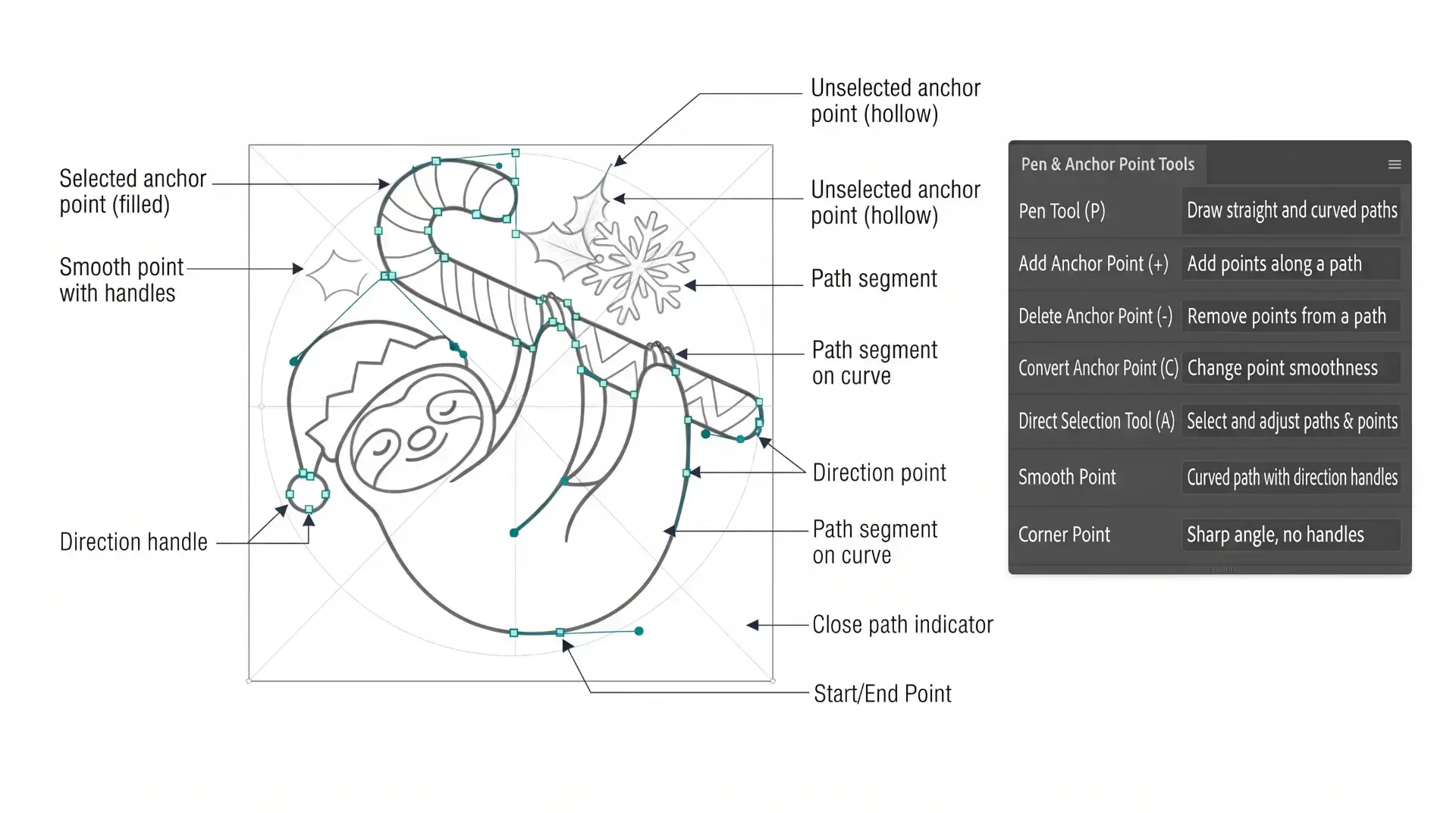
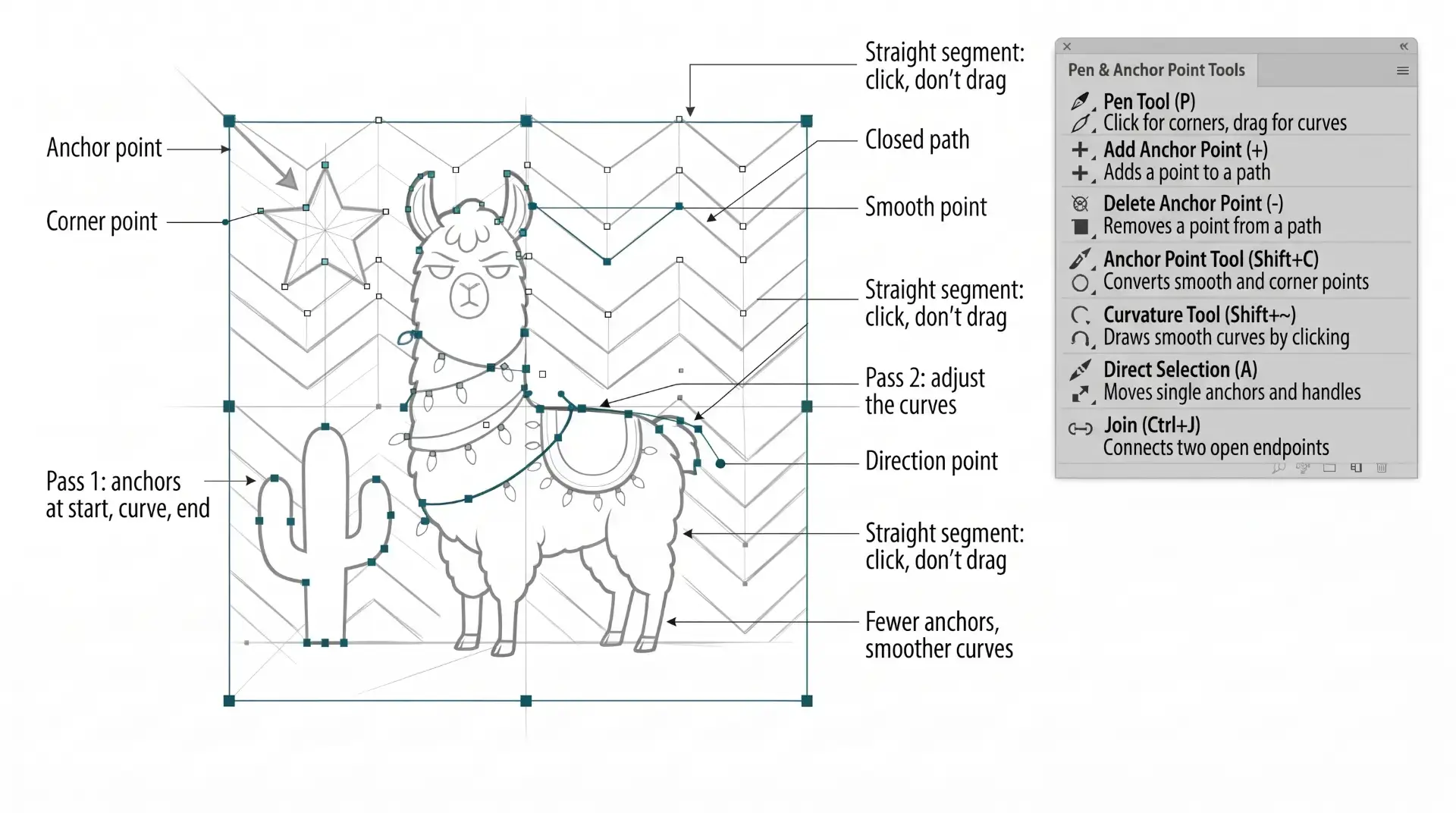
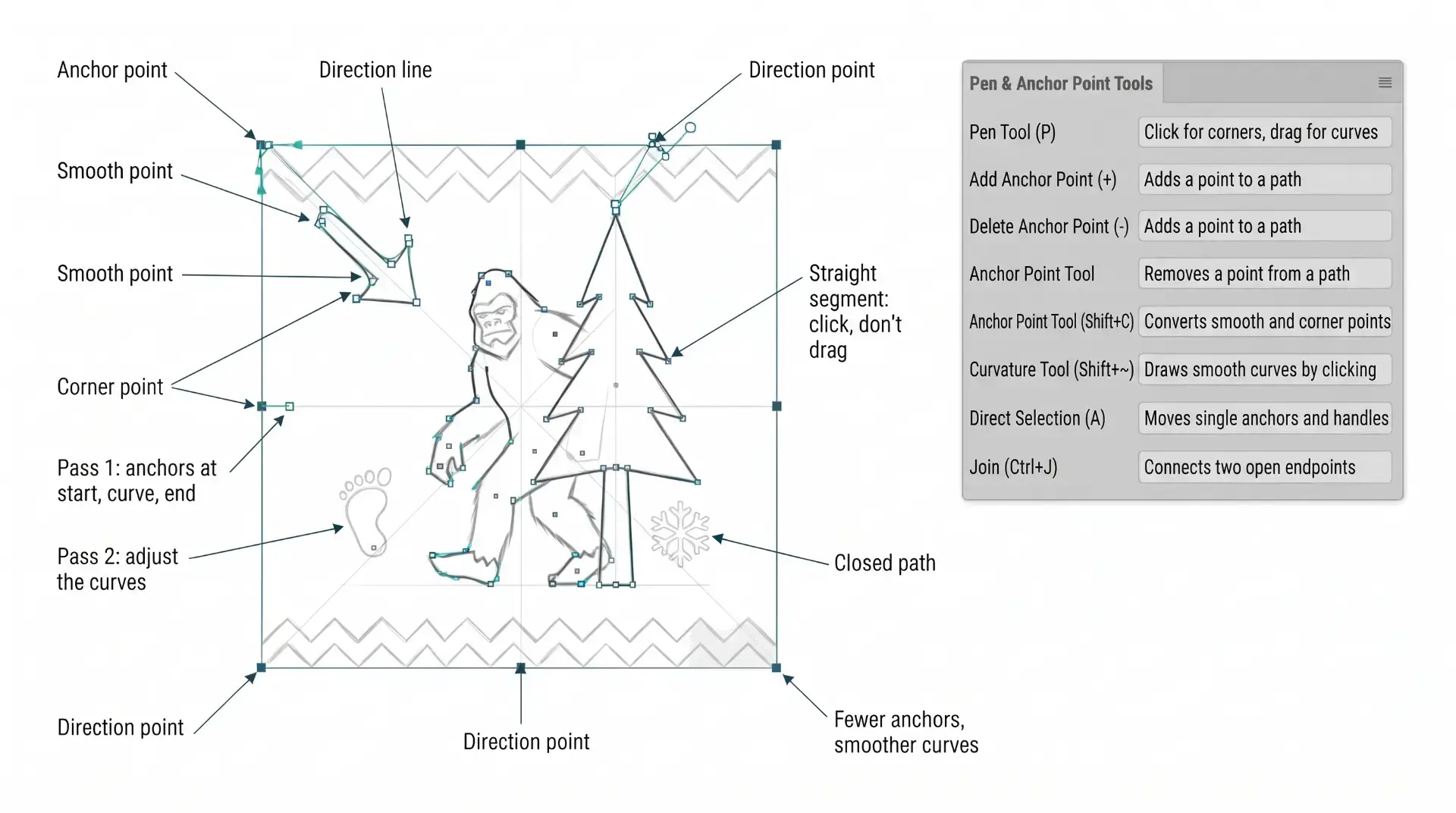
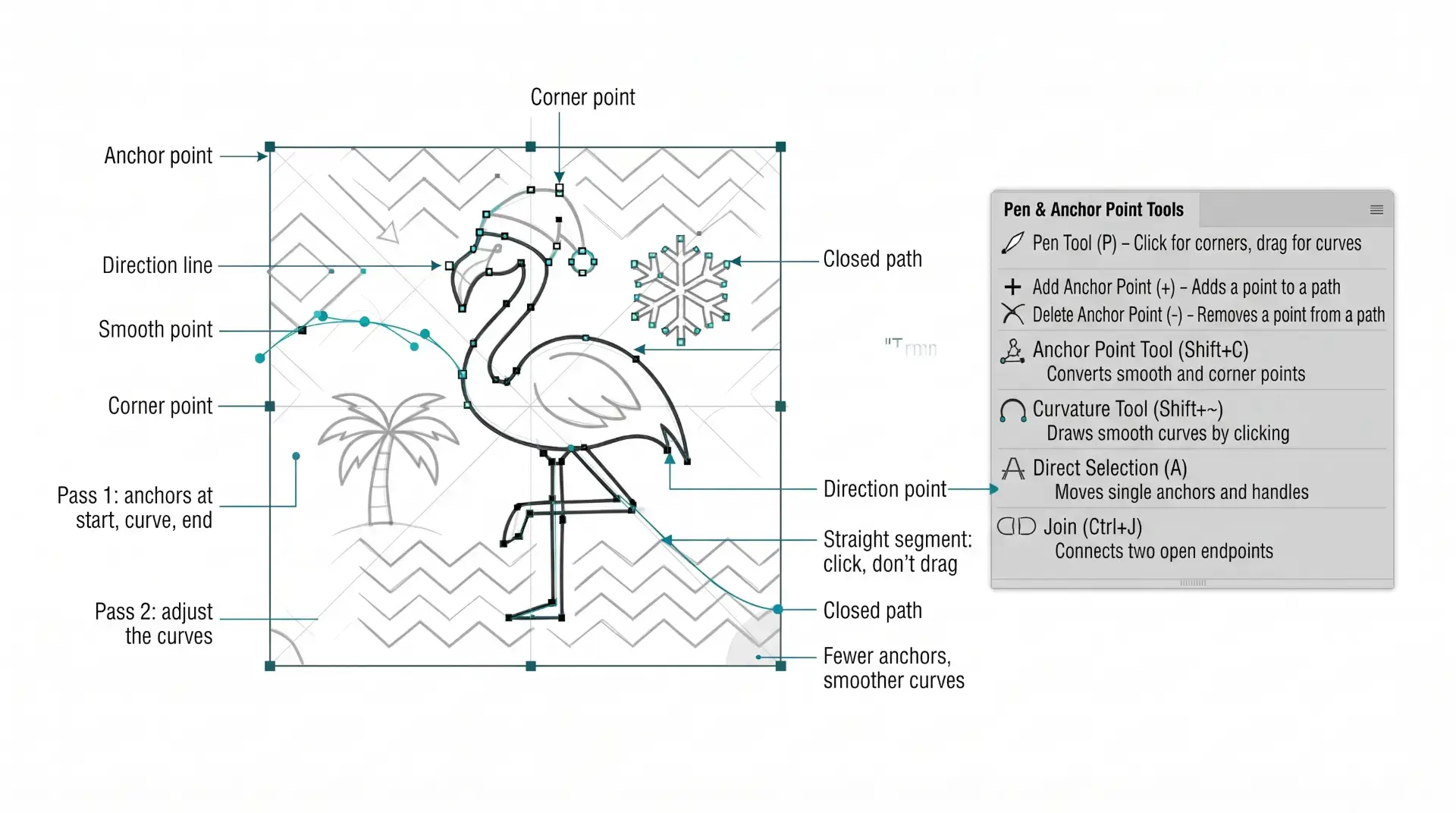
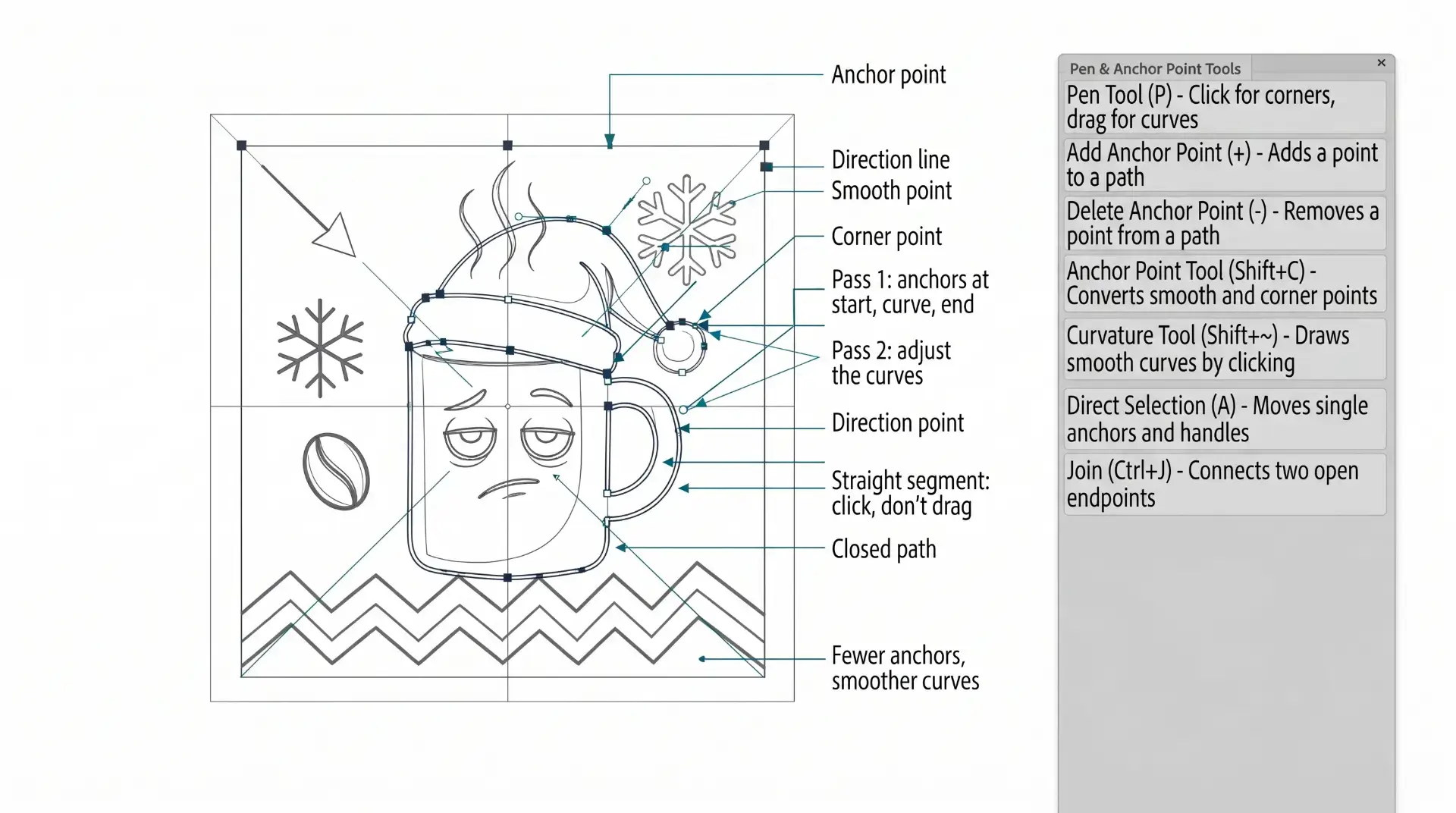
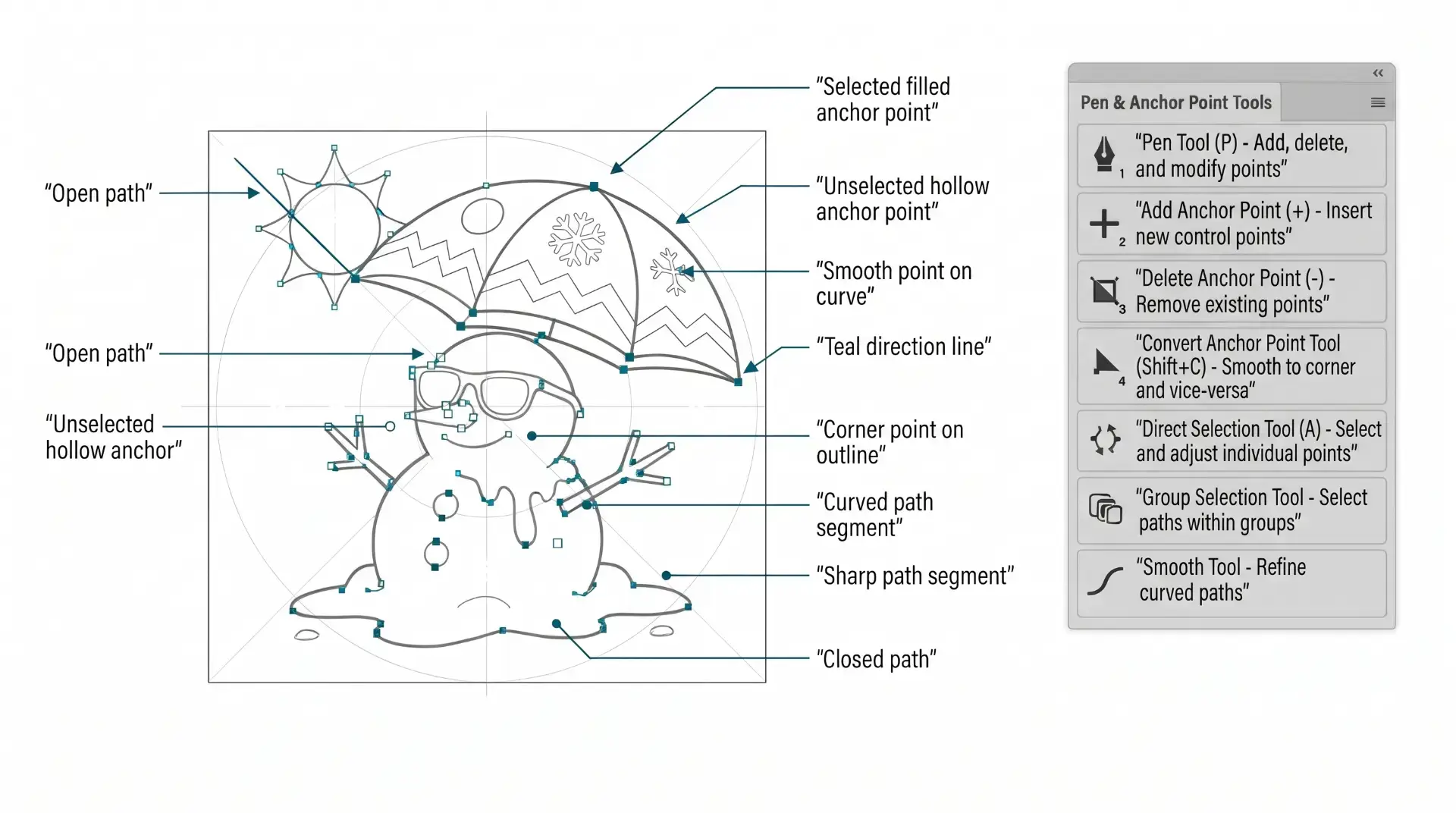
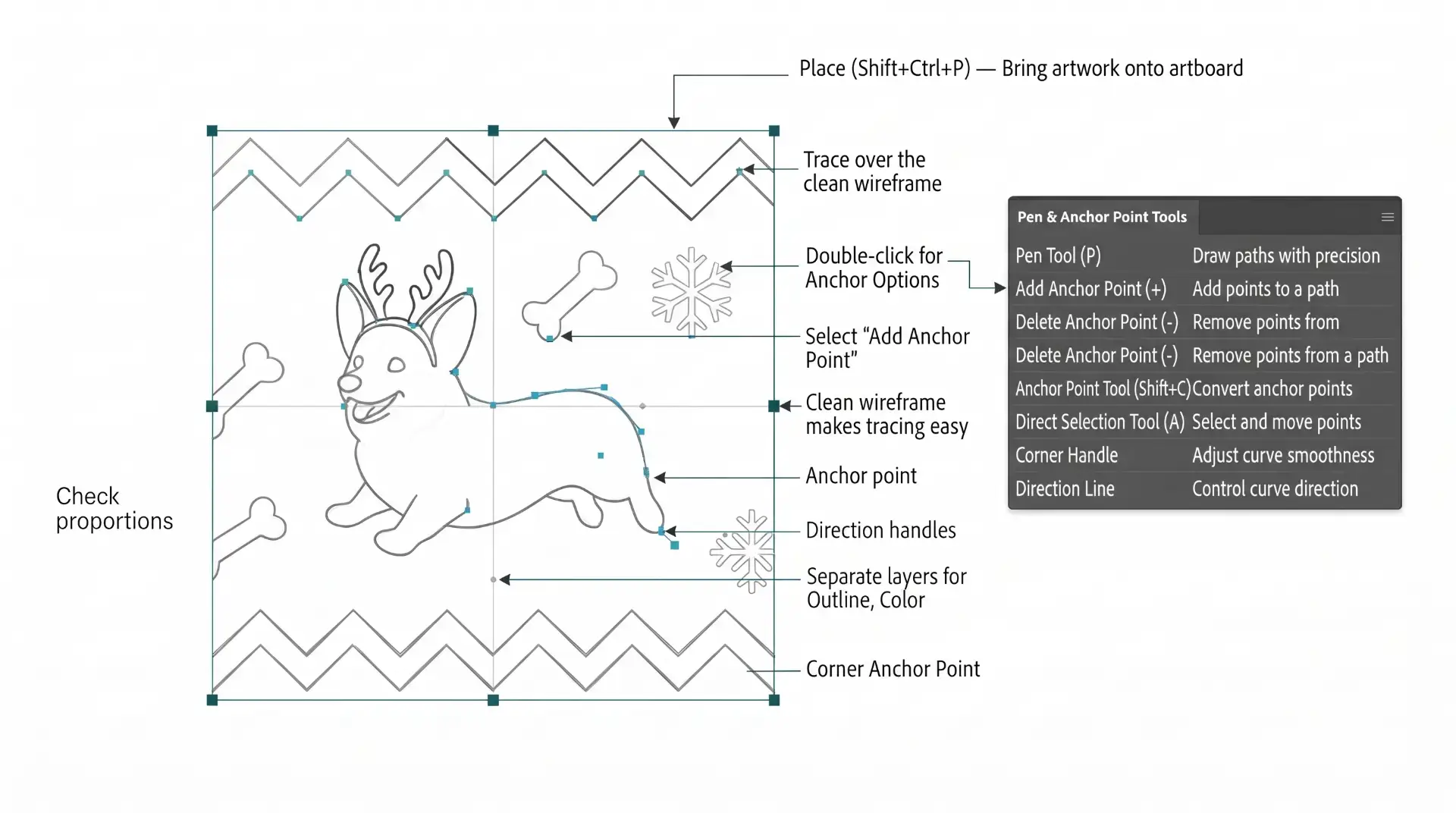
PRIMARY BUILDING: The purpose of our Beginner Guides and Tutorials is to provide an overview of a workflow, allowing you to see the steps in sequence. I have built a Practice Prompt Builder to simulate some of the older tutorials, "Anchor Point Guides," that some of you might be familiar with. I have added additional guide and difficulty options to better support various workflows.
FILE EXPORT: As you create your own original artwork, think about where you are posting, exporting, and uploading. Start with the end in mind, all requirements must be addressed before starting your workflow. I have created a full series size, format, and compression tools for exporting and sharing your original artwork.
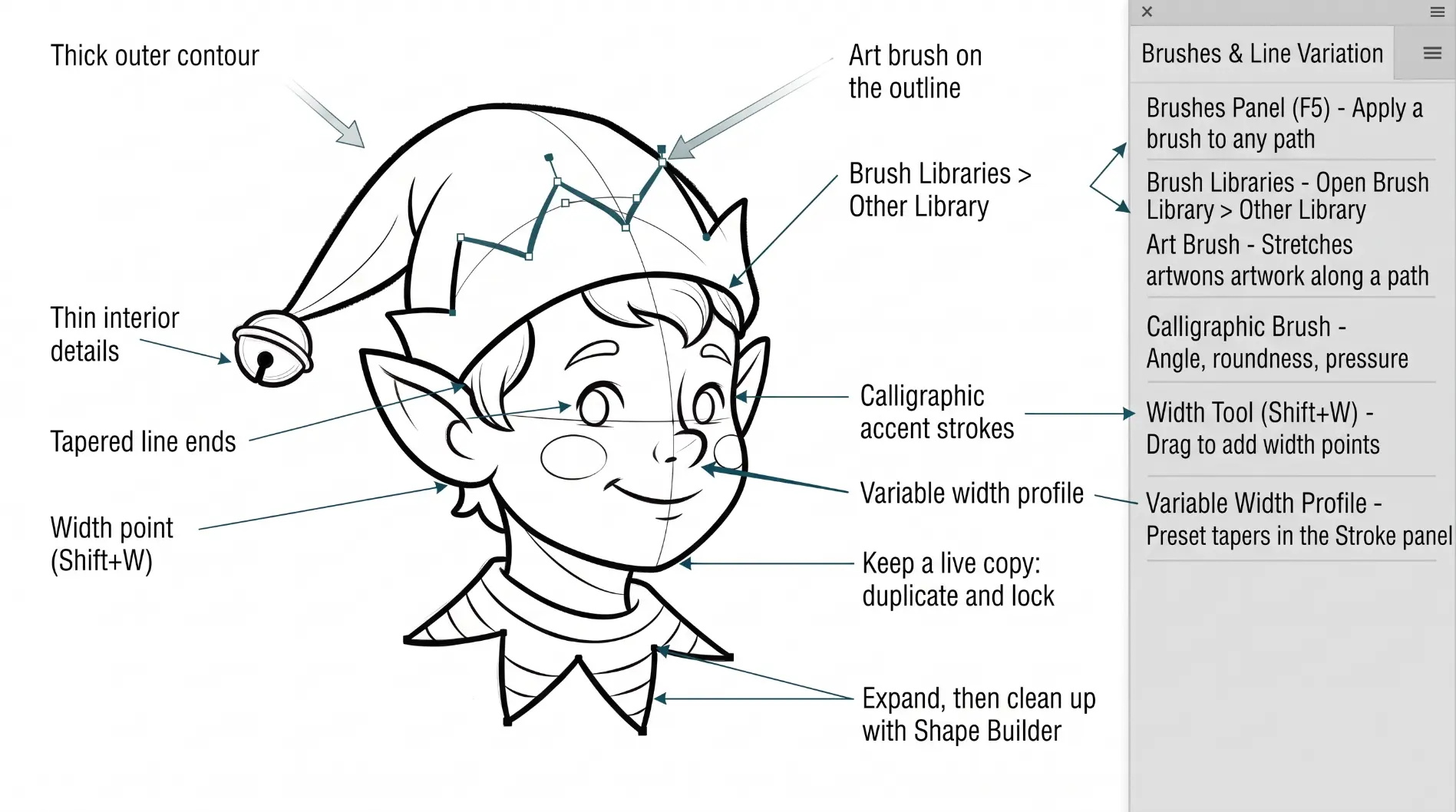
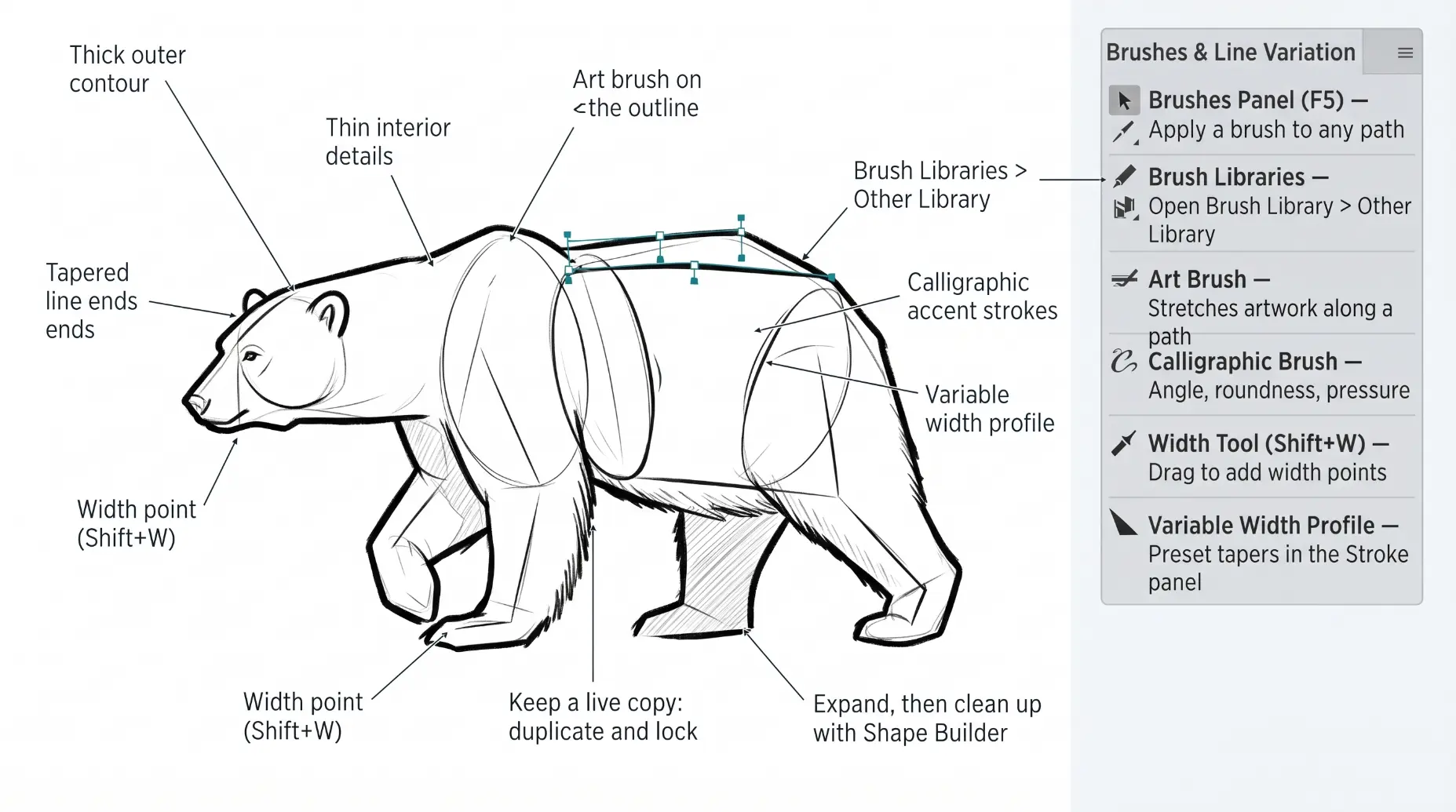
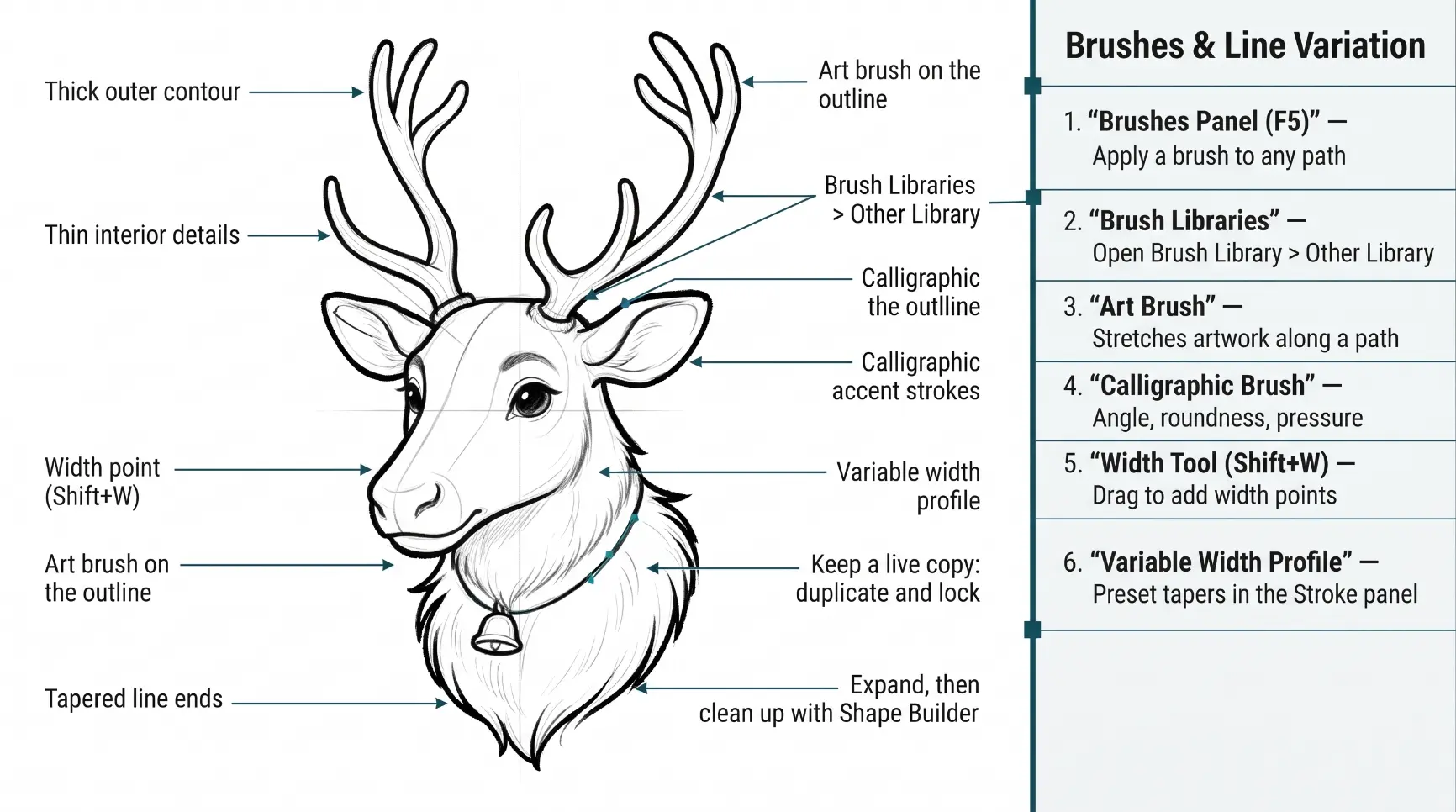
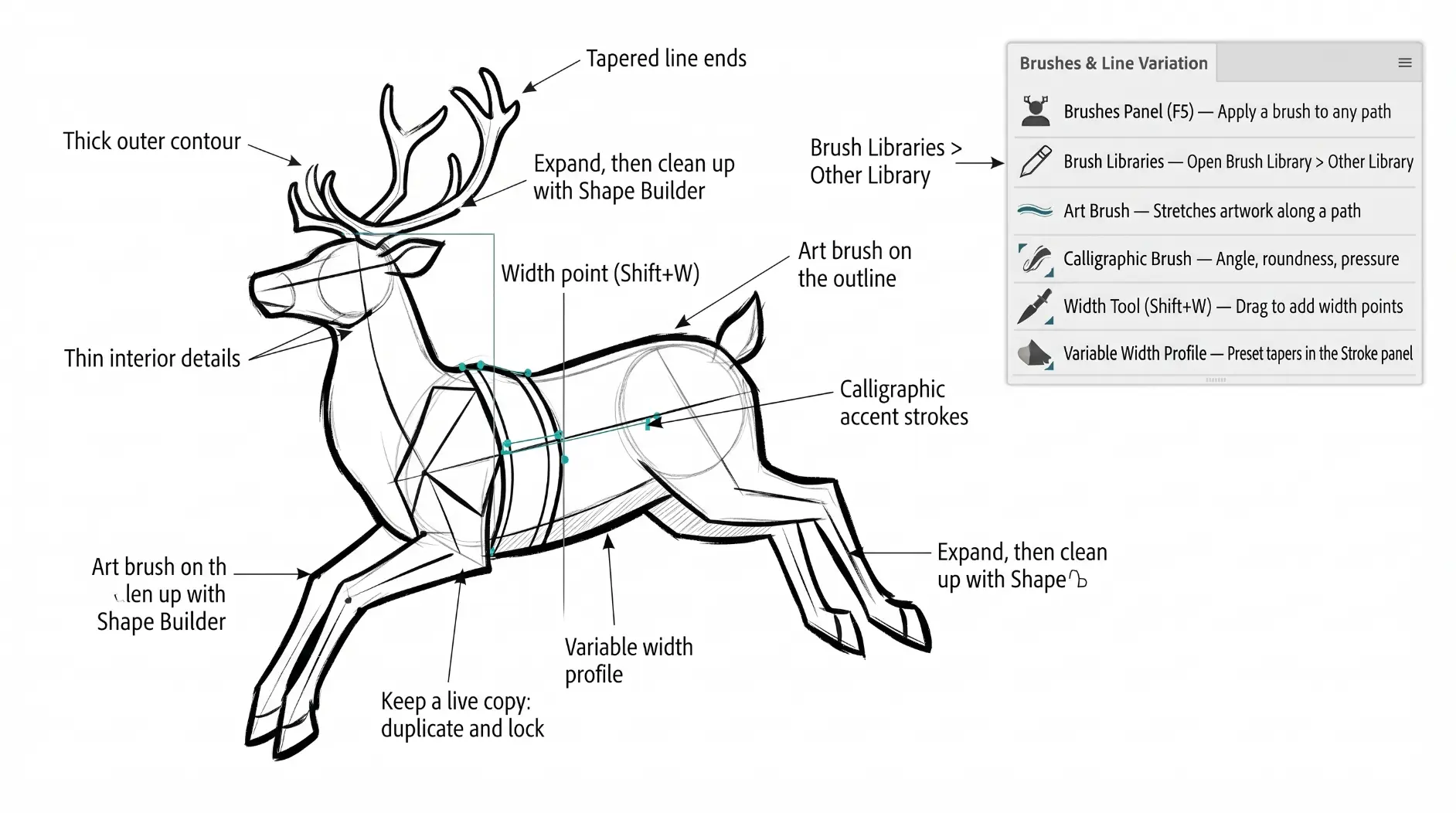
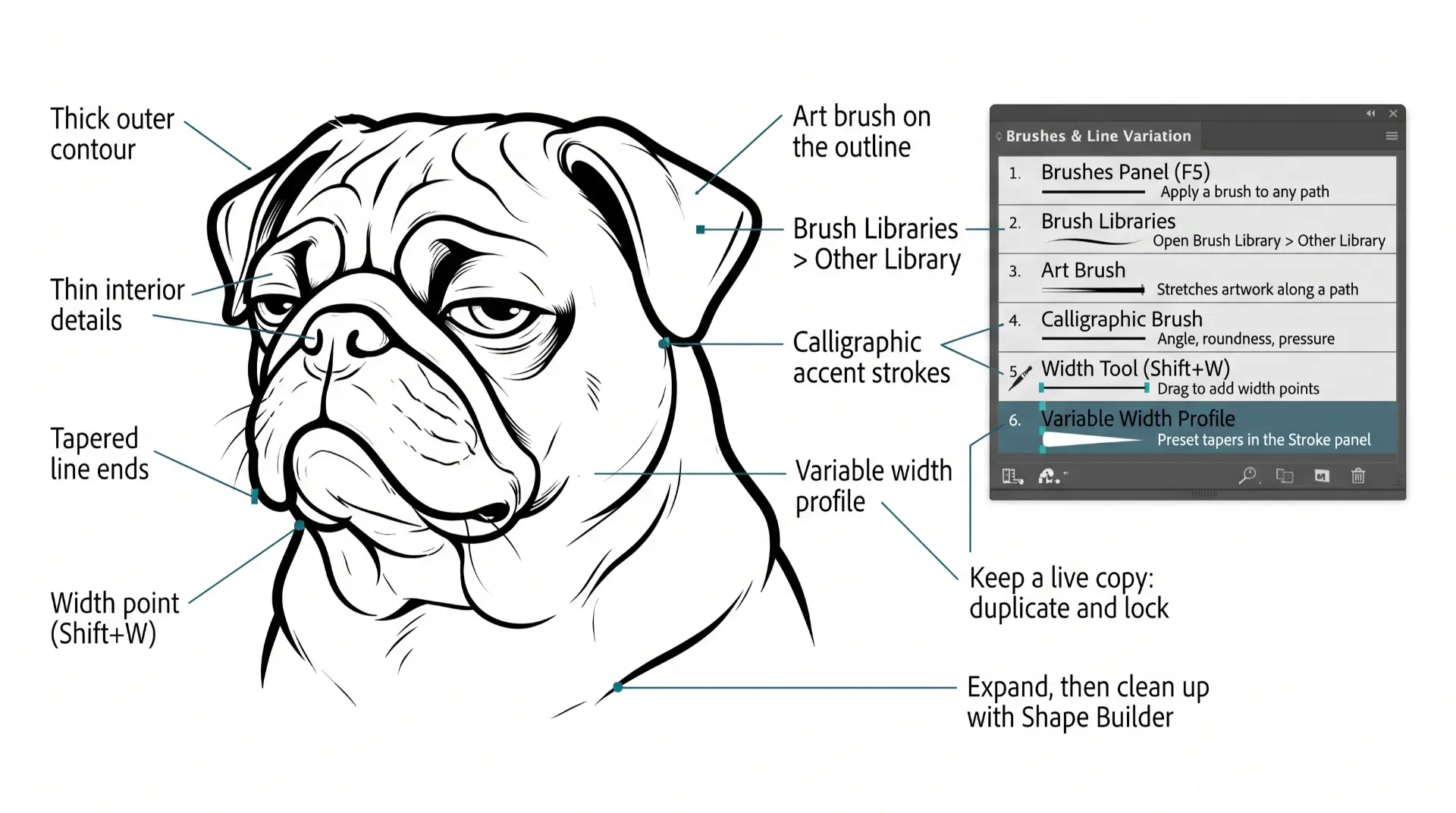
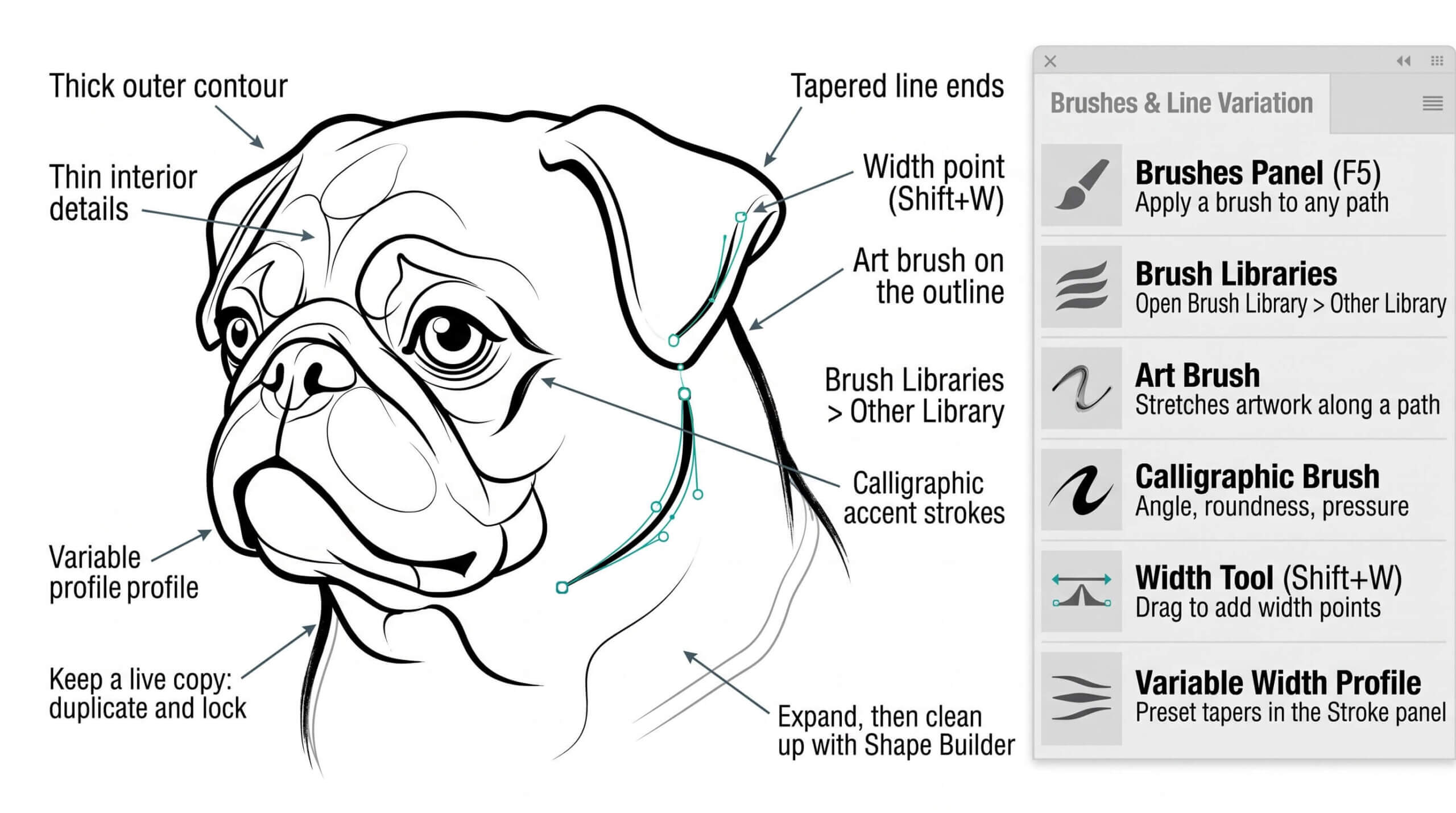
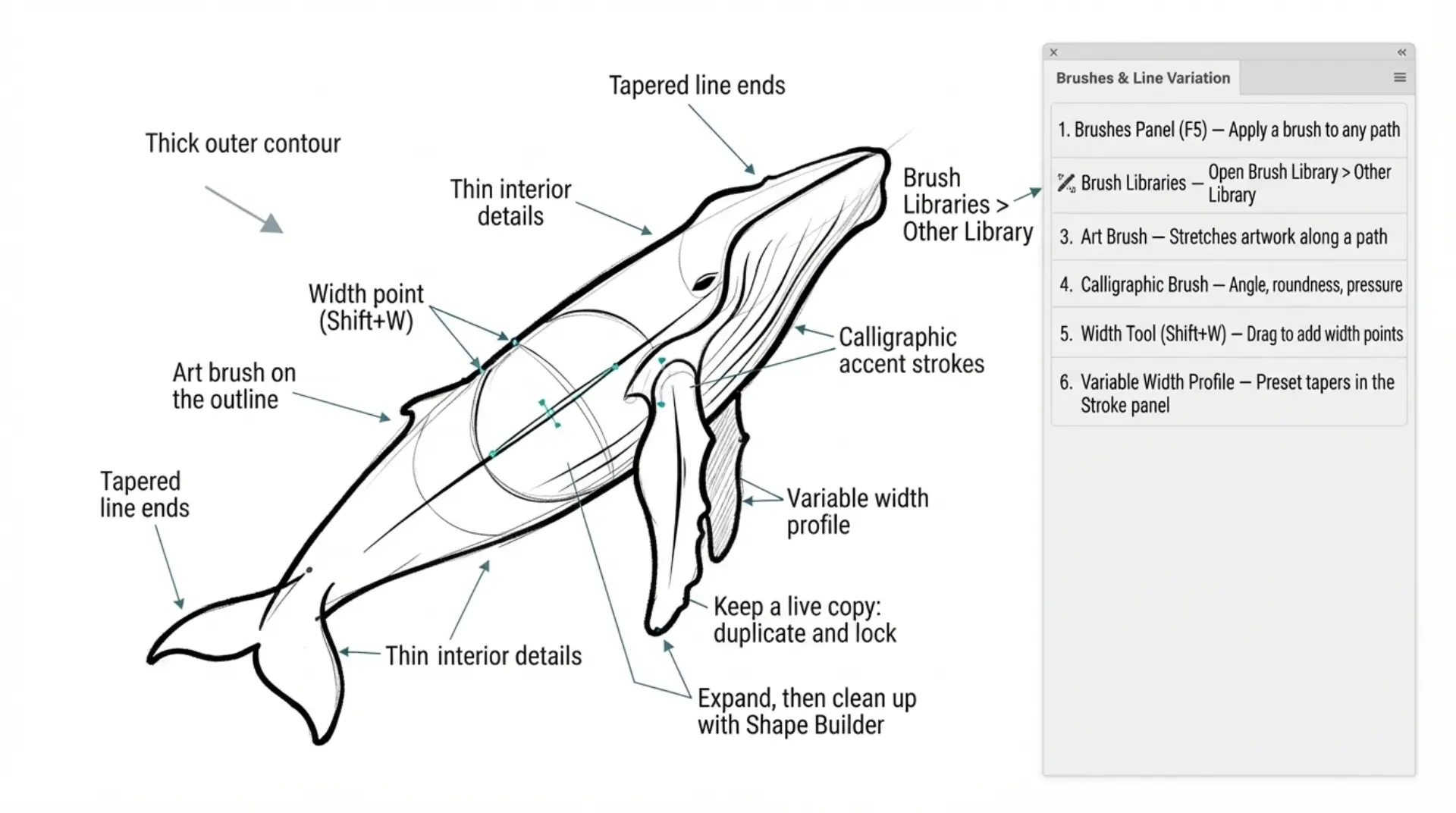
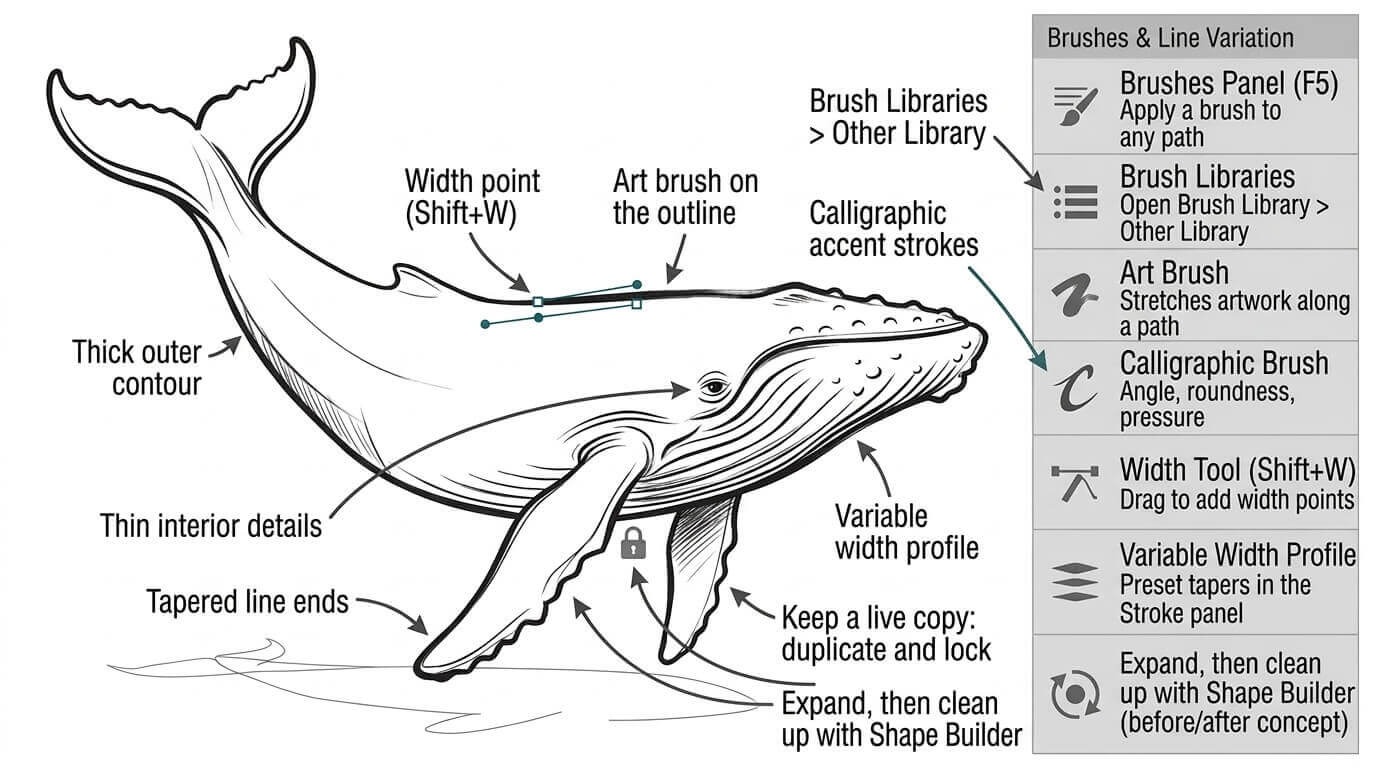
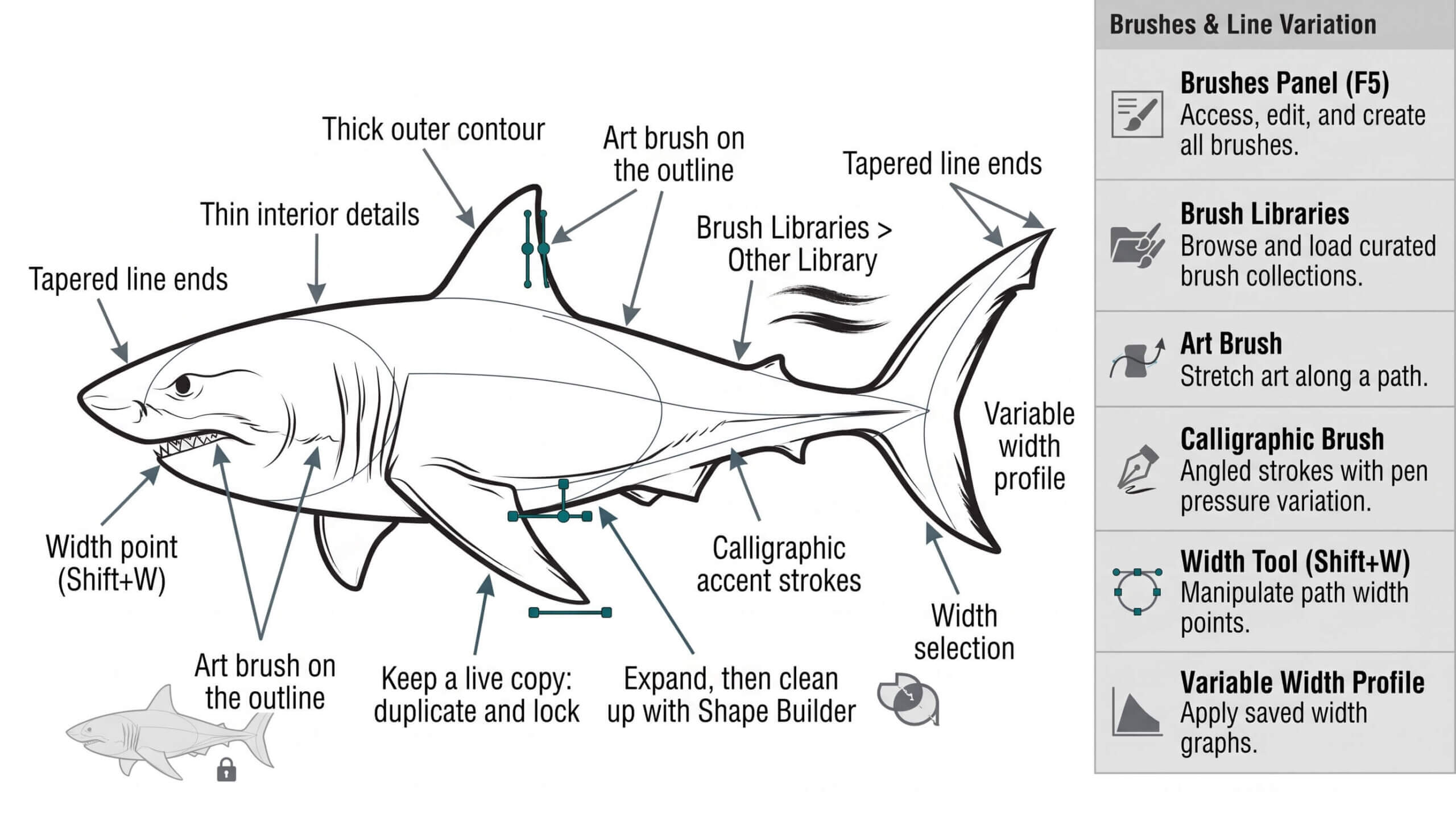
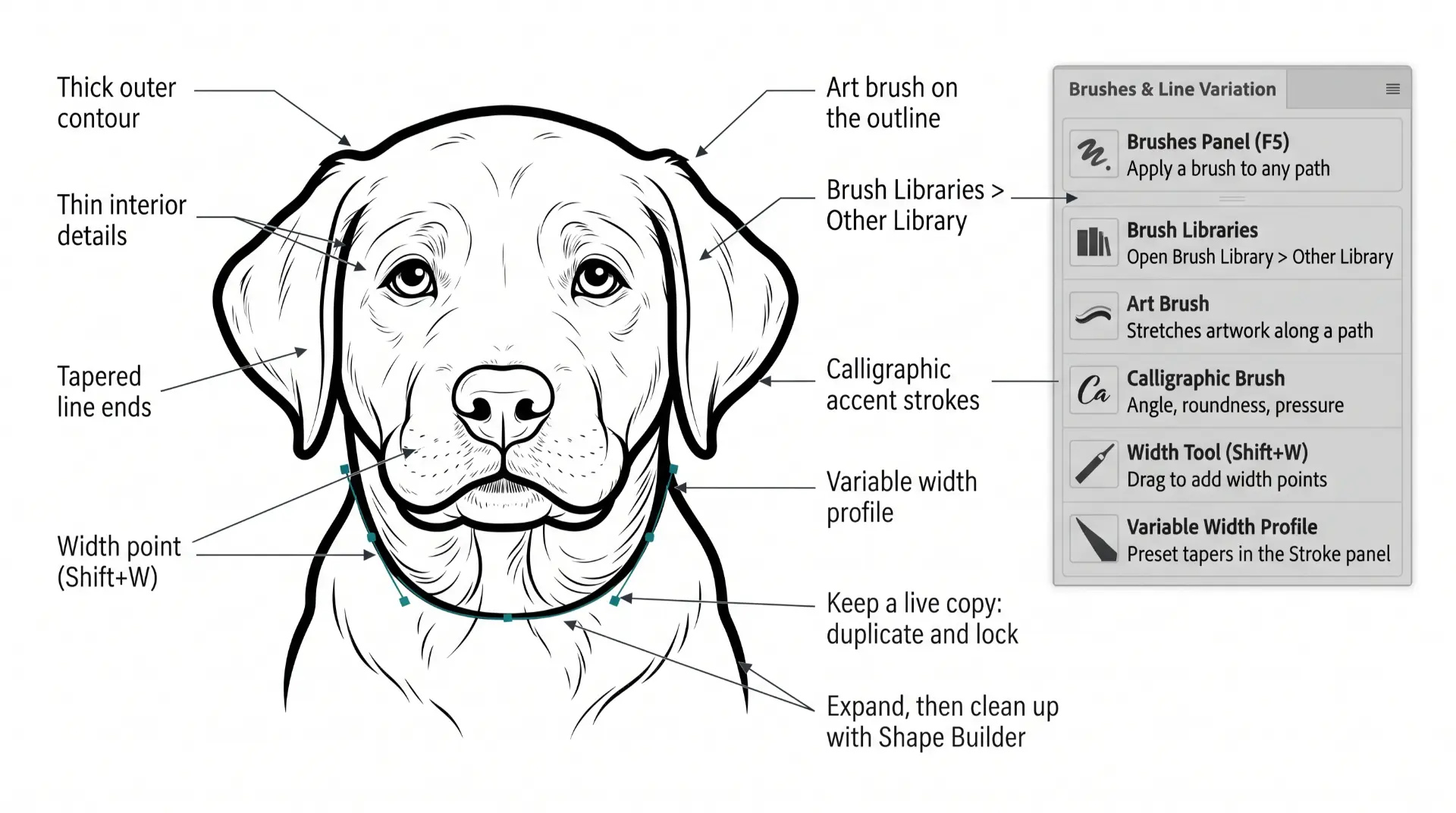
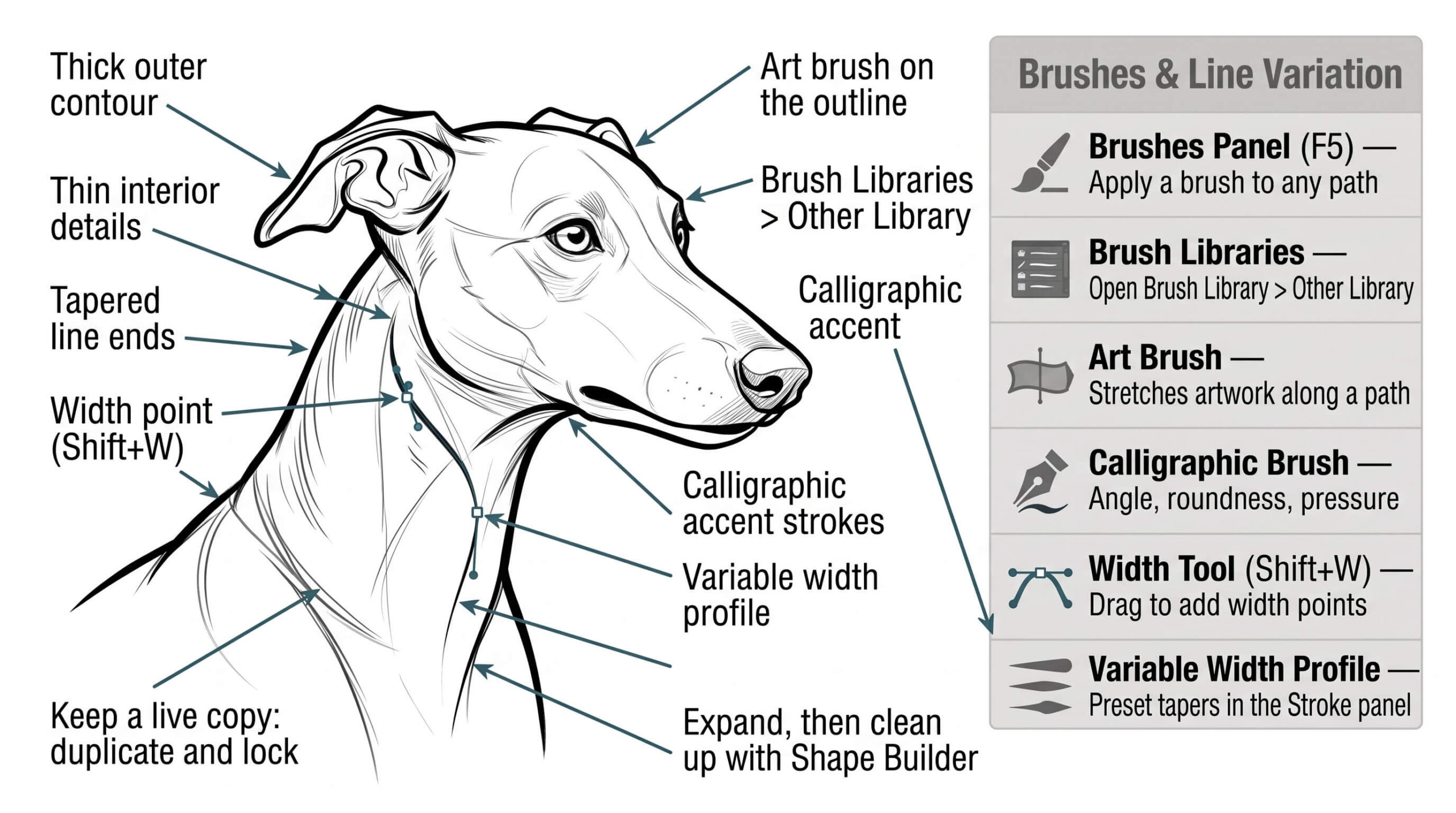
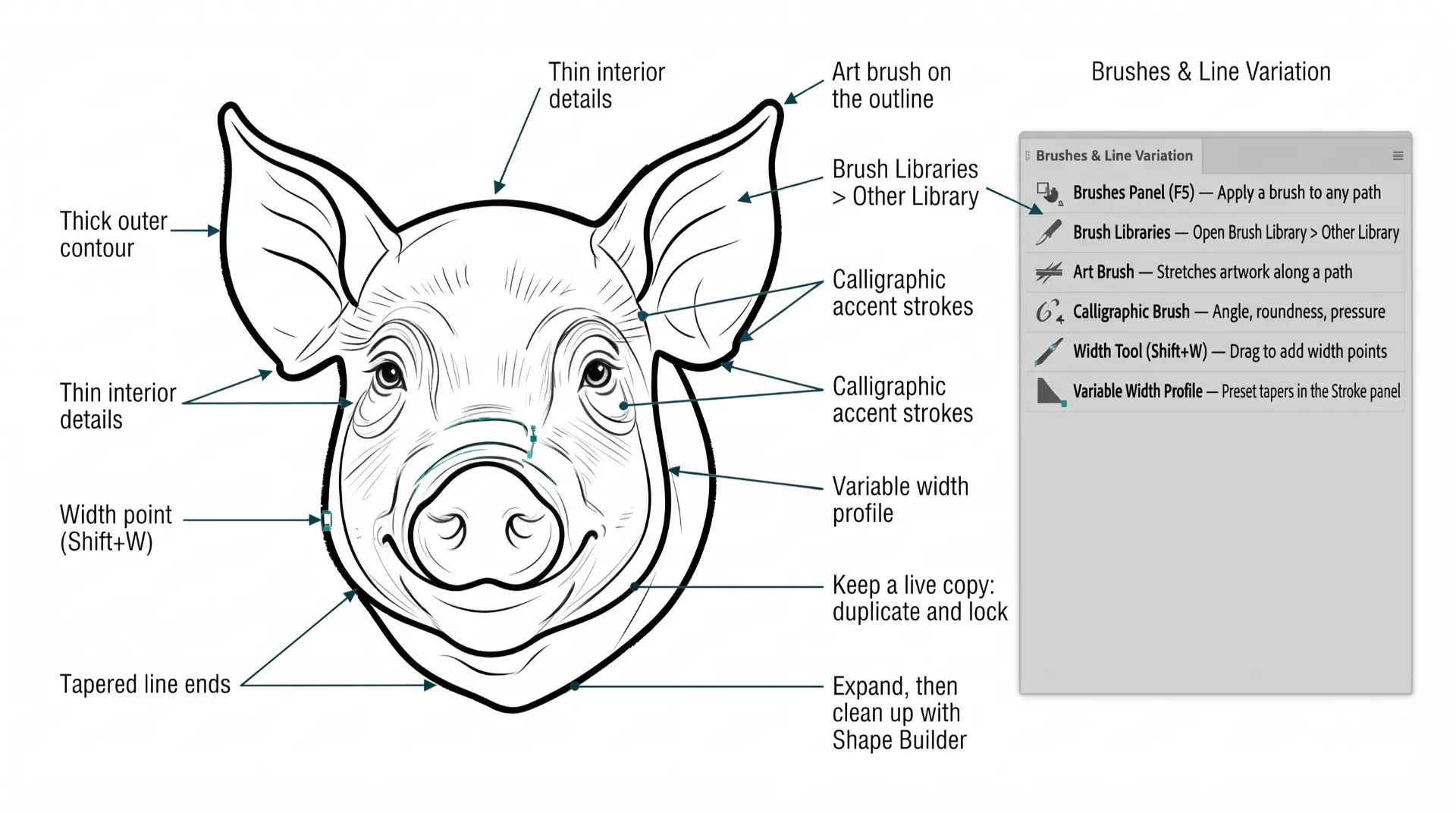
PRACTICE EXERCISE PROMPTS: Select your workflow, type in your subject, and this tool assembles a detailed AI image generation prompt designed specifically for Adobe Illustrator practice exercises.
COLOR PALETTE GENERATOR: Free color palette generator with real color theory — analogous, triadic, complementary & more. Lock colors, export CSS, PNG, or hex codes instantly.
FONT PAIRINGS FINDER: Free font pairing tool for designers and POD sellers. Browse Google Fonts and Adobe Fonts pairings by style — copy the import CSS in one click. No sign-up required.
SOCIAL MEDIA SIZE FINDER: The exact pixel dimensions for every major social platform — feed posts, stories, covers, banners, and profile images. Tap any platform below to see its full specs: dimensions, resolution, color mode, file format, and a quick tip on what to watch for before you design. Covers Instagram, TikTok, YouTube, Facebook, Pinterest, LinkedIn, and X (Twitter).
POD SIZE FINDER: The exact canvas size, resolution, and file format for the 10 most popular print-on-demand products. Tap any product below to see its specs — dimensions, DPI, color mode, file format, and a quick tip on what to watch for before you export. Covers apparel, drinkware, home & decor, and accessories.
ARTBOARD SIZE FINDER: Not sure what size to set up your artboard before you start designing? Tap a card below to see the exact pixel dimensions, color mode, and resolution for logos, brand marks, profile icons, and common digital canvas sizes — so you're set up correctly in Adobe Illustrator before you draw a single line.
WATERMARK TOOLKIT: Add a text or logo watermark to a whole batch of images before you post them. Tile it across the image so it is hard to crop out, create small web-size previews, and embed your copyright info inside the file. It runs entirely in your browser, so your artwork is never uploaded. A watermark discourages casual copying but cannot stop a determined thief, so use it as one layer of protection.
T-SHIRT PLACEMENT CHECKER: See exactly how your design will sit on a t-shirt before you upload it. Choose full front, left chest, back or your own print area, check the printed size in inches and the effective DPI, test it on shirt colors, and export a print-ready PNG sized to the print area. It runs entirely in your browser, so your artwork is never uploaded. Print areas are typical starting sizes, so always confirm with your print provider.
WHITE-TO-TRANSPARENT BACKGROUND: Turn a white background into a transparent PNG in seconds. Remove just the white around your design or every white pixel, smooth the edges so there is no white halo, then preview it on shirt colors before you print. It runs entirely in your browser, so your artwork is never uploaded.
SOCIAL MEDIA CROPPER TOOL: Crop one image, or a whole batch, to every social media size at once. Pick platforms like Instagram, Pinterest, YouTube and Facebook, drag the preview to choose what stays in frame, and download every size as a ZIP. It runs entirely in your browser, so your images are never uploaded.
SEAMLESS PATTERN PREVIEWER: See exactly how your design repeats before you send it to print. Choose a grid, half-drop or half-brick layout, turn on the seam check to spot gaps and mismatches, then download a full-size pattern sheet as a PNG. It runs entirely in your browser, so your artwork is never uploaded.
POD PRINT READY CHECKER: Find out if your design is ready to upload before you waste a print order. Drop in your file, choose where it prints, and get a clear checklist covering resolution and DPI, transparent background, white backgrounds, light halos on the edges, canvas margins and file type.
IMAGE FORMAT CONVERTER: Convert a whole batch of images between PNG, JPG and WebP in one click. Set the quality, choose a background color for transparent areas, and download everything as a ZIP. It runs entirely in your browser, so your images are never uploaded.
IMAGE COMPRESSOR: Shrink a whole batch of images in one click. Use the quality slider, or set a target file size like 200 KB and let the tool find the best quality that fits. It runs entirely in your browser, so your images are never uploaded.
BULK IMAGE RESIZER: Resize a whole batch of photos in one go. Choose a preset for Instagram, Pinterest, YouTube, Etsy or print-on-demand, or enter your own size, then download everything as a ZIP. It runs entirely in your browser, so your photos are never uploaded.
Every tool below runs right in your browser. There's no account to create, nothing to install, and your images never leave your device. Find the tools by the part of your workflow they help with.
Illustrator Practice and Design Setup
Plan a practice session, choose your colors and type, and set up your artboard before you draw.
- Illustrator Practice Prompt Builder: build AI reference-image prompts for Pen Tool and other Illustrator exercises.
- Color Palette Generator: build palettes with real color theory, lock colors, and export CSS, PNG, or hex codes.
- Font Pairing Finder: browse Google Fonts and Adobe Fonts pairings by style and copy the import CSS.
- Artboard Size Finder: the pixel dimensions, color mode, and resolution to set up before you design.
Social Media Image Tools
Size and crop your artwork for every platform without opening a design app.
- Social Media Size Guide: the exact pixel dimensions for every major platform.
- Social Media Image Cropper: crop one image or a whole batch to every platform at once.
Print-on-Demand Design Tools
Check sizing, placement, backgrounds, and repeats before you upload to a print-on-demand shop.
- Print-on-Demand Size Guide: canvas size, resolution, and file format for the 10 most popular POD products.
- T-Shirt Design Placement Guide: preview full front, left chest, back, or a custom print area before you upload.
- White to Transparent PNG Converter: remove a white background and keep smooth edges.
- Seamless Pattern Previewer: preview grid, half-drop, and half-brick repeats and check the seams.
- POD Print-Ready Checker: drop in your file, choose where it prints, and get a checklist before you order.
Image Compression, Conversion, and Protection
Prepare whole batches of images for your website, shop listings, or email, and protect your work before you post it.
- Image Compressor: shrink JPG, PNG, and WebP files to a target file size.
- Image Format Converter: convert batches between PNG, JPG, and WebP.
- Bulk Image Resizer: resize a whole batch of photos in one step.
- Watermark and Copyright Tool: add a tiled text or logo watermark to a whole batch of images.