DIGITAL DOWNLOADS: Many of you are jumping over from YouTube looking to download our Adobe Illustrator Brushes and Textures Folders. Digital Downloads will come as Zipped Folders through Teachable. Once you have downloaded and extracted the folders, digital downloads are ready to be used. No Install is required.
PROMPT PACKS: Creative System with Digital Downloads and AI Prompts that work together to speed up your workflow. Access our Creative System Library of Prompts through Teachable. Our Creative System is in a Subscription Model to include Updates. New Prompts and Updates are added on a Weekly - Monthly Basis.
RESOURCE GUIDES: Full-Length Learning Modules include Workflow Guides, Directions, and Action Steps. Start with our Resource Guides inside of Teachable to understand how to apply resources in Adobe Illustrator. New Creative Memberships and Programs launched on May 15, 2026.
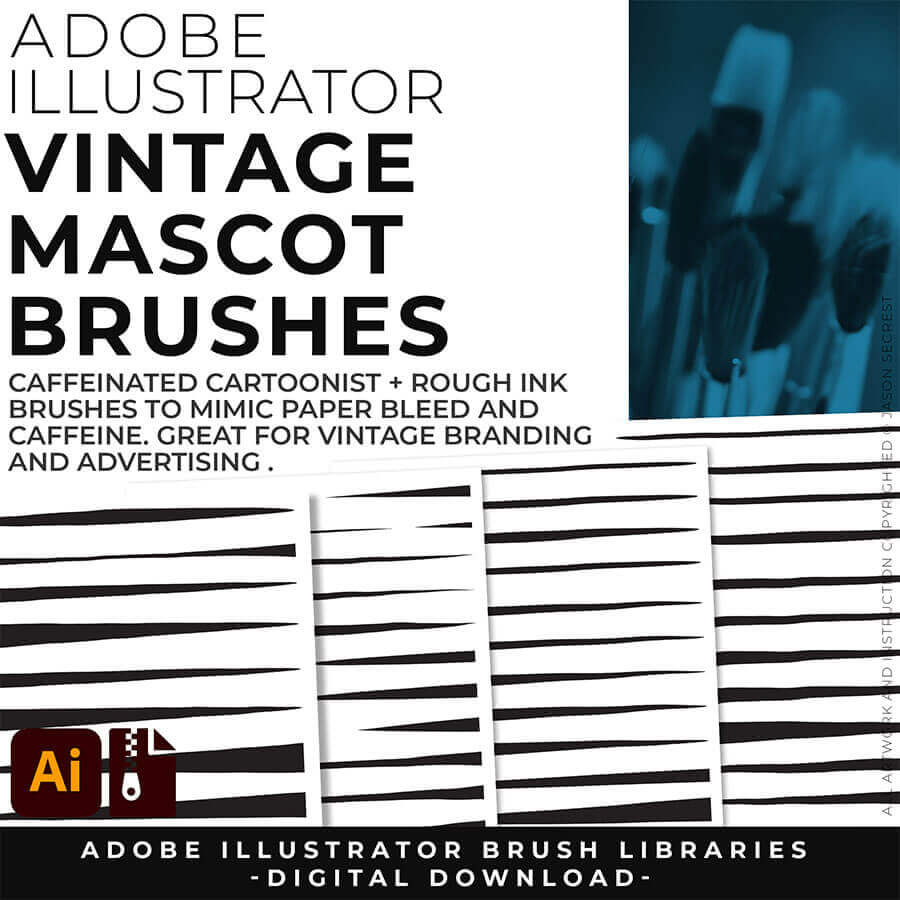
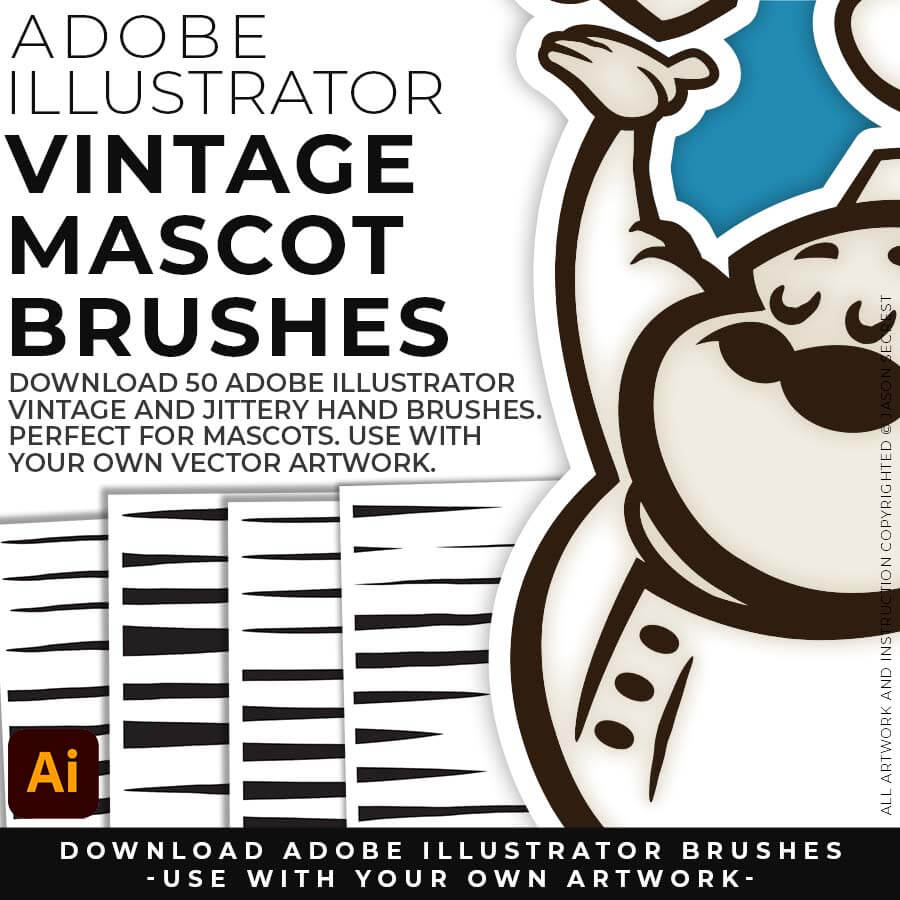
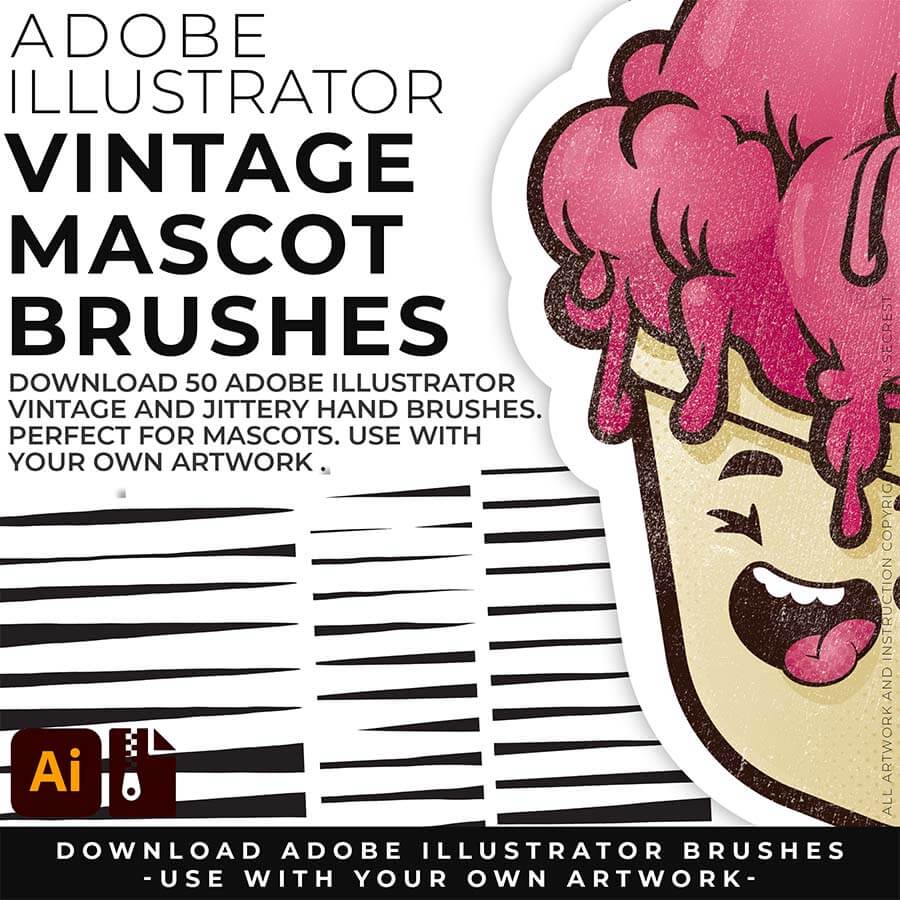
WHO IS THIS FOR: Apparel designers, t-shirt illustrators, mascot designers, and anyone building in Adobe Illustrator who wants their work to look like it was made by hand, not by software.
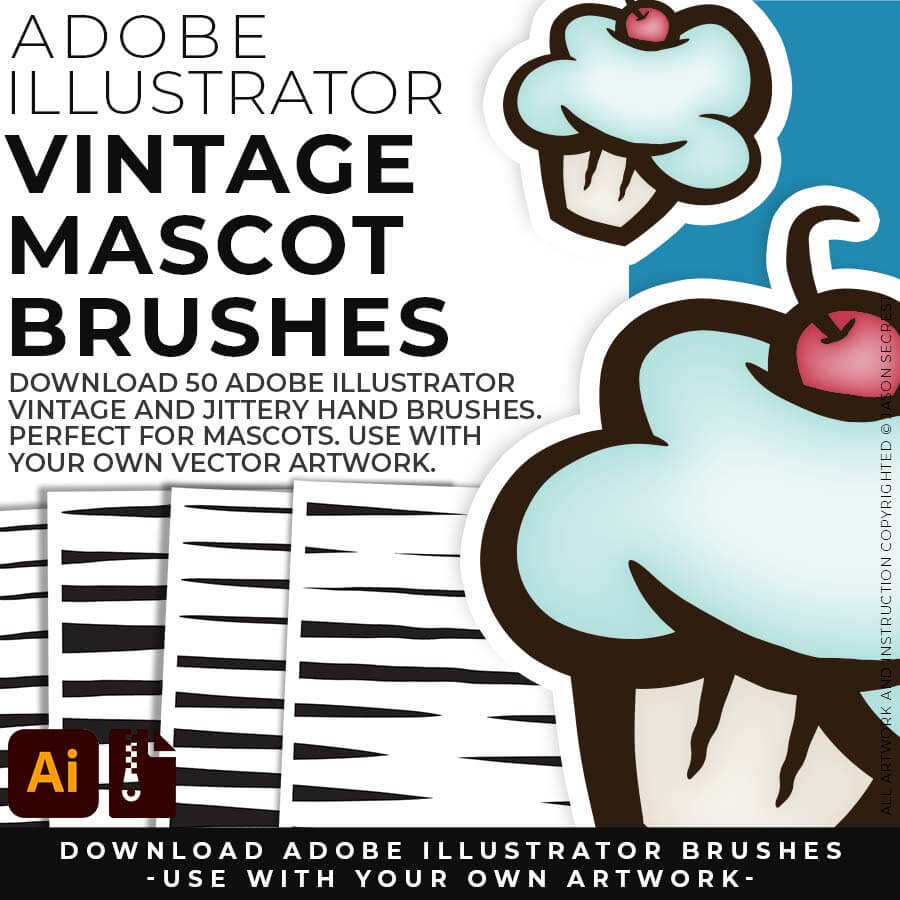
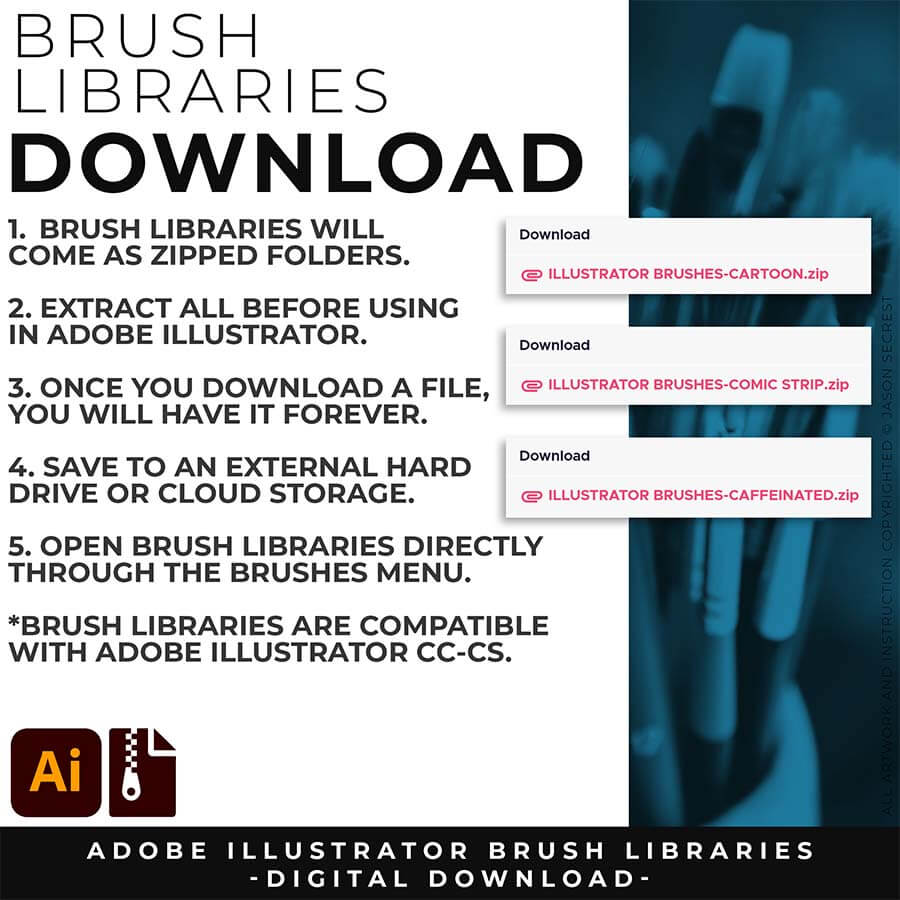
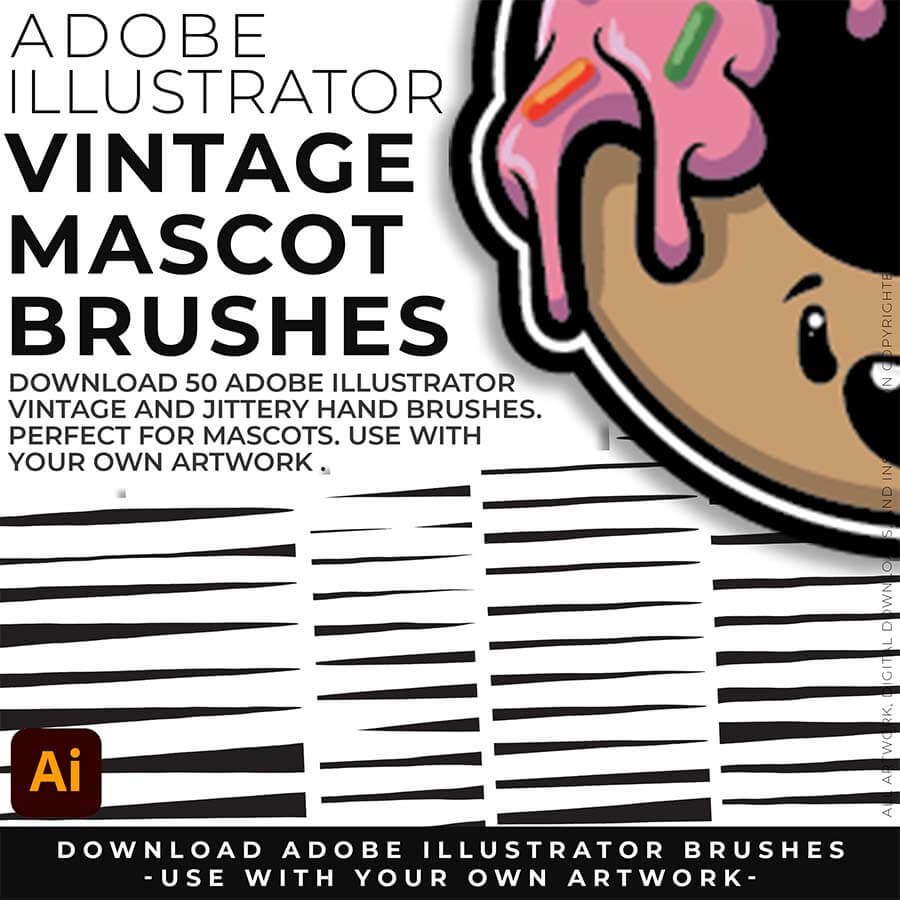
HOW TO USE BRUSHES: No install is necessary - open directly through the Brushes Panel in Adobe Illustrator. Open the Brushes Panel, select a Brush Library, and click the brush to apply to a selected path. Expand when you're ready to edit.
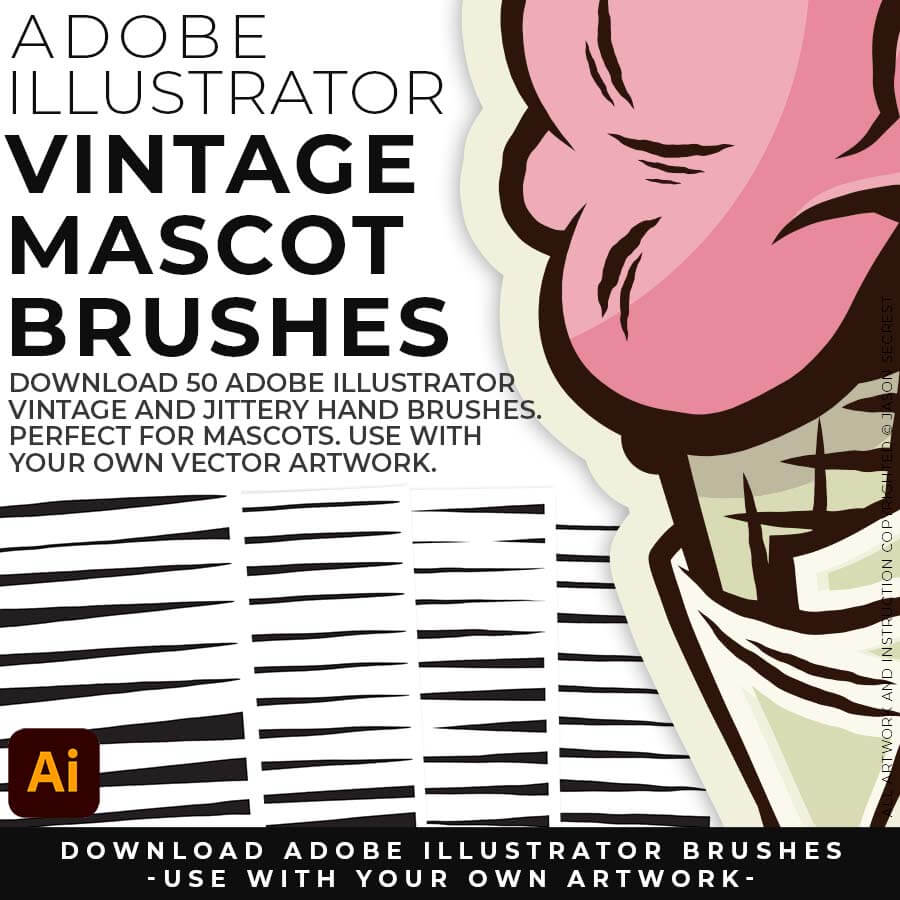
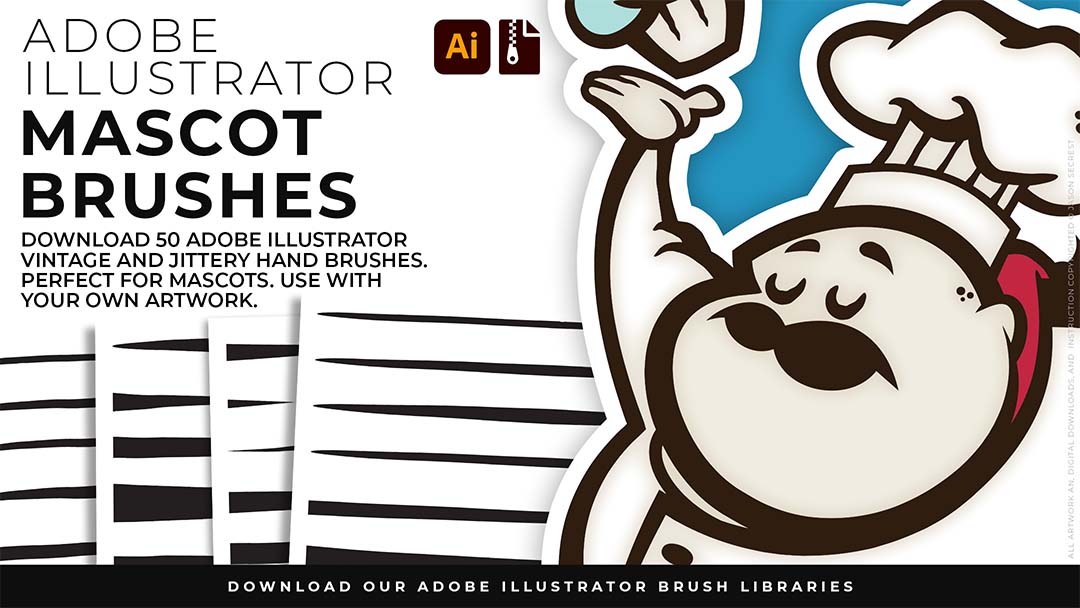
WHAT THIS HELPS YOU DO: You apply Rough Ink to your mascot outline. The line already has texture and organic variation. You run the Width Tool. You expand the stroke.
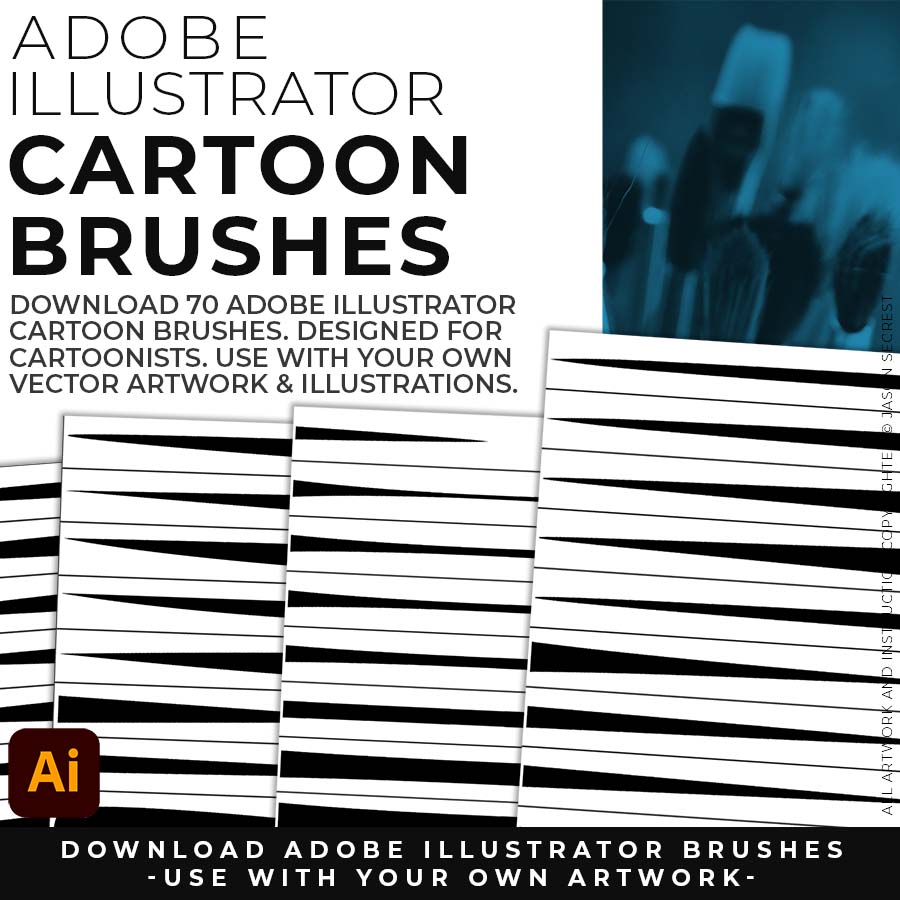
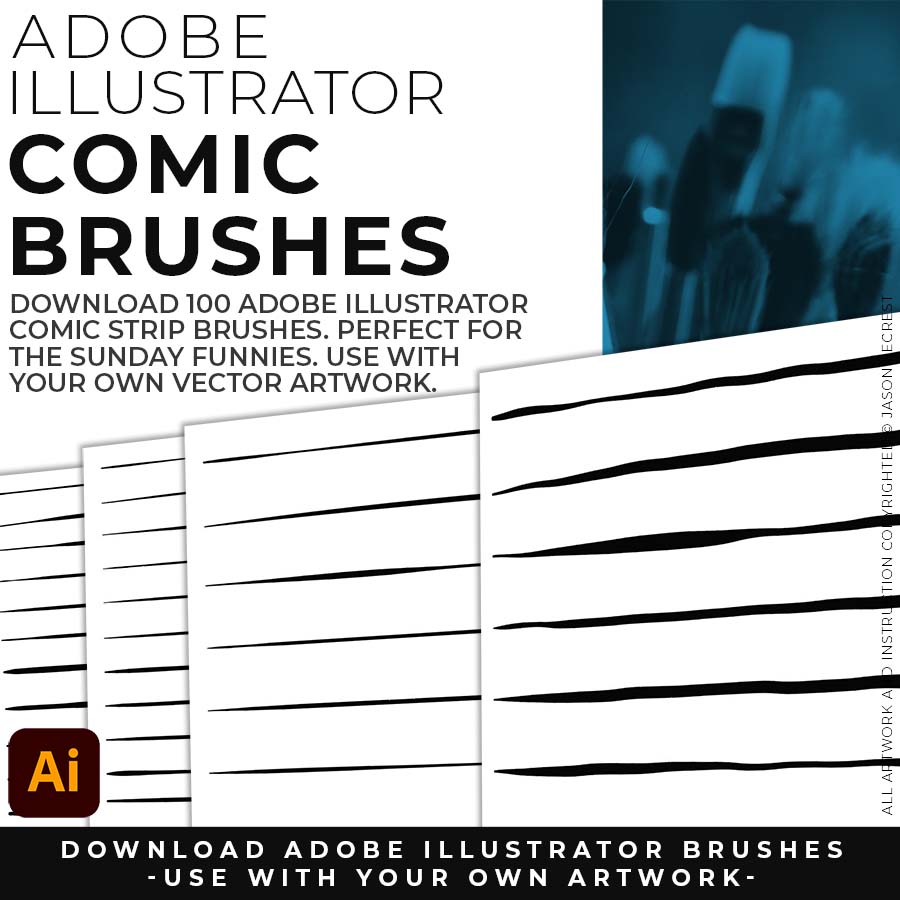
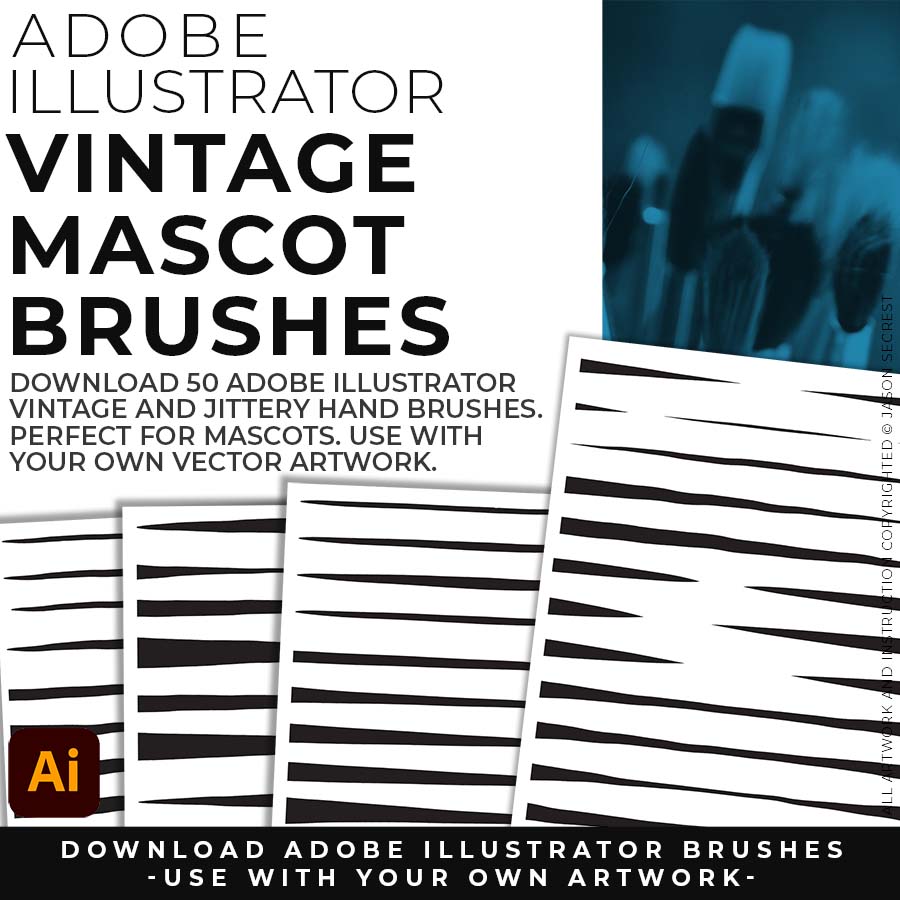
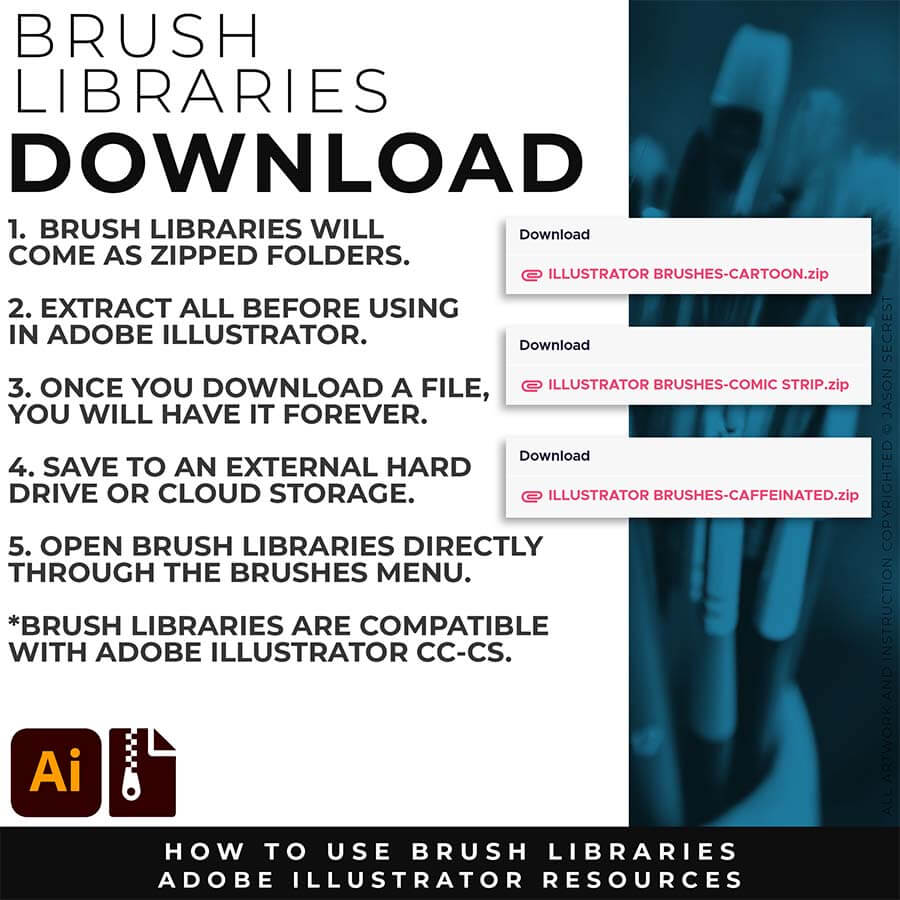
DOWNLOADING BRUSHES: Brush Libraries will come to you as a Zipped Folder. Extract All before using in Adobe Illustrator. No Install is required. Just open the Brush Libraries directly through the Brushes Panel in Aodbe Illustrator.
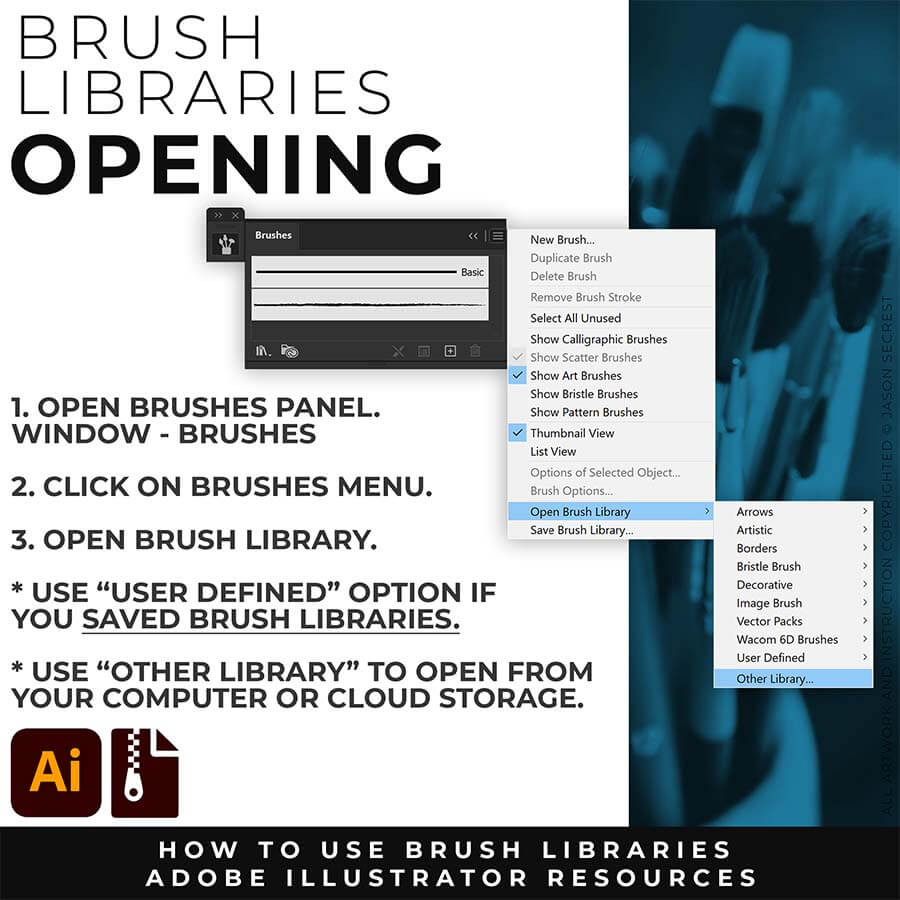
OPENING BRUSHES: Under Window - Select Brushes. In the Brushes Menu, drop-down to Open Brush Library. Hover over it and select "Other Library." A Normal Open Dialogue Box will appear to select and open any Brush Library.
Most people get stuck at one of two spots — they have a sketch, but can't build or ink it cleanly in Adobe Illustrator. This combo fixes both ends.
Attach your rough sketch to get clean, inked linework back from the prompts, then open the file in Illustrator and polish it with the matching brush set.
Everything you need is right here. Apply the prompts to your sketch and move directly to editing.
After creating your Vector (or Image Trace), use Smoothing, Path Simplify, or Expanded Editing Techniques.
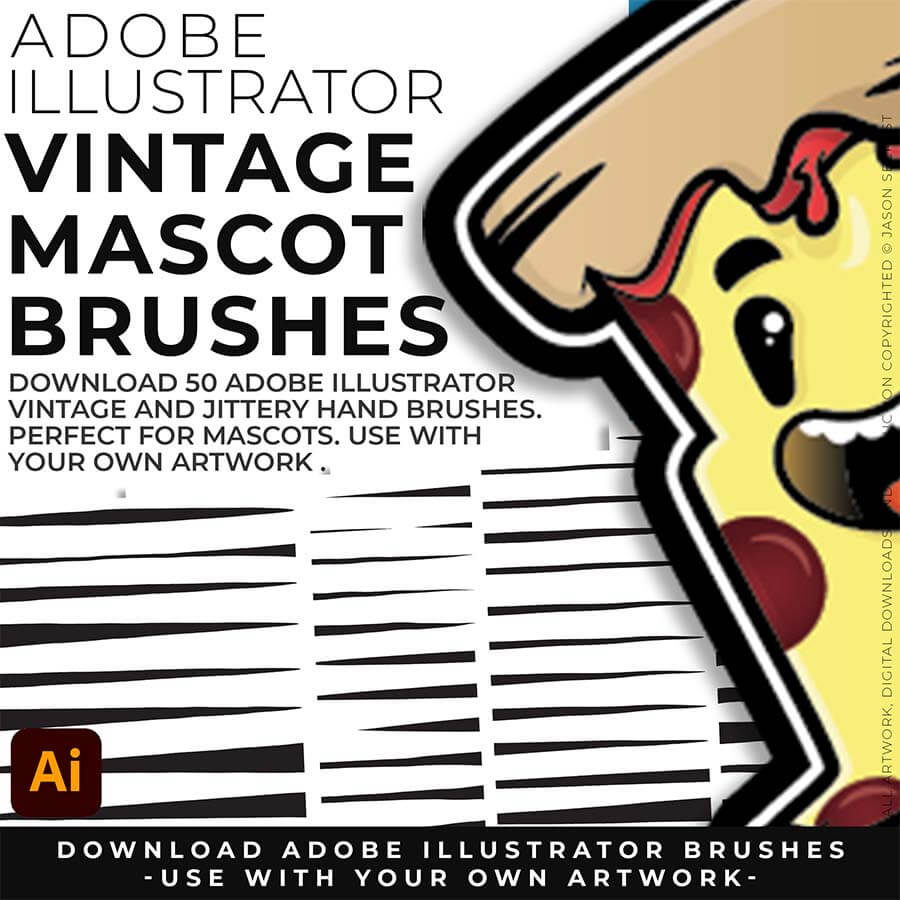
— Add organic, hand-crafted line quality to any mascot or apparel illustration path
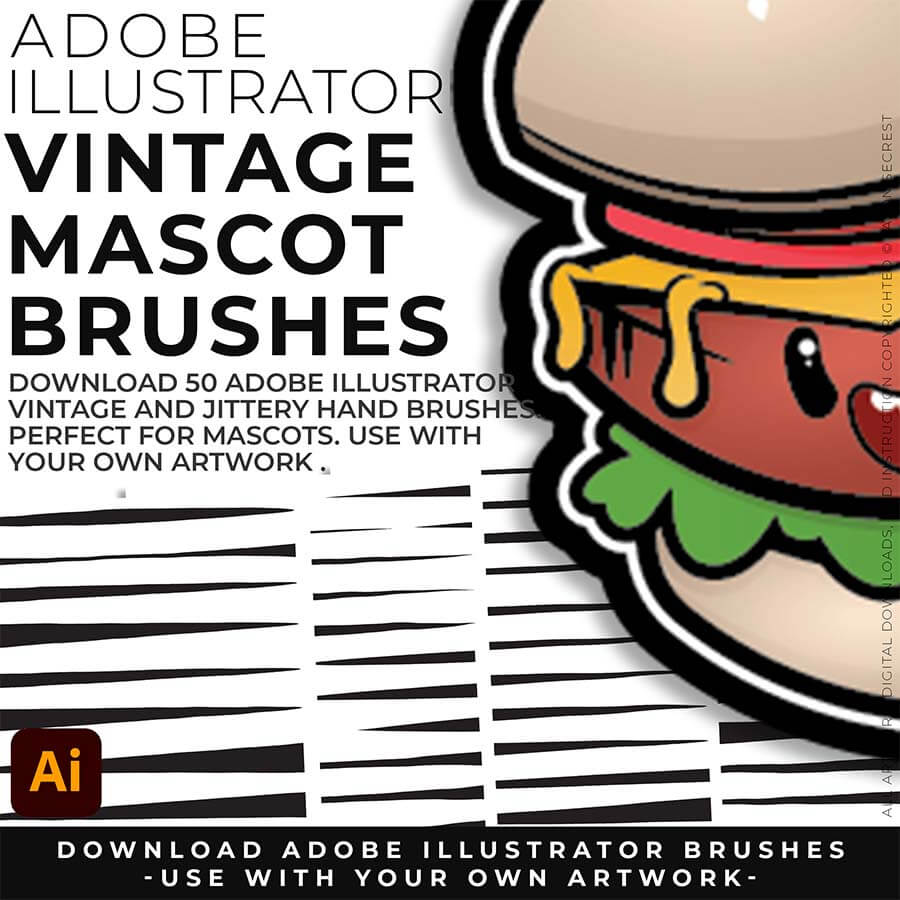
— Work across three sets built for different apparel characters: personality, bold vintage, organic distress
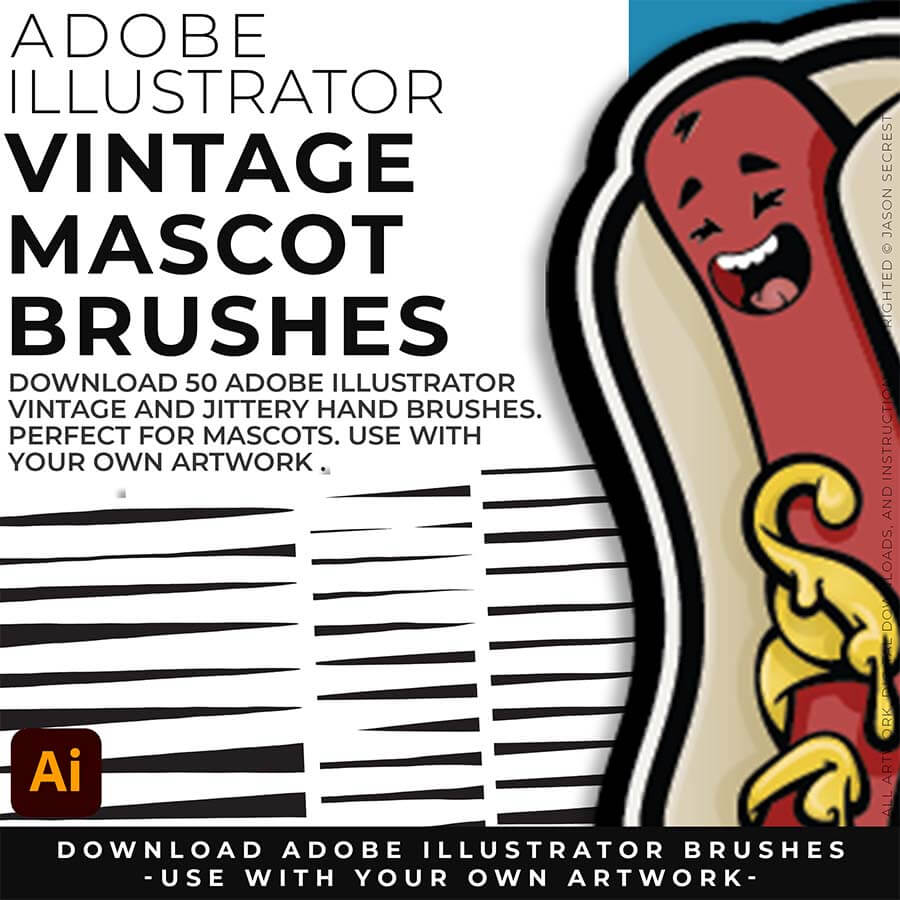
— Build illustrations that look made by hand, not designed on a screen
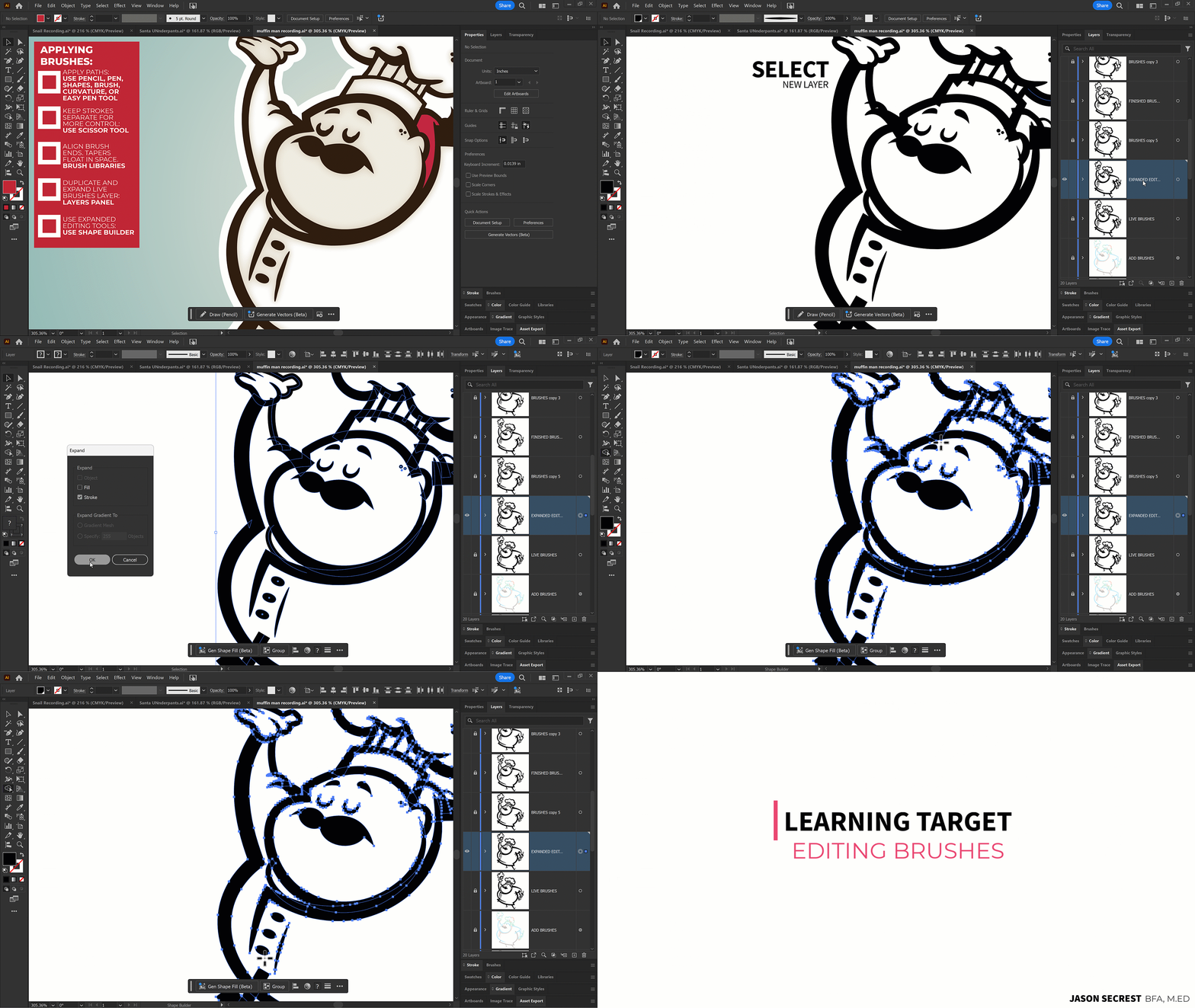
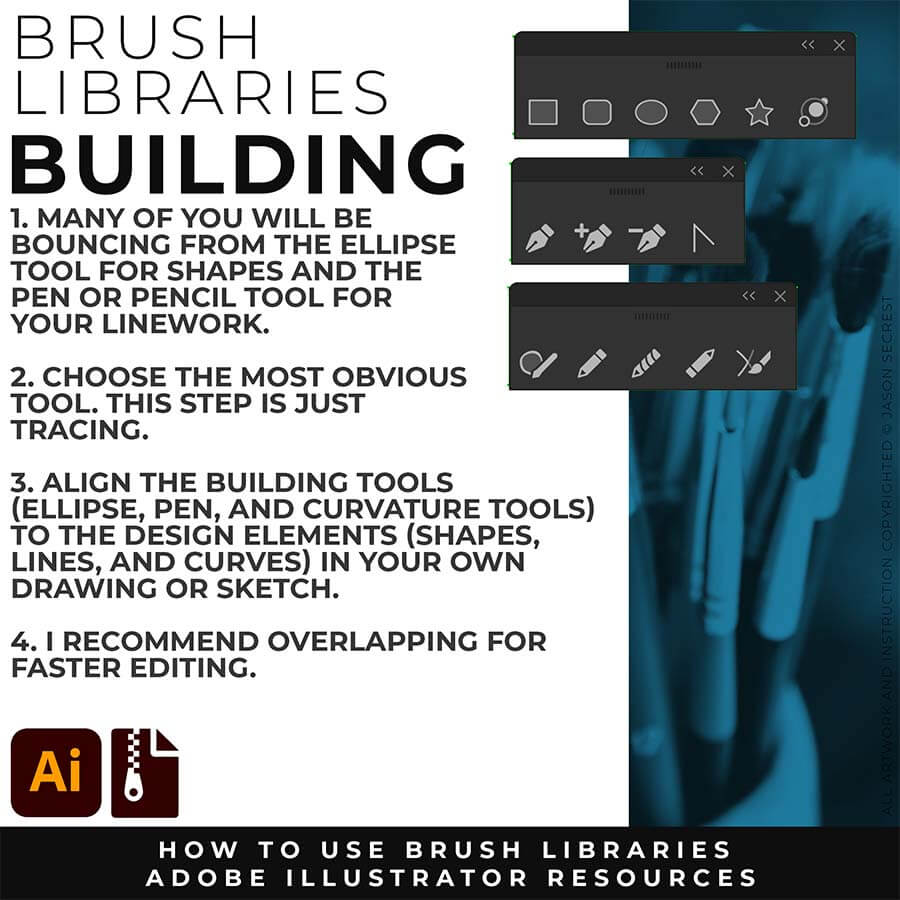
PRIMARY BUILDING: Many of you will use Shape, Pencil, and Pen Tools as your Primary Building Tools. Understand the Building Tools and Options in Adobe Illustrator. Align the Building Tools (Ellipse, Pen, and Curvature Tools) to the Design Elements (Shapes, Lines, and Curves) in your own drawing or sketch.
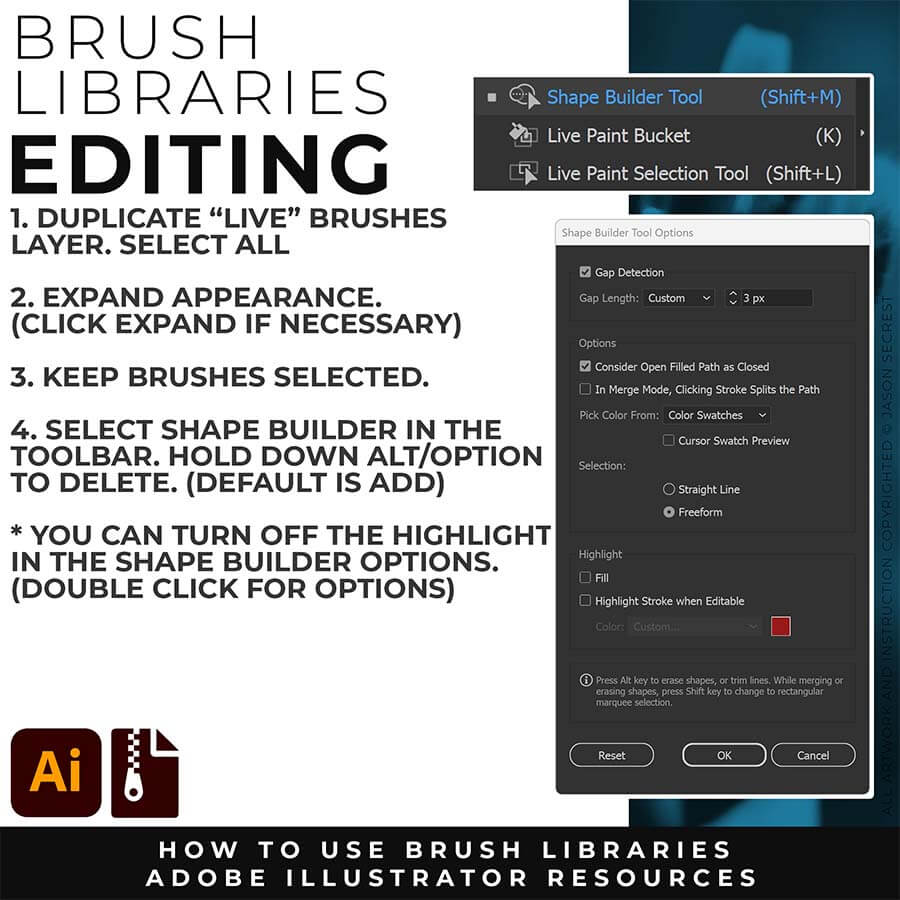
EXPANDED EDITING: To use Shape Builder, you must Duplicate and Expand the Brush Layer. Select All - Expand (Expand Appearance). I recommend duplicating the Brushes Layer to preserve a Live Brush Layer for future edits. Go long with your initial paths to create a larger target for editing with Shape Builder.
SKETCH TO BRUSHES
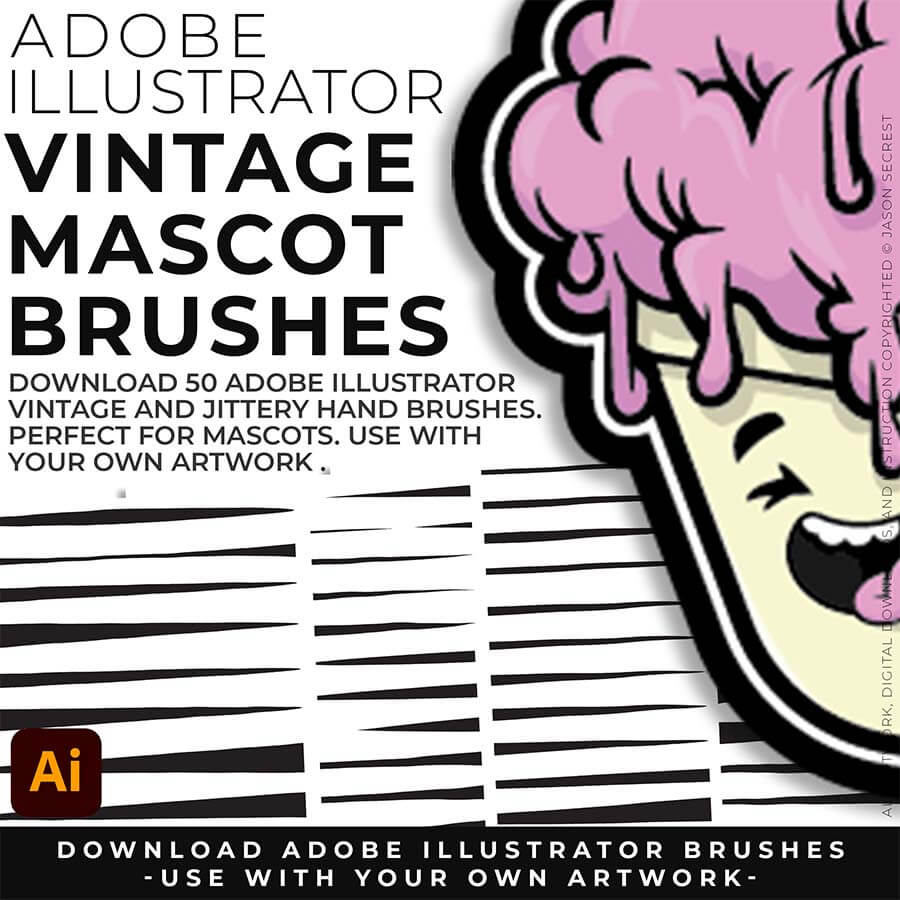
Downloads and Prompts live inside full course format resource guides through Teachable.
Copy the ready-made prompt - One click — no prompt-writing needed.
Paste into your AI tool - Generate the result in seconds.
Subscription Model -Updates Included - 365-day access includes every update to the pack.
ENROLL IN BRUSHES
Membership — includes all future updates. $47/year · Renews automatically · Cancel anytime. Previous purchasers: an active membership is required for access. Enroll or renew to continue. Digital products are non-refundable. See Terms & Conditions.