BEGINNER GUIDE

ADOBE ILLUSTRATOR

Download our ADOBE ILLUSTRATOR BRUSHES + RESOURCES to Follow Along with our Tutorials or use them with Your Own Vector Artwork.
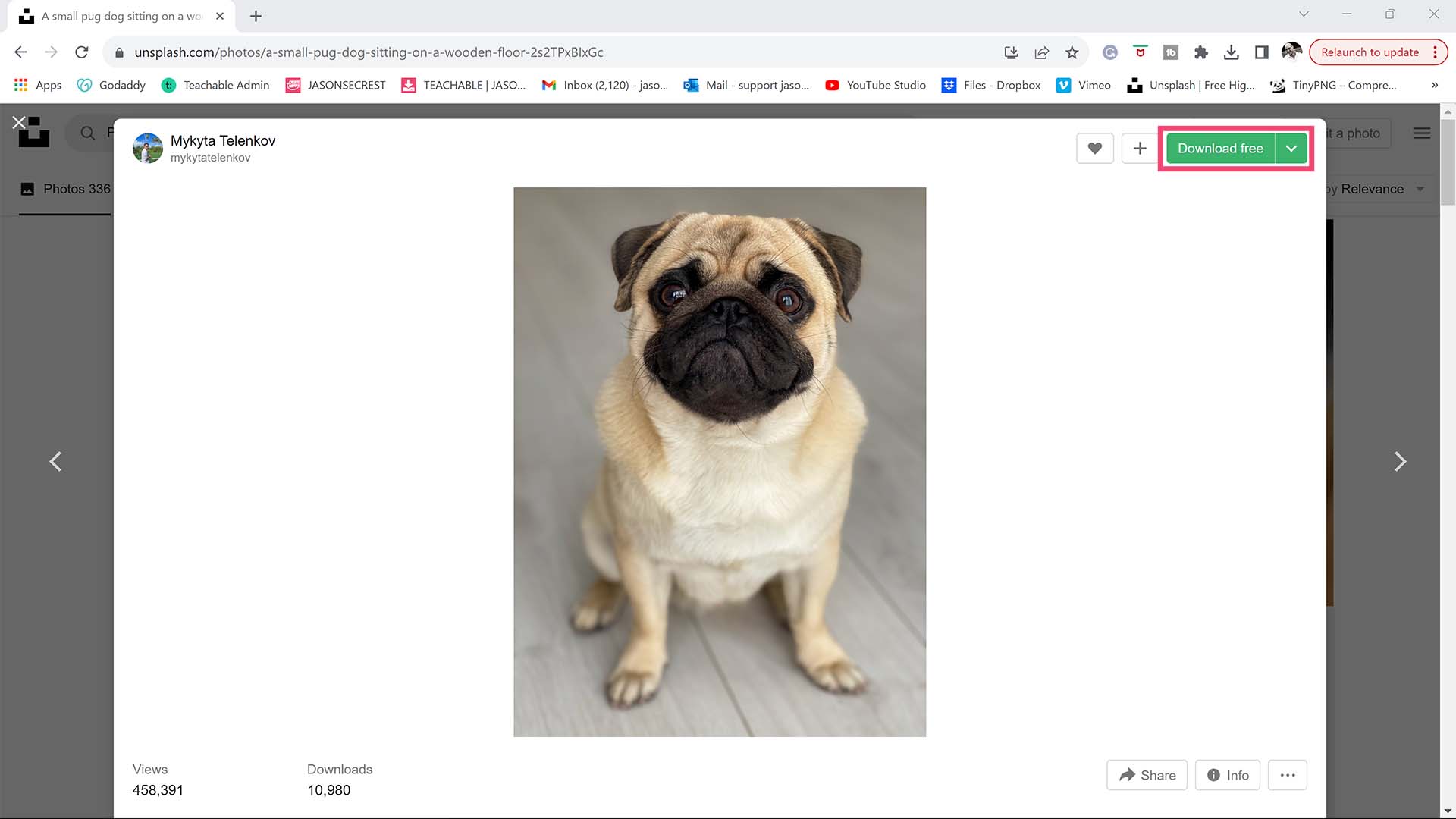
BEGINNER: The major decision you'll need to make is your starting point and build mode. First, determine whether you have drawings and sketches ready to use, or if you will be starting from stock photos. We are looking to align the starting point, build mode, and export size. 
INTERMEDIATE: The purpose of our Beginner Guides is to provide an overview of a workflow, allowing you to see the steps in sequence. These are designed to assist you as you go through our Free Tools and Workflow Guides. Clarifying these details will simplify your learning process in Adobe Illustrator.  
ADVANCED: Pay attention to the Sequence of Events, Resources, and Tool Options as it relates to building a "Workflow." As you create your artwork, outline the steps in your workflow. Start with an initial workflow, then look to streamline or add AI components. 
Image

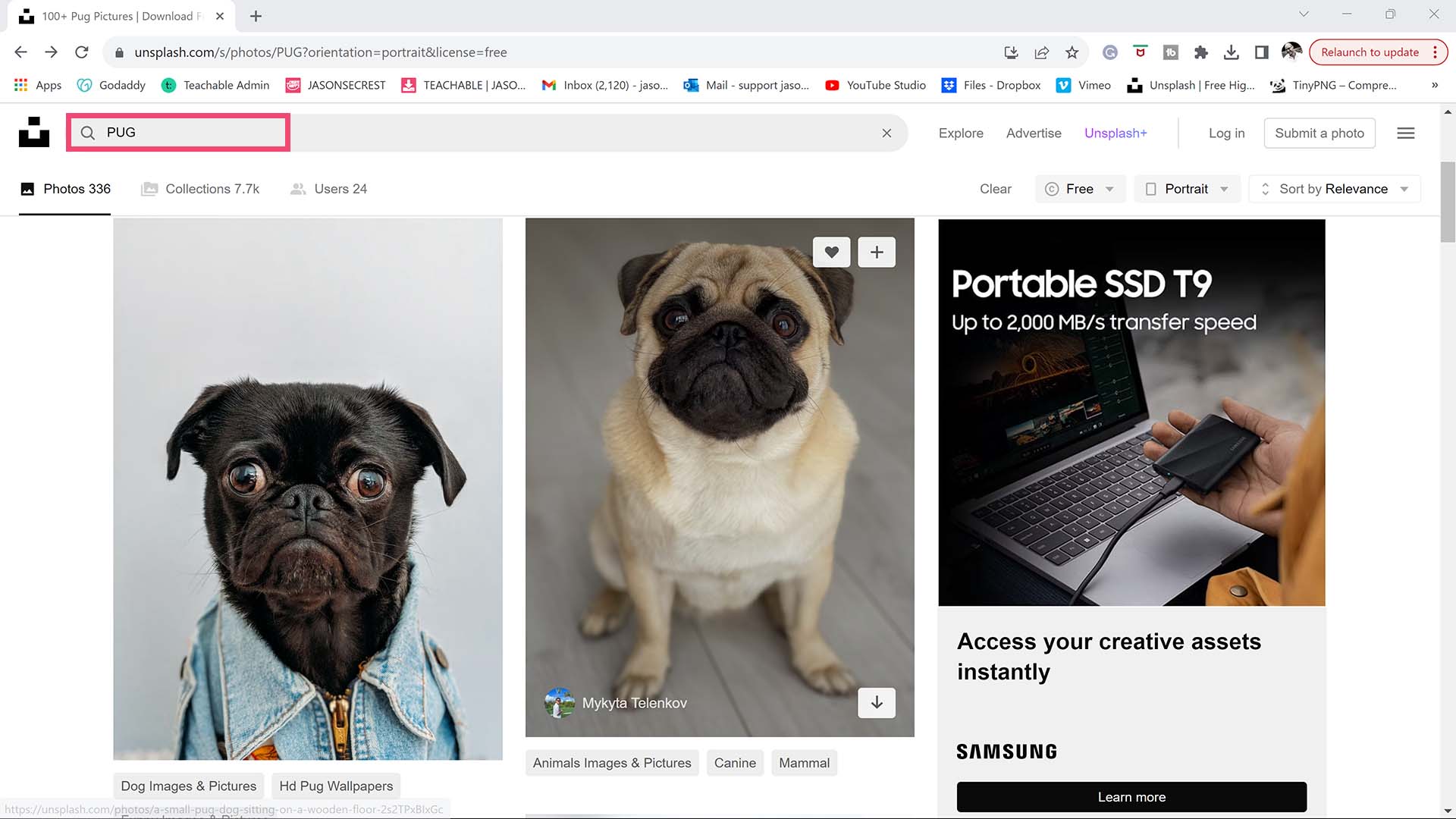
STOCK PHOTOS: 100% of all Free Resources are available Online - no account or login is required. (Stock Photos / Color Swatches / Font Families). When you are creating your own artwork or design projects - I recommend organizing resources within the same project folder on your computer.  → FREE RESOURCES  → PHOTO TO STYLE PROMPTS

FREE RESOURCES: For your artwork and designs, I have created a printable checklist to help you find free resources online. This will be a good starting lists for stock photos, colors, and fonts. Before you open Illustrator for the first time, everything on this checklist should be done as it relates to Free Resource Setup. These are one-time setup steps — complete them now and your workflow will be faster and less interrupted from the very first session. 
WELCOME. Welcome to our website if you are a visitor or a new subscriber. My name is Jason and I am an Illustrator and Teacher (BFA). (Nerd Alert) My Master's Degree is in Education, specifically in Curriculum and Instruction. We have (100+) Tutorials, Challenges, and Guides for you to Learn Adobe Illustrator.
DOWNLOADS: Many of you are jumping over from YouTube looking to download our Adobe Illustrator Cartoon, Comic Strip, and Mascot Brushes. Digital Downloads will come to you through our friends at Teachable. Learning Target: Download and Extract Brush Libraries and save to your "User Defined" for quick access.
GETTING STARTED: Our Getting Started Guides will walk you through the process of creating templates and gathering resources for your own artwork. LEARNING TARGET: Download Photo References, Brush Libraries, and Color Swatches for your own Artwork and Designs. 
BEGINNER GUIDES: Many of our tutorials will follow an easy process for creating artwork in Adobe Illustrator. If you are new to Adobe Illustrator, start with Beginner Tutorials or Primary Building Tools.  LEARNING TARGET: Understand the Primary Building Tools and Options in Adobe Illustrator.
ILLUSTRATOR TUTORIALS: Focus on the Sequence of Events as it relates to building a Workflow. I recommend establishing an "Initial Workflow" based on ease of use. Learning Target: Apply the Building Tools, Editing Options, and Advanced Coloring Techniques in Adobe Illustrator.
Image
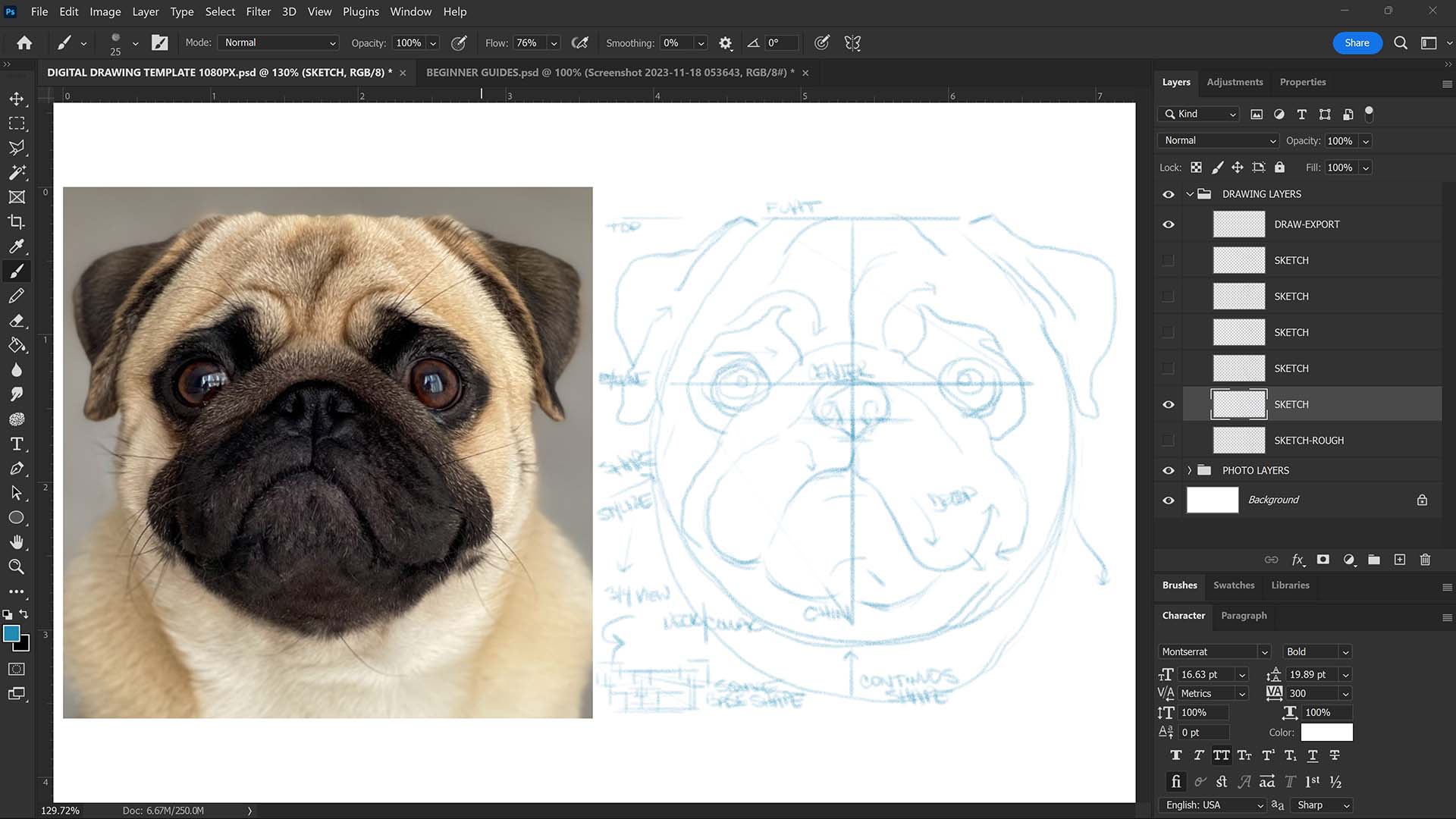
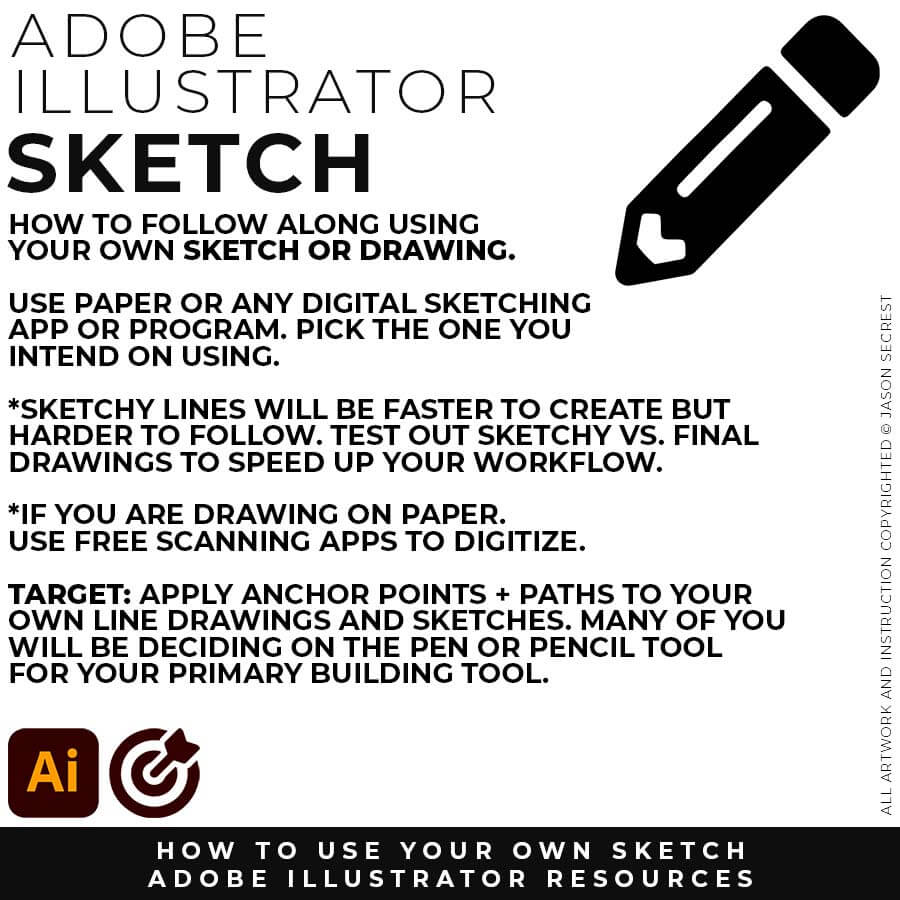
SKETCH: For those of you looking to use a Sketch or Drawing, I will recommend a Clean Line Drawing. If you are new to Adobe Illustrator, align your Basic Design Elements (Shapes + Lines) with the Primary Building Tools. 
Image
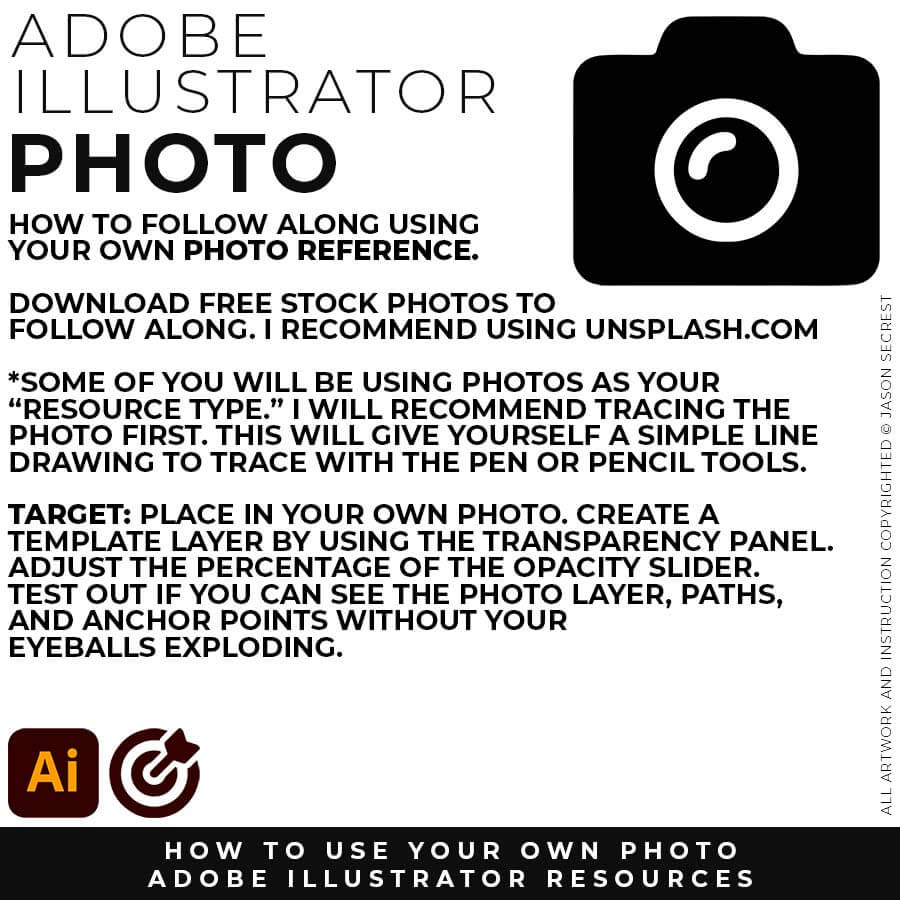
PHOTO: For those of you using a Photo Reference, it's important to make sure the details are still visible after creating a template layer or adjusting the opacity. Find a Template Layer Setting where you can still see the Photo and Paths.
Image
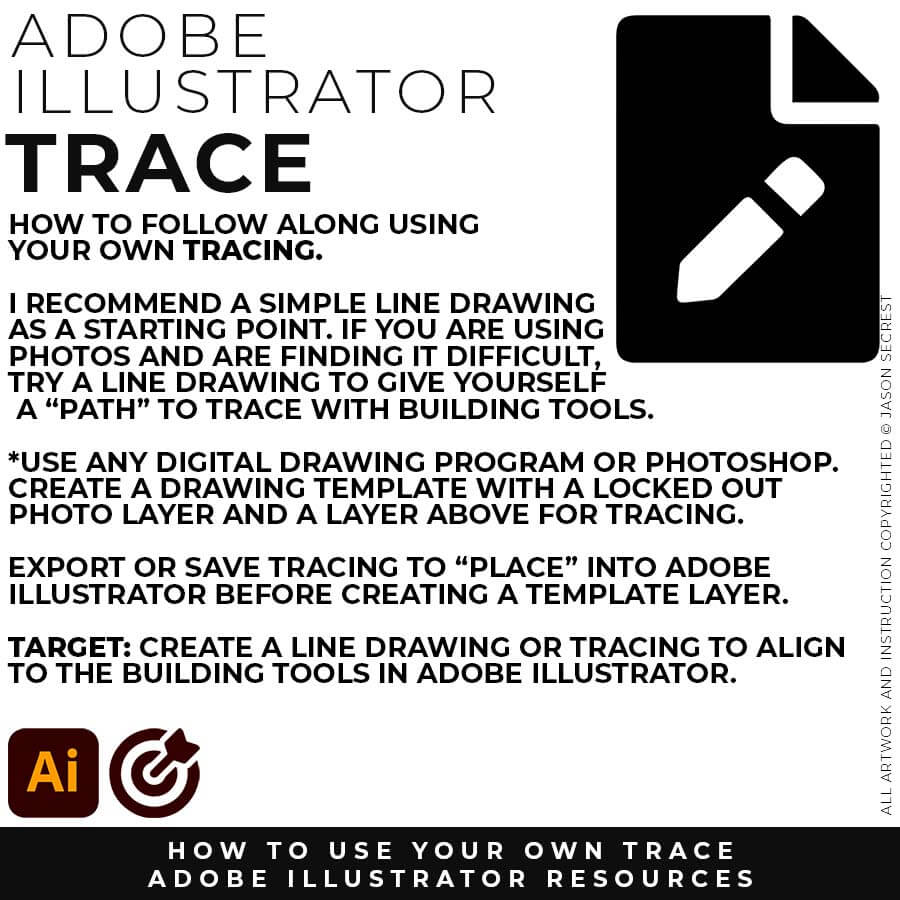
TRACE: For those of you looking to use a Photo Reference, I will still recommend doing a simple Trace. A Clean Line Drawing will give you a “Traceable Path” to align with the Building Tools in Adobe Illustrator.
Image
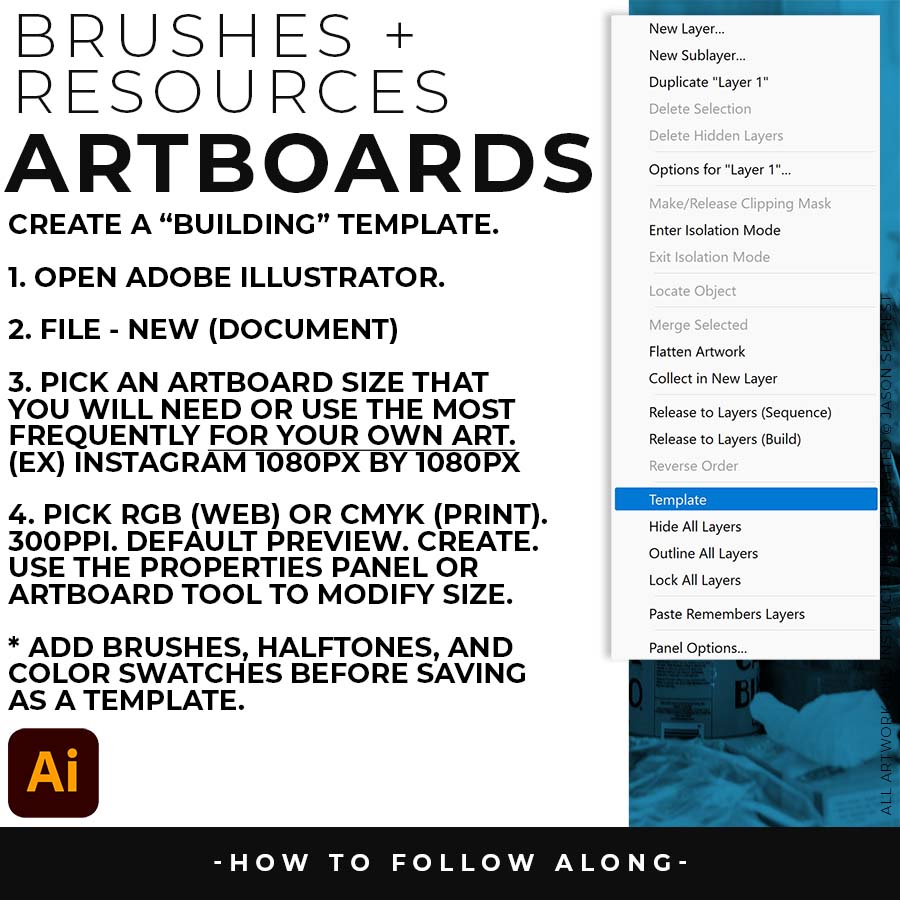
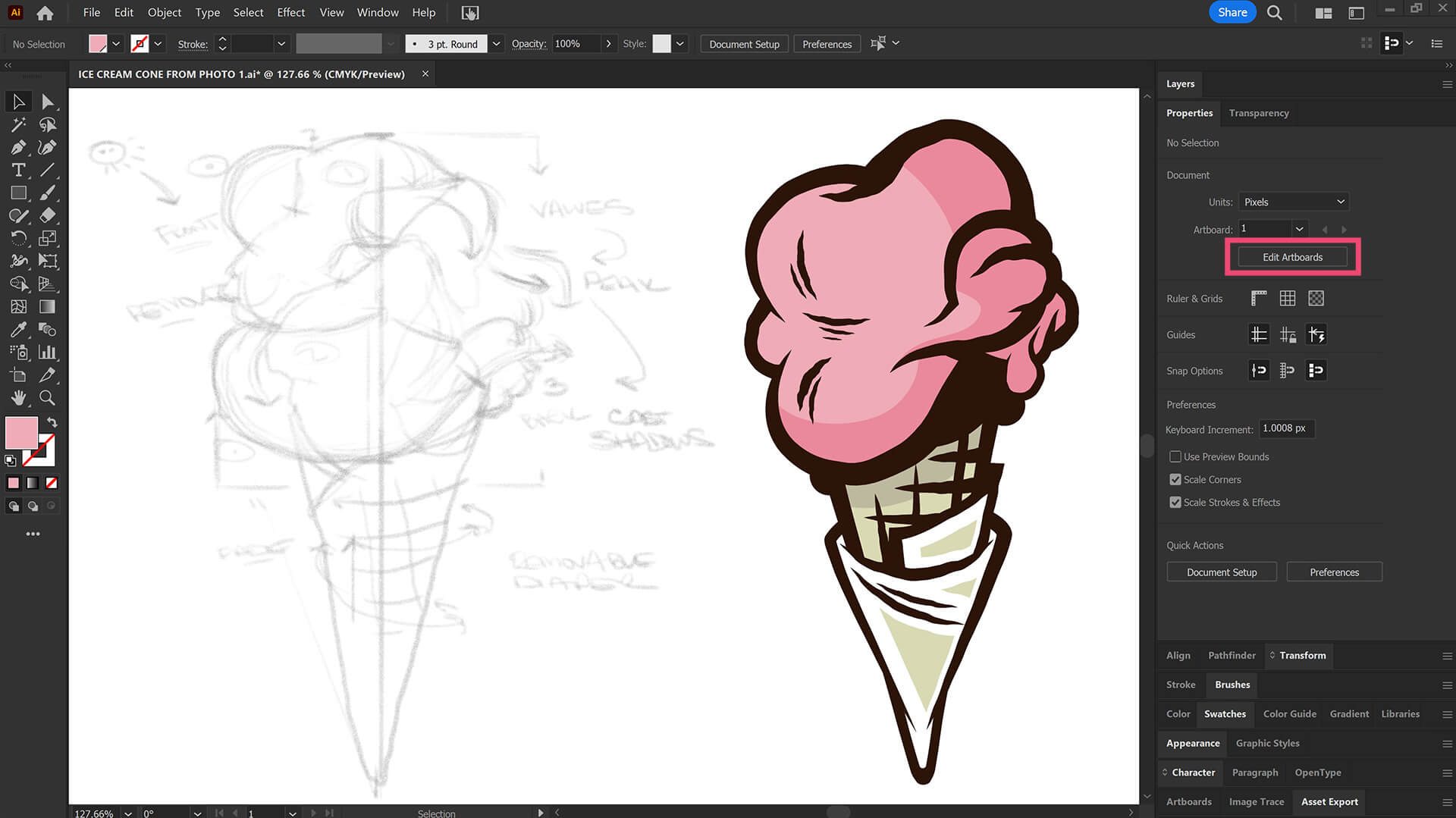
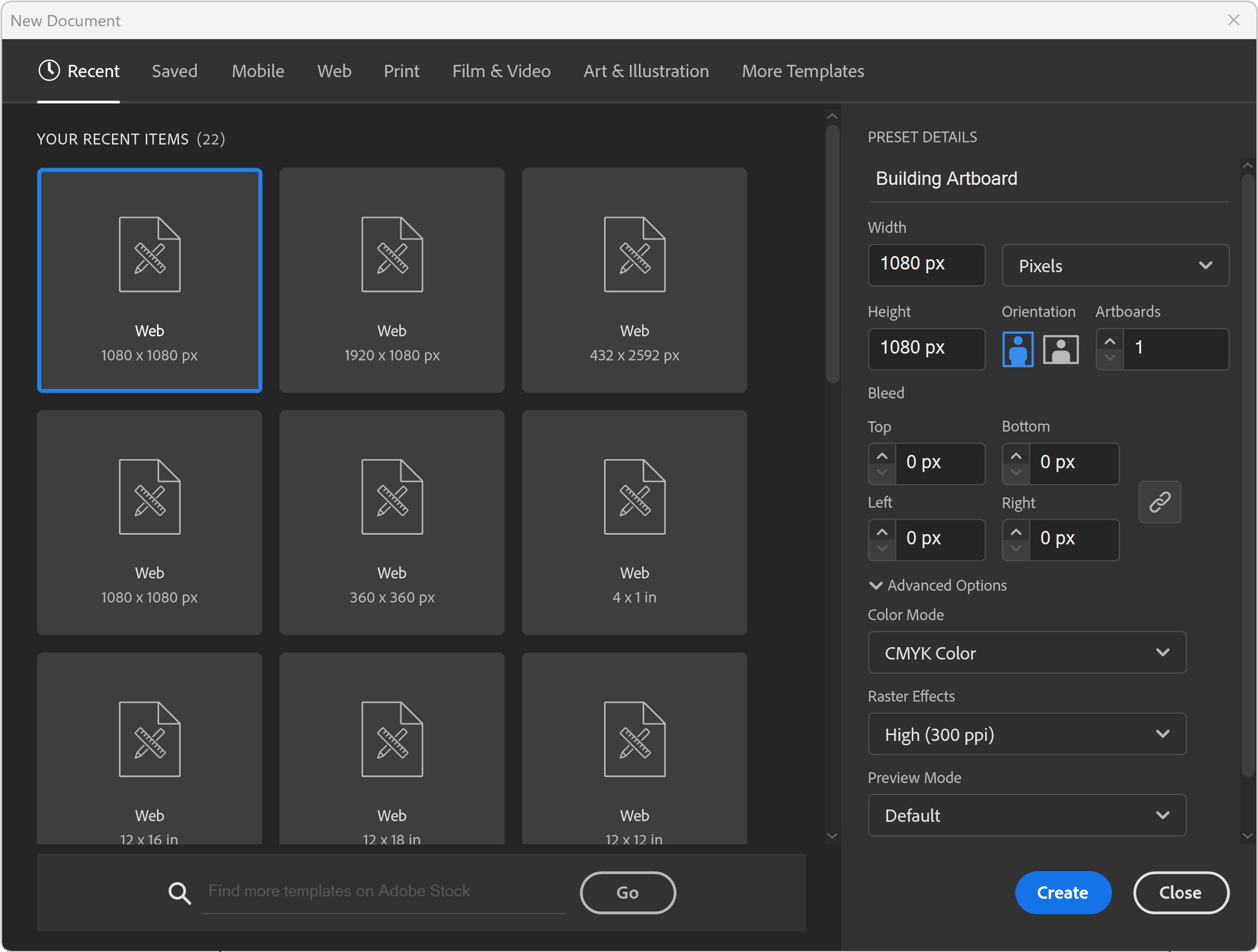
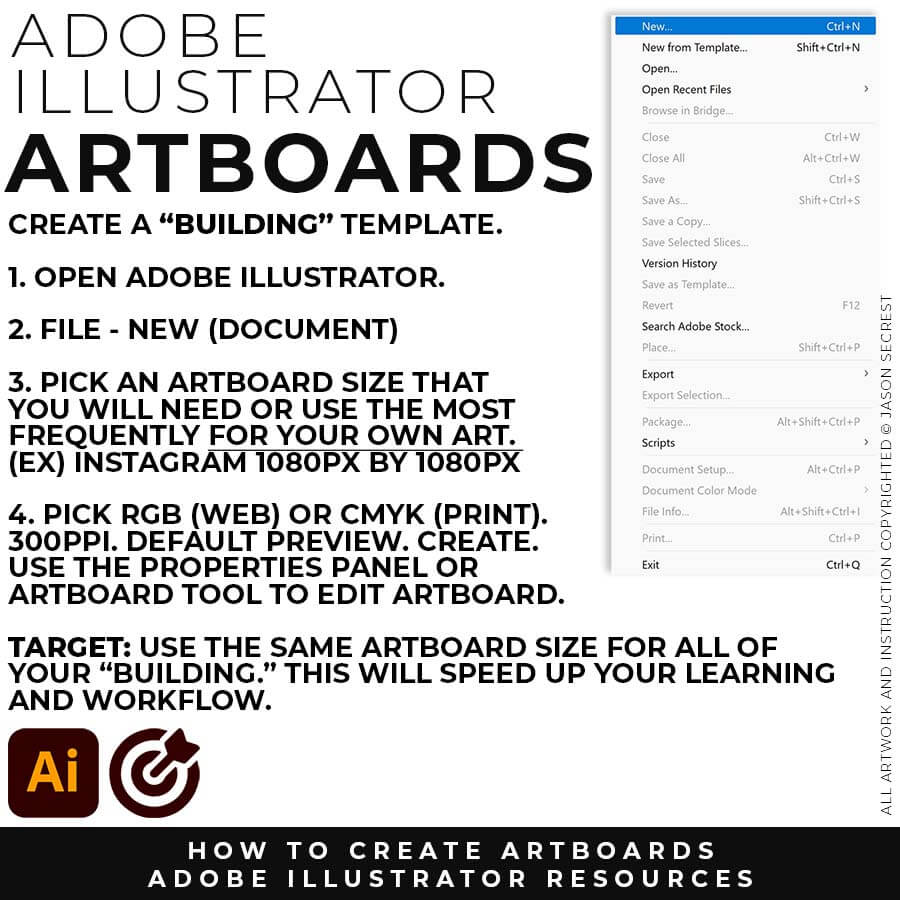
New Artboards: I recommend establishing a "Building Artboard" that you can use for your own artwork. A habit that I would like you to break is treating Adobe Illustrator like Photoshop. The initial Artboard Size can be changed at any point without ruining your own artwork. Pick the size you will use most frequently to establish a routine while learning. Example: 1080px by 1080px - RGB - 300 PPI. LEARNING TARGET: Establish a "Standardized Approach" that includes Artboard Size, Resource Type, and Template Layers that will relate to your own artwork.
Image
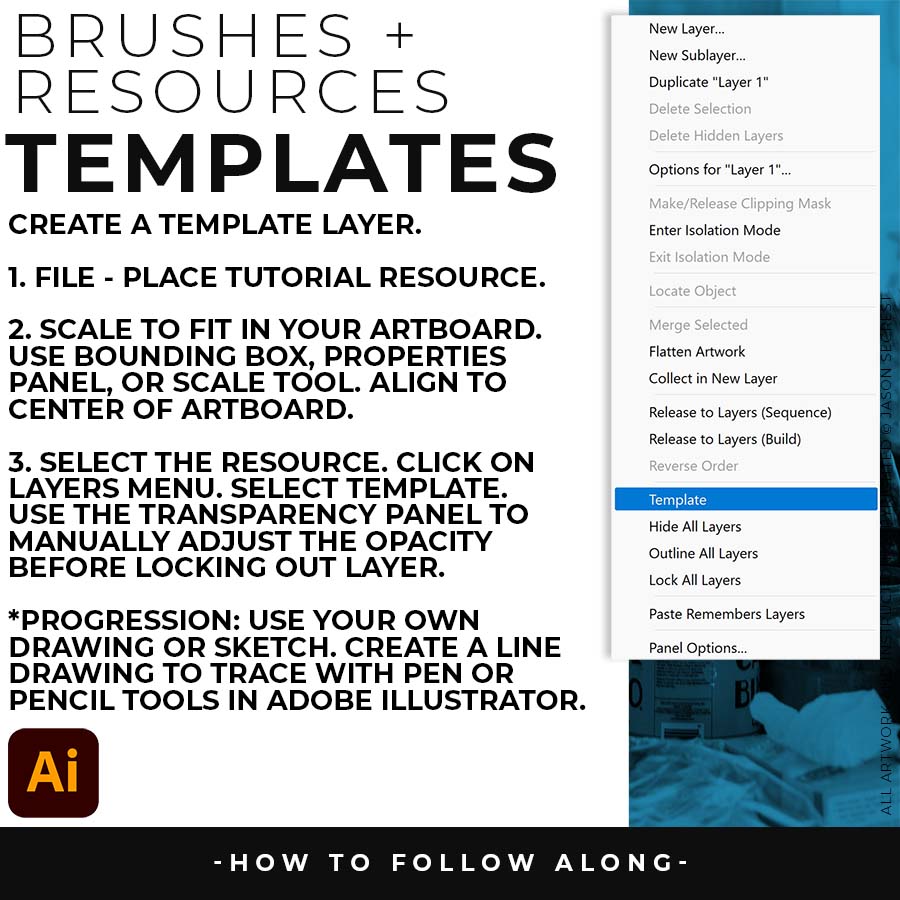
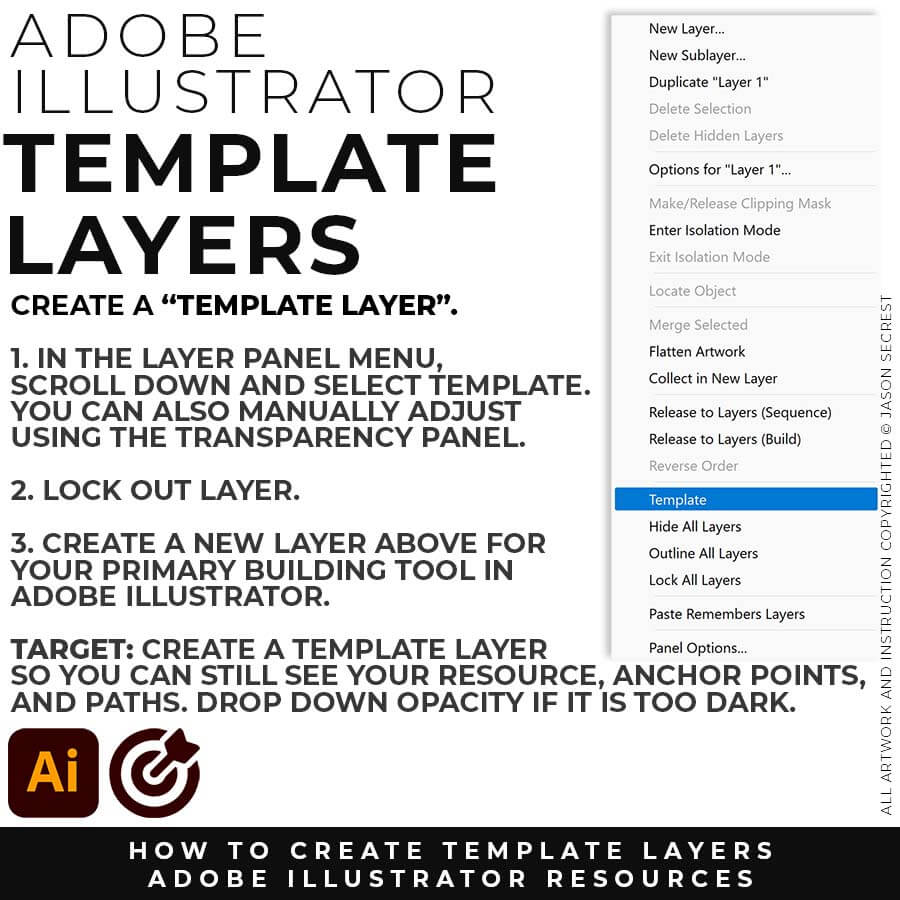
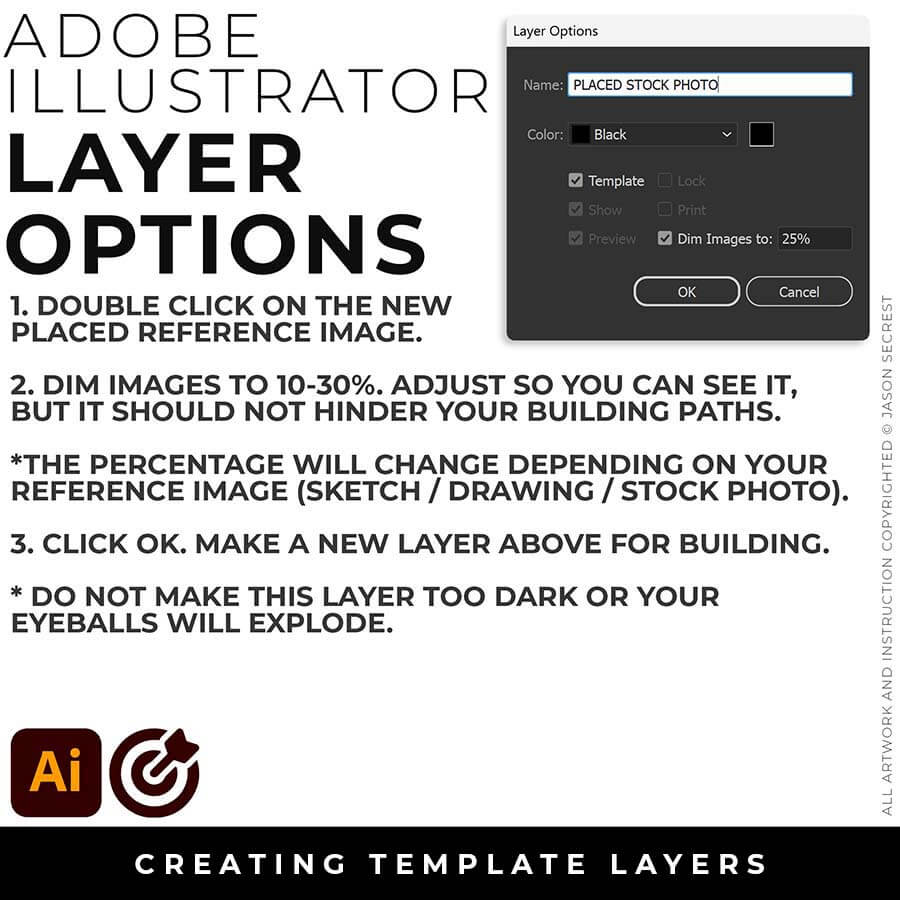
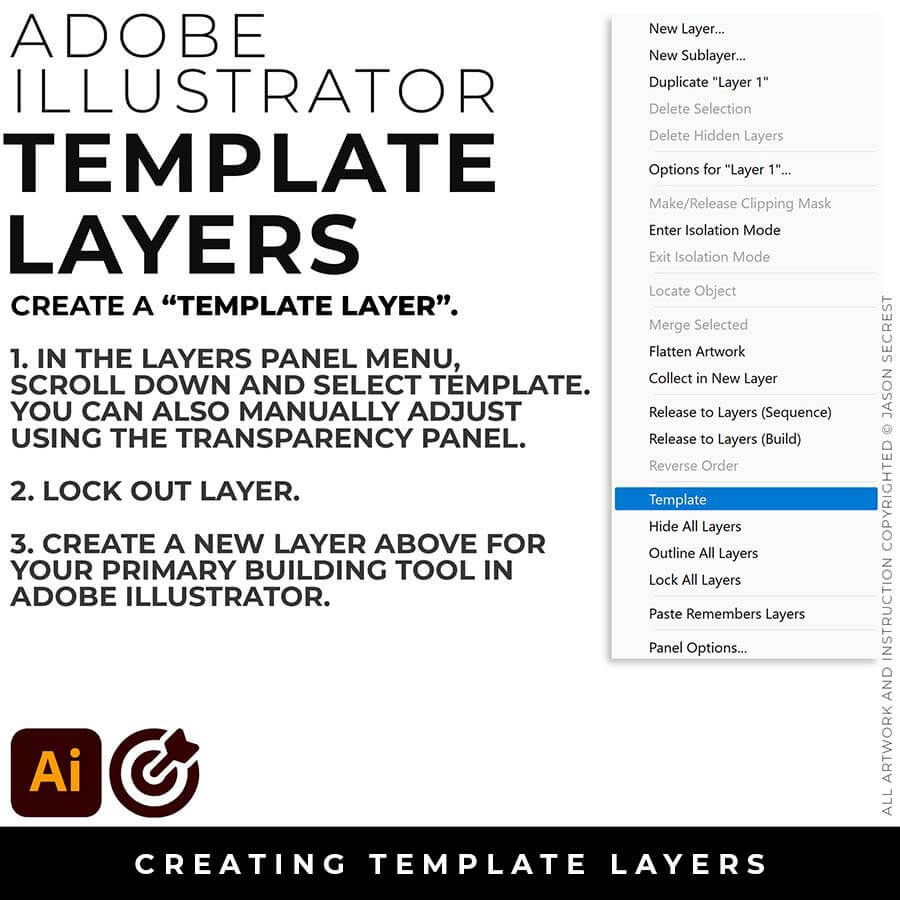
Template Layer: Have your Resource Layer Selected. (It will usually be your only layer). In your Layers Panel, select the Menu in the Upper-Right Hand Corner. Drop down to Template. This will create a 50% Opacity and Lockout the Layer. Create a New Layer above to start working in Adobe Illustrator. It will give you an error message (no sign) if you try to draw on the Template Layer. LEARNING TARGET: Establish a Template Layer Setting so that you can see the Reference Image while not becoming too distracting when building in Adobe Illustrator.
Image
PREPPING YOUR SKETCH: For anything using our Sketch to Brush Prompt Packs, a clean scan or photo of your sketch matters more than a perfect drawing. Even lighting, with no shadows or glare across the paper, and real contrast between your pencil lines and the paper make a genuine difference in how accurately the AI reads your linework. Photographing with your phone instead of scanning is fine — just shoot straight-on rather than at an angle, and crop out everything except the actual drawing before you attach it. A rough, loose sketch works fine, since the AI is built to clean it up, not judge your draftsmanship—but a sketch it can't see clearly will produce a result that drifts from what you actually drew. → SKETCH TO BRUSHES
PREPPING YOUR SKETCH: For your own artwork and designs, use a clean scan or photo of your sketch matters more than a perfect drawing. Even lighting, with no shadows or glare across the paper, and real contrast between your pencil lines and the paper make a genuine difference in how accurately the AI reads your linework. Photographing with your phone instead of scanning is fine — just shoot straight-on rather than at an angle, and crop out everything except the actual drawing before you attach it. A rough, loose sketch works fine, since the AI is built to clean it up, not judge your draftsmanship—but a sketch it can't see clearly will produce a result that drifts from what you actually drew. → DRAWING GUIDE
WELCOME. Welcome to our website if you are a visitor or a new subscriber. My name is Jason and I am an Illustrator and Teacher (BFA). (Nerd Alert) My Master's Degree is in Education, specifically in Curriculum and Instruction. We have (100+) Tutorials, Challenges, and Guides for you to Learn Adobe Illustrator.
DOWNLOADS: Many of you are jumping over from YouTube looking to download our Adobe Illustrator Cartoon, Comic Strip, and Mascot Brushes. Digital Downloads will come to you through our friends at Teachable. Learning Target: Download and Extract Brush Libraries and save to your "User Defined" for quick access.
GETTING STARTED: Our Getting Started Guides will walk you through the process of creating templates and gathering resources for your own artwork. LEARNING TARGET: Download Photo References, Brush Libraries, and Color Swatches for your own Artwork and Designs. 
BEGINNER GUIDES: Many of our tutorials will follow an easy process for creating artwork in Adobe Illustrator. If you are new to Adobe Illustrator, start with Beginner Tutorials or Primary Building Tools.  LEARNING TARGET: Understand the Primary Building Tools and Options in Adobe Illustrator.
ILLUSTRATOR TUTORIALS: Focus on the Sequence of Events as it relates to building a Workflow. I recommend establishing an "Initial Workflow" based on ease of use. Learning Target: Apply the Building Tools, Editing Options, and Advanced Coloring Techniques in Adobe Illustrator.
Image
SKETCH: For those of you looking to use a Sketch or Drawing, I will recommend a Clean Line Drawing. If you are new to Adobe Illustrator, align your Basic Design Elements (Shapes + Lines) with the Primary Building Tools. 
Image
PHOTO: For those of you using a Photo Reference, it's important to make sure the details are still visible after creating a template layer or adjusting the opacity. Find a Template Layer Setting where you can still see the Photo and Paths.
Image
TRACE: For those of you looking to use a Photo Reference, I will still recommend doing a simple Trace. A Clean Line Drawing will give you a “Traceable Path” to align with the Building Tools in Adobe Illustrator.
Image
New Artboards: I recommend establishing a "Building Artboard" that you can use for your own artwork. A habit that I would like you to break is treating Adobe Illustrator like Photoshop. The initial Artboard Size can be changed at any point without ruining your own artwork. Pick the size you will use most frequently to establish a routine while learning. Example: 1080px by 1080px - RGB - 300 PPI. LEARNING TARGET: Establish a "Standardized Approach" that includes Artboard Size, Resource Type, and Template Layers that will relate to your own artwork.
Image
Template Layer: Have your Resource Layer Selected. (It will usually be your only layer). In your Layers Panel, select the Menu in the Upper-Right Hand Corner. Drop down to Template. This will create a 50% Opacity and Lockout the Layer. Create a New Layer above to start working in Adobe Illustrator. It will give you an error message (no sign) if you try to draw on the Template Layer. LEARNING TARGET: Establish a Template Layer Setting so that you can see the Reference Image while not becoming too distracting when building in Adobe Illustrator.
Image
Image
ARTBOARDS: I will recommend a (1080px by 1080px, 300PPI, RGB) as your Initial or Base Artboard Size. The Initial Artboard Size can be changed at any point without ruining your own artwork. Use the Properties Panel to Scale Artwork and Artboards. LEARNING TARGET: Create a "Building Template" that includes Artboard Size, Resource Images, and Template Layers. LEARNING TARGET: For your own artwork, pick a "Building" Artboard Size you can use for your Website and Social Media Postings. Example: Instagram uses 1080px as its base size to modify for Landscape, Square, or Portrait. 

ARTBOARDS: I will recommend a (1080px by 1080px, 300PPI, RGB) as your Initial or Base Artboard Size. The Initial Artboard Size can be changed at any point without ruining your own artwork. Use the Properties Panel to Scale Artwork and Artboards. ACTION STEP: Create a "Building Template" that includes Artboard Size, Resource Images, and Template Layers. For your own artwork, pick a "Building" Artboard Size you can use for your Website and Social Media Postings. Most sites use a 1080px as its base size to modify for Landscape, Square, or Portrait. → ARTBOARD SIZE FINDER / SOCIAL MEDIA SIZE FINDER / POD SIZE FINDER
Image
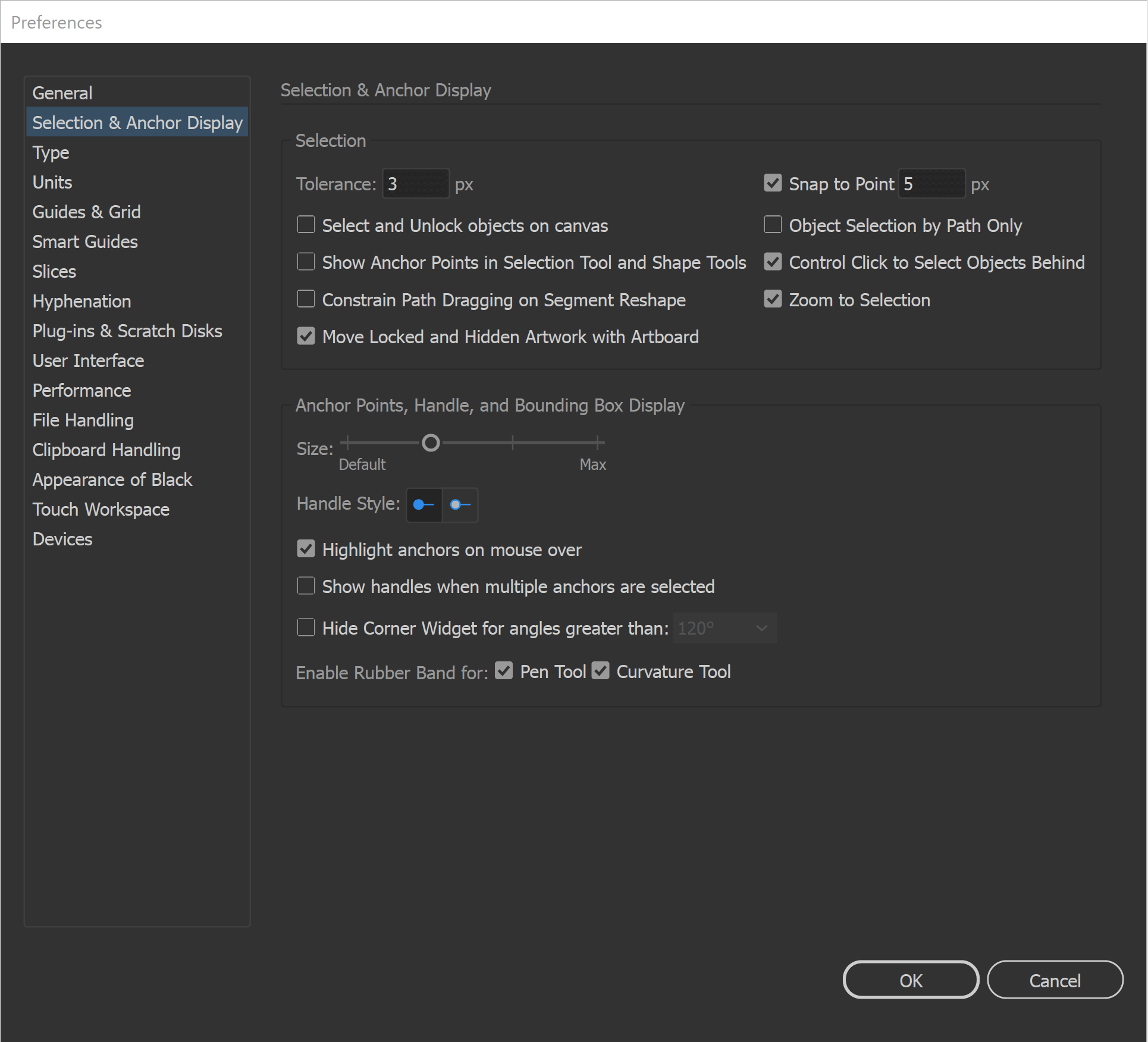
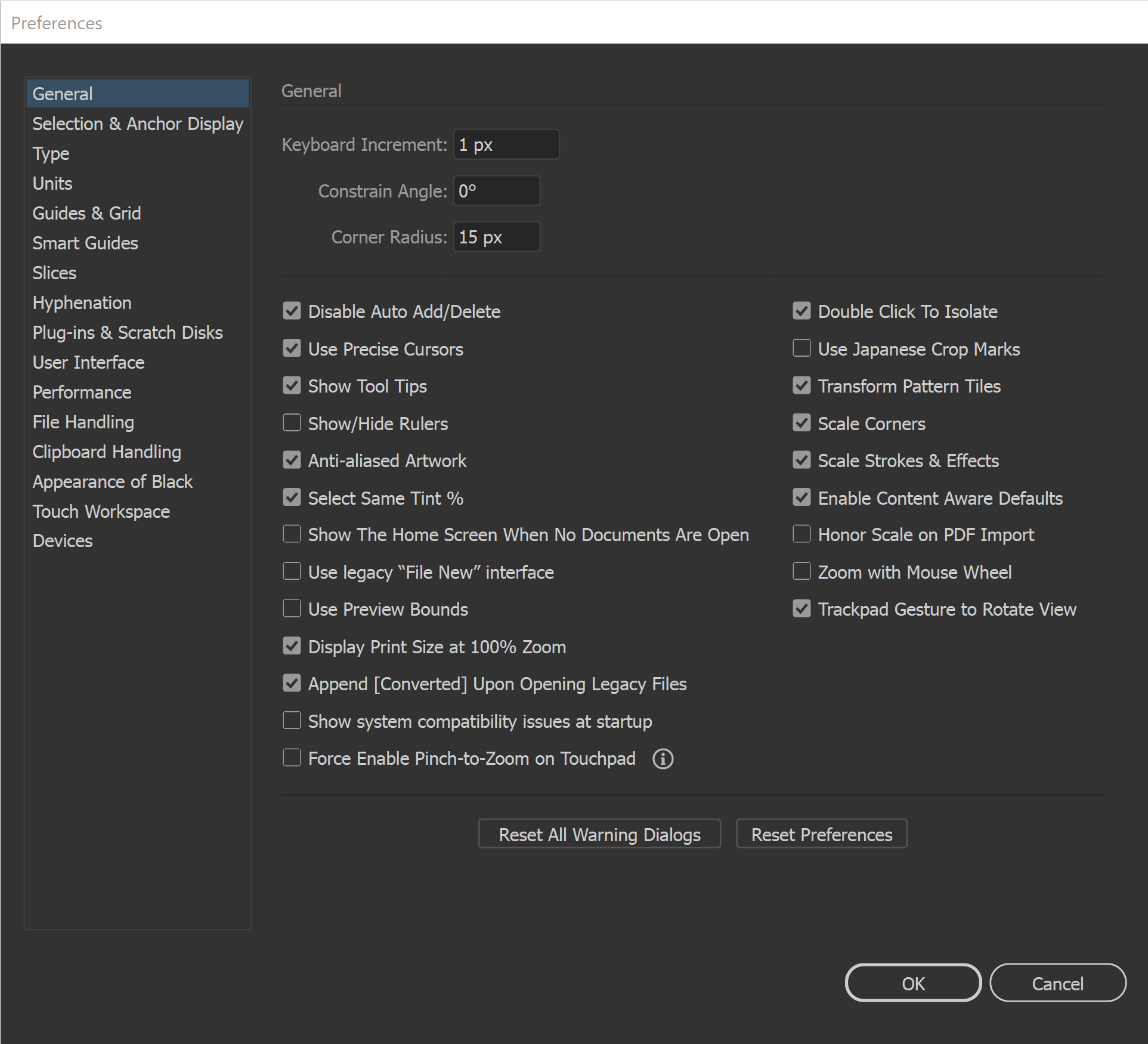
GENERAL PREFERENCES: All of our initial preferences are designed to gain more control over what you are clicking on. The more you can zoom in and see your anchors and handles the better. You can adjust the size of your Anchors and Handles under Selection and Anchor Display. Under your General Settings, make sure that Disable Auto Add/Delete is Selected.
Image
SELECTION TOOLS: The Direct Selection Tool can grab and adjust the Anchors, Handles, and Paths. It is worth having your Smart Guides Path Labels Turned On so you know what the tool is selecting before dragging. The Selection Tool will move and select objects. I like using the Bounding Box for my Transform Tools, Turn On under View. I recommend this for Quick Scaling.
Image
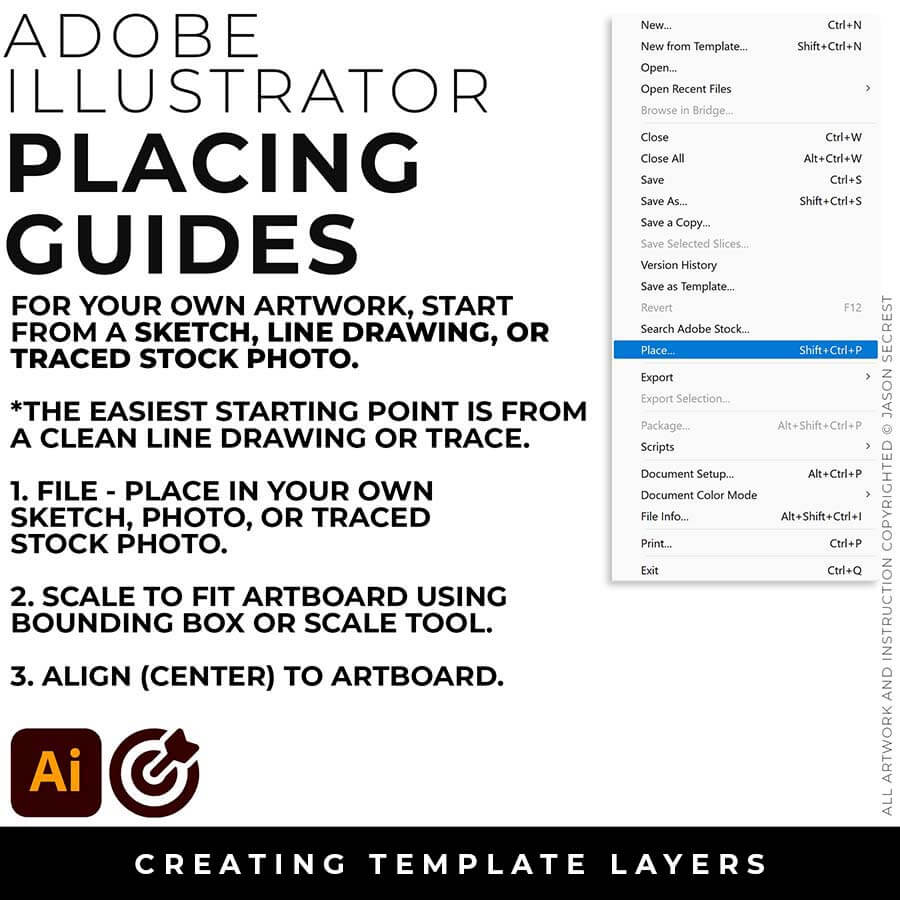
RESOURCE IMAGE: In the Beginner Tutorials and Guides, you will see me starting from a Sketch or Drawing to create my artwork. If you are a beginner, I recommend not starting from a Blank Artboard. Start from a Clean Line Drawing or Traced Stock Photo. LEARNING TARGET: For your own artwork, start from a Sketch, Drawing, or Traced Stock Photo.
WELCOME. Welcome to our website if you are a visitor or a new subscriber. My name is Jason and I am an Illustrator and Teacher (BFA). (Nerd Alert) My Master's Degree is in Education, specifically in Curriculum and Instruction. We have (100+) Tutorials, Challenges, and Guides for you to Learn Adobe Illustrator.
DOWNLOADS: Many of you are jumping over from YouTube looking to download our Adobe Illustrator Cartoon, Comic Strip, and Mascot Brushes. Digital Downloads will come to you through our friends at Teachable. Learning Target: Download and Extract Brush Libraries and save to your "User Defined" for quick access.
GETTING STARTED: Our Getting Started Guides will walk you through the process of creating templates and gathering resources for your own artwork. LEARNING TARGET: Download Photo References, Brush Libraries, and Color Swatches for your own Artwork and Designs. 
BEGINNER GUIDES: Many of our tutorials will follow an easy process for creating artwork in Adobe Illustrator. If you are new to Adobe Illustrator, start with Beginner Tutorials or Primary Building Tools.  LEARNING TARGET: Understand the Primary Building Tools and Options in Adobe Illustrator.
ILLUSTRATOR TUTORIALS: Focus on the Sequence of Events as it relates to building a Workflow. I recommend establishing an "Initial Workflow" based on ease of use. Learning Target: Apply the Building Tools, Editing Options, and Advanced Coloring Techniques in Adobe Illustrator.
Image
SKETCH: For those of you looking to use a Sketch or Drawing, I will recommend a Clean Line Drawing. If you are new to Adobe Illustrator, align your Basic Design Elements (Shapes + Lines) with the Primary Building Tools. 
Image
PHOTO: For those of you using a Photo Reference, it's important to make sure the details are still visible after creating a template layer or adjusting the opacity. Find a Template Layer Setting where you can still see the Photo and Paths.
Image
TRACE: For those of you looking to use a Photo Reference, I will still recommend doing a simple Trace. A Clean Line Drawing will give you a “Traceable Path” to align with the Building Tools in Adobe Illustrator.
Image
New Artboards: I recommend establishing a "Building Artboard" that you can use for your own artwork. A habit that I would like you to break is treating Adobe Illustrator like Photoshop. The initial Artboard Size can be changed at any point without ruining your own artwork. Pick the size you will use most frequently to establish a routine while learning. Example: 1080px by 1080px - RGB - 300 PPI. LEARNING TARGET: Establish a "Standardized Approach" that includes Artboard Size, Resource Type, and Template Layers that will relate to your own artwork.
Image
Template Layer: Have your Resource Layer Selected. (It will usually be your only layer). In your Layers Panel, select the Menu in the Upper-Right Hand Corner. Drop down to Template. This will create a 50% Opacity and Lockout the Layer. Create a New Layer above to start working in Adobe Illustrator. It will give you an error message (no sign) if you try to draw on the Template Layer. LEARNING TARGET: Establish a Template Layer Setting so that you can see the Reference Image while not becoming too distracting when building in Adobe Illustrator.
Image
ARTBOARDS: I recommend establishing a "Building Artboard" that you can use for your own artwork. The initial Artboard Size can be changed at any point without ruining your own artwork. LEARNING TARGET: Create a "Building Artboard" you can use for your own Artwork and Social Media Postings (ex. 1080px by 1080px, 300PPI, RGB).
Image
TEMPLATES: File - Place in your Resource Image (Drawing, Sketch, or Traced Photo). Keep Selected. In your Layers Panel, select the Menu in the Upper-Right Hand Corner. Drop down to Template. This will create a 50% Opacity and Lock the Layer. LEARNING TARGET: Create a Template Layer using your Resource Image. Create a New Layer above for "Building." 
Image
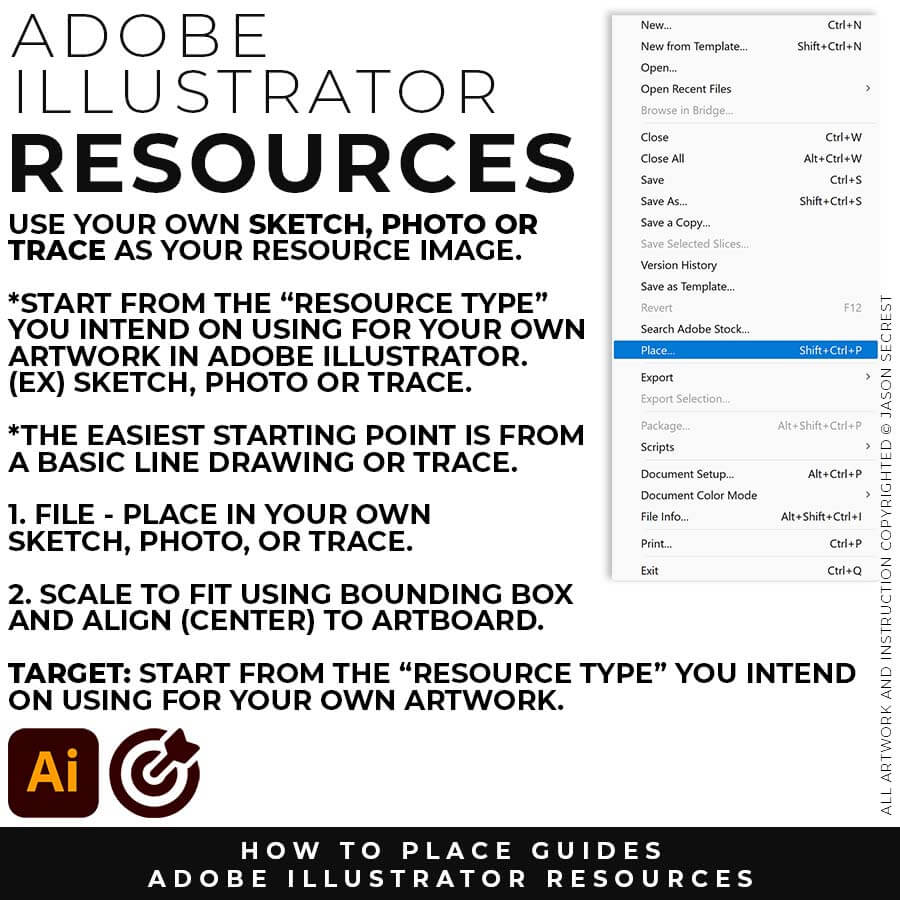
FILE - PLACE: File -Place in your own Drawing, Sketch, or Traced Stock Photo. I recommend starting from a Clean Line Drawing or a simple Traced Stock Photo for your artwork and designs.
Image
SCALE TO FIT: You can modify the size of the artwork using the Bounding Box or Scale Tool. Scale to Fit Artbaord. Align the your Artwork to the center of the Artbaord using the Align Panel. 
Image

TEMPLATE LAYER:  In the Layers Panel, drop down in the menu for Template (50%) or double click on the layer for properties (Dim 10-30%). Lock Layer. Create a New Layer above for Building.
Image
ARTBOARDS: I recommend establishing a "Building Artboard" that you can use for your own artwork. The initial Artboard Size can be changed at any point without ruining your own artwork. LEARNING TARGET: Create a "Building Artboard" you can use for your own Artwork and Social Media Postings (ex. 1080px by 1080px, 300PPI, RGB).
Image
TEMPLATES: File - Place in your Resource Image (Drawing, Sketch, or Traced Photo). Keep Selected. In your Layers Panel, select the Menu in the Upper-Right Hand Corner. Drop down to Template. This will create a 50% Opacity and Lock the Layer. LEARNING TARGET: Create a Template Layer using your Resource Image. Create a New Layer above for "Building." 
Image
BUILDING ARTBOARD: I recommend establishing an Artboard that you can use for all of your artwork. The initial Artboard Size can be changed at any point without ruining your own artwork. LEARNING TARGET: Create a "Building Template" that includes Artboards, Resources, and Template Layers.
Image
DOWNLOAD RESOURCES: In the Beginner Tutorials and Playlists, I will be using Resource Images, Brush Libraries, and Color Swatches to create my artwork. LEARNING TARGET: Download Photo References, Brush Libraries, and Color Swatches for your own Artwork and Designs. 
Image

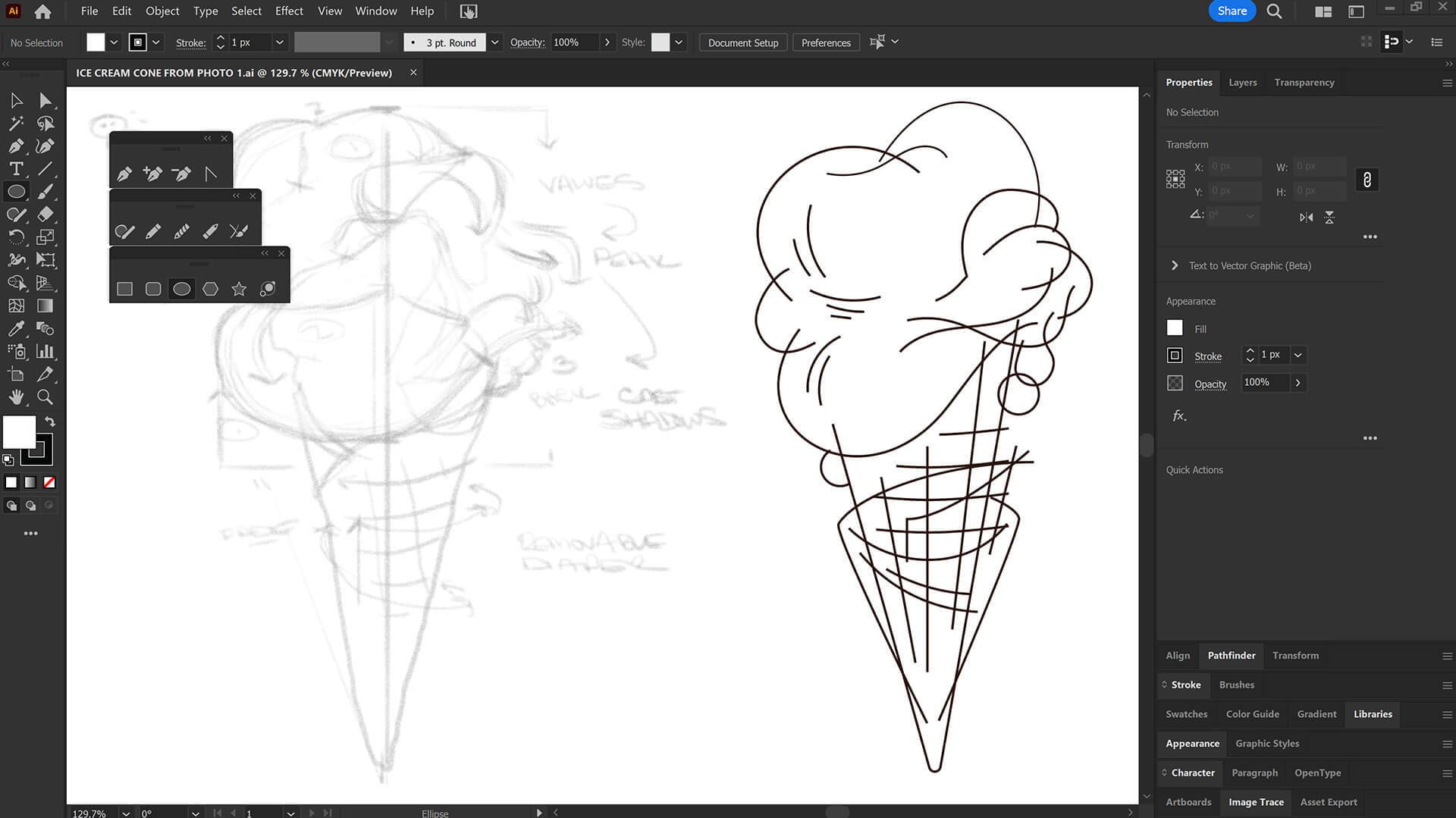
DRAWING TEMPLATE: Use the Resource Type you intend to use for your artwork (Drawing, Sketch, or Traced Stock Photo). Give yourself a "Traceable Path" by using a Clean Line Drawing or Traced Photo. LEARNING TARGET: Create a "Drawing Template" that includes Reference Image and Layer Adjustments. 
Image
ARTBOARDS: I recommend establishing a "Building Artboard" that you can use for your own artwork. The initial Artboard Size can be changed at any point without ruining your own artwork. LEARNING TARGET: Create a "Building Artboard" you can use for your own Artwork and Social Media Postings (ex. 1080px by 1080px, 300PPI, RGB).
Image
TEMPLATES: File - Place in your Resource Image (Drawing, Sketch, or Traced Photo). Keep Selected. In your Layers Panel, select the Menu in the Upper-Right Hand Corner. Drop down to Template. This will create a 50% Opacity and Lock the Layer. LEARNING TARGET: Create a Template Layer using your Resource Image. Create a New Layer above for "Building." 
Image
Image
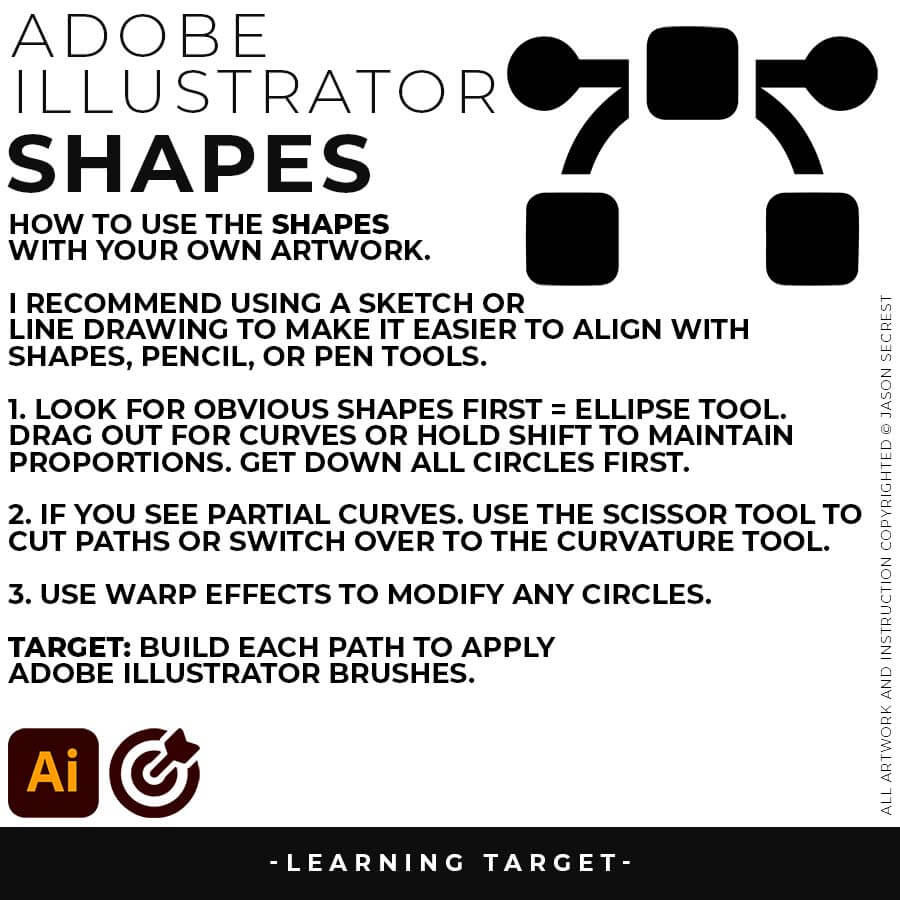
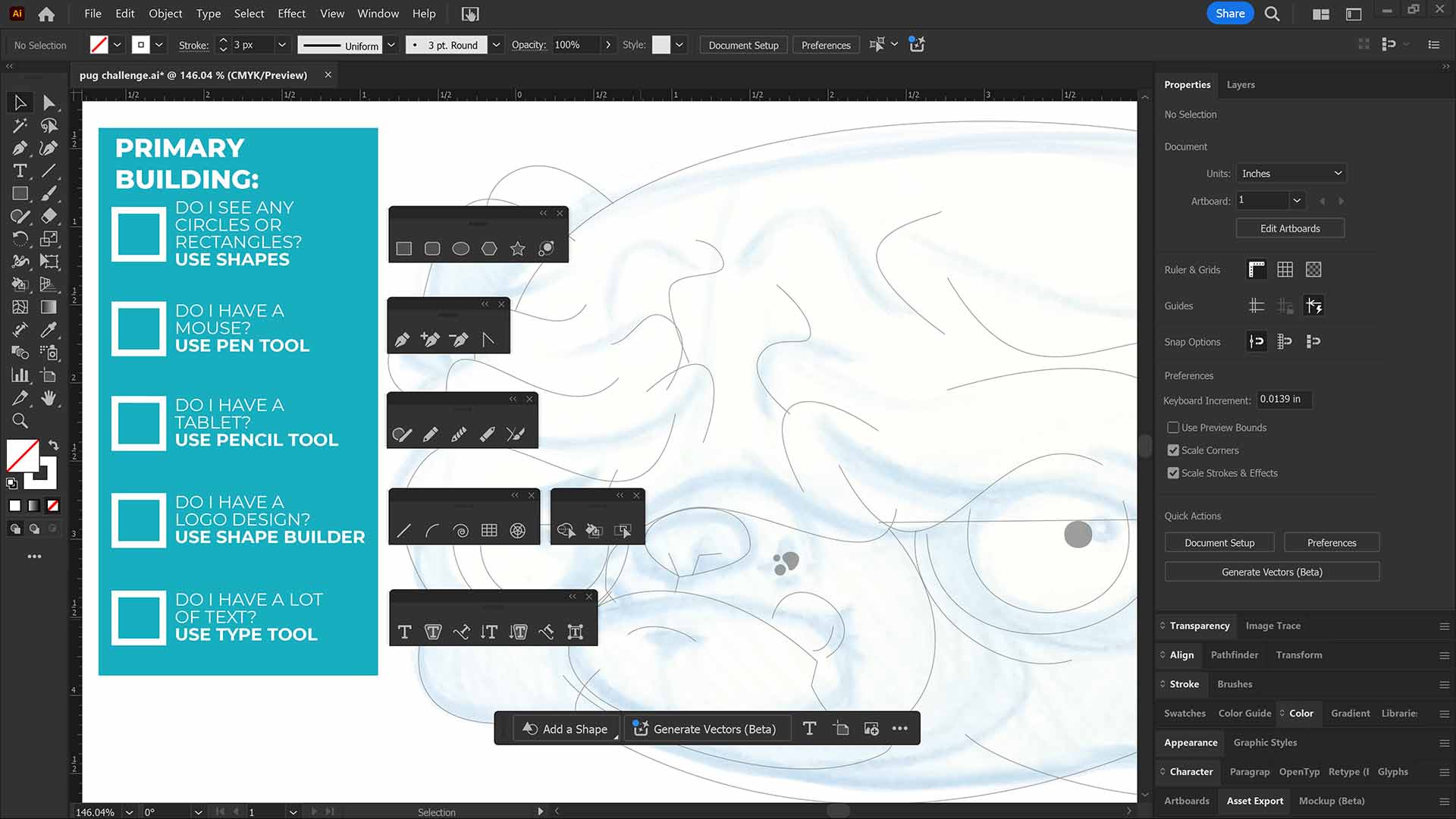
PRIMARY BUILDING: Many of you will be deciding between Shapes, Pencil, and Pen Tools as your Primary Building Tool. Look at your Resource Image, Drawing, or Sketch for obvious Shapes or Lines to align with the Building Tools. LEARNING TARGET (1): Apply the Building Tool and Options in Adobe Illustrator.
Image

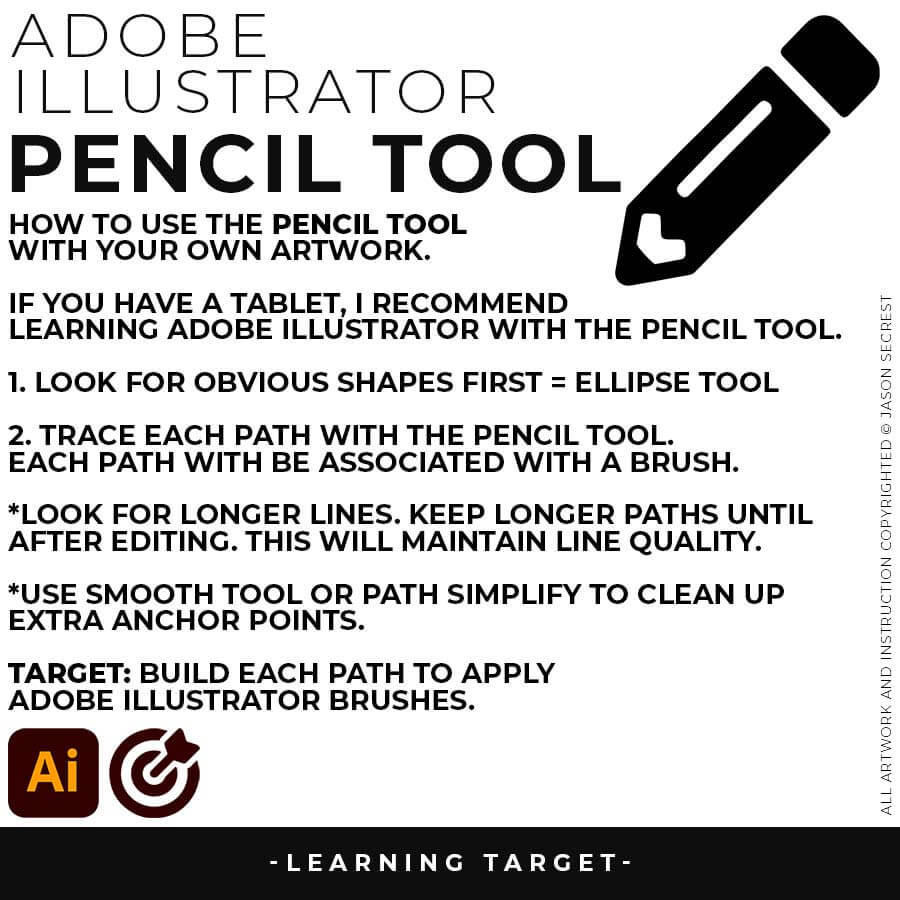
ELLIPSE TOOL: A good place to start if you are new to Adobe Illustrator is our Beginner Guide (Shapes). We will be going through Building with Shapes, Align Panel, Pathfinder, and Basic Color Fills. TUTORIAL 1, TUTORIAL 2, TUTORIAL 3
    Image

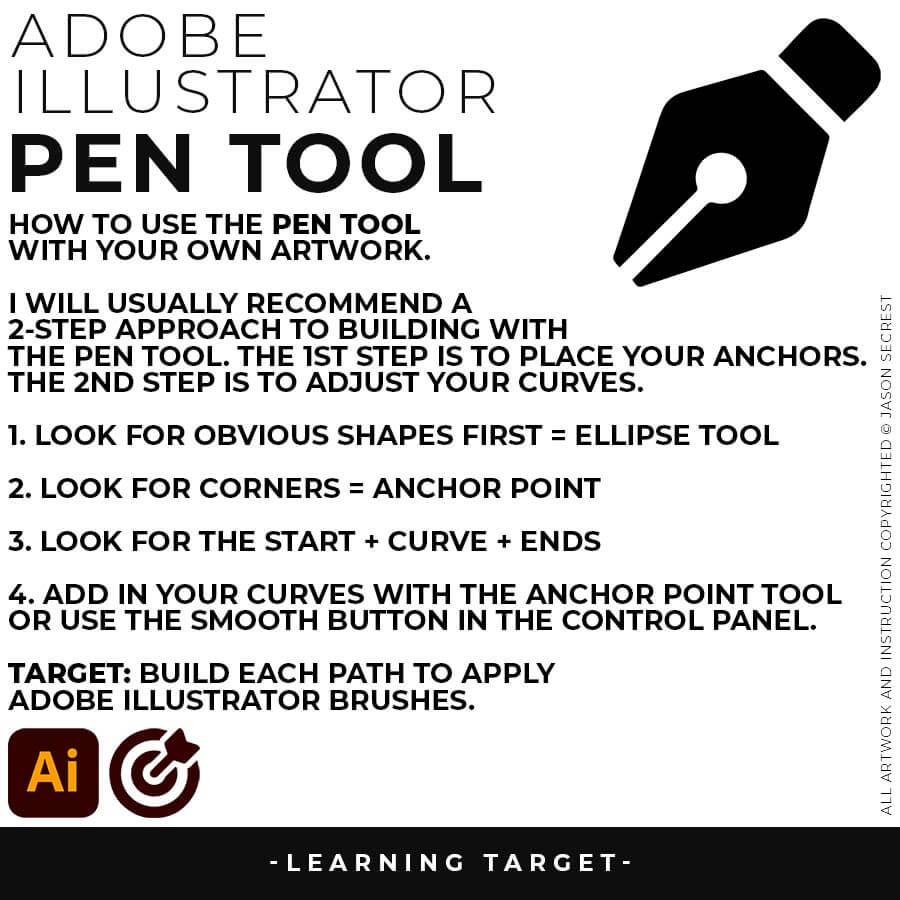
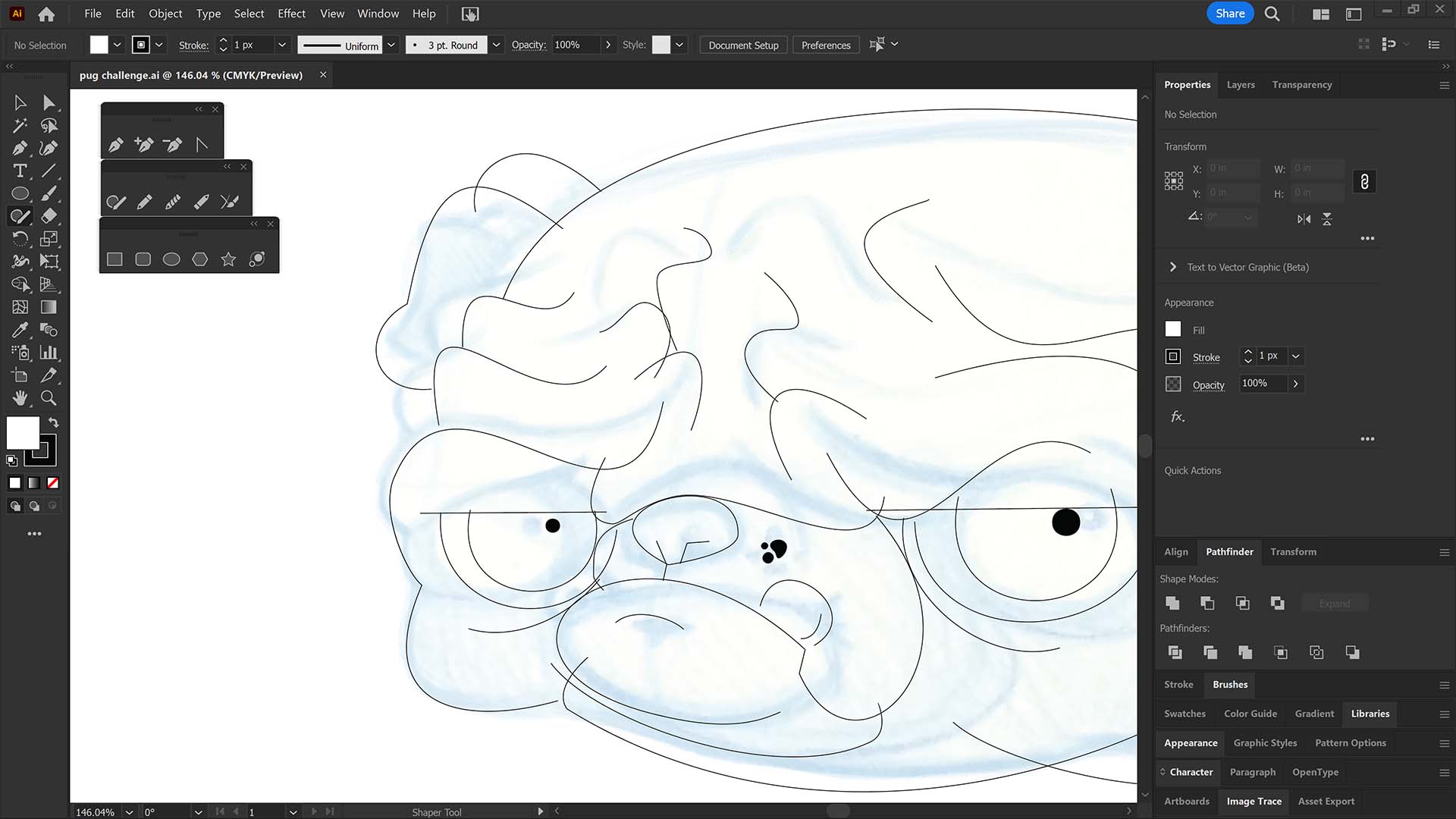
    PENCIL TOOL: Many of you are looking to use your Tablet with Adobe Illustrator and are potentially on our Pug Challenge. I am going to highly recommend using the Pencil Tool as your Primary Building Tool using a Tablet. TUTORIAL 1, TUTORIAL 2
      Image

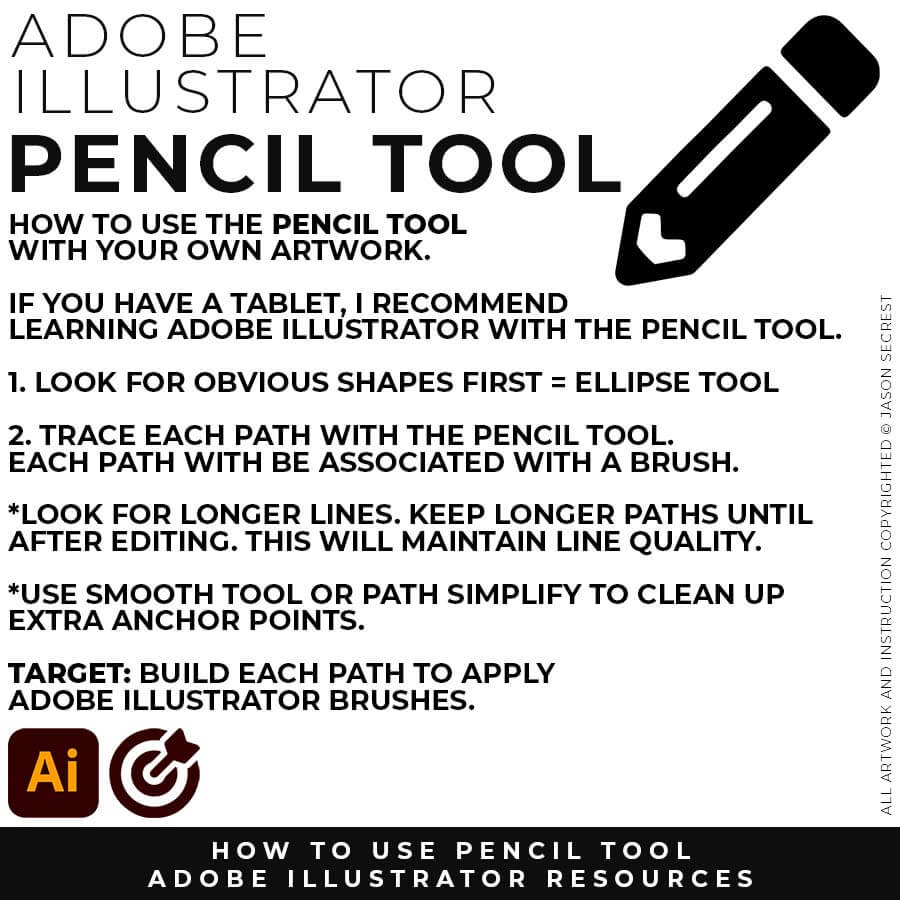
      PEN TOOL: If you are frustrated with the Pen Tool, a simple tip is to break down the process into 2 Steps for Anchor Points and Curves. The first step is to apply Anchor Points to the start-curve-end of a line. TUTORIAL 1, TUTORIAL 2, TUTORIAL 3
        Image

        (PENCIL TOOL): Many of you are looking to use your Tablet with Adobe Illustrator. I am going to recommend breaking down your current tablet workflow into multiple steps. I do see a lot of mistakes when people try to combine too many steps all at once with their new tablets. 
          Image

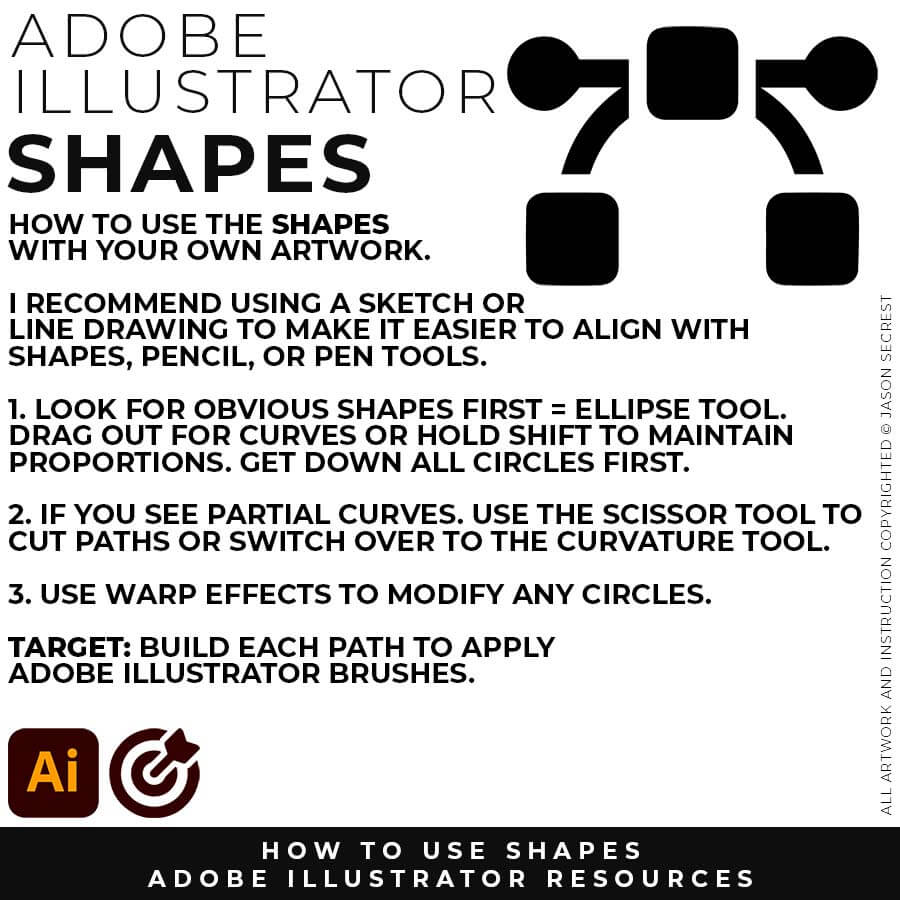
          (ELLIPSE TOOL): A good place to start if you are new to Adobe Illustrator is our Beginner Guide (Shapes). We will be going through Building with Shapes, Align Panel, Pathfinder, and Basic Color Fills. There are Beginner Guides for the Pen Tool and Tablet if you are new to the website or Adobe Illustrator. 
            Image

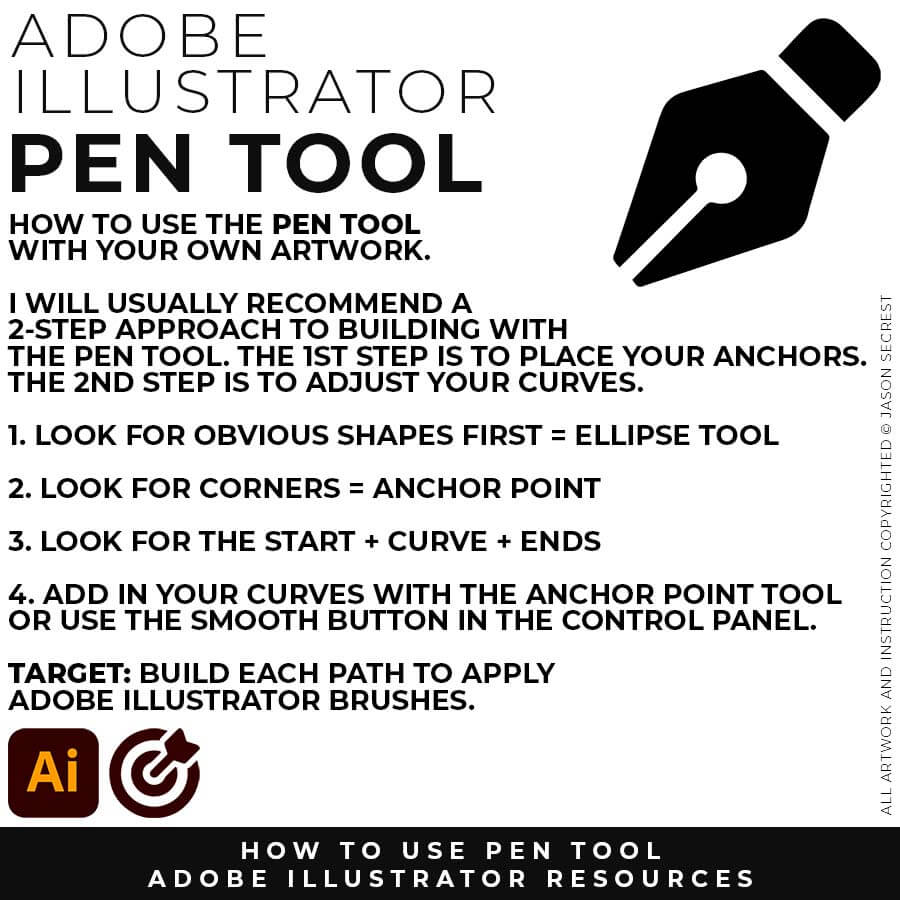
            (PEN TOOL): If you are frustrated with the Pen Tool, a simple tip is to break down the process into 2 Steps. The first step is to just apply Anchor Points to the start-curve-end of a line or path. The second step is to adjust the Curves with the Anchor Point Tool or Smooth Curve Button in the Control Panel. 
              Image
              Image
              PRIMARY BUILDING: Many of you will be using Shape, Pencil, and Pen Tools as your Primary Building Tools. Focus on the most obvious solution first. If it appears as a line, use the pencil or pen tools to trace it. If it resembles a shape, utilize the shape or ellipse tool. Do not overcomplicate the initial building step. 
              PRIMARY BUILDING: As I create my artwork, notice I am aligning the Building Tools to the Shapes and Lines within my Sketch or Drawing. Many of you will be using Shape, Pencil, and Pen Tools as your Primary Building Tools. Align the Building Tools (Ellipse, Pen, and Curvature Tools) to the Design Elements (Shapes, Lines, and Curves) in your own drawing or sketch.  CREATIVE SYSTEM: If you want a repeatable system for organizing and building your own artwork from start to finish, the Creative System gives you the complete workflow — resources, structure, and step-by-step guidance in one place. → WORKFLOW GUIDES
              beginner adobe illustrator tutorial whale
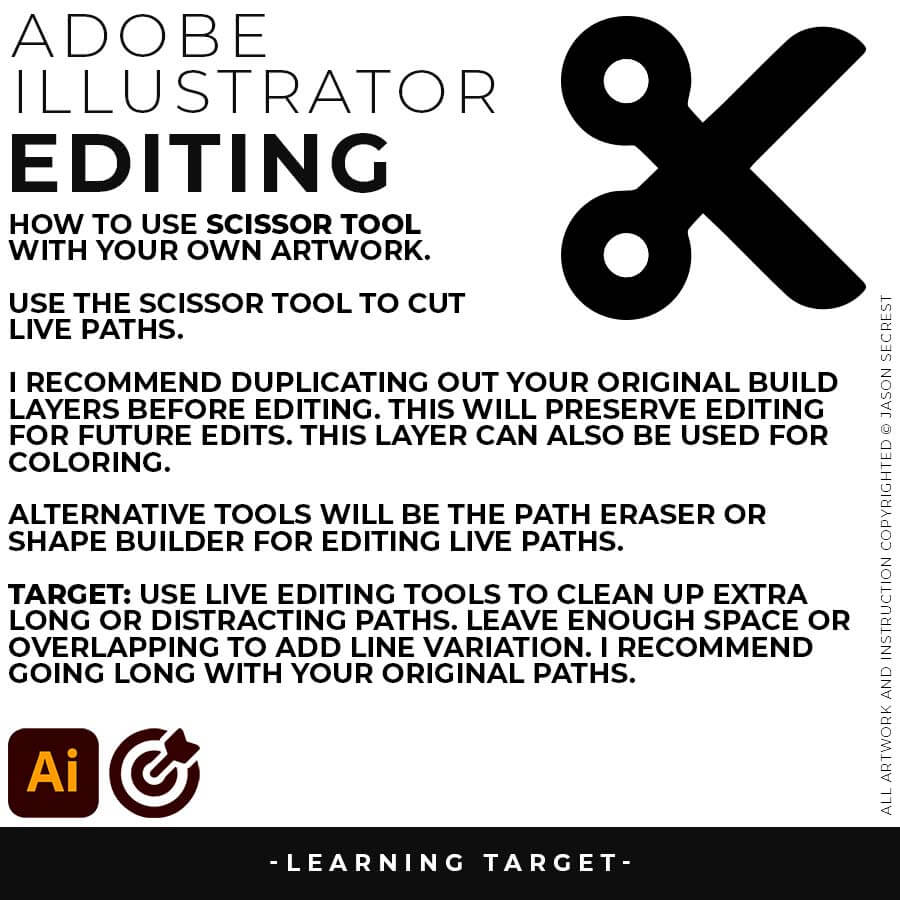
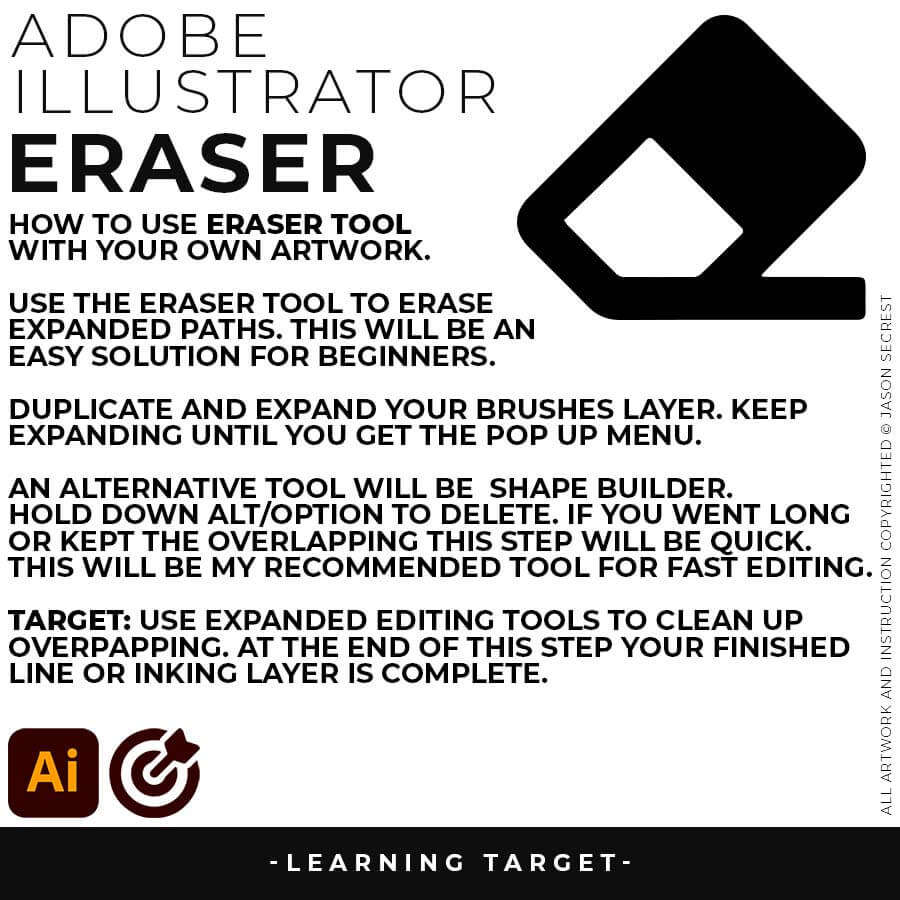
              LIVE EDITING: While you are building in Adobe Illustrator, you can use the “Live” Editing Tools to Cut and Edit Paths. Some of the basic tools will be the Scissor Tool, Path Eraser, or Shape Builder. I do recommend going long with your initial Paths.
              beginner adobe illustrator tutorial pug
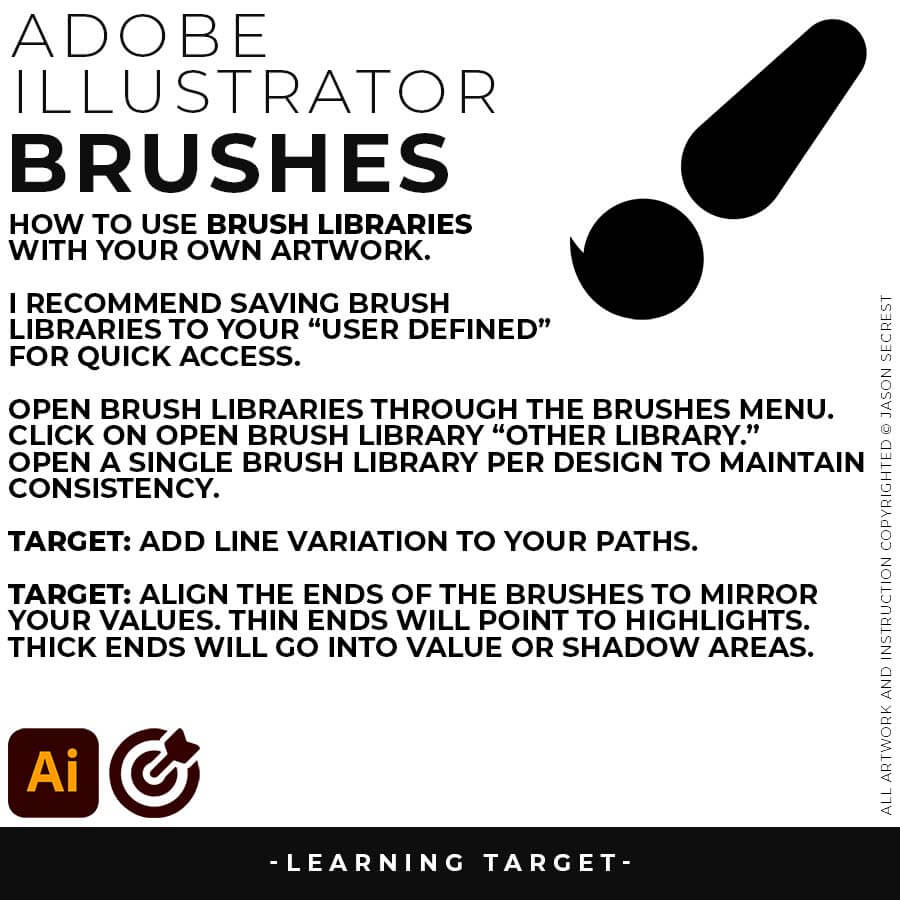
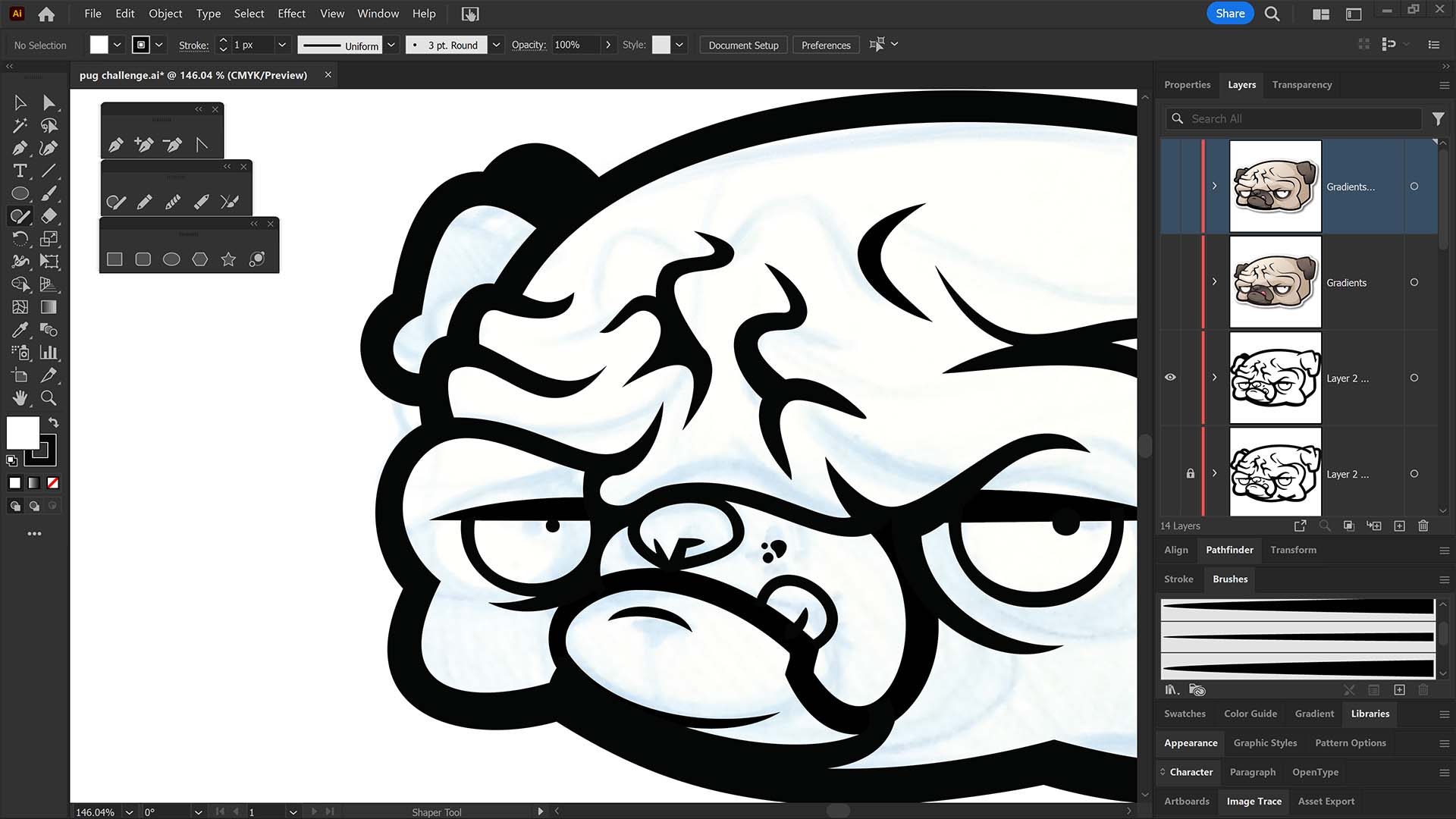
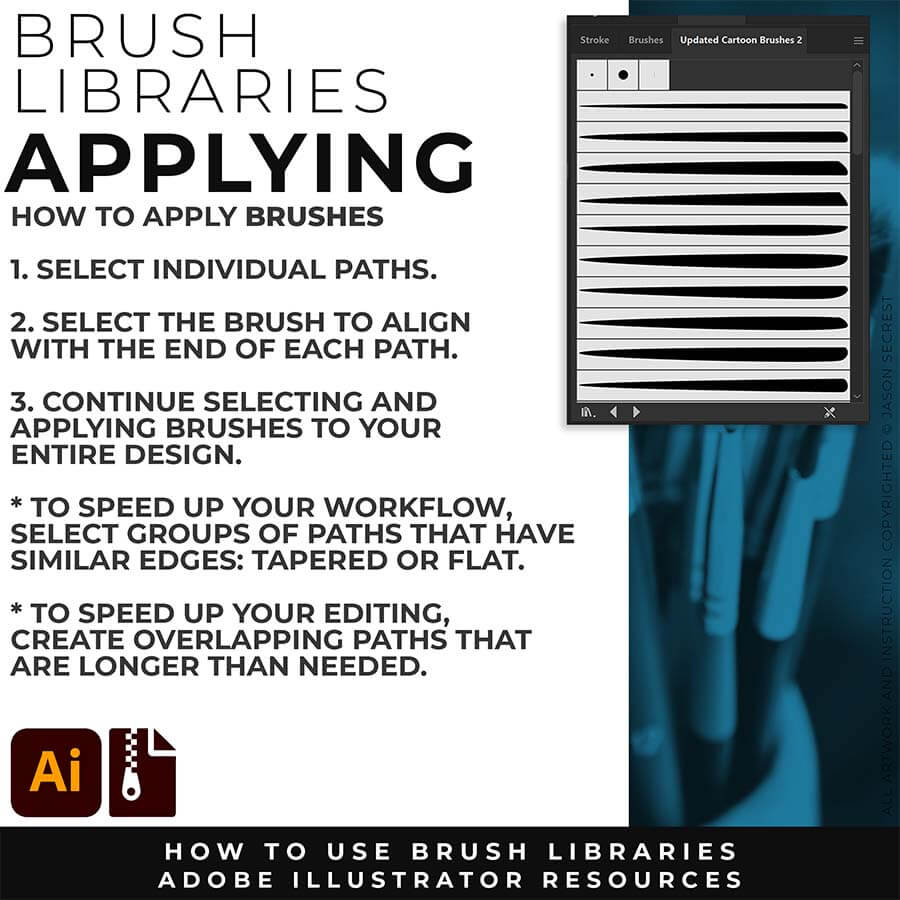
              VARIATION: Many of you will be applying our Brush Libraries. To Open Brushes, open the Brushes Panel. Click on Open Brush Library. Scroll down to “Other Library.” Select one of the Brush Libraries to apply. If you saved Brushes, you can Open from “User Defined.”
              beginner adobe illustrator tutorial pug
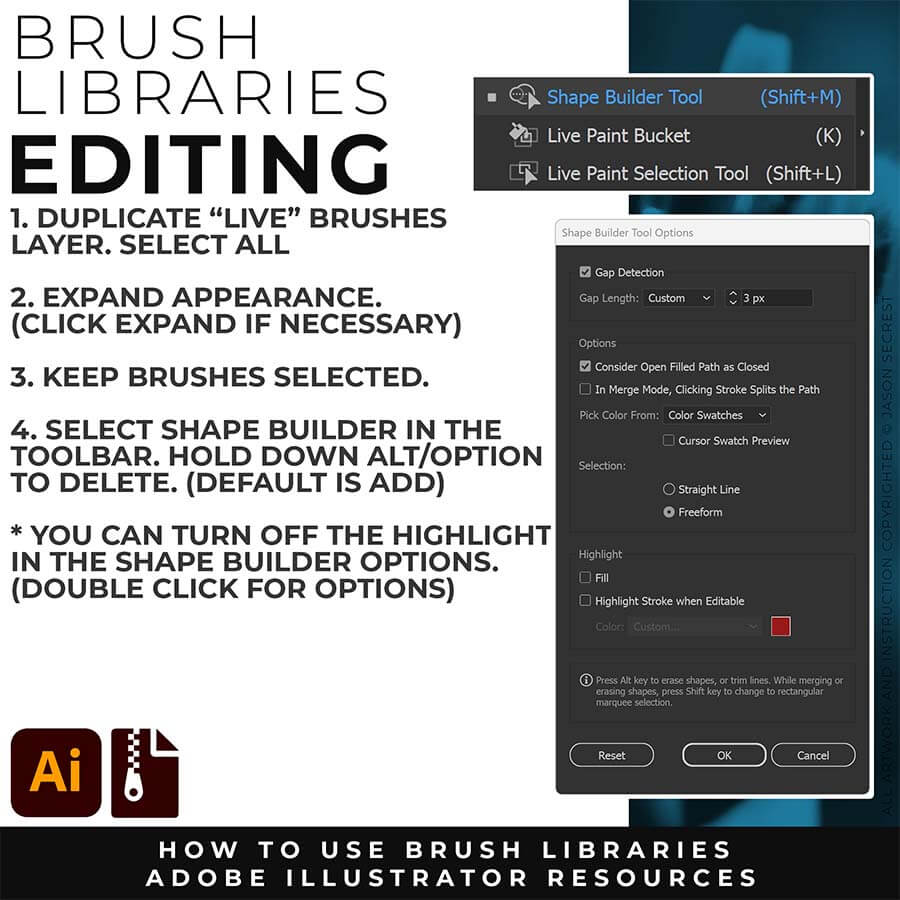
              EXPANDED EDITING: After completing the Line Variation, I will recommend keeping the “Live” Layer from future Editing. Duplicate and Lock Out. We will be Expanding this New Layer to use with Shape Builder for Fast Editing. Hold down Alt/Option while Editing.
              Image
              Image
              PRIMARY BUILDING TOOLS: Many of you will be bouncing from the Ellipse Tool for Shapes and the Pen or Pencil Tool for your Linework. Once you know the Primary Building Tools you can start prepping your sketches and drawings directly for Adobe Illustrator. CHECKLIST: For your own artwork, use the most obvious Primary Building Tool to lay down your initial paths and objects. 
              beginner adobe illustrator tutorial whale
              LIVE EDITING: While you are building in Adobe Illustrator, you can use the “Live” Editing Tools to Cut and Edit Paths. Some of the basic tools will be the Scissor Tool, Path Eraser, or Shape Builder. I do recommend going long with your initial Paths.
              beginner adobe illustrator tutorial pug
              VARIATION: Many of you will be applying our Brush Libraries. To Open Brushes, open the Brushes Panel. Click on Open Brush Library. Scroll down to “Other Library.” Select one of the Brush Libraries to apply. If you saved Brushes, you can Open from “User Defined.”
              beginner adobe illustrator tutorial pug
              EXPANDED EDITING: After completing the Line Variation, I will recommend keeping the “Live” Layer from future Editing. Duplicate and Lock Out. We will be Expanding this New Layer to use with Shape Builder for Fast Editing. Hold down Alt/Option while Editing.
              Image
              Image
              DOWNLOAD BRUSHES: Many of you are jumping over from YouTube looking to download our Adobe Illustrator Brush Libraries. Once you have downloaded and extracted the folders, Brushes are ready to be used in Adobe Illustrator. BEGINNER: Start with our Resource Guides to understand how to download, save, and open Brush Libraries in Adobe Illustrator. ADVANCED: As I create my artwork, pay attention to the Building Tools, Brush Application, and Editing Options as it relates to building a "Workflow." CARTOON / COMIC STRIP / MASCOT 
              DOWNLOAD BRUSHES: Many of you are jumping over from YouTube looking to download our Adobe Illustrator Brush Libraries. Once you have downloaded and extracted the folders, Brushes are ready to be used in Adobe Illustrator. BEGINNER: Start with our Resource Guides to understand how to download, save, and open Brush Libraries in Adobe Illustrator. ADVANCED: As I create my artwork, pay attention to the Building Tools, Brush Application, and Editing Options as it relates to building a "Workflow." CARTOON / COMIC STRIP / MASCOT 
              SKETCH TO BRUSHES: Attach your rough sketch to get clean, inked linework back from the prompts, then open the file in Illustrator and polish it with the matching brush set. Apply the Sketch to Brushes Prompts and move straight to editing. Resource Guides are in a full course format. Brush Libraries and Sketch to Brushes Prompt Packs are hosted through Teachable. → SKETCH TO BRUSHES
              BRUSH LIBRARIES: Many of you are jumping over from YouTube looking to download our Adobe Illustrator Brush Libraries. Once you have downloaded and extracted the folders, Brushes are ready to be used in Adobe Illustrator. BEGINNER: Start with our Resource Guides to understand how to download, save, and open Brush Libraries in Adobe Illustrator. ADVANCED: As I create my artwork, pay attention to the Building Tools, Brush Application, and Editing Options as it relates to building a "Workflow." → DOWNLOAD BRUSHES BUNDLE 
              DIGITAL DOWNLOADS: Many of you are jumping over from YouTube looking to download our Adobe Illustrator Brushes and Resource Folders. Once you have downloaded and extracted the folders, Digital Downloads are ready to use in Adobe Illustrator. BEGINNER: Start with our Resource Guides, Illustrator Tutorials, or YouTube Playlists to understand how to apply resources in Adobe Illustrator. ADVANCED: As I create my artwork, pay attention to the Building Tools, Brush Application, and Editing Options as it relates to building a "Workflow." BRUSH LIBRARIES / COMIC HALFTONES / T-SHIRT TEXTURES / RESOURCE BUNDLE
              DIGITAL DOWNLOADS: Many of you are jumping over from YouTube looking to download our Adobe Illustrator Brushes and Resource Folders. Once you have downloaded and extracted the folders, Digital Downloads are ready to use in Adobe Illustrator. BEGINNER: Start with our Resource Guides, Illustrator Tutorials, or YouTube Playlists to understand how to apply resources in Adobe Illustrator. ADVANCED: As I create my artwork, pay attention to the Building Tools, Brush Application, and Editing Options as it relates to building a "Workflow." BRUSH LIBRARIES / COMIC HALFTONES / T-SHIRT TEXTURES / RESOURCE BUNDLE
              DIGITAL DOWNLOADS: Many of you are jumping over from YouTube looking to download our Adobe Illustrator Brushes and Resource Folders. Once you have downloaded and extracted the folders, Digital Downloads are ready to use in Adobe Illustrator. BEGINNER: Start with our Resource Guides, Illustrator Tutorials, or YouTube Playlists to understand how to apply resources in Adobe Illustrator. ADVANCED: As I create my artwork, pay attention to the Building Tools, Brush Application, and Editing Options as it relates to building a "Workflow." BRUSH LIBRARIES / COMIC HALFTONES / T-SHIRT TEXTURES / RESOURCE BUNDLE
              DIGITAL DOWNLOADS: Many of you are jumping over from YouTube looking to download our Adobe Illustrator Brushes and Resource Folders. Once you have downloaded and extracted the folders, Digital Downloads are ready to use in Adobe Illustrator. BEGINNER: Start with our Resource Guides, Illustrator Tutorials, or YouTube Playlists to understand how to apply resources in Adobe Illustrator. DOWNLOAD BRUSHES / DOWNLOAD FOLDERS / DOWNLOAD BUNDLES
              DIGITAL DOWNLOADS: Many of you are jumping over from YouTube looking to download our Adobe Illustrator Brushes and Resource Folders. Once you have downloaded and extracted the folders, Digital Downloads are ready to use in Adobe Illustrator. BEGINNER: Start with our Resource Guides, Illustrator Tutorials, or YouTube Playlists to understand how to apply resources in Adobe Illustrator. DOWNLOAD BRUSHES / DIGITAL DOWNLOADS
              DIGITAL DOWNLOADS: Many of you are jumping over from YouTube looking to download our Adobe Illustrator Brushes and Resource Folders. Once you have downloaded and extracted the Folders, resources are ready to be used in Adobe Illustrator. Start with our Resource Guides, Illustrator Tutorials, or YouTube Playlists to understand how to apply resources in Adobe Illustrator. BRUSH LIBRARIES / COMIC HALFTONES / T-SHIRT TEXTURES / RESOURCE BUNDLE
              Image
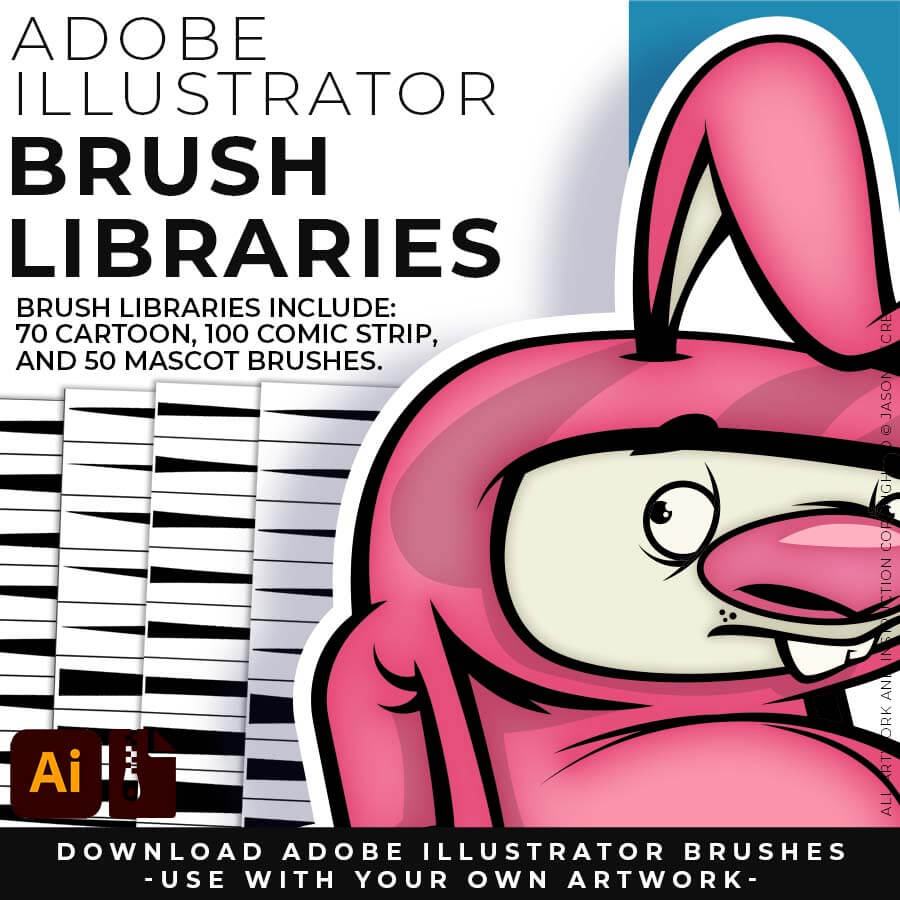
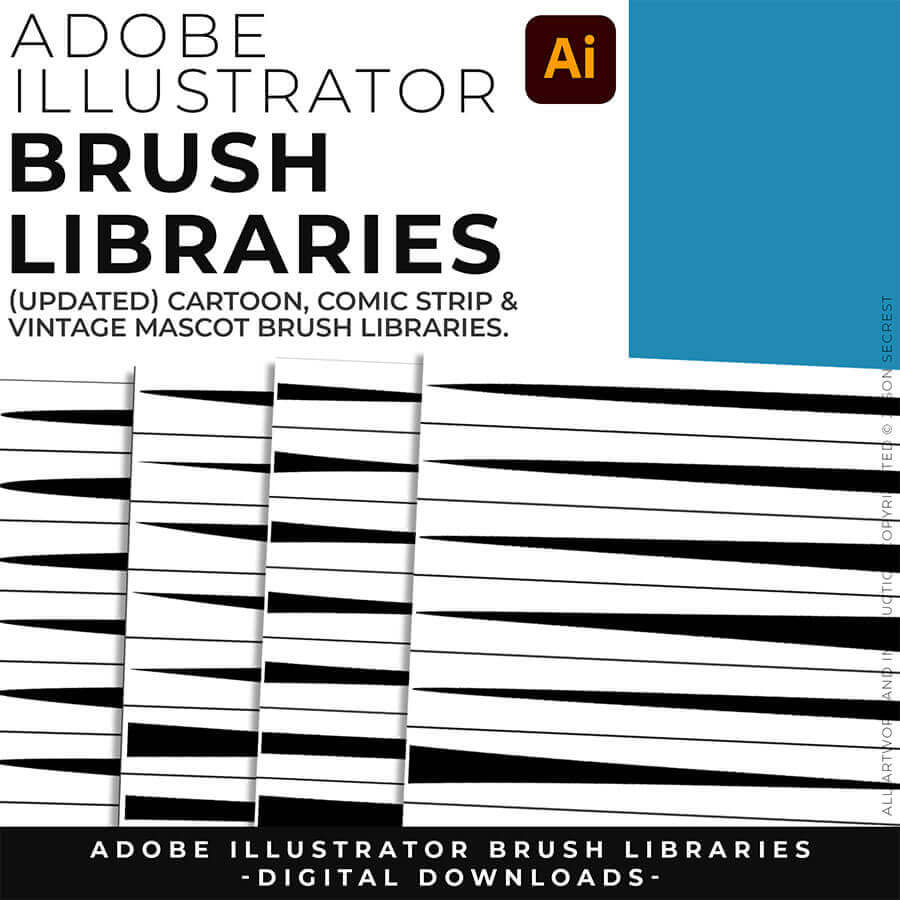
              200 ADOBE ILLUSTRATOR BRUSHES. Brush Libraries are specifically designed for Illustrators and Cartoonists to speed up their workflow. Brush Libraries are compatible with Adobe Illustrator CC through CS. Mac or PC. Brush Libraries include 70 Cartoon, 100 Comic Strip, and 50 Vintage Mascot Brushes.
              Image
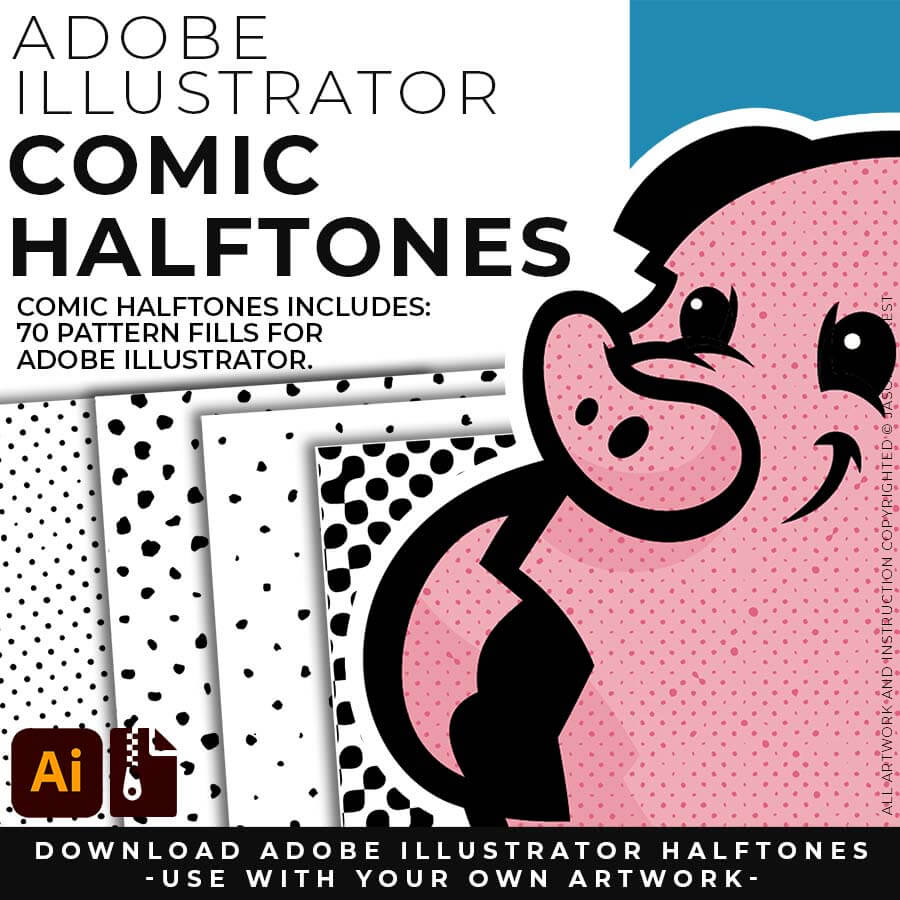
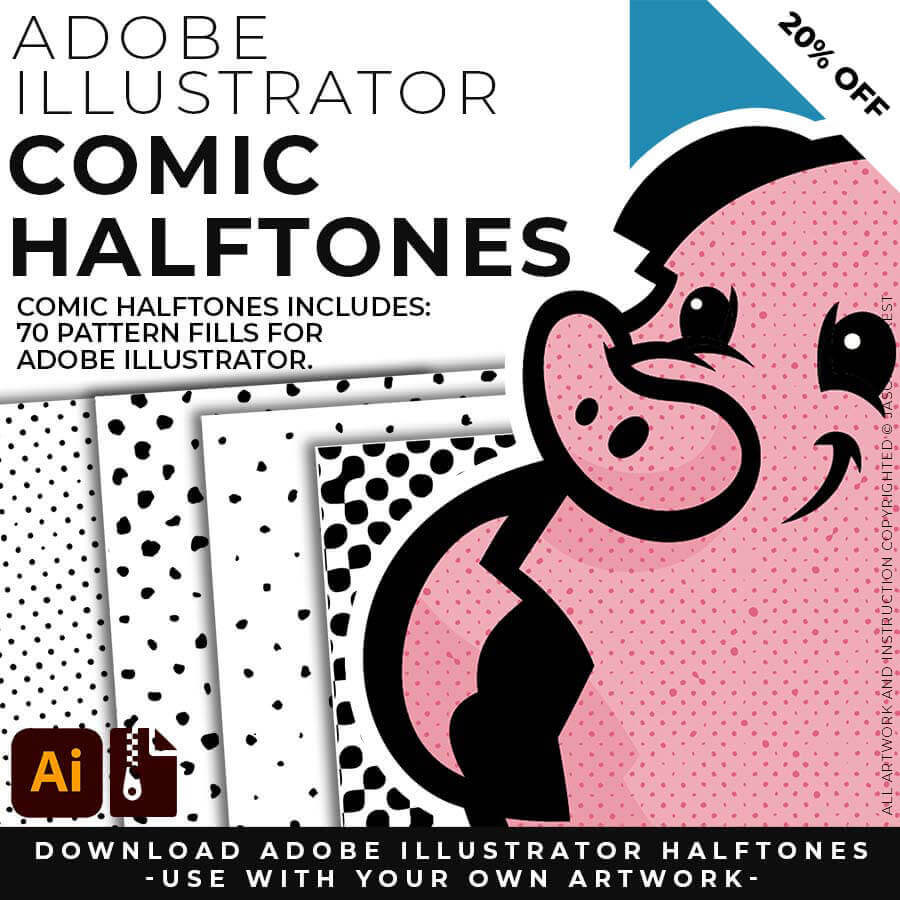
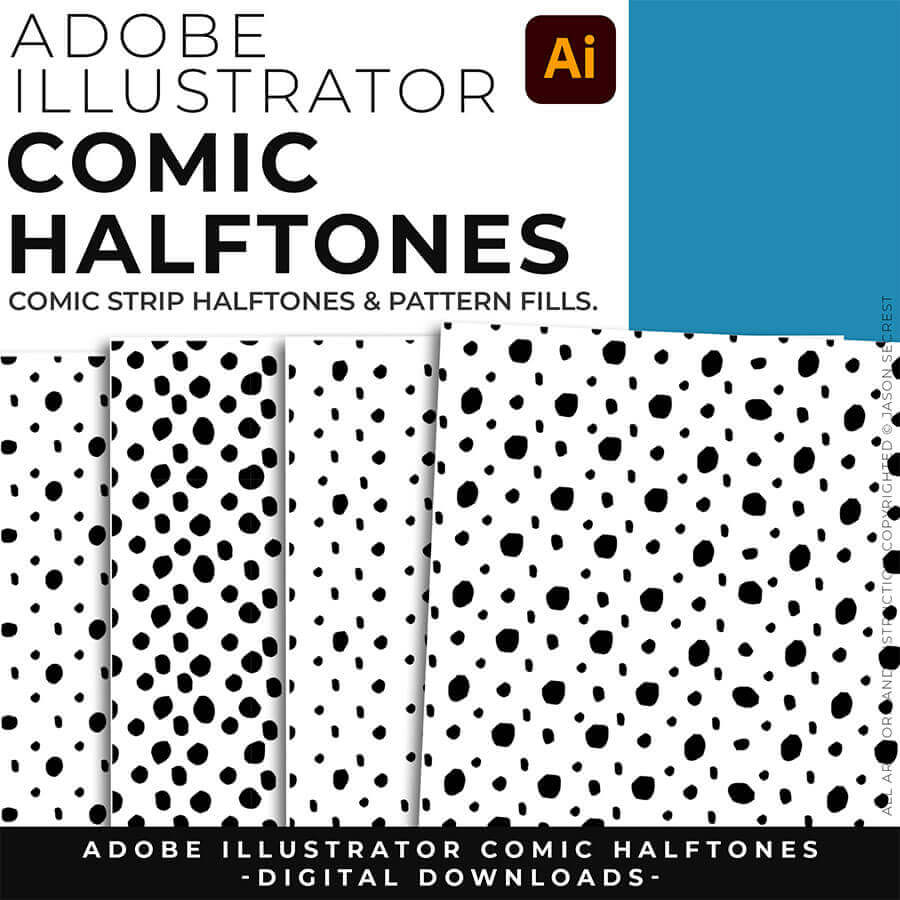
              70 ADOBE ILLUSTRATOR HALFTONES. Halftone Patterns Fills are designed for easy application even if you are new to Adobe Illustrator. Halftone Fills behave the same as a Color Swatch so you can apply them quickly using the Blob Brush, Live Paint, or Basic Fills. Halftones include 70 Comic Strip Halftone Pattern Fills.
              Image
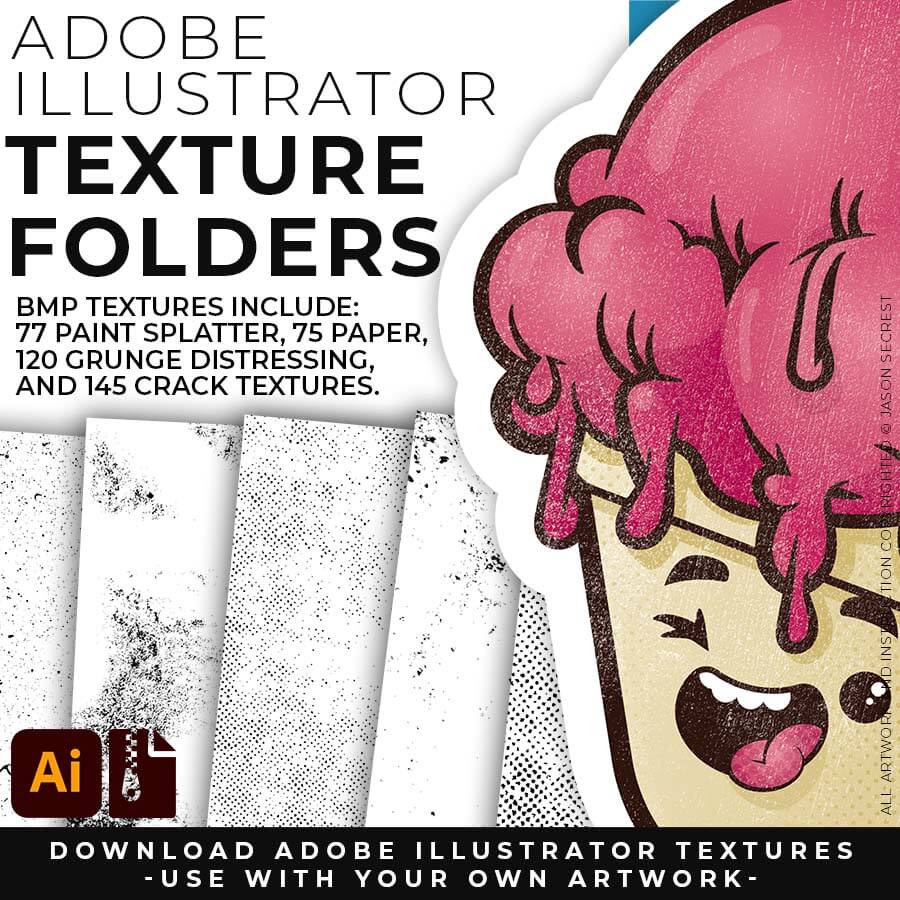
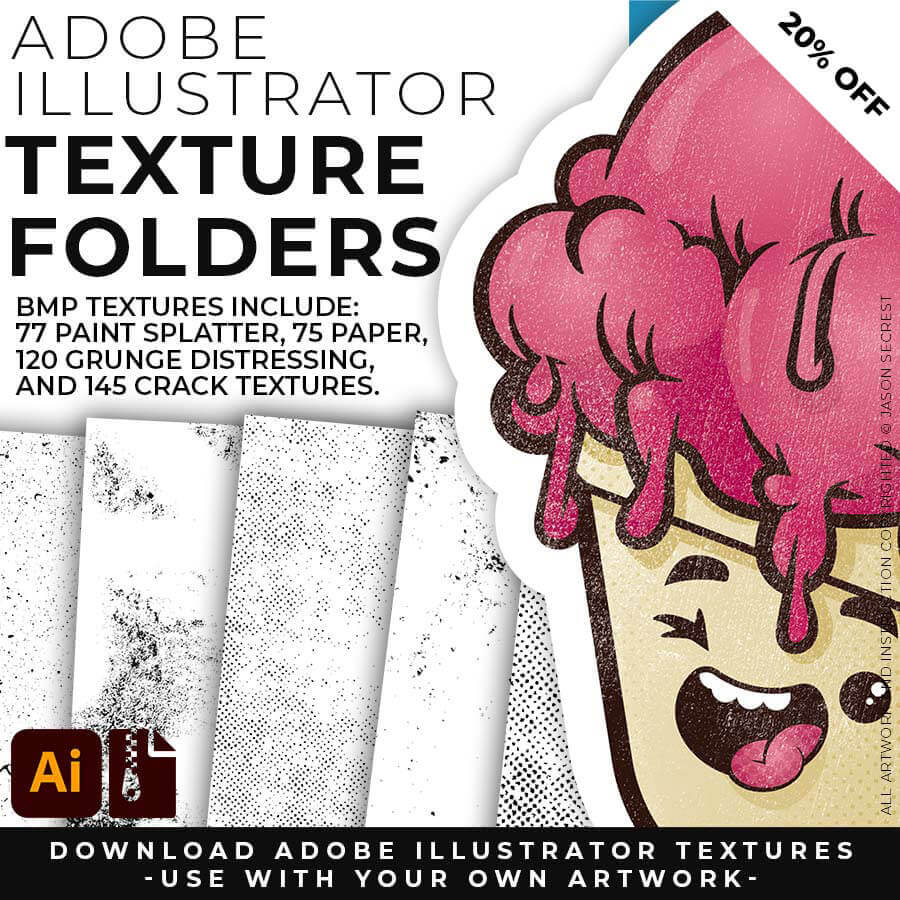
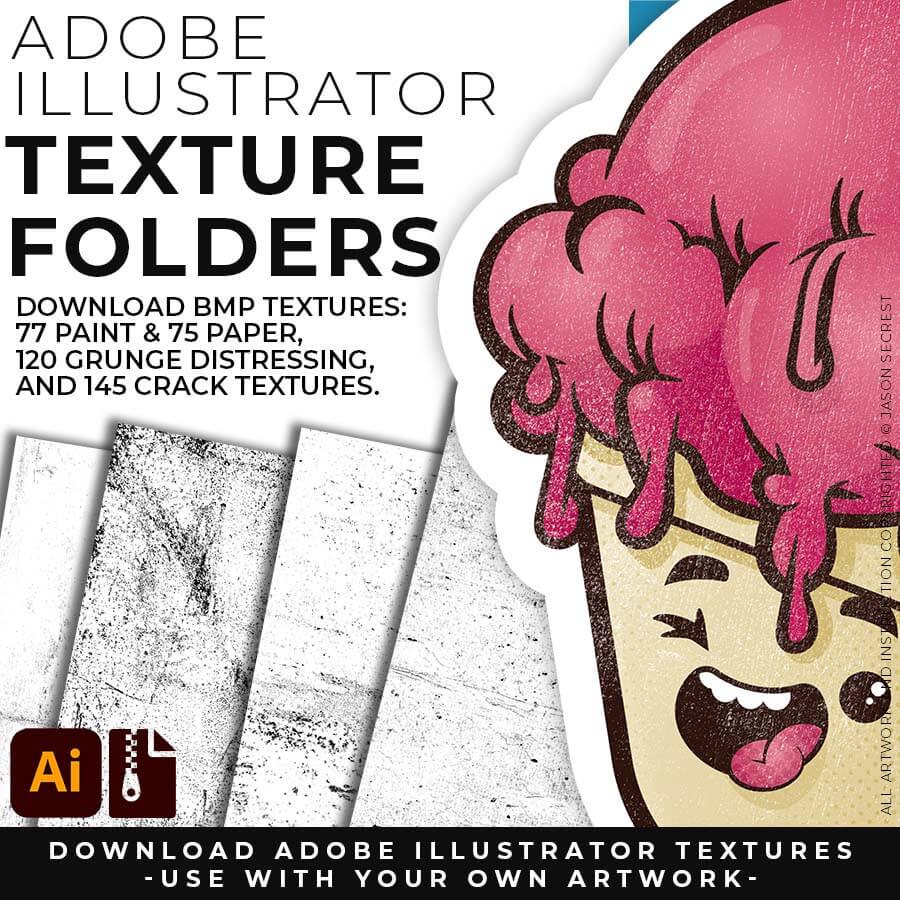
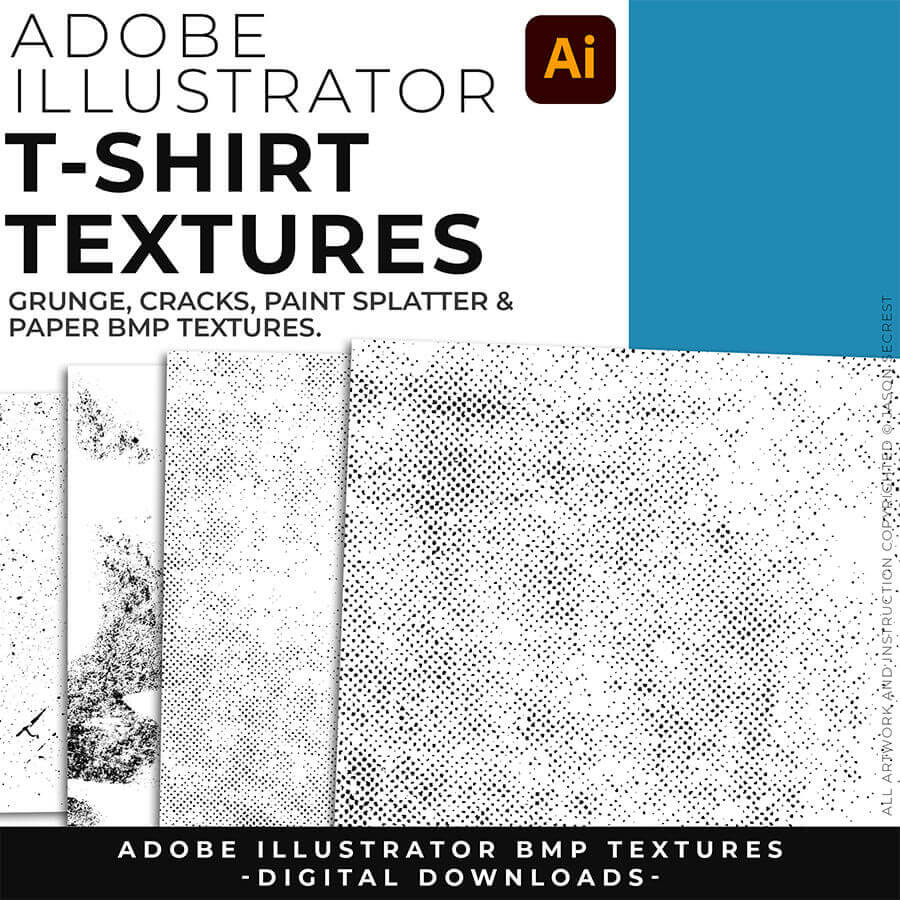
              400 ADOBE ILLUSTRATOR BMP TEXTURES. BMP Textures are extremely easy to use even if you are a beginner to Adobe Illustrator. Use BMP Textures along with Opacity Masks in the Transparency Panel for T-Shirt Distressing. BMP Textures include 145 Cracks, 120 Grunge, 75 Paper, and 77 Paint Textures.
              Image
              200 ADOBE ILLUSTRATOR BRUSHES. Brush Libraries are specifically designed for Illustrators and Cartoonists to speed up their workflow. Brush Libraries are compatible with Adobe Illustrator CC through CS. Mac or PC. Brush Libraries include 70 Cartoon, 100 Comic Strip, and 50 Vintage Mascot Brushes.
              Image
              70 ADOBE ILLUSTRATOR HALFTONES. Halftone Patterns Fills are designed for easy application even if you are new to Adobe Illustrator. Halftone Fills behave the same as a Color Swatch so you can apply them quickly using the Blob Brush, Live Paint, or Basic Fills. Halftones include 70 Comic Strip Halftone Pattern Fills.
              Image
              400 ADOBE ILLUSTRATOR BMP TEXTURES. BMP Textures are extremely easy to use even if you are a beginner to Adobe Illustrator. Use BMP Textures along with Opacity Masks in the Transparency Panel for T-Shirt Distressing. BMP Textures include 145 Cracks, 120 Grunge, 75 Paper, and 77 Paint Textures.
              Image
              200 ADOBE ILLUSTRATOR BRUSHES. Brush Libraries are specifically designed for Illustrators and Cartoonists to speed up their workflow. Brush Libraries are compatible with Adobe Illustrator CC through CS. Mac or PC. Brush Libraries include 70 Cartoon, 100 Comic Strip, and 50 Vintage Mascot Brushes.
              Image
              70 ADOBE ILLUSTRATOR HALFTONES. Halftone Patterns Fills are designed for easy application even if you are new to Adobe Illustrator. Halftone Fills behave the same as a Color Swatch so you can apply them quickly using the Blob Brush, Live Paint, or Basic Fills. Halftones include 70 Comic Strip Halftone Pattern Fills.
              Image
              400 ADOBE ILLUSTRATOR BMP TEXTURES. BMP Textures are extremely easy to use even if you are a beginner to Adobe Illustrator. Use BMP Textures along with Opacity Masks in the Transparency Panel for T-Shirt Distressing. BMP Textures include 145 Cracks, 120 Grunge, 75 Paper, and 77 Paint Textures.
              Image
              200 ADOBE ILLUSTRATOR BRUSHES. Brush Libraries are specifically designed for Illustrators and Cartoonists to speed up their workflow. Brush Libraries are compatible with Adobe Illustrator CC through CS. Mac or PC. Brush Libraries include 70 Cartoon, 100 Comic Strip, and 50 Vintage Mascot Brushes.
              Image
              70 ADOBE ILLUSTRATOR HALFTONES. Halftone Patterns Fills are designed for easy application even if you are new to Adobe Illustrator. Halftone Fills behave the same as a Color Swatch so you can apply them quickly using the Blob Brush, Live Paint, or Basic Fills. Halftones include 70 Comic Strip Halftone Pattern Fills.
              Image
              400 ADOBE ILLUSTRATOR BMP TEXTURES. BMP Textures are extremely easy to use even if you are a beginner to Adobe Illustrator. Use BMP Textures along with Opacity Masks in the Transparency Panel for T-Shirt Distressing. BMP Textures include 145 Cracks, 120 Grunge, 75 Paper, and 77 Paint Textures.
              Image
              200 ADOBE ILLUSTRATOR BRUSHES. Brush Libraries are specifically designed for Illustrators and Cartoonists to speed up their workflow. Brush Libraries are compatible with Adobe Illustrator CC through CS. Mac or PC. Brush Libraries include 70 Cartoon, 100 Comic Strip, and 50 Vintage Mascot Brushes.
              Image
              70 ADOBE ILLUSTRATOR HALFTONES. Halftone Patterns Fills are designed for easy application even if you are new to Adobe Illustrator. Halftone Fills behave the same as a Color Swatch so you can apply them quickly using the Blob Brush, Live Paint, or Basic Fills. Halftones include 70 Comic Strip Halftone Pattern Fills.
              Image
              400 ADOBE ILLUSTRATOR BMP TEXTURES. BMP Textures are extremely easy to use even if you are a beginner to Adobe Illustrator. Use BMP Textures along with Opacity Masks in the Transparency Panel for T-Shirt Distressing. BMP Textures include 145 Cracks, 120 Grunge, 75 Paper, and 77 Paint Textures.
              ADOBE ILLUSTRATOR

              DIGITAL DOWNLOADS

              DIGITAL DOWNLOADS

              ADOBE ILLUSTRATOR

              RESOURCE BUNDLE

              RESOURCE BUNDLE

              ADOBE ILLUSTRATOR

              RESOURCE BUNDLE

              RESOURCE BUNDLE

              ADOBE ILLUSTRATOR

              RESOURCE BUNDLES

              RESOURCE BUNDLE

              Image
              200 ADOBE ILLUSTRATOR BRUSHES. Brush Libraries are specifically designed for Illustrators and Cartoonists to speed up their workflow. Brush Libraries are compatible with Adobe Illustrator CC through CS. Mac or PC. Brush Libraries include 70 Cartoon, 100 Comic Strip, and 50 Vintage Mascot Brushes.
              Image
              70 ADOBE ILLUSTRATOR HALFTONES. Halftone Patterns Fills are designed for easy application even if you are new to Adobe Illustrator. Halftone Fills behave the same as a Color Swatch so you can apply them quickly using the Blob Brush, Live Paint, or Basic Fills. Halftones include 70 Comic Strip Halftone Pattern Fills.
              Image
              400 ADOBE ILLUSTRATOR BMP TEXTURES. BMP Textures are extremely easy to use even if you are a beginner to Adobe Illustrator. Use BMP Textures along with Opacity Masks in the Transparency Panel for T-Shirt Distressing. BMP Textures include 145 Cracks, 120 Grunge, 75 Paper, and 77 Paint Textures.
              Image
              200 ADOBE ILLUSTRATOR BRUSHES. Brush Libraries are specifically designed for Illustrators and Cartoonists to speed up their workflow. Brush Libraries are compatible with Adobe Illustrator CC through CS. Mac or PC. Brush Libraries include 70 Cartoon, 100 Comic Strip, and 50 Vintage Mascot Brushes.
              Image
              70 ADOBE ILLUSTRATOR HALFTONES. Halftone Patterns Fills are designed for easy application even if you are new to Adobe Illustrator. Halftone Fills behave the same as a Color Swatch so you can apply them quickly using the Blob Brush, Live Paint, or Basic Fills. Halftones include 70 Comic Strip Halftone Pattern Fills.
              Image
              400 ADOBE ILLUSTRATOR BMP TEXTURES. BMP Textures are extremely easy to use even if you are a beginner to Adobe Illustrator. Use BMP Textures along with Opacity Masks in the Transparency Panel for T-Shirt Distressing. BMP Textures include 145 Cracks, 120 Grunge, 75 Paper, and 77 Paint Textures.
              Image
              200 ADOBE ILLUSTRATOR BRUSHES. Brush Libraries are specifically designed for Illustrators and Cartoonists to speed up their workflow. Brush Libraries are compatible with Adobe Illustrator CC through CS. Mac or PC. Brush Libraries include 70 Cartoon, 100 Comic Strip, and 50 Vintage Mascot Brushes.
              Image
              70 ADOBE ILLUSTRATOR HALFTONES. Halftone Patterns Fills are designed for easy application even if you are new to Adobe Illustrator. Halftone Fills behave the same as a Color Swatch so you can apply them quickly using the Blob Brush, Live Paint, or Basic Fills. Halftones include 70 Comic Strip Halftone Pattern Fills.
              Image
              400 ADOBE ILLUSTRATOR BMP TEXTURES. BMP Textures are extremely easy to use even if you are a beginner to Adobe Illustrator. Use BMP Textures along with Opacity Masks in the Transparency Panel for T-Shirt Distressing. BMP Textures include 145 Cracks, 120 Grunge, 75 Paper, and 77 Paint Textures.
              ADOBE ILLUSTRATOR

              DIGITAL DOWNLOADS

              DIGITAL DOWNLOADS

              ADOBE ILLUSTRATOR

              RESOURCE BUNDLE

              RESOURCE BUNDLE

              ADOBE ILLUSTRATOR

              RESOURCE BUNDLE

              RESOURCE BUNDLE

              ADOBE ILLUSTRATOR

              RESOURCE BUNDLES

              RESOURCE BUNDLE

              Image
              200 ADOBE ILLUSTRATOR BRUSHES. Brush Libraries are specifically designed for Illustrators and Cartoonists to speed up their workflow. Brush Libraries are compatible with Adobe Illustrator CC through CS. Mac or PC. Brush Libraries include 70 Cartoon, 100 Comic Strip, and 50 Vintage Mascot Brushes.
              Image
              70 ADOBE ILLUSTRATOR HALFTONES. Halftone Patterns Fills are designed for easy application even if you are new to Adobe Illustrator. Halftone Fills behave the same as a Color Swatch so you can apply them quickly using the Blob Brush, Live Paint, or Basic Fills. Halftones include 70 Comic Strip Halftone Pattern Fills.
              Image
              400 ADOBE ILLUSTRATOR BMP TEXTURES. BMP Textures are extremely easy to use even if you are a beginner to Adobe Illustrator. Use BMP Textures along with Opacity Masks in the Transparency Panel for T-Shirt Distressing. BMP Textures include 145 Cracks, 120 Grunge, 75 Paper, and 77 Paint Textures.
              Image
              200 ADOBE ILLUSTRATOR BRUSHES. Brush Libraries are specifically designed for Illustrators and Cartoonists to speed up their workflow. Brush Libraries are compatible with Adobe Illustrator CC through CS. Mac or PC. Brush Libraries include 70 Cartoon, 100 Comic Strip, and 50 Vintage Mascot Brushes.
              Image
              70 ADOBE ILLUSTRATOR HALFTONES. Halftone Patterns Fills are designed for easy application even if you are new to Adobe Illustrator. Halftone Fills behave the same as a Color Swatch so you can apply them quickly using the Blob Brush, Live Paint, or Basic Fills. Halftones include 70 Comic Strip Halftone Pattern Fills.
              Image
              400 ADOBE ILLUSTRATOR BMP TEXTURES. BMP Textures are extremely easy to use even if you are a beginner to Adobe Illustrator. Use BMP Textures along with Opacity Masks in the Transparency Panel for T-Shirt Distressing. BMP Textures include 145 Cracks, 120 Grunge, 75 Paper, and 77 Paint Textures.
              Image
              200 ADOBE ILLUSTRATOR BRUSHES. Brush Libraries are specifically designed for Illustrators and Cartoonists to speed up their workflow. Brush Libraries are compatible with Adobe Illustrator CC through CS. Mac or PC. Brush Libraries include 70 Cartoon, 100 Comic Strip, and 50 Vintage Mascot Brushes.
              Image
              70 ADOBE ILLUSTRATOR HALFTONES. Halftone Patterns Fills are designed for easy application even if you are new to Adobe Illustrator. Halftone Fills behave the same as a Color Swatch so you can apply them quickly using the Blob Brush, Live Paint, or Basic Fills. Halftones include 70 Comic Strip Halftone Pattern Fills.
              Image
              400 ADOBE ILLUSTRATOR BMP TEXTURES. BMP Textures are extremely easy to use even if you are a beginner to Adobe Illustrator. Use BMP Textures along with Opacity Masks in the Transparency Panel for T-Shirt Distressing. BMP Textures include 145 Cracks, 120 Grunge, 75 Paper, and 77 Paint Textures.
              ADOBE ILLUSTRATOR

              DIGITAL DOWNLOADS

              DIGITAL DOWNLOADS

              ADOBE ILLUSTRATOR

              RESOURCE BUNDLE

              RESOURCE BUNDLE

              ADOBE ILLUSTRATOR

              RESOURCE BUNDLE

              RESOURCE BUNDLE

              ADOBE ILLUSTRATOR

              RESOURCE BUNDLES

              RESOURCE BUNDLE

              DOWNLOAD BRUSHES: Many of you are jumping over from YouTube looking to download our Adobe Illustrator Brush Libraries. Once you have downloaded and extracted the folders, Brushes are ready to be used in Adobe Illustrator. BEGINNER: Start with our Resource Guides to understand how to download, save, and open Brush Libraries in Adobe Illustrator. ADVANCED: As I create my artwork, pay attention to the Building Tools, Brush Application, and Editing Options as it relates to building a "Workflow." CARTOON / COMIC STRIP / MASCOT 
              DOWNLOAD BRUSHES: Many of you are jumping over from YouTube looking to download our Adobe Illustrator Brush Libraries. Once you have downloaded and extracted the folders, Brushes are ready to be used in Adobe Illustrator. BEGINNER: Start with our Resource Guides to understand how to download, save, and open Brush Libraries in Adobe Illustrator. ADVANCED: As I create my artwork, pay attention to the Building Tools, Brush Application, and Editing Options as it relates to building a "Workflow." CARTOON / COMIC STRIP / MASCOT 
              SKETCH TO BRUSHES: Attach your rough sketch to get clean, inked linework back from the prompts, then open the file in Illustrator and polish it with the matching brush set. Apply the Sketch to Brushes Prompts and move straight to editing. Resource Guides are in a full course format. Brush Libraries and Sketch to Brushes Prompt Packs are hosted through Teachable. → SKETCH TO BRUSHES
              BRUSH LIBRARIES: Many of you are jumping over from YouTube looking to download our Adobe Illustrator Brush Libraries. Once you have downloaded and extracted the folders, Brushes are ready to be used in Adobe Illustrator. BEGINNER: Start with our Resource Guides to understand how to download, save, and open Brush Libraries in Adobe Illustrator. ADVANCED: As I create my artwork, pay attention to the Building Tools, Brush Application, and Editing Options as it relates to building a "Workflow." → DOWNLOAD BRUSHES BUNDLE 
              DIGITAL DOWNLOADS: Many of you are jumping over from YouTube looking to download our Adobe Illustrator Brushes and Resource Folders. Once you have downloaded and extracted the folders, Digital Downloads are ready to use in Adobe Illustrator. BEGINNER: Start with our Resource Guides, Illustrator Tutorials, or YouTube Playlists to understand how to apply resources in Adobe Illustrator. ADVANCED: As I create my artwork, pay attention to the Building Tools, Brush Application, and Editing Options as it relates to building a "Workflow." BRUSH LIBRARIES / COMIC HALFTONES / T-SHIRT TEXTURES / RESOURCE BUNDLE
              DIGITAL DOWNLOADS: Many of you are jumping over from YouTube looking to download our Adobe Illustrator Brushes and Resource Folders. Once you have downloaded and extracted the folders, Digital Downloads are ready to use in Adobe Illustrator. BEGINNER: Start with our Resource Guides, Illustrator Tutorials, or YouTube Playlists to understand how to apply resources in Adobe Illustrator. ADVANCED: As I create my artwork, pay attention to the Building Tools, Brush Application, and Editing Options as it relates to building a "Workflow." BRUSH LIBRARIES / COMIC HALFTONES / T-SHIRT TEXTURES / RESOURCE BUNDLE
              DIGITAL DOWNLOADS: Many of you are jumping over from YouTube looking to download our Adobe Illustrator Brushes and Resource Folders. Once you have downloaded and extracted the folders, Digital Downloads are ready to use in Adobe Illustrator. BEGINNER: Start with our Resource Guides, Illustrator Tutorials, or YouTube Playlists to understand how to apply resources in Adobe Illustrator. ADVANCED: As I create my artwork, pay attention to the Building Tools, Brush Application, and Editing Options as it relates to building a "Workflow." BRUSH LIBRARIES / COMIC HALFTONES / T-SHIRT TEXTURES / RESOURCE BUNDLE
              DIGITAL DOWNLOADS: Many of you are jumping over from YouTube looking to download our Adobe Illustrator Brushes and Resource Folders. Once you have downloaded and extracted the folders, Digital Downloads are ready to use in Adobe Illustrator. BEGINNER: Start with our Resource Guides, Illustrator Tutorials, or YouTube Playlists to understand how to apply resources in Adobe Illustrator. DOWNLOAD BRUSHES / DOWNLOAD FOLDERS / DOWNLOAD BUNDLES
              DIGITAL DOWNLOADS: Many of you are jumping over from YouTube looking to download our Adobe Illustrator Brushes and Resource Folders. Once you have downloaded and extracted the folders, Digital Downloads are ready to use in Adobe Illustrator. BEGINNER: Start with our Resource Guides, Illustrator Tutorials, or YouTube Playlists to understand how to apply resources in Adobe Illustrator. DOWNLOAD BRUSHES / DIGITAL DOWNLOADS
              beginner adobe illustrator tutorial whale
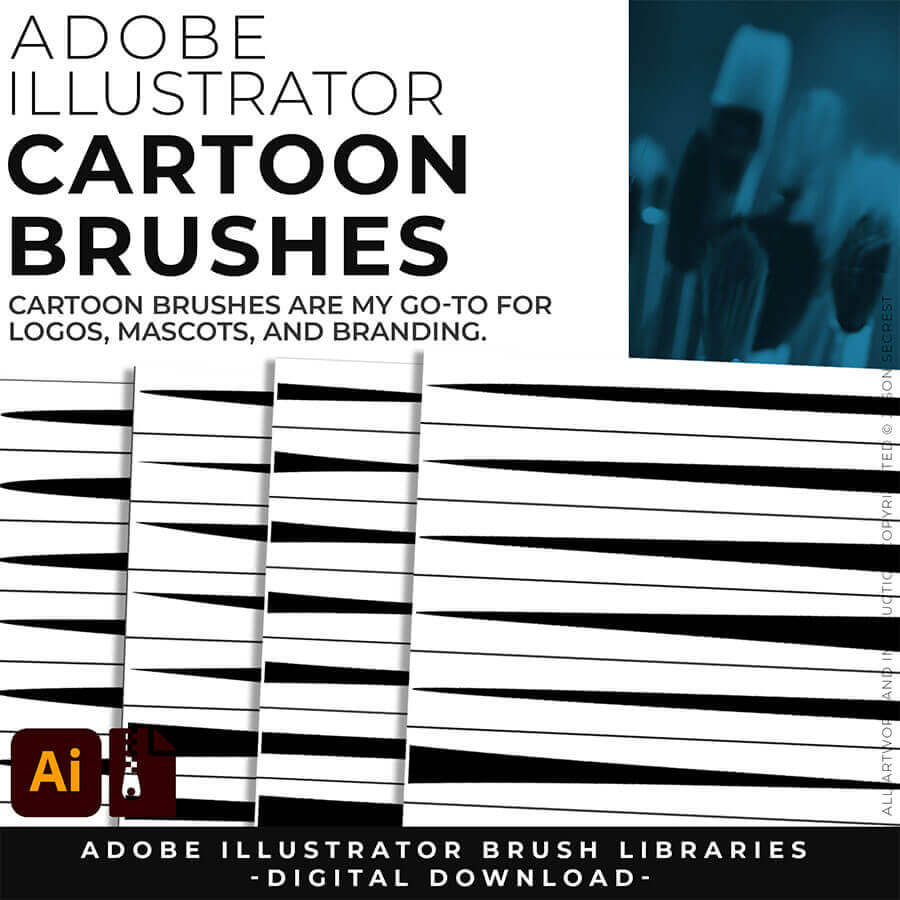
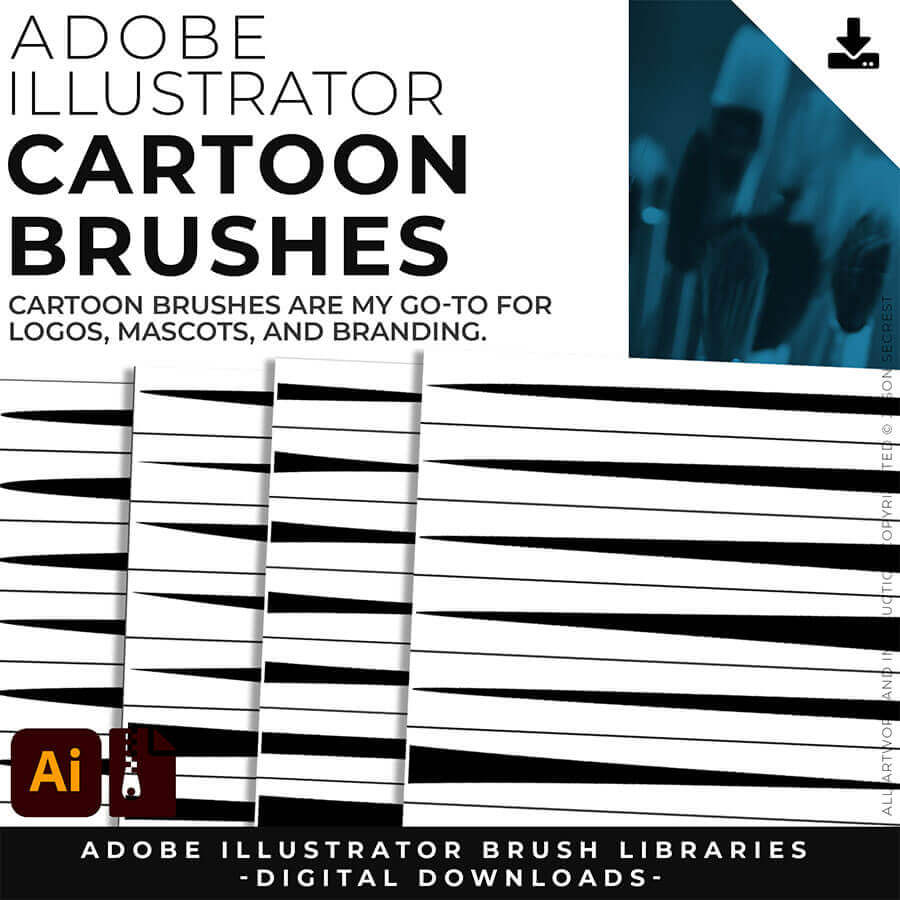
              CARTOON BRUSHES: Cartoon Brushes are my go-to for Professional Logos, Cartoons, Mascots, and Branding. Use Cartoon Illustrator Brushes with the Pen, Pencil, or Paint Brush Tools to Apply different Line Variation to your Vector Artwork. Download Cartoon, Cartoon 2, and Original Cartoon Brush Libraries. 
              beginner adobe illustrator tutorial pug
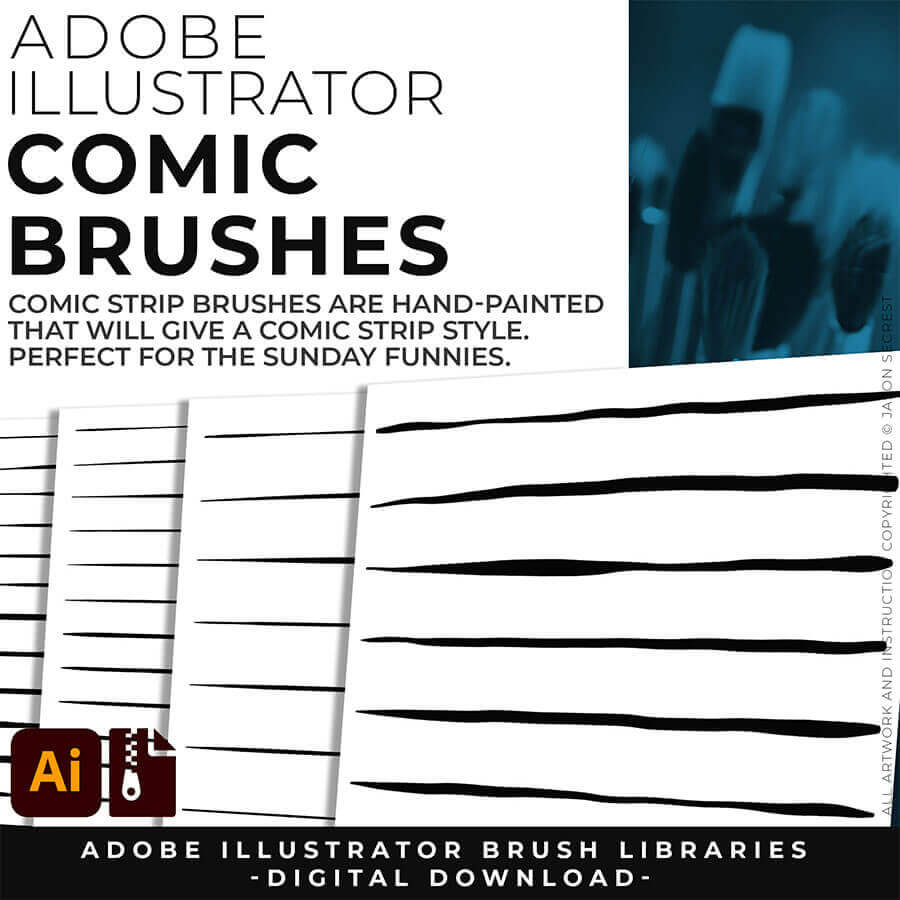
              COMIC STRIP BRUSHES: Hand Painted + Comic Strip Brushes to get a lived in feel back into your Vector Art. Comic Strips and Hand Painted are painted based on some of my favorite artists and cartoonists. These brushes are designed to look ready for the Sunday Paper. Download Comic Strip, Hand-Painted, Paintbrush, and Fine Liner Brush Libraries. 
              beginner adobe illustrator tutorial coyote
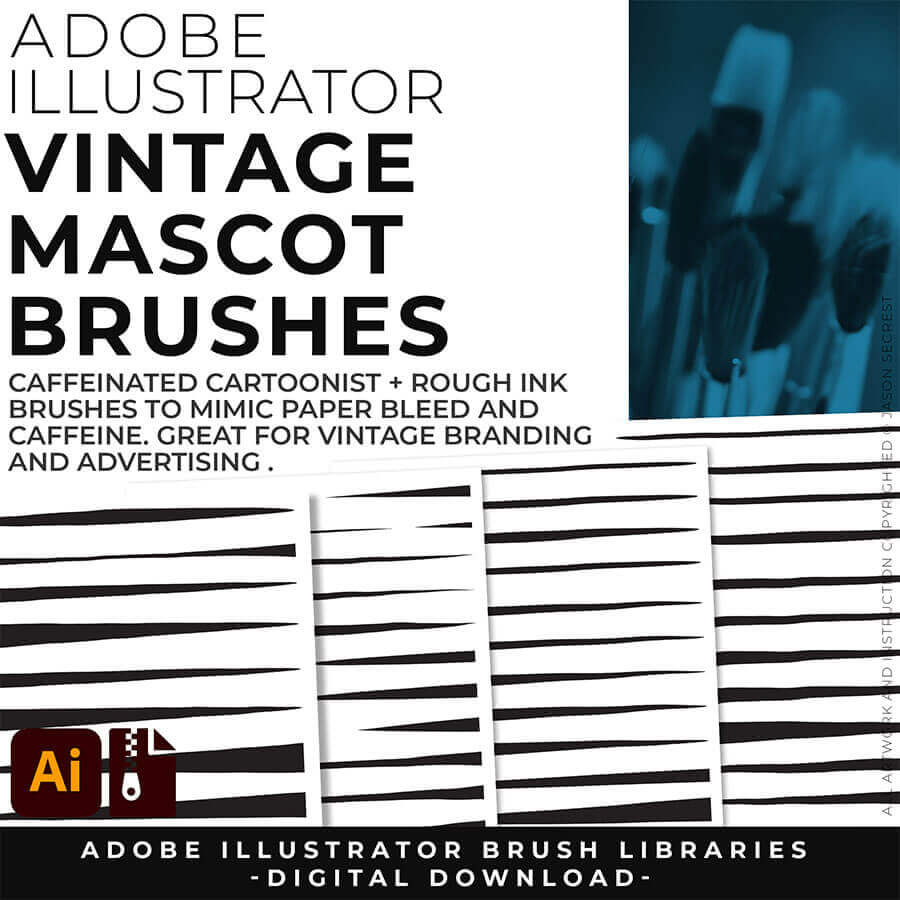
              MASCOT BRUSHES: Jittery Hand, Caffeinated Cartoonist + Rough Ink Brushes to Mimic Paper Bleed and Caffeine. Designed to be a little less stiff with your vector art. Use these Brush Libraries to get more of a distressed look or ink bleed back in your own Vector Artwork. Download Caffeinated Cartoonist, Rough Ink, and Jittery Hand Brush Libraries. 
              beginner adobe illustrator tutorial whale

              CARTOON BRUSHES: Cartoon Brushes are my go-to for Professional Logos, Cartoons, Mascots, and Branding. Use Cartoon Illustrator Brushes with the Pen, Pencil or Paint Brush Tools to Apply different Line Variation to your Vector Artwork. Includes (Updated) Cartoon, Cartoon 2, and Original Cartoon Brush Libraries. DIGITAL DOWNLOAD: CARTOON BRUSHES
              beginner adobe illustrator tutorial pug
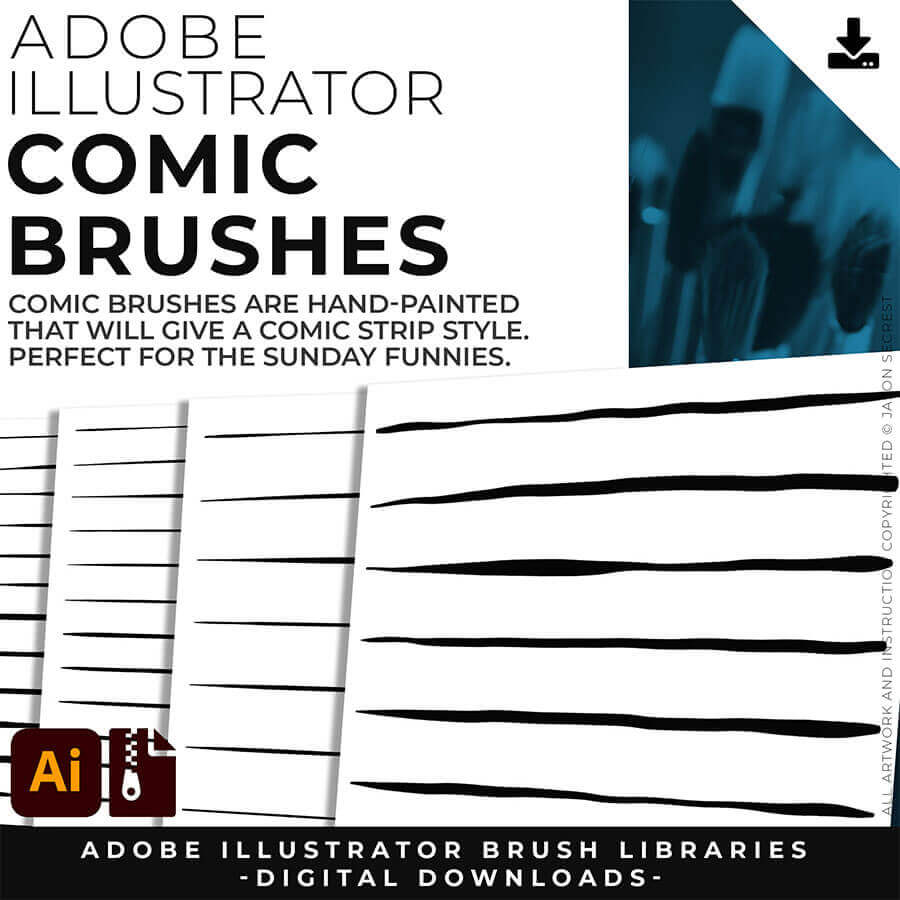
              COMIC STRIP BRUSHES: Hand Painted + Comic Strip Brushes get a lived-in feel back into your Vector Art. Comic Strips and Hand Painted are painted based on some of my favorite artists and cartoonists. These brushes are designed to look ready for the Sunday Paper. Includes (Updated) Comic Strip, Hand-Painted, Paintbrush, and Fine Liner Brush Libraries. DIGITAL DOWNLOAD: COMIC BRUSHES
              beginner adobe illustrator tutorial coyote

              MASCOT BRUSHES: Jittery Hand, Caffeinated Cartoonist + Rough Ink Brushes to Mimic Paper Bleed and Caffeine. Designed to be a little less stiff with your vector art. Use these Brush Libraries to get more of a distressed look or ink bleed back in your own Vector Artwork. Includes (Updated) Caffeinated Cartoonist, Rough Ink, and Jittery Hand Brush Libraries. DIGITAL DOWNLOAD: MASCOT BRUSHES

              beginner adobe illustrator tutorial whale

              CARTOON BRUSHES: Cartoon Brushes are my go-to for Professional Logos, Cartoons, Mascots, and Branding. Use Cartoon Illustrator Brushes with the Pen, Pencil or Paint Brush Tools to Apply different Line Variation to your Vector Artwork. Download Cartoon, Cartoon 2, and Original Cartoon Brush Libraries. 

              beginner adobe illustrator tutorial pug
              COMIC BRUSHES: Hand Painted + Comic Strip Brushes get a lived-in feel back into your Vector Art. Comic Strips and Hand Painted are painted based on some of my favorite artists and cartoonists. These brushes are designed to look ready for the Sunday Paper. Download Comic Strip, Hand-Painted, Paintbrush, and Fine Liner Brush Libraries. 
              beginner adobe illustrator tutorial coyote

              MASCOT BRUSHES: Jittery Hand, Caffeinated Cartoonist + Rough Ink Brushes to Mimic Paper Bleed and Caffeine. Designed to be a little less stiff with your vector art. Use these Brush Libraries to get more of a distressed look or ink bleed back in your own Vector Artwork. Download Caffeinated Cartoonist, Rough Ink, and Jittery Hand Brush Libraries. 

              beginner adobe illustrator tutorial whale

              CARTOON BRUSHES: Cartoon Brushes are my go-to for Professional Logos, Cartoons, Mascots, and Branding. Use Cartoon Illustrator Brushes with the Pen, Pencil or Paint Brush Tools to Apply different Line Variation to your Vector Artwork. Download Cartoon, Cartoon 2, and Original Cartoon Brush Libraries. 

              beginner adobe illustrator tutorial pug
              COMIC BRUSHES: Hand Painted + Comic Strip Brushes get a lived-in feel back into your Vector Art. Comic Strips and Hand Painted are painted based on some of my favorite artists and cartoonists. These brushes are designed to look ready for the Sunday Paper. Download Comic Strip, Hand-Painted, Paintbrush, and Fine Liner Brush Libraries. 
              beginner adobe illustrator tutorial coyote

              MASCOT BRUSHES: Jittery Hand, Caffeinated Cartoonist + Rough Ink Brushes to Mimic Paper Bleed and Caffeine. Designed to be a little less stiff with your vector art. Use these Brush Libraries to get more of a distressed look or ink bleed back in your own Vector Artwork. Download Caffeinated Cartoonist, Rough Ink, and Jittery Hand Brush Libraries. 

              beginner adobe illustrator tutorial whale
              CARTOON BRUSHES: Cartoon Brushes are my go-to for Professional Logos, Cartoons, Mascots, and Branding. Use Cartoon Illustrator Brushes with the Pen, Pencil, or Paint Brush Tools to Apply different Line Variation to your Vector Artwork. Download Cartoon, Cartoon 2, and Original Cartoon Brush Libraries. 
              beginner adobe illustrator tutorial pug
              COMIC STRIP BRUSHES: Hand Painted + Comic Strip Brushes to get a lived in feel back into your Vector Art. Comic Strips and Hand Painted are painted based on some of my favorite artists and cartoonists. These brushes are designed to look ready for the Sunday Paper. Download Comic Strip, Hand-Painted, Paintbrush, and Fine Liner Brush Libraries. 
              beginner adobe illustrator tutorial coyote
              MASCOT BRUSHES: Jittery Hand, Caffeinated Cartoonist + Rough Ink Brushes to Mimic Paper Bleed and Caffeine. Designed to be a little less stiff with your vector art. Use these Brush Libraries to get more of a distressed look or ink bleed back in your own Vector Artwork. Download Caffeinated Cartoonist, Rough Ink, and Jittery Hand Brush Libraries. 
              beginner adobe illustrator tutorial whale
              70 CARTOON BRUSHES: Cartoon Brushes are my go-to for Professional Logos, Cartoons, Mascots, and Branding. Use Cartoon Illustrator Brushes with the Pen, Pencil, or Paint Brush Tools to Apply different Line Variation to your Vector Artwork. (Updated) Cartoon, Cartoon 2, and Original Cartoon Brush Libraries. 
              beginner adobe illustrator tutorial pug
              100 COMIC STRIP BRUSHES: Hand Painted + Comic Strip Brushes to get a lived in feel back into your Vector Art. Comic Strips and Hand Painted are painted based on some of my favorite artists and cartoonists. These brushes are designed to look ready for the Sunday Paper. (Updated) Comic Strip, Hand-Painted, Paintbrush, and Fine Liner Brush Libraries. 
              beginner adobe illustrator tutorial coyote
              50 MASCOT BRUSHES: Jittery Hand, Caffeinated Cartoonist + Rough Ink Brushes to Mimic Paper Bleed and Caffeine. Designed to be a little less stiff with your vector art. Use these Brush Libraries to get more of a distressed look or ink bleed back in your own Vector Artwork. (Updated) Caffeinated Cartoonist, Rough Ink, and Jittery Hand Brush Libraries. 
              beginner adobe illustrator tutorial whale
              70 CARTOON BRUSHES: Cartoon Brushes are my go-to for Professional Logos, Cartoons, Mascots, and Branding. Use Cartoon Illustrator Brushes with the Pen, Pencil, or Paint Brush Tools to Apply different Line Variation to your Vector Artwork. (Updated) Cartoon, Cartoon 2, and Original Cartoon Brush Libraries. 
              beginner adobe illustrator tutorial pug
              100 COMIC STRIP BRUSHES: Hand Painted + Comic Strip Brushes to get a lived in feel back into your Vector Art. Comic Strips and Hand Painted are painted based on some of my favorite artists and cartoonists. These brushes are designed to look ready for the Sunday Paper. (Updated) Comic Strip, Hand-Painted, Paintbrush, and Fine Liner Brush Libraries. 
              beginner adobe illustrator tutorial coyote
              50 MASCOT BRUSHES: Jittery Hand, Caffeinated Cartoonist + Rough Ink Brushes to Mimic Paper Bleed and Caffeine. Designed to be a little less stiff with your vector art. Use these Brush Libraries to get more of a distressed look or ink bleed back in your own Vector Artwork. (Updated) Caffeinated Cartoonist, Rough Ink, and Jittery Hand Brush Libraries. 
              beginner adobe illustrator tutorial whale
              CARTOON BRUSHES: Cartoon Brushes are my go-to for Professional Logos, Cartoons, Mascots, and Branding. Use Cartoon Illustrator Brushes with the Pen, Pencil or Paint Brush Tools to Apply different Line Variation to your Vector Artwork. Download Cartoon, Cartoon 2, and Original Cartoon Brush Libraries. 
              beginner adobe illustrator tutorial pug
              COMIC BRUSHES: Hand Painted + Comic Strip Brushes get a lived-in feel back into your Vector Art. Comic Strips and Hand Painted are painted based on some of my favorite artists and cartoonists. These brushes are designed to look ready for the Sunday Paper. Download Comic Strip, Hand-Painted, Paintbrush, and Fine Liner Brush Libraries. 
              beginner adobe illustrator tutorial coyote
              MASCOT BRUSHES: Jittery Hand, Caffeinated Cartoonist + Rough Ink Brushes to Mimic Paper Bleed and Caffeine. Designed to be a little less stiff with your vector art. Use these Brush Libraries to get more of a distressed look or ink bleed back in your own Vector Artwork. Download Caffeinated Cartoonist, Rough Ink, and Jittery Hand Brush Libraries. 
              beginner adobe illustrator tutorial whale
              CARTOON BRUSHES: Cartoon Brushes are my go-to for Professional Logos, Cartoons, Mascots, and Branding. Use Cartoon Illustrator Brushes with the Pen, Pencil, or Paint Brush Tools to Apply different Line Variation to your Vector Artwork. Download Cartoon, Cartoon 2, and Original Cartoon Brush Libraries. 
              beginner adobe illustrator tutorial pug
              COMIC STRIP BRUSHES: Hand Painted + Comic Strip Brushes to get a lived in feel back into your Vector Art. Comic Strips and Hand Painted are painted based on some of my favorite artists and cartoonists. These brushes are designed to look ready for the Sunday Paper. Download Comic Strip, Hand-Painted, Paintbrush, and Fine Liner Brush Libraries. 
              beginner adobe illustrator tutorial coyote
              MASCOT BRUSHES: Jittery Hand, Caffeinated Cartoonist + Rough Ink Brushes to Mimic Paper Bleed and Caffeine. Designed to be a little less stiff with your vector art. Use these Brush Libraries to get more of a distressed look or ink bleed back in your own Vector Artwork. Download Caffeinated Cartoonist, Rough Ink, and Jittery Hand Brush Libraries. 
              beginner adobe illustrator tutorial whale
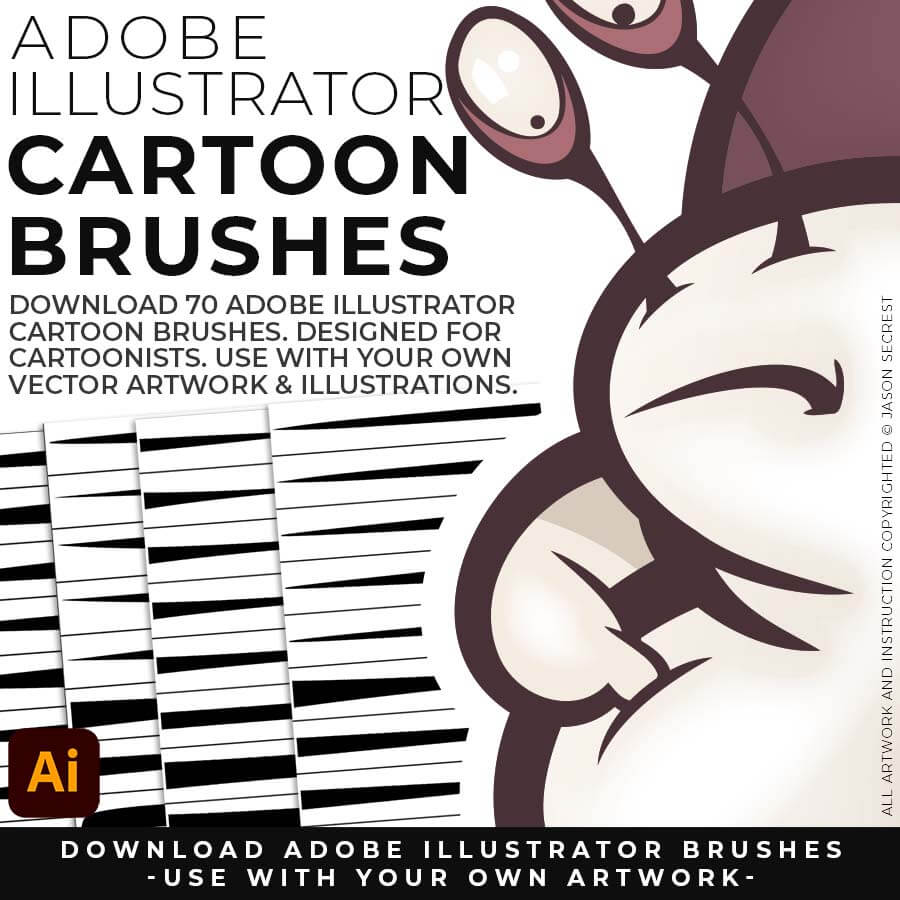
              CARTOON BRUSHES: Cartoon Brushes are my go-to brushes for Professional Logos, Cartoons, Mascots, and Branding. Use Cartoon Illustrator Brushes with the Pen, Pencil or Paint Brush Tools to Apply different Line Variation to your Vector Artwork. Includes (Updated) Cartoon, Cartoon 2, and Original Cartoon Brush Libraries. DIGITAL DOWNLOAD: CARTOON BRUSHES
              beginner adobe illustrator tutorial pug
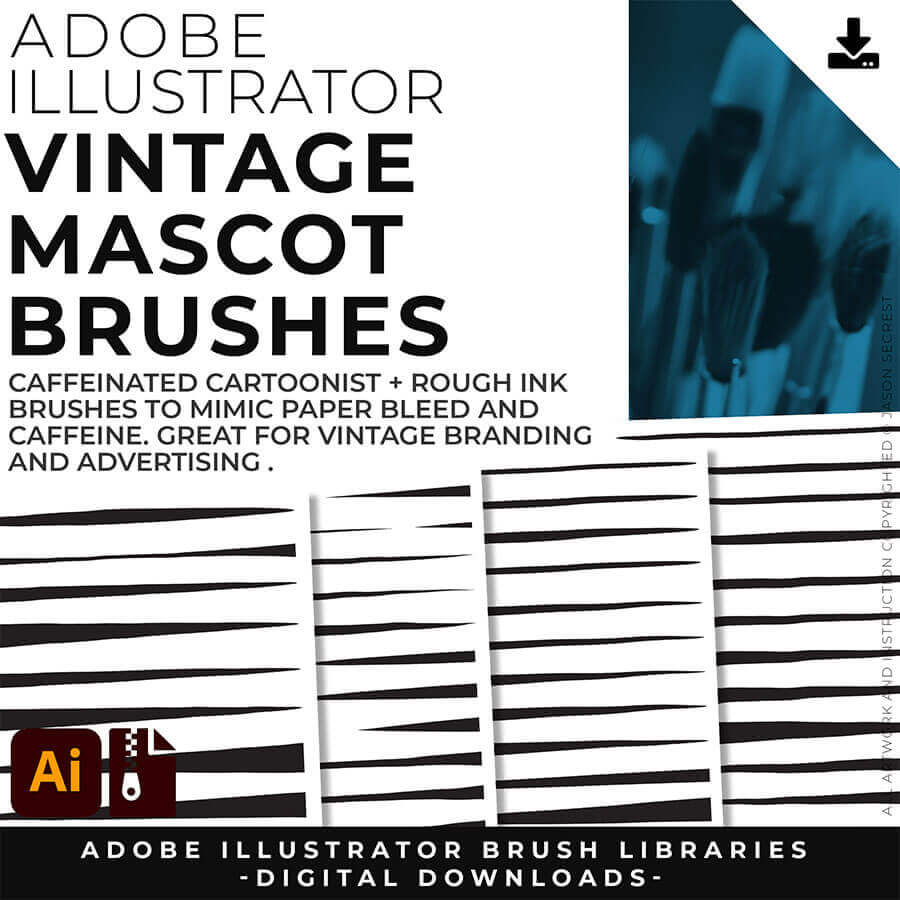
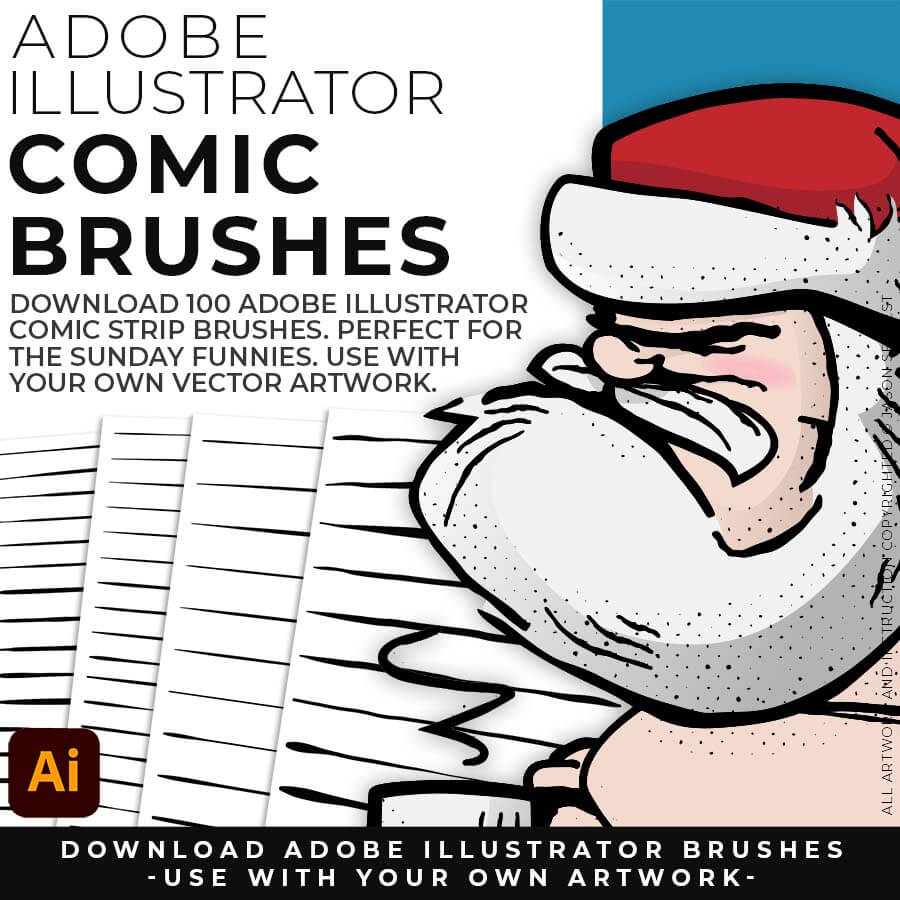
              COMIC STRIP BRUSHES: Hand Painted + Comic Strip Brushes get a lived-in feel back into your Vector Art. Comic Strips and Hand Painted are painted based on some of my favorite artists and cartoonists. These brushes are designed to look ready for the Sunday Paper. Includes (Updated) Comic Strip, Hand-Painted, Paintbrush, and Fine Liner Brush Libraries. DIGITAL DOWNLOAD: COMIC BRUSHES
              beginner adobe illustrator tutorial coyote
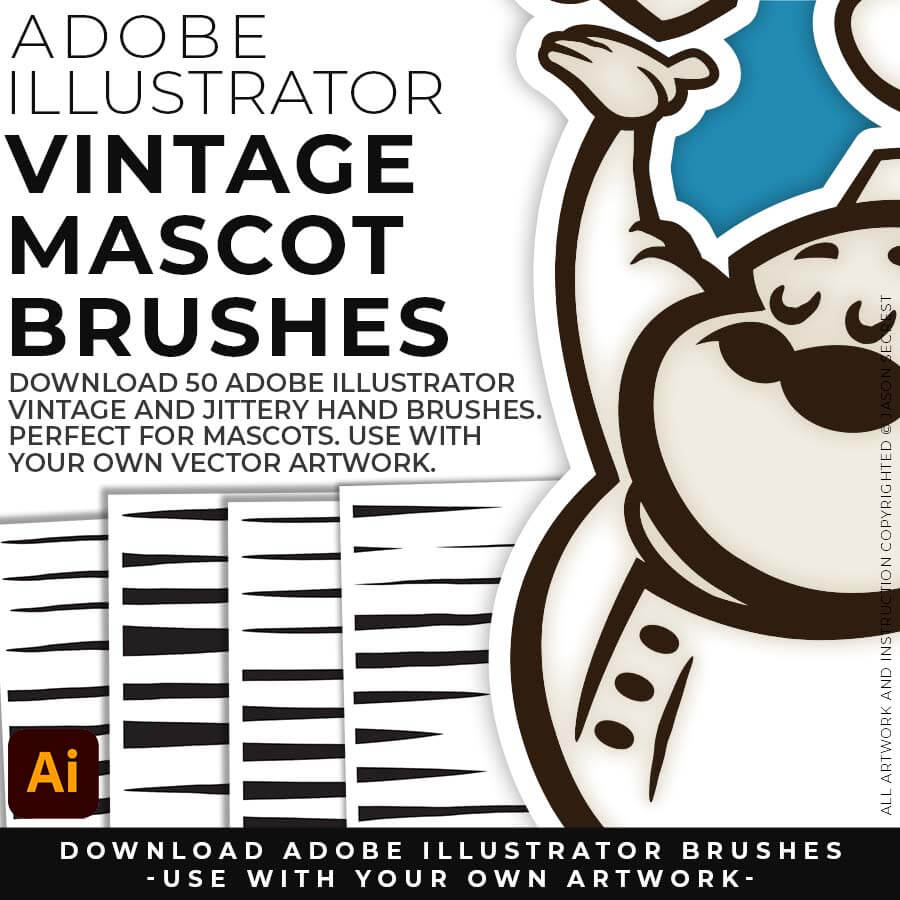
              MASCOT BRUSHES: Jittery Hand, Caffeinated Cartoonist + Rough Ink Brushes to Mimic Paper Bleed and Caffeine. Designed to be a little less stiff with your vector art. Use these Brush Libraries to get more of a distressed look or ink bleed back in your own Vector Artwork. Includes (Updated) Caffeinated Cartoonist, Rough Ink, and Jittery Hand Brush Libraries. DIGITAL DOWNLOAD: MASCOT BRUSHES
              beginner adobe illustrator tutorial whale

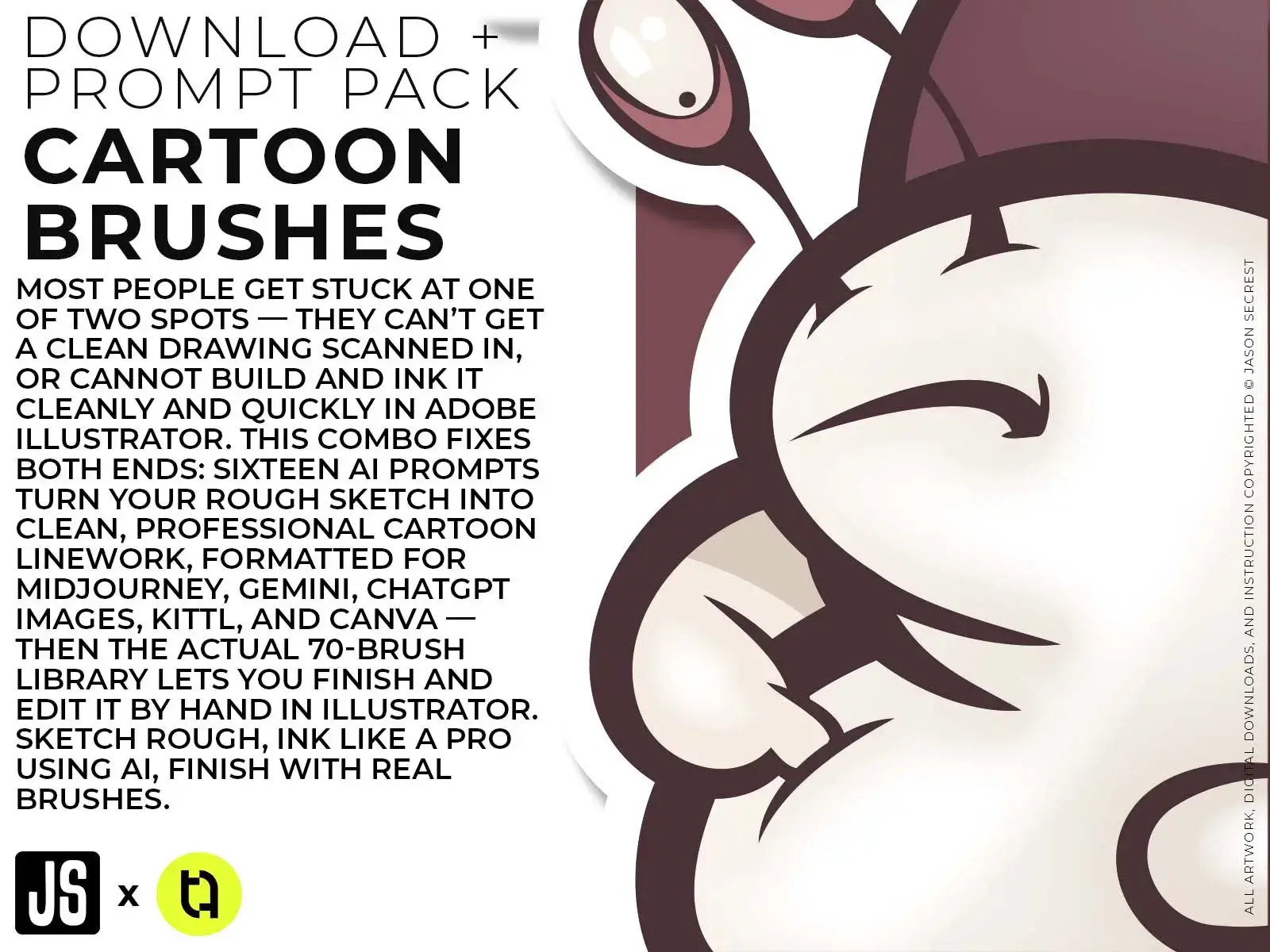
              SKETCH TO CARTOON BRUSHES:   Most people get stuck at one of two spots — they have a sketch, but can't build and ink it cleanly in Adobe Illustrator. This combo fixes both ends: sixteen AI prompts turn your rough sketch into clean, professional cartoon linework, formatted for Midjourney, Gemini, ChatGPT Images, Kittl, and Canva — then the actual 70-brush library lets you finish and edit it by hand in Illustrator.

              beginner adobe illustrator tutorial pug
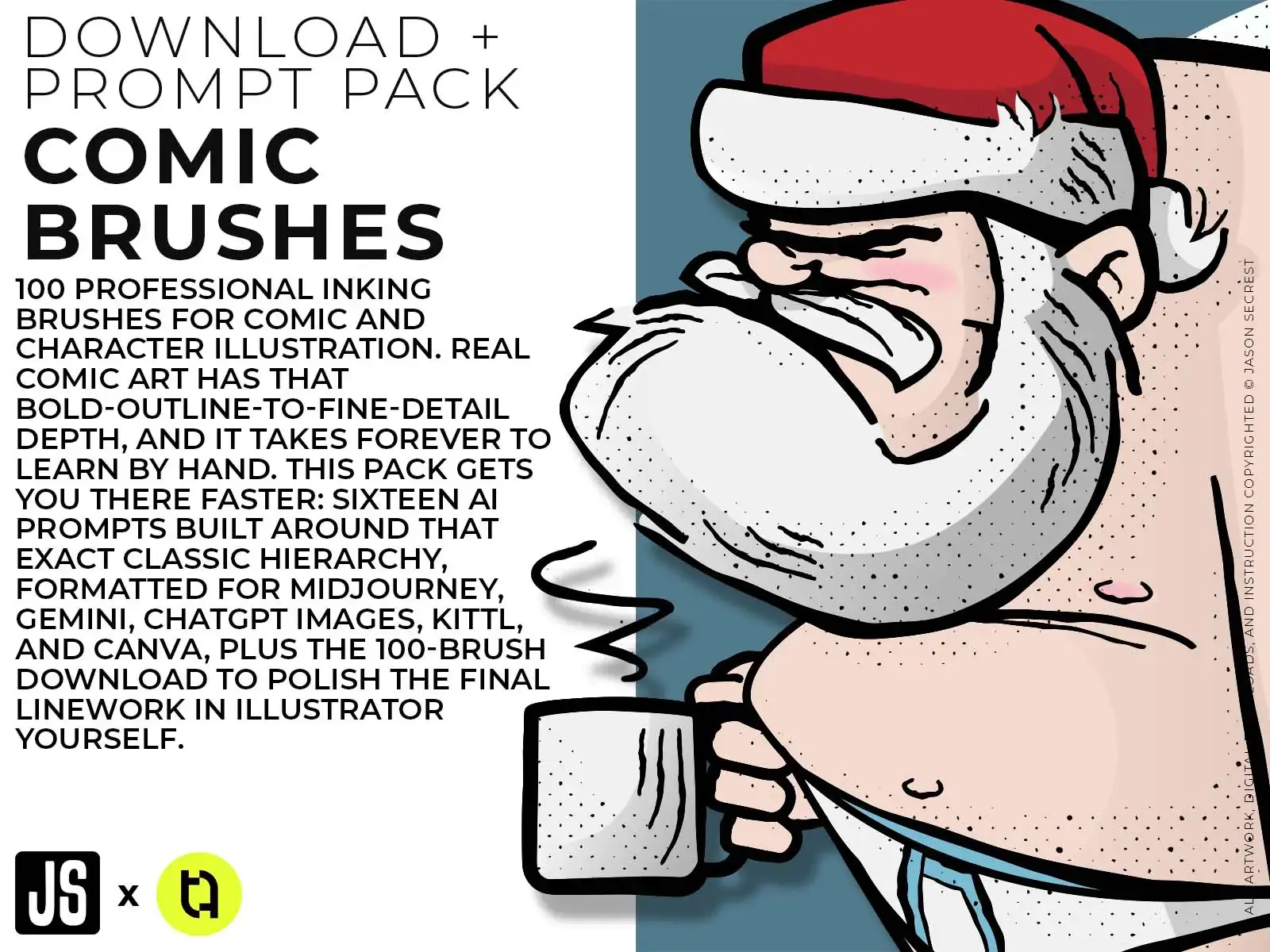
              SKETCH TO COMIC STRIP BRUSHES: Real comic art has that bold-outline-to-fine-detail depth, and it takes forever to learn by hand. This pack gets you there faster: sixteen AI prompts built around that exact classic hierarchy, formatted for Midjourney, Gemini, ChatGPT Images, Kittl, and Canva, plus the 100-brush download to polish the final linework in Illustrator yourself. AI gets you 90% there, your hand gets you the last 10.
              beginner adobe illustrator tutorial coyote
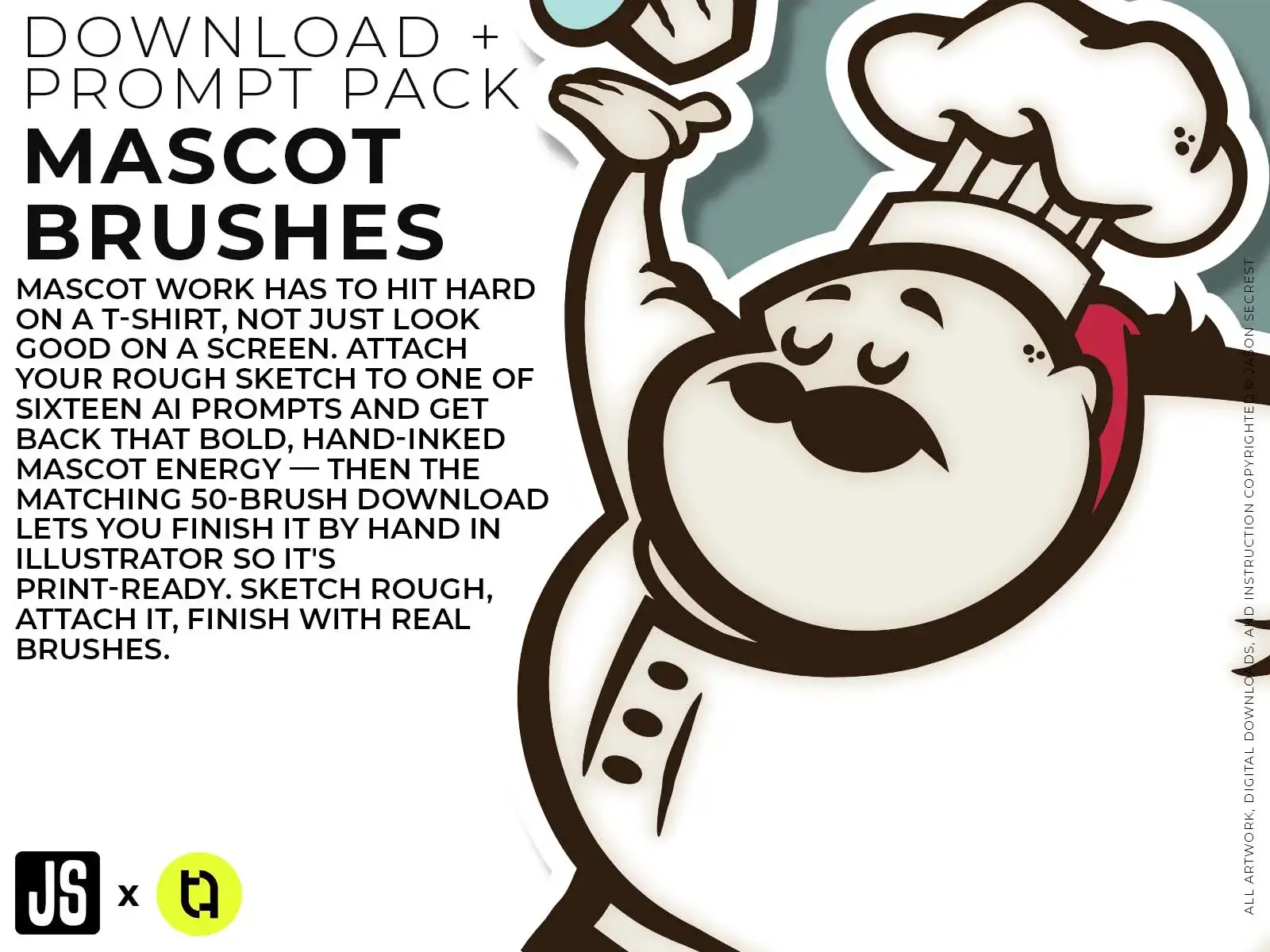
              SKETCH TO MASCOT BRUSHES:  Mascot work has to hit hard on a T-shirt, not just look good on a screen. Sixteen AI prompts give you that bold, hand-inked mascot energy straight from a rough sketch, formatted for Midjourney, Gemini, ChatGPT Images, Kittl, and Canva, and the matching 50-brush download lets you finish it by hand in Illustrator so it's print-ready. Sketch rough, finish with real brushes.
              beginner adobe illustrator tutorial whale
              CARTOON BRUSHES: Cartoon Brushes are my go-to brushes for Professional Logos, Cartoons, Mascots, and Branding. Use Cartoon Illustrator Brushes with the Pen, Pencil or Paint Brush Tools to Apply different Line Variation to your Vector Artwork. Includes (Updated) Cartoon, Cartoon 2, and Original Cartoon Brush Libraries. DIGITAL DOWNLOAD: CARTOON BRUSHES
              beginner adobe illustrator tutorial pug
              COMIC STRIP BRUSHES: Hand Painted + Comic Strip Brushes get a lived-in feel back into your Vector Art. Comic Strips and Hand Painted are painted based on some of my favorite artists and cartoonists. These brushes are designed to look ready for the Sunday Paper. Includes (Updated) Comic Strip, Hand-Painted, Paintbrush, and Fine Liner Brush Libraries. DIGITAL DOWNLOAD: COMIC BRUSHES
              beginner adobe illustrator tutorial coyote
              MASCOT BRUSHES: Jittery Hand, Caffeinated Cartoonist + Rough Ink Brushes to Mimic Paper Bleed and Caffeine. Designed to be a little less stiff with your vector art. Use these Brush Libraries to get more of a distressed look or ink bleed back in your own Vector Artwork. Includes (Updated) Caffeinated Cartoonist, Rough Ink, and Jittery Hand Brush Libraries. DIGITAL DOWNLOAD: MASCOT BRUSHES
              beginner adobe illustrator tutorial whale

              CARTOON BRUSHES:   Most people get stuck at one of two spots — they have a sketch, but can't build and ink it cleanly in Adobe Illustrator. This combo fixes both ends: sixteen AI prompts turn your rough sketch into clean, professional cartoon linework, formatted for Midjourney, Gemini, ChatGPT Images, Kittl, and Canva — then the actual 70-brush library lets you finish and edit it by hand in Illustrator.

              beginner adobe illustrator tutorial pug
              COMIC STRIP BRUSHES: Real comic art has that bold-outline-to-fine-detail depth, and it takes forever to learn by hand. This pack gets you there faster: sixteen AI prompts built around that exact classic hierarchy, formatted for Midjourney, Gemini, ChatGPT Images, Kittl, and Canva, plus the 100-brush download to polish the final linework in Illustrator yourself. AI gets you 90% there, your hand gets you the last 10.
              beginner adobe illustrator tutorial coyote
              MASCOT BRUSHES:  Mascot work has to hit hard on a T-shirt, not just look good on a screen. Sixteen AI prompts give you that bold, hand-inked mascot energy straight from a rough sketch, formatted for Midjourney, Gemini, ChatGPT Images, Kittl, and Canva, and the matching 50-brush download lets you finish it by hand in Illustrator so it's print-ready. Sketch rough, finish with real brushes.
              beginner adobe illustrator tutorial whale
              CARTOON BRUSHES: Cartoon Brushes are my go-to brushes for Professional Logos, Cartoons, Mascots, and Branding. Use Cartoon Illustrator Brushes with the Pen, Pencil or Paint Brush Tools to Apply different Line Variation to your Vector Artwork. Includes (Updated) Cartoon, Cartoon 2, and Original Cartoon Brush Libraries. DIGITAL DOWNLOAD: CARTOON BRUSHES
              beginner adobe illustrator tutorial pug
              COMIC STRIP BRUSHES: Hand Painted + Comic Strip Brushes get a lived-in feel back into your Vector Art. Comic Strips and Hand Painted are painted based on some of my favorite artists and cartoonists. These brushes are designed to look ready for the Sunday Paper. Includes (Updated) Comic Strip, Hand-Painted, Paintbrush, and Fine Liner Brush Libraries. DIGITAL DOWNLOAD: COMIC BRUSHES
              beginner adobe illustrator tutorial coyote
              MASCOT BRUSHES: Jittery Hand, Caffeinated Cartoonist + Rough Ink Brushes to Mimic Paper Bleed and Caffeine. Designed to be a little less stiff with your vector art. Use these Brush Libraries to get more of a distressed look or ink bleed back in your own Vector Artwork. Includes (Updated) Caffeinated Cartoonist, Rough Ink, and Jittery Hand Brush Libraries. DIGITAL DOWNLOAD: MASCOT BRUSHES
              beginner adobe illustrator tutorial whale
              ADOBE ILLUSTRATOR BRUSHES. Brushes are specifically designed for Illustrators and Cartoonists to speed up their workflow. Brushes Libraries allow for Pressure Sensitivity if you are using a Tablet for Inking your Line Variation. Apply with Pen, Pencil, Shapes, or Paintbrush Tools. Brush Libraries include 70 Cartoon, 100 Comic Strip, and 50 Vintage Mascot Brushes.
              beginner adobe illustrator tutorial pug
              ADOBE ILLUSTRATOR HALFTONES. Halftones and Patterns Fills are designed for easy application even if you are new to Adobe Illustrator. Halftone Fills behave the same as a Color Swatch so you can apply them quickly using the Blob Brush, Live Paint, or Basic Fills. Halftones include 70 Comic Strip Halftone Fills and Pattern Fills.
              beginner adobe illustrator tutorial coyote
              ADOBE ILLUSTRATOR TEXTURES. BMP Textures are extremely easy to use even if you are a beginner to Adobe Illustrator. Simply File-Place the Textures over your finished artwork to use with the Transparency Panel. Use with Opacity Masks for T-Shirt Distressing. BMP Textures include 145 Cracks, 120 Grunge Distressing, 75 Paper, and 77 Paint Splatter Textures. 
              Downloads and Prompts live inside full course format resource guides through Teachable.
              Copy the ready-made prompt - One click — no prompt-writing needed.
              Paste into your AI tool - Generate the result in seconds.
              Subscription Model -Updates Included - 365-day access includes every update to the pack.

              DOWNLOAD BRUSHES. Many of you are jumping over from YouTube looking to download our Adobe Illustrator Brushes and Resource Folders. Digital Downloads will come through our friends at Teachable. Once you have downloaded and extracted the Folders, Brush Libraries are ready to be used in Adobe Illustrator. Start with our Resource Guides, Illustrator Tutorials, or YouTube Playlists to understand how to apply Brush Libraries in Adobe Illustrator.

              DIGITAL DOWNLOADS. Many of you are jumping over from YouTube looking to download our Adobe Illustrator Brushes and Resource Folders. Digital Downloads will come through our friends at Teachable. Download our Adobe Illustrator Brush Libraries, T-Shirt Textures, and Comic Halftones. BRUSH LIBRARIES / COMIC HALFTONES / T-SHIRT TEXTURES
              beginner adobe illustrator tutorial pug
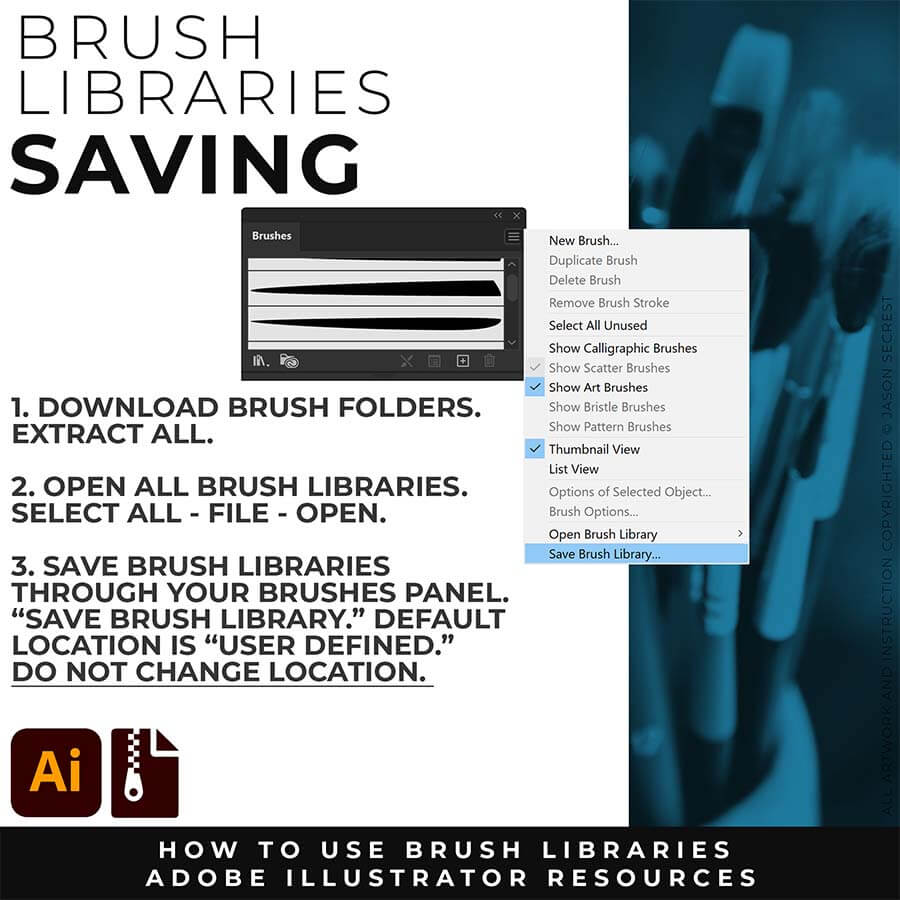
              SAVE BRUSHES: Open All of the Brushes Libraries in Adobe Illustrator. (File - Open). Have your Brushes Panel Open. Under Window - Brushes. In the Brushes Menu, select "Save Brush Library." The Default Save Location is "User Defined." Repeat this step for each Brush Library.
              beginner adobe illustrator tutorial whale
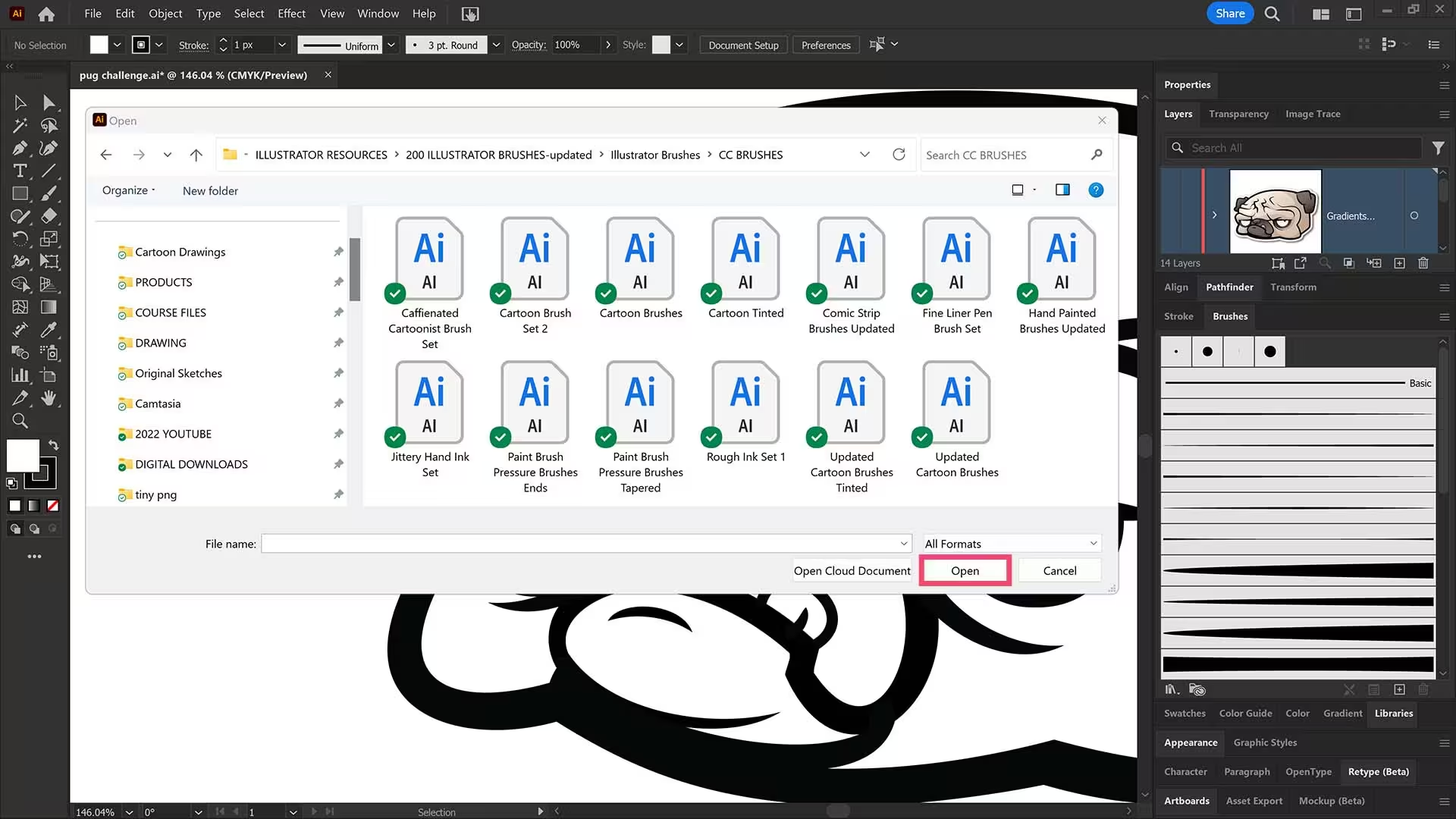
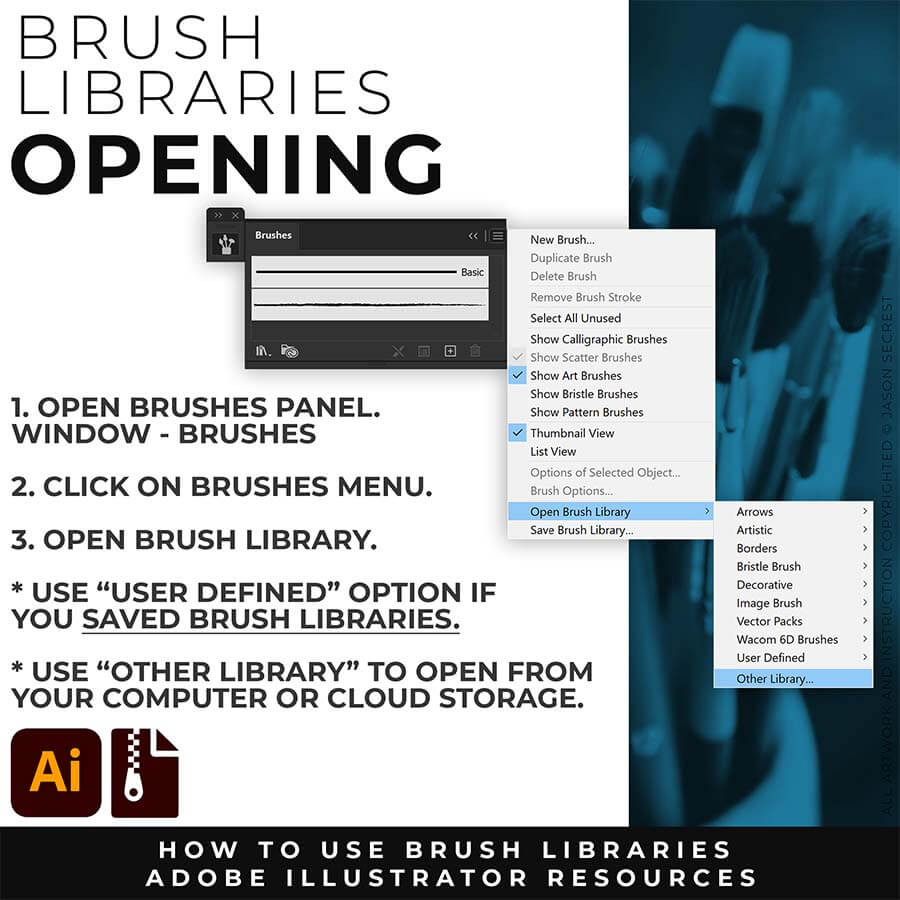
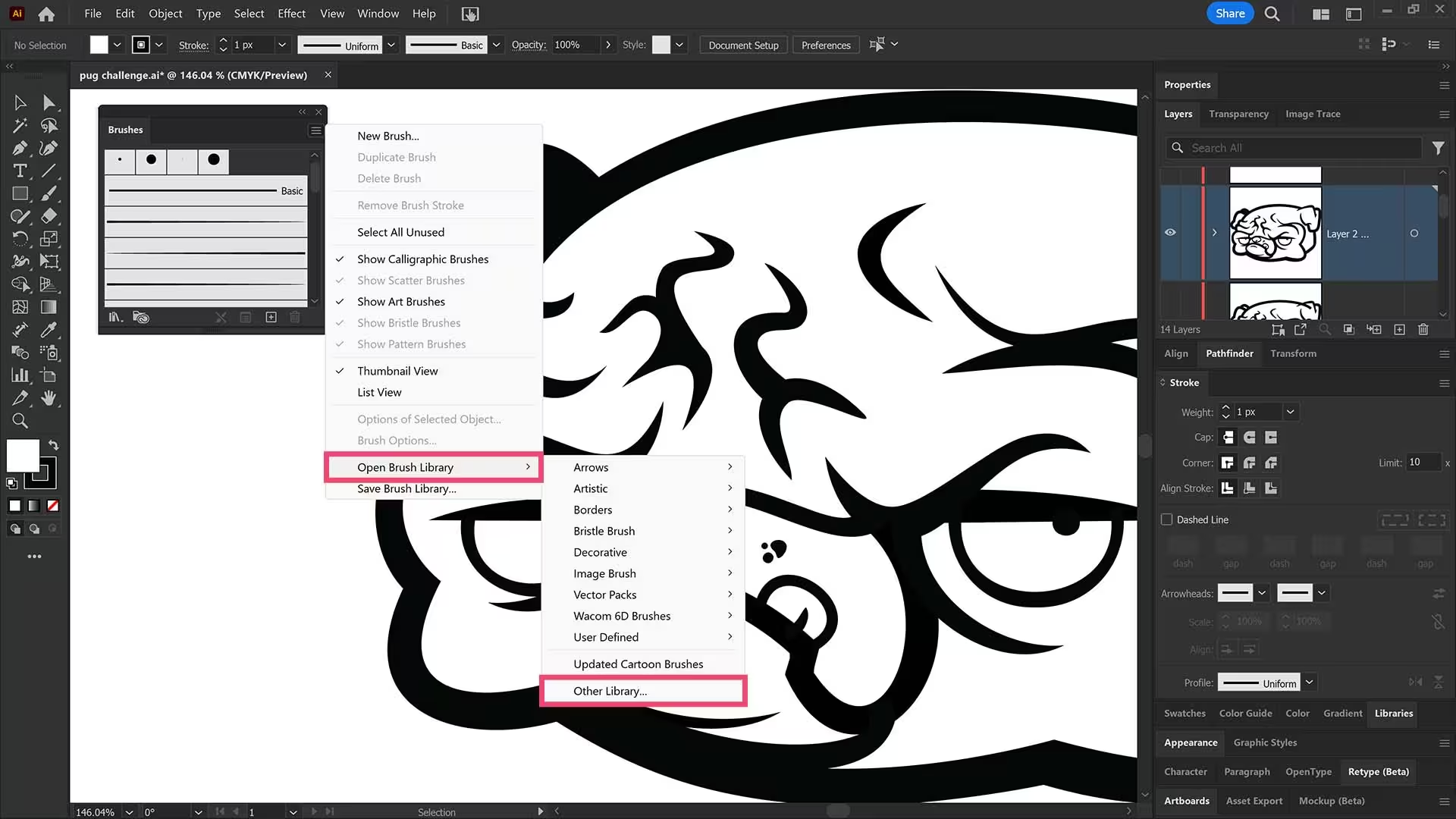
              OPEN BRUSHES: Under Window - Select Brushes. In the Brushes Menu, drop down to Open Brush Library. Hover over it and select "Other Library." A Normal Open Dialogue Box will appear to select any Brush Library to use in Illustrator. Almost all Tutorials use this method. 
              beginner adobe illustrator tutorial pug
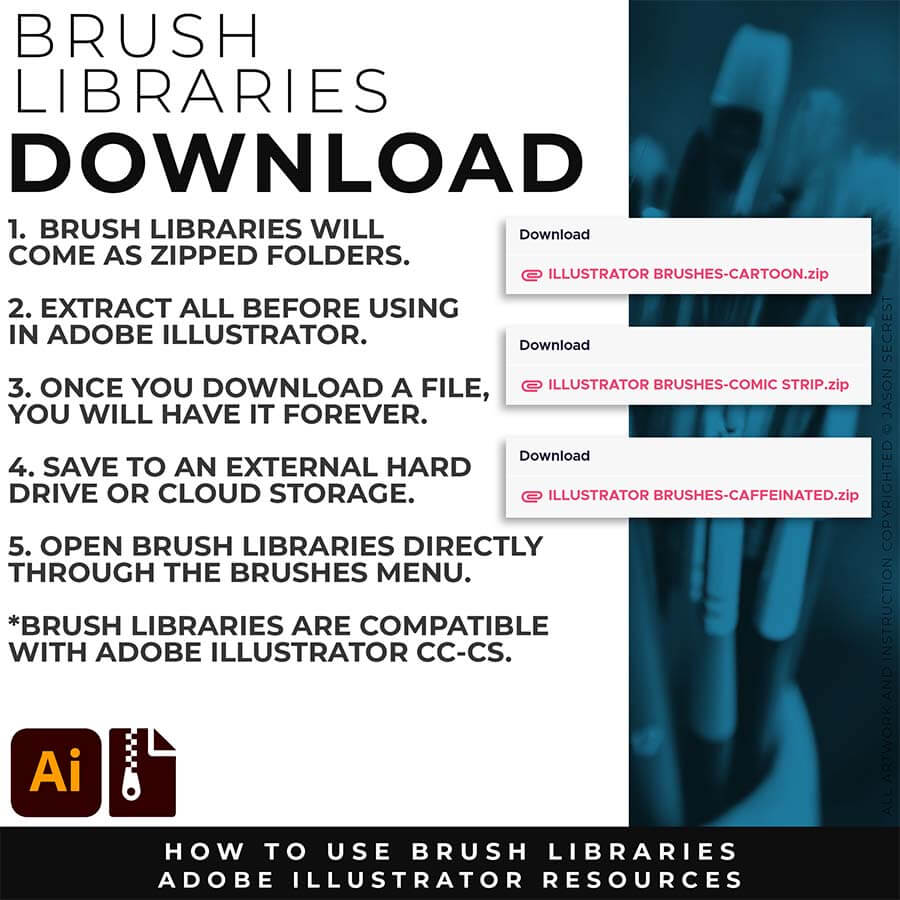
              DOWNLOAD BRUSHES: Once you download a file, you will have it forever. Save all files to an external hard drive or cloud-based storage. Start with our Resource Guides to understand how to download, open, and apply Brush Libraries in Adobe Illustrator.
              beginner adobe illustrator tutorial pug
              SAVE BRUSHES: Open All of the Brushes Libraries in Adobe Illustrator. (File - Open). Have your Brushes Panel Open. Under Window - Brushes. In the Brushes Menu, select "Save Brush Library." The Default Save Location is "User Defined." Repeat this step for each Brush Library.
              beginner adobe illustrator tutorial whale
              OPEN BRUSHES: Under Window - Select Brushes. In the Brushes Menu, drop down to Open Brush Library. Hover over it and select "Other Library." A Normal Open Dialogue Box will appear to select any Brush Library to use in Illustrator. Almost all Tutorials use this method. 
              beginner adobe illustrator tutorial pug
              PRIMARY PROMPTING: Instead of manually aligning Building Tools to your sketch's Shapes, Lines, and Curves, let AI generate your starting point. Attach your rough sketch, copy the prompt for your style, and the AI handles the inking — clean, professional linework aligned to your original drawing, ready to bring into Illustrator for tracing and finishing.
              beginner adobe illustrator tutorial whale
              PATH SIMPLIFY: Whichever AI Prompt Pack or Concept to Vector option you used, the vector conversion likely placed more anchor points than you actually need — this is normal, not a mistake on your end. Before you move into coloring, select your paths and run Object > Path > Simplify. This reduces the anchor point count while preserving the shape of your line, using the Curve Precision and Angle Threshold sliders to control how aggressive the cleanup is.
              beginner adobe illustrator tutorial pug
              DOWNLOAD BRUSHES: Once you download a file, you will have it forever. Save all files to an external hard drive or cloud-based storage. Start with our Resource Guides to understand how to download, open, and apply Brush Libraries in Adobe Illustrator.
              beginner adobe illustrator tutorial pug
              SAVE BRUSHES: Open All of the Brushes Libraries in Adobe Illustrator. (File - Open). Have your Brushes Panel Open. Under Window - Brushes. In the Brushes Menu, select "Save Brush Library." The Default Save Location is "User Defined." Repeat this step for each Brush Library.
              beginner adobe illustrator tutorial whale
              OPEN BRUSHES: Under Window - Select Brushes. In the Brushes Menu, drop down to Open Brush Library. Hover over it and select "Other Library." A Normal Open Dialogue Box will appear to select any Brush Library to use in Illustrator. Almost all Tutorials use this method. 
              ADOBE ILLUSTRATOR

              BRUSH LIBRARIES

              BRUSH LIBRARIES

              ADOBE ILLUSTRATOR

              DIGITAL DOWNLOADS

              DIGITAL DOWNLOADS

              ADOBE ILLUSTRATOR

              BRUSH LIBRARIES

              BRUSH LIBRARIES

              ADOBE ILLUSTRATOR

              BRUSH LIBRARIES

              BRUSH LIBRARIES

              DIGITAL DOWNLOADS: Many of you are jumping over from YouTube looking to download our Adobe Illustrator Brushes and Resource Folders. Once you have downloaded and extracted the Folders, resources are ready to be used in Adobe Illustrator. Start with our Resource Guides, Illustrator Tutorials, or YouTube Playlists to understand how to apply resources in Adobe Illustrator. BRUSH LIBRARIES / COMIC HALFTONES / T-SHIRT TEXTURES / RESOURCE BUNDLE
              Image
              Image

              DOWNLOAD BRUSHES: Many of you are jumping over from YouTube looking to download our Adobe Illustrator Brushes and Resource Folders. Adobe Illustrator Brushes will come to you as Zipped Folders. Once you have downloaded and extracted the Folders, the Brushes are ready to be used in Adobe Illustrator. Brush Libraries include our Updated Cartoon, Comic Strip, and Vintage Mascot Brushes. DOWNLOAD BRUSHES / DIGITAL DOWNLOADS

              SAVING BRUSHES: Open All of the Brushes Libraries in Adobe Illustrator. (File - Open). Have your Brushes Panel Open. Under Window - Brushes. Click on Each Illustrator Document and Open the Brushes Menu in the Brushes Panel. Scroll down to Click on Save Brush Library. Default Location = User Defined. I recommend Saving Brush Libraries to your "User Defined" for Quick Access.
              beginner adobe illustrator tutorial whale
              LIVE EDITING: While you are building in Adobe Illustrator, you can use the “Live” Editing Tools to Cut and Edit Paths. Some of the basic tools will be the Scissor Tool, Path Eraser, or Shape Builder. I do recommend going long with your initial Paths.
              beginner adobe illustrator tutorial pug
              VARIATION: Many of you will be applying our Brush Libraries. To Open Brushes, open the Brushes Panel. Click on Open Brush Library. Scroll down to “Other Library.” Select one of the Brush Libraries to apply. If you saved Brushes, you can Open from “User Defined.”
              beginner adobe illustrator tutorial pug
              EXPANDED EDITING: After completing the Line Variation, I will recommend keeping the “Live” Layer from future Editing. Duplicate and Lock Out. We will be Expanding this New Layer to use with Shape Builder for Fast Editing. Hold down Alt/Option while Editing.
              Image
              Image

              DOWNLOAD BRUSHES: Many of you are jumping over from YouTube looking to download our Adobe Illustrator Brushes and Resource Folders. Adobe Illustrator Brushes will come to you as Zipped Folders. Once you have downloaded and extracted the Folders, the Brushes are ready to be used in Adobe Illustrator. Brush Libraries include our Updated Cartoon, Comic Strip, and Vintage Mascot Brushes. DOWNLOAD BRUSHES / DIGITAL DOWNLOADS

              OPENING BRUSHES: Under Window - Select Brushes. In the Brushes Menu, drop-down to Open Brush Library. Hover over it and select "Other Library." A Normal Open Dialogue Box will appear to select any Brush Library to use in Illustrator. Almost all of our step-by-step tutorials on YouTube use this method. Go through with our Brushes Guides to save, apply, and edit Brushes in Adobe Illustrator. 

              beginner adobe illustrator tutorial whale
              LIVE EDITING: While you are building in Adobe Illustrator, you can use the “Live” Editing Tools to Cut and Edit Paths. Some of the basic tools will be the Scissor Tool, Path Eraser, or Shape Builder. I do recommend going long with your initial Paths.
              beginner adobe illustrator tutorial pug
              VARIATION: Many of you will be applying our Brush Libraries. To Open Brushes, open the Brushes Panel. Click on Open Brush Library. Scroll down to “Other Library.” Select one of the Brush Libraries to apply. If you saved Brushes, you can Open from “User Defined.”
              beginner adobe illustrator tutorial pug
              EXPANDED EDITING: After completing the Line Variation, I will recommend keeping the “Live” Layer from future Editing. Duplicate and Lock Out. We will be Expanding this New Layer to use with Shape Builder for Fast Editing. Hold down Alt/Option while Editing.
              Image
              Image
              PRIMARY BUILDING: Many of you will be deciding between the Pen and Pencil Tools as your Primary Building Tool in Adobe Illustrator. A Quick Assessment of your own sketch, drawing, or traced photo to look for: Obvious Shapes (Ellipse), Corners (Anchor Point), and Curves. Resource Progression: Prep your Drawings for the Building Tools.
              SELECTION TOOLS: In Adobe Illustrator you will have 3 Selection Tools to be aware of: Selection, Direct Selection Tool, and Deselect. I want you to pay attention to the Deselect (Selection Tool + click on Empty Artboard). After applying or finishing a step, build up a routine to hit Selection Tool (V) and click your artboard.
              APPLYING PATHS: Find the Building Tool that works the best with your sketch or that is the easiest to use based on the materials that you have (Tablet). When applying “Paths” the easiest thing is to trace your drawing or sketch (Pencil Tool). It will give you an easy frame of reference as it relates to each stroke.
              “LIVE” EDITING: I recommend the Scissor Tool to cut Paths as an easy “Live Path” Editing Tool. Please note that the Eraser Tool will be for “Expanded Editing.” Another solution is under Object - Path - Simplify. This can get rid of some of the extra Anchor Points as you are applying with the Pencil Tool.
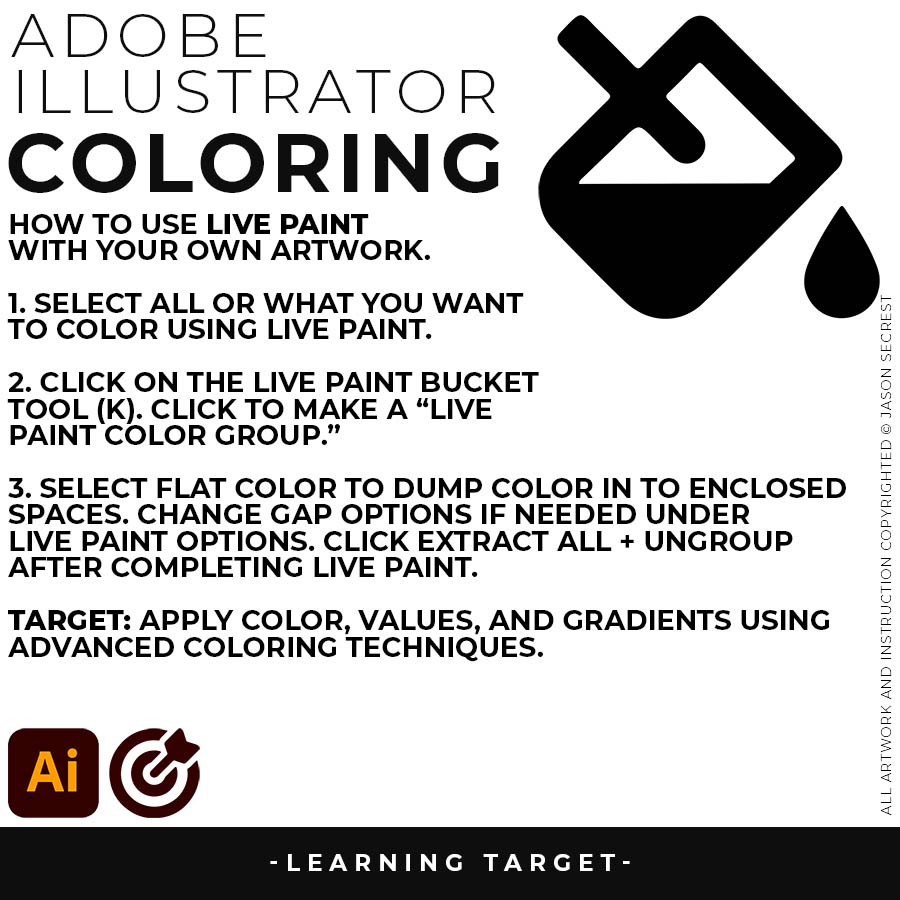
              LIVE PAINT BUCKET: As I color my artwork, notice I am using Live Paint to create my Basic Fills or Flat Color Layer. Select what you want to color. Object - Live Paint - Make. Click to dump color just like in Adobe Photoshop with the Live Paint Bucket Tool. Remember to expand and ungroup when you have completed the coloring step. BEGINNER: Understand how to apply Flat Color using Live Paint Bucket. ADVANCED: For your own artwork, duplicate your Flat Color Layer for Value and Gradient Steps. Separate your Final Line by using the Magic Wand Tool to select your Edited and Expanded Brushes Layer.   
              beginner adobe illustrator tutorial whale
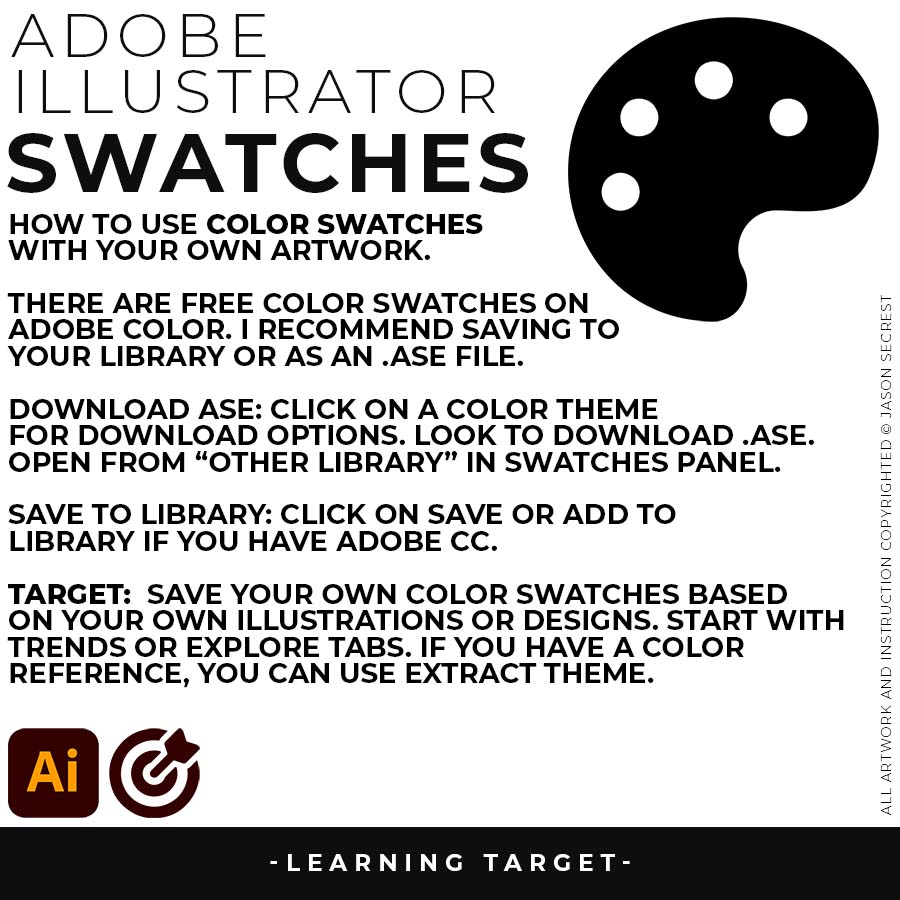
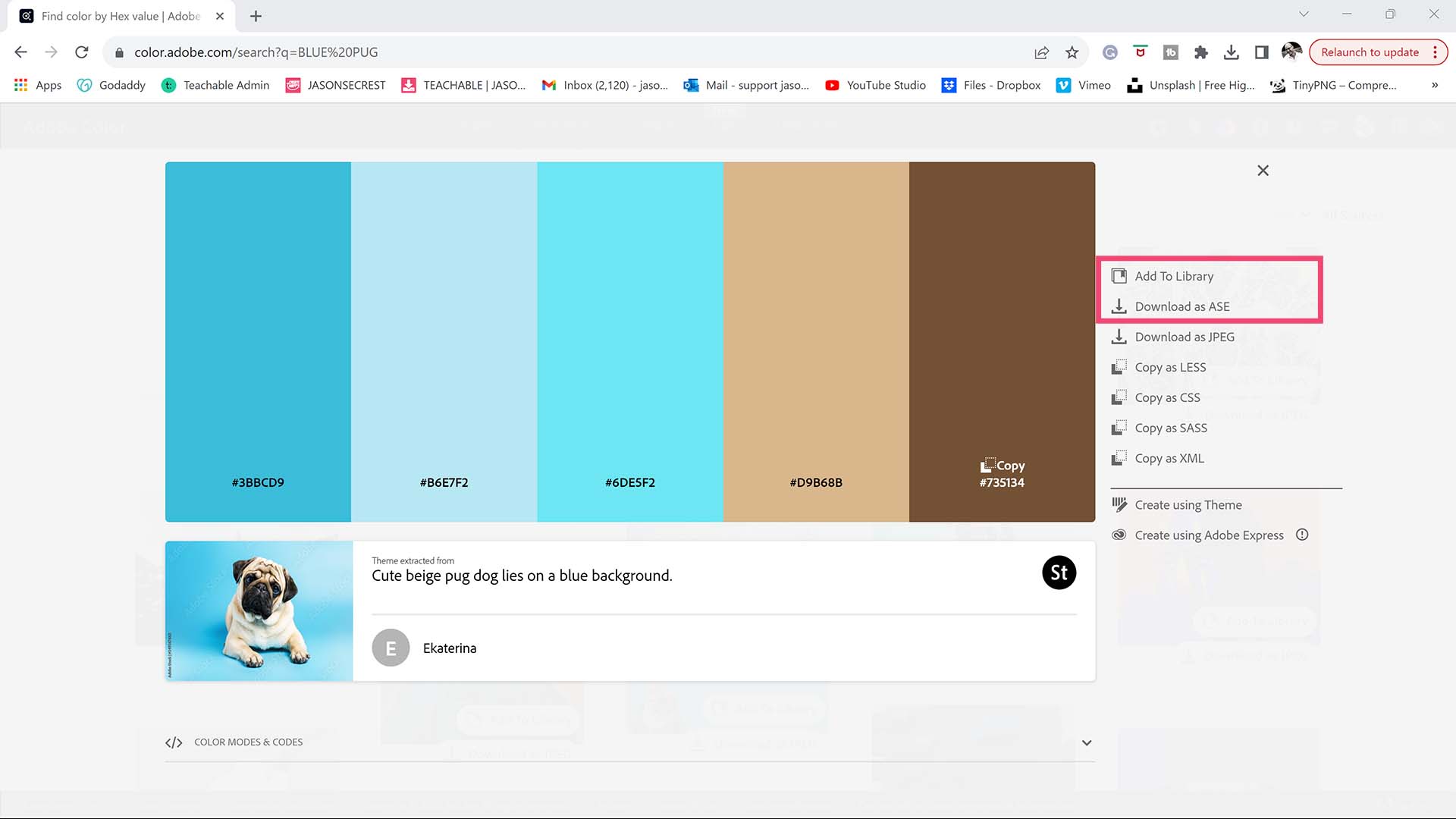
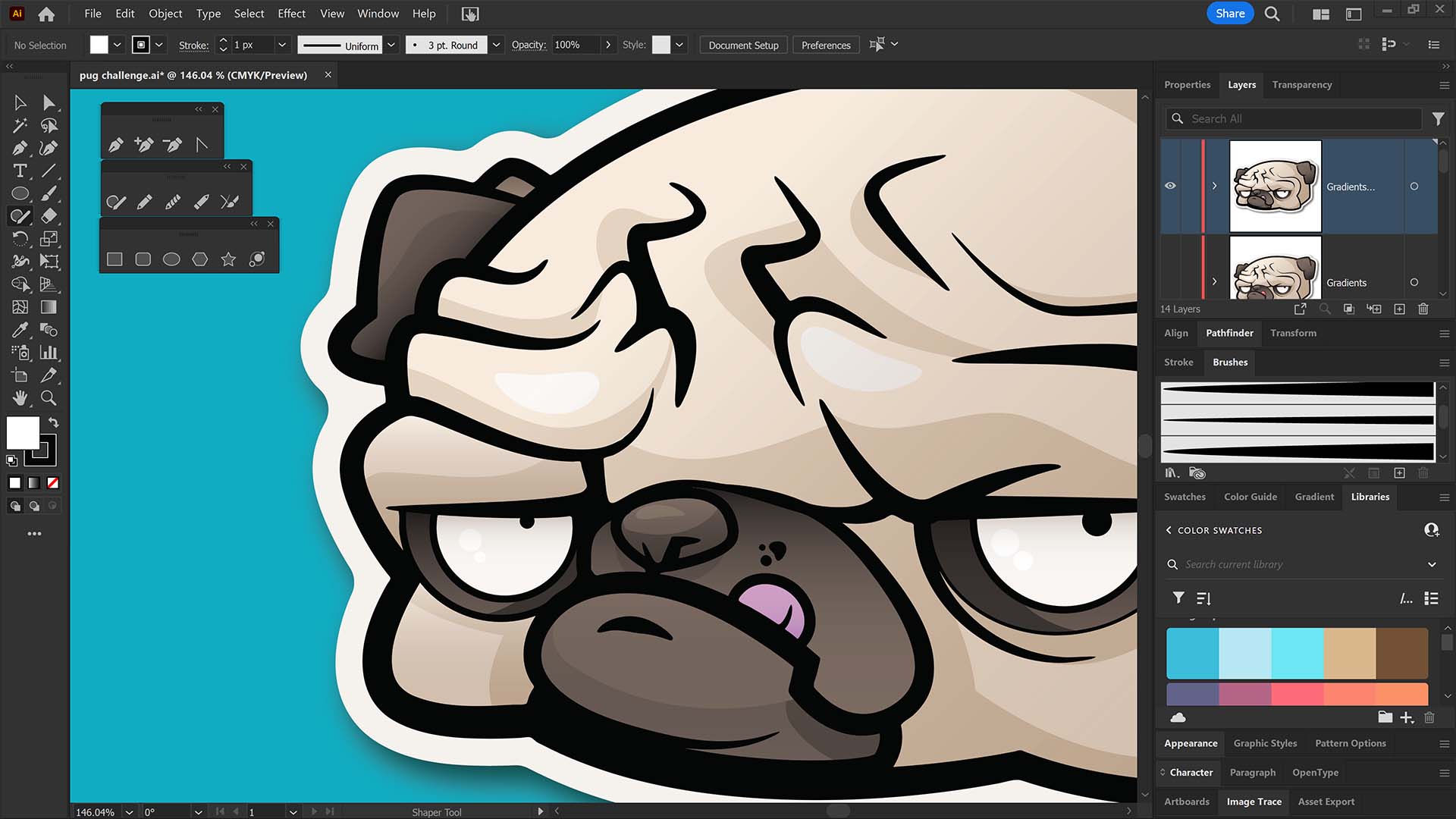
              COLOR SWATCHES: Use Color Swatches from your Library or save them from Adobe Color as an .ASE File. Open Swatch Library from the “Other Library” Option. Most Color Themes will use Hues as the Base Color. We will be using Live Paint to create our Basic Fills or Flat Color Layer.
              beginner adobe illustrator tutorial pug
              LIVE PAINT: Coloring will be extremely easy using Live Paint Bucket. The goal of Live Paint is to create Shapes that we can color using Fills. Once you have completed the Live Paint Group, it is important to Expand and Upgroup. We will leverage these shapes for our Values and Gradients.
              beginner adobe illustrator tutorial pug
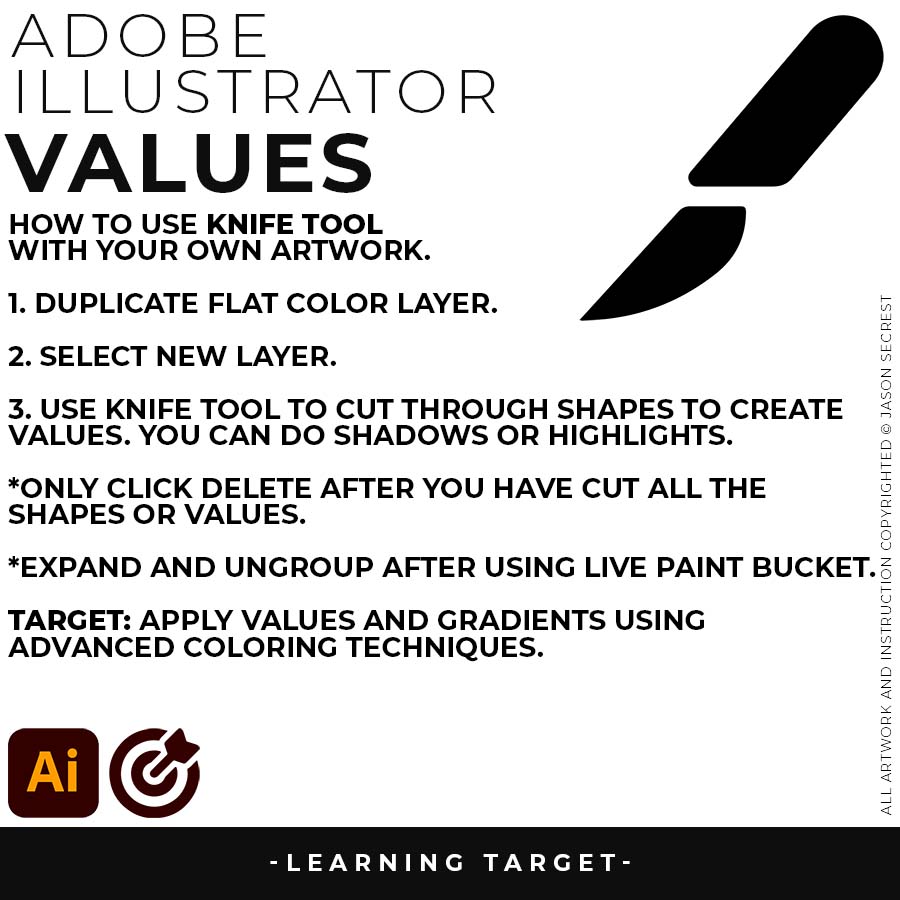
              KNIFE TOOL: After using Live Paint, Expand and Ungroup. Use a Duplicated Flat Color Layer for your Value Layers. The Knife Tool will cut Shapes. I recommend cutting out all of the shapes first before deleting them. You can use this technique for Highlights, Shadows, or Cast Shadows.
              Image
              Image
              COLOR SWATCHES: Use Color Swatches from your Library or save free swatches from Adobe Color as an .ASE File. Open Swatch Libraries from the “Other Library” Option. Most Color Themes will use Hues as the Base Color. We will be using Live Paint to create our Basic Fills or Flat Color Layer. LEARNING TARGET (3): Apply Color, Values, and Gradients using Advanced Coloring Techniques.
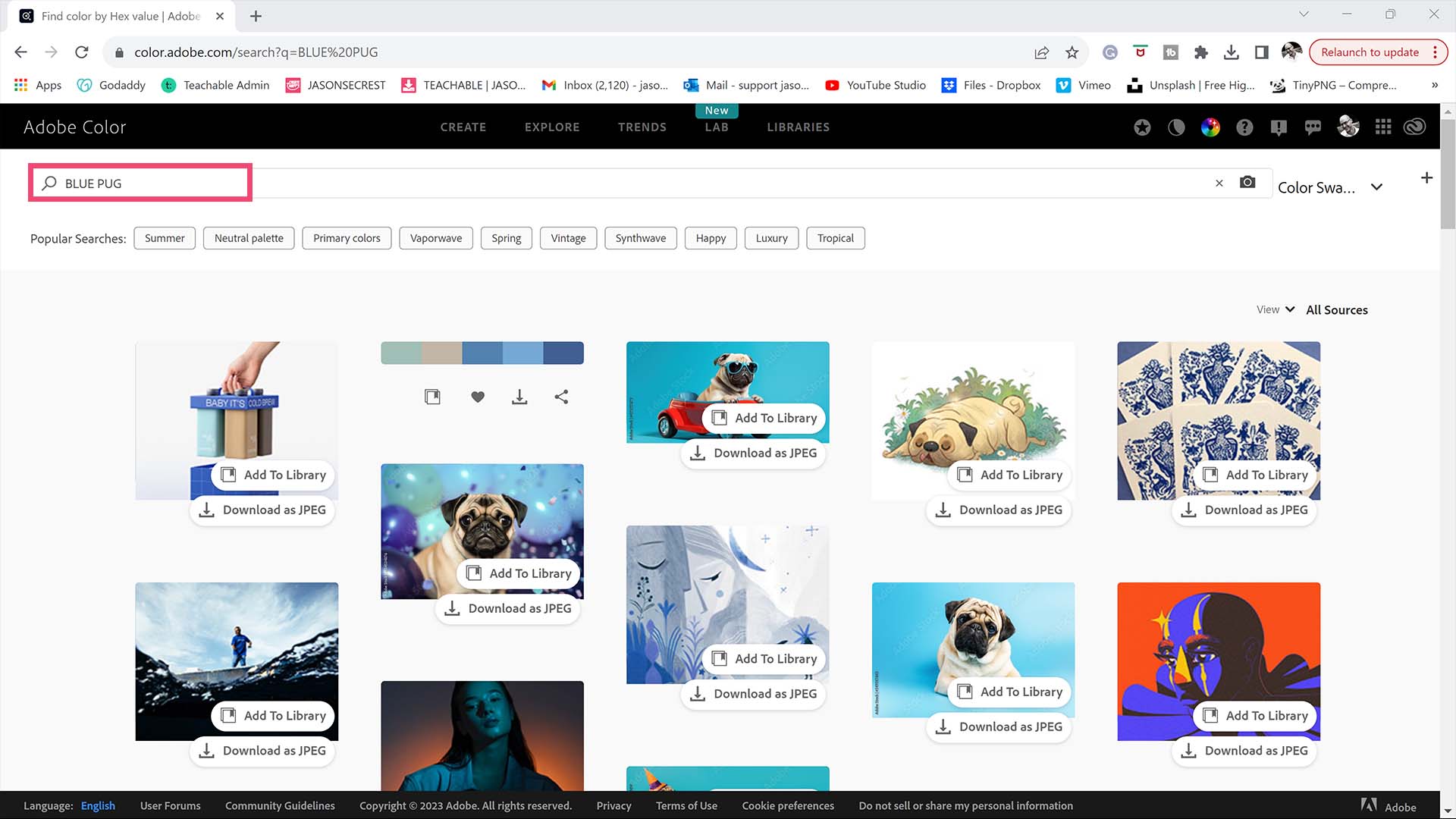
              ADOBE COLOR: Adobe Color has a beautiful website that is full of Free Color Swatches and Themes. I recommend starting by typing in the Subject Matter using the Explore Tab. You can also use the Extract Theme feature on Adobe Color or Canva to create a Color Theme based on your own Photo Reference. Add the Color Themes to your Library (CC) or download them as ASE files.
              beginner adobe illustrator tutorial whale
              COLOR SWATCHES: Use Color Swatches from your Library or save them from Adobe Color as an .ASE File. Open Swatch Library from the “Other Library” Option. Most Color Themes will use Hues as the Base Color. We will be using Live Paint to create our Basic Fills or Flat Color Layer.
              beginner adobe illustrator tutorial pug
              LIVE PAINT: Coloring will be extremely easy using Live Paint Bucket. The goal of Live Paint is to create Shapes that we can color using Fills. Once you have completed the Live Paint Group, it is important to Expand and Upgroup. We will leverage these shapes for our Values and Gradients.
              beginner adobe illustrator tutorial pug
              KNIFE TOOL: After using Live Paint, Expand and Ungroup. Use a Duplicated Flat Color Layer for your Value Layers. The Knife Tool will cut Shapes. I recommend cutting out all of the shapes first before deleting them. You can use this technique for Highlights, Shadows, or Cast Shadows.
              Image
              Image
              COLOR SWATCHES: Use Color Swatches from your Library or save free swatches from Adobe Color as an .ASE File. Open Swatch Libraries from the “Other Library” Option. Most Color Themes will use Hues as the Base Color. We will be using Live Paint to create our Basic Fills or Flat Color Layer. LEARNING TARGET (3): Apply Color, Values, and Gradients using Advanced Coloring Techniques.
              SAVING + OPENING: If you have a CC Account, simply click Add to Library from Adobe Color. If you don't have a CC Account, download Color Swatches from Adobe Color as an ASE File. Open Swatch Libraries from the “Other Library” Option. If you added to your Library (CC). Open from the Library Panel.  LEARNING TARGET (1): Save or Download Free Color Swatches for your own artwork and designs. LEARNING TARGET (2): Open through the Swatches Panel or Library. 
              beginner adobe illustrator tutorial whale
              COLOR SWATCHES: Use Color Swatches from your Library or save them from Adobe Color as an .ASE File. Open Swatch Library from the “Other Library” Option. Most Color Themes will use Hues as the Base Color. We will be using Live Paint to create our Basic Fills or Flat Color Layer.
              beginner adobe illustrator tutorial pug
              LIVE PAINT: Coloring will be extremely easy using Live Paint Bucket. The goal of Live Paint is to create Shapes that we can color using Fills. Once you have completed the Live Paint Group, it is important to Expand and Upgroup. We will leverage these shapes for our Values and Gradients.
              beginner adobe illustrator tutorial pug
              KNIFE TOOL: After using Live Paint, Expand and Ungroup. Use a Duplicated Flat Color Layer for your Value Layers. The Knife Tool will cut Shapes. I recommend cutting out all of the shapes first before deleting them. You can use this technique for Highlights, Shadows, or Cast Shadows.
              Image
              Image
              COLOR SWATCHES: Use Color Swatches from your Library or save free swatches from Adobe Color as an .ASE File. Open Swatch Libraries from the “Other Library” Option. Most Color Themes will use Hues as the Base Color. We will be using Live Paint to create our Basic Fills or Flat Color Layer. LEARNING TARGET (3): Apply Color, Values, and Gradients using Advanced Coloring Techniques.
              KNIFE TOOL: After using Live Paint, Expand and Ungroup. Use a Duplicated Flat Color Layer for your Value Layers. The Knife Tool will cut Shapes. I recommend cutting out all of the shapes first before deleting them. You can use this technique for Highlights, Shadows, or Cast Shadows. LEARNING TARGET: Use the Knife Tool to create shapes to use as Values.
              beginner adobe illustrator tutorial whale
              COLOR SWATCHES: Use Color Swatches from your Library or save them from Adobe Color as an .ASE File. Open Swatch Library from the “Other Library” Option. Most Color Themes will use Hues as the Base Color. We will be using Live Paint to create our Basic Fills or Flat Color Layer.
              beginner adobe illustrator tutorial pug
              LIVE PAINT: Coloring will be extremely easy using Live Paint Bucket. The goal of Live Paint is to create Shapes that we can color using Fills. Once you have completed the Live Paint Group, it is important to Expand and Upgroup. We will leverage these shapes for our Values and Gradients.
              beginner adobe illustrator tutorial pug
              KNIFE TOOL: After using Live Paint, Expand and Ungroup. Use a Duplicated Flat Color Layer for your Value Layers. The Knife Tool will cut Shapes. I recommend cutting out all of the shapes first before deleting them. You can use this technique for Highlights, Shadows, or Cast Shadows.
              Image
              Image
              COLOR SWATCHES: Use Color Swatches from your Library or save free swatches from Adobe Color as an .ASE File. Open Swatch Libraries from the “Other Library” Option. Most Color Themes will use Hues as the Base Color. We will be using Live Paint to create our Basic Fills or Flat Color Layer. LEARNING TARGET (3): Apply Color, Values, and Gradients using Advanced Coloring Techniques.
              GRADIENTS: Use the Gradient Tool to create Highlight or Shadow Layers. Notice that I have been duplicating the Flat Color Layer from the previous Live Paint Step. LEARNING TARGET: Create Highlights by using Transparent Gradients. LEARNING TARGET (2): Apply Color, Values, and Gradients using Advanced Coloring Techniques to your artwork or designs.
              beginner adobe illustrator tutorial whale
              COLOR SWATCHES: Use Color Swatches from your Library or save them from Adobe Color as an .ASE File. Open Swatch Library from the “Other Library” Option. Most Color Themes will use Hues as the Base Color. We will be using Live Paint to create our Basic Fills or Flat Color Layer.
              beginner adobe illustrator tutorial pug
              LIVE PAINT: Coloring will be extremely easy using Live Paint Bucket. The goal of Live Paint is to create Shapes that we can color using Fills. Once you have completed the Live Paint Group, it is important to Expand and Upgroup. We will leverage these shapes for our Values and Gradients.
              beginner adobe illustrator tutorial pug
              KNIFE TOOL: After using Live Paint, Expand and Ungroup. Use a Duplicated Flat Color Layer for your Value Layers. The Knife Tool will cut Shapes. I recommend cutting out all of the shapes first before deleting them. You can use this technique for Highlights, Shadows, or Cast Shadows.

              BEGINNER TUTORIALS

              ILLUSTRATOR TUTORIALS: Tutorials and Playlists will focus on Building Tools, Applying Brushes, Editing Options, and Advanced Coloring Techniques in Adobe Illustrator. Learning Target (1): Understand the Primary Building Tools and Options in Adobe Illustrator. Learning Target (2): Apply the Building, Editing, and Coloring Tools using your own artwork.
              Teddy bear illustration with Comic Strip Brush line work — Adobe Illustrator beginner tutorial
              PEN TOOL WORKFLOW: Beginner Pen Tool Workflow using Comic Strip Brushes and Live Paint. Understand the Building, Variation, and Basic Coloring Methods. VIEW BEGINNER GUIDE 
              Cartoon pig illustration — Adobe Illustrator beginner tutorial
              PEN TOOL WORKFLOW: Beginner Workflow using Pen Tool Shapes, Halftones, and Knife Tool. Understand the Building, Variation, and Basic Value Methods. VIEW BEGINNER GUIDE
              Cartoon dog illustration — Adobe Illustrator beginner tutorial
              PEN TOOL WORKFLOW: Beginner Pen Tool Workflow using Live Paint Bucket. Understand the Building, Variation, and Basic Coloring Methods. VIEW BEGINNER GUIDE
              Cartoon snail illustration — Adobe Illustrator beginner tutorial
              PEN TOOL WORKFLOW: Beginner Pen Tool Workflow using Shapes and Cartoon Brushes. Understand Building, Applying, and Editing Brush Libraries. VIEW BEGINNER GUIDE
              Cartoon duck illustration — Adobe Illustrator beginner tutorial
              PENCIL TOOL WORKFLOW: Beginner Tablet Workflow using the Pencil Tool and Cartoon Brushes. Understand the Building, Variation, and Basic Coloring Methods. VIEW BEGINNER GUIDE
              Sad cartoon cat illustration — Adobe Illustrator beginner tutorial
              SHAPE TOOL WORKFLOW: Beginner Shape Tool Workflow using Fills and Brushes. Understand the Building, Variation, and Basic Coloring Methods. VIEW BEGINNER GUIDE
              Cartoon bunny illustration — Adobe Illustrator beginner tutorial
              SHAPE TOOL WORKFLOW: Beginner Shape Tool Workflow using shapes, strokes, and basic fills. Understand Building, Applying, and Coloring. VIEW BEGINNER GUIDE
              Cartoon puppy illustration — Adobe Illustrator beginner tutorial
              PEN TOOL WORKFLOW: Beginner Pen Tool Workflow using Live Paint and Knife Tool. Understand the Building, Live Paint, and Advanced Value Methods. VIEW BEGINNER GUIDE
              Startled cartoon cat illustration — Adobe Illustrator beginner tutorial
              PEN TOOL WORKFLOW: Beginner Pen Tool Workflow using Live Paint and Knife Tool. Understand the Building, Variation, and Advanced Coloring Methods. VIEW BEGINNER GUIDE
              Cartoon whale illustration — Adobe Illustrator beginner tutorial
              PEN TOOL WORKFLOW: Beginner Pen Tool Workflow using Live Paint and Knife Tool. Understand the Building, Variation, and Advanced Coloring Methods. VIEW BEGINNER GUIDE
              Cartoon ice cream character illustration — Adobe Illustrator beginner tutorial
              PEN TOOL WORKFLOW: Advanced Pen Tool Workflow using Pen Tool, Blend, and Live Paint. Understand Building, Variation, Editing, and Basic Coloring Methods. VIEW BEGINNER GUIDE
              Pug mascot illustration — Adobe Illustrator Pen Tool beginner tutorial
              PENCIL TOOL WORKFLOW: Beginner Tablet Workflow using Pencil Tool and Live Paint Bucket. Understand the Building, Variation, and Advanced Coloring Methods. VIEW BEGINNER GUIDE
              I appreciate your videos. I have been an illustrator user for years and have my own ways of doing things. It's great to see other ways of using tools and learning tricks I didn't know were available! It's also good to see you doing the same thing as me in other instances, confirming I'm on the right track!Andy Zenz
              Awesome tutorial! I don't think I've picked up something so easily from someone who knows what they are doing. I managed to draw my first vector art and it was a joy! Great work keep it up!blitz145
              Thank you loads! Compared to other tutorials, yours are just really well-explained and easy-to-follow. Can totally see that you've got a passion for what you're doing and that's just wonderful! 🙂 Keep it up, you're doing an amazing job. Yulia Kachurova
              Love your video thanks so much. you blow Lynda.com out of the water!!!!Steve Yensel
              Brilliant video. So much great info packed in here. I'm just getting started drawing cartoons with my Wacom tablet, and this was a huge help. Thumbs up and thanks!Dorian Staten
              Wow Thanks Jason...was really struggling with making images with basic shapes. Your tutorial is helping me out!!Kishor Rajani
              thanks a lot you are really one of my favorites, I like the steps you give us, and I'm so thankful for that effort you do for helping us :)Wessam Lotfi
              Keep up the good work Jason. I’ve been doing Lynda.com tutorials for a few months now and I got more out of your videos than what I’ve received at Lynda. Keep it up and Thank You!!bobby jacobs • 1 year ago
              These tutorials are amazing. Just started using illustrator and really glad I found your channel. The only videos that explain everything step by stepAida Stan
              You are definitely one of the best teachers I've found dealing with start to finish creative process. Great work!!!Jasen Fisher
              Thank you so much man, I loved the way you explain this, I spent days looking for a good tutorial vid, thanks a lot, gonna keep watching your videos!!!Karel Marccenaro
              Awesome tutorial! I don't think I've picked up something so easily from someone who knows what they are doing. I managed to draw my first vector art and it was a joy! Great work keep it up!blitz145
              Thank you loads! Compared to other tutorials, yours are just really well-explained and easy-to-follow. Can totally see that you've got a passion for what you're doing and that's just wonderful! 🙂 Keep it up, you're doing an amazing job. Yulia Kachurova
              Love your video thanks so much. you blow Lynda.com out of the water!!!!Steve Yensel
              Brilliant video. So much great info packed in here. I'm just getting started drawing cartoons with my Wacom tablet, and this was a huge help. Thumbs up and thanks!Dorian Staten
              Keep up the good work Jason. I’ve been doing Lynda.com tutorials for a few months now and I got more out of your videos than what I’ve received at Lynda. Keep it up and Thank You!!bobby jacobs • 1 year ago
              These tutorials are amazing. Just started using illustrator and really glad I found your channel. The only videos that explain everything step by stepAida Stan
              You are definitely one of the best teachers I've found dealing with start to finish creative process. Great work!!!Jasen Fisher
              I appreciate your videos. I have been an illustrator user for years and have my own ways of doing things. It's great to see other ways of using tools and learning tricks I didn't know were available! It's also good to see you doing the same thing as me in other instances, confirming I'm on the right track!Andy Zenz
              Awesome tutorial! I don't think I've picked up something so easily from someone who knows what they are doing. I managed to draw my first vector art and it was a joy! Great work keep it up!blitz145
              Thank you loads! Compared to other tutorials, yours are just really well-explained and easy-to-follow. Can totally see that you've got a passion for what you're doing and that's just wonderful! 🙂 Keep it up, you're doing an amazing job. Yulia Kachurova
              Love your video thanks so much. you blow Lynda.com out of the water!!!!Steve Yensel
              Brilliant video. So much great info packed in here. I'm just getting started drawing cartoons with my Wacom tablet, and this was a huge help. Thumbs up and thanks!Dorian Staten
              Wow Thanks Jason...was really struggling with making images with basic shapes. Your tutorial is helping me out!!Kishor Rajani
              thanks a lot you are really one of my favorites, I like the steps you give us, and I'm so thankful for that effort you do for helping us :)Wessam Lotfi
              Keep up the good work Jason. I’ve been doing Lynda.com tutorials for a few months now and I got more out of your videos than what I’ve received at Lynda. Keep it up and Thank You!!bobby jacobs • 1 year ago
              These tutorials are amazing. Just started using illustrator and really glad I found your channel. The only videos that explain everything step by stepAida Stan
              You are definitely one of the best teachers I've found dealing with start to finish creative process. Great work!!!Jasen Fisher
              Thank you so much man, I loved the way you explain this, I spent days looking for a good tutorial vid, thanks a lot, gonna keep watching your videos!!!Karel Marccenaro
              Awesome tutorial! I don't think I've picked up something so easily from someone who knows what they are doing. I managed to draw my first vector art and it was a joy! Great work keep it up!blitz145
              Thank you loads! Compared to other tutorials, yours are just really well-explained and easy-to-follow. Can totally see that you've got a passion for what you're doing and that's just wonderful! 🙂 Keep it up, you're doing an amazing job. Yulia Kachurova
              Love your video thanks so much. you blow Lynda.com out of the water!!!!Steve Yensel
              Brilliant video. So much great info packed in here. I'm just getting started drawing cartoons with my Wacom tablet, and this was a huge help. Thumbs up and thanks!Dorian Staten
              Keep up the good work Jason. I’ve been doing Lynda.com tutorials for a few months now and I got more out of your videos than what I’ve received at Lynda. Keep it up and Thank You!!bobby jacobs • 1 year ago
              These tutorials are amazing. Just started using illustrator and really glad I found your channel. The only videos that explain everything step by stepAida Stan
              You are definitely one of the best teachers I've found dealing with start to finish creative process. Great work!!!Jasen Fisher