WORKFLOWS + CHECKLISTS

BEGINNER WORKFLOWS

The Workflows and Guides have been specifically designed so you can easily switch out the subject matter to align with your own artwork and designs. FAQ: I have created an FAQ list based on the last 10 years of YouTube comments. This could be a great place if you are looking for quick answers. PRINTABLE CHECKLISTS: If you are new, start with the printable checklists and workflows. FREE TOOLS: I have introduced new tools to assist you with your workflows; these can be found on the Free Resources page of the website. The tools are also organized throughout the workflow.
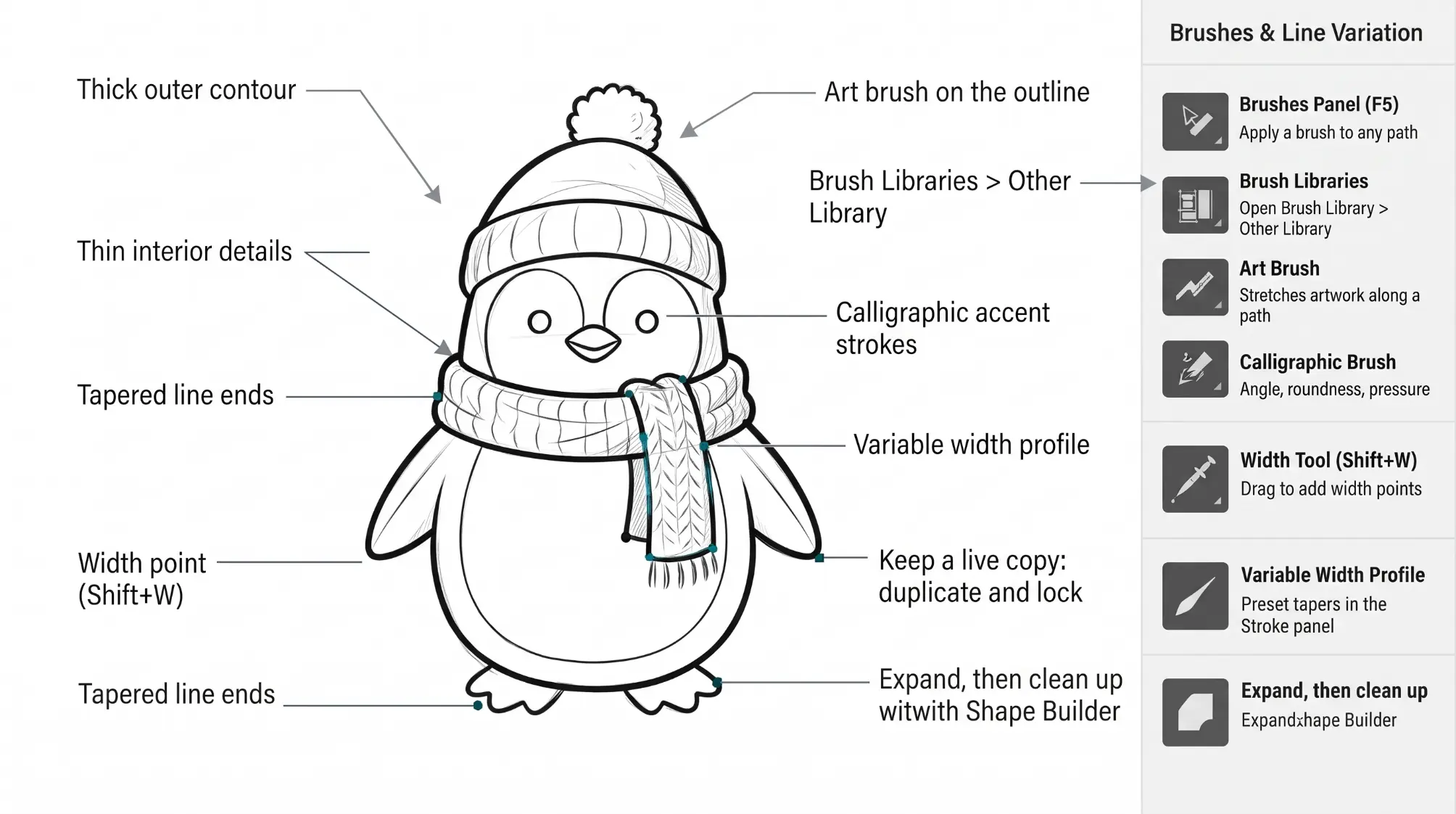
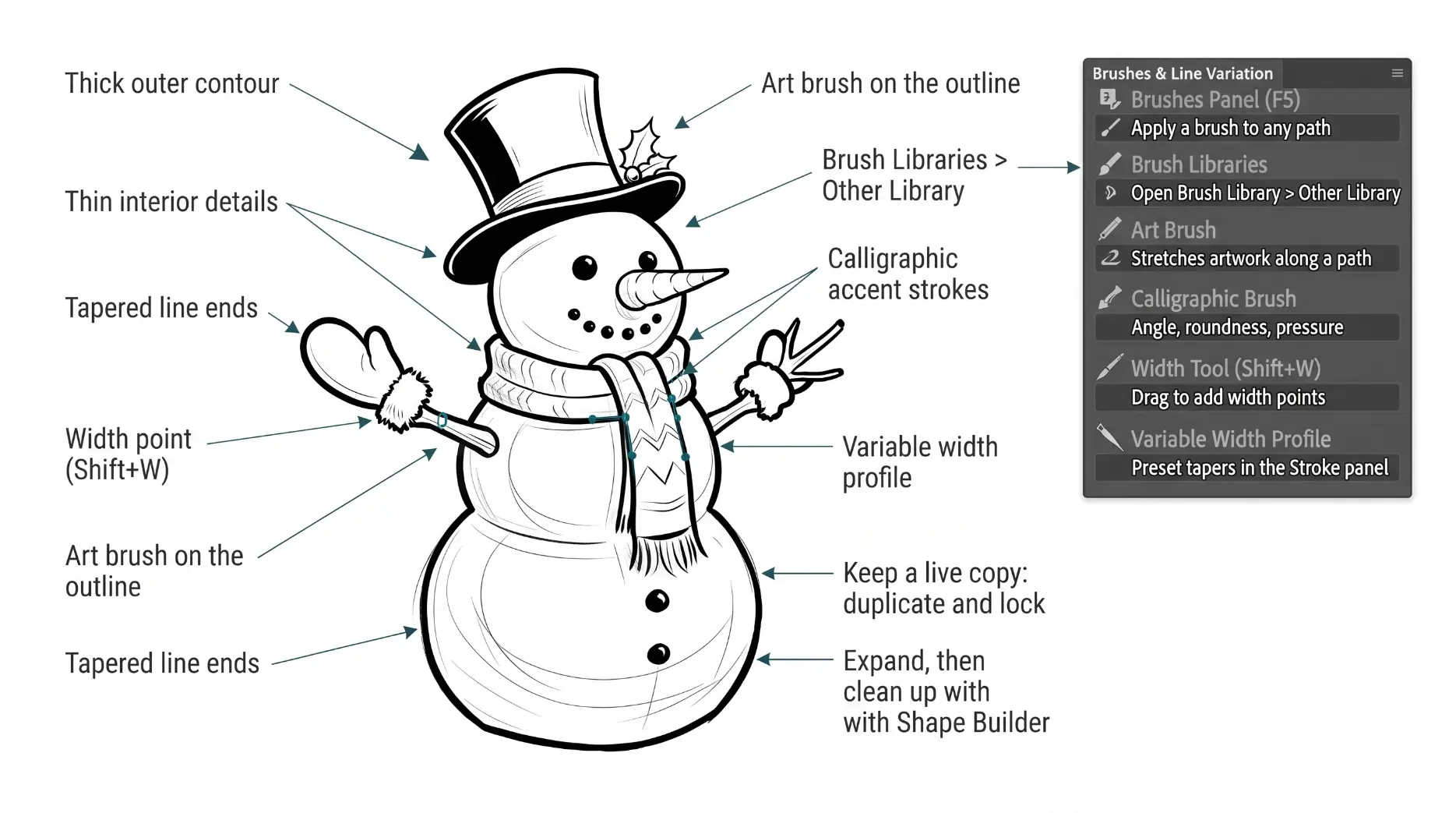
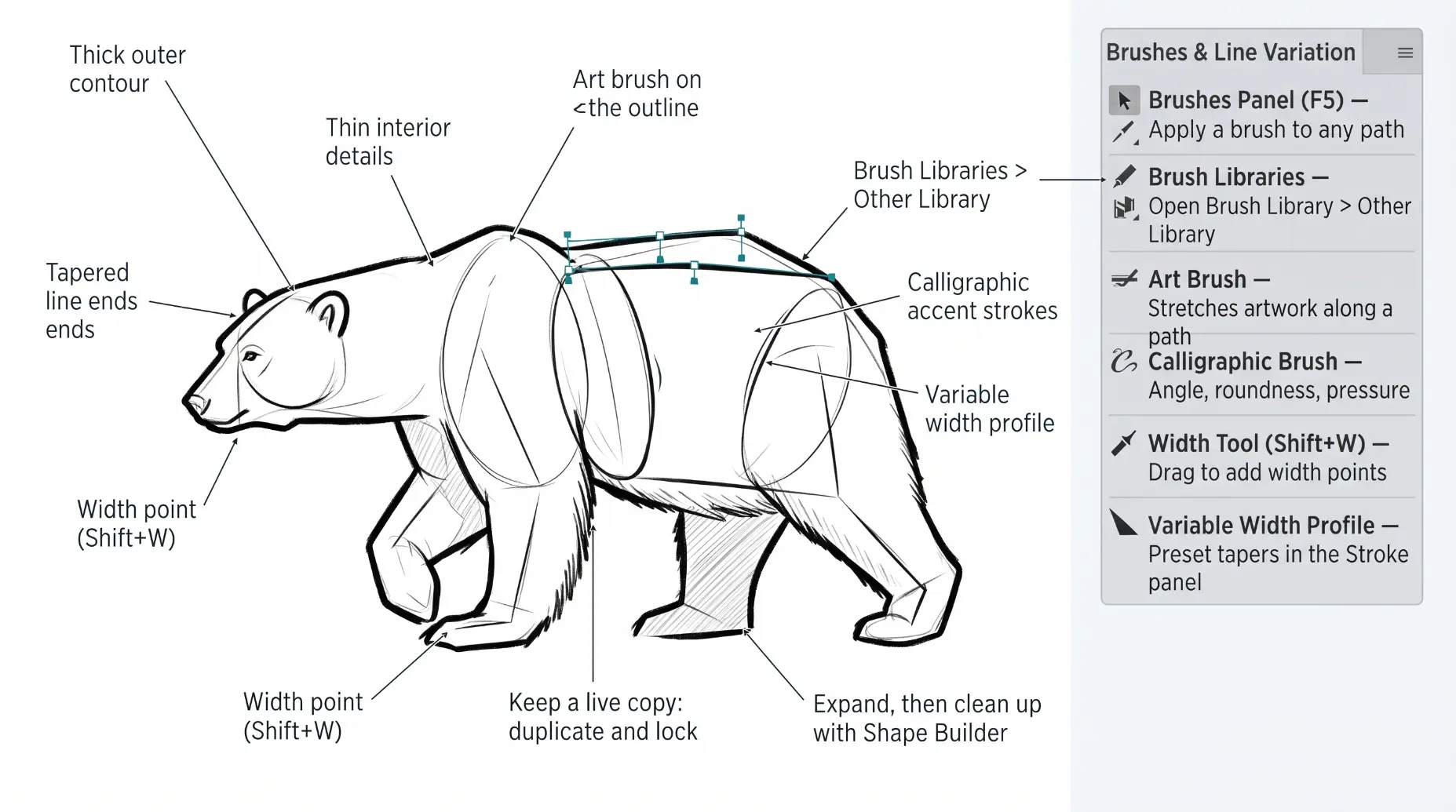
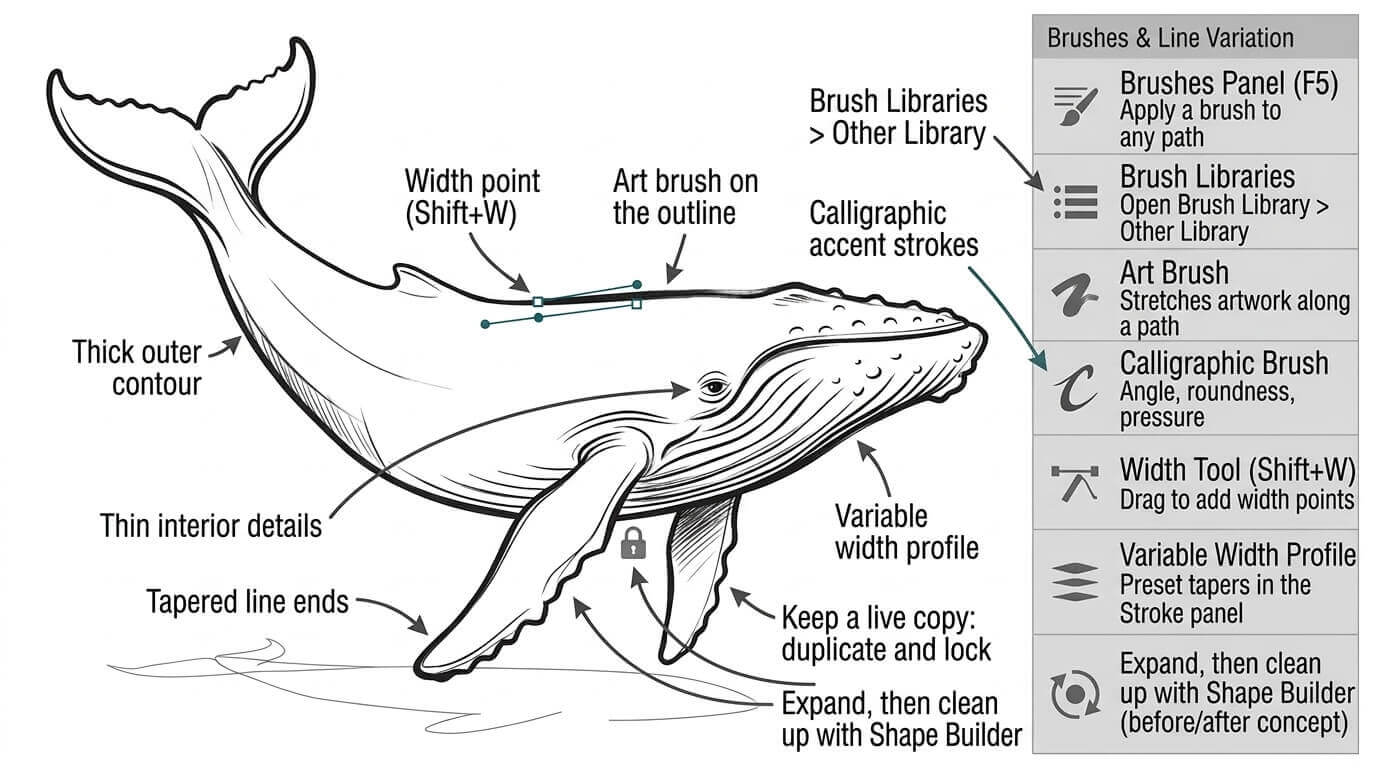
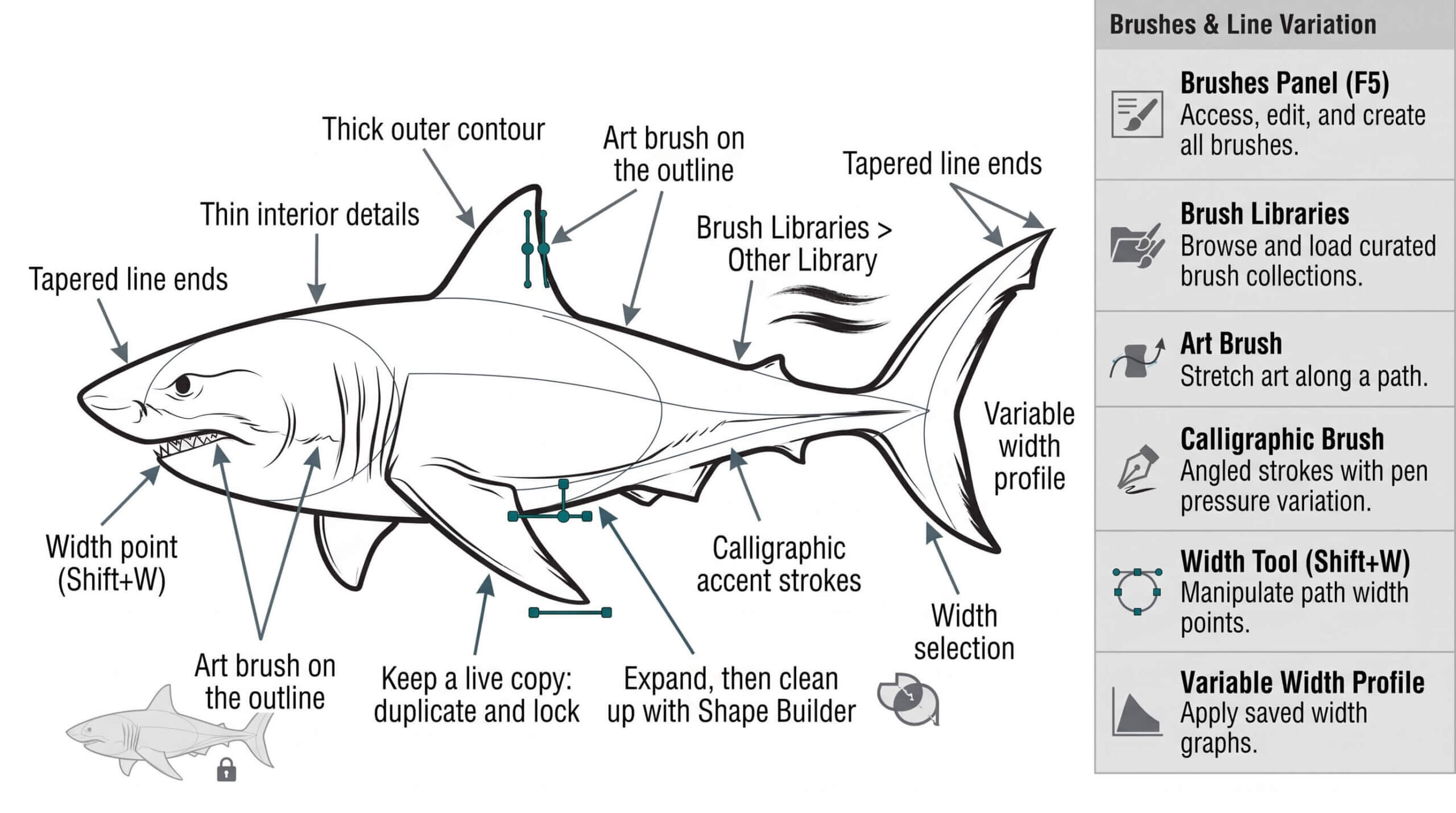
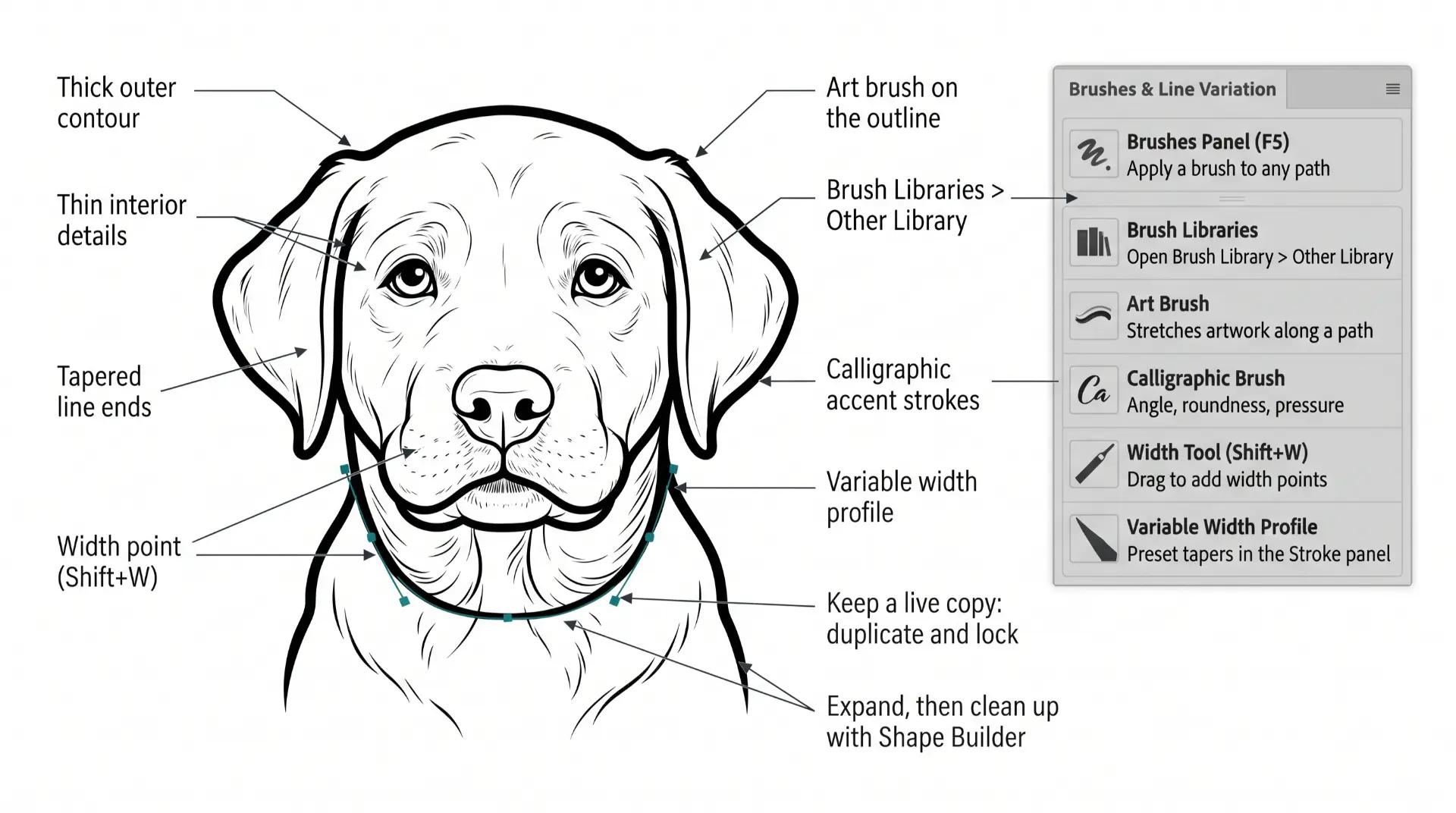
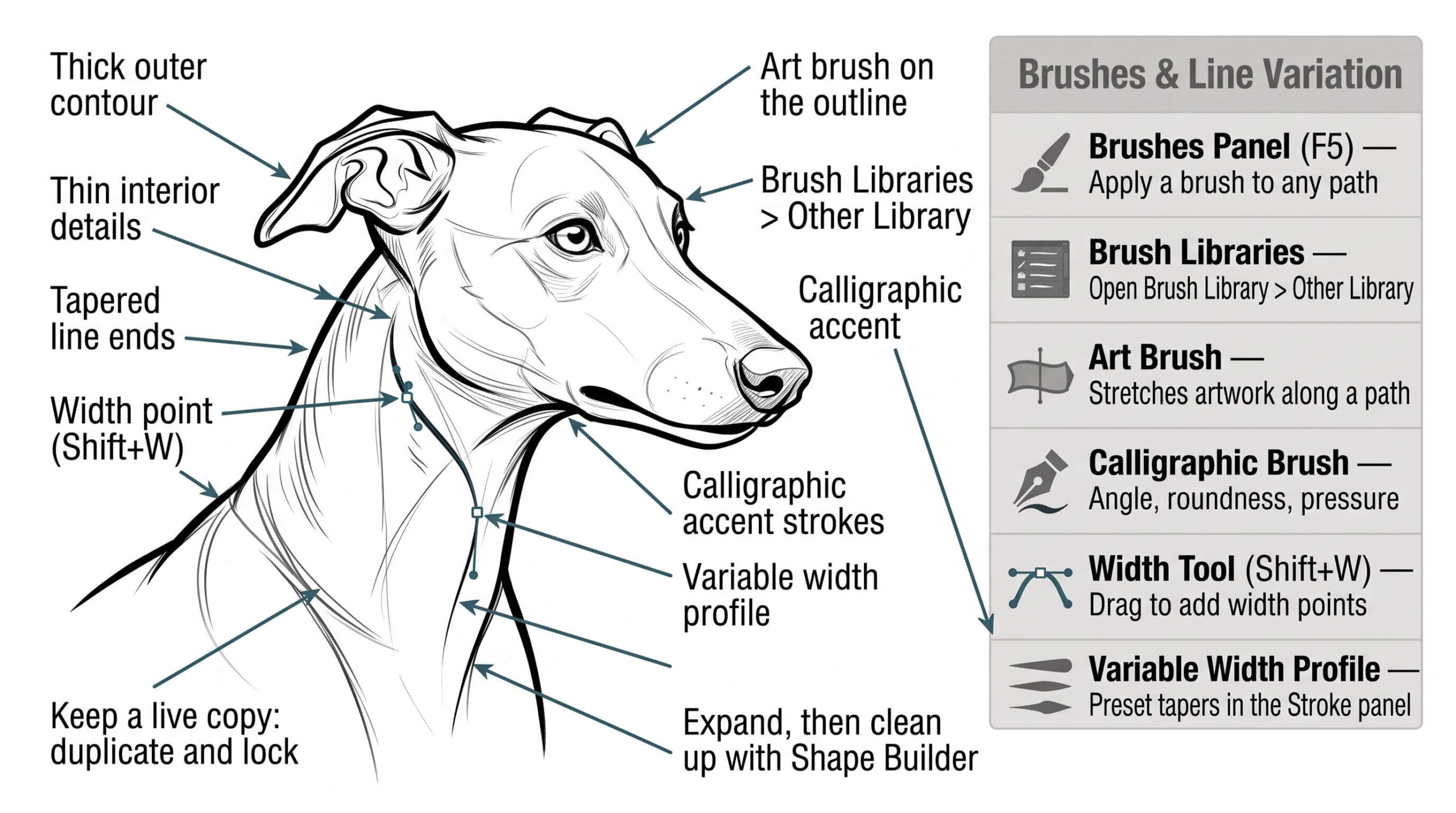
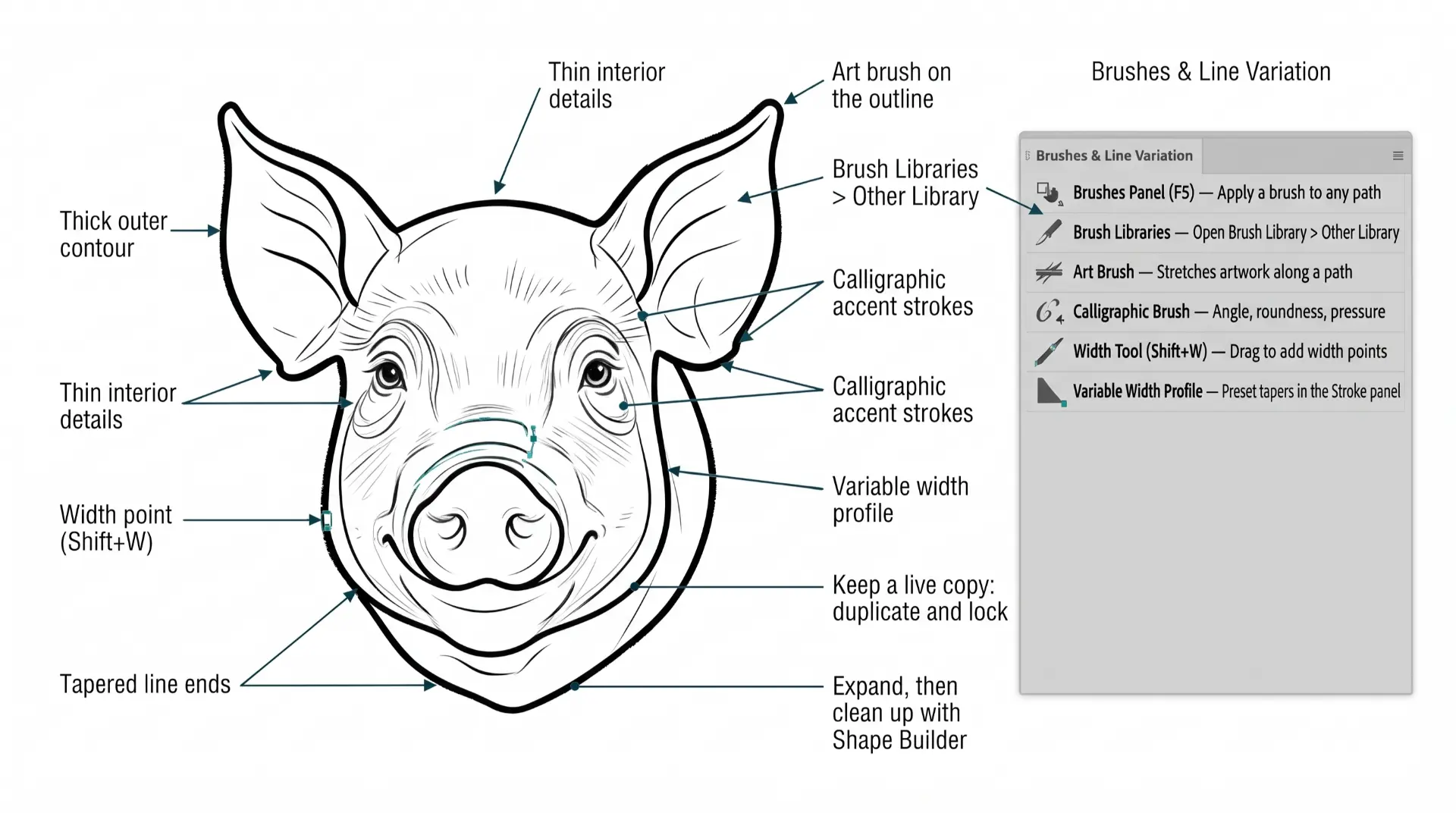
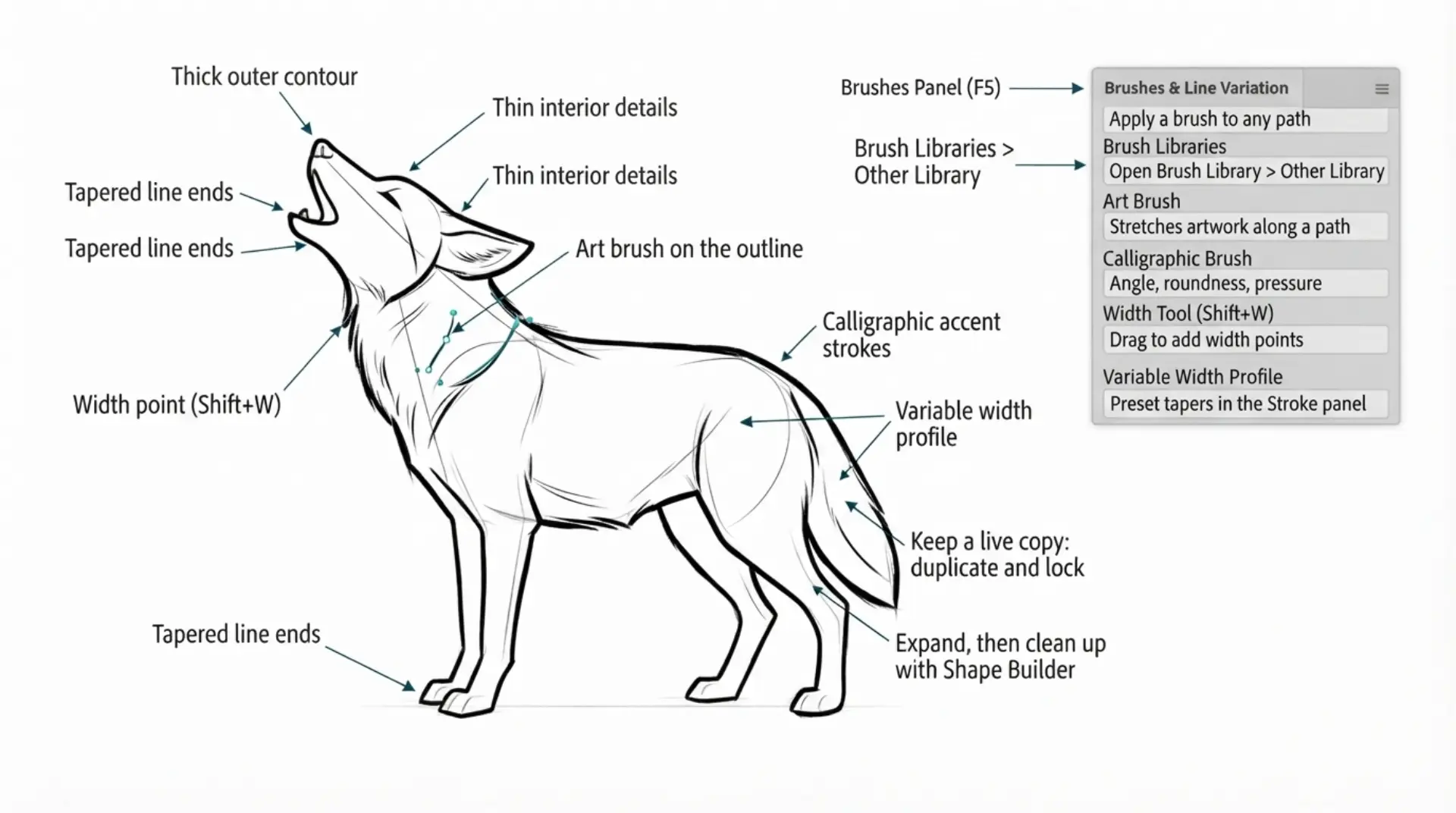
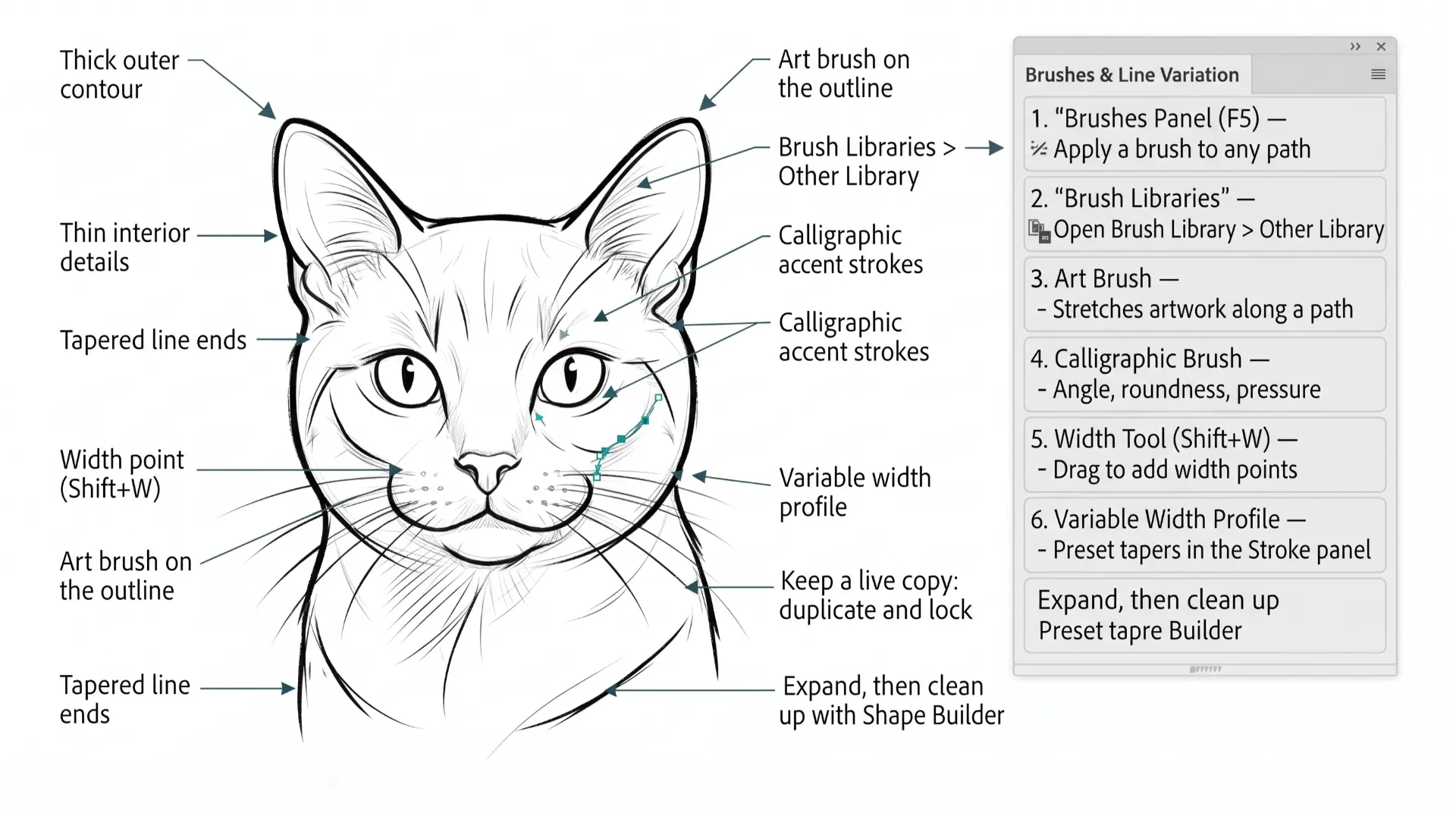
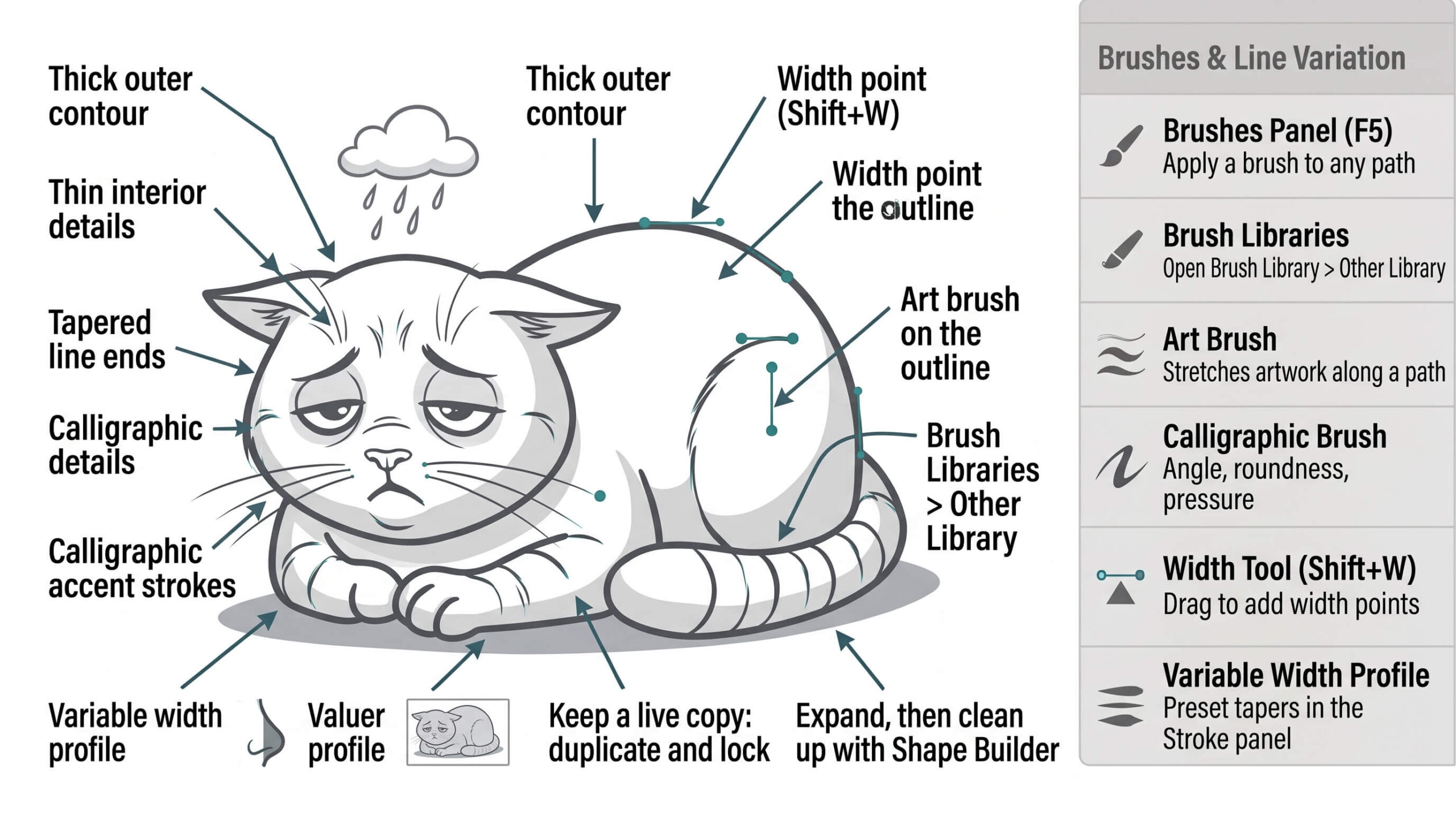
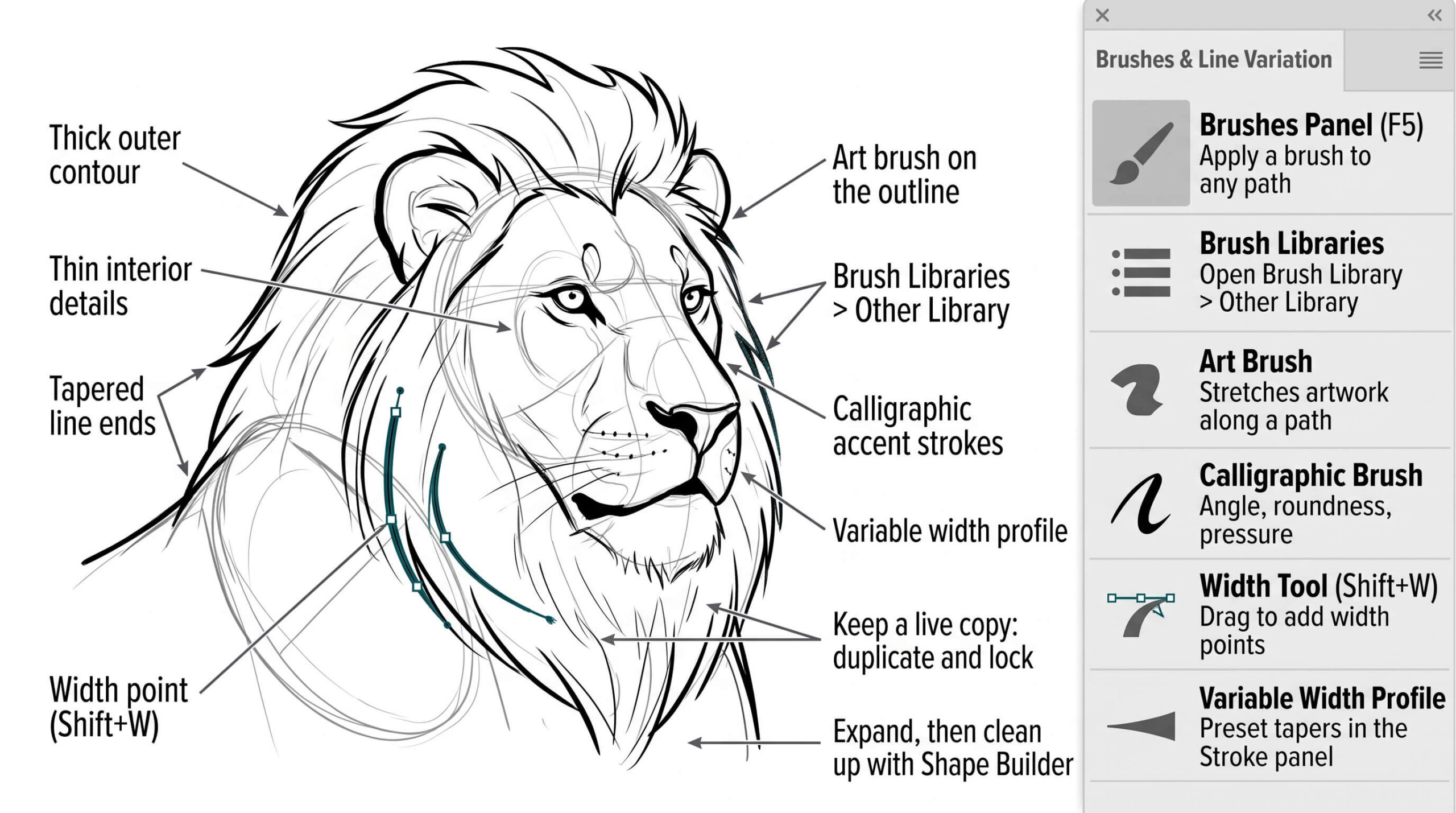
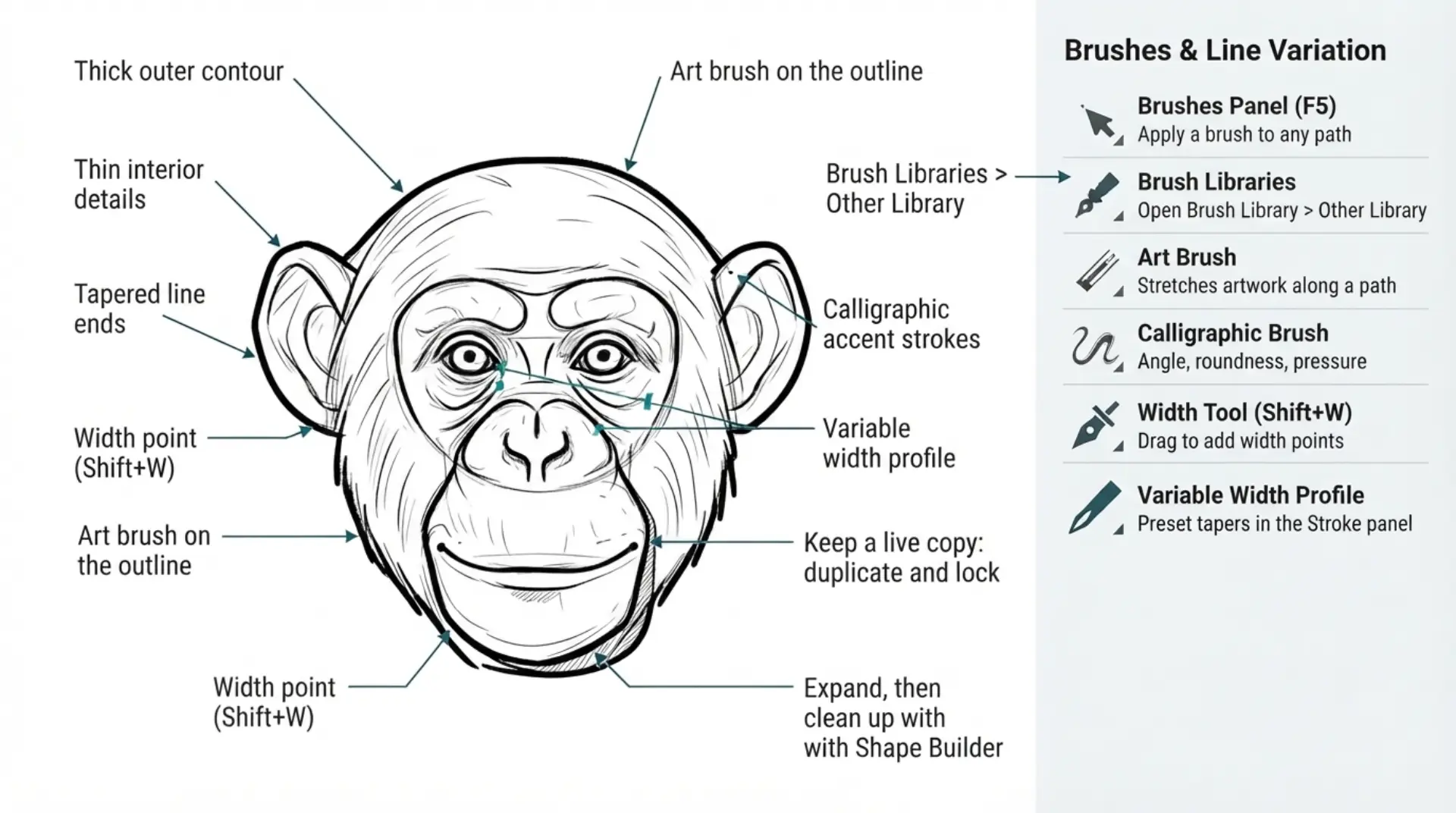
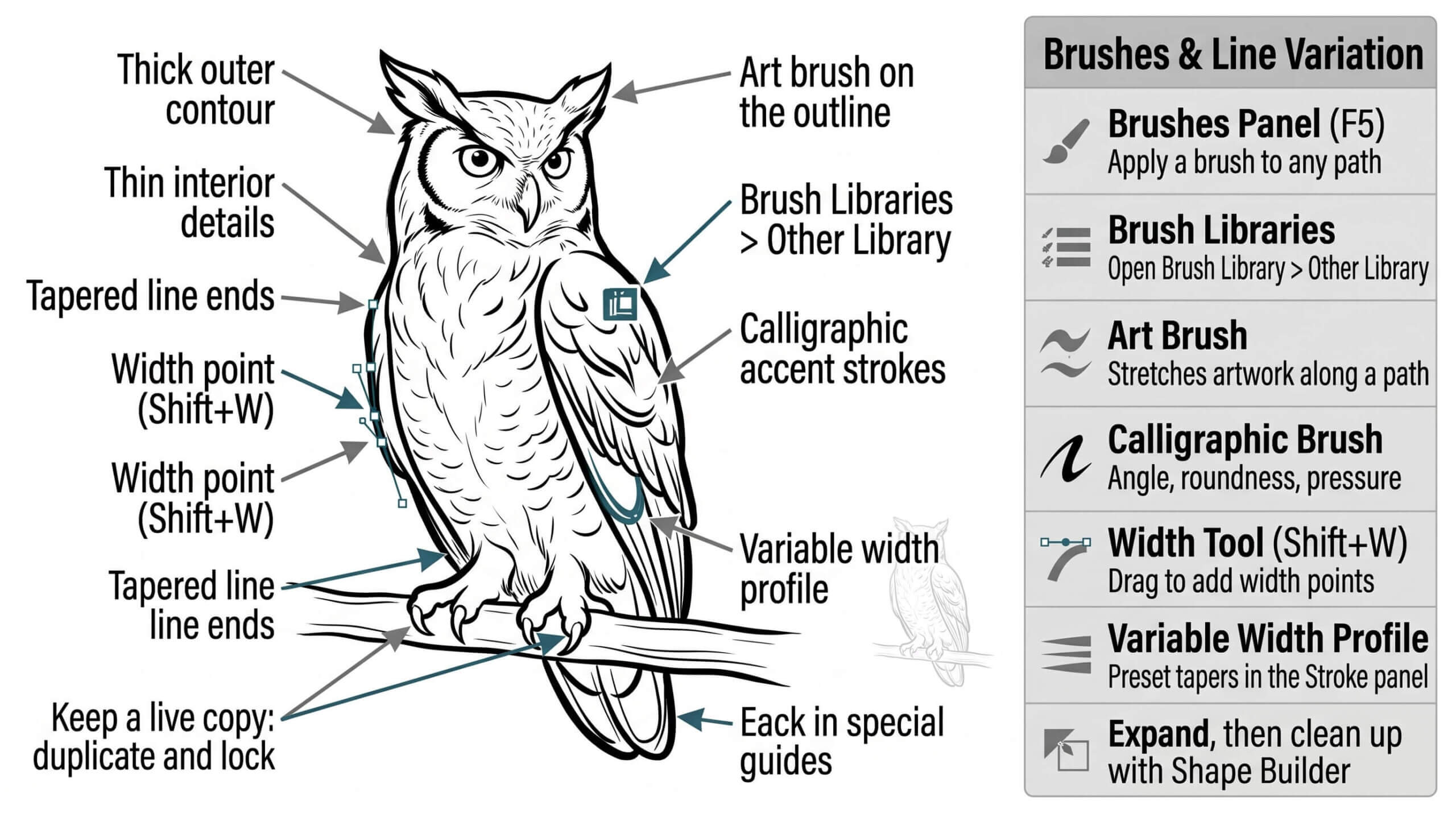
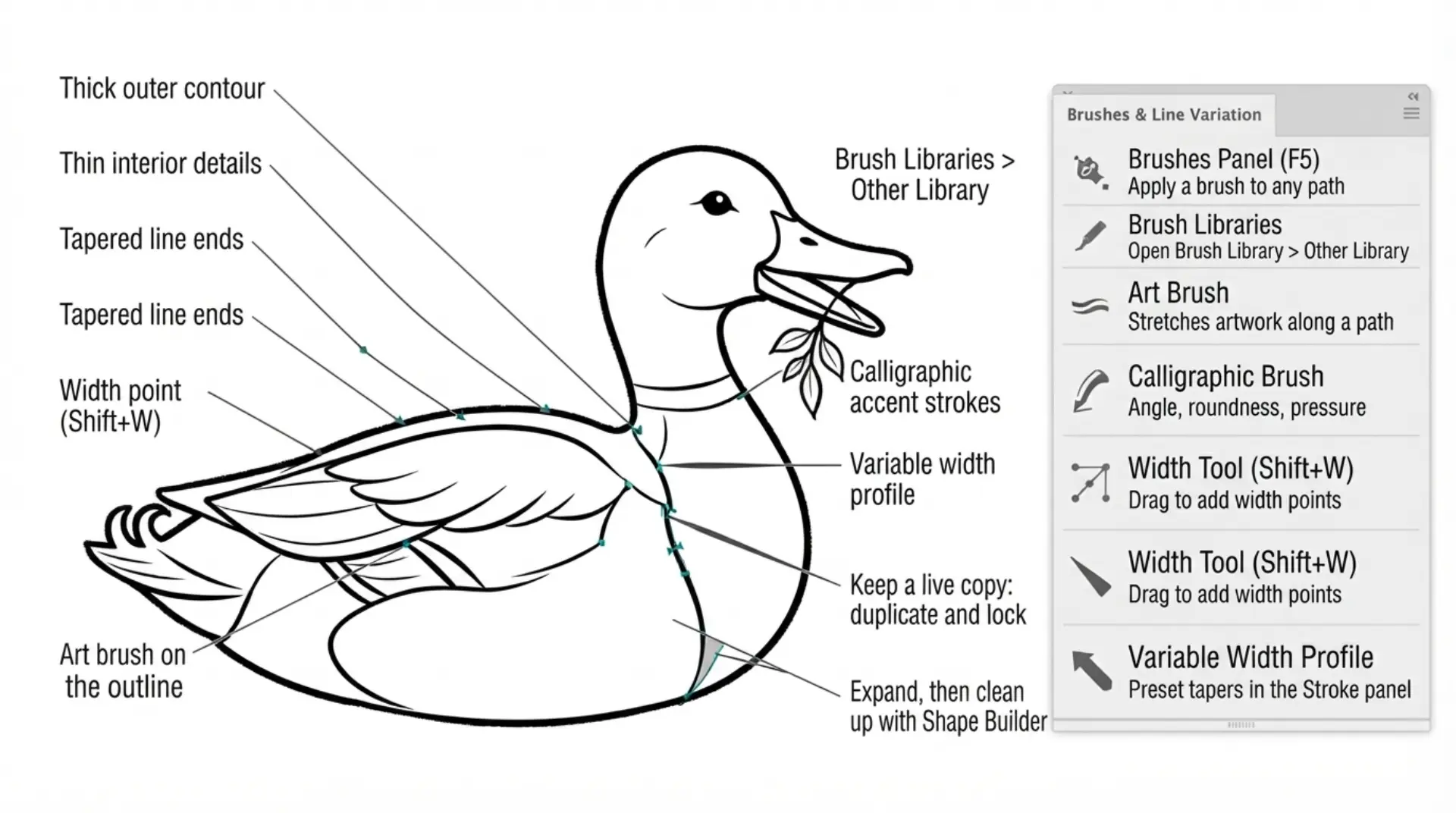
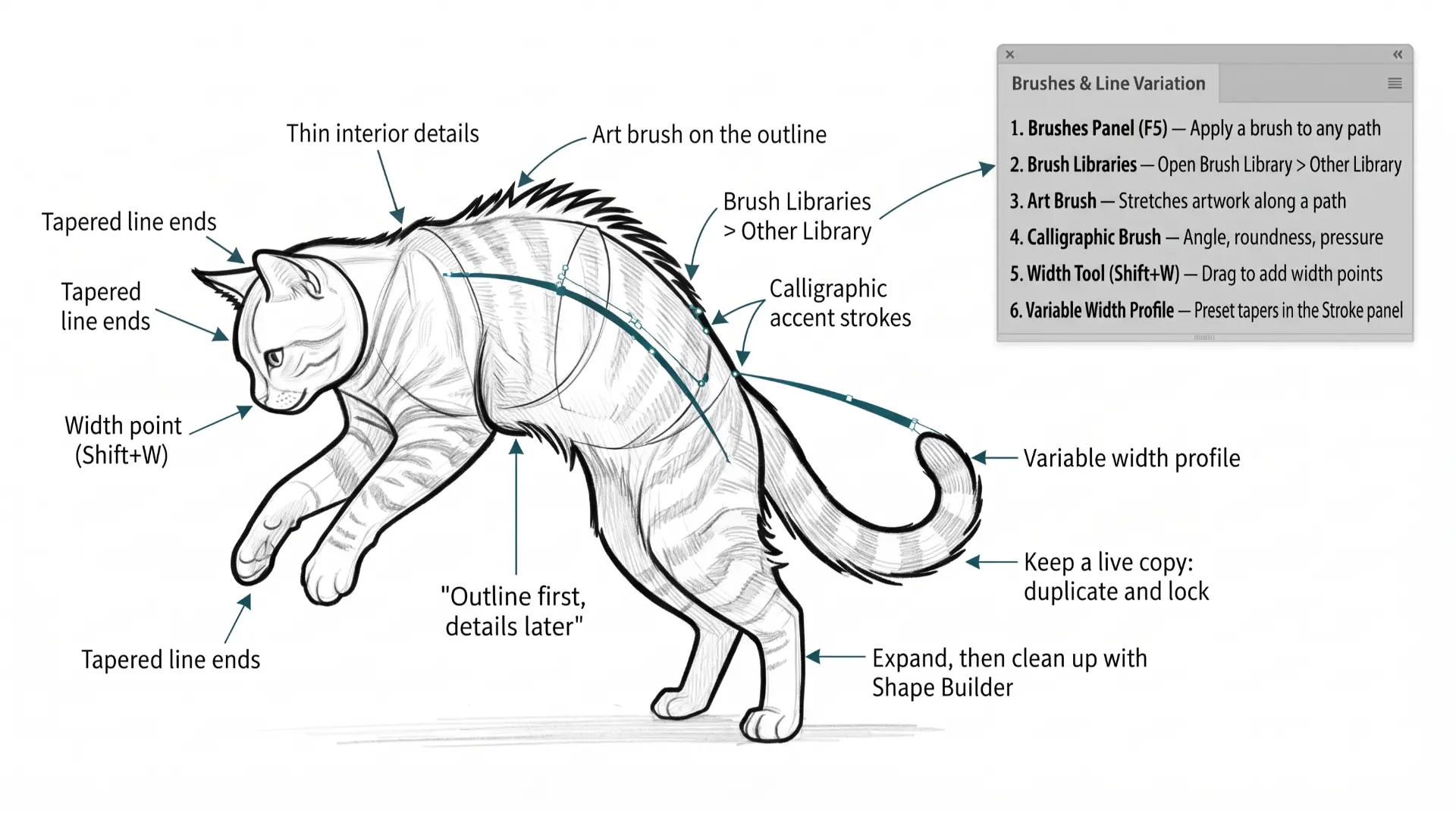
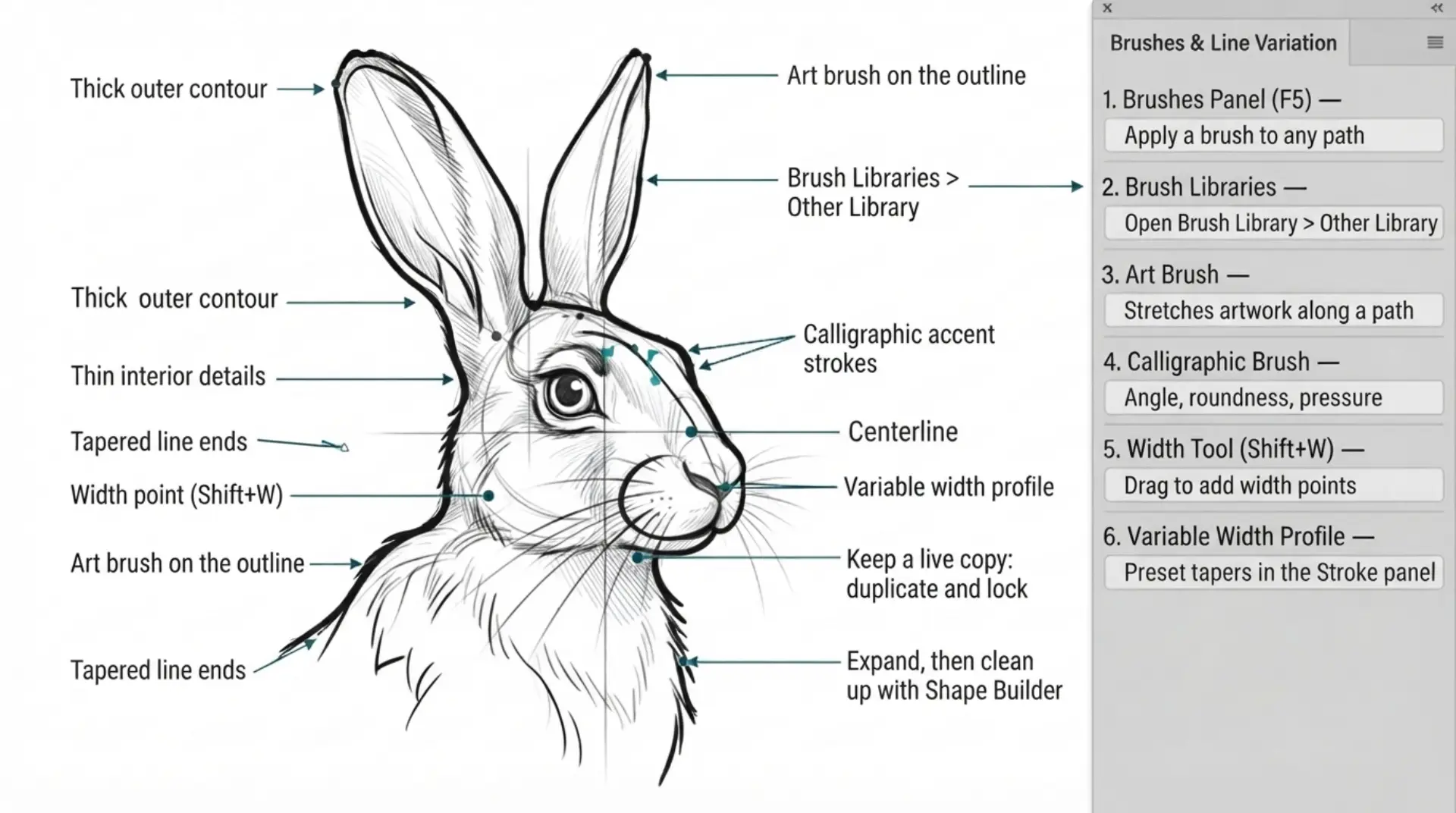
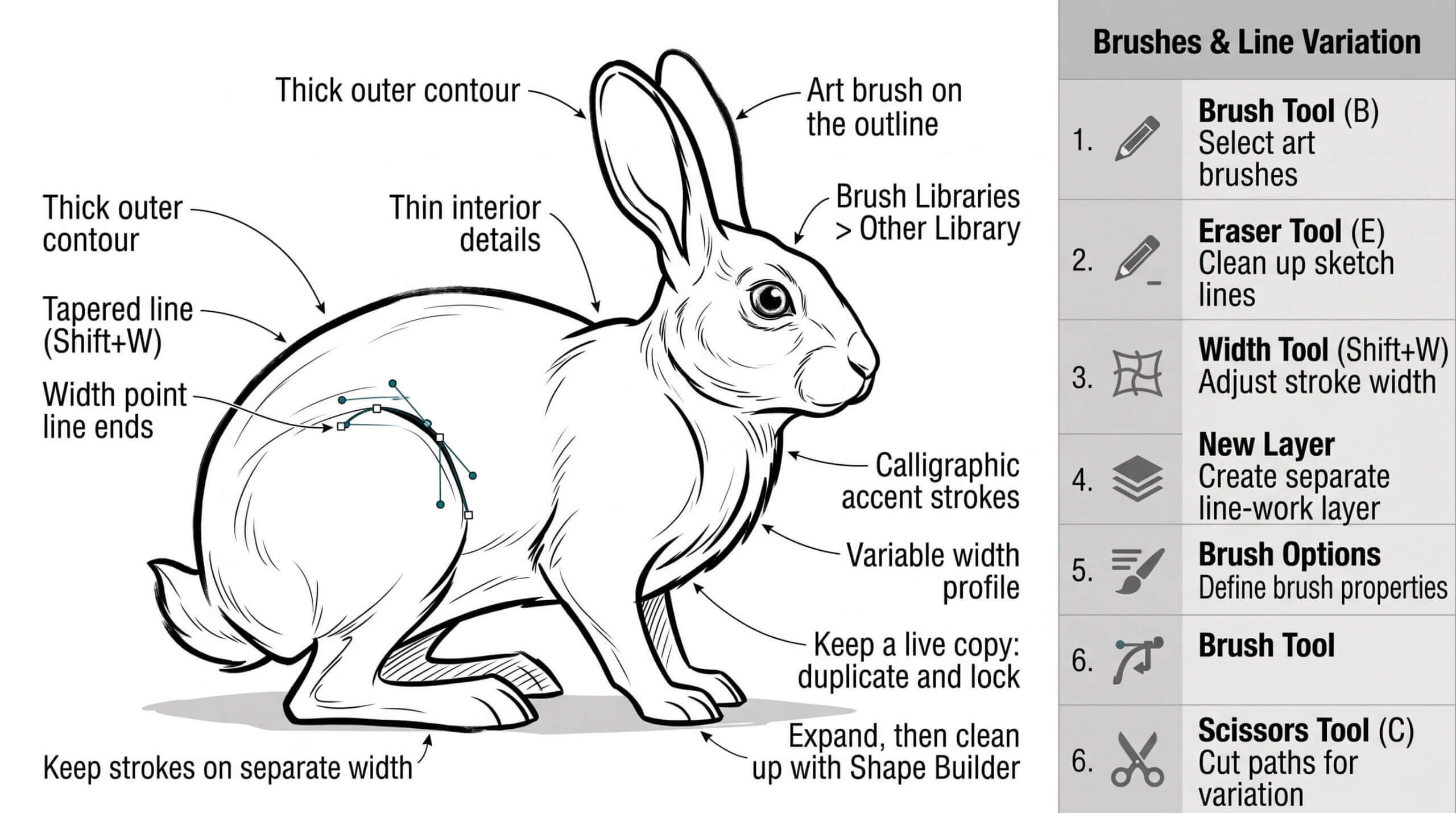
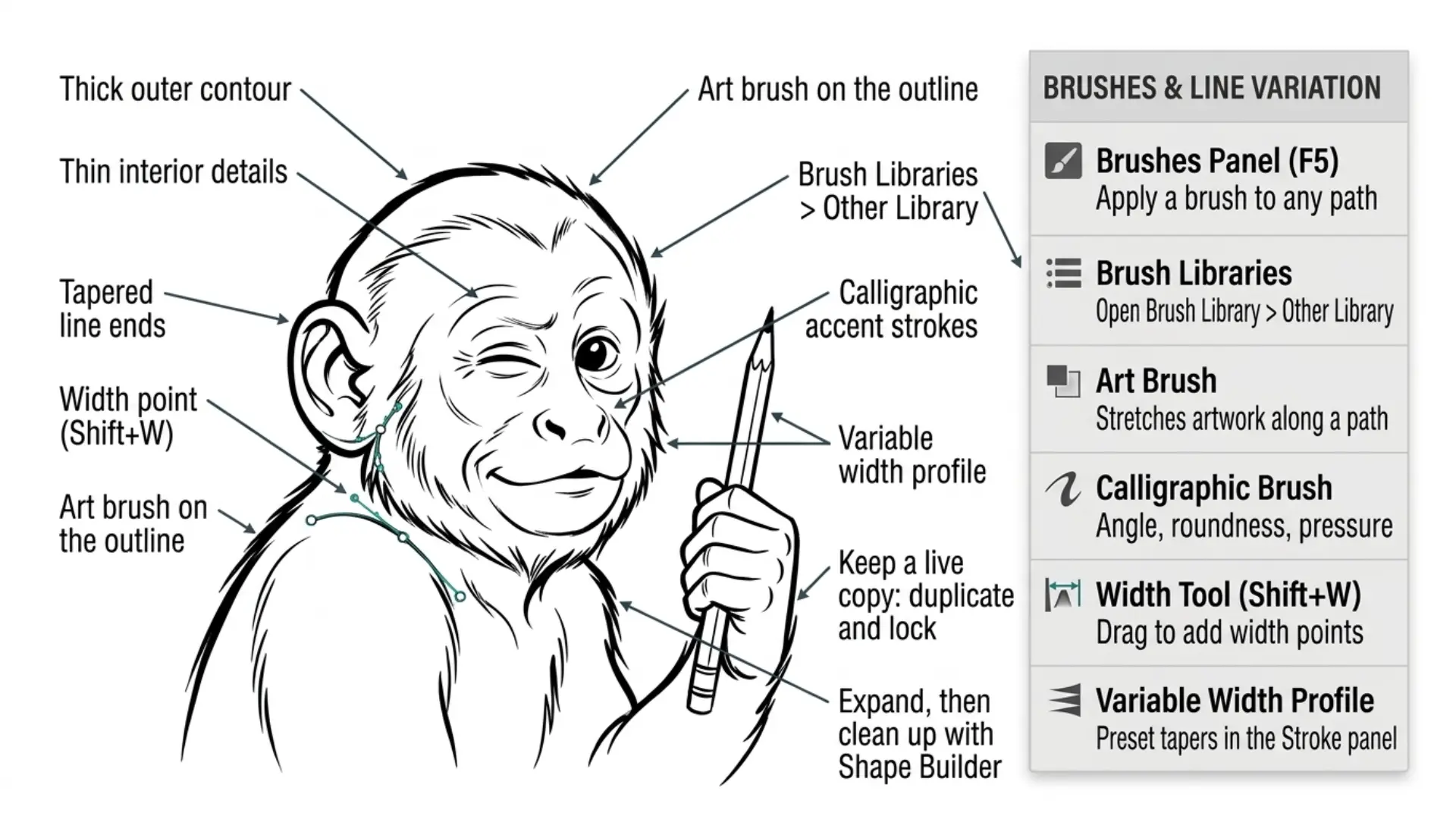
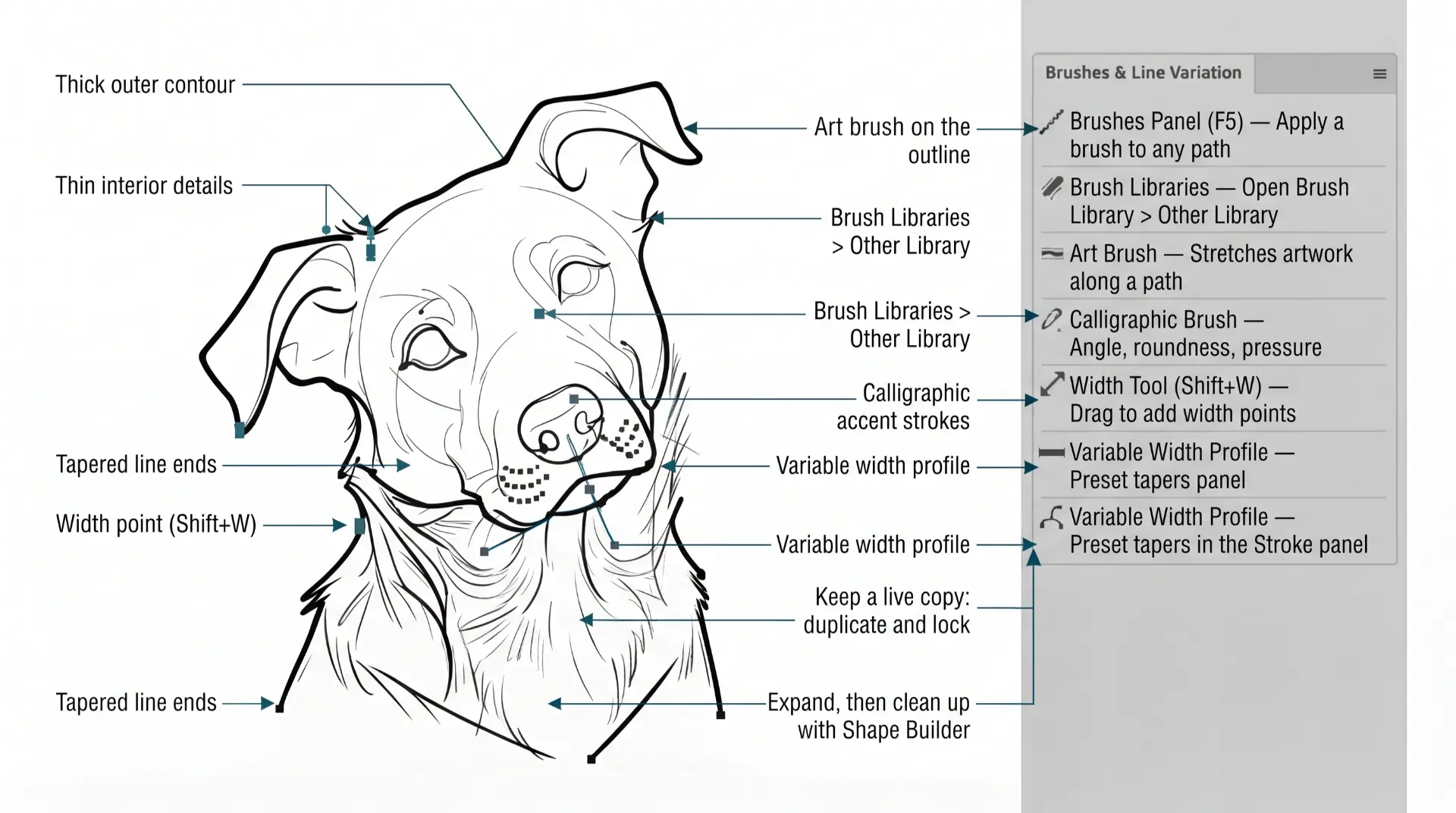
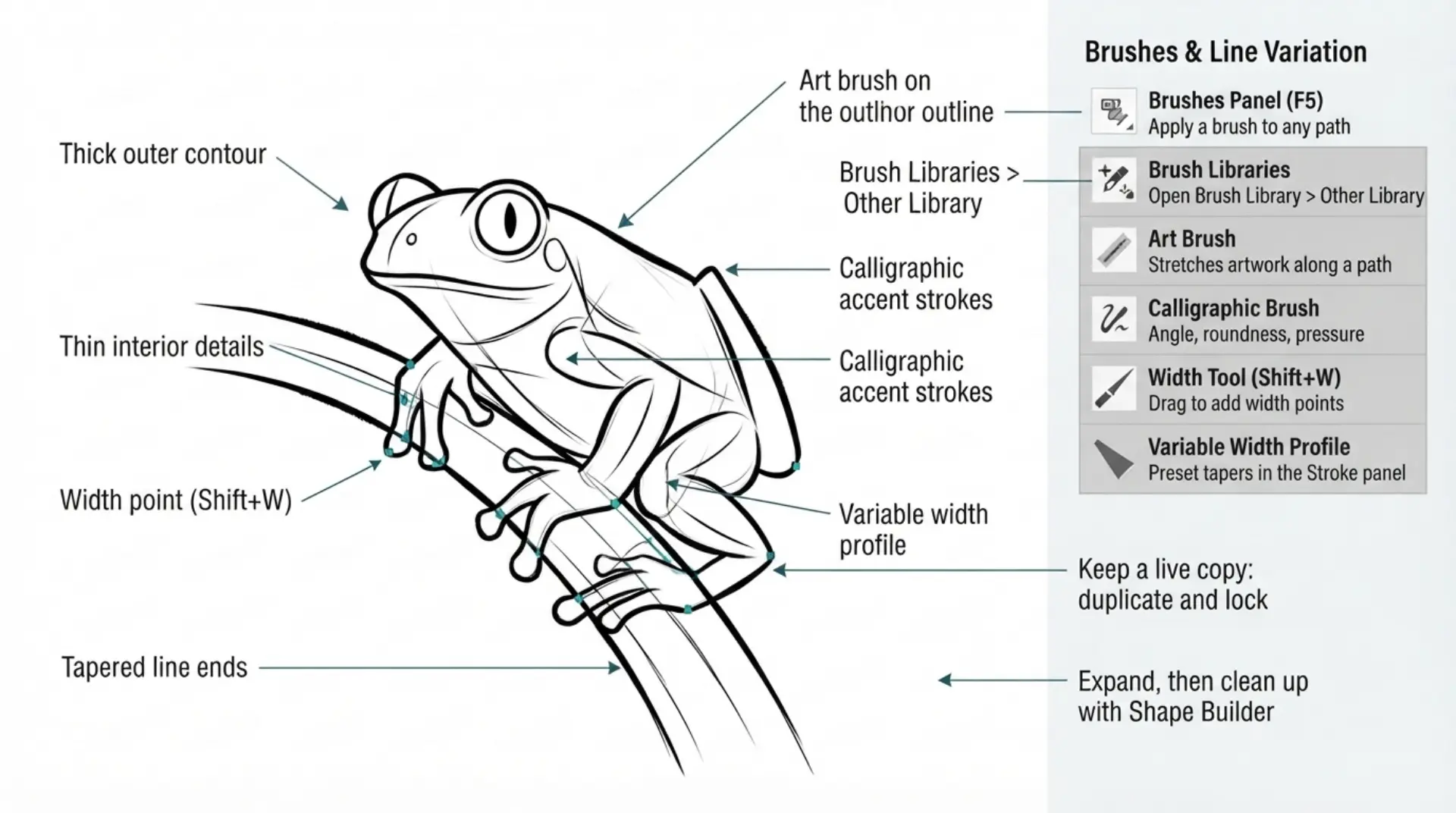
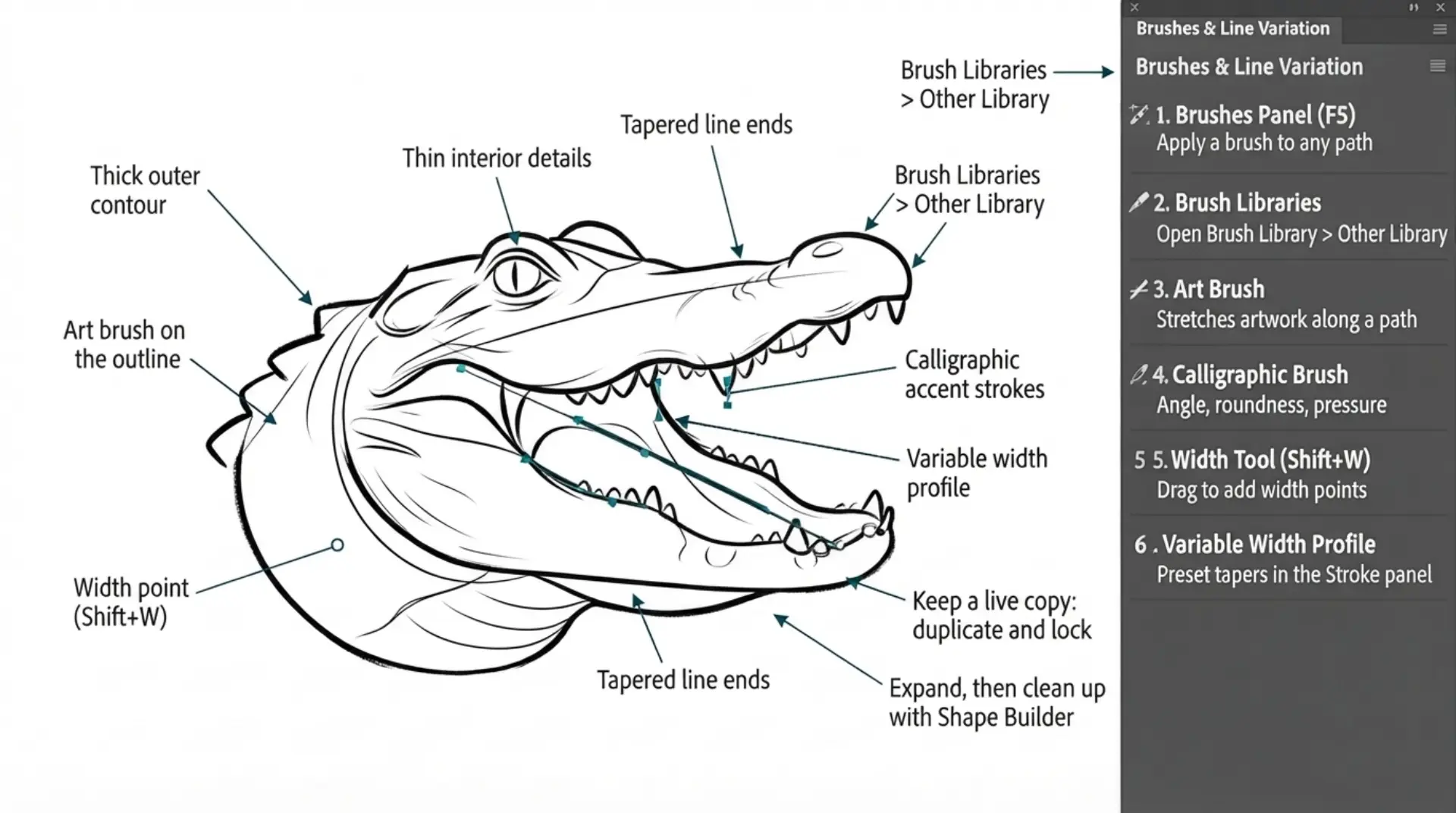
TUTORIALS: I have organized tutorials by core areas of your Workflow: Building, Editing, and Coloring. LEARNING TARGET (1): Understand the Building Tools and Options. LEARNING TARGET (2): Apply Line Variation along with Live and Expanded Editing Tools. LEARNING TARGET (3): Apply Color, Values, and Gradients using Advanced Coloring Techniques.
GETTING STARTED: Our Getting Started Guides will walk you through the process of downloading, saving, and gathering resources for your own artwork.  LEARNING TARGET (1): Download Stock Photos to use as a Resource Images. LEARNING TARGET (2): Download and Save Brush Libraries. LEARNING TARGET (3): Download or Save Color Swatches.
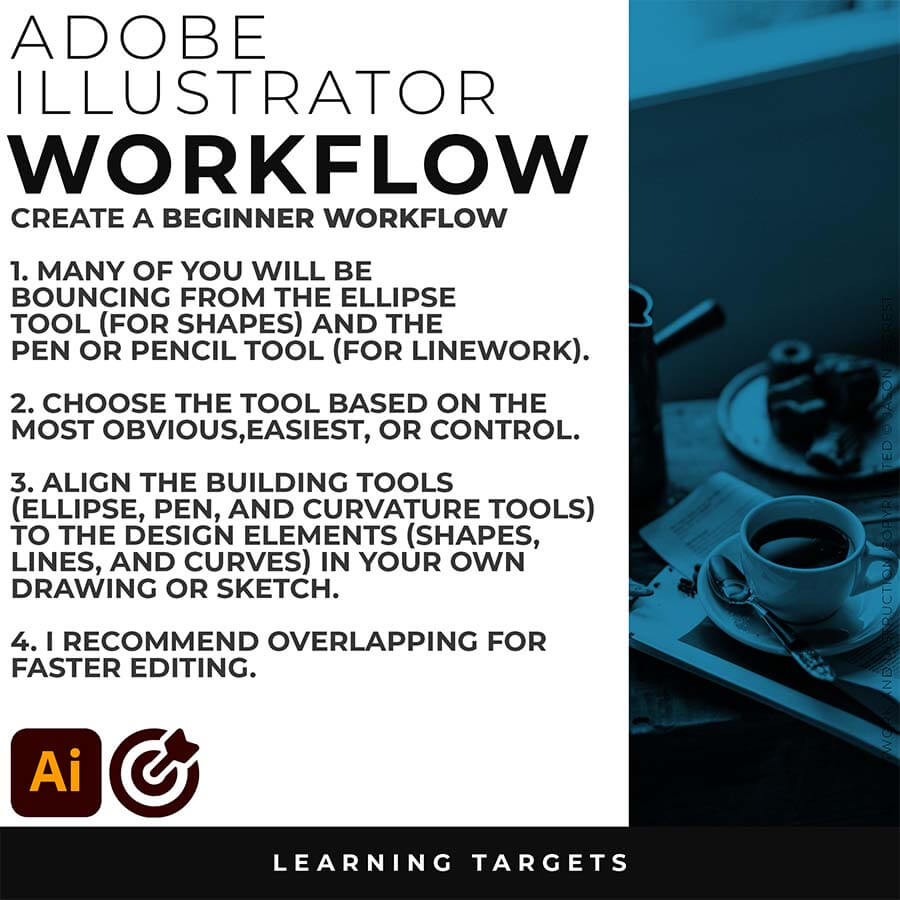
BEGINNER: The major decision you'll need to make is your starting point and build mode. First, determine whether you have drawings and sketches ready to use, or if you will be starting from stock photos. We are looking to align the starting point, build mode, and export size. 
INTERMEDIATE: The purpose of our Beginner Guides and Tutorials is to provide an overview of a workflow, allowing you to see the steps in sequence. These are designed to assist you as you go through our Free Tools and Workflow Guides. Clarifying these details will simplify your learning process in Adobe Illustrator.  
ADVANCED: Pay attention to the Sequence of Events, Resources, and Tool Options as it relates to building a "Workflow." As you create your artwork, outline the steps in your workflow. Start with an initial workflow, then look to streamline or add AI components. 
STARTING POINT: The major decision you'll need to make is your starting point and build mode. First, determine whether you have drawings and sketches ready to use, or if you will be starting from stock photos. We are looking to align the starting point, build mode, and export size. 
PRIMARY BUILDING: The purpose of our Beginner Guides and Tutorials is to provide an overview of a workflow, allowing you to see the steps in sequence. These are designed to assist you as you go through our Free Tools and Workflow Guides. Clarifying these details will simplify your learning process in Adobe Illustrator.  
FILE EXPORT: As you create your own original artwork, think about where you are posting, exporting, and uploading. Start with the end in mind, all requirements must be addressed before starting your workflow.  I have created a full series of artboard, social, and POD size and requirement tools for you to use. 
beginner adobe illustrator tutorial whale
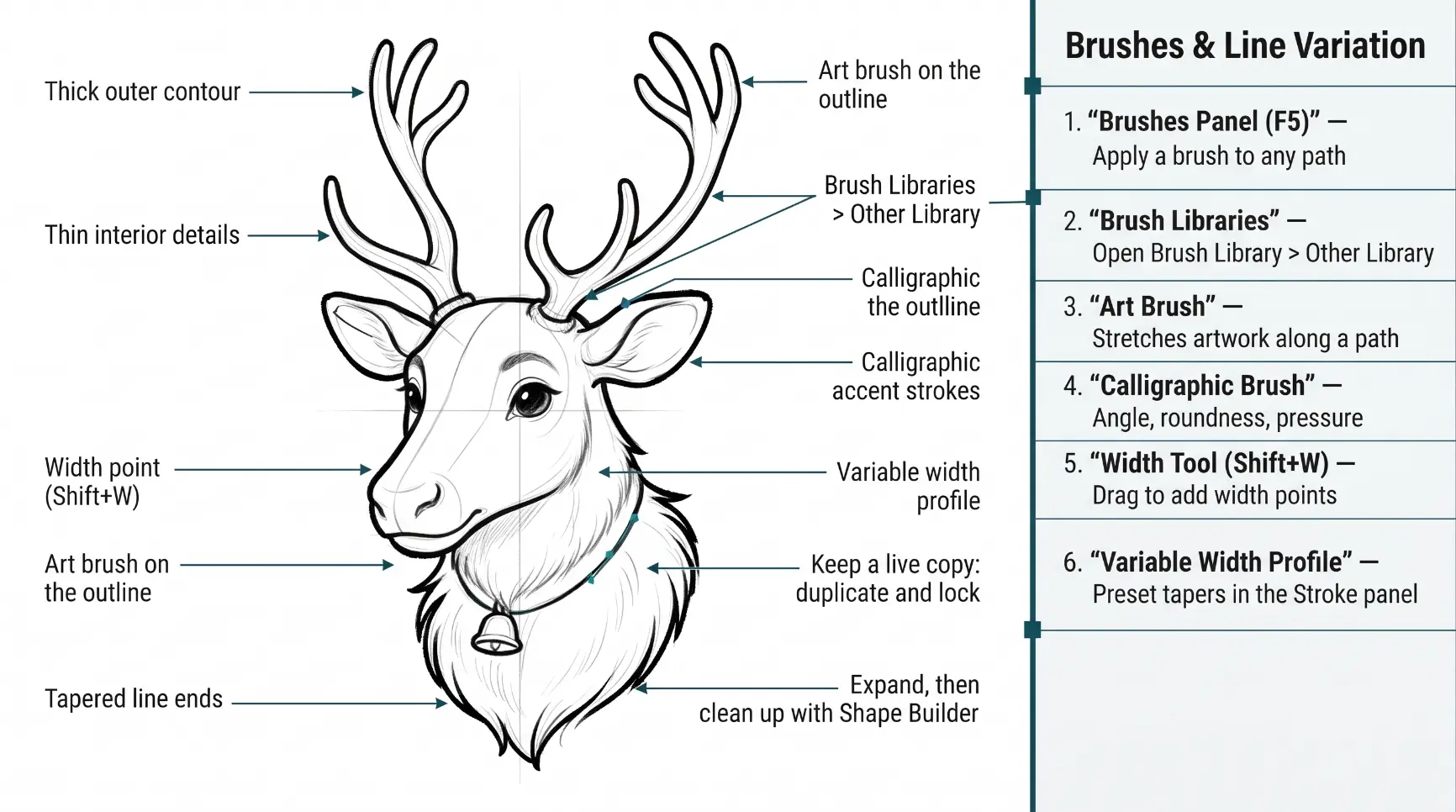
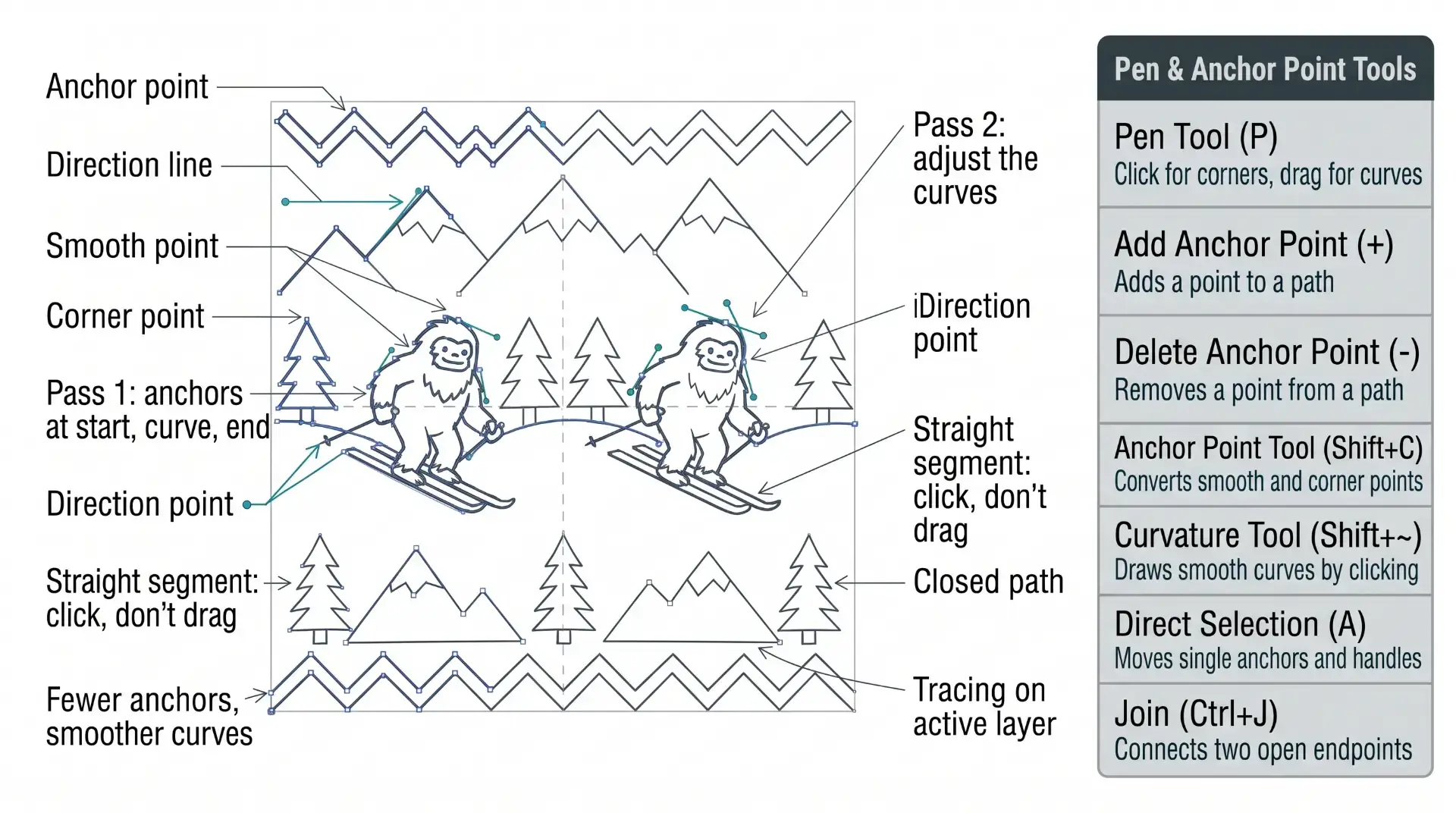
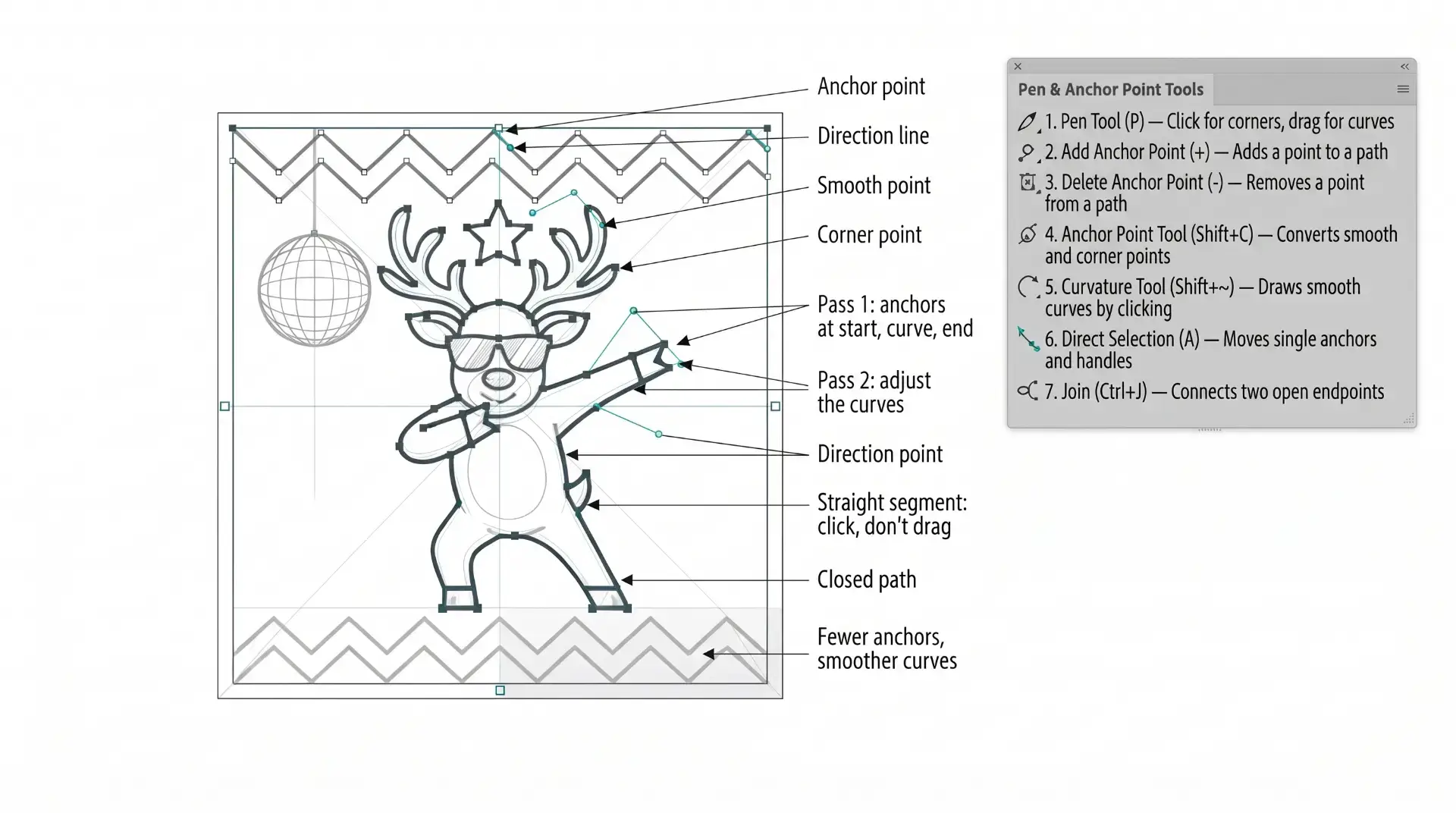
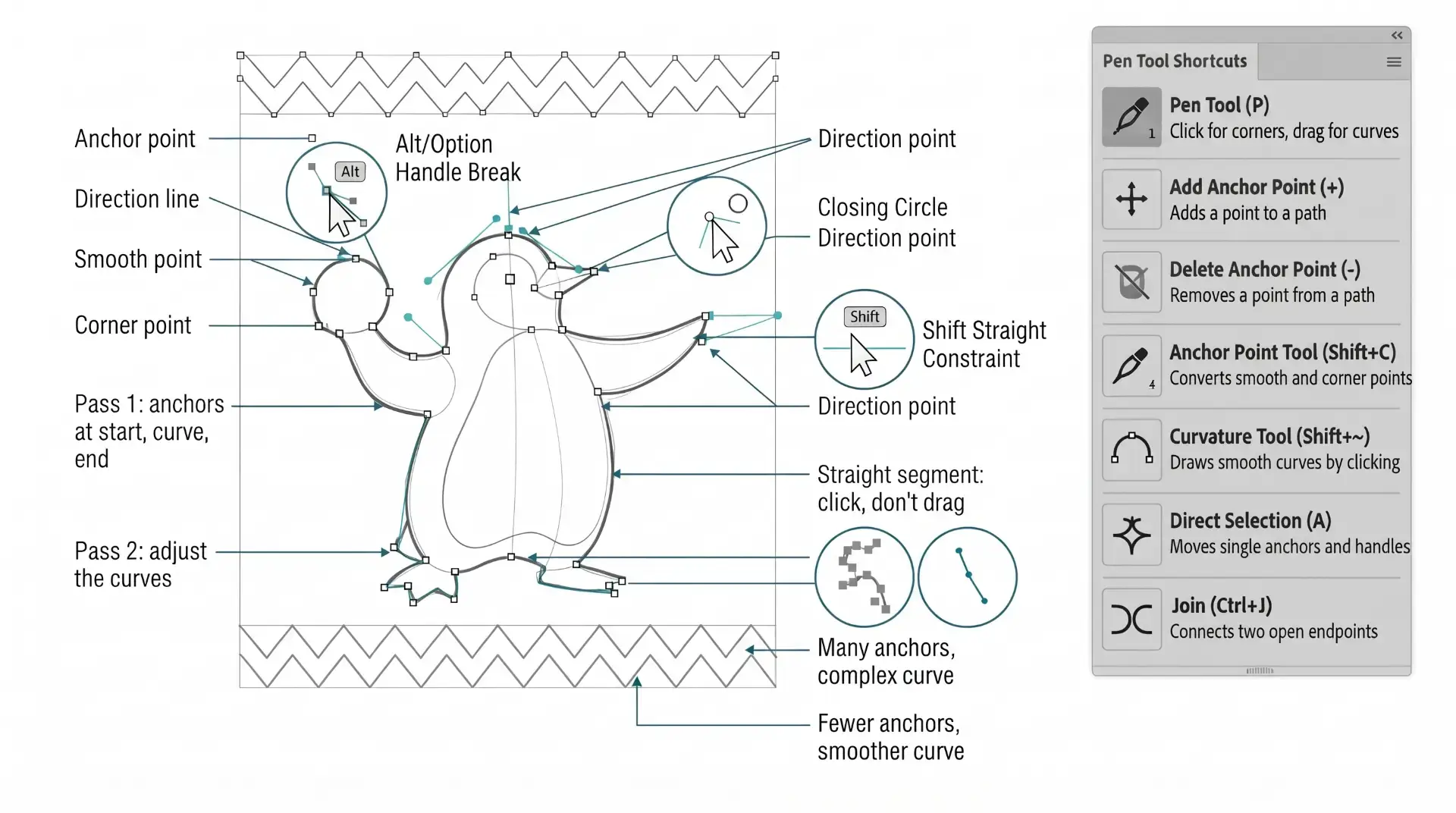
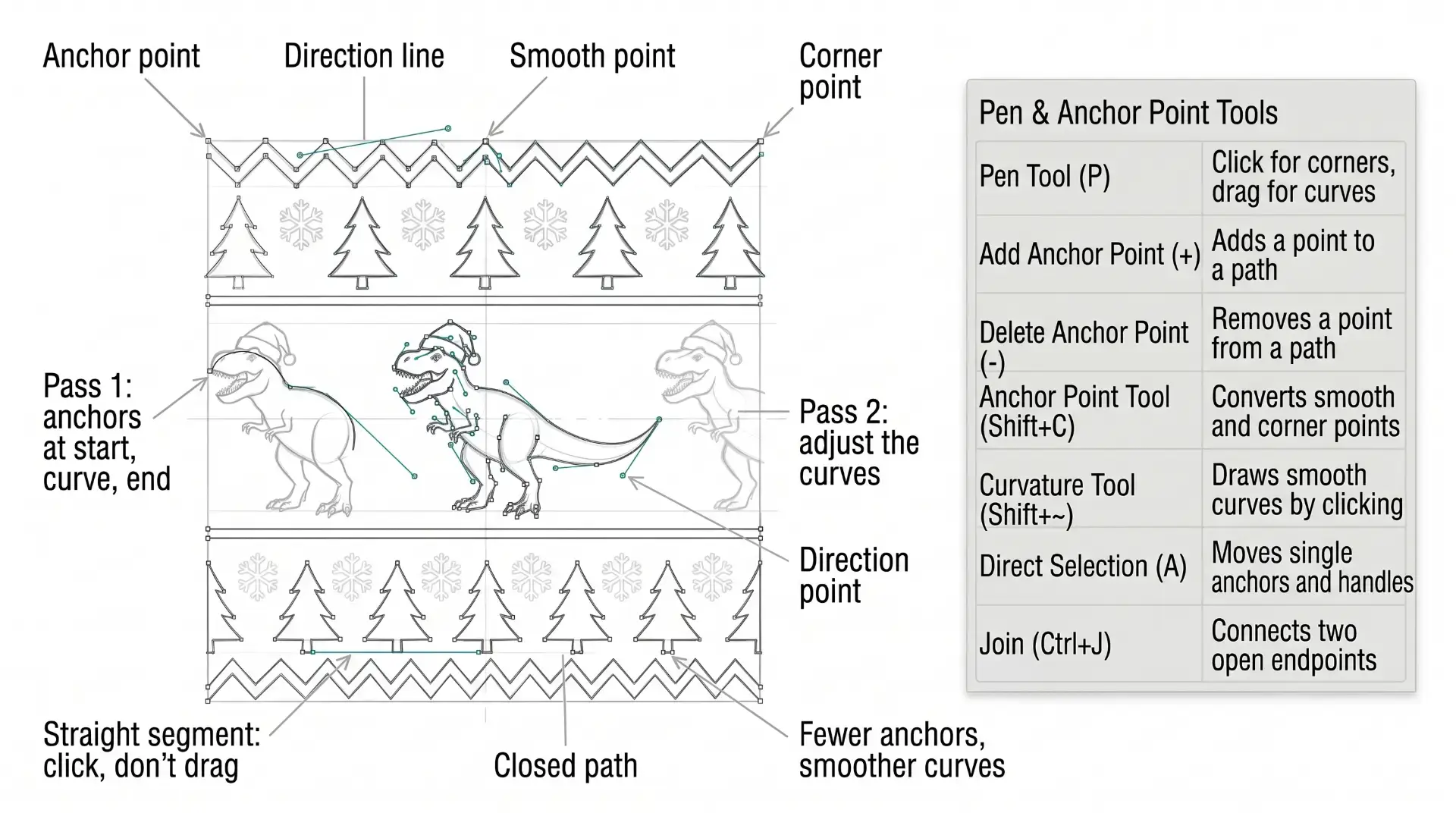
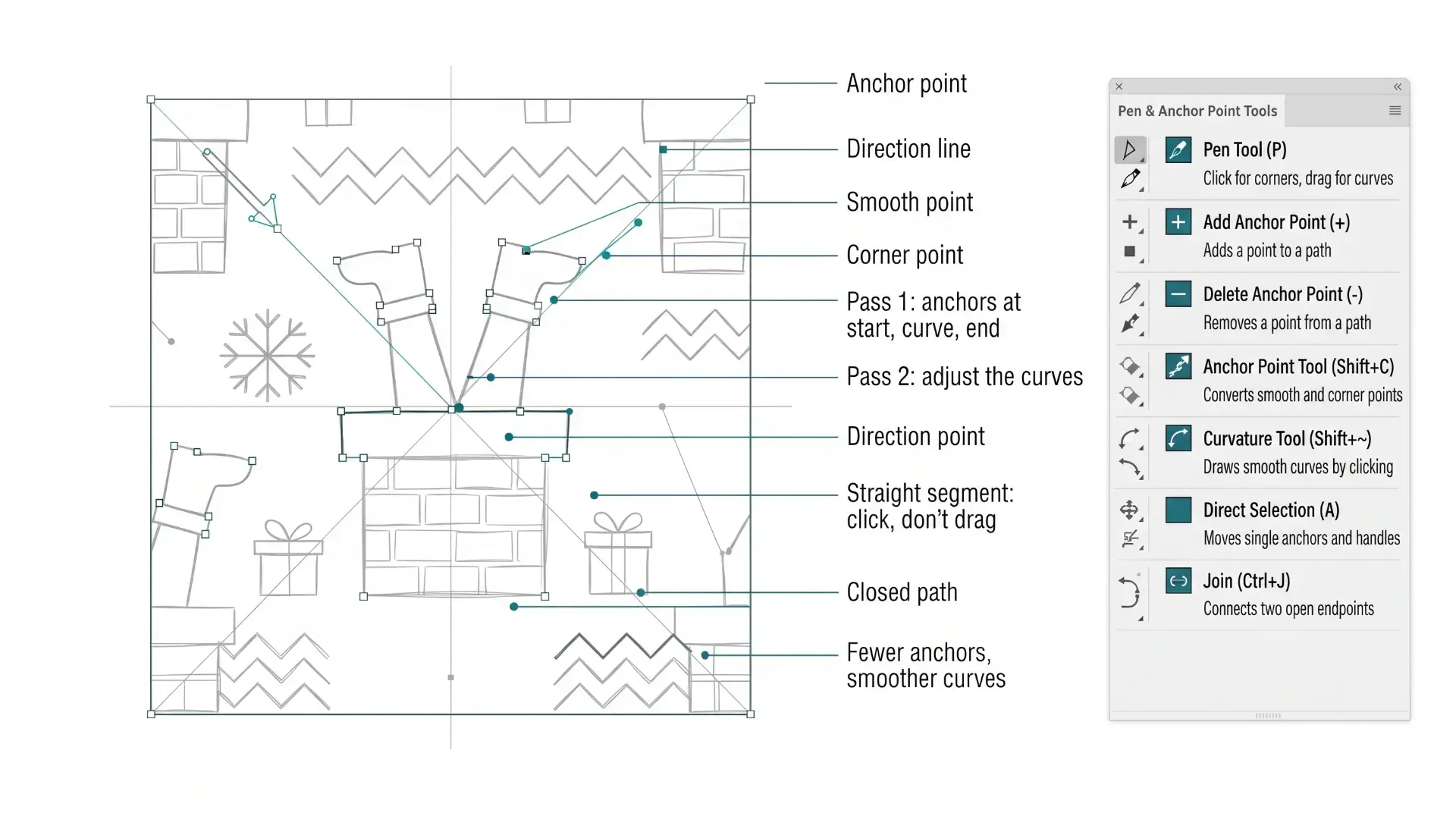
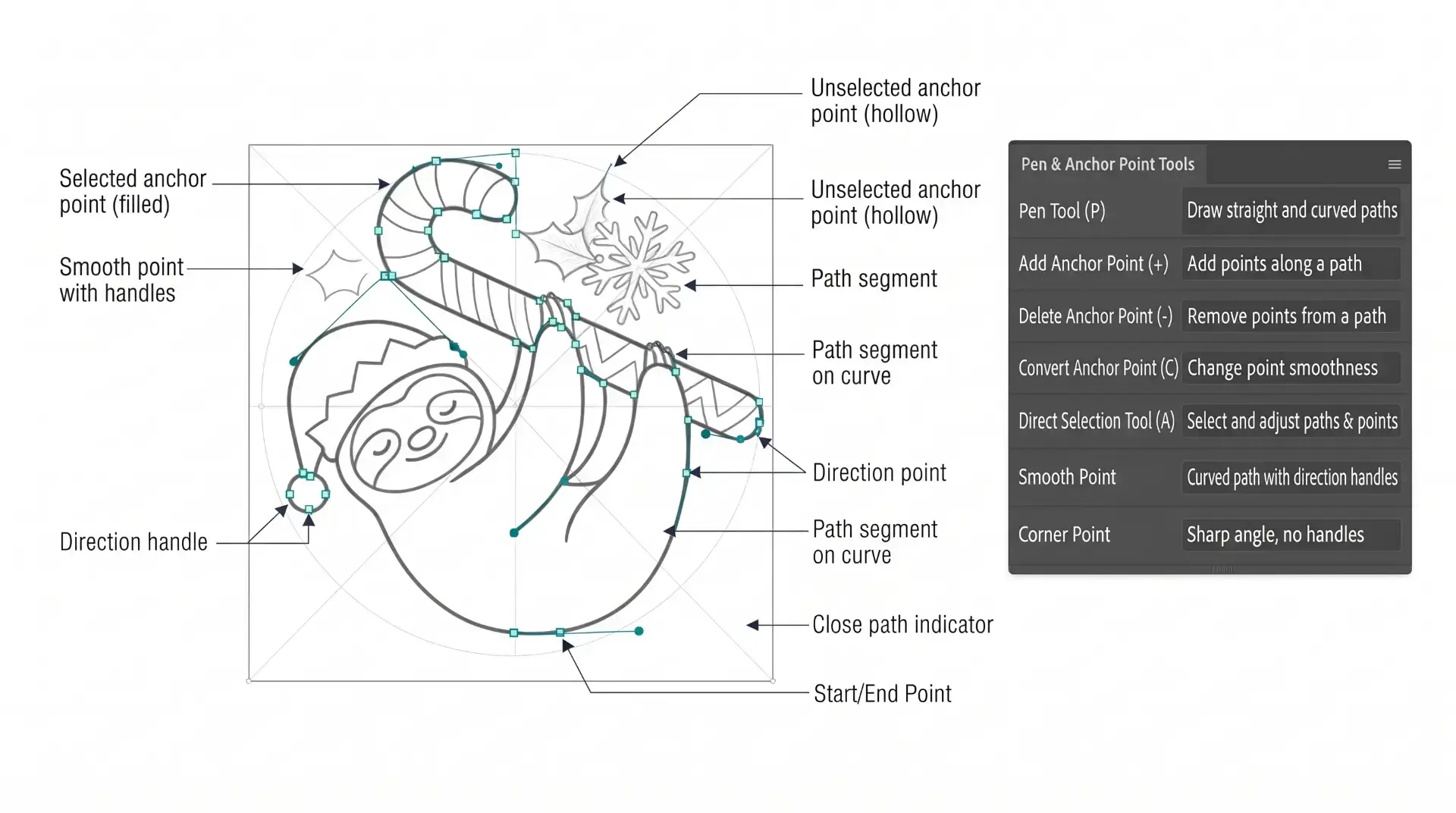
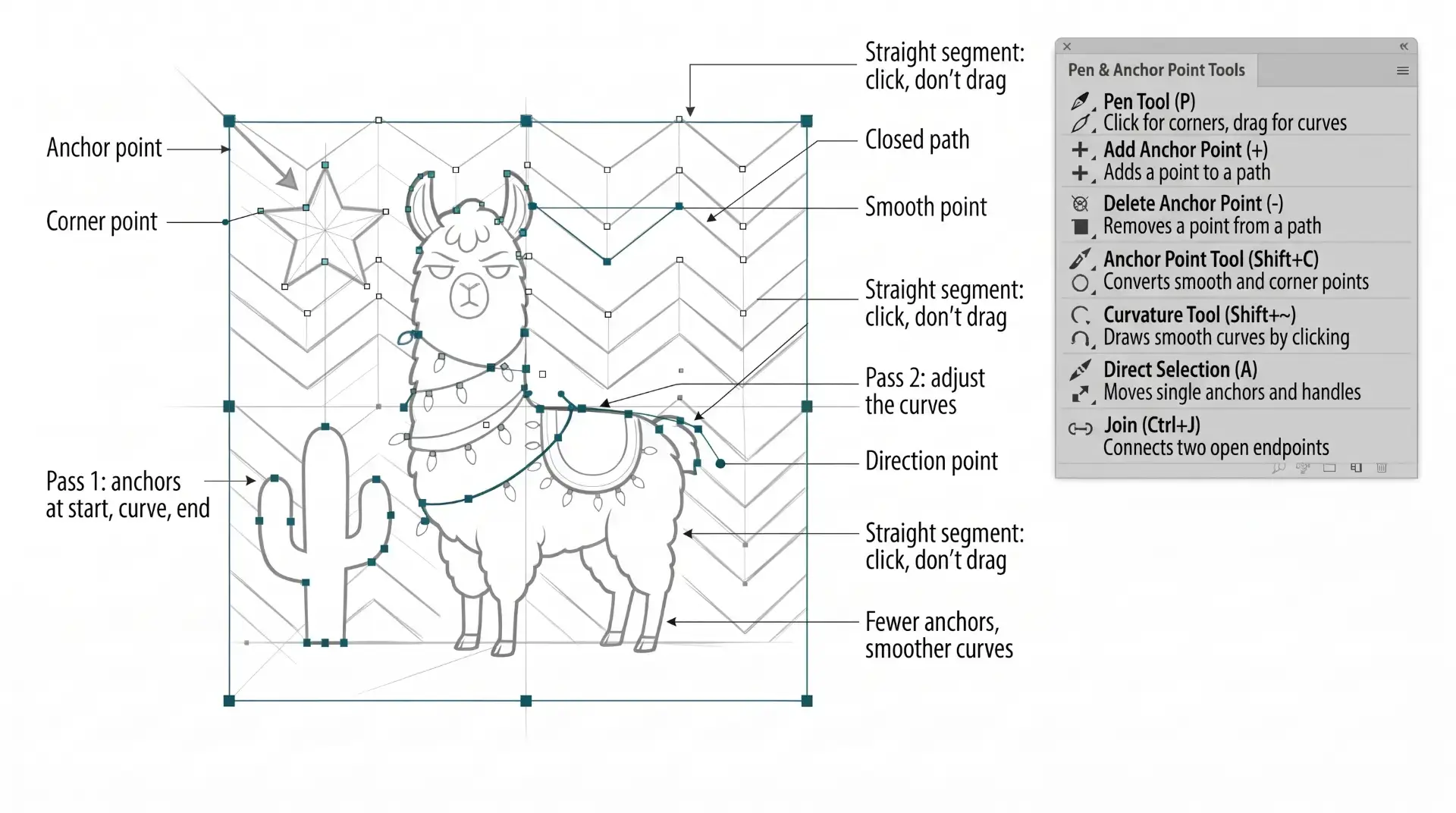
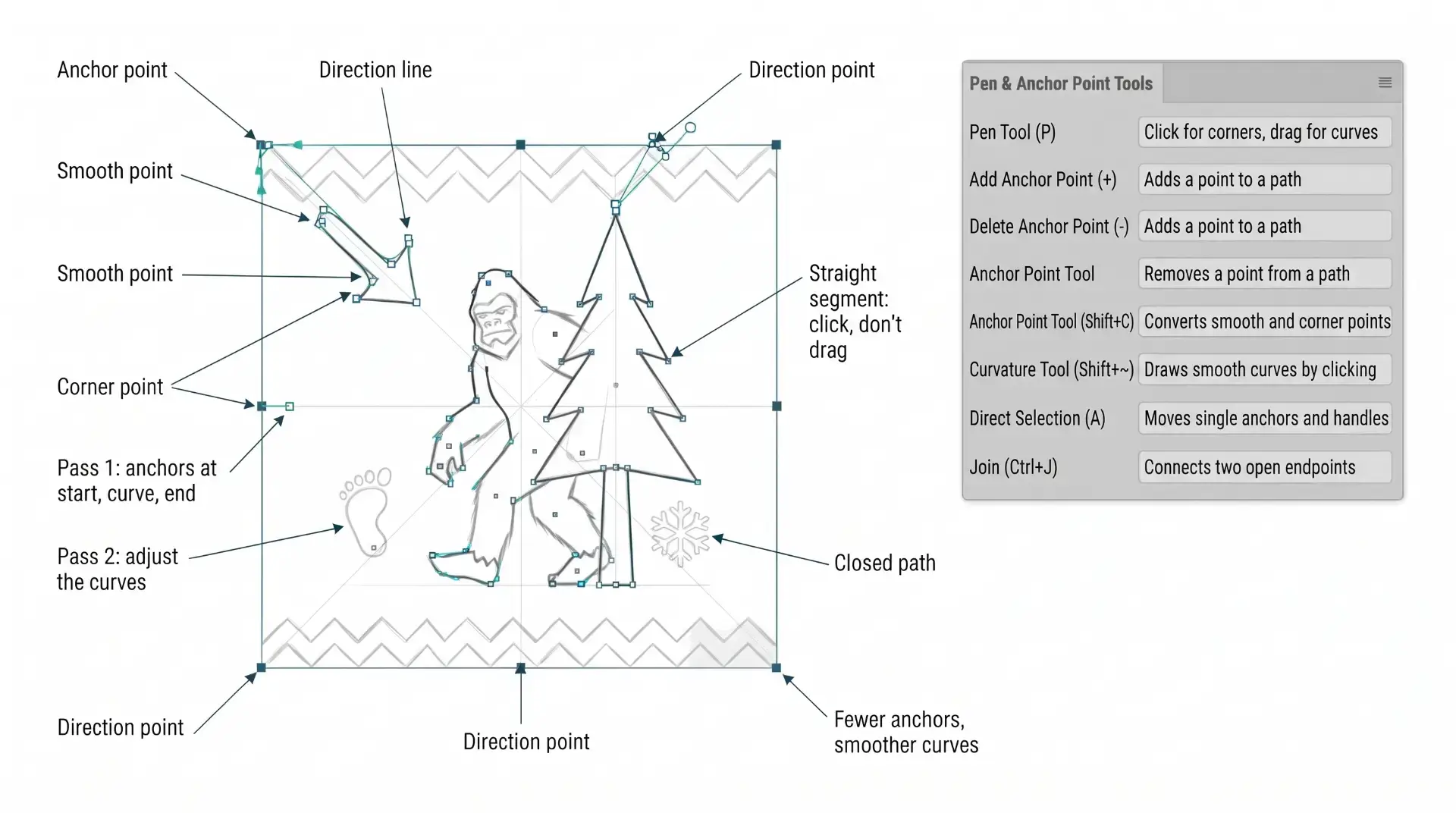
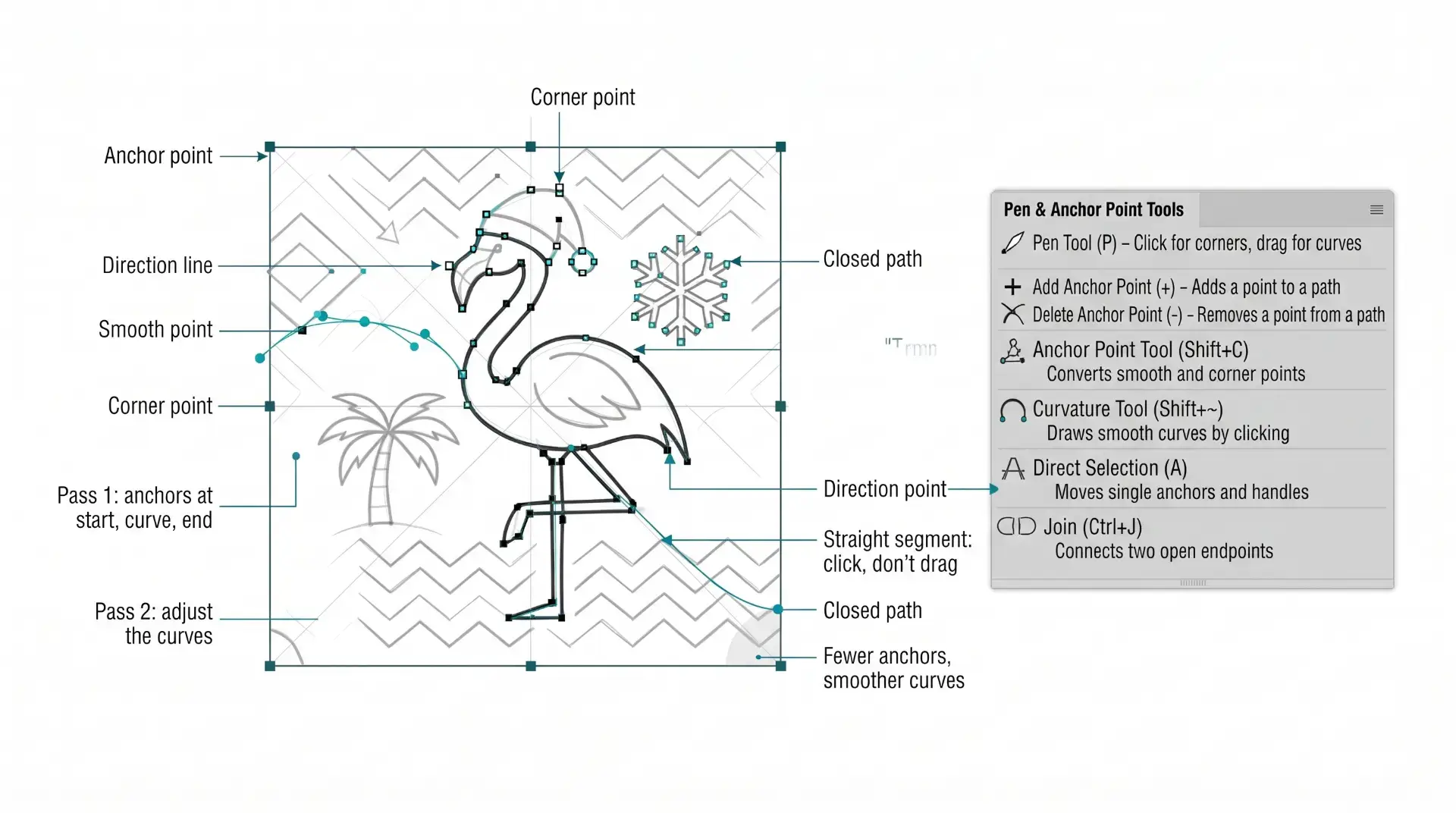
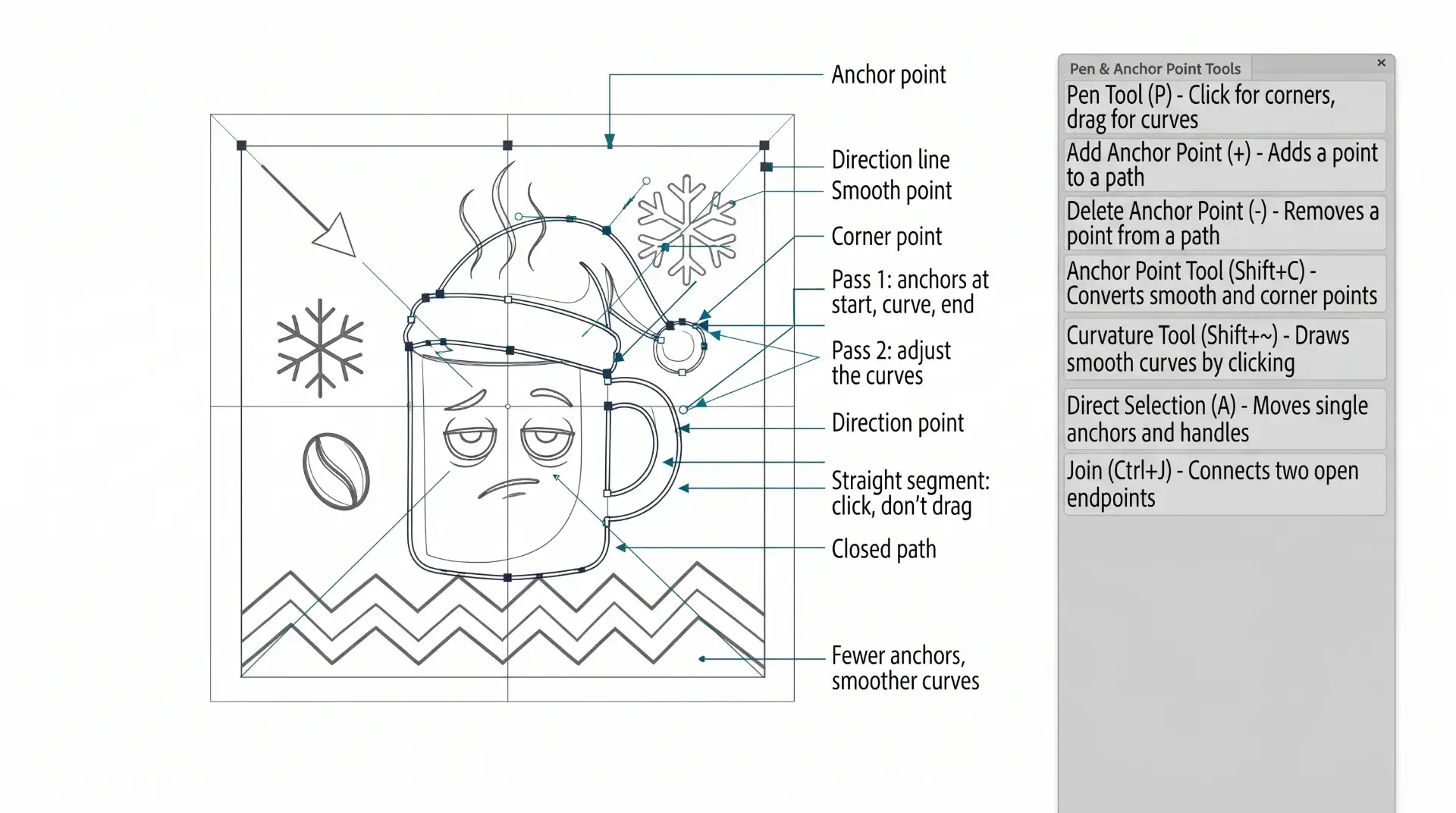
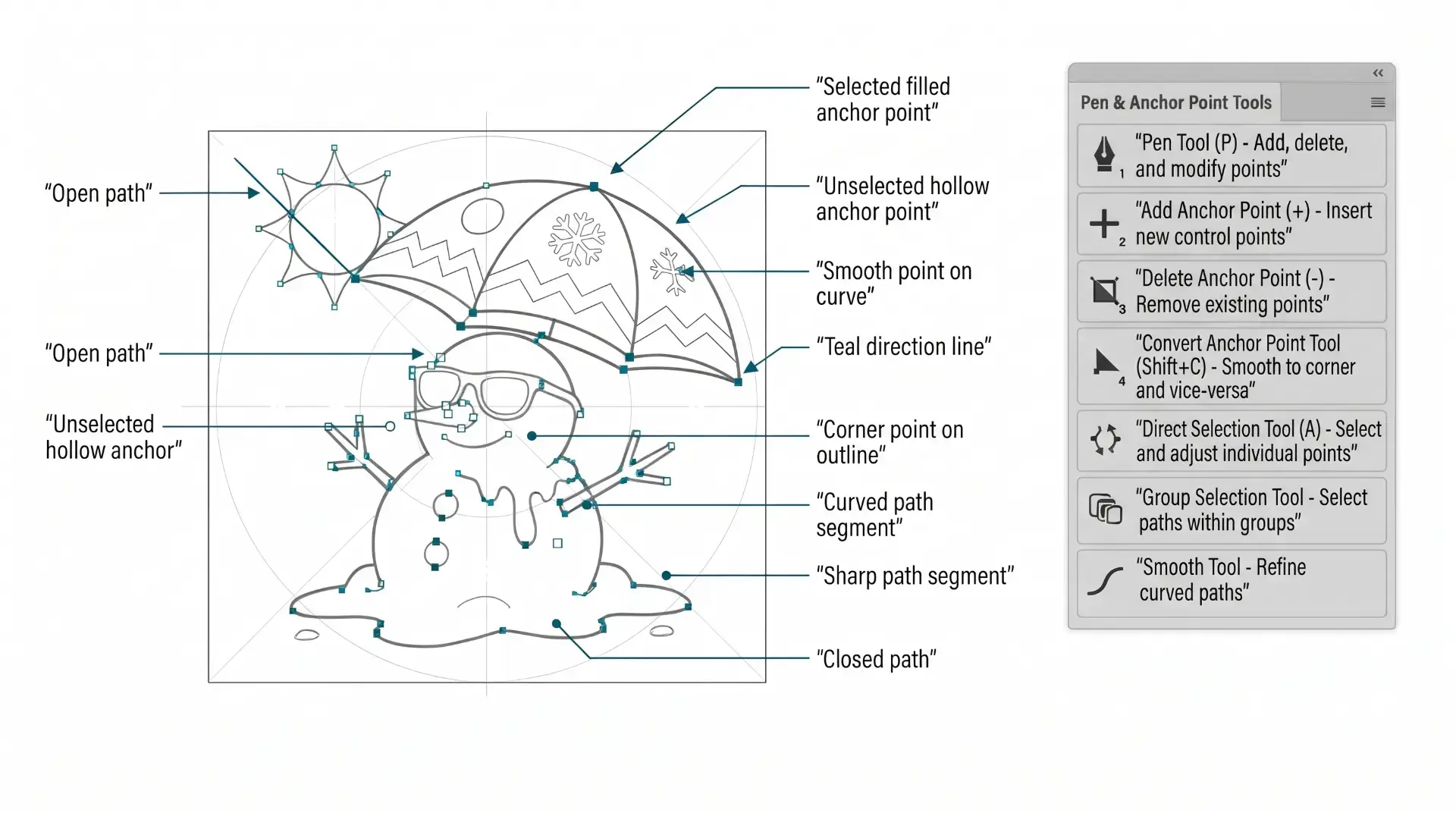
PRACTICE EXERCISE PROMPTS: Select your workflow, type in your subject, and this tool assembles a detailed AI image generation prompt designed specifically for Adobe Illustrator practice exercises — not a finished design, but a clear work-in-progress reference image you can draw from. Choose from Pen Tool anchor point guides, tablet sketch construction diagrams, and shape-based Pathfinder breakdowns, across three difficulty levels. → PRACTICE EXERCISE PROMPTS
beginner adobe illustrator tutorial whale

BEGINNER GUIDES: The major decision you'll need to make is your starting point and build mode. First, determine whether you have drawings and sketches ready to use, or if you will be starting from stock photos. We are looking to align the starting point, build mode, and export size. →  BEGINNER GUIDE 1 / BEGINNER GUIDE 2 / BEGINNER GUIDE 3 / BEGINNER GUIDE 4 / BEGINNER GUIDE 5 / BEGINNER GUIDE 6 / BEGINNER GUIDE 7 / BEGINNER GUIDE 9 / BEGINNER GUIDE 10
beginner adobe illustrator tutorial whale
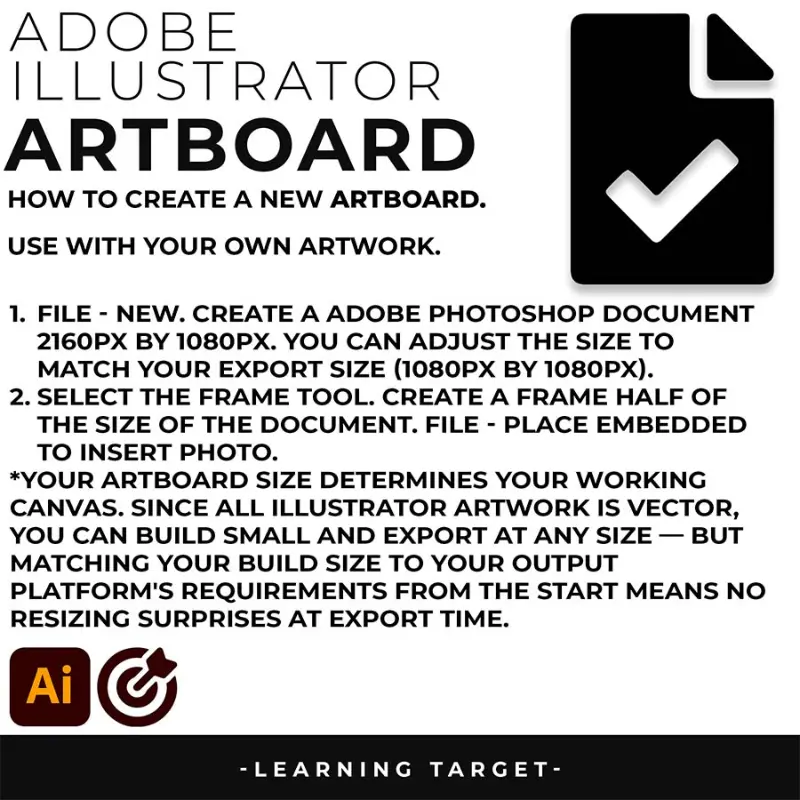
ARTBOARDS: I will recommend a (1080px by 1080px, 300PPI, RGB) as your Initial or Base Artboard Size. The initial Artboard Size can be changed at any point without ruining your own artwork. Use the Properties Panel to Scale Artwork and Artboards. Pick a "Building" Artboard Size you can use for your Website and Social Media Postings.
beginner adobe illustrator tutorial whale
PLACING GUIDES: File-New. Use a size or ratio that you can use for all of your own artwork. I recommend a 1080px by 1080px artboard for websites and social postings. Many of you will be looking to export your own artwork to Instagram. You can modify the size of the artwork or artboard with the Artboard Tool or Properties Panel. 
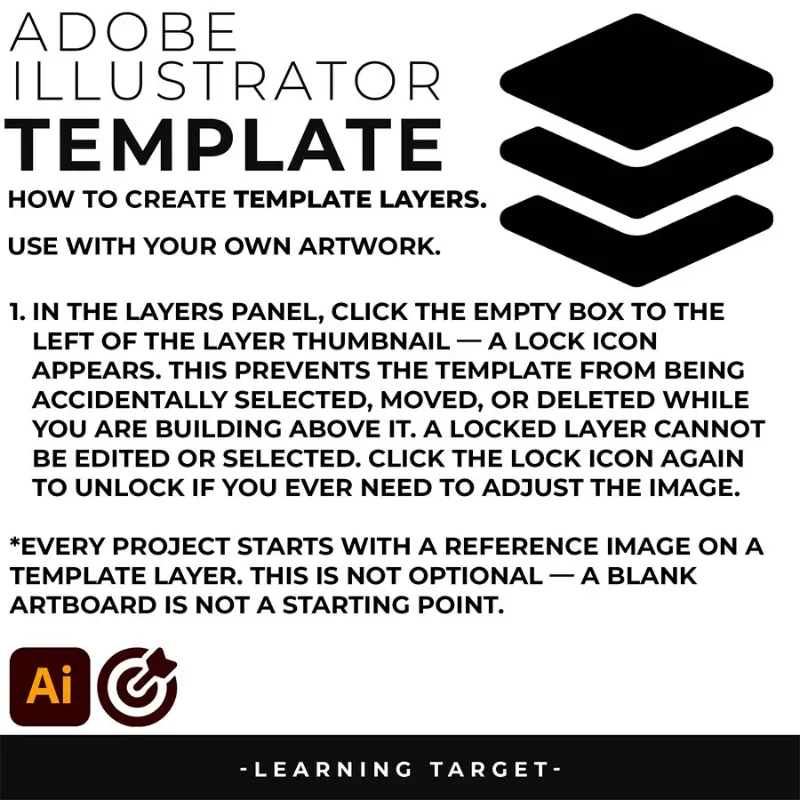
beginner adobe illustrator tutorial whale
TEMPLATE LAYER: File -Place in your own Drawing, Sketch, or Traced Stock Photo. Select your Resource Layer. (It will usually be your only layer) In your Layers Panel, select the Menu in the Upper-Right Hand Corner. Drop down to Template. This will create a 50% Opacity and Lockout the Layer. Create a New Layer above to start "Building".
ADOBE ILLUSTRATOR

WORKFLOW GUIDES

WORKFLOW GUIDES

PRACTICE EXERCISE BUILDER
beginner adobe illustrator tutorial whale

ARTBOARD SIZE FINDER: Free interactive artboard size reference for Adobe Illustrator — logos, profile icons, HD canvas, wallpapers, and more. Tap a card and copy the specs in one click. → ARTBOARD SIZE FINDER / SOCIAL MEDIA SIZE FINDER / POD SIZE FINDER

beginner adobe illustrator tutorial whale

BEGINNER GUIDES: The major decision you'll need to make is your starting point and build mode. First, determine whether you have drawings and sketches ready to use, or if you will be starting from stock photos. We are looking to align the starting point, build mode, and export size. → BEGINNER GUIDE 7 / BEGINNER GUIDE 8 / BEGINNER GUIDE 9 / BEGINNER GUIDE 10 / BEGINNER GUIDE 11 / BEGINNER GUIDE 12

beginner adobe illustrator tutorial whale
CREATING ARTBOARDS: File - New. Create a Adobe Photoshop Document 2160px by 1080px. You can adjust the size to match your Export Size (1080px by 1080px). Select the Frame Tool. Create a Frame half of the size of the Document. File - Place Embedded to insert Photo. 
beginner adobe illustrator tutorial whale
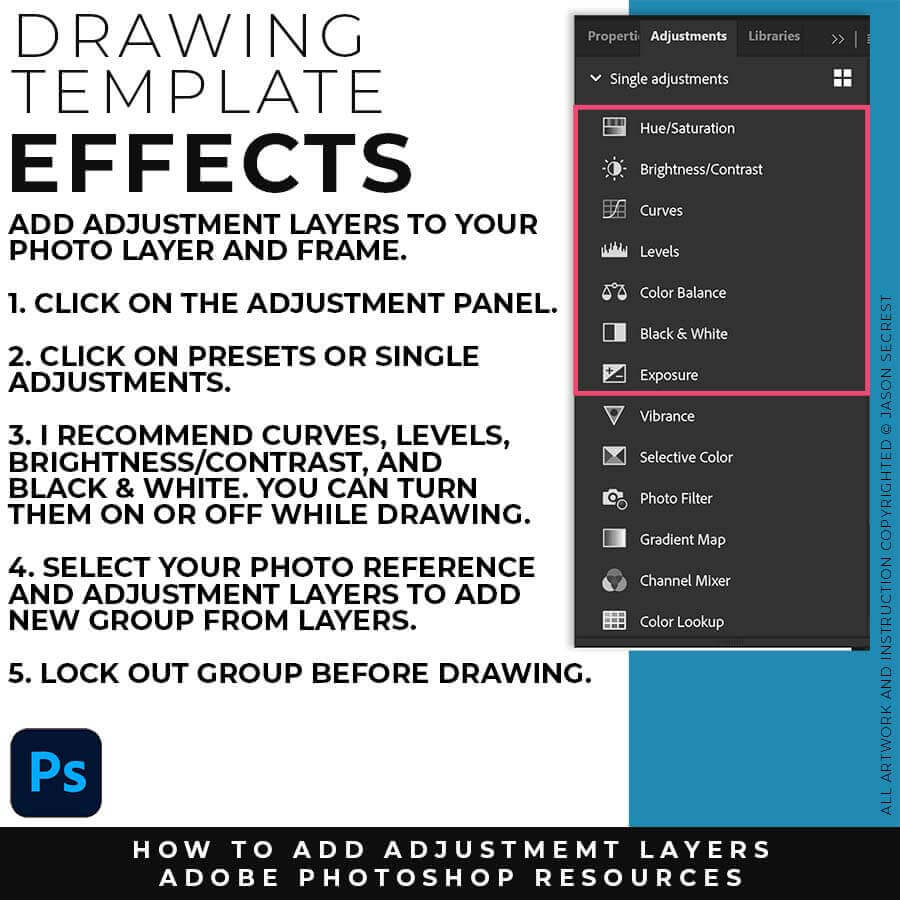
ADJUSTMENT LAYERS: Once you have placed in your Photo Reference, you can add Adjustment Layers. This will assist you in looking at the Photo Reference. This is not required. I recommend adding Brightness/Contrast, Levels, Curves, and Black & White.
beginner adobe illustrator tutorial whale
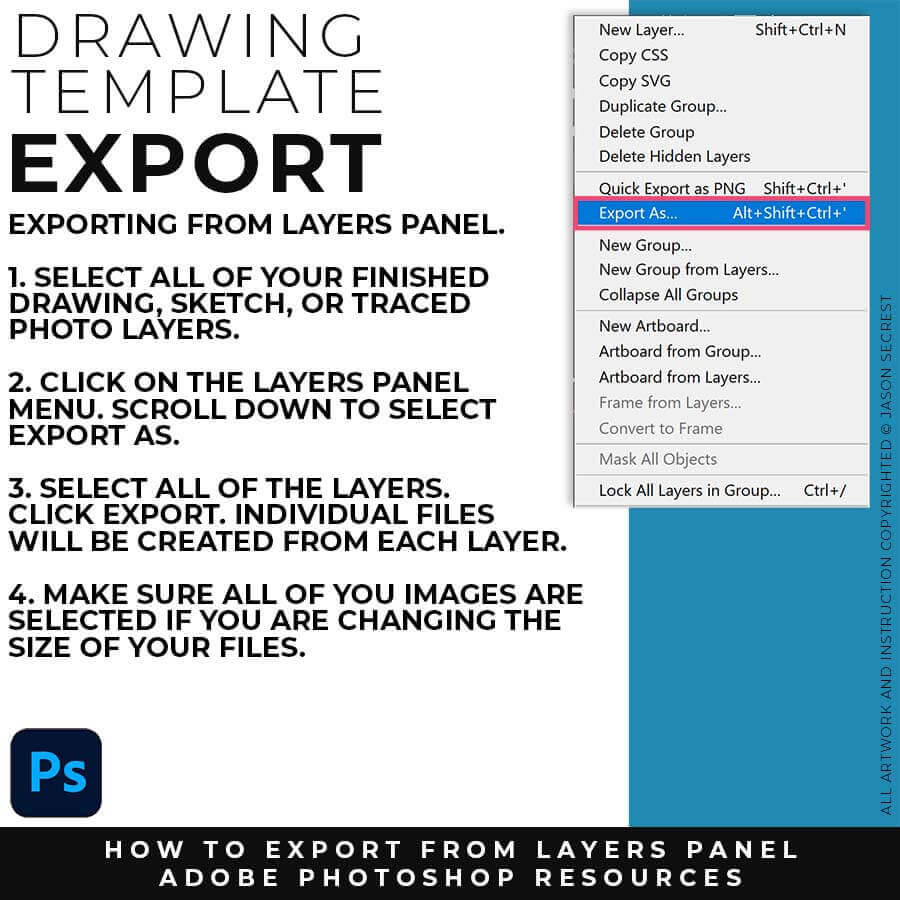
EXPORTING FROM LAYERS: When you are all done with your Sketches, Drawings, or Traced Stock Photos, I recommend Exporting from the Layers Panel. Select All of your Drawing Layers. Click on Export As from the Layers Panel Menu. This will Export All of your Drawing Layers. 
ADOBE ILLUSTRATOR

WORKFLOW GUIDES

WORKFLOW GUIDES

ARTBOARD SIZE FINDER
beginner adobe illustrator tutorial whale
COLOR PALETTE GENERATOR: Pick a starting color — type a word like "forest" or "cozy," paste a hex code, or use the color picker — and get a complete 5-color palette built on real color theory. Switch between analogous, complementary, triadic, and four other harmony rules, lock the colors you want to keep, and export as CSS, PNG, or plain hex codes. Built for t-shirt designers, POD sellers, and anyone picking colors for a new brand. → COLOR PALETTE GENERATOR 
beginner adobe illustrator tutorial whale
BEGINNER GUIDES: The major decision you'll need to make is your starting point and build mode. First, determine whether you have drawings and sketches ready to use, or if you will be starting from stock photos. We are looking to align the starting point, build mode, and export size. →  BEGINNER GUIDE 1 / BEGINNER GUIDE 2 / BEGINNER GUIDE 3 / BEGINNER GUIDE 4 / BEGINNER GUIDE 5 / BEGINNER GUIDE 6 / BEGINNER GUIDE 7 / BEGINNER GUIDE 9 / BEGINNER GUIDE 10
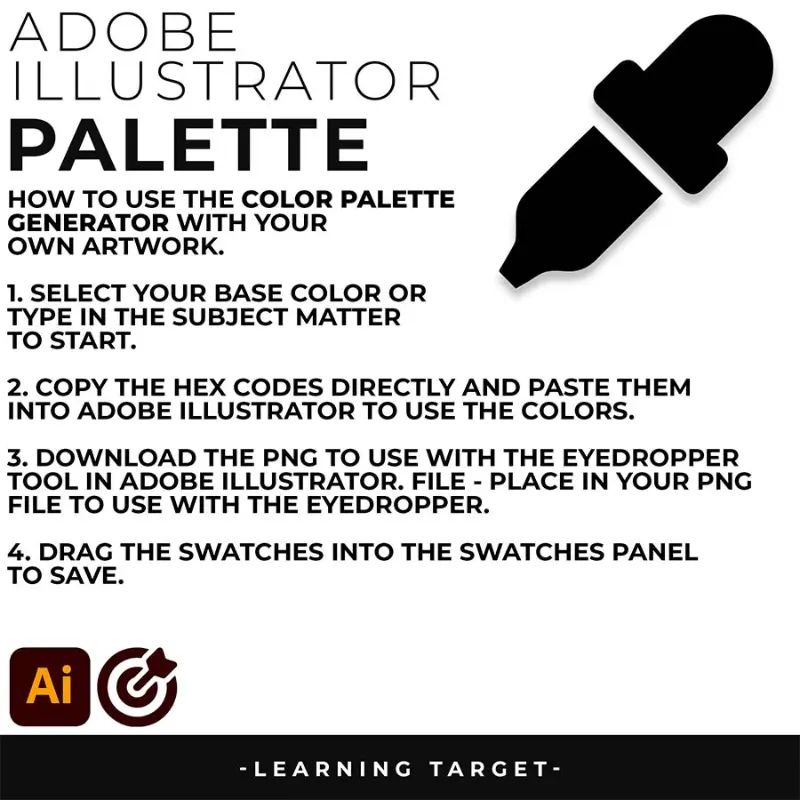
beginner adobe illustrator tutorial whale
SAVING SWATCHES: For those of you using Adobe Color, I recommend starting from the Explore Tab. If you have CC, you can Add to your Library. If you have an older version, download as an ASE File.
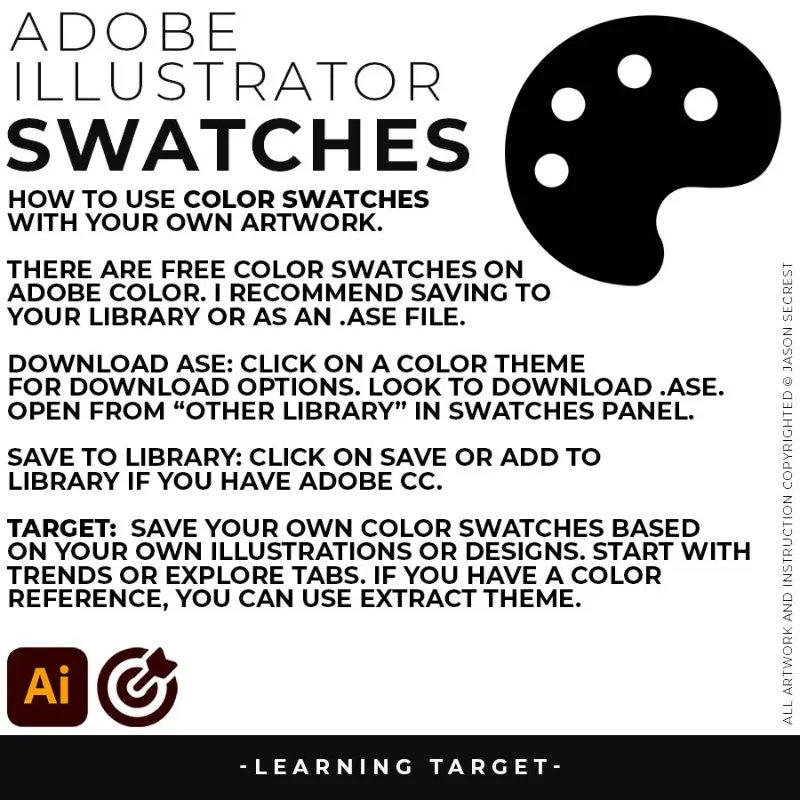
beginner adobe illustrator tutorial whale
OPENING LIBRARIES: Open your Library Panel. Select the Color Theme you would like to use. Right Click on the Color Theme to Add Theme to your Swatches Panel.
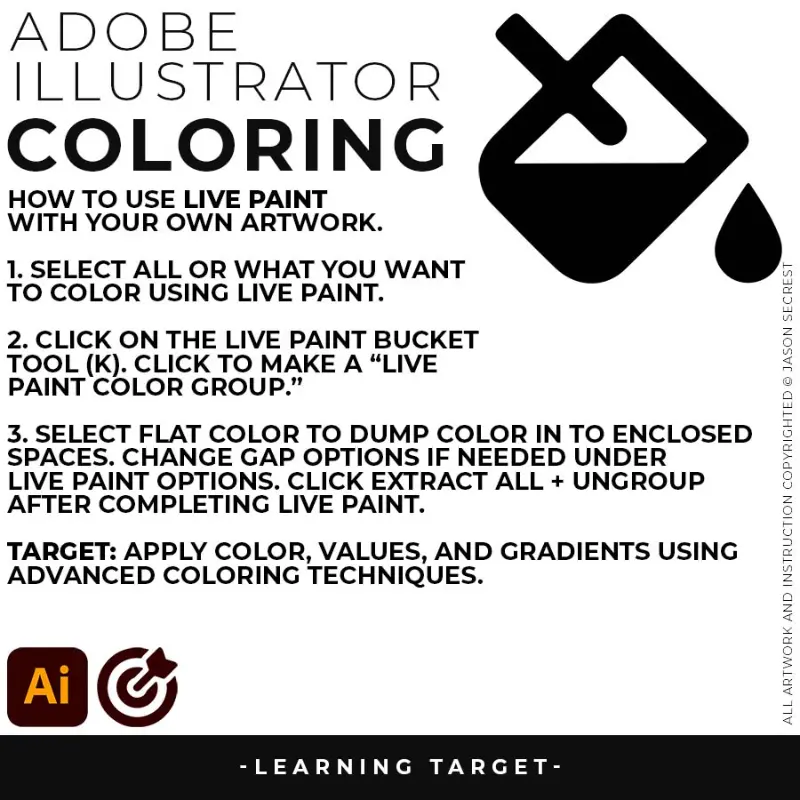
beginner adobe illustrator tutorial whale
OPENING SWATCHES: Open your Swatches Panel. In the Swatches Menu, drop down to Open Swatch Library. Select "Other Library" to open an ASE File saved on your computer.
ADOBE ILLUSTRATOR

WORKFLOW GUIDES

WORKFLOW GUIDES

COLOR PALETTE GENERATOR
beginner adobe illustrator tutorial whale
FONT PAIRINGS FINDER: Finding the right font combination is one of the fastest ways to give a brand or design a clear personality. Browse 21 curated heading and body font pairings below — filtered by style — with live previews, direct links to Google Fonts and Adobe Fonts, and a one-click CSS copy for any pairing you want to use.  → FONT PAIRING FINDER 
beginner adobe illustrator tutorial whale

BEGINNER GUIDES: The major decision you'll need to make is your starting point and build mode. First, determine whether you have drawings and sketches ready to use, or if you will be starting from stock photos. We are looking to align the starting point, build mode, and export size. →  BEGINNER GUIDE 1 / BEGINNER GUIDE 2 / BEGINNER GUIDE 3 / BEGINNER GUIDE 4 / BEGINNER GUIDE 5 / BEGINNER GUIDE 6 / BEGINNER GUIDE 7 / BEGINNER GUIDE 9 / BEGINNER GUIDE 10
beginner adobe illustrator tutorial coyote
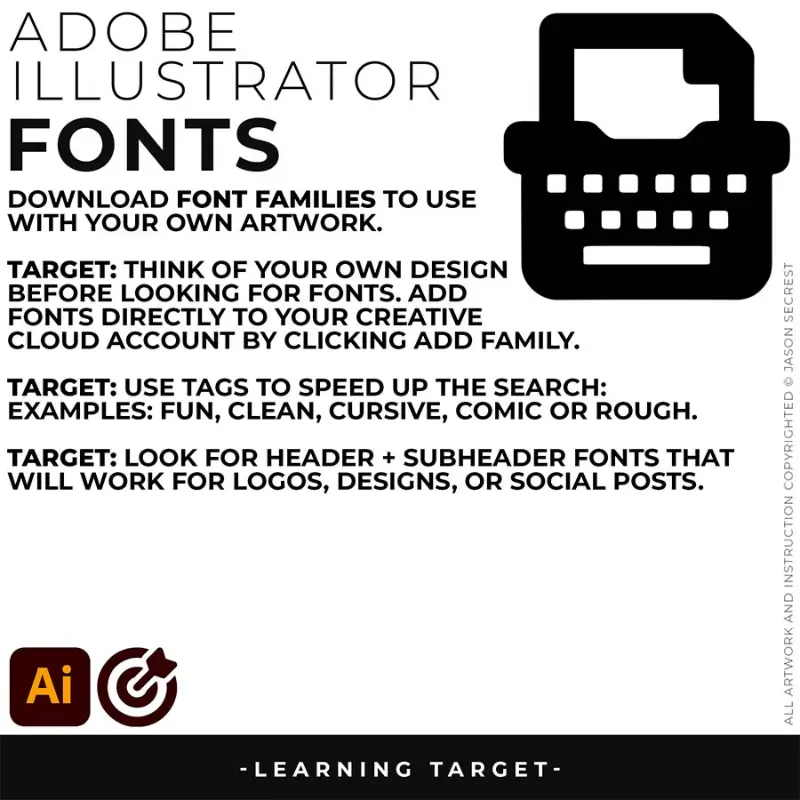
FINDING FONTS: For those of you using Adobe Fonts, I recommend starting from the Browse All, Trending, and Recommendations. I do recommend testing out the new Variable Fonts.
beginner adobe illustrator tutorial coyote
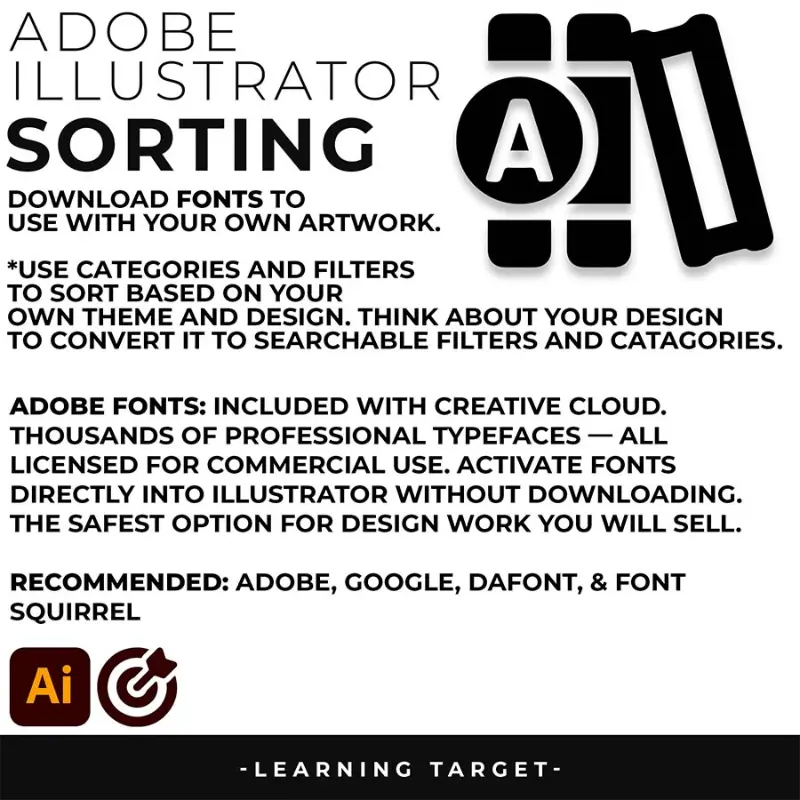
SORTING FONTS: Have an idea of what you are looking for before looking for Fonts. Use the Categories and Tabs to sort through the Font Families.
beginner adobe illustrator tutorial coyote
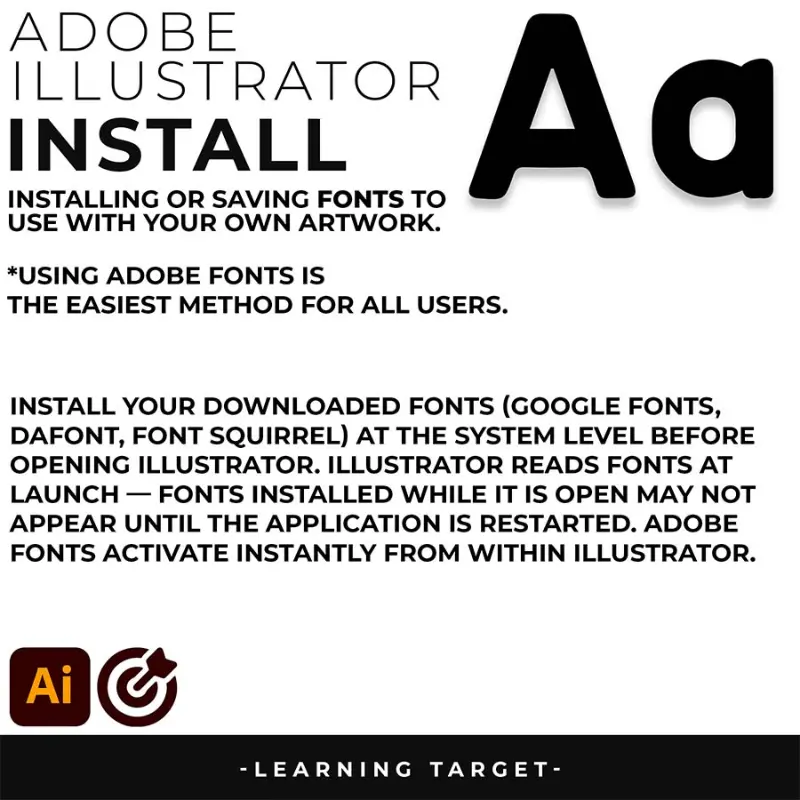
SAVING FONTS: When you find a Font or Family you like, you can simply click the Add Family to your Account. The Fonts will be available across your Adobe Programs.
ADOBE ILLUSTRATOR

WORKFLOW GUIDES

WORKFLOW GUIDES

FONT PAIRINGS FINDER
The legacy YouTube Tutorial Resource Folder has been permanently deleted and is no longer available for download, distribution, or email access. All links to this historical folder were deactivated in 2018 due to severe copyright infringement and unauthorized commercial duplication of the files. Jason Secrest does not maintain archive backups of this folder, and customer support cannot restore or send these legacy files under any circumstances. Please use our Practice Exercise Prompt Builder Tool created directly from our Anchor  Point Guides.
I appreciate your videos. I have been an illustrator user for years and have my own ways of doing things. It's great to see other ways of using tools and learning tricks I didn't know were available! It's also good to see you doing the same thing as me in other instances, confirming I'm on the right track!Andy Zenz
Awesome tutorial! I don't think I've picked up something so easily from someone who knows what they are doing. I managed to draw my first vector art and it was a joy! Great work keep it up!blitz145
Thank you loads! Compared to other tutorials, yours are just really well-explained and easy-to-follow. Can totally see that you've got a passion for what you're doing and that's just wonderful! 🙂 Keep it up, you're doing an amazing job. Yulia Kachurova
Love your video thanks so much. you blow Lynda.com out of the water!!!!Steve Yensel
Brilliant video. So much great info packed in here. I'm just getting started drawing cartoons with my Wacom tablet, and this was a huge help. Thumbs up and thanks!Dorian Staten
Wow Thanks Jason...was really struggling with making images with basic shapes. Your tutorial is helping me out!!Kishor Rajani
thanks a lot you are really one of my favorites, I like the steps you give us, and I'm so thankful for that effort you do for helping us :)Wessam Lotfi
Keep up the good work Jason. I’ve been doing Lynda.com tutorials for a few months now and I got more out of your videos than what I’ve received at Lynda. Keep it up and Thank You!!bobby jacobs • 1 year ago
These tutorials are amazing. Just started using illustrator and really glad I found your channel. The only videos that explain everything step by stepAida Stan
You are definitely one of the best teachers I've found dealing with start to finish creative process. Great work!!!Jasen Fisher
Thank you so much man, I loved the way you explain this, I spent days looking for a good tutorial vid, thanks a lot, gonna keep watching your videos!!!Karel Marccenaro
Awesome tutorial! I don't think I've picked up something so easily from someone who knows what they are doing. I managed to draw my first vector art and it was a joy! Great work keep it up!blitz145
Thank you loads! Compared to other tutorials, yours are just really well-explained and easy-to-follow. Can totally see that you've got a passion for what you're doing and that's just wonderful! 🙂 Keep it up, you're doing an amazing job. Yulia Kachurova
Love your video thanks so much. you blow Lynda.com out of the water!!!!Steve Yensel
Brilliant video. So much great info packed in here. I'm just getting started drawing cartoons with my Wacom tablet, and this was a huge help. Thumbs up and thanks!Dorian Staten
Keep up the good work Jason. I’ve been doing Lynda.com tutorials for a few months now and I got more out of your videos than what I’ve received at Lynda. Keep it up and Thank You!!bobby jacobs • 1 year ago
These tutorials are amazing. Just started using illustrator and really glad I found your channel. The only videos that explain everything step by stepAida Stan
You are definitely one of the best teachers I've found dealing with start to finish creative process. Great work!!!Jasen Fisher